Updated V1.0.1 Selection Memory
 pradee
in Modeling
pradee
in Modeling

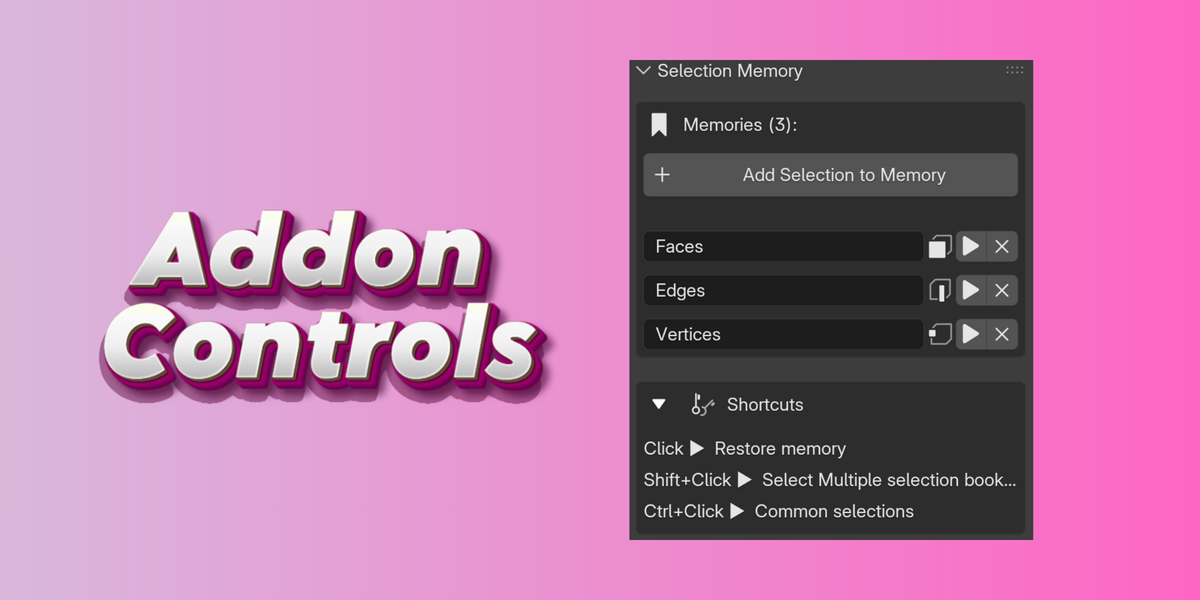







Selection
Memory
Select faces, edges and vertices to your bookmark
Features
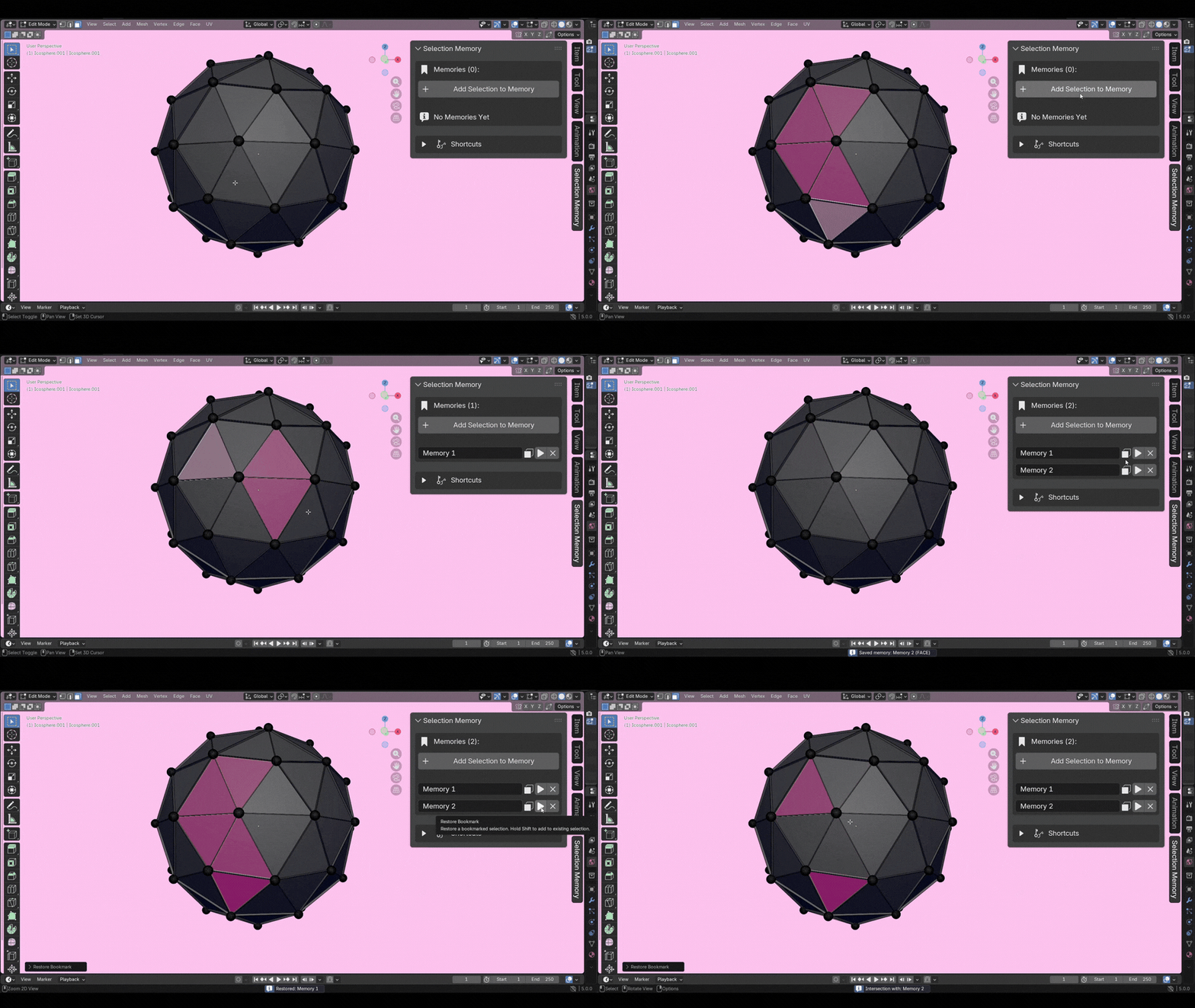
Workflow
How to get started
Four simple steps from installation to a smoother modelling workflow.
01
Enter Edit Mode
Open any mesh in Edit Mode. Find the Selection Memory panel in the N-panel under its own tab.
02
Make Your Selection
Select vertices, edges, or faces using any of Blender's built-in selection tools.
03
Add to Memory
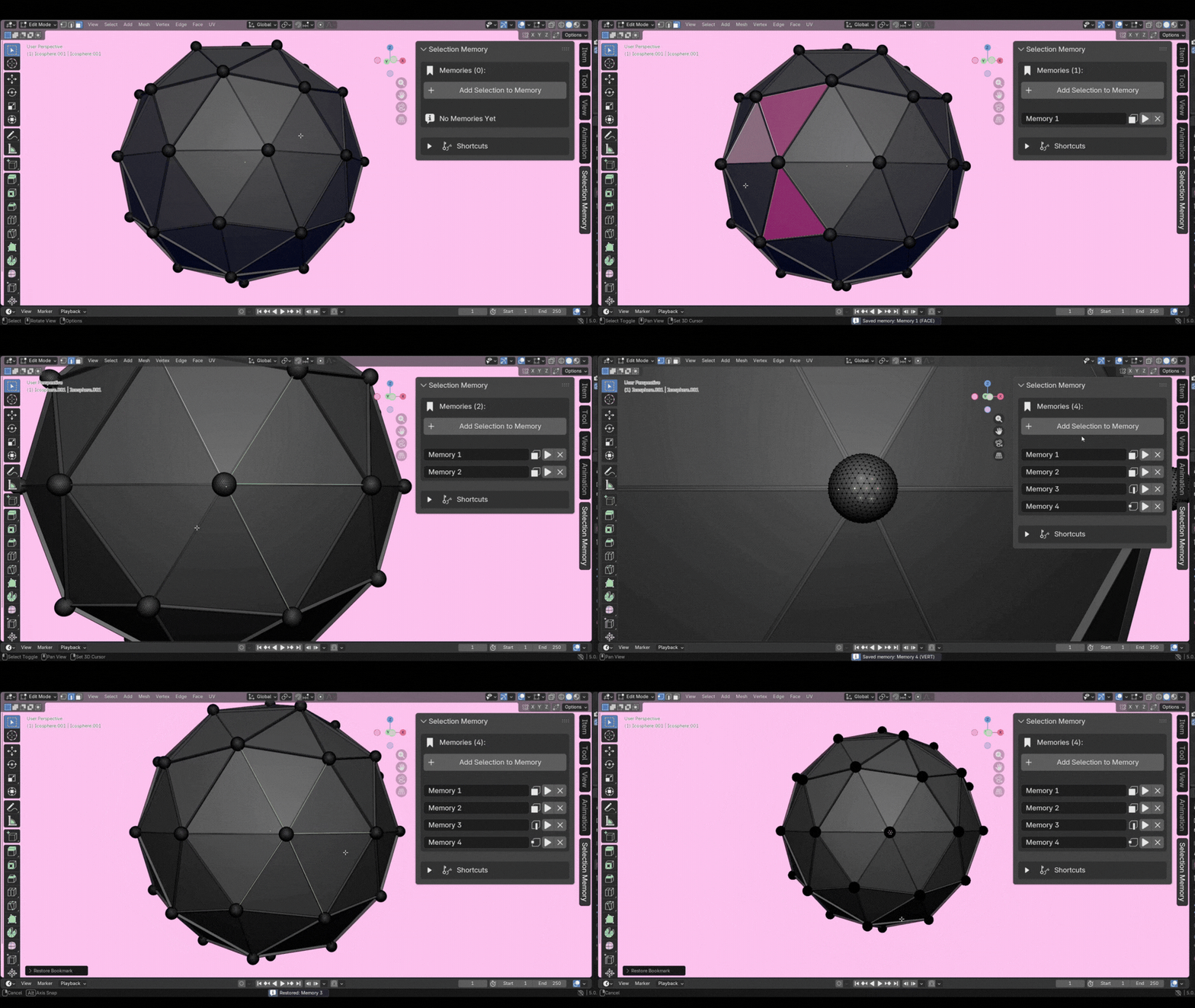
Click Add Selection to Memory. The addon saves the exact indices and element type.
04
Restore Anytime
Click the play button to restore instantly. Blender switches to the right mode automatically.
How to use the shortcuts
Click ▶
Restore Memory
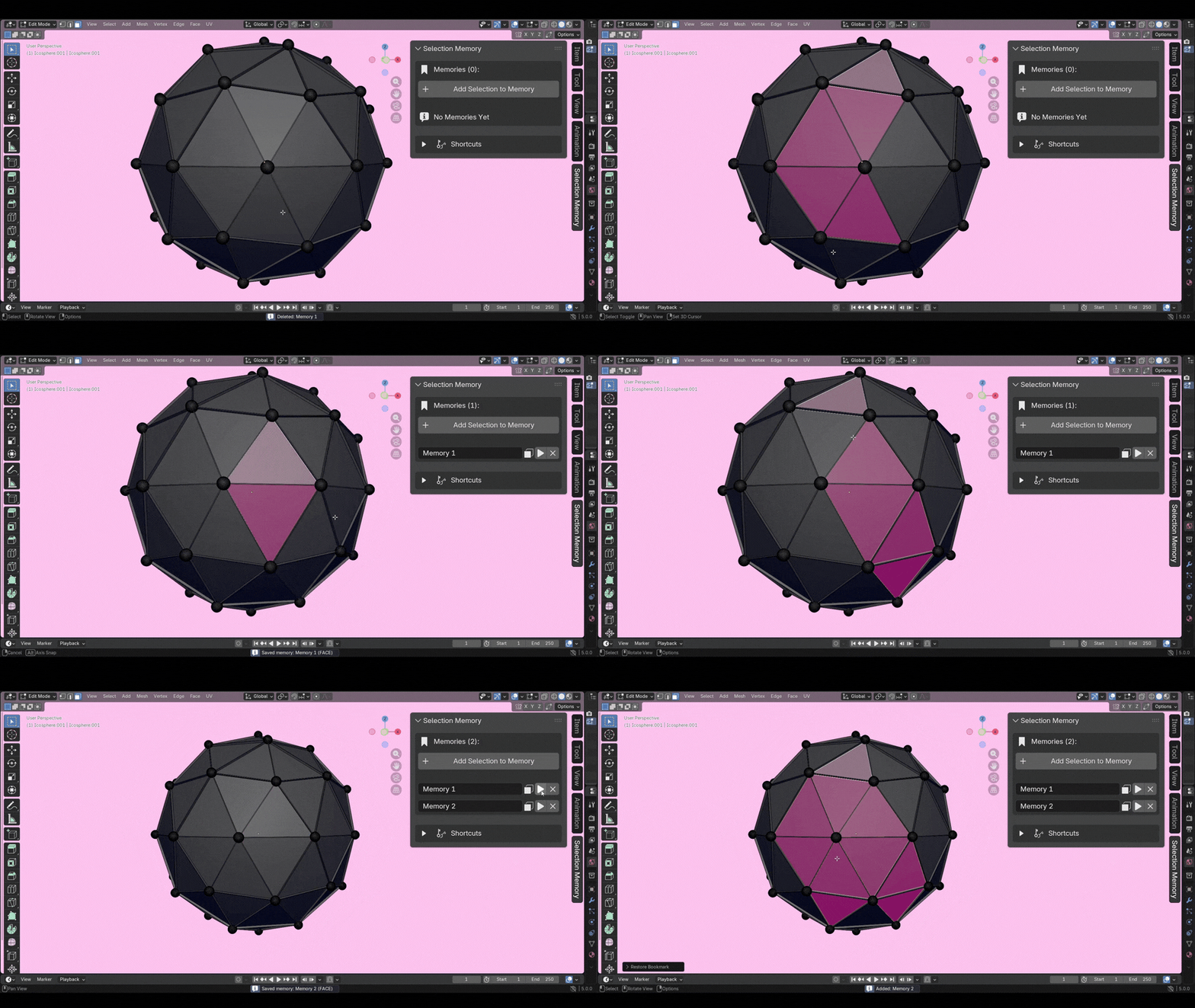
Clears the current selection and restores exactly what was saved. Blender switches to the correct element mode automatically.
Shift + Click ▶
Select Multiple Bookmarks
Keeps existing selection and adds this memory on top. Shift+Click as many as needed to build a combined selection.
Ctrl + Click ▶
Common Selections
Keeps only elements shared between the current selection and this memory. Useful for finding overlapping geometry.
$7
Have questions about this product?
Login to message
| Dev Fund Contributor | |
| Published | 7 months ago |
| Blender Version | 4.4 - 5.0 |
| Extension Type | N/A |
| Render Engine Used | Arnold, Blender-Internal, Blender-Game-Engine, Cycles, Eevee, Freestyle, Luxrender, Mental-Ray, Octane, Vray, Yafaray |
| License | GPL |