 3DArs
Sensitivity Pro
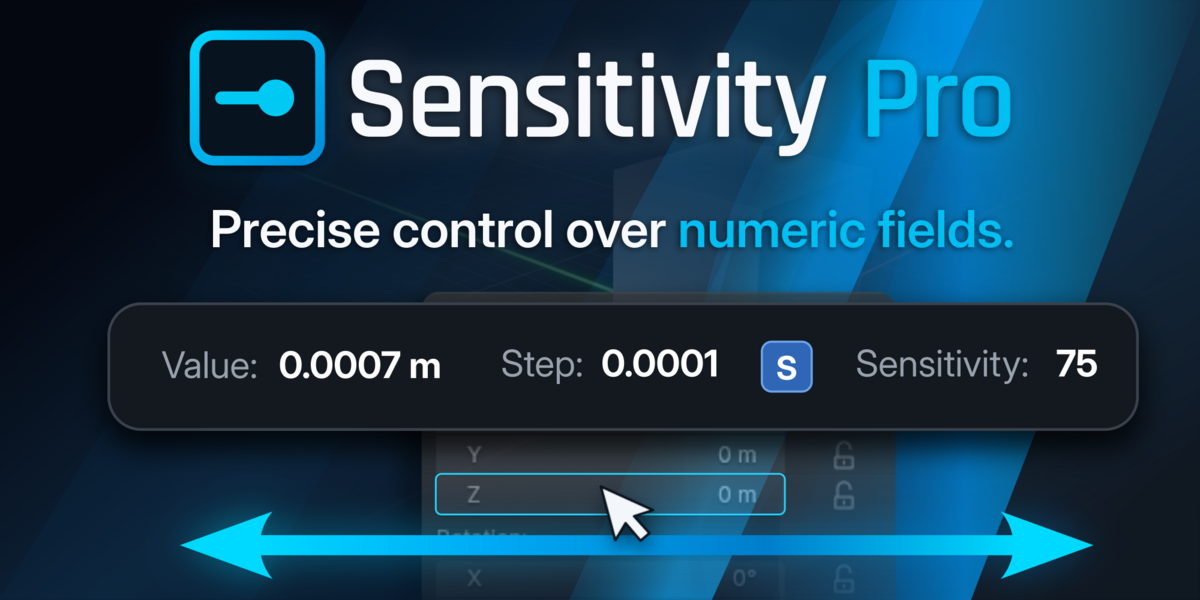
Precise control over numeric fields.
CYBER SALE · 35% OFF
+
15% introductory discount!
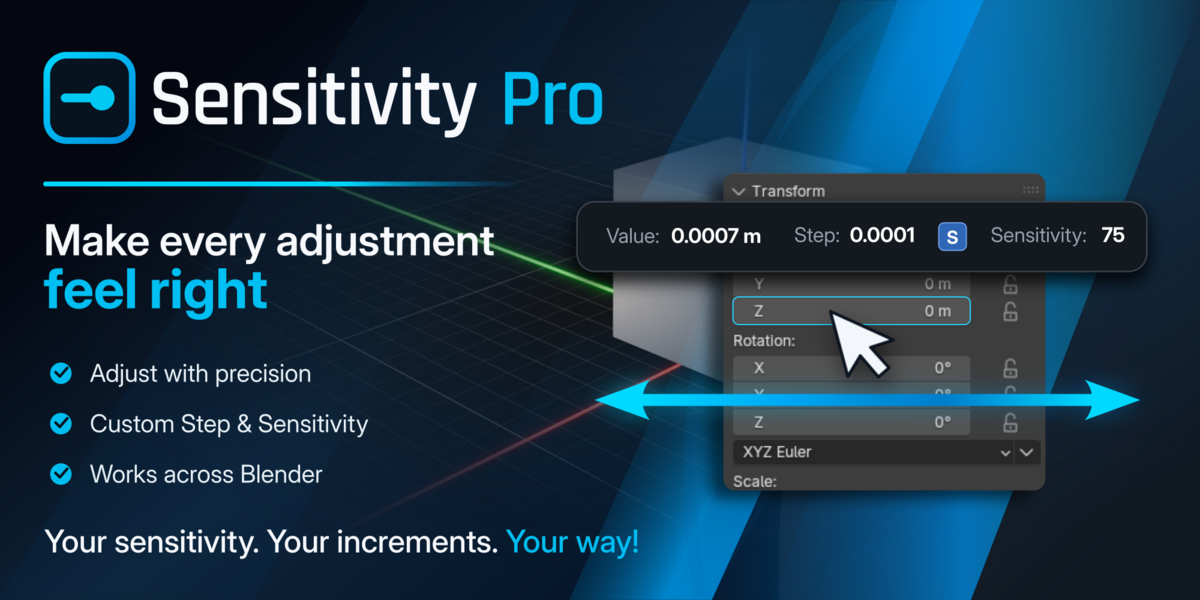
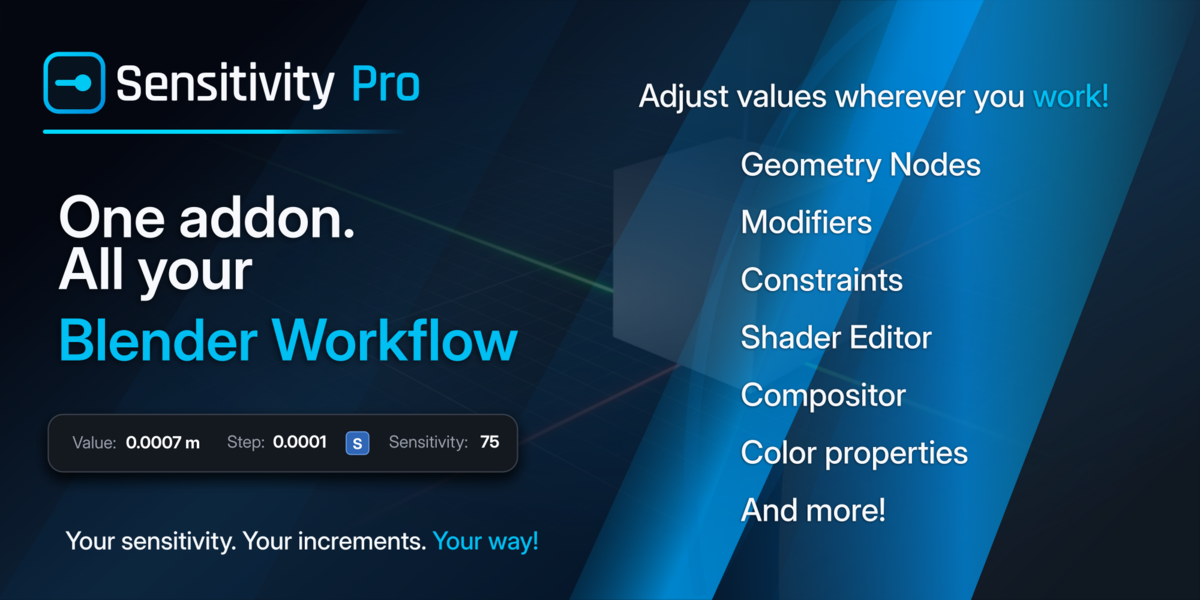
✓ Adjust with precision✓ Custom Step & Sensitivity✓ Works across BlenderSensitivity Pro is a Blender add-on that gives you control over numeric input. Customize mouse sensitivity and value increments for smoother, more precise adjustments. Make every adjustment feel right.
Ever feel like you're fighting Blender's sliders?
You're adjusting a Displace modifier. You need a tiny change, but the value jumps way too far. You hold Shift. Better, but still not enough. So you double-click, type a number, press Enter. Then do it again. And again.
Or maybe you're adjusting a bone constraint, trying to move a keyframe, tweaking a color, or finding just the right bevel width. Different tasks, same frustration: sometimes Blender's numeric fields simply don't give you the control you need.
I've been there. That's why I made Sensitivity Pro.
Two dials. Your mouse. Your rules.
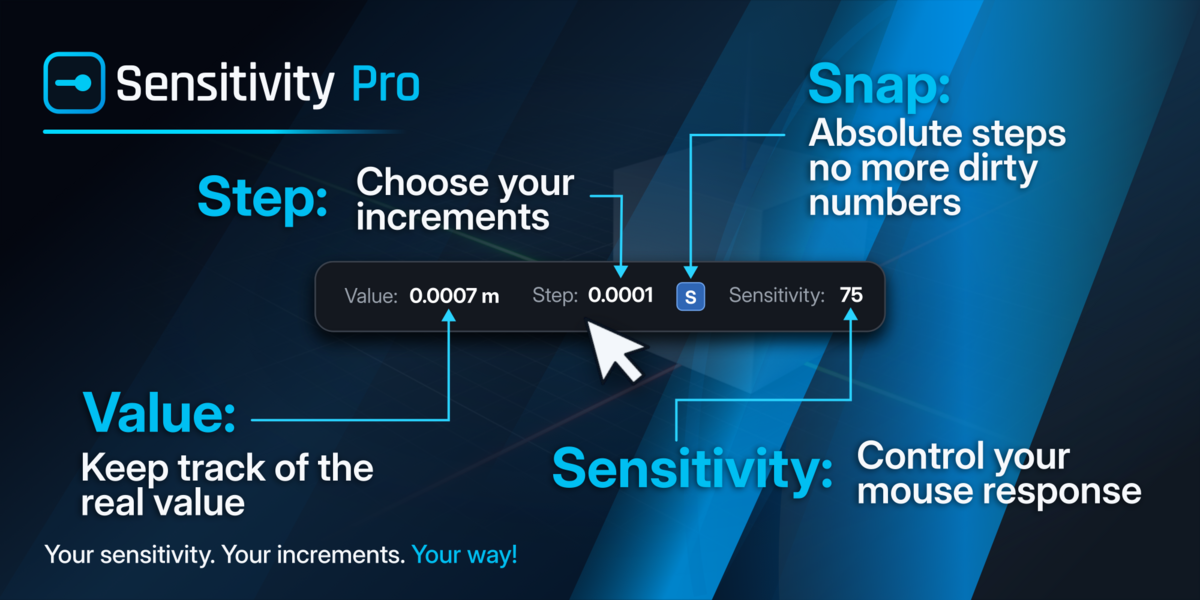
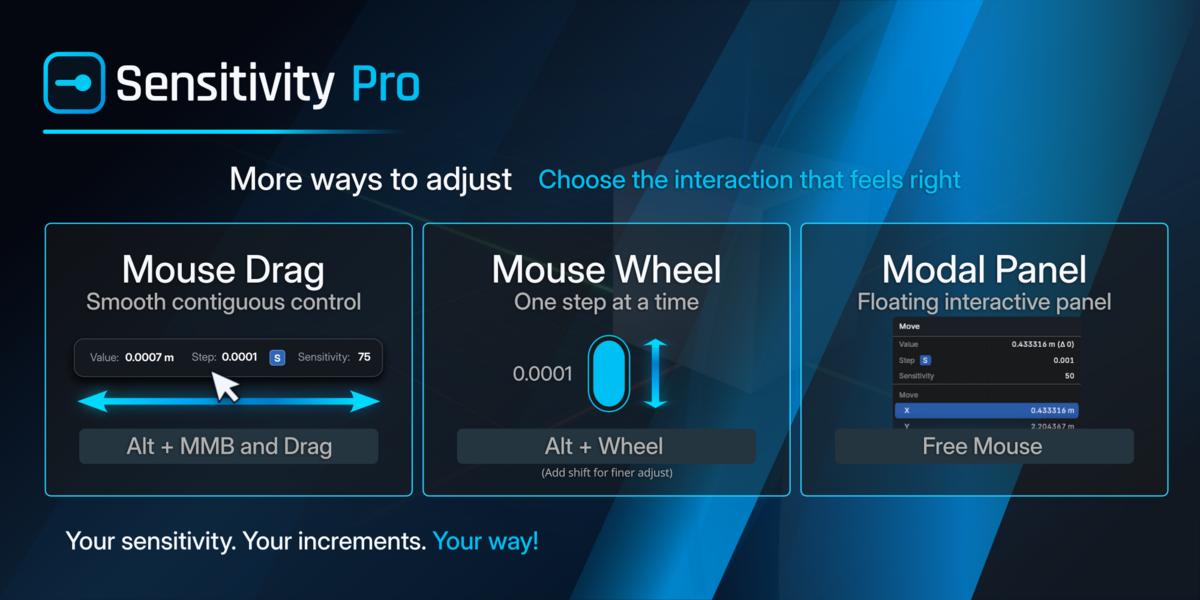
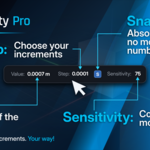
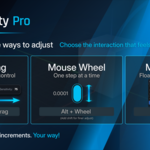
Hold Alt, press the Middle Mouse button over a numeric field, and move your mouse. A small label appears, giving you control over how the value changes.

Step: How much the value changes with each step.
Need tiny adjustments? Try 0.001, 0.0001, or even 0.000001. Need bigger changes? Use 0.5, 1, 5 or whatever works for you.

Sensitivity: How far your mouse needs to travel for each step, measured in pixels.
Have a high-DPI mouse? Increase the Sensitivity and give every adjustment more room to breathe. Prefer quick changes? Lower it.

And there's a third option:
Snap to Step: Keep your values aligned to exact multiples of your chosen Step. No more ending up with awkward numbers after dragging.

You choose the increments. You choose the sensitivity. Your mouse, your rules.
Sometimes, one step is all you need.
Don't always need to drag? Just hover over a supported numeric field and use the mouse wheel:
- Alt + Wheel Add or subtract one Step.
- Alt + Shift + Wheel Make a smaller adjustment using one-tenth of your Step.
No adjustment session needed. Just a quick nudge in the right direction.

A few everyday situations
Finding the right bevel
You're trying to find that sweet spot for your bevel width. 0.25? Too small. 0.30? Still not quite there. 0.35? Getting closer.
With a Step of 0.05 and Snap to Step enabled, you can explore those values with a few turns of the mouse wheel instead of repeatedly typing them.

When you're looking for the right number by eye, this is a much nicer way to work.
Working with tiny values
Displacement strength, texture settings, and other properties sometimes need values so small that Blender's default sliders become frustrating to use.
With Sensitivity Pro, you can choose increments as small as you need and keep experimenting without constantly typing numbers.

Fine-tuning a rig
Even with Shift pressed, some sliders can still move in surprisingly large increments. When you're adjusting a bone constraint or another rigging parameter, that extra control can make all the difference.
Use your own Step and switch to Fine Mode whenever you need even smaller adjustments, or type the exact Step you need, such as 0.0001.

More ways to stay in control
Sensitivity Pro isn't just about dragging.
- Fine Mode: Hold Shift while moving the mouse to make adjustments ten times smaller.
- Mouse Wheel: Add or subtract exactly one Step per notch while you adjust.
- Live Value Display: See the actual value, with every decimal, even when Blender's field rounds it. Optionally, see the total change you've made.
- Quick Step & Sensitivity: Change your settings while adjusting, without interrupting your workflow.
- Math Expressions: For convenience, type expressions such as 1/3 when setting your Step and Sensitivity, just like in Blender's own fields.
- Custom Shortcuts: Adapt the controls to your own preferences.

And when a regular numeric field isn't enough...
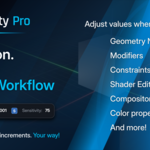
Some Blender properties need a different approach. That's where the Floating Panel comes in. Use it to adjust:
Object Dimensions

Graph Editor keyframes and their handles

Adjust Last Operation properties
The Bevel example above uses it: every operator property in one panel, with your own Step.
Color values with a dedicated color picker

The color picker also supports RGB and HSV, Linear and Perceptual color options, and hexadecimal input.
You can work with multiple values in the same panel, using the same adjustable Step and Sensitivity.
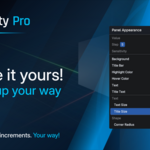
Make it yours
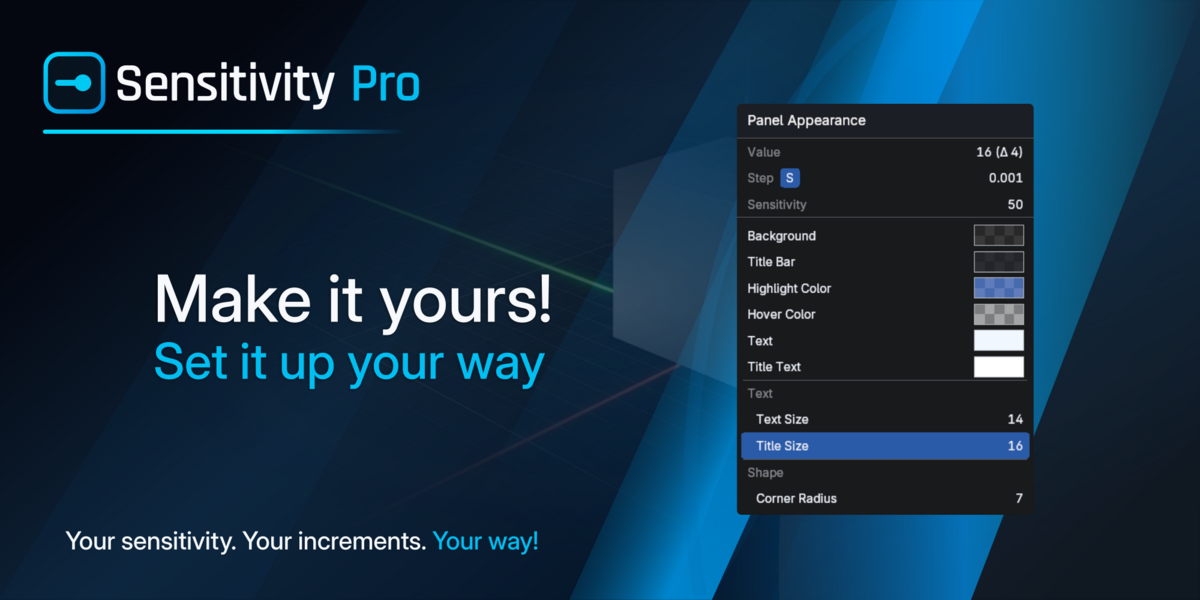
Set your default Step and Sensitivity, customize your shortcuts, and adjust the appearance of your floating panels.

Sensitivity Pro adapts to the way you work, not the other way around.
Small changes. Better control. Happier workflow.
I made Sensitivity Pro because I wanted numeric adjustments in Blender to feel more natural and less frustrating.
I hope it makes your work a little more enjoyable too.
Happy blending!
Known limitations
- Popups and popovers: Blender gives them every event while they are open, so the shortcuts don't work on their fields (for example Adjust Last Operation opened with F9, or the Viewport Shading popover). The same values are available in the Adjust Last Operation panel in the corner of the viewport, which is supported.
- Preferences > Themes: the color picker doesn't open on theme colors. Numeric fields in Preferences do work.
- Blender's own color popup: start from the color swatch instead of from inside the popup.
- Alt + Wheel works on regular fields, not on values shown in the Floating Panel.
- Adjust Last Operation panel: numeric properties only (no dropdowns or checkboxes).
- Color picker: no eyedropper.
- Floating Panel: when it crosses the border between two editors, Blender draws a thin line over it. It can't be drawn over the top bar or the status bar.
Requirements
- Blender 4.3 to 5.3. (if there's a new version always try it, if there's any issue just let me know and I'll fix it! )