Setup Switcher: Save, Switch And Restore Complete Blender Setups
 blenderustad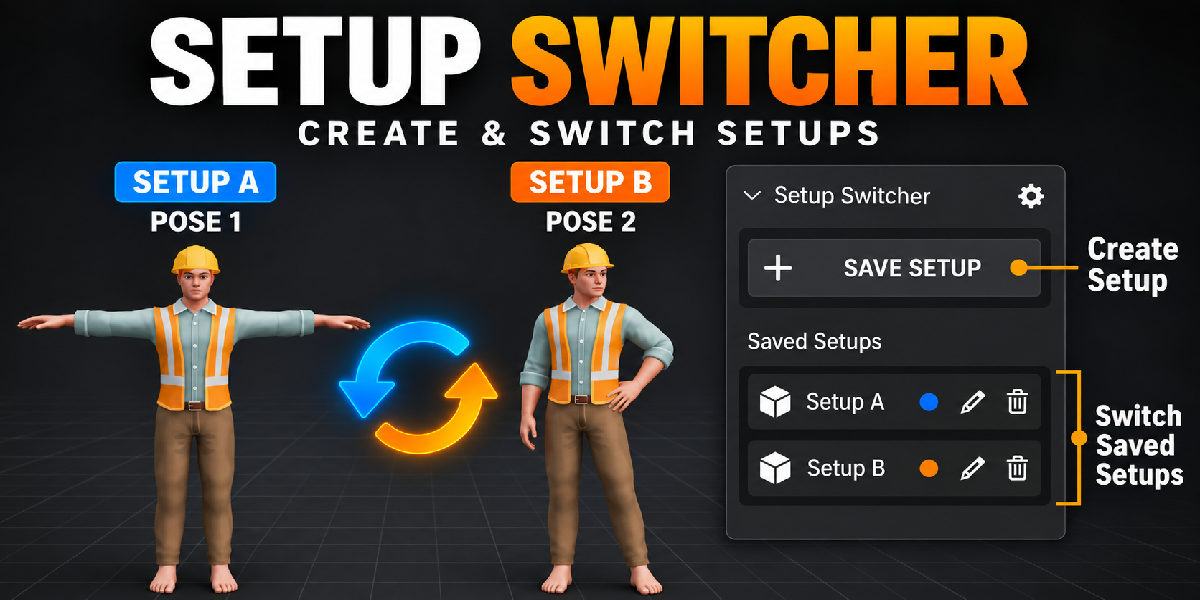
Documentation
Requirements
- Blender 4.2 or newer
- Works in Object Mode in the 3D View
Installation
- Open Edit > Preferences > Add-ons.
- Click the menu in the top right and choose Install from Disk.
- Select
setup_switcher_blender_ustad.zip. - Enable Setup Switcher if Blender does not turn it on automatically.
The panel appears in 3D View > Sidebar (N) > Setups.
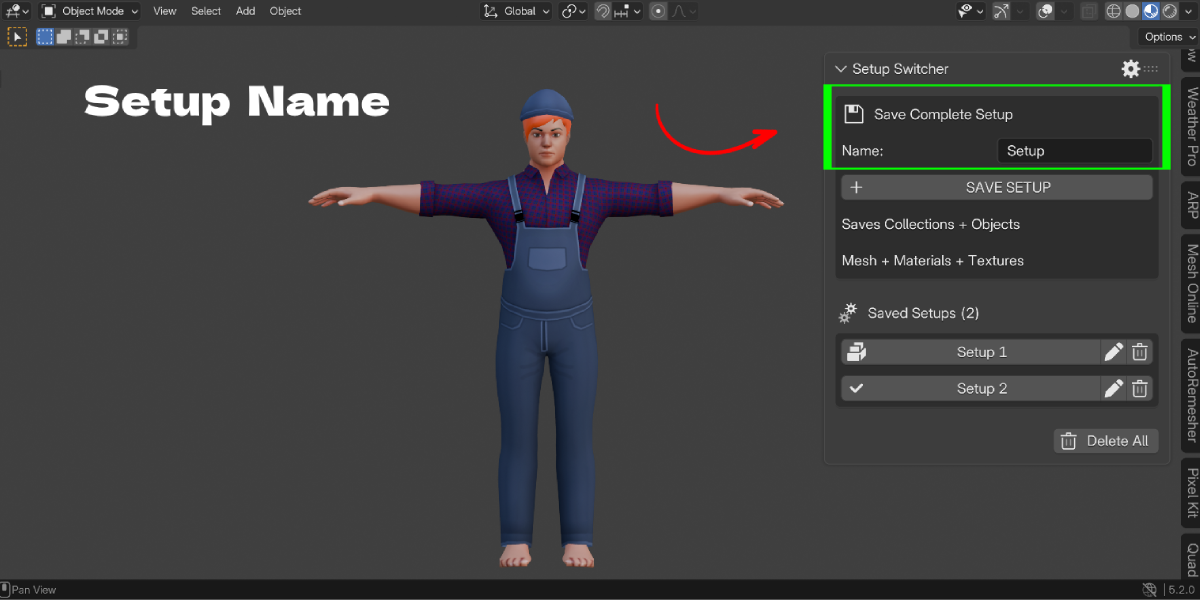
Save a setup
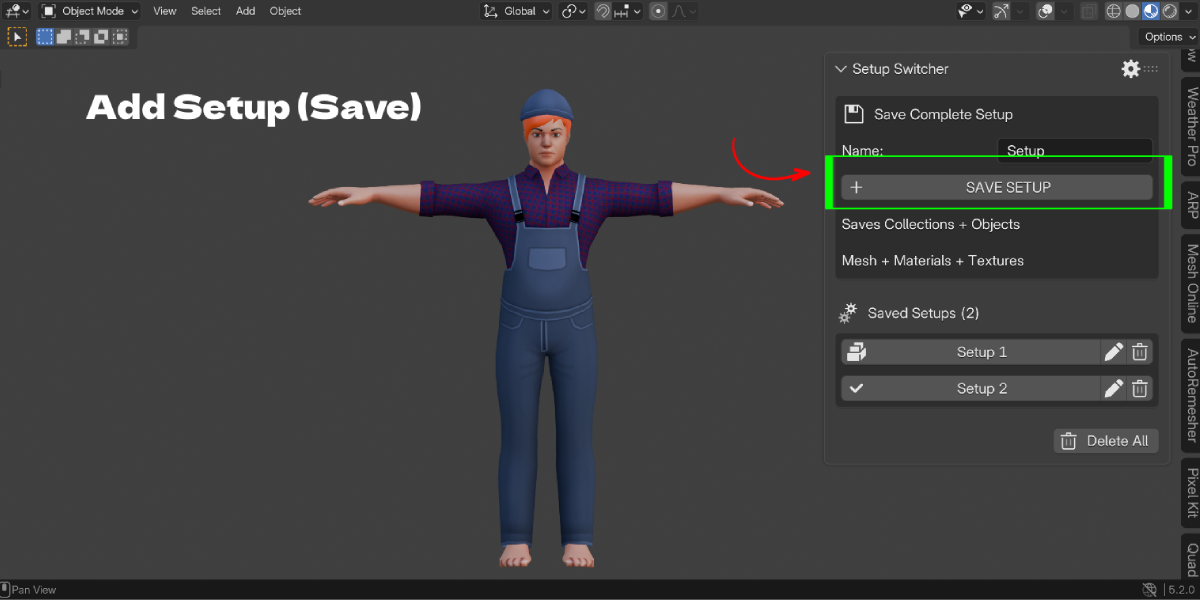
- Type a name in the Name field. Duplicate names get a number added automatically.
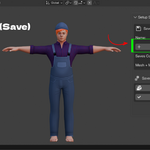
- Click Save Setup.
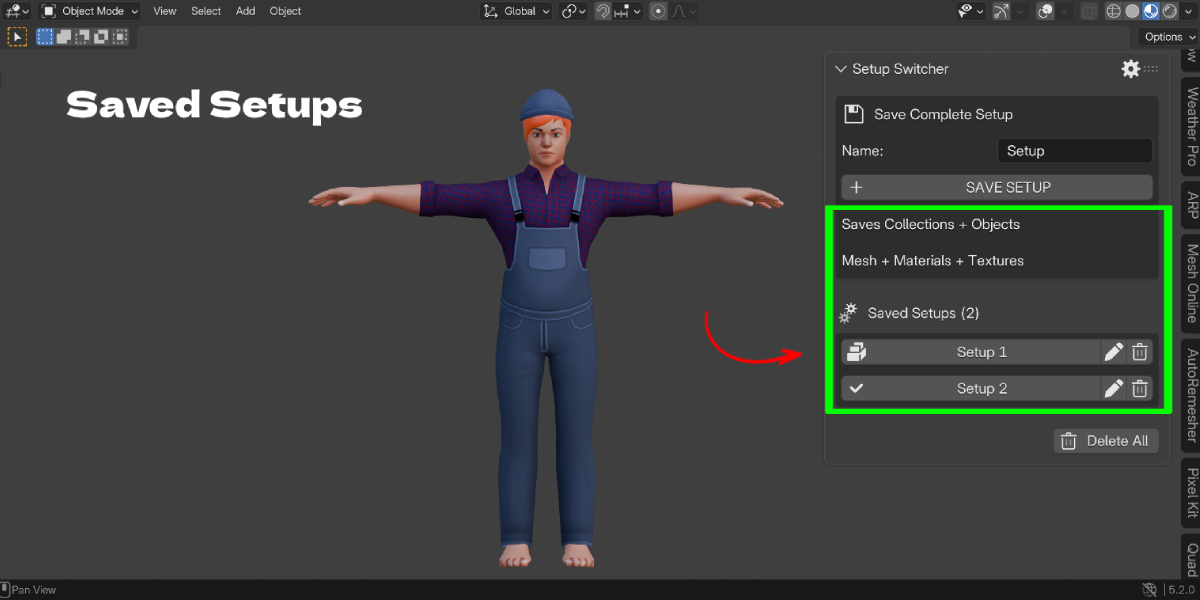
- The new setup appears under Saved Setups and becomes the active one (shown with a check mark).
Choose what gets saved
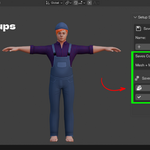
Click the gear icon in the panel header. You will see a list of all 15 categories with checkboxes.
- Select All and Clear All change every box at once.
- Pack Texture Copies stores copies of image textures inside the .blend. It is on by default. Turn it off to keep the file smaller, but note that textures are then not stored per setup.
These settings apply to new setups you save from that point on.
Load a setup
Click the setup name. The active setup shows a check mark.
When you load with Visibility enabled, objects that were created after the setup was saved are hidden in the viewport and in renders. This keeps the scene matching what you saved.
Edit a setup
Click the pencil icon next to a setup to expand it.
- Category toggles: turn categories on or off for future loads. A category that was never saved shows as "Not Saved" and cannot be enabled.
- Favorite: star a setup.
- Lock / Unlock: protect it from overwrite and deletion. While locked, category toggles are disabled.
- Notes: add a short note. The first 90 characters show in the panel.
- Group: assign a group name (default is General).
- Load Selected Parts: open a dialog and tick the parts to restore.
Delete
- The trash icon deletes one setup and its stored data. Locked setups cannot be deleted.
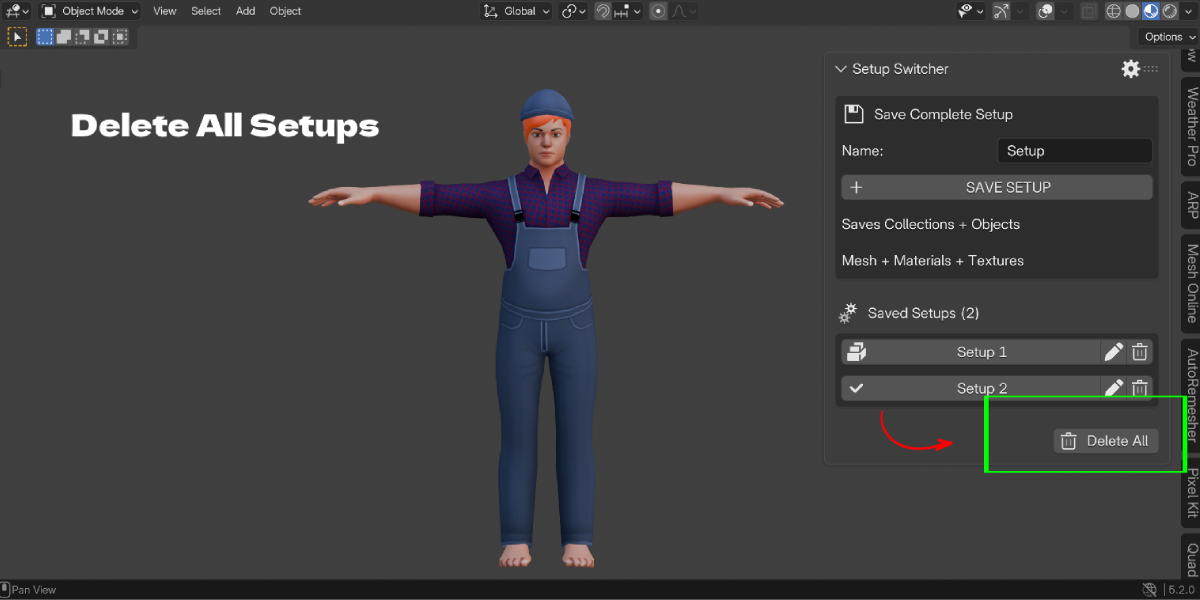
- Delete All asks for confirmation and removes every unlocked setup. Locked setups are kept.
Shortcuts and pie menu
| Shortcut | Action |
|---|---|
Ctrl + Alt + Page Up |
Load previous setup |
Ctrl + Alt + Page Down |
Load next setup |
Ctrl + Alt + Q |
Open the Setup Switcher pie menu |
The pie menu contains: Previous, Next, Toggle A / B, Save New, Save Changes, Save Character.
- Save Changes overwrites the active setup with the current scene, using that setup's own category selection. It will not work on a locked setup.
- Save Character creates a new setup with only pose, animation and shape keys.
Previous and Next wrap around, so the last setup leads back to the first.
What each category covers
| Category | Includes |
|---|---|
| Visibility | Collection states, object viewport, render and eye visibility |
| Geometry | A copy of each mesh object's mesh data |
| Materials | Material slots and link mode, node trees, node groups, textures |
| Pose | Armature poses |
| Animation | Assigned actions and the current frame |
| Shape Keys | Shape key values |
| Modifiers + Geometry Nodes | Modifier properties and Geometry Nodes input values |
| Object Transforms | Location, rotation, scale |
| Selection + Active Object | Selected objects and the active object, per view layer |
| Camera | Active camera and camera data, including depth of field |
| Lighting | Light data for every light in the scene |
| World / HDRI | World settings and node tree with HDRI |
| Color Management | View, display and sequencer color settings |
| Render Settings | Render, output, Cycles and EEVEE settings |
| Viewport State | View angle, position, perspective, shading and overlays for each 3D View |
Good to know
- Setups are stored in the scene and saved with your .blend file.
- Geometry and texture copies are stored as extra data in the file, so file size grows with the number and size of your setups.
- The addon restores objects that still exist. It does not rebuild objects you deleted after saving.
- Geometry is saved for mesh objects. Other object types keep their transforms, visibility and other saved properties.
$9
Have questions about this product?
Login to message
| Blender Extension Compatible | Yes |
| Published | about 16 hours ago |
| Blender Version | 3.3 - 5.2 |
| Extension Type | Add-on |
| Render Engine Used | Blender-Game-Engine, Cycles |
| License | GPL |
