Shadersnap
 CStudio.ao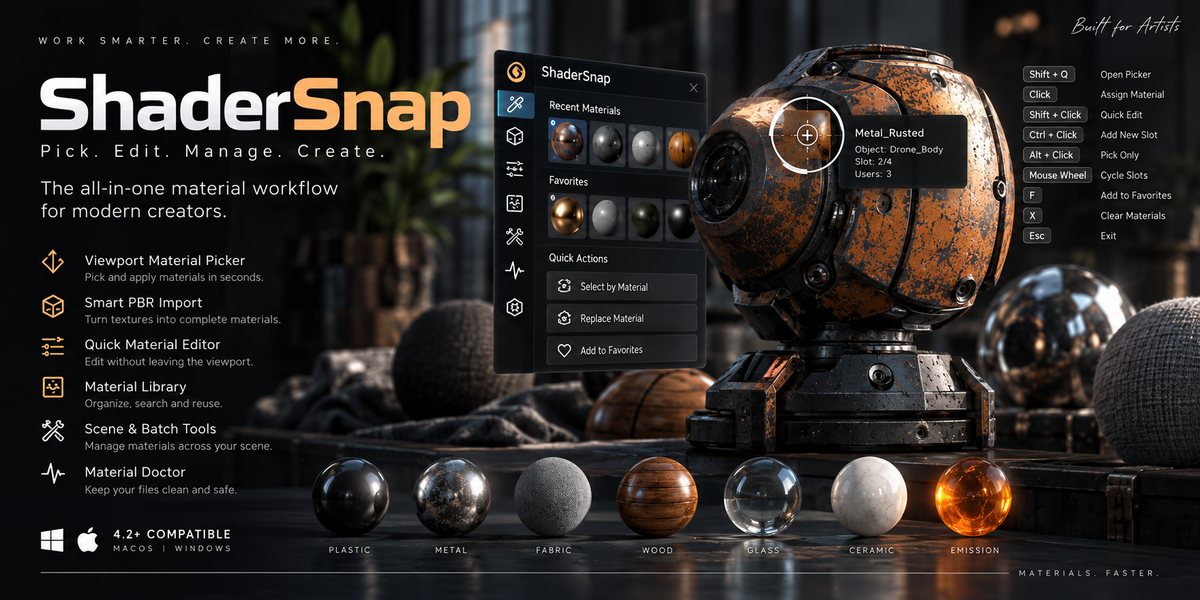







INSTALLATION
1. Download ShaderSnap.
2. Do not extract the ZIP file.
3. Open Blender.
4. Go to Edit > Preferences.
5. Open Get Extensions / Add-ons.
6. Choose Install from Disk.
7. Select ShaderSnap_v1.1.0.zip.
8. Enable ShaderSnap if required.
ShaderSnap can be accessed from the 3D Viewport Sidebar and through its viewport material tools.
QUICK START
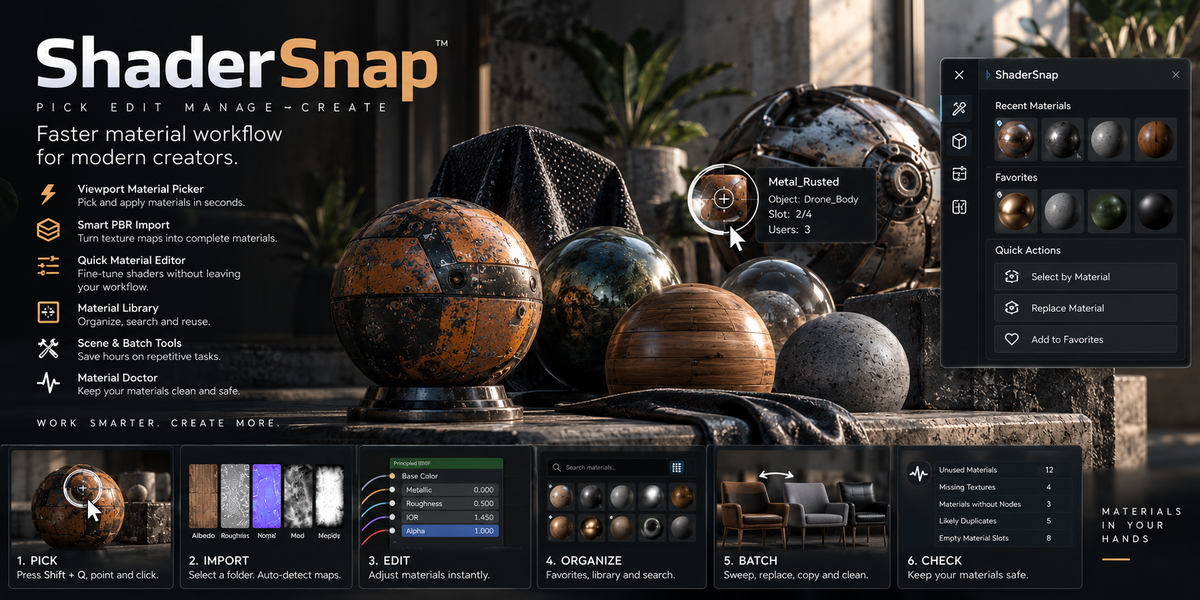
1. Select the object that should receive a material.
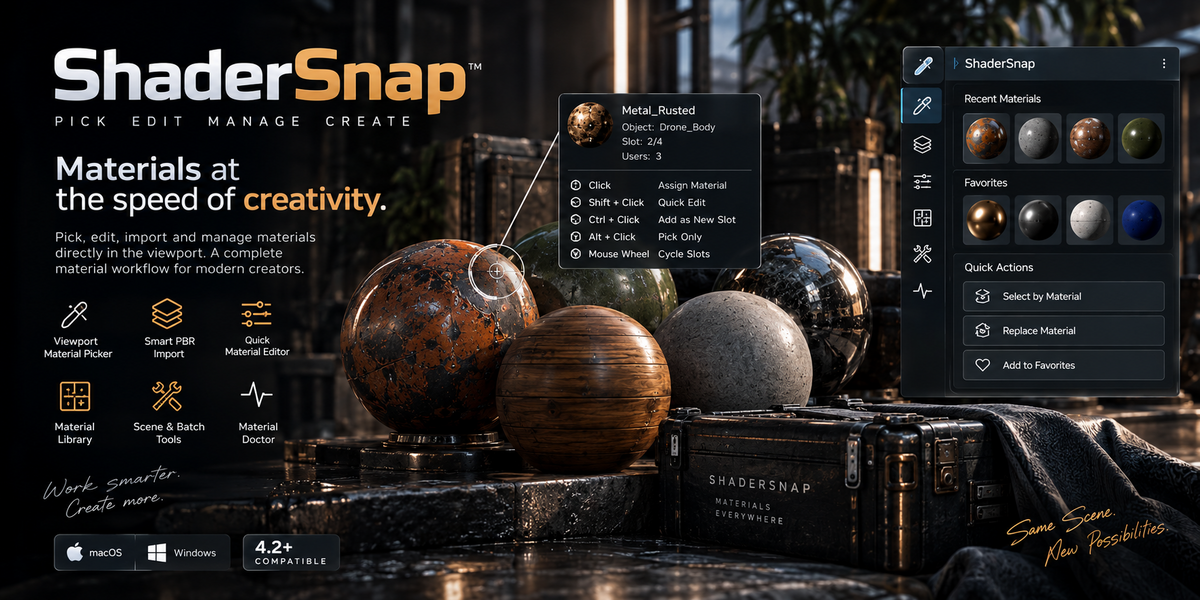
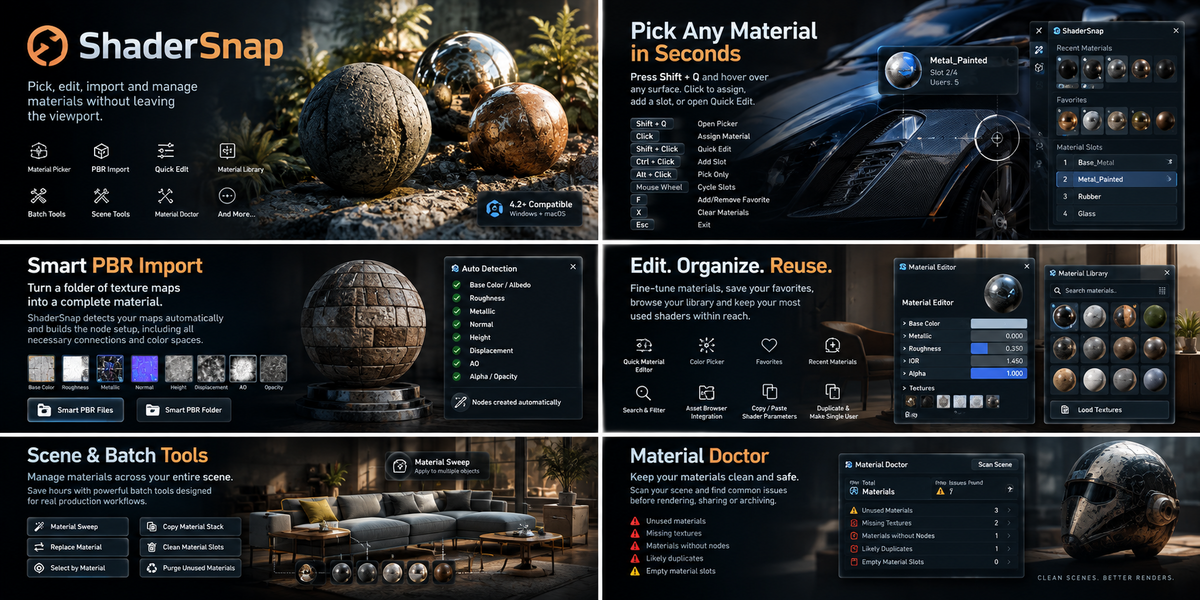
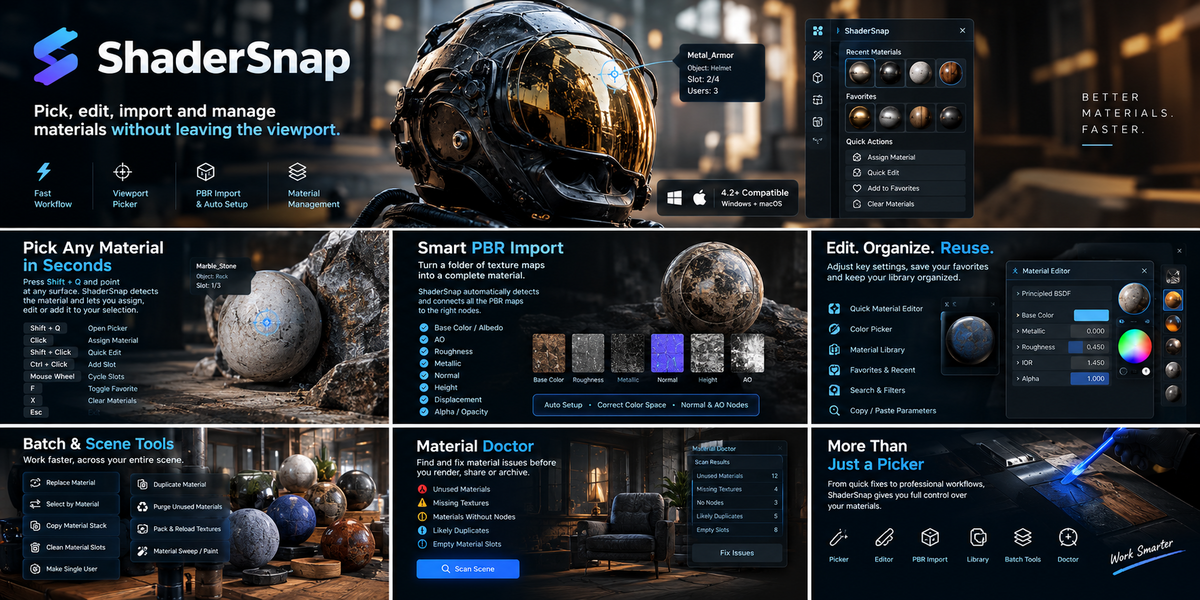
2. Press Shift + Q.
3. Hover over an object containing the material you want.
4. Click the surface.
The detected material is assigned to your current selection.
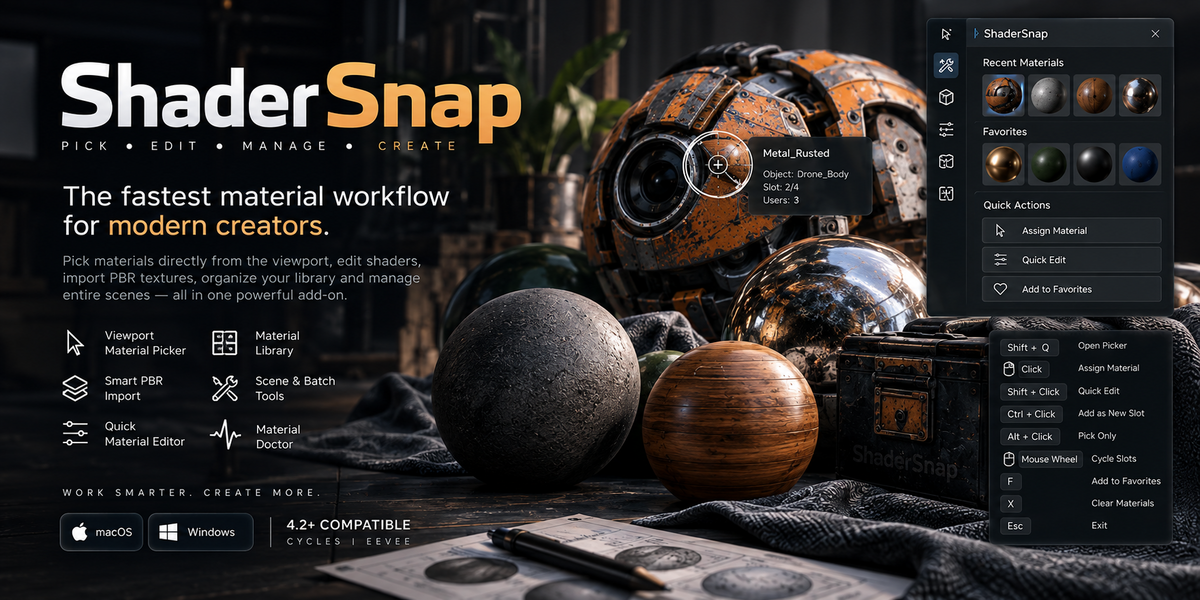
MATERIAL PICKER CONTROLS
Click
Assign the detected material.
Shift + Click
Pick the material and open Quick Edit.
Ctrl + Click
Add the detected material as a new material slot.
Alt + Click
Pick the material without assigning it.
Mouse Wheel
Cycle through the material slots of the object under the cursor.
F
Add or remove the material from Favorites.
X
Clear materials from the target selection.
Esc / Right Click
Close the picker.
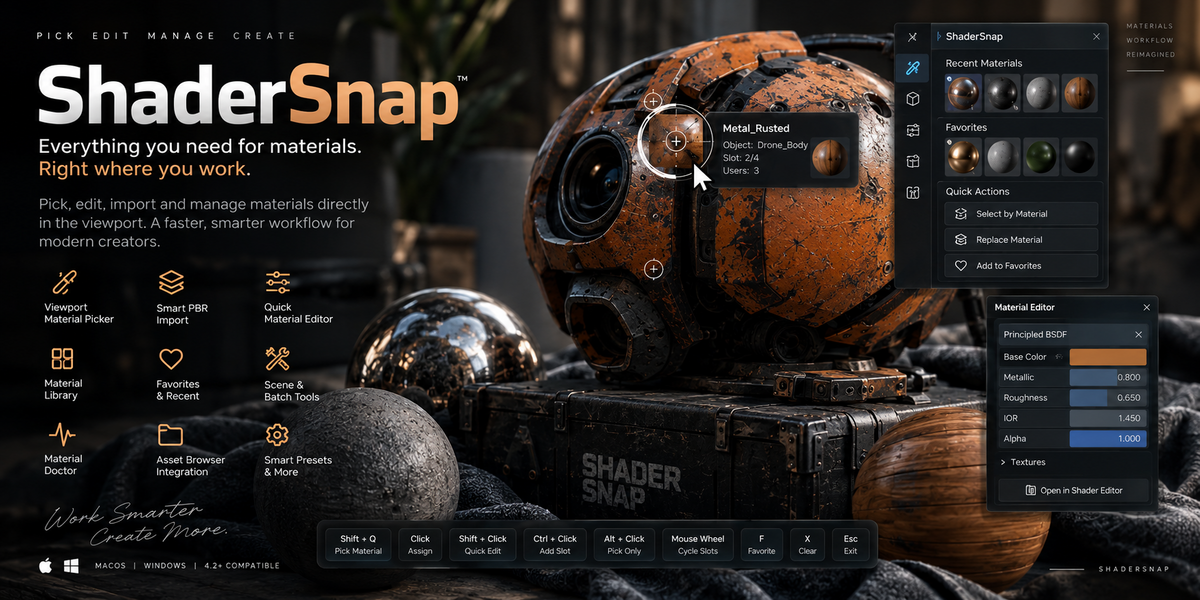
QUICK EDIT
Use Quick Edit to modify common Principled BSDF parameters:
Base Color
Roughness
Metallic
IOR
Alpha
SMART PBR IMPORT
Open ShaderSnap > PBR & Textures.
Choose either:
Smart PBR Files
or
Smart PBR Folder.
ShaderSnap detects compatible texture maps and builds the material node setup automatically.
Supported map types include Base Color, AO, Roughness, Metallic, Normal, Height, Displacement and Alpha / Opacity.
MATERIAL LIBRARY
Use the Material Library to search through materials available in the current .blend file.
Favorites can be used to keep frequently used materials immediately accessible.
MATERIAL SWEEP
Choose a target material and activate Material Sweep.
Move across objects in the viewport to quickly apply the material to multiple objects.
BATCH & SCENE TOOLS
Replace Material
Replace one material with another.
Select by Material
Find objects using a specific material.
Copy Material Stack
Transfer all material slots from the active object to other selected objects.
Clean Material Slots
Remove empty or duplicate slots while preserving material assignments.
Make Single User
Create an independent material when a material is shared.
MATERIAL DOCTOR
Material Doctor scans the current scene for common material problems including:
Unused materials
Missing texture files
Materials without nodes
Likely duplicate materials
Empty material slots
UNINSTALLATION
1. Open Edit > Preferences.
2. Find ShaderSnap.
3. Open the add-on options.
4. Choose Remove / Uninstall.
Have questions about this product?
Login to message
| Blender Extension Compatible | Yes |
| Published | 8 days ago |
| Blender Version | 4.2 - 5.2 |
| Extension Type | Add-on |
| Render Engine Used | Cycles, Eevee |
| License | GPL |

Discover more products like this
Material Cleanup material manager principled bsdf texture material library lookdev asset-browser PBR Workflow productivity shader editor Material Picker