ShaderUp!
 CATURANO MARCO 3D ARTIST
ShaderUp! Documentation
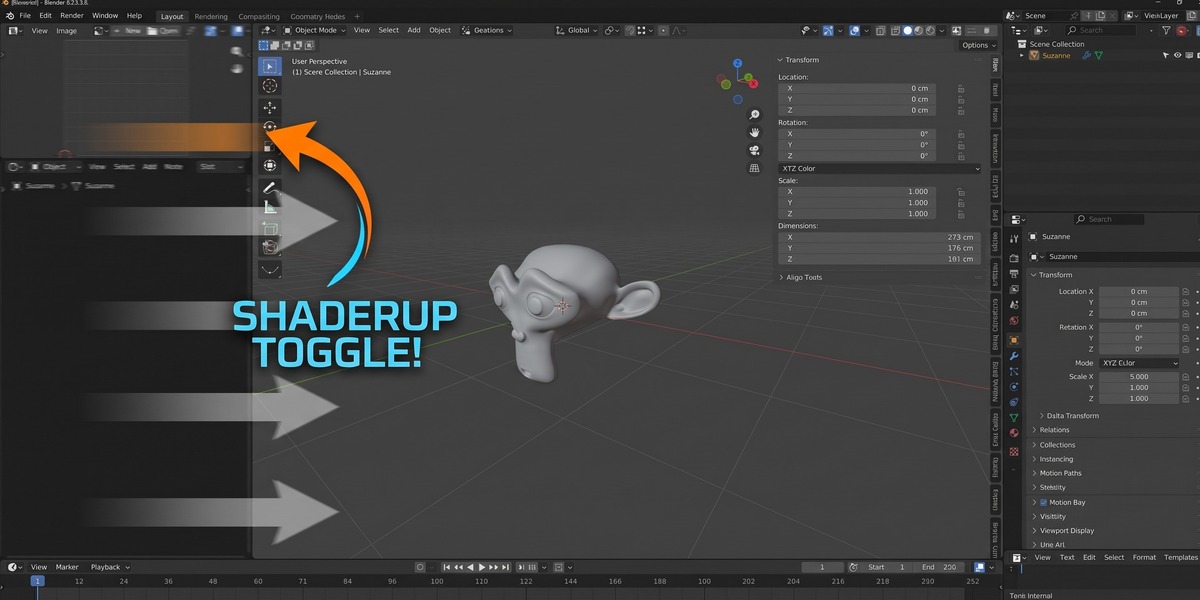
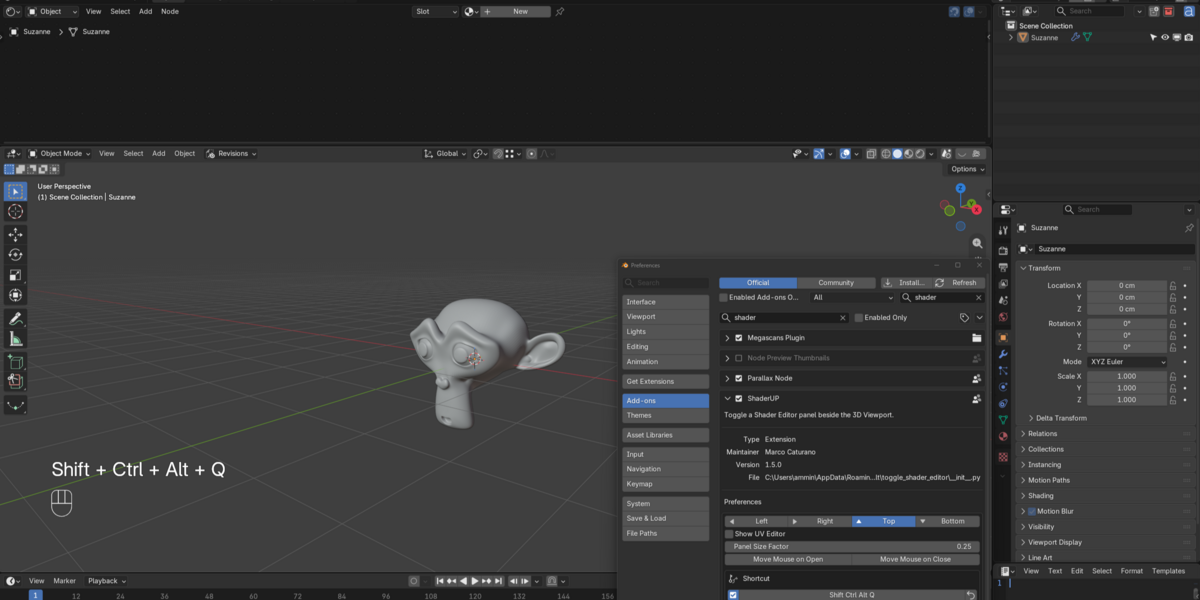
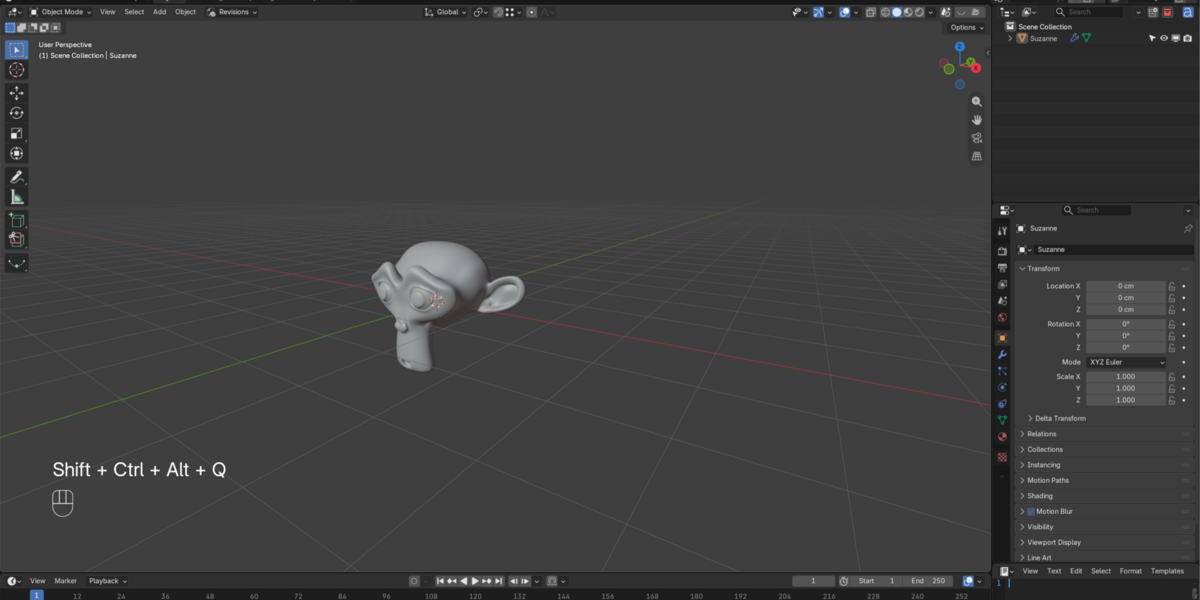
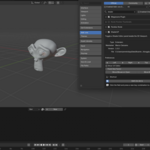
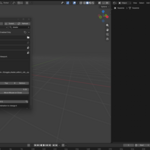
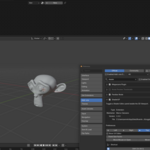
ShaderUp! is a lightweight, non-destructive Blender extension that allows you to instantly toggle 1 or 2 customizable side panels right next to your main 3D Viewport using a single shortcut or UI toggle. This documentation will guide you through installation, usage, and customization.
1. Installation
ShaderUp! is fully compatible with modern Blender versions as an extension. You can install it in two quick ways:
- Method A (Drag & Drop): Simply drag the downloaded
ShaderUP_v1.5.0.zipfile directly into the Blender window and click OK when prompted. - Method B (Manual): Go to Edit > Preferences > Get Extensions, click the top-right dropdown menu, select Install from Disk..., and choose the ZIP file. Make sure the extension is enabled.
2. Default Behavior
-
Default Shortcut: Press
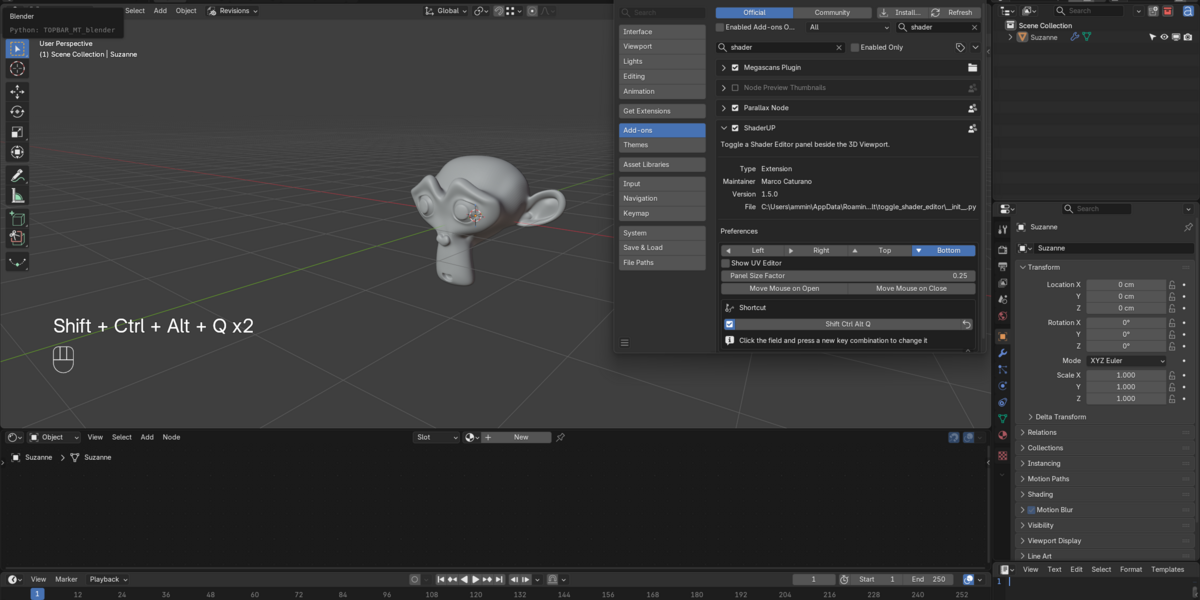
Ctrl + Alt + Shift + Qinside the 3D Viewport to open or close your panels instantly. - Default Layout: Out of the box, it summons a dual-panel setup on the left containing the Shader Editor (bottom) and the Image Editor (top), providing an instant lookdev and texturing workspace without cluttering your interface.
3. Customization (Preferences)
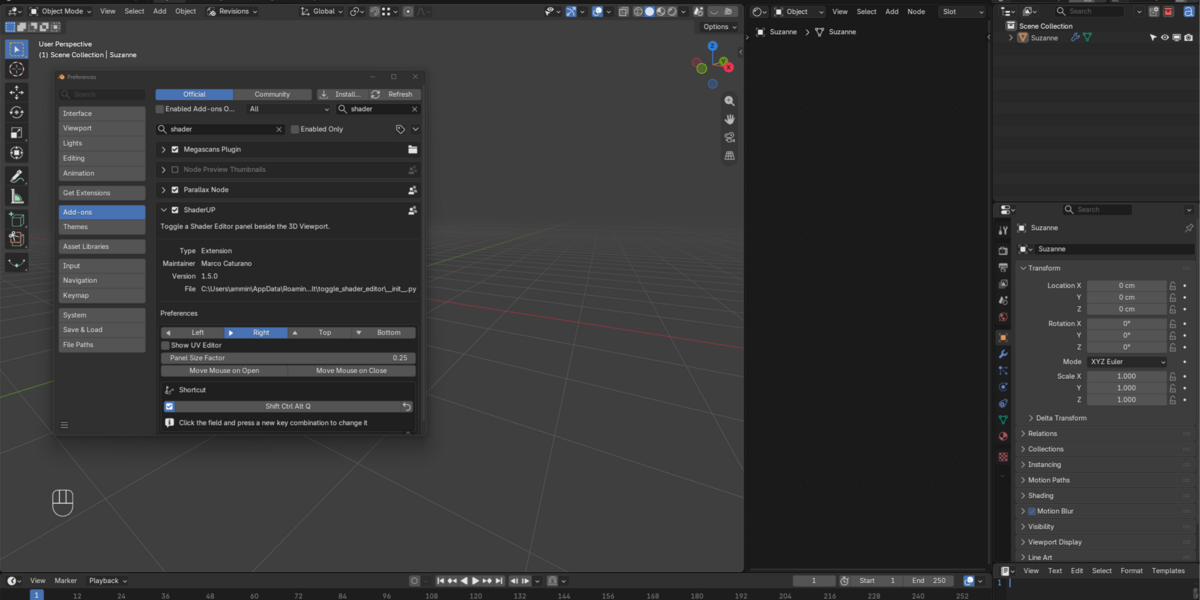
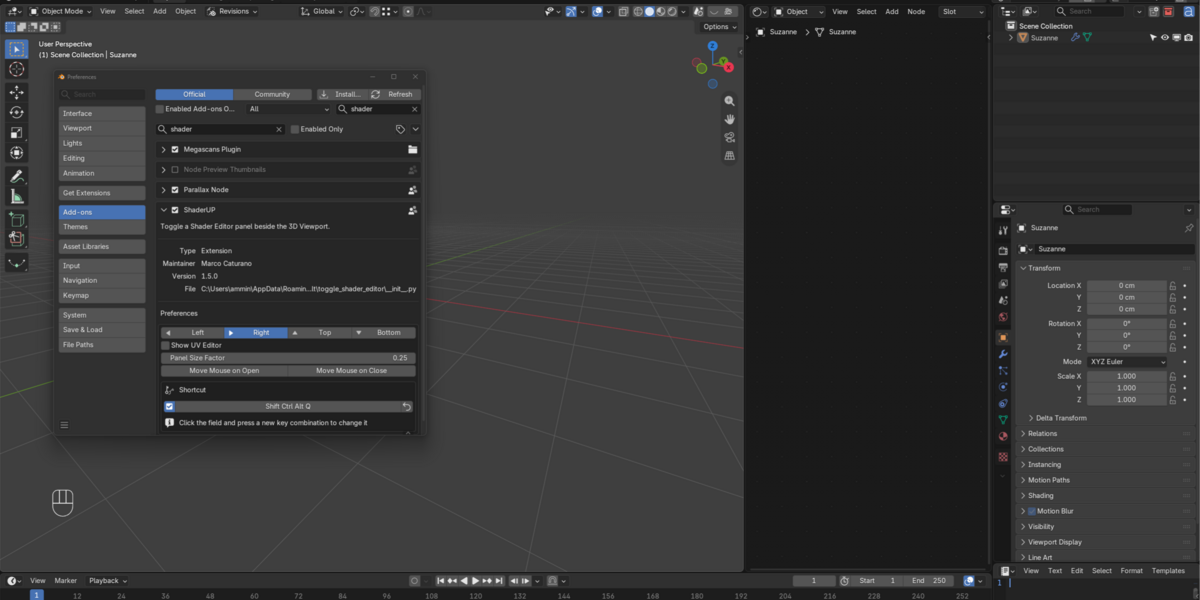
Go to Edit > Preferences > Add-ons / Extensions and expand ShaderUp! to customize the following settings:
-
Number of Panels: Choose whether to display
1or2side panels. -
Side Selection: Set the panels to appear on the
LeftorRightof your main 3D Viewport. - Editor Selection: Change which editor appears in each panel (e.g., Shader Editor, Image Editor, Geometry Nodes, UV Editor, Outliner, etc.).
-
Shortcut Config: Customize the default
Ctrl + Alt + Shift + Qshortcut to any key combination that fits your pipeline.
4. Tips for Best Use
Unlike Blender's native Ctrl + Spacebar, which maximizes a single area and hides everything else, ShaderUp! keeps your essential side panels (like the Outliner and Properties) always visible while you toggle your lookdev workspace on and off.
Have questions about this product?
Login to message
| Blender Extension Compatible | Yes |
| Dev Fund Contributor | |
| Published | 39 minutes ago |
| Blender Version | 4.5 - 5.2 |
| Extension Type | Add-on |
| Render Engine Used | Cycles, Eevee |
| License | GPL |