Shake Cut
 Mohamed Targam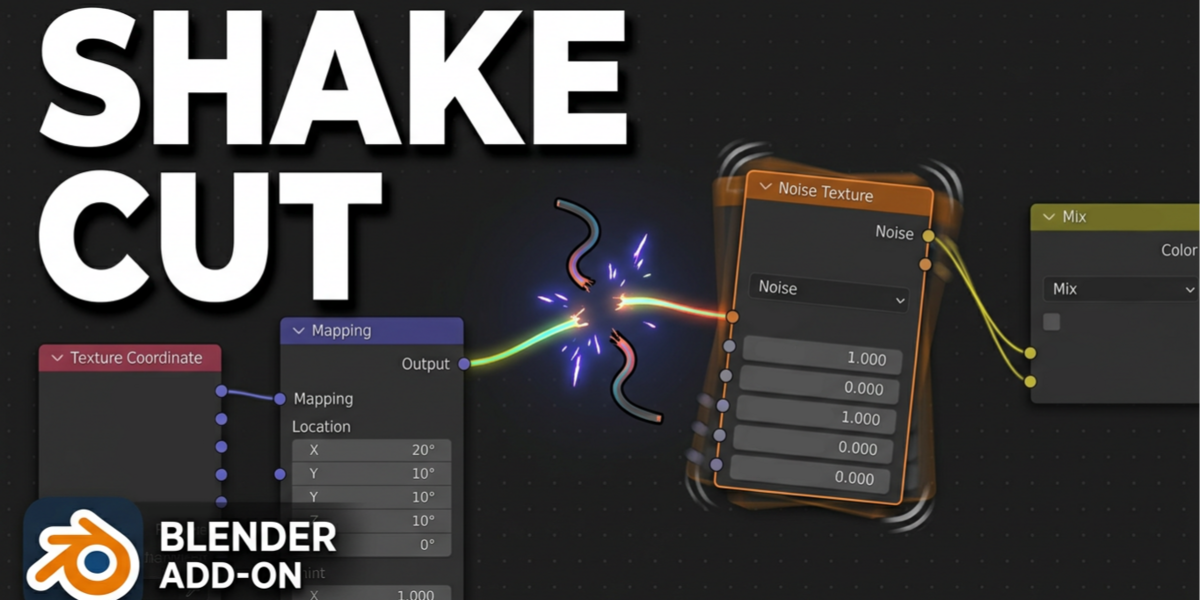


Shake Cut Documentation
Everything you need to install Shake Cut and use its fast, Houdini-inspired node disconnect workflow inside Blender.
Overview
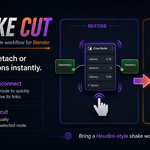
Shake Cut is a lightweight Blender add-on that adds a Houdini-inspired shake-to-disconnect workflow inside Blender’s Node Editor.
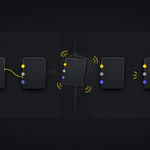
Instead of manually selecting and deleting node links, simply shake a selected node to detach or dissolve its connections.
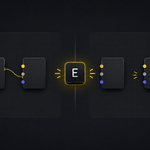
You can also press the E shortcut to disconnect the selected node immediately without using the shake gesture.
Two Ways to Disconnect
Shake: Move the selected node quickly to disconnect it naturally.
E Shortcut: Press E for an immediate manual disconnect.
Installation
- Download the Shake Cut add-on file.
- Open Blender.
- Go to Edit > Preferences > Add-ons.
- Click Install From Disk.
- Select the Shake Cut .zip file.
- Enable Shake Cut from the Add-ons list.
Keep the downloaded add-on as a .zip file when installing it. You do not need to extract it manually.
How to Use Shake Cut
Shake to Disconnect
- Open a supported Blender Node Editor.
- Select a node that has connected links.
- Move the node quickly left and right or shake it in different directions.
- Shake Cut detects the movement and disconnects the node automatically.
Disconnect with the E Shortcut
- Select the connected node or node group.
- Move your mouse over the Node Editor.
- Press E.
- The external node connections are disconnected immediately.
Shake Cut Node Workflow
Disconnect Methods
- Shake the selected node to disconnect.
- Press E for a direct manual disconnect.
Multi-Node Behavior
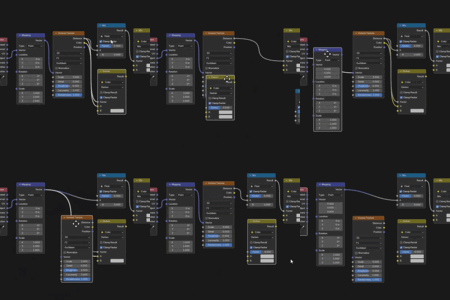
When multiple connected nodes are selected, Shake Cut preserves the links between those selected nodes and removes only their external connections.
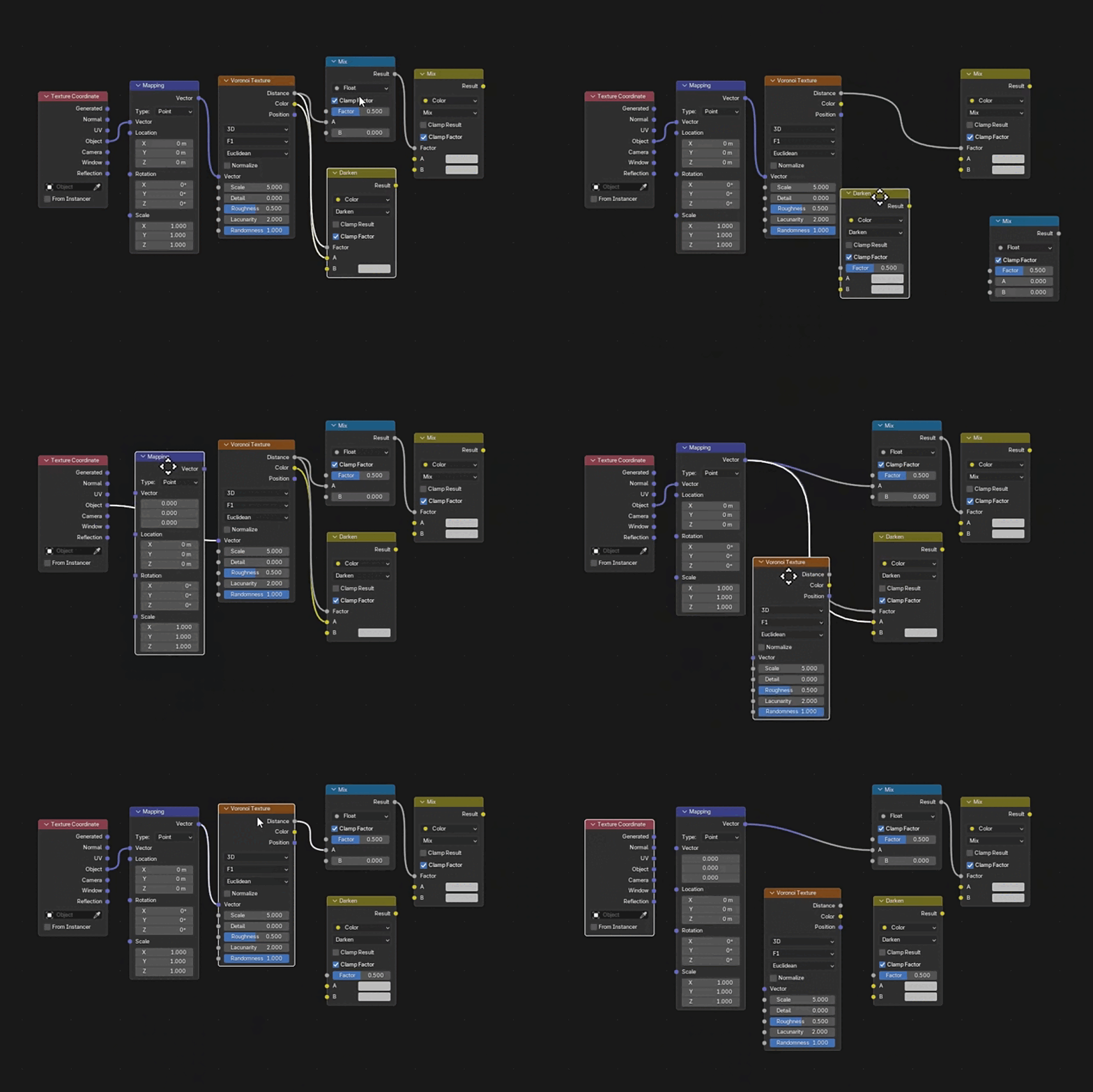
Supported Editors
Tip for Better Shake Detection
For the best result, shake the selected node quickly in a circular motion.
A fast circular shake is detected more reliably than a slow, straight movement. The movement does not need to be large—speed and direction changes are more important.
Quick Troubleshooting
Shake Is Not Detected
- Make sure the node is selected and active.
- Move the node quickly instead of slowly dragging it.
- Try a fast circular or alternating movement.
- Make sure your cursor is inside the Node Editor.
E Shortcut Does Not Work
- Make sure at least one connected node is selected.
- Place the mouse cursor over the Node Editor before pressing E.
- Check that another add-on or custom keymap is not already using the same shortcut.
Future Updates
Shake Cut will continue to receive workflow improvements, stability enhancements, and additional customization options in future versions.
Have questions about this product?
Login to message
| Blender Extension Compatible | Yes |
| Published | 5 months ago |
| Blender Version | 5.0 |
| Extension Type | Add-on |
| Render Engine Used | Blender-Internal |
| License | GPL |