Shake Node To Disconnect
 MNC Development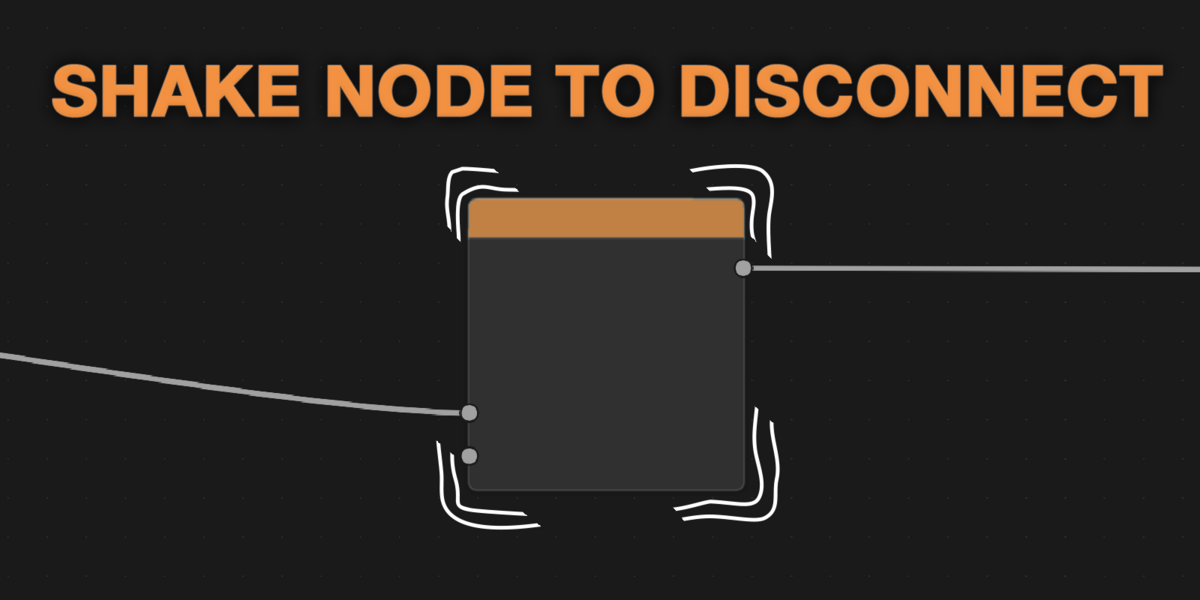
Shake Node to Disconnect — Documentation
Requires Blender 5.1 or later.
1. In Blender, open Edit > Preferences > Get Extensions.
2. Click the dropdown arrow at the top right of the window and choose Install from Disk…
3. Select shake-node-to-disconnect-1.0.0.zip. Blender asks for no permission: the add-on reads and writes nothing on disk and never accesses the network.
4. The extension installs and enables itself. There is no panel, menu or shortcut to look for: open any node editor and it is already active.
To update later, install the newer zip the same way; it replaces the previous version. Disabling or uninstalling the add-on stops it immediately — it stores nothing in your .blend files, so they open exactly the same without it.
There is nothing to run and nothing to switch on. The add-on reacts to a single gesture, made while you move nodes the way you already do.
1. Select the node you want to free — or several nodes.
2. Start moving it as usual: click-drag it, or press G.
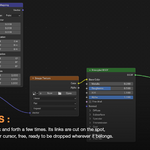
3. Without dropping it, shake it back and forth a few times, briskly. With the default settings, four changes of direction within 0.6 seconds are enough.
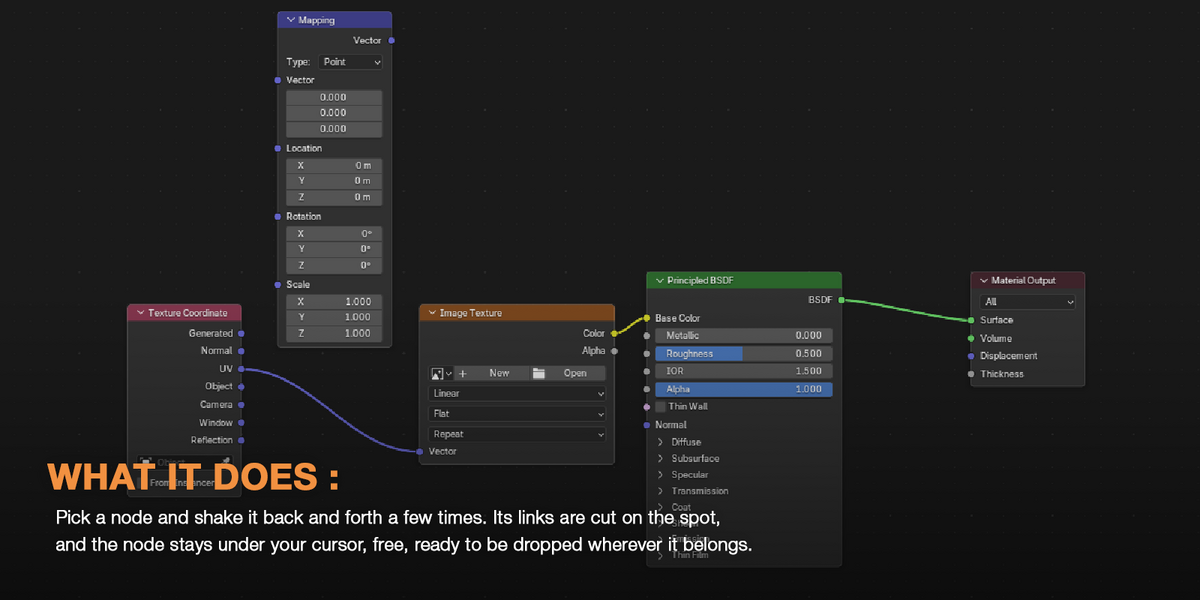
4. The moment the shake is recognised, the selection is disconnected from the rest of the tree. The nodes keep following the cursor: place them, then confirm the move as usual.
Blender's own move does all the moving, so snapping, auto-offset and dropping a node onto a link keep working exactly as they always have. The add-on only adds the disconnection.
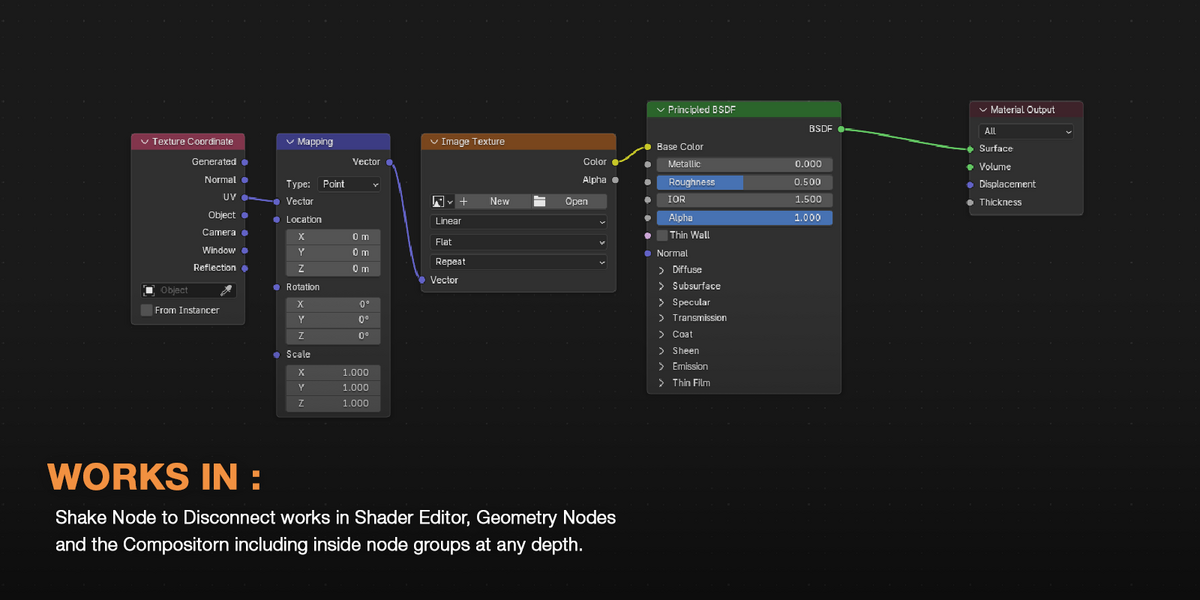
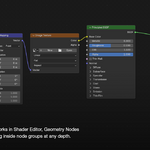
Every node editor open on screen is watched, in every window, whatever tree it shows. The gesture and the preferences are the same everywhere.
| Shader Editor | Material and world node trees. |
| Geometry Nodes | Modifier and tool node trees. |
| Compositor | Compositing node trees. |
| Node groups | The group you are editing once you Tab into it, at any depth of nesting. |
The selection is treated as one block. When a shake is recognised, every selected node of the tree is disconnected from the rest of it at once — but never from the other selected nodes.
| Inside the selection | A link between two selected nodes. Always kept, so a group of nodes comes out still wired together. |
| Into the selection | A link from a non-selected node into a selected one. Cut when Disconnect Inputs is on. |
| Out of the selection | A link from a selected node into a non-selected one. Cut when Disconnect Outputs is on. |
| Elsewhere in the tree | Links between non-selected nodes. Never cut — though Reconnect Neighbors may add one, see below. |
On by default. Just before the links are cut, the chain is closed behind the selection: whatever fed it is plugged straight into whatever it was feeding. It is the effect of Blender's Delete with Reconnect (Ctrl+X), without deleting anything.
| When it applies | Reconnect Neighbors, Disconnect Inputs and Disconnect Outputs are all on, and the selection has at least one link coming in and one going out. |
| What gets linked | The socket feeding the first incoming link is connected to every socket the outgoing links were plugged into. |
| Several incoming links | Only one is carried over: the first in the tree's list of links, which is not necessarily the topmost socket. The others are simply cut. |
| Mismatched types | The new link is created even when the two sockets do not match. Blender then draws it in red, as it does for any invalid link. |
The new links join two non-selected nodes, so the same shake never cuts them. Turn the option off in the preferences if you would rather leave the gap open.
Open Edit > Preferences > Add-ons and expand Shake Node to Disconnect. Every change applies immediately — no restart, no need to reopen the file.
| DETECTION | |
| Sensitivity (Direction Changes) | How many direction changes make a shake. Default 4, from 2 to 12. Lower it for a shorter shake; raise it if shakes trigger by accident. |
| Time Window (s) | How quickly those direction changes must happen. Default 0.6, from 0.1 to 2. Raise it if you shake slowly; lower it to accept only brisk shakes. |
| Minimum Movement | How far a node must travel, in node editor units, before a movement counts. Default 20, from 2 to 200. Raise it to ignore small corrections; lower it for small, tight shakes. |
| DISCONNECTION | |
| Disconnect Inputs | Cut the links coming into the selection. On by default. |
| Disconnect Outputs | Cut the links leaving the selection. On by default. |
| Reconnect Neighbors | Close the chain behind the selection. On by default; only active while both Disconnect Inputs and Disconnect Outputs are on. |
The links are cut the moment the shake is recognised, while the nodes are still moving — not when you drop them. That decides how to take a shake back.
| Undo | Confirm the move, then press Ctrl+Z. The move and the disconnection — including any link added by Reconnect Neighbors — are undone together, in a single step. |
| Cancel the move | Pressing Esc puts the nodes back where they were, but the links stay cut. |
Shook a node by mistake? Drop it, then undo: it is the quickest way back to exactly where you were.
| Nothing happens when I shake a node | Check that the add-on is enabled in Edit > Preferences > Add-ons. The node must be selected, in a node editor open on screen. If it still does not trigger, shake more briskly, or lower Sensitivity or Minimum Movement. |
| It triggers when I did not mean to shake | Raise Sensitivity or lower Time Window, so that only a longer, quicker shake counts. Raising Minimum Movement also filters out small back-and-forth corrections. |
| A link I wanted to keep was cut | Only links between two selected nodes are protected. Select every node that should stay attached before shaking, or turn off Disconnect Inputs or Disconnect Outputs to cut one side only. |
| A new link appeared after the shake | That is Reconnect Neighbors closing the chain behind the selection. Delete the link, or turn the option off in the preferences. |
| I cancelled the move, but the links stayed cut | The disconnection happens during the move, so cancelling only restores the position. Reconnect the links by hand; next time, drop the node and press Ctrl+Z instead. |
Shake Node to Disconnect · Requires Blender 5.1 or later
Have questions about this product?
Login to message
| Blender Extension Compatible | Yes |
| Published | about 21 hours ago |
| Blender Version | 5.1 - 5.2 |
| Extension Type | Add-on |
| Render Engine Used | Cycles |
| License | GPL |
Discover more products like this
Node-Based Workflow Node Workflow geometry nodes Workflow shader editor Node compositor