 Skava
Skava

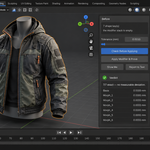
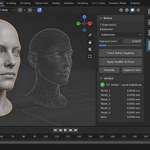
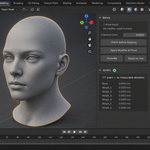
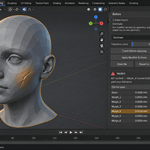
ShapeKeyProof — Documentation
v1.0.0 · Blender 4.2 LTS and later · checked on 4.2.9, 5.1 and 5.2 · Windows / macOS / Linux
1. Install
In Blender open Edit, then Preferences, then Add-ons. Press Install from Disk and pick the zip file exactly as you downloaded it — do not unpack it first. Tick the checkbox next to ShapeKeyProof in the list.
The panel lives in the 3D viewport sidebar. Press N to open the sidebar and choose the Shapes tab.
2. Quick start
Select a mesh that has shape keys and at least one modifier. In the Shapes tab pick the modifier you want applied, set your tolerance, and press Check Before Applying. Then press Apply Modifier and Prove.
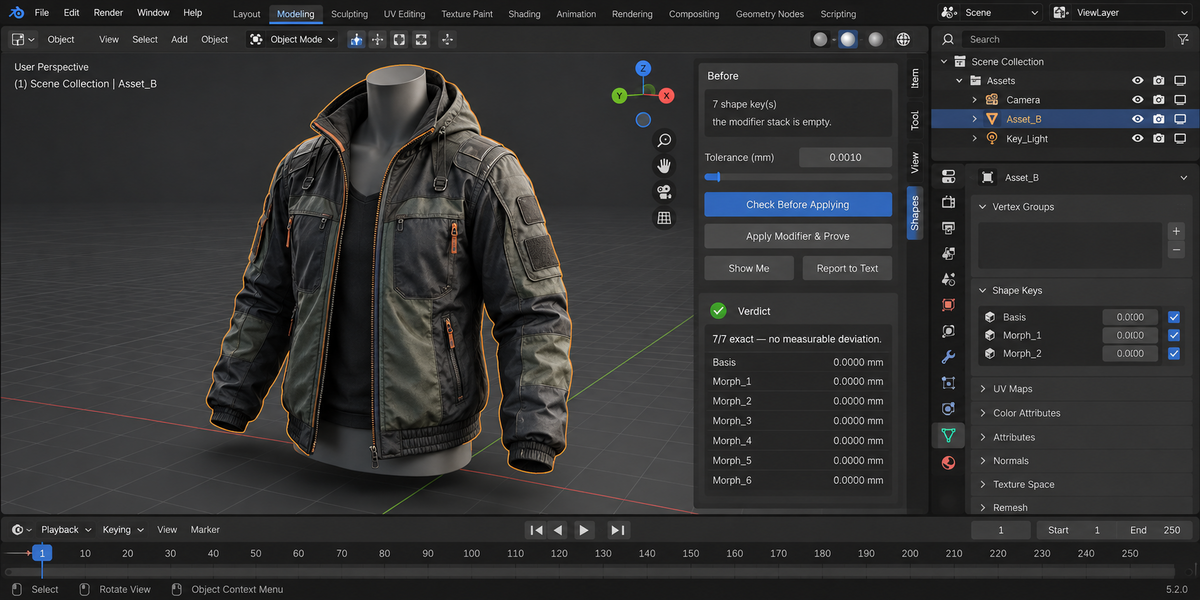
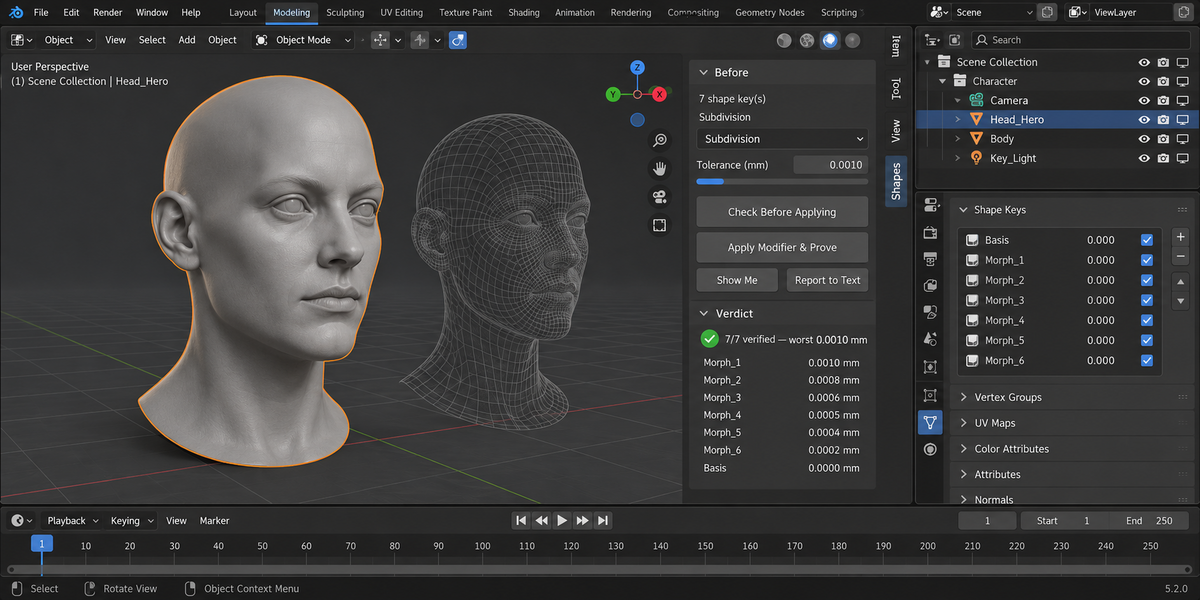
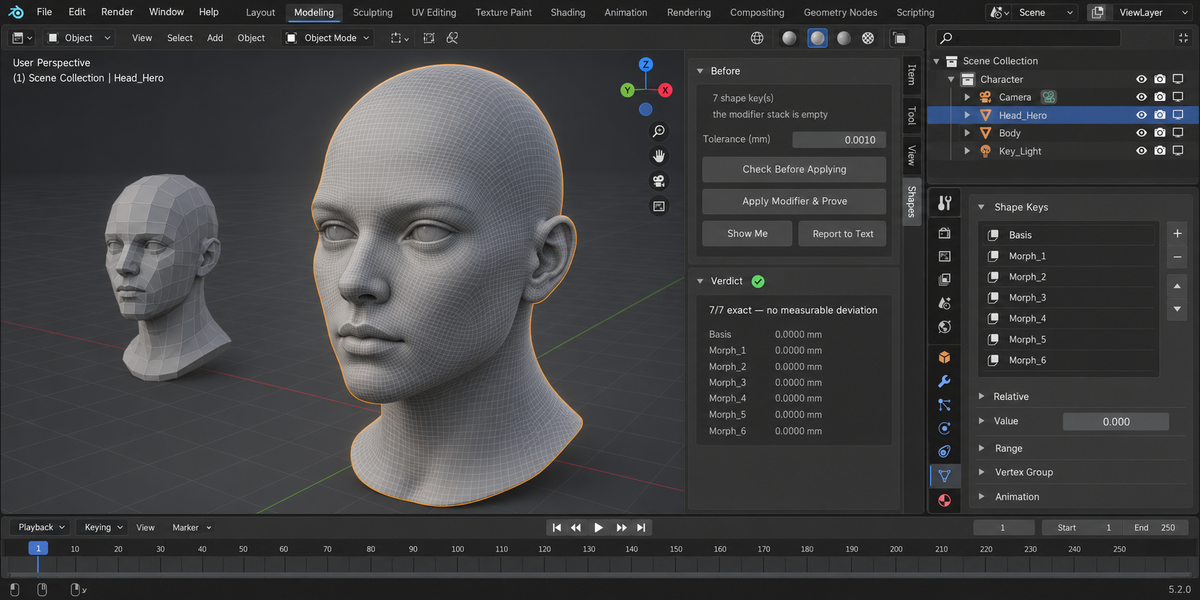
The verdict appears in the panel with the number of shape keys that passed and the worst deviation in millimetres.
3. What is actually measured
Not the coordinates stored inside a shape key. Those tell you what the key holds, not what you see: after Subdivision or Mirror the surface on screen is a different one, and that surface is what reaches your engine.
So before the modifier is applied, each shape key in turn is raised to full strength while the others sit at zero, and the evaluated mesh is recorded. After the modifier is applied and the shapes are carried across, the same measurement is taken again on the result. The difference between those two surfaces is the answer.
Distances are reported in millimetres, converted through your scene's unit scale, so the number means the same thing whether you model in centimetres or in kilometres.
4. Tolerance
The tolerance is your decision, not the add-on's. It answers one question: how far may a shape move and still count as the same shape. The default is one hundredth of a millimetre.
Set it to zero to demand machine precision. Raise it if you are working at architectural scale where a thousandth of a millimetre is noise.
Changing the tolerance changes the verdict. It never changes the measurement — the worst deviation stays the same number, and only the line between pass and fail moves.
5. The three verdicts
Exact means the surfaces matched to machine precision. Mirror and Array usually give this.
Verified means every shape stayed inside your tolerance. Subdivision and Solidify typically land here, with deviations in the ten-thousandths of a millimetre.
Not provable means the correspondence between the two measurements cannot be reconstructed — most often because the modifier produced a different result for different shapes. Nothing is applied and nothing is claimed.
6. Modifiers that decide from the geometry
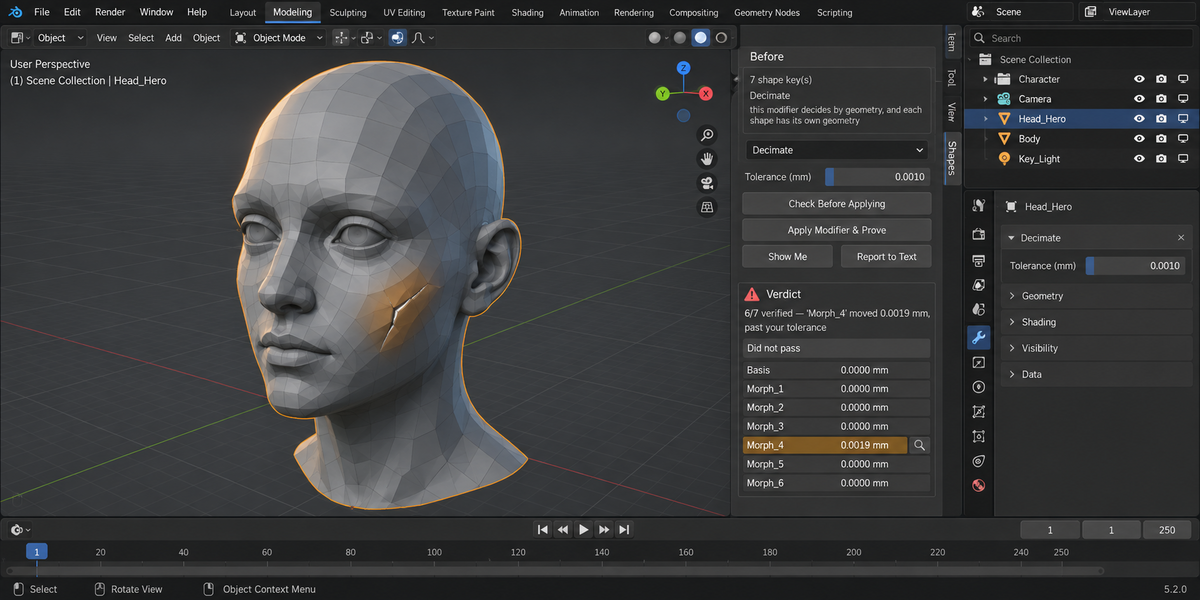
Decimate, Weld and Remesh do not follow a fixed rule: they look at the geometry and choose what to collapse or merge. Each shape key deforms that geometry differently, so the choice can come out different for each one.
In testing this is exactly what happens. With gentle shapes, all six survived. As the shapes grew stronger, five survived, then four — and the vertex count stayed the same in every case, as did the number of shape keys. Anything that counts keys or vertices sees no difference at all.
When you pick such a modifier, the panel says so before you press anything. The result is then measured like any other, and if the shapes cannot be proven you get a refusal rather than a false pass.
7. Nothing is touched until it is proven
The whole operation runs on a copy. The result is moved onto your object only after the measurement passes.
If the modifier refuses to apply, if the vertex counts disagree between shapes, or if a shape moves past your tolerance, your mesh, your shape keys and your modifier stack are left exactly as they were. The panel then names the shape key that could not be proven.
8. Rigged characters
The armature modifier, the vertex groups and the drivers on your object are not touched: the add-on applies the modifier you chose and nothing else. A rigged character with automatic weights is part of the test set that runs before each release.
9. Reading the findings
Only the shape keys that did not pass are listed. Each row gives the name and how far it moved. The button next to a row raises that shape key to full strength and leaves the others at zero, so you can look at what changed.
10. The report
Report to Text writes the verdict and every shape key's deviation into a text block inside your blend file, so the record travels with the file and opens a year later on a machine with no add-on and no network. If you also give a folder, the same text is written there as a file.
11. What this add-on does not do
It does not merge, group, fold or rename shape keys. It does not transfer shapes between different meshes — that is a different problem with different mathematics. It does not repair geometry, and if it meets broken geometry it says so and stops. It does not edit weights, armatures or drivers.
12. Limitations
Shapes are compared by vertex index on the evaluated mesh. Where a modifier produces a different vertex count for different shapes, that comparison is impossible and the add-on says so rather than guessing.
The measurement is geometric. It answers whether the surface is the same, not whether the shape still means what the artist intended.
13. Support and licence
Licence: GPL. Questions and bug reports through the marketplace message system. Include your Blender version, the modifier you were applying, and the verdict line from the panel — with those three the problem is usually reproducible immediately.
Have questions about this product?
Login to message
| Published | 6 days ago |
| Blender Version | 4.2 - 5.2 |
| Extension Type | N/A |
| Render Engine Used | Cycles, Eevee |
| License | GPL |
Discover more products like this
validation Export vrchat blendshapes subdivision morph targets mirror modifier rigging shape keys character apply modifier