Show Parent
 Blender.Fun


Overview
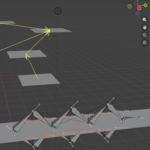
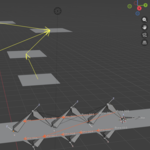
Show Parent visualizes parent relationships in Blender by drawing arrows: yellow for object → parent and blue for bone → parent. Optional camera‑facing start markers (billboard circles) with adjustable size and colors help identify arrow origins.
🚀 Installation & Enabling
- Install the addon via Blender: Edit > Preferences > Add-ons > Install and select the add‑on folder or copy into Blender add-ons directory.
- Enable Show Parent in Edit > Preferences > Add-ons.
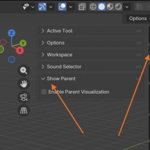
- Open: View3D → Sidebar → Tool → Show Parent. Toggle Enable Parent Visualization.
Note: The add-on registers scene properties on enable; disable to remove them.
🧭 UI & Options
- Enable Parent Visualization — master on/off switch. ✅
- Only Selected — show arrows only for selected objects / bones.
- Show Start Point — show camera‑facing circle at arrow start.
- Start Point Size — radius of circle (Blender units).
- Objects / Bones Color — RGB pickers for arrow colors.
All settings are in the Show Parent panel; they persist with the blend file.
📐 Behavior & Modes
- Objects: arrows from object origin to parent origin (visible objects only).
- Bones:
- Edit mode: uses Armature.data.edit_bones.
- Pose mode: uses Armature.pose.bones (when Only Selected is active, selected pose bones use bpy.context.selected_pose_bones).
- Object mode: uses rest pose bones (selection inferred from selected pose bones if requested).
- Start markers are drawn as small filled circles in a plane facing the viewport (billboard) so they remain visible from any view.
Have questions about this product?
Login to message
| Blender Extension Compatible | Yes |
| Dev Fund Contributor | |
| Published | 10 months ago |
| Blender Version | 3.1 - 5.0 |
| Extension Type | Add-on |
| License | GPL |
