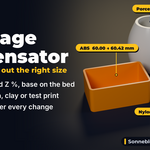
Shrinkage Compensator
 Sonneblom Digitaal
Install
Extension zip (shrink_compensator-1.0.1.zip, Blender 4.2 and newer): Edit > Preferences > Get Extensions > the arrow menu at the top right > Install from Disk, pick the zip (or drag the zip into Blender). It is enabled straight away.
Legacy zip (shrink_compensator-1.0.1-legacy.zip): Edit > Preferences > Add-ons > the arrow menu > Install from Disk, pick the zip, then tick "Shrinkage Compensator". Use one of the two, not both.
Where it is
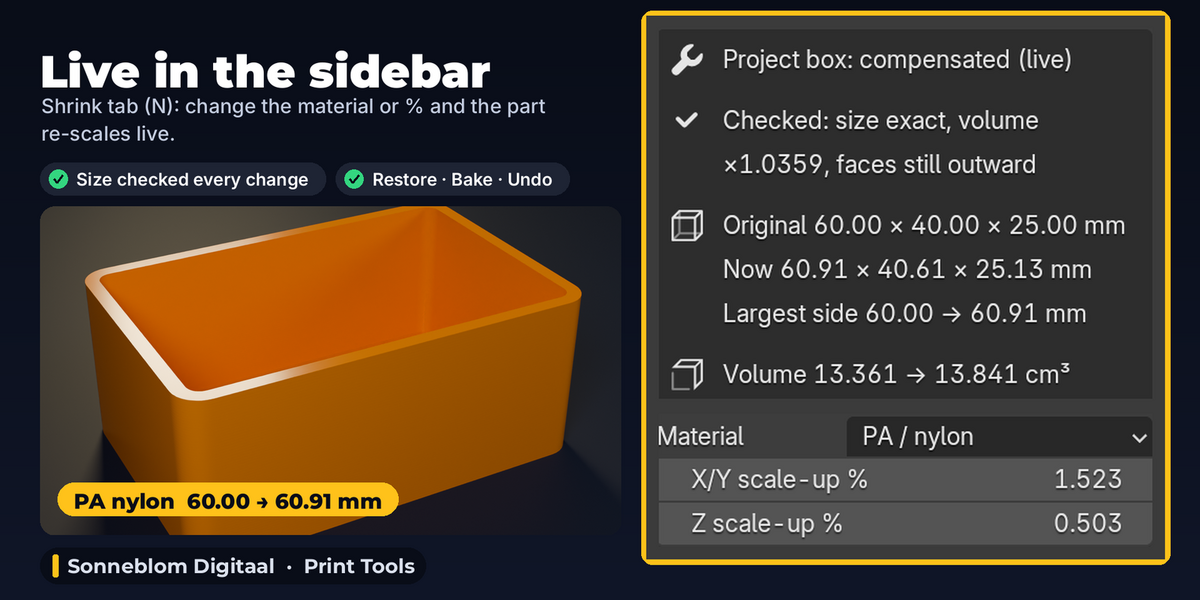
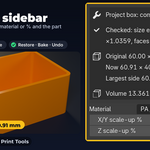
3D Viewport > Sidebar (press N) > Shrink tab. The "Shrinkage Compensator" panel has the settings and the button; "From a Measurement" below it works out a percentage from a test print. When the active object has been compensated, the top of the panel shows its live box ("<name>: compensated (live)": result check, sizes, Material / X/Y % / Z %, Restore Original, Bake, Update) and the settings for a new run fold away under "Settings for a new run".
Step by step
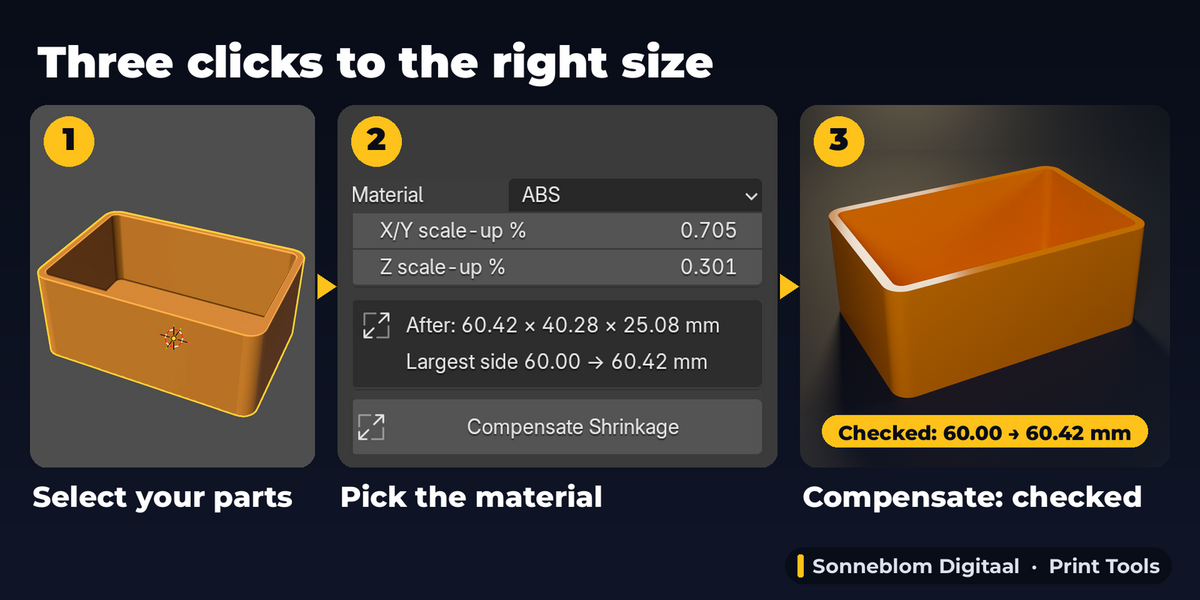
- Import or open your model and select it (several parts are fine). The panel shows the size in mm. If a 40 mm part reads as 0.04 mm or 40000 mm, set 1 unit = to the units of your file (mm is the default, the usual STL unit); the panel warns you when a part reads smaller than 0.5 mm or bigger than 5 m. The percentages themselves do not depend on the units.
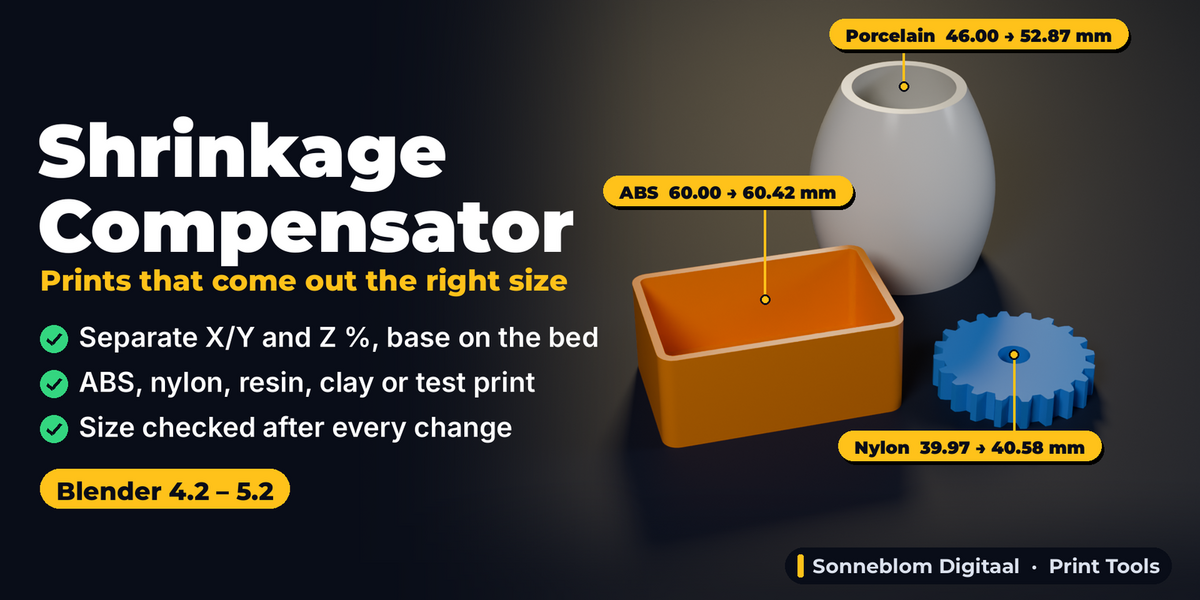
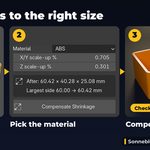
- Pick the Material. The line below it shows its typical shrinkage, and X/Y scale-up % and Z scale-up % are filled in. Typing your own value switches the material to Custom.
- Better: calibrate. Print a test part (a 50 mm cube or a calibration bar) in your material, measure it, open From a Measurement, type Designed (the size in the model) and Printed (what the calipers read) for X/Y. For Z choose Keep Z, Same as X/Y (resin, clay) or Measure Z. The box shows the result live; click Use These Values. If the test part was already scaled, enter that % in Already in print % so the new value refines it.
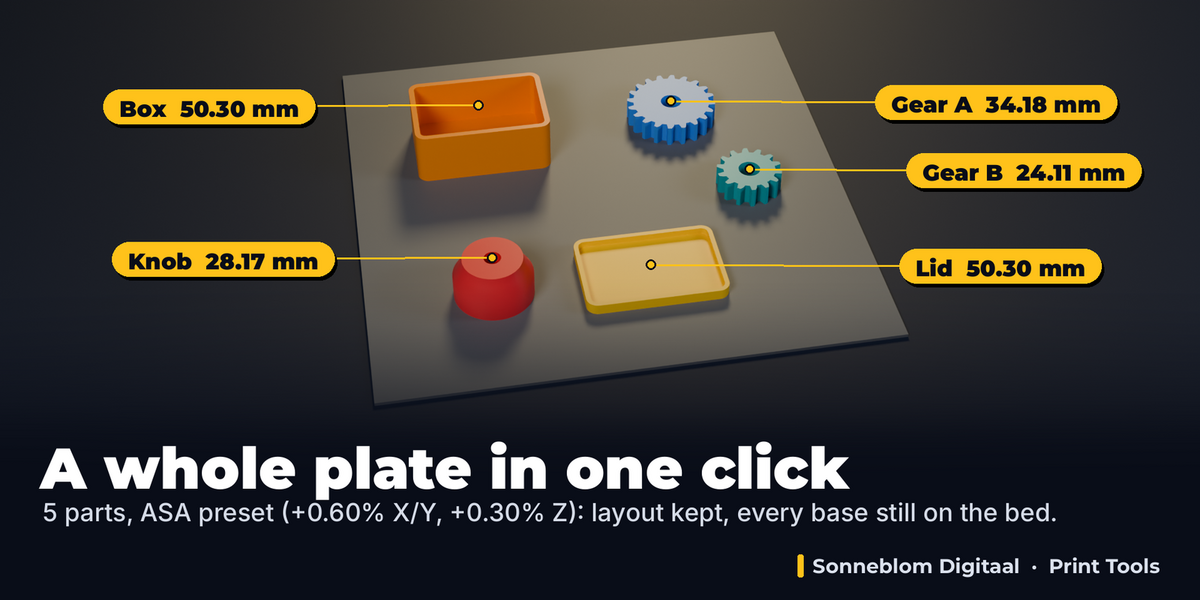
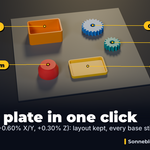
- Choose Grow from: Each part's bottom (default: the base stays on the bed and each part stays centred), Selection bottom (a whole plate grows from its common base and keeps its layout), Object origin or 3D Cursor.
- Choose Apply to: Mesh data (default; exact at any rotation, keeps the object scale) or Object scale (changes only the Scale values; also curves and text).
- Check the After box (size in mm and largest side) and click Compensate Shrinkage. The info bar and the live box at the top of the panel show the size before and after and the result check ("Checked: size exact, volume ×1.0172, faces still outward").
- Change anything in the live box (<name>: compensated (live)): Material, X/Y %, Z %. The part (and every other selected compensated part) is re-scaled from its original in place. F9 right after clicking also works. Restore Original puts it back exactly, Bake keeps the result as a plain model and drops the stored original, Update re-applies after you edited the mesh or left Edit Mode.
- Export (File > Export > STL, 3MF or OBJ) as usual. Do not scale the part again in the slicer for shrinkage.
Settings
| Setting | Default | What it does |
|---|---|---|
| 1 unit = | mm | What one Blender unit is, for the mm readouts: mm, cm, m, inch or Scene (Scene > Units > Unit Scale). |
| Material | ABS | Fills in the typical shrinkage of the material (table below). Custom = your own values. |
| X/Y scale-up % | 0.705 | How much bigger in X and Y (bed plane). 0.6 makes 100 mm into 100.6 mm. Range -50 to 100. |
| Z scale-up % | 0.301 | How much taller (Z, the build direction). |
| Grow from | Each part's bottom | The point that stays put: each part's bottom centre, the selection's bottom centre, the object origin or the 3D cursor. |
| Apply to | Mesh data | Mesh data (any rotation, meshes) or Object scale (curves and text too; X/Y and Z differ only when not tilted). |
| Designed / Printed | 50 / 50 mm | From a Measurement: X/Y size in the model and on the print. |
| Already in print % | 0 | Scale-up that was already in the printed test part. |
| Z | Keep Z | Keep Z, Same as X/Y or Measure Z (Designed Z / Printed Z, default 20 / 20 mm). |
Material presets
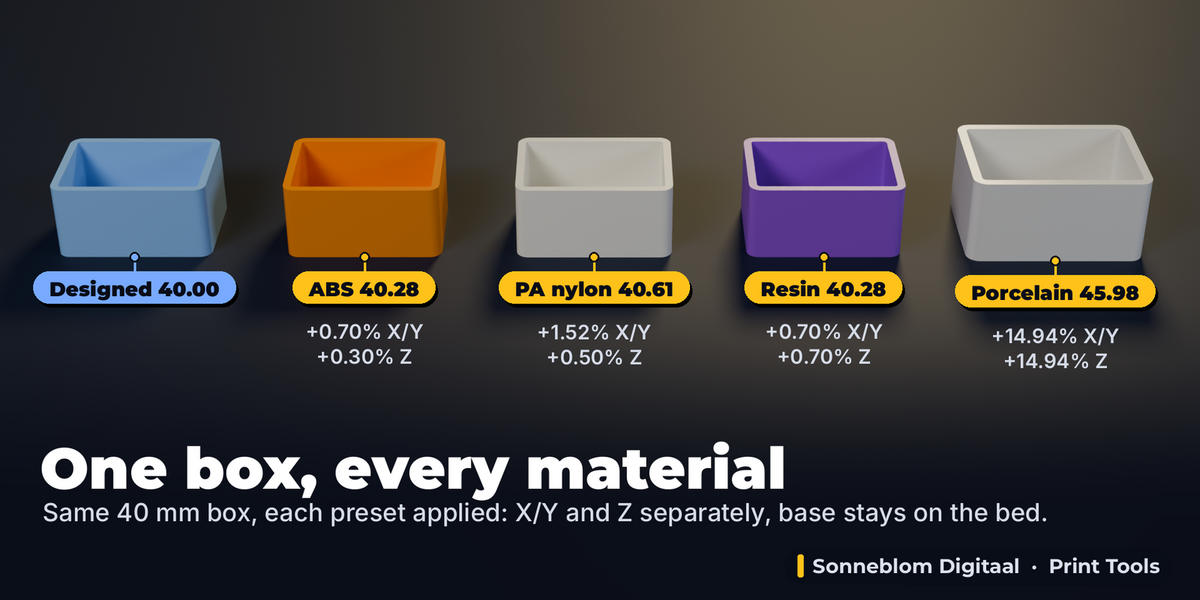
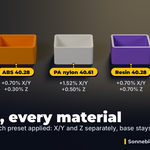
Typical published linear shrinkage and the exact scale-up that compensates it (scale-up = shrinkage / (100 − shrinkage)). Starting values: calibrate for your filament, resin or clay body.
| Material | Typical shrinkage X/Y / Z | Scale-up X/Y / Z |
|---|---|---|
| PLA | 0.2% / 0% | +0.2% / +0% |
| PETG | 0.3% / 0.1% | +0.301% / +0.1% |
| ABS | 0.7% / 0.3% | +0.705% / +0.301% |
| ASA | 0.6% / 0.3% | +0.604% / +0.301% |
| PC (polycarbonate) | 0.6% / 0.3% | +0.604% / +0.301% |
| PA / nylon | 1.5% / 0.5% | +1.523% / +0.503% |
| PA-CF (carbon fibre nylon) | 0.4% / 0.2% | +0.402% / +0.2% |
| Resin, standard | 0.7% / 0.7% | +0.705% / +0.705% |
| Resin, tough / ABS-like | 0.4% / 0.4% | +0.402% / +0.402% |
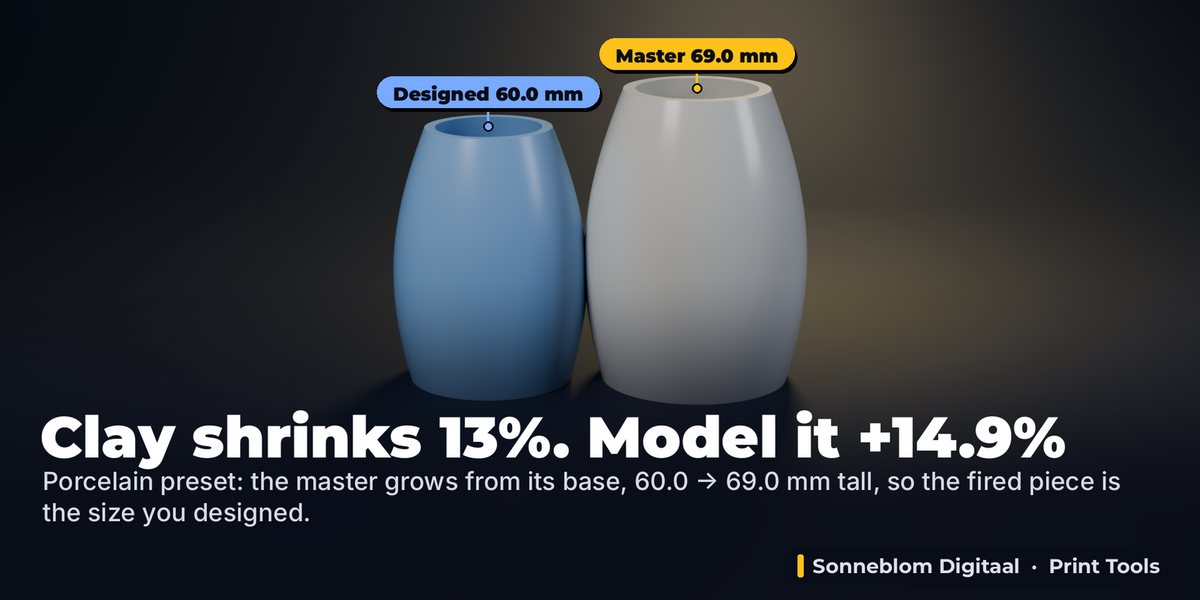
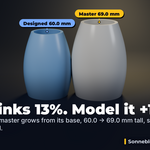
| Clay: porcelain | 13% / 13% | +14.943% / +14.943% |
| Clay: stoneware | 11% / 11% | +12.36% / +12.36% |
| Clay: earthenware | 7% / 7% | +7.527% / +7.527% |
Tips
- Calibrate once per material and printer: print a 50 mm cube, measure X, Y and Z, use From a Measurement. Measure the outside of a feature, after the part has cooled (resin: after washing and post-curing; clay: after the final firing).
- Check again after compensating: print, measure, then enter the new numbers with "Already in print %" set to the percentage you used.
- Compensate the whole plate in one go with Grow from = Selection bottom when parts must keep their spacing (for example parts that are assembled in place).
- Slip casting: compensate the master model before you make the mould; clay shrinks the same in every direction, so use Same as X/Y.
Limits
- Uniform shrinkage per axis only: warping, elephant's foot and uneven shrinkage are not modelled. The presets are typical values, not guarantees.
- Mesh data mode: meshes only; a mesh shared by several objects is refused (use Object scale or make it single-user); modifiers with fixed sizes (Solidify, Bevel, Array offset) do not scale, which the result check reports.
- Object scale mode: a part tilted about X or Y works only with equal X/Y and Z percentages; with different values it is refused with a message telling you to use Mesh data (which works at any angle). Children follow their parent; keyframed scale is overwritten by its animation. If you Apply Scale after an Object-scale compensation, Restore Original gives the original size back through the Scale value (for example 0.993 after ABS) instead of 1.
- The stored original (Mesh data mode) is a hidden mesh copy in the .blend until you Bake or Restore.
Licence
GPL-3.0-or-later. Made by Sonneblom Digitaal.
Have questions about this product?
Login to message
| Blender Extension Compatible | Yes |
| Published | about 2 hours ago |
| Blender Version | 4.2 - 5.2 |
| Extension Type | Add-on |
| License | GPL |