 Bala

Signage
Signs that shine
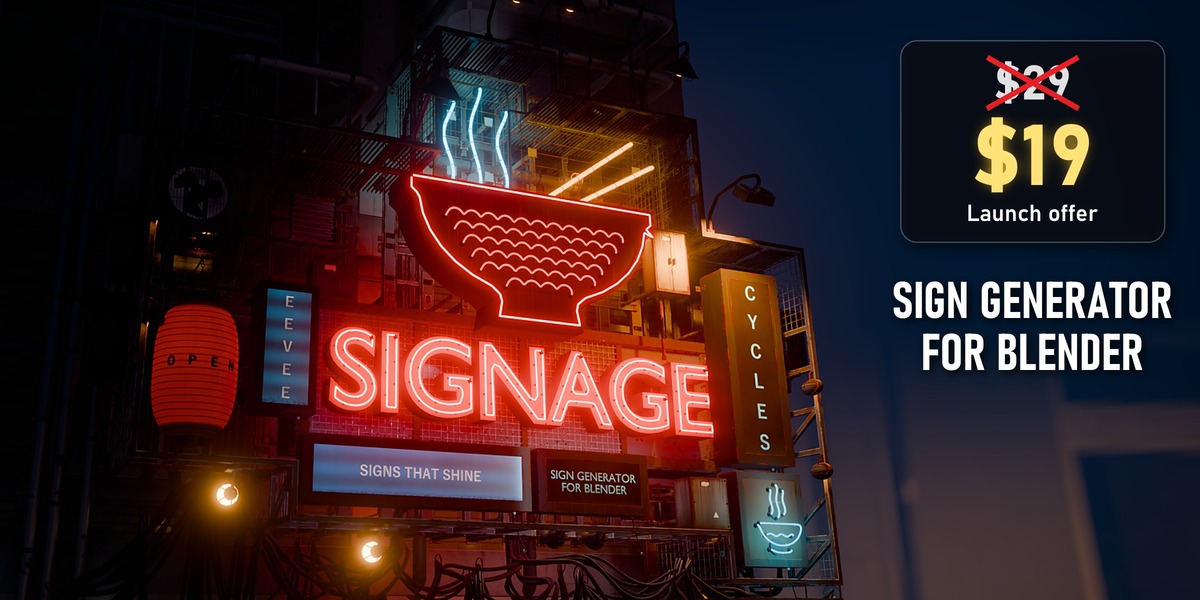
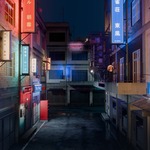
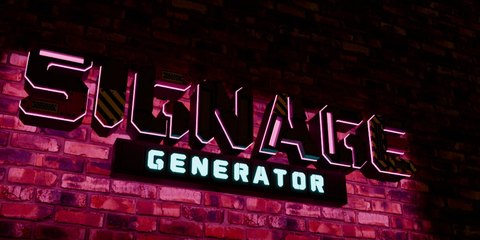
Shop signs for Blender that still look real up close. Pick a sign type and a look, click the wall and type your text. At night the sign lights up the wall behind it.
▶ Watch the trailerWatch the tutorial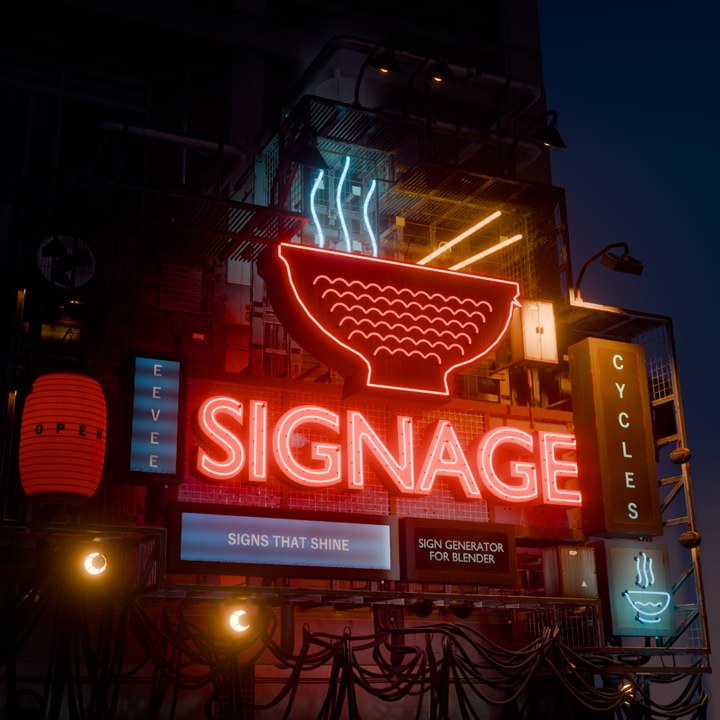
See Signage in action
Learn it in 18 minutes
A real screen recording in Blender 5.2: install, add a sign, text and fonts, light effects, age and damage, clusters, parts, export and render. Chapters let you jump straight to what you need.
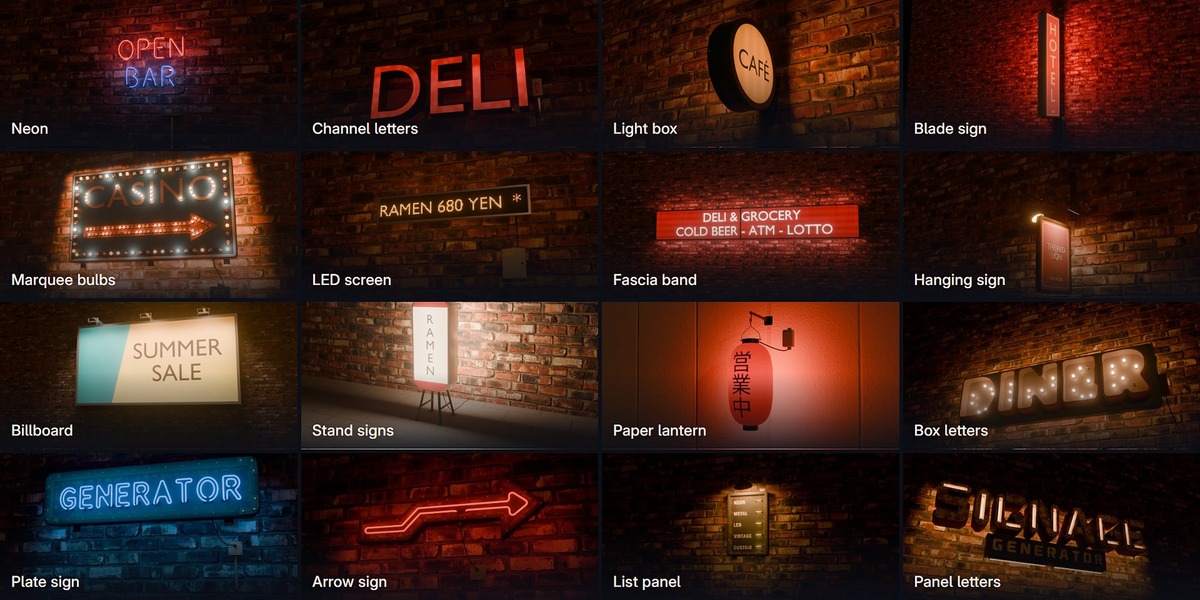
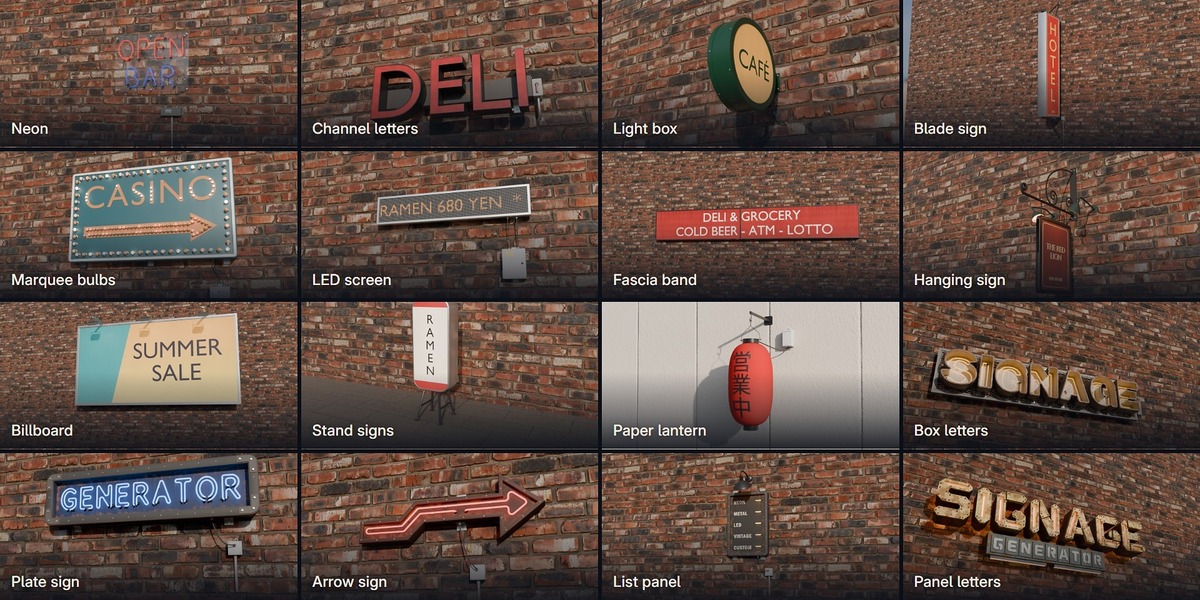
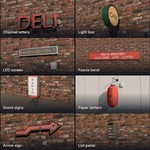
Every kind of shop sign
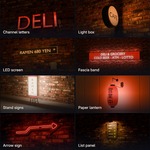
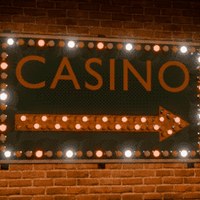
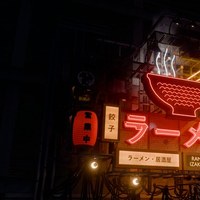
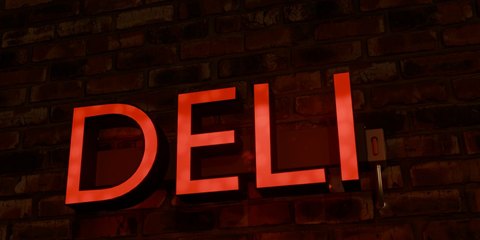
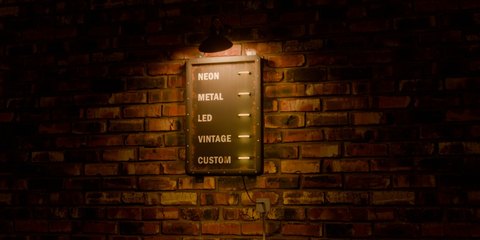
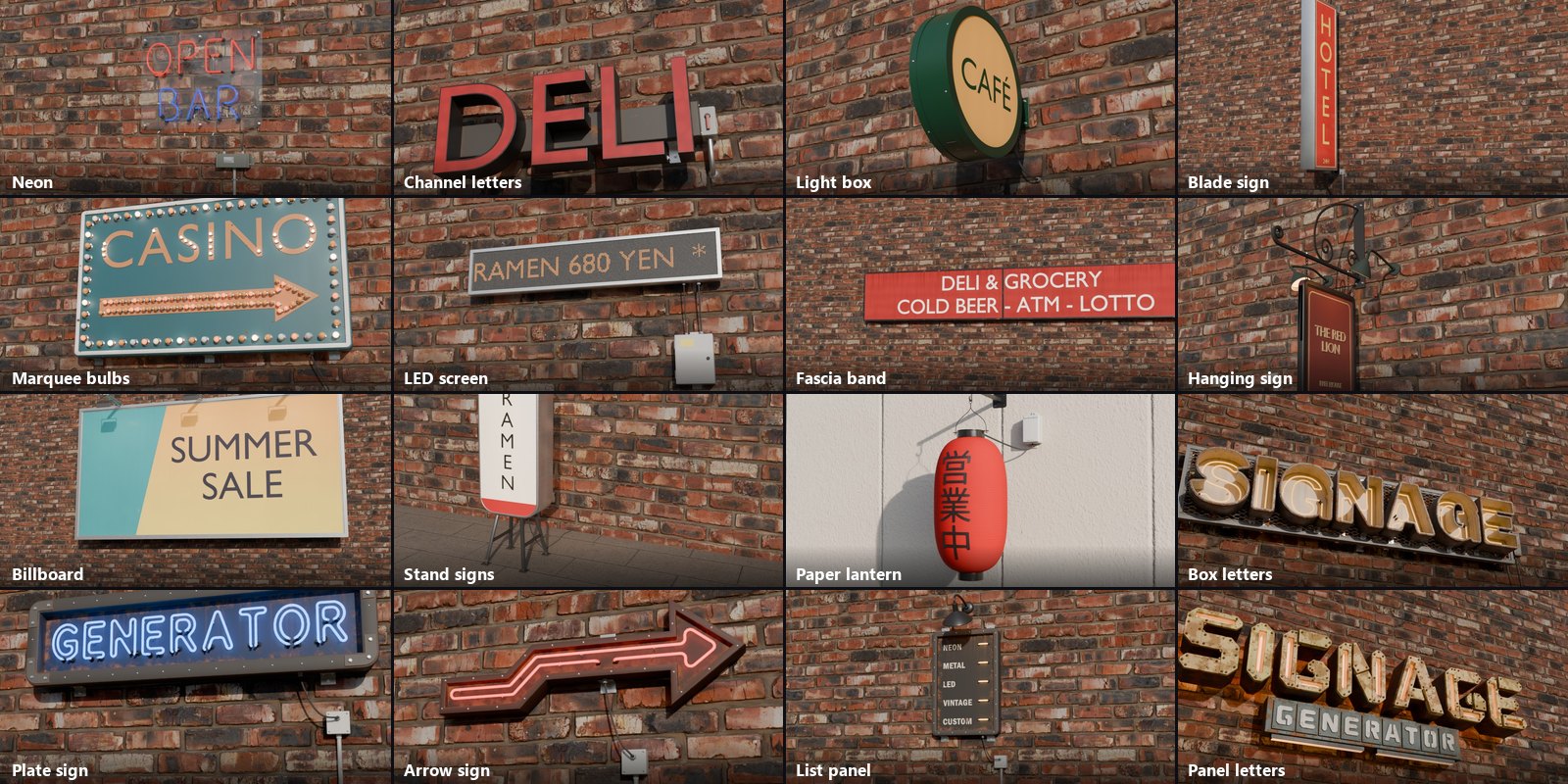
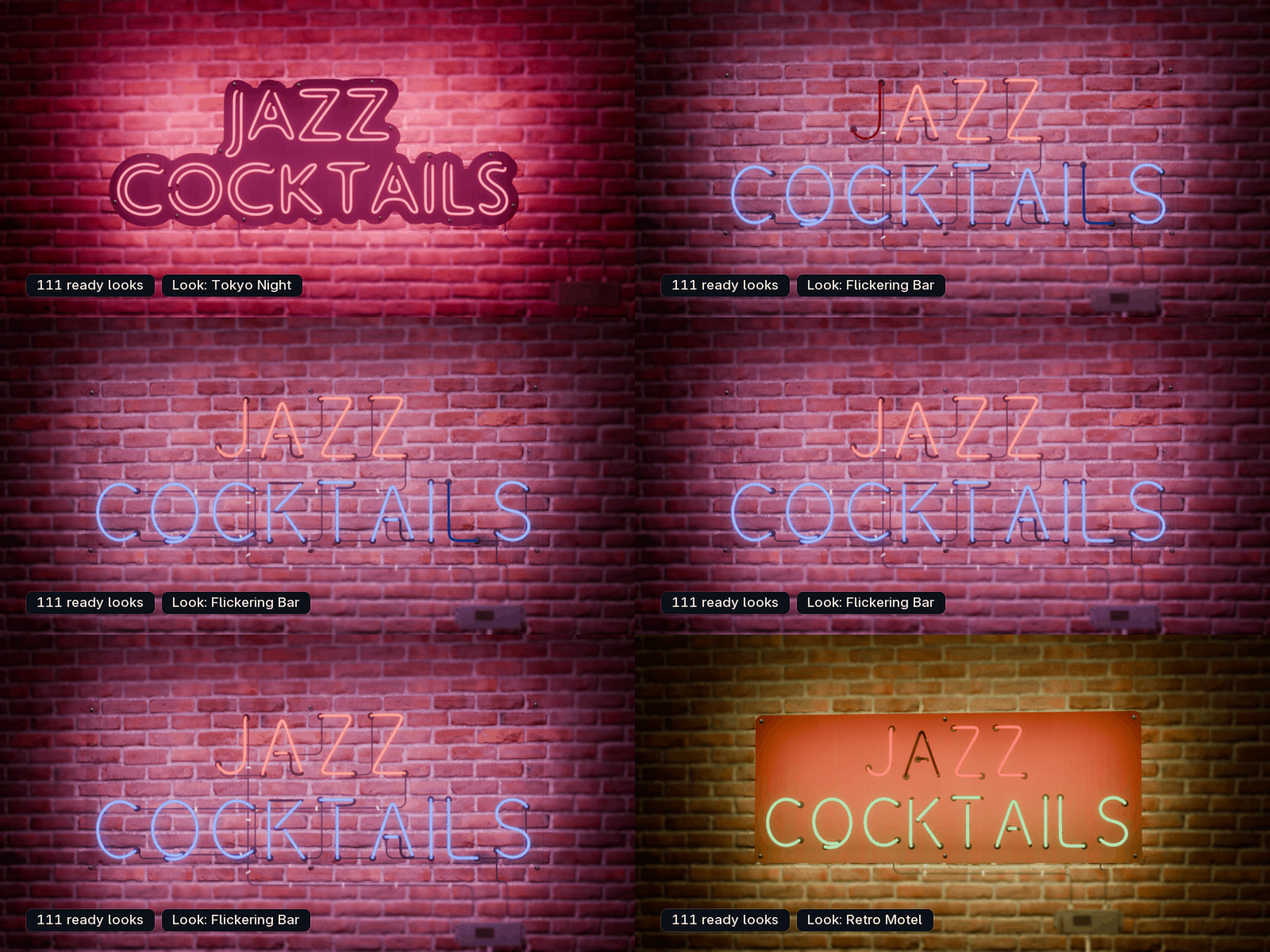
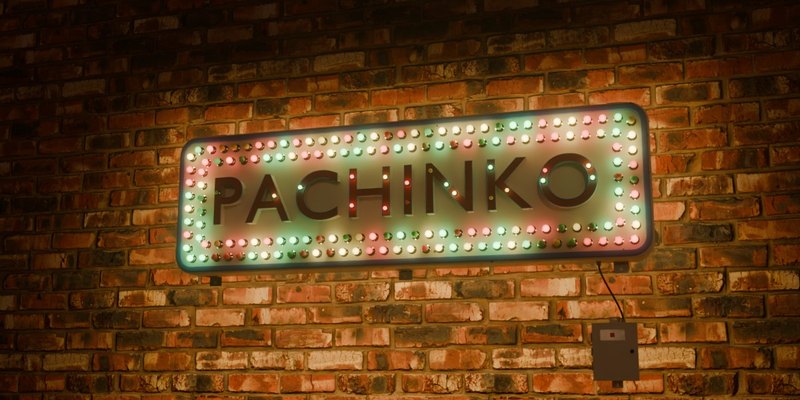
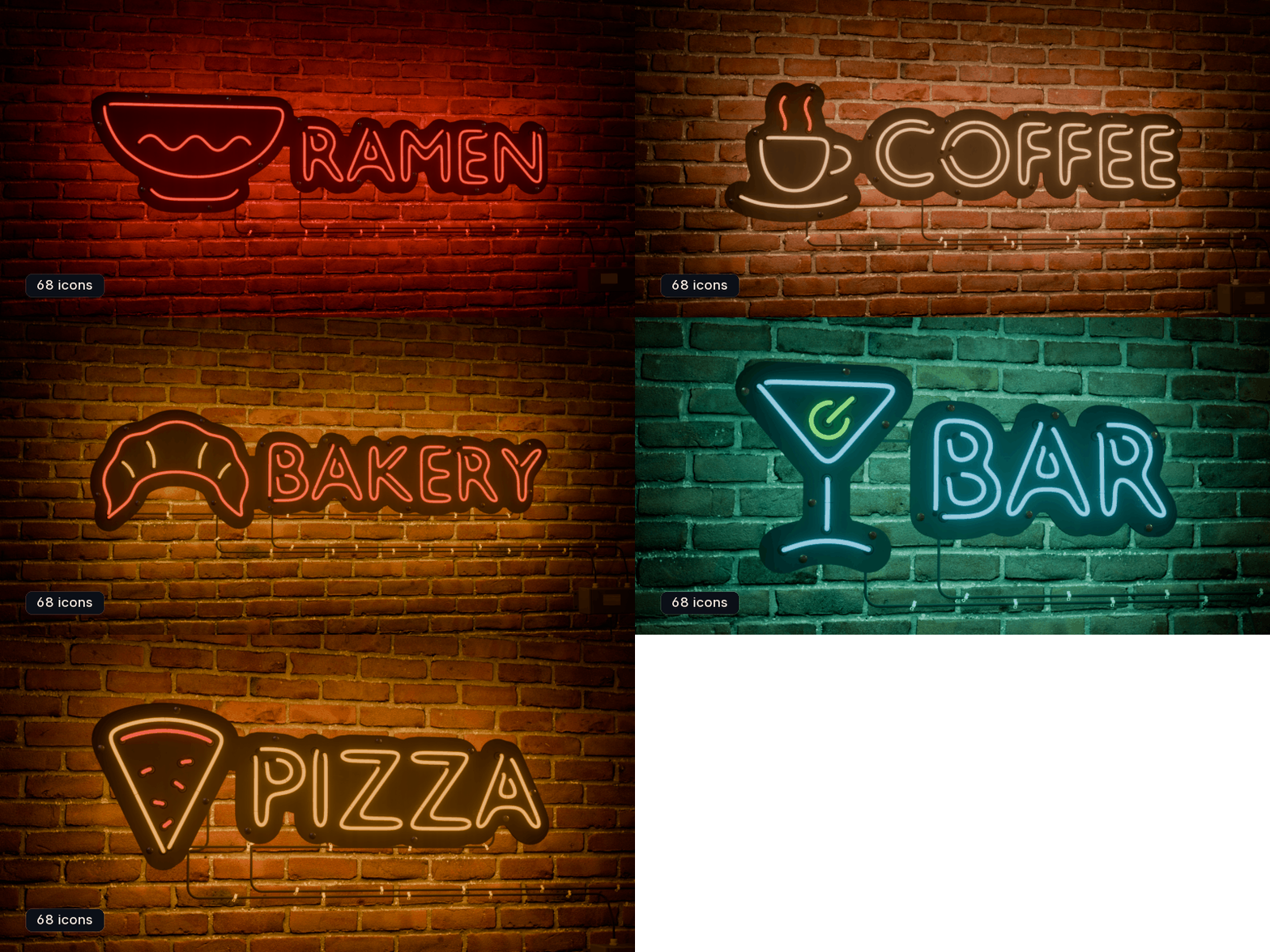
Each type has its own ready looks, 111 in all: a Tokyo izakaya, a New York deli, a Paris bistro, a Las Vegas arrow, an abandoned one for every type and many more.
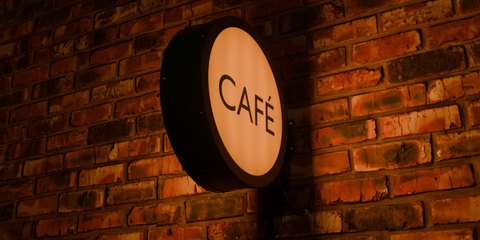
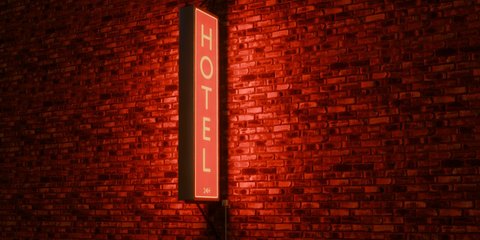
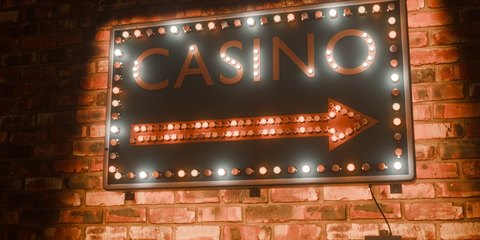
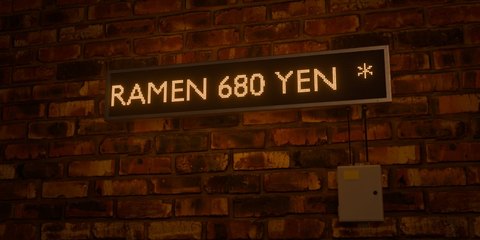
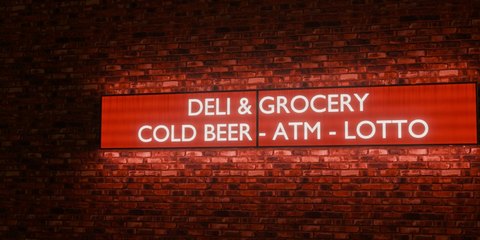
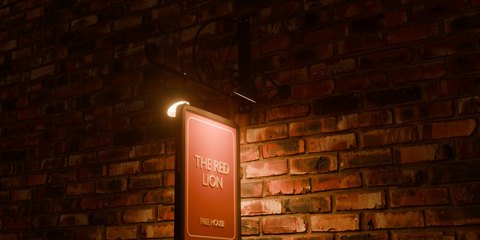
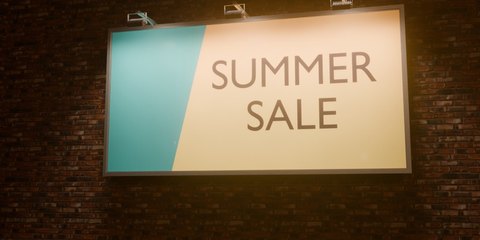
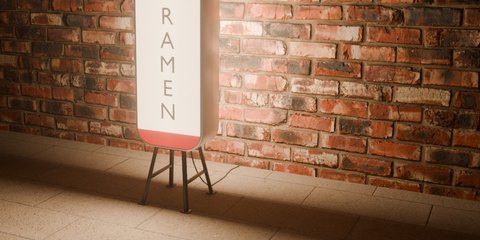
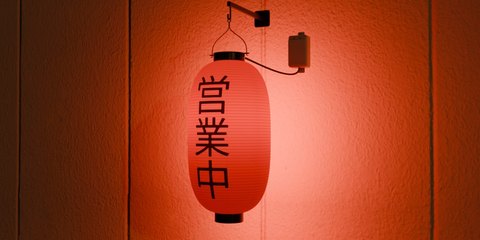
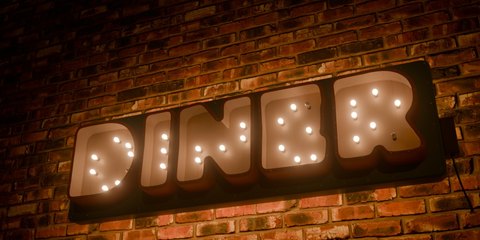
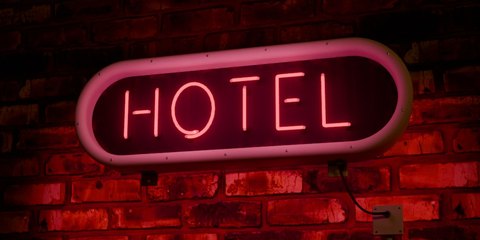
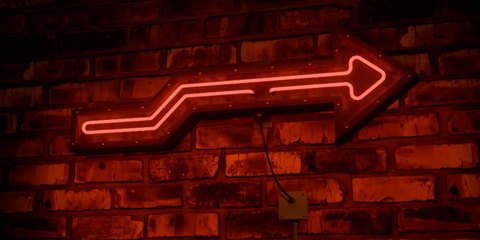
Put it on any surface
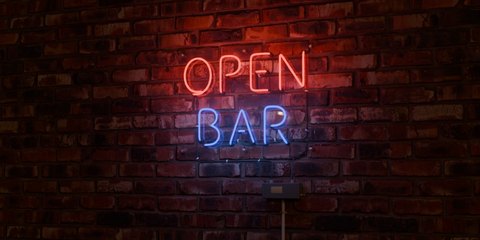
Add Sign puts the new sign on the surface under your mouse: a wall or any object, at any angle. Turn it with the mouse wheel and click to place it. Place on Surface moves a sign or a whole cluster again the same way.
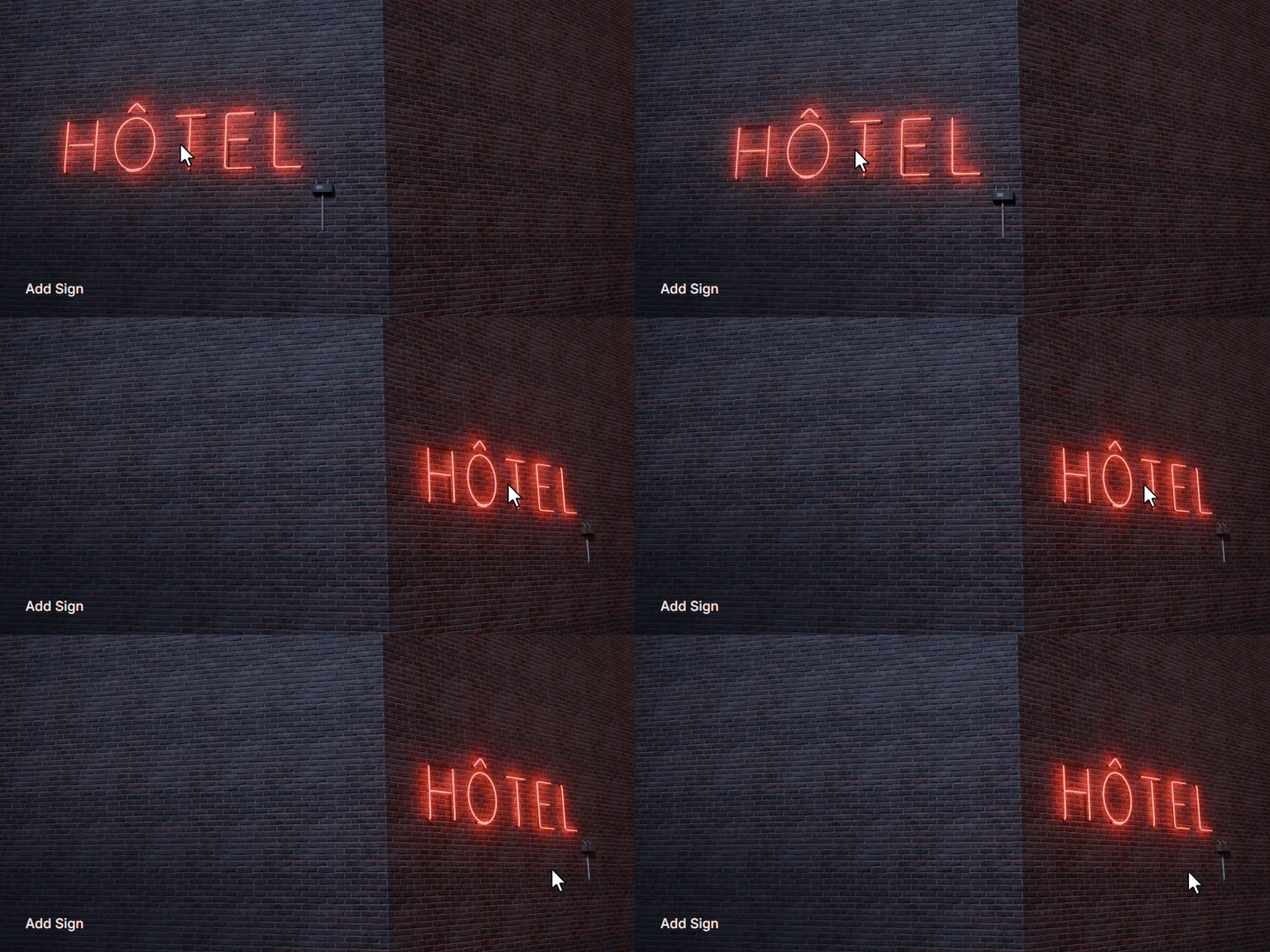
The light is real
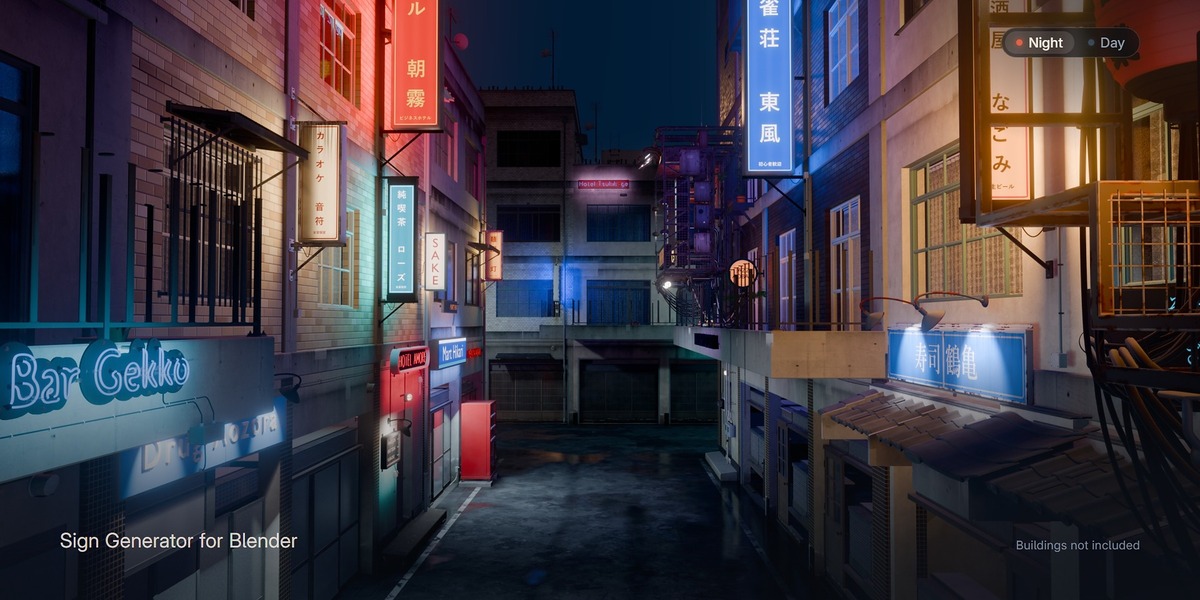
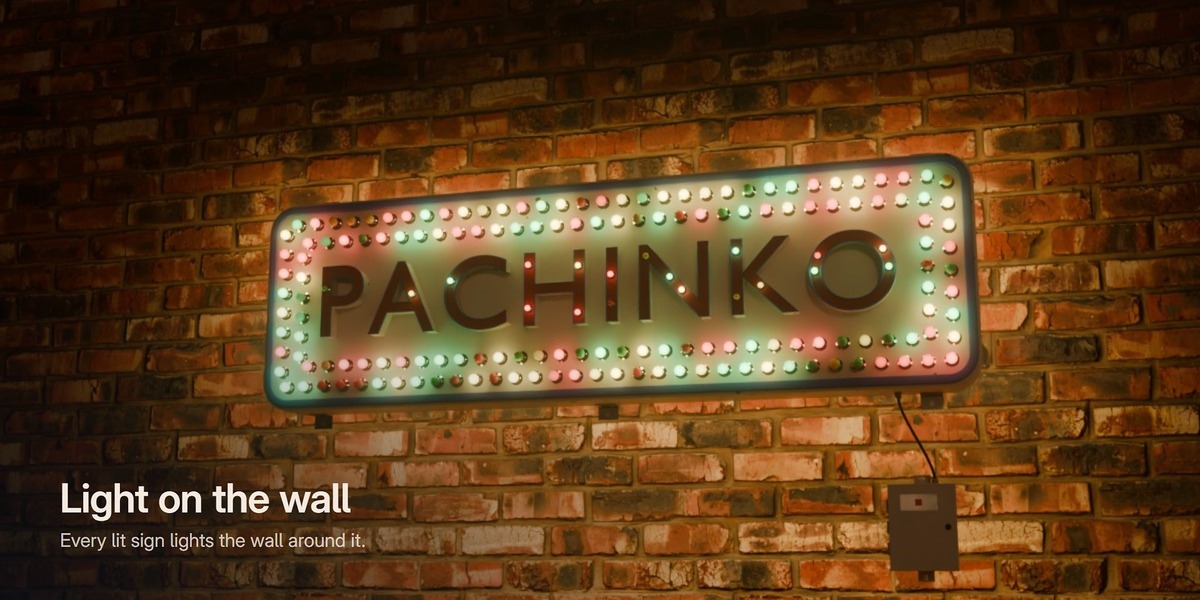
Every lit sign brings its own light, sized to the sign, so the wall and the ground around it light up. Real light, not a glow painted on top.
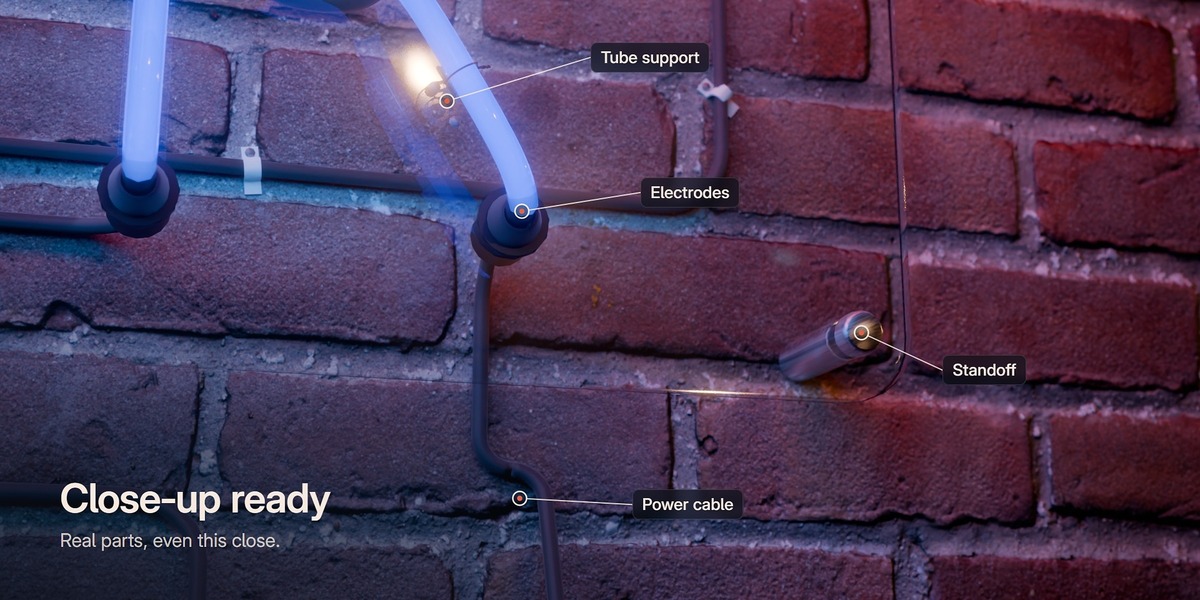
Close-up ready
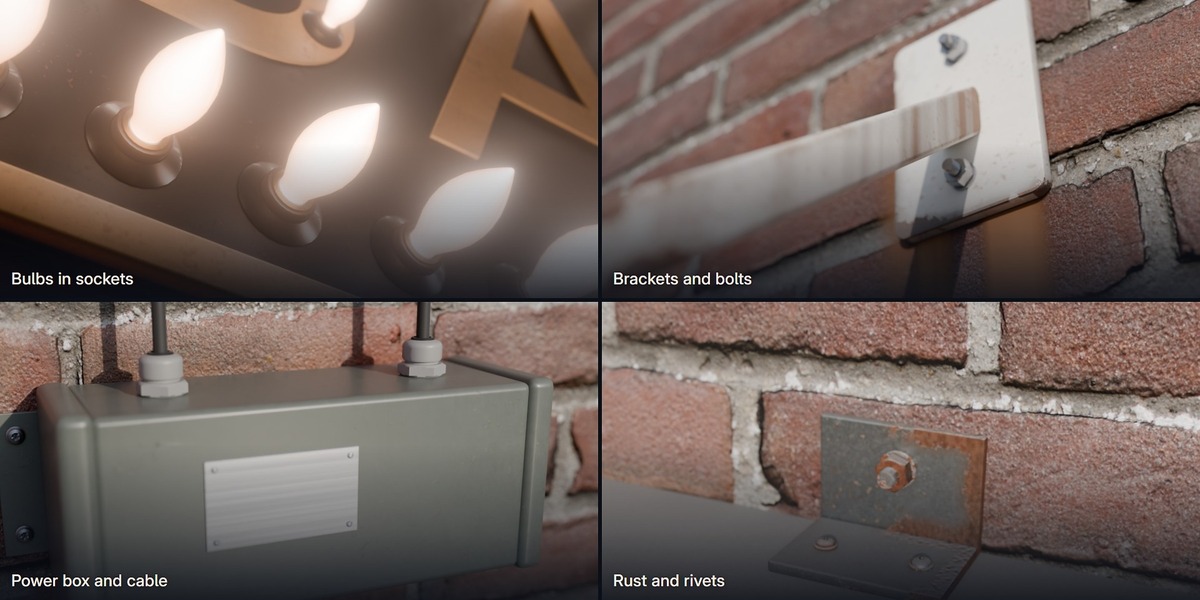
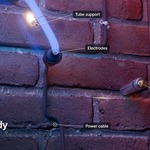
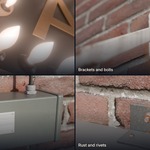
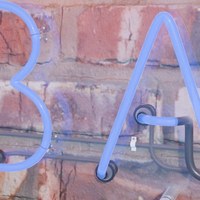
Every sign is made of real parts, so the camera can go right up to it.
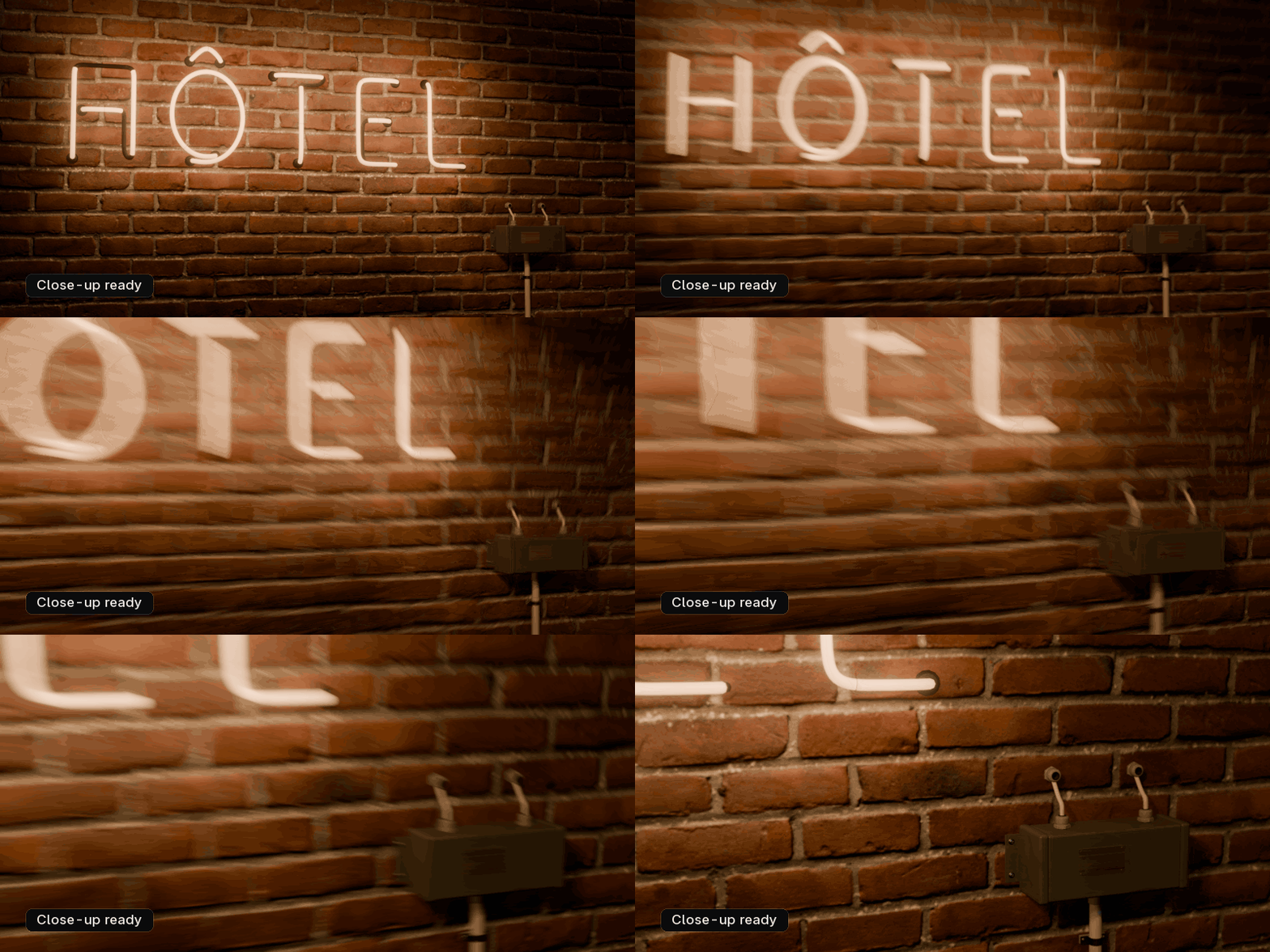
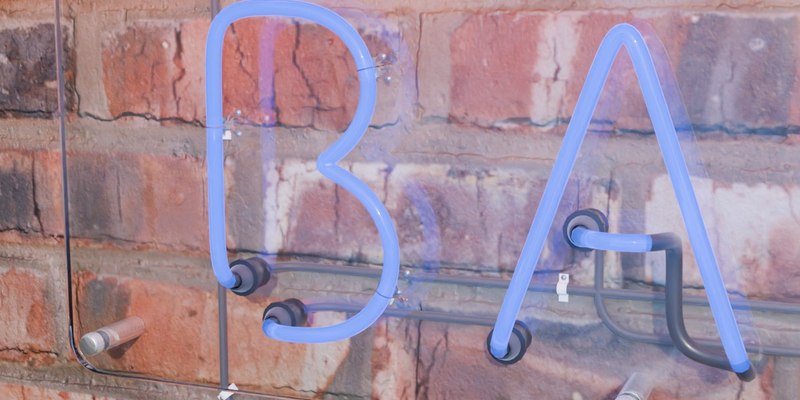
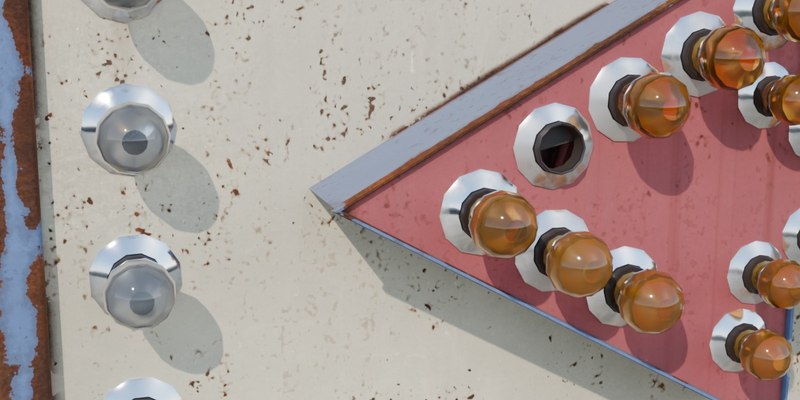
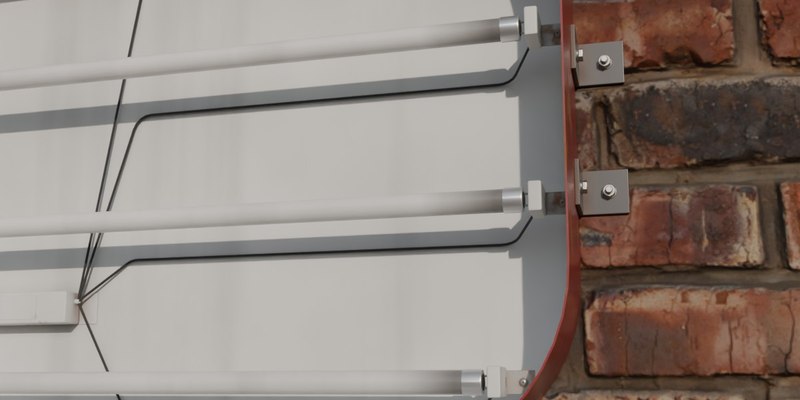
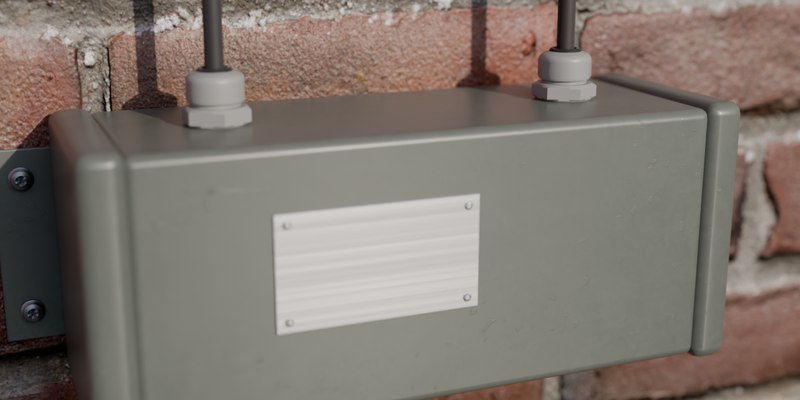
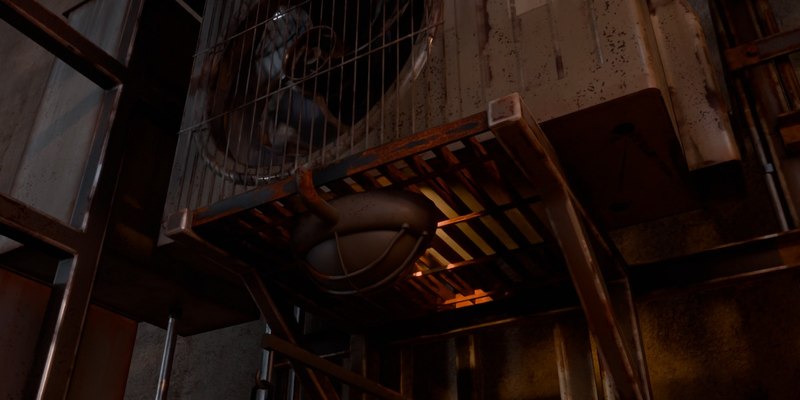
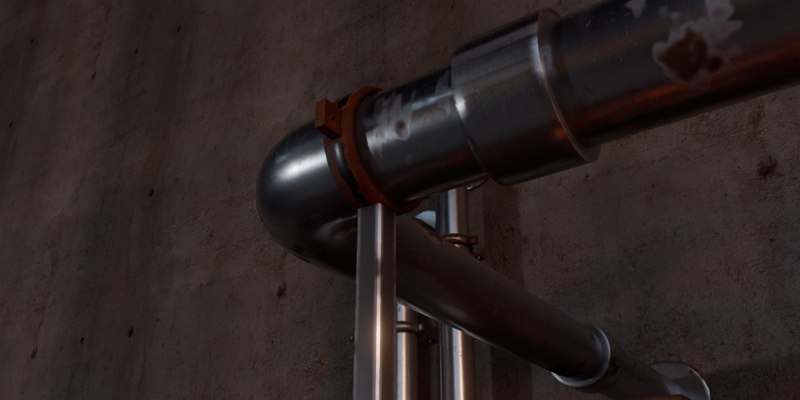
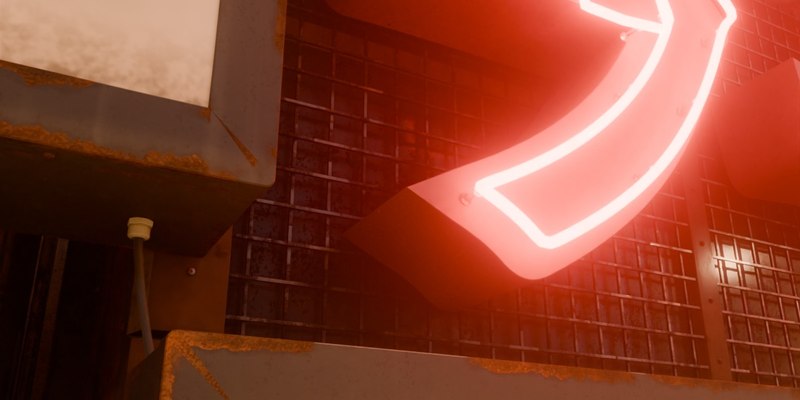
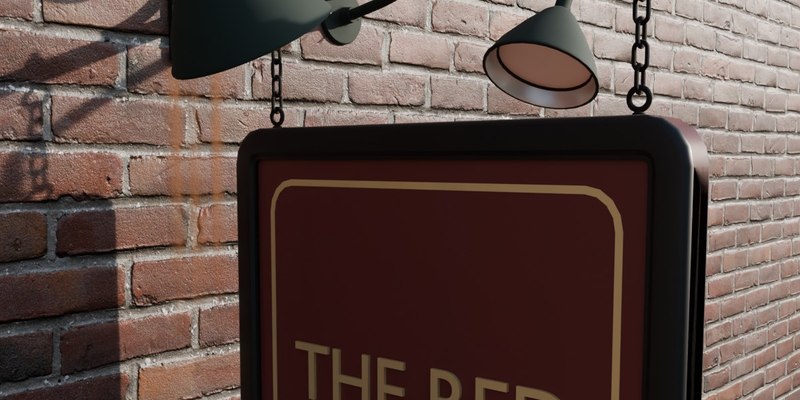
Detail High is made for close-ups, and Detail Low keeps signs far from the camera light.
One slider for the whole scene
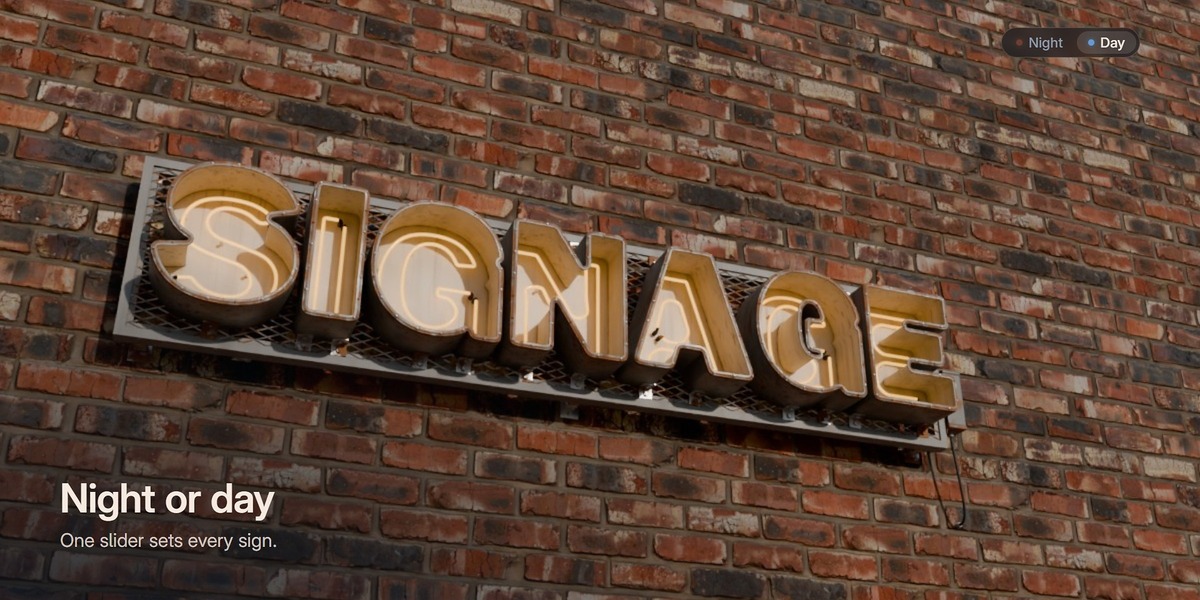
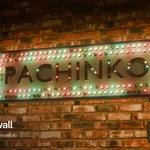
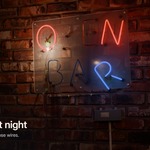
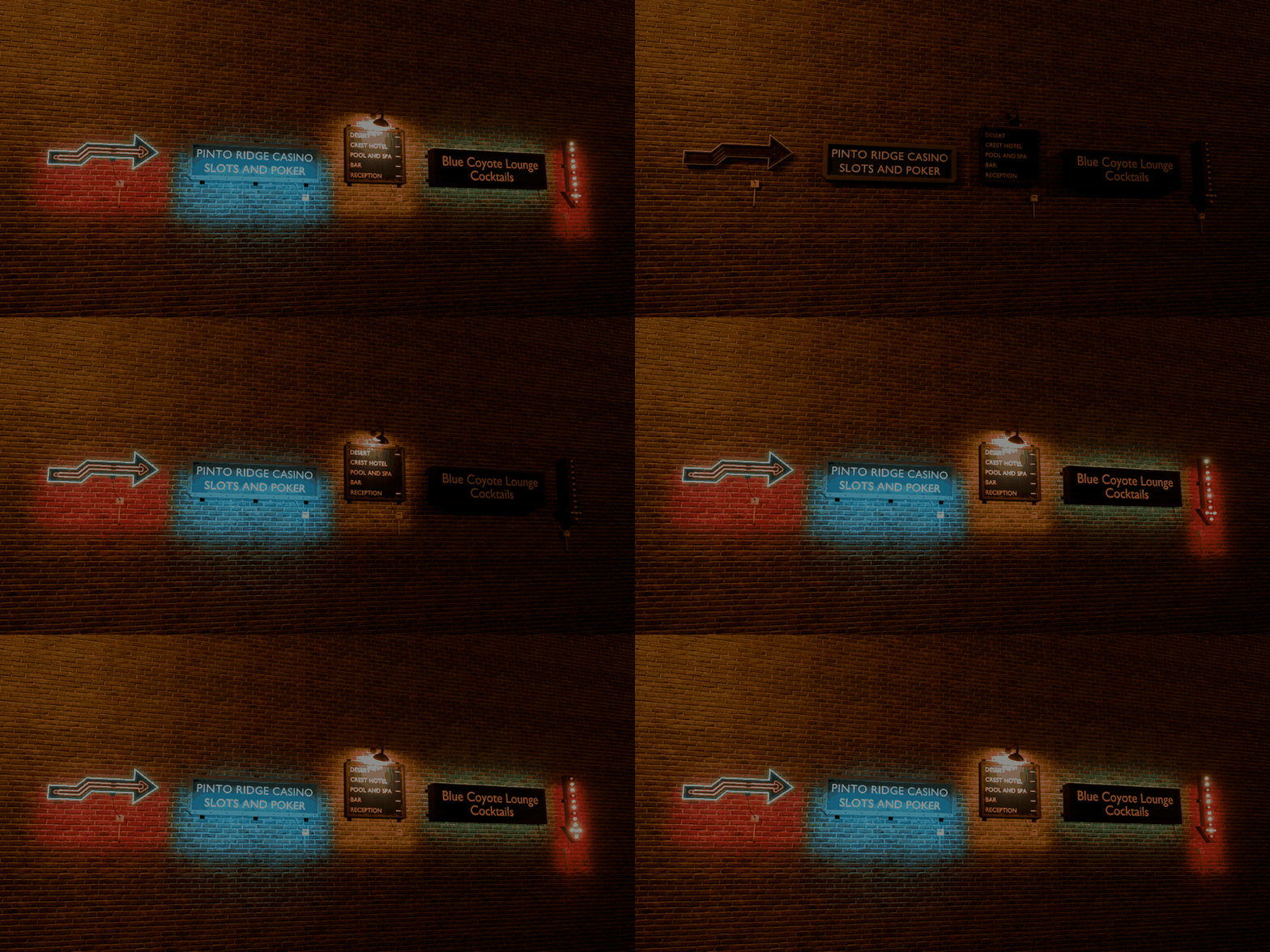
One Night / Day slider sets every sign in the scene. At night each lit sign lights up the wall and the ground around it. By day the glow fades and you see the real materials.
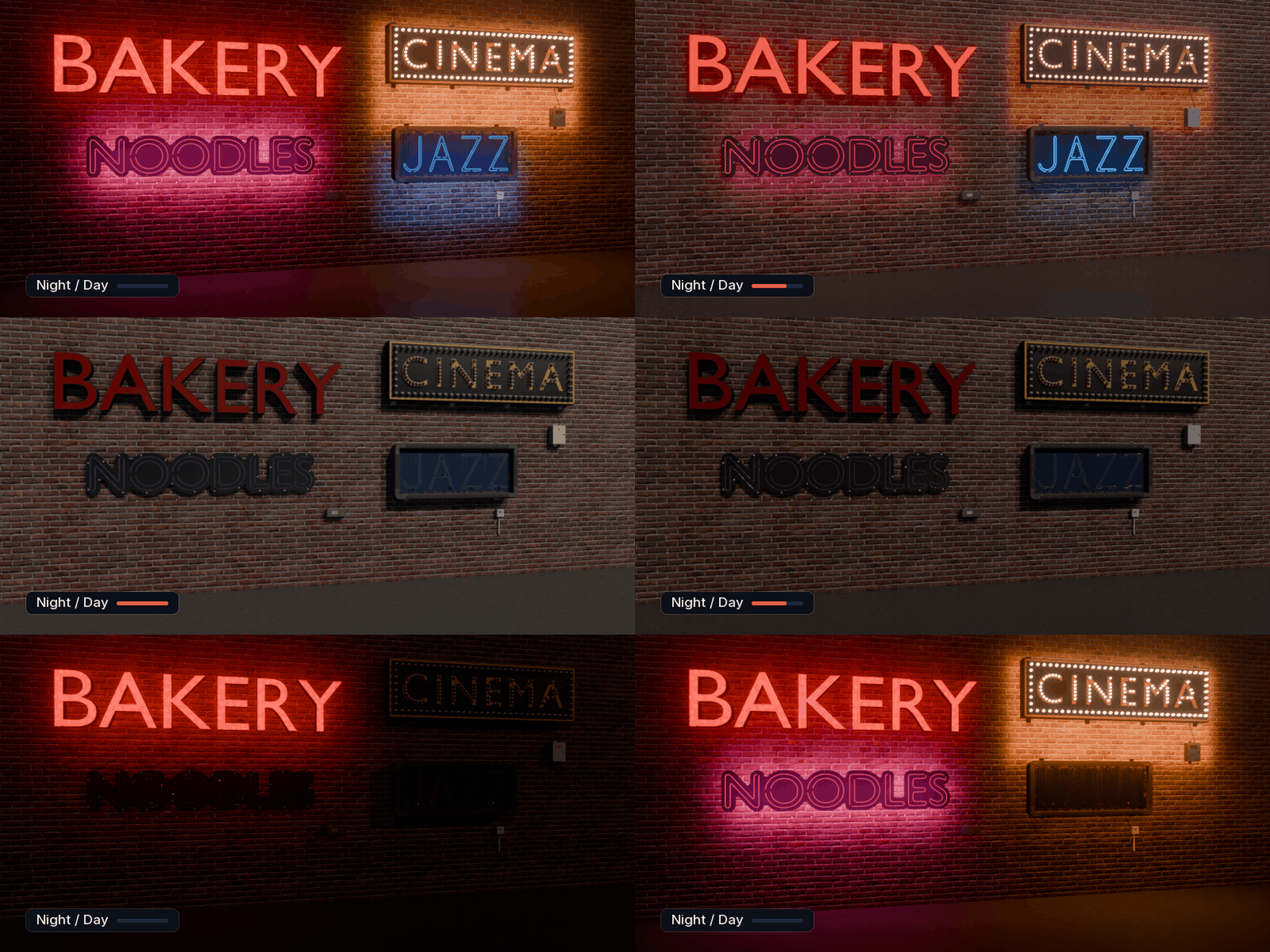
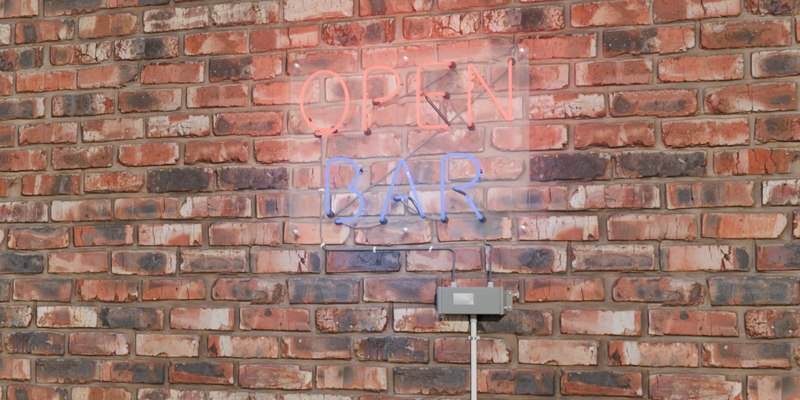
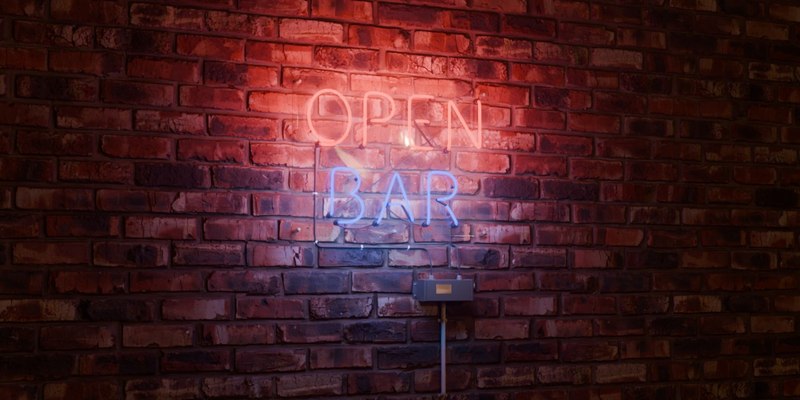
The same camera, by day and at night
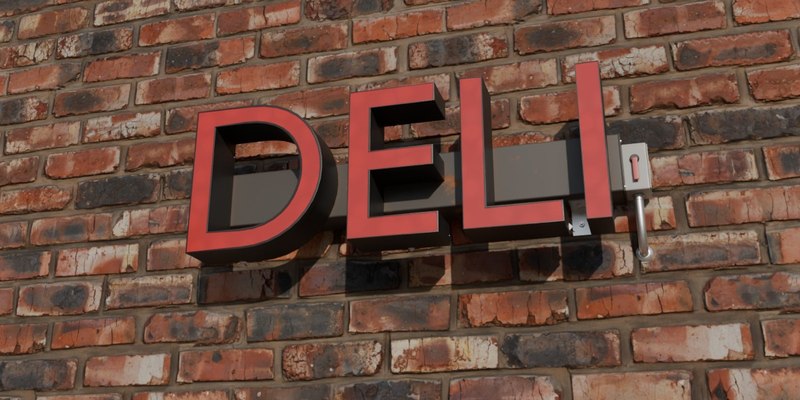
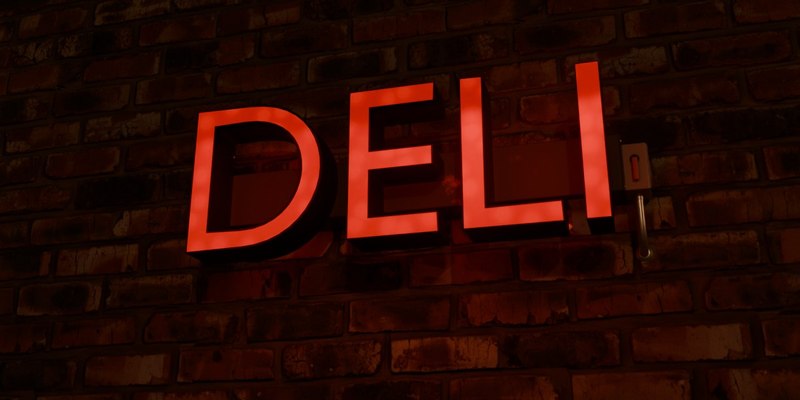
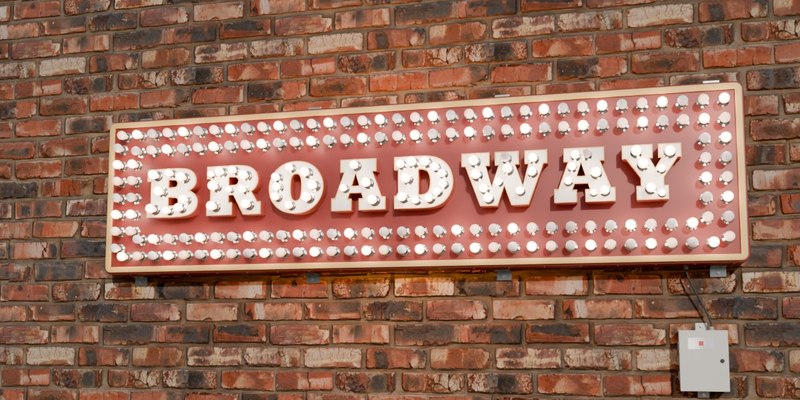
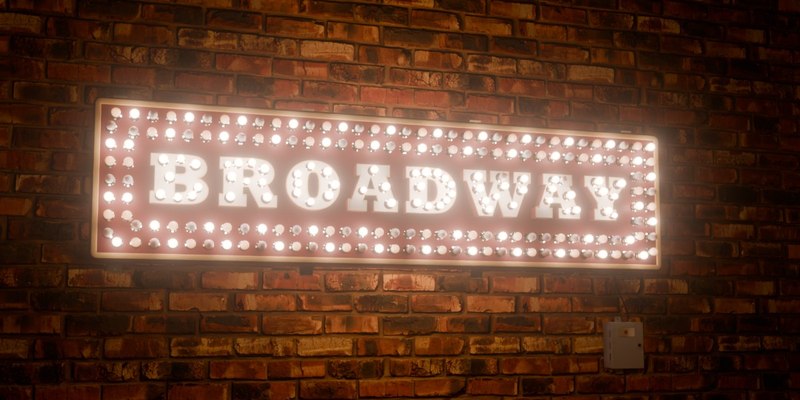
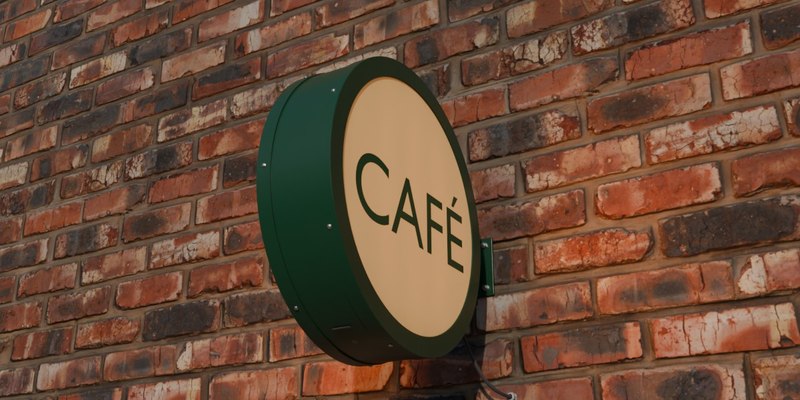
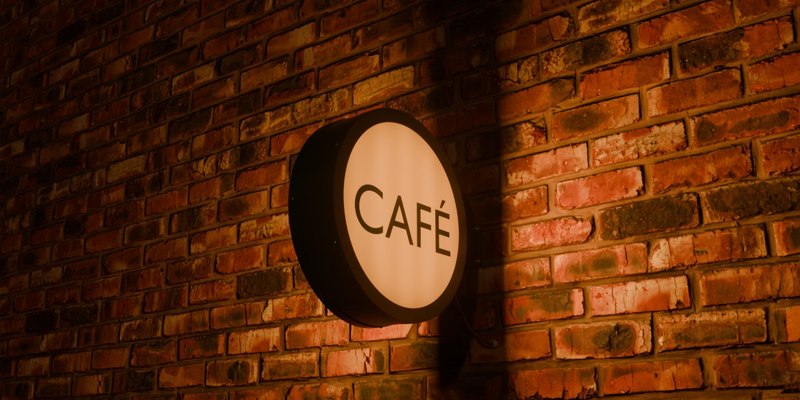
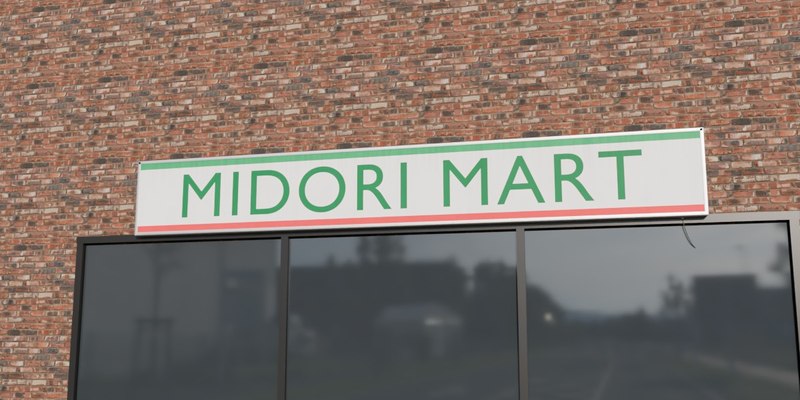
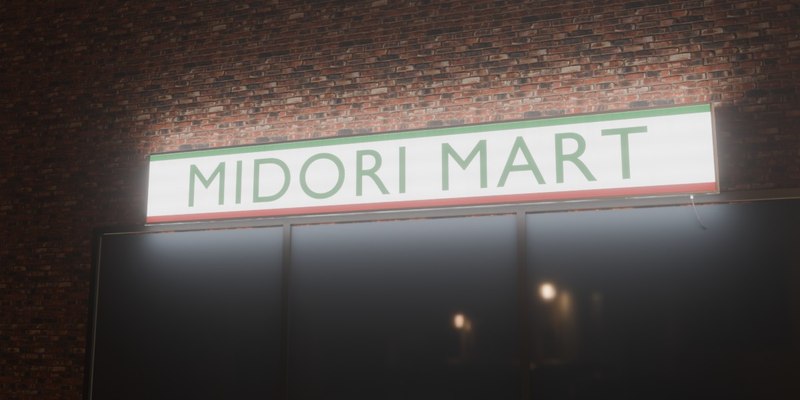
Night Look
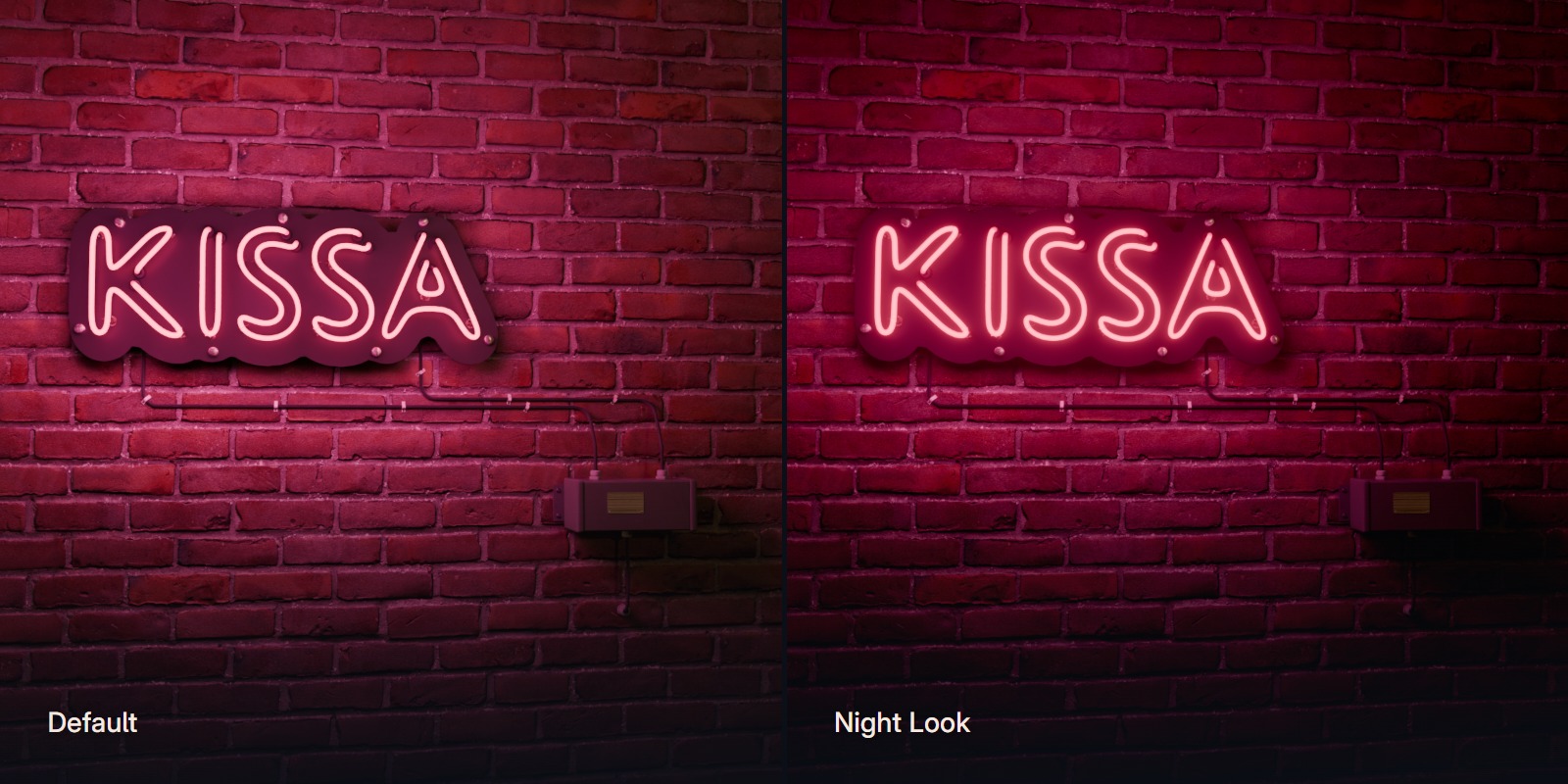
Night Look, the button under the Night / Day slider, gives your scene the look of our pictures in one click: stronger colours and a soft glow around the lit parts. It works in the viewport and in final renders, in EEVEE and Cycles, and a second click brings your own settings back.
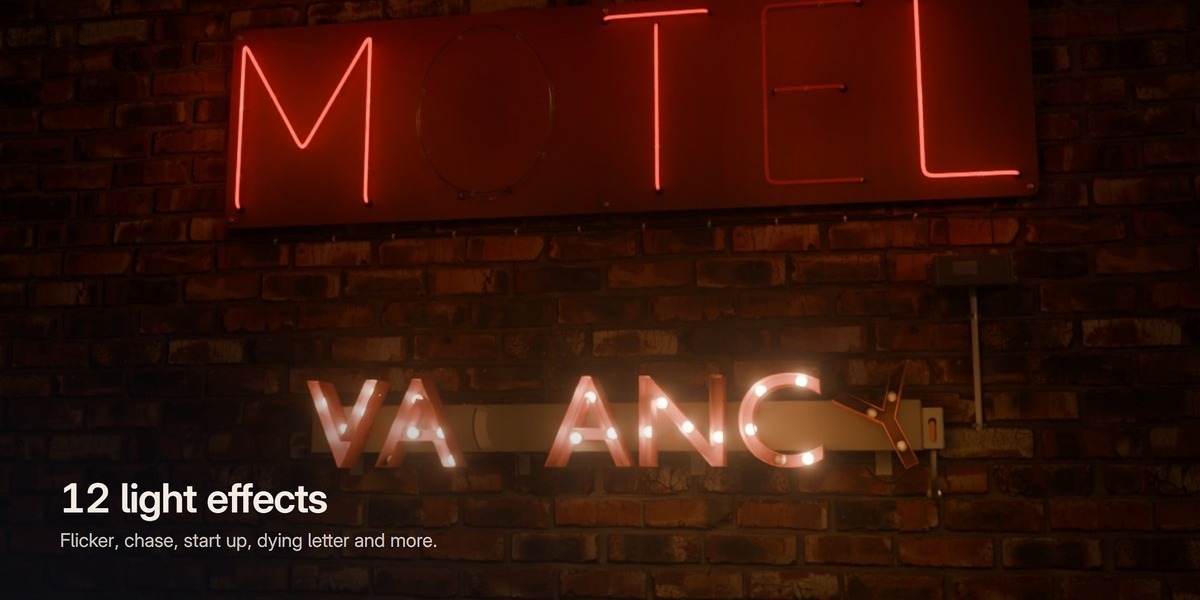
12 light effects
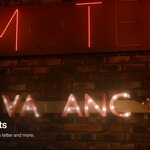
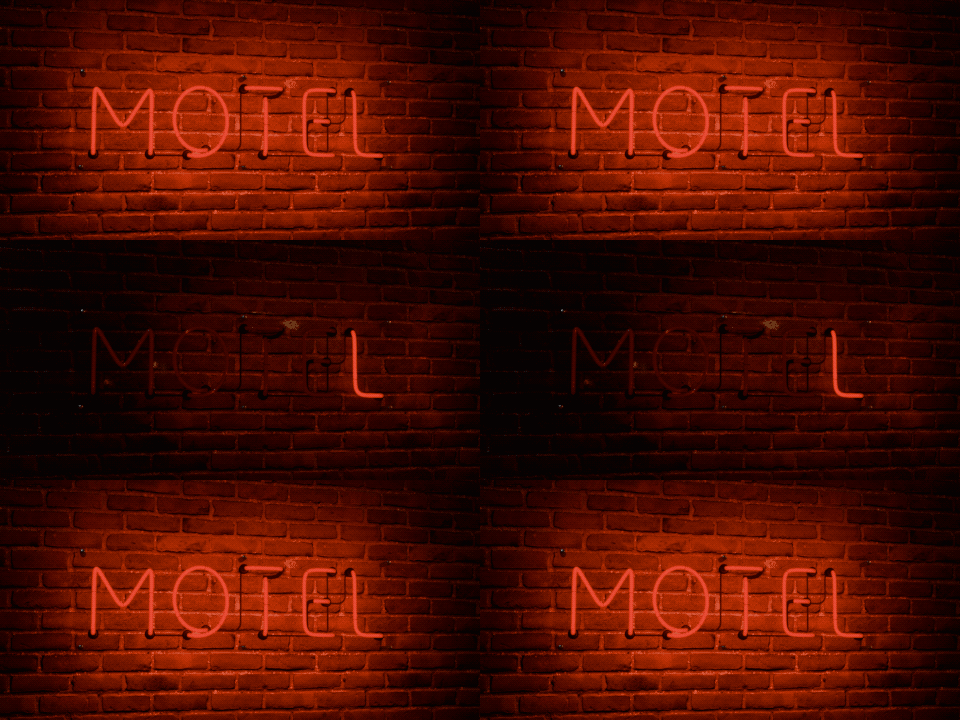
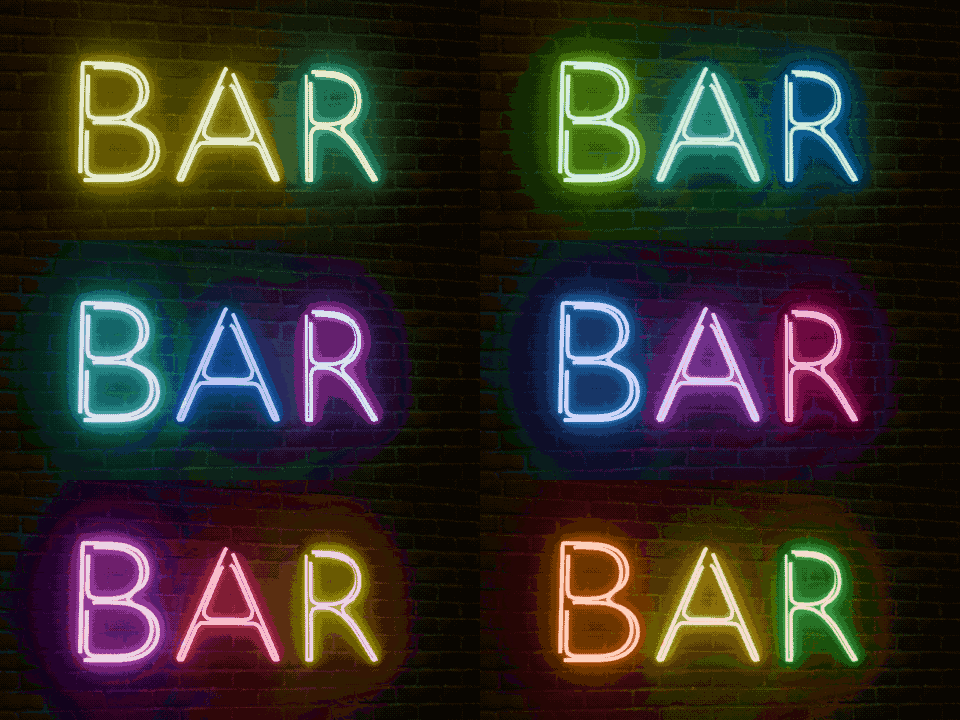
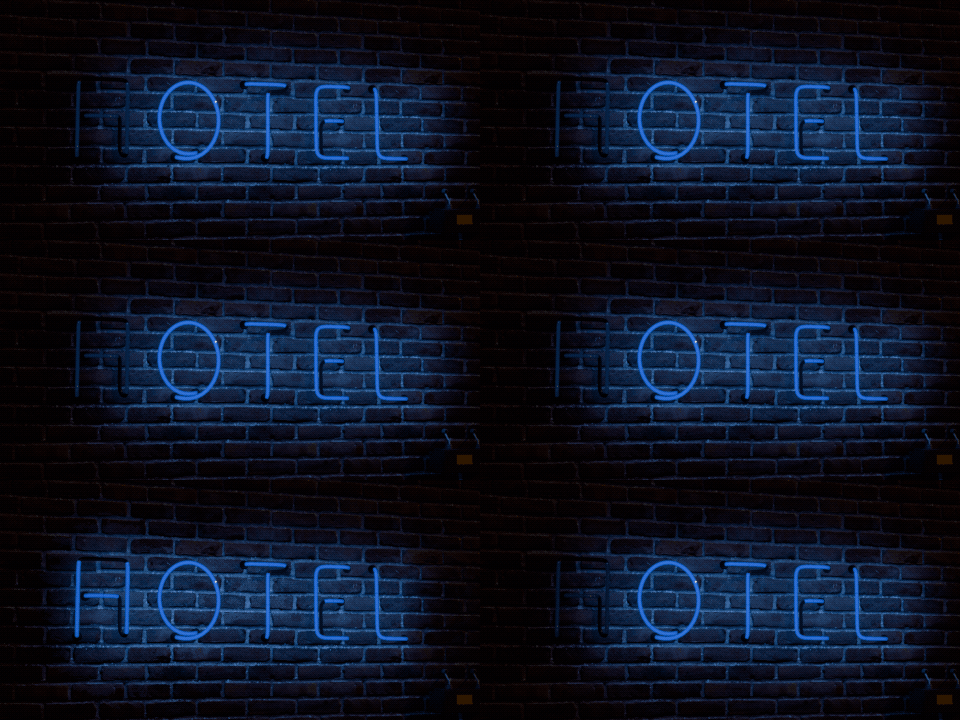
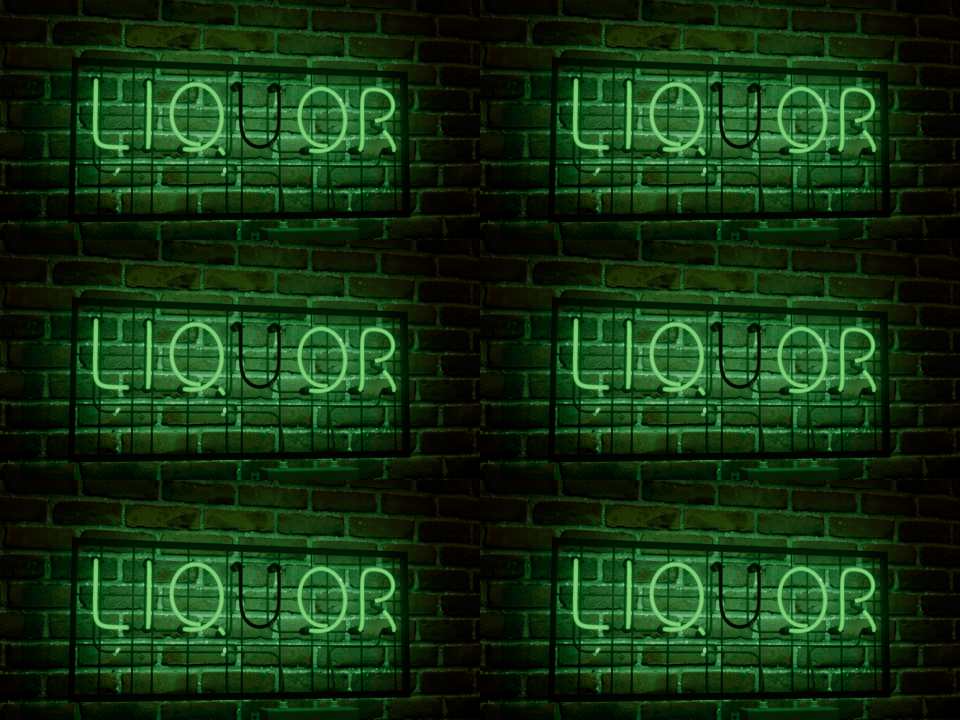
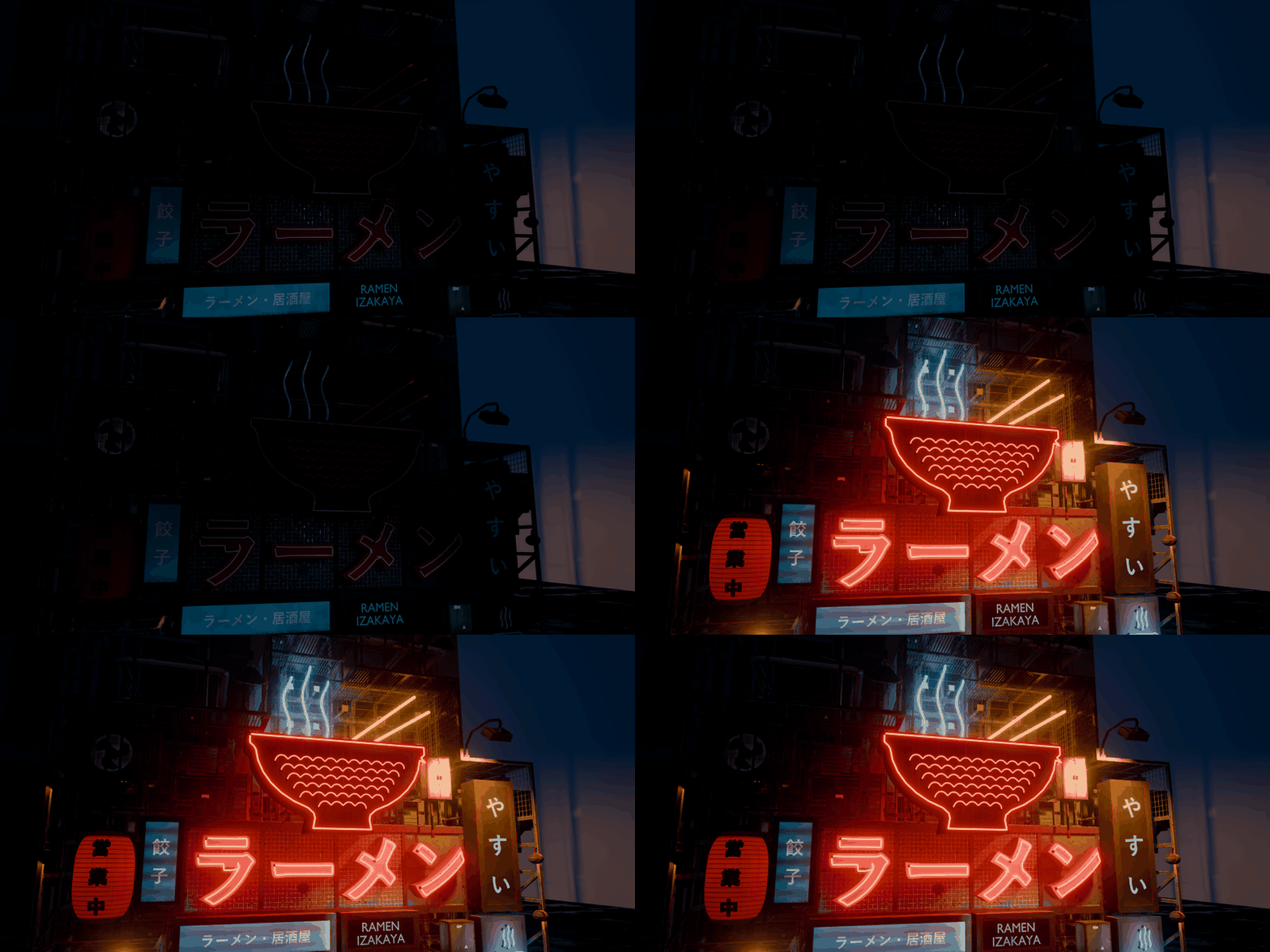
They run on the timeline, so they play in the viewport and in your rendered animation, and the light on the wall follows the effect.
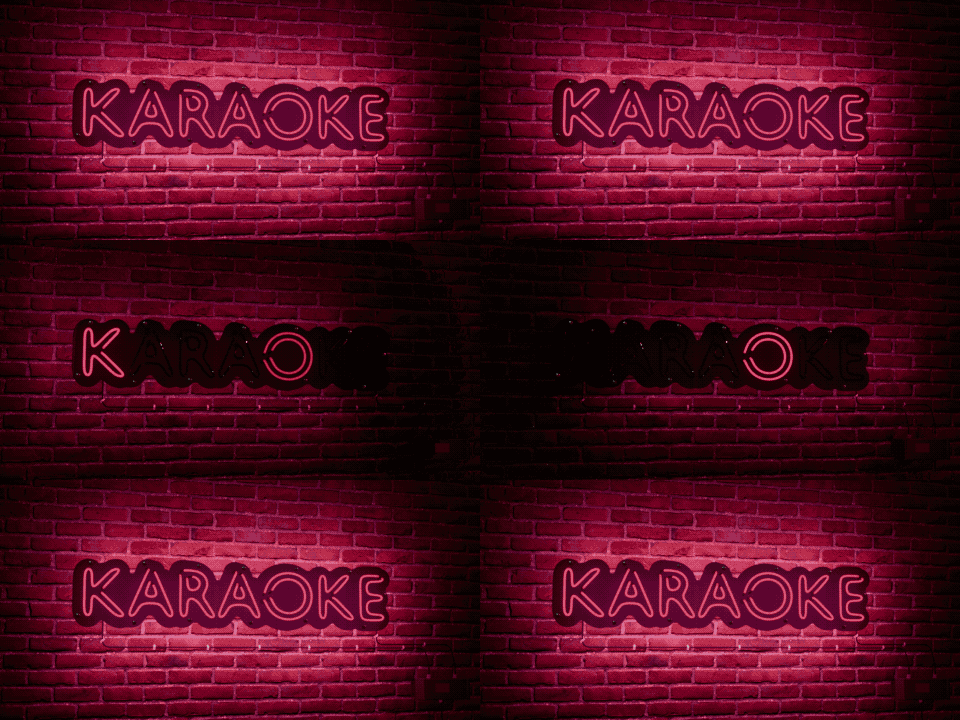
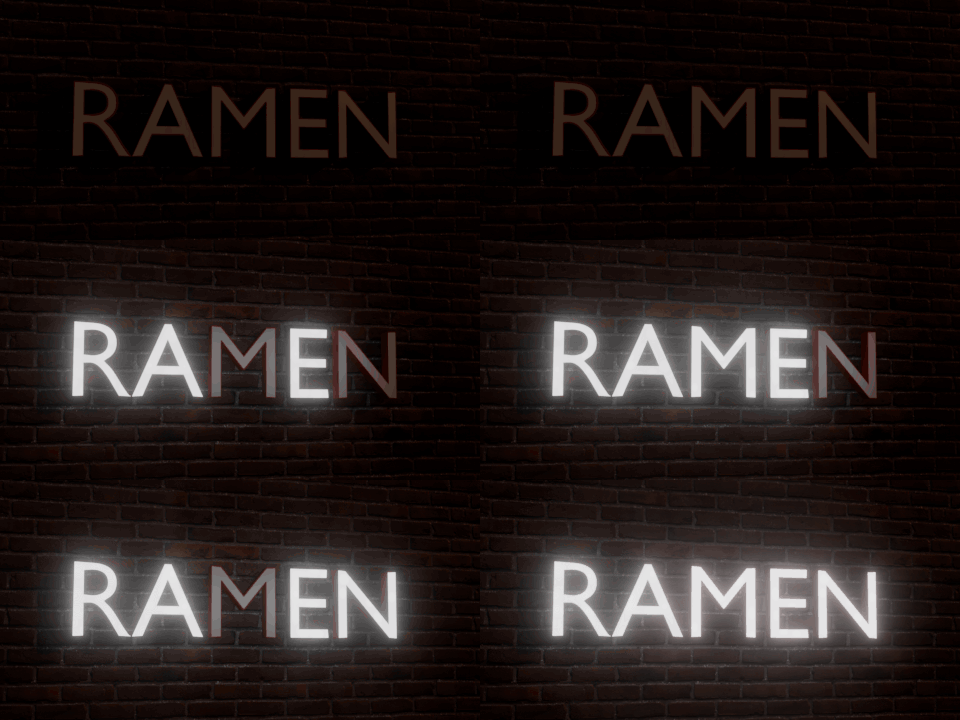
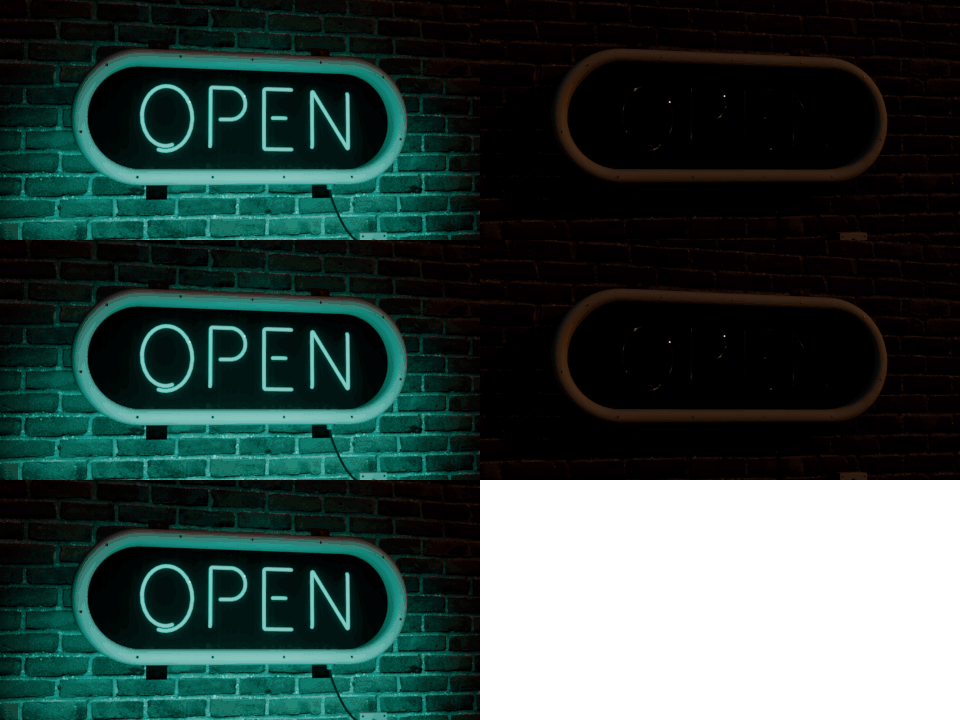
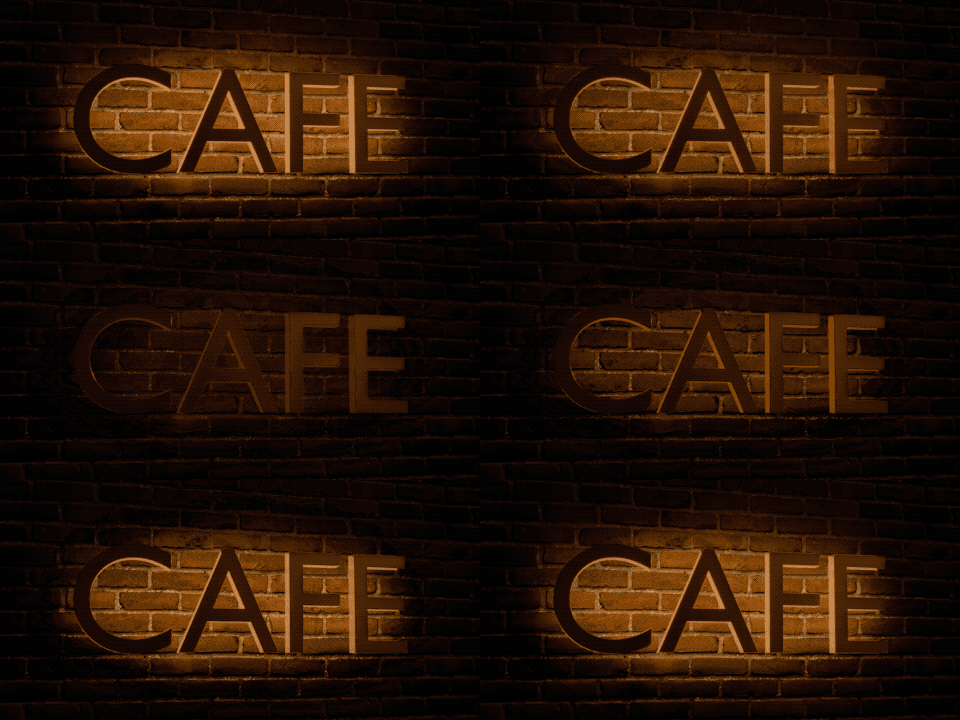
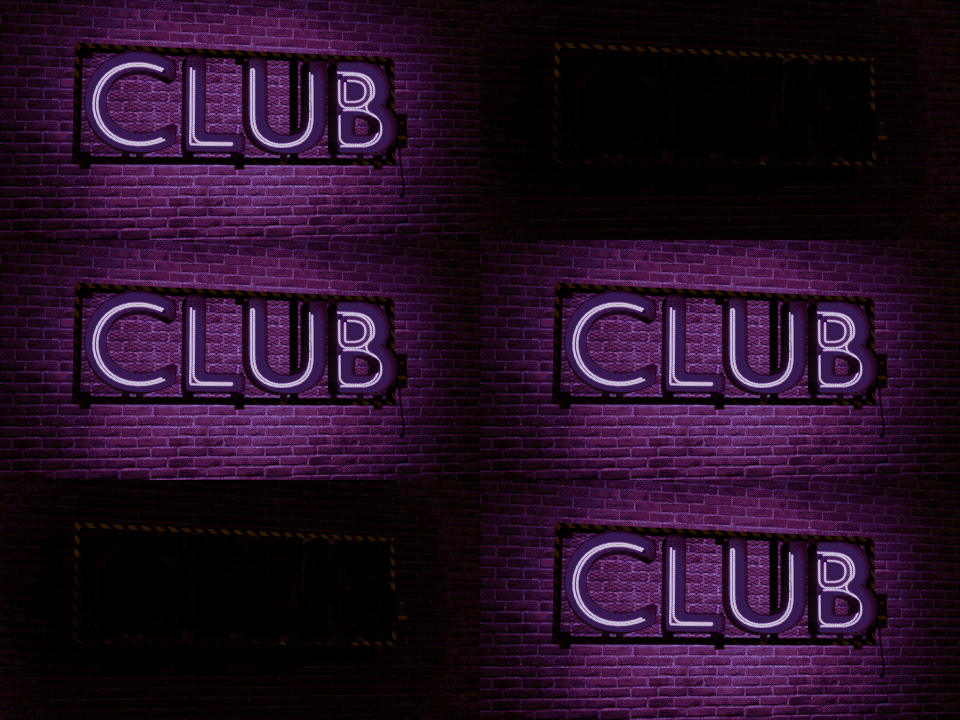
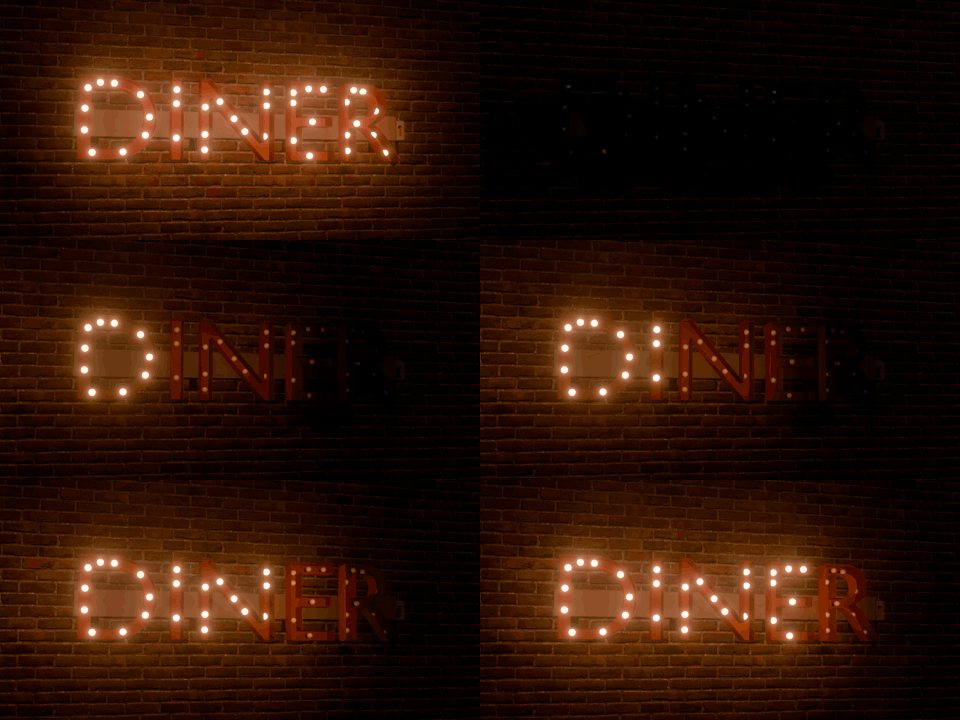
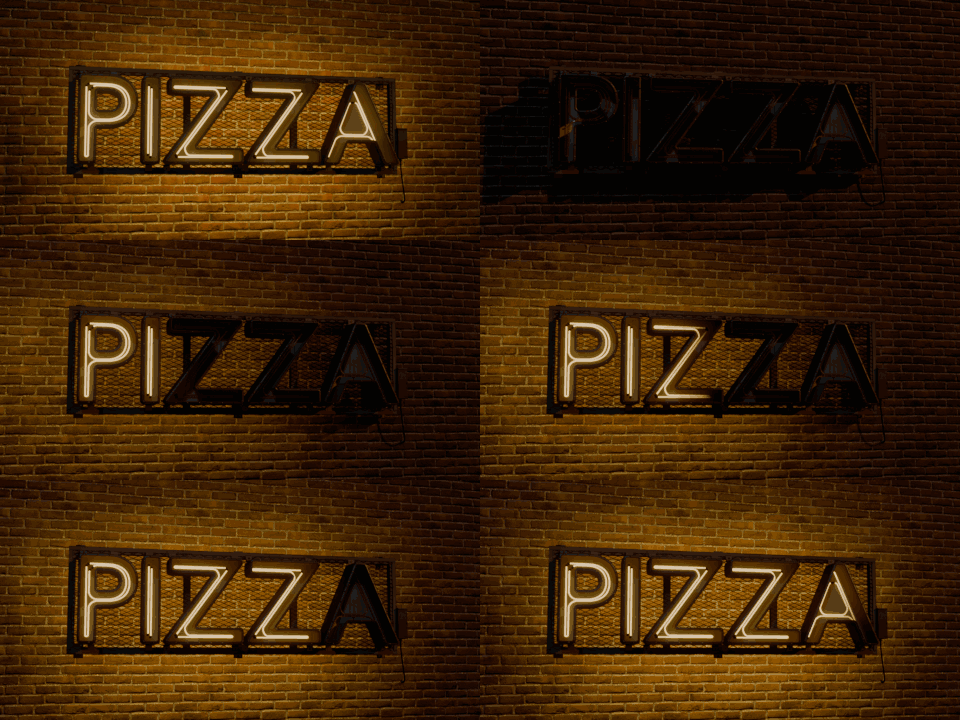
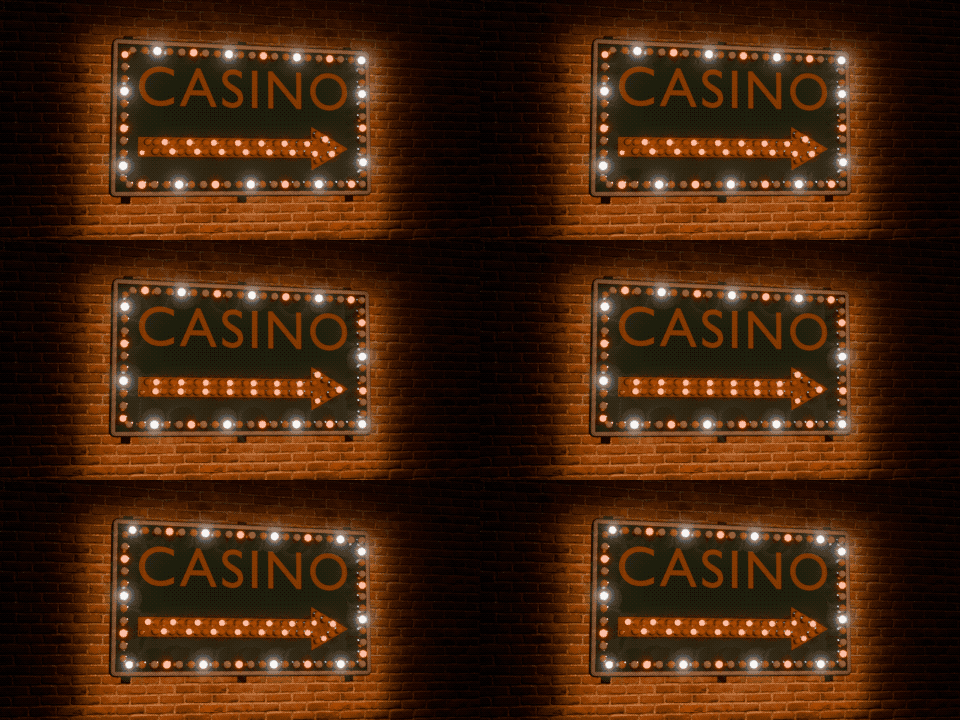
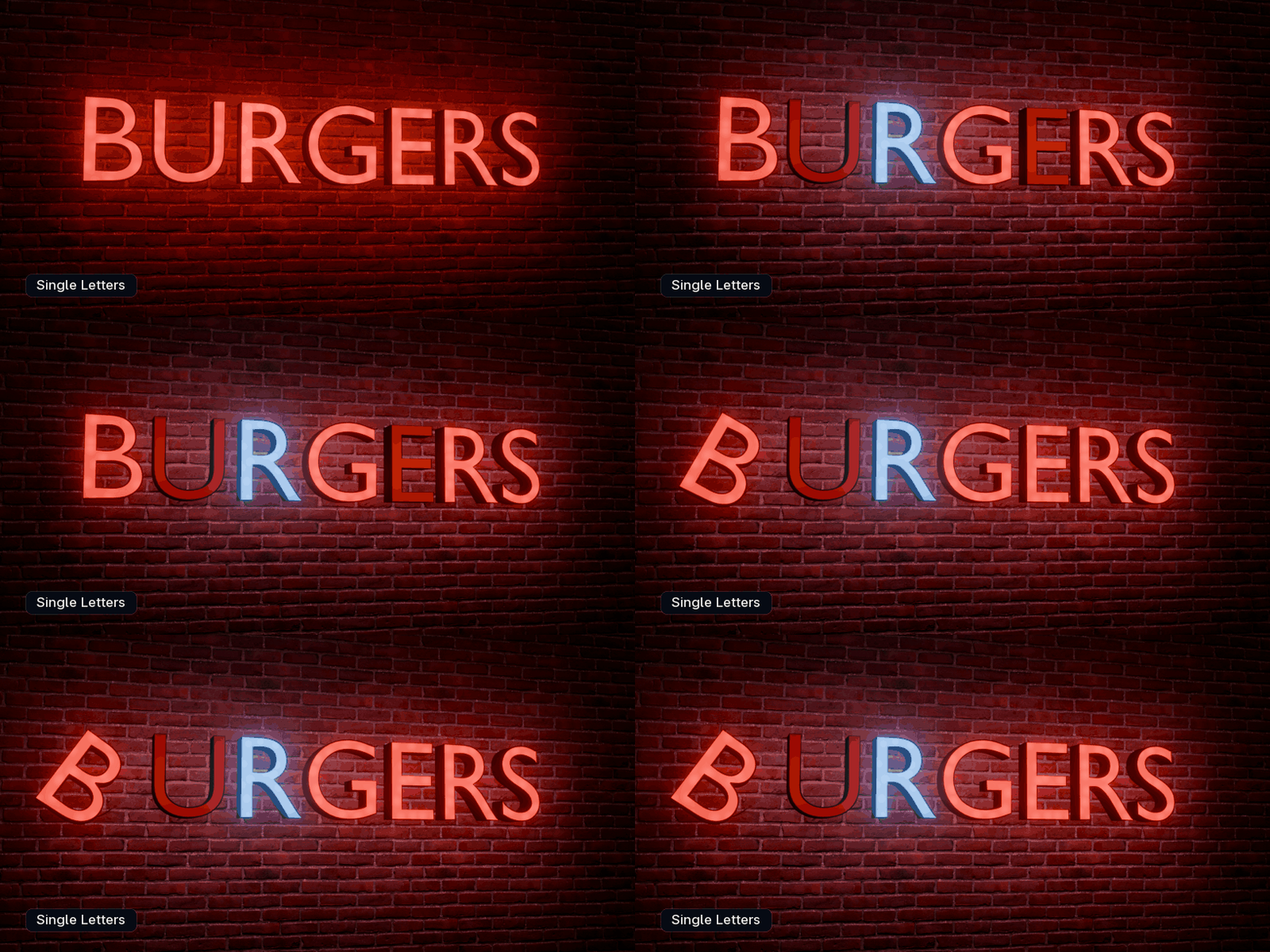
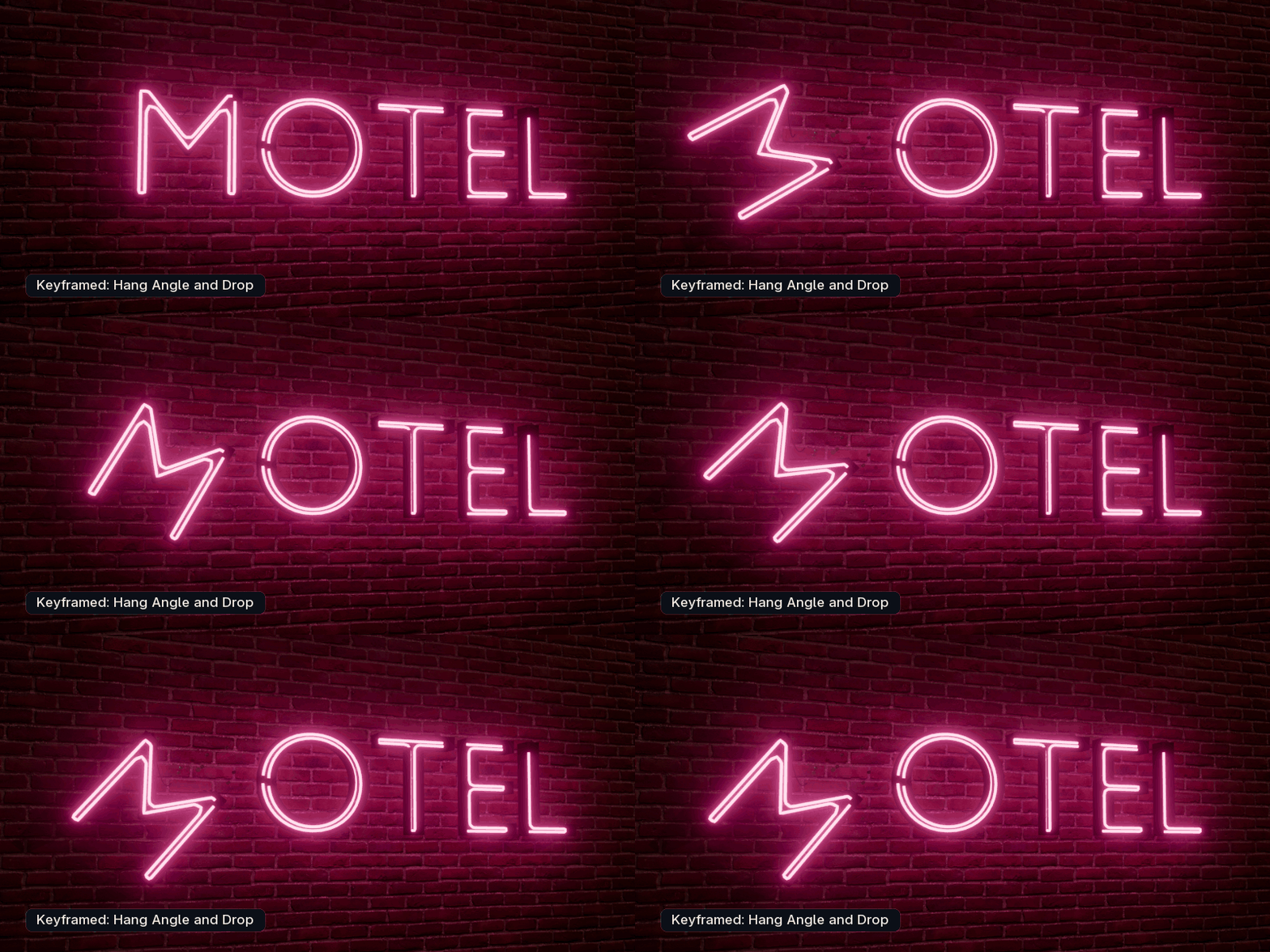
Single letters
Pick one letter and switch it off, or give it its own effect or colour. On letter signs a letter can also tilt, hang from one stud or go missing.
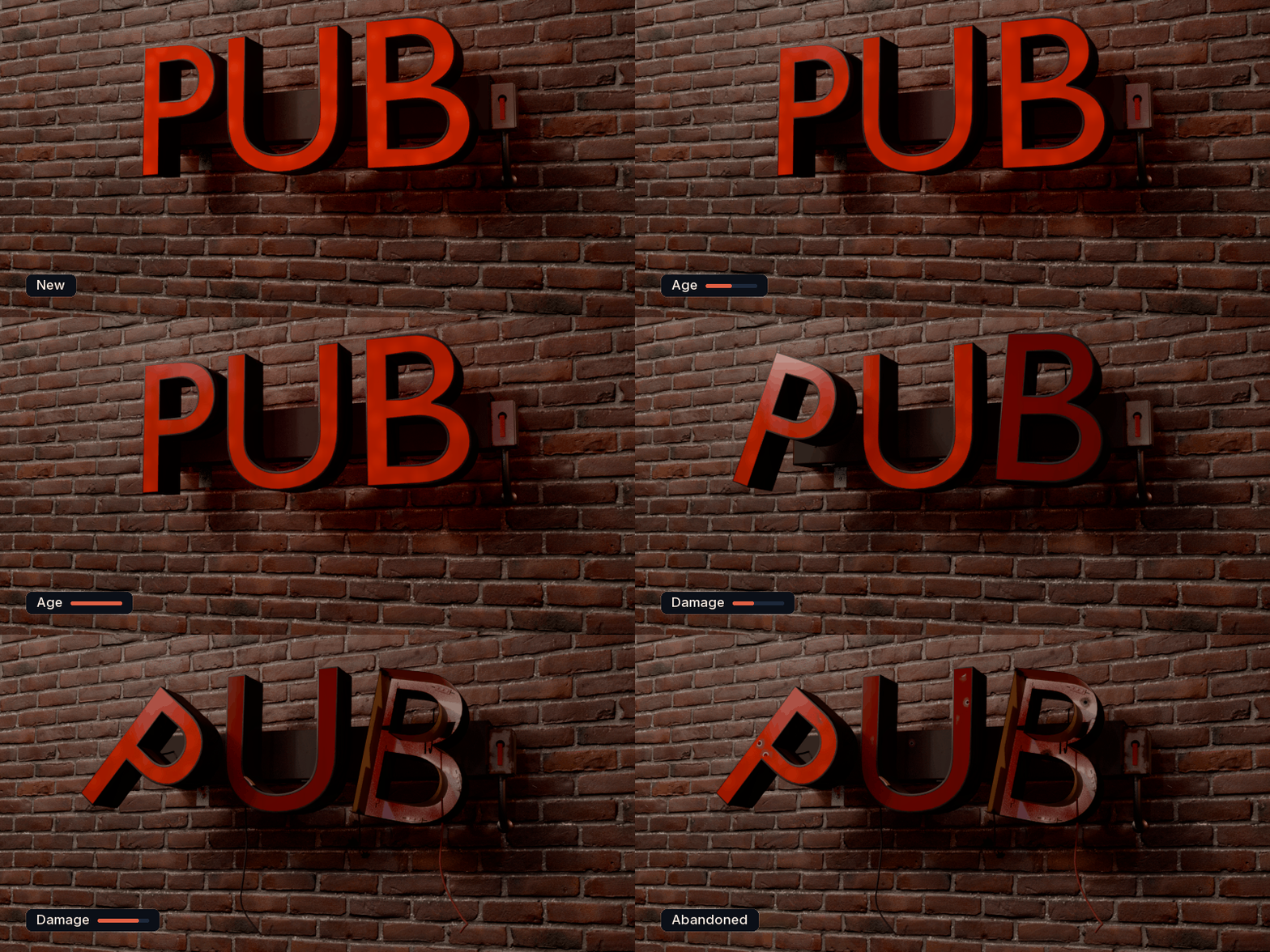
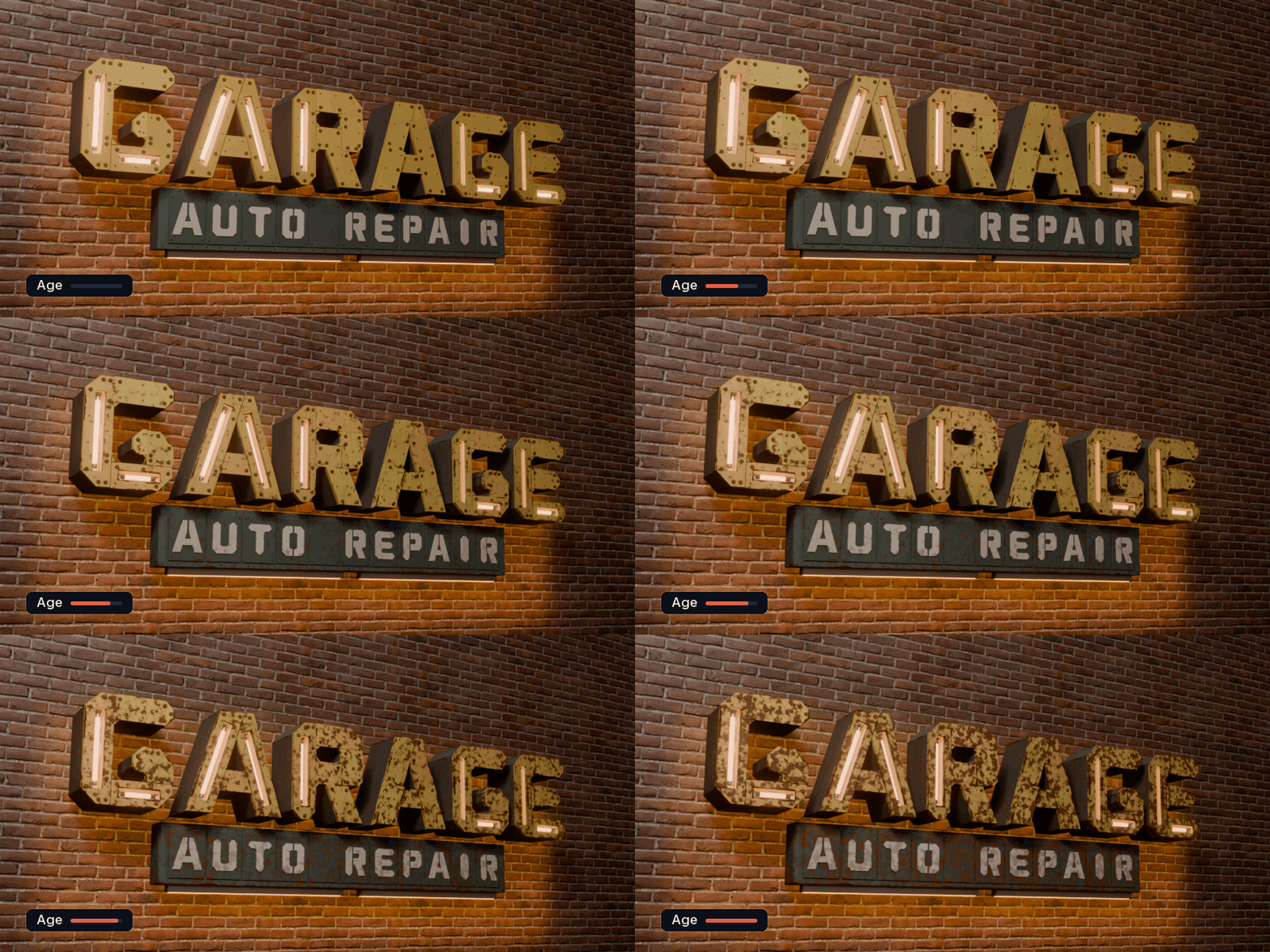
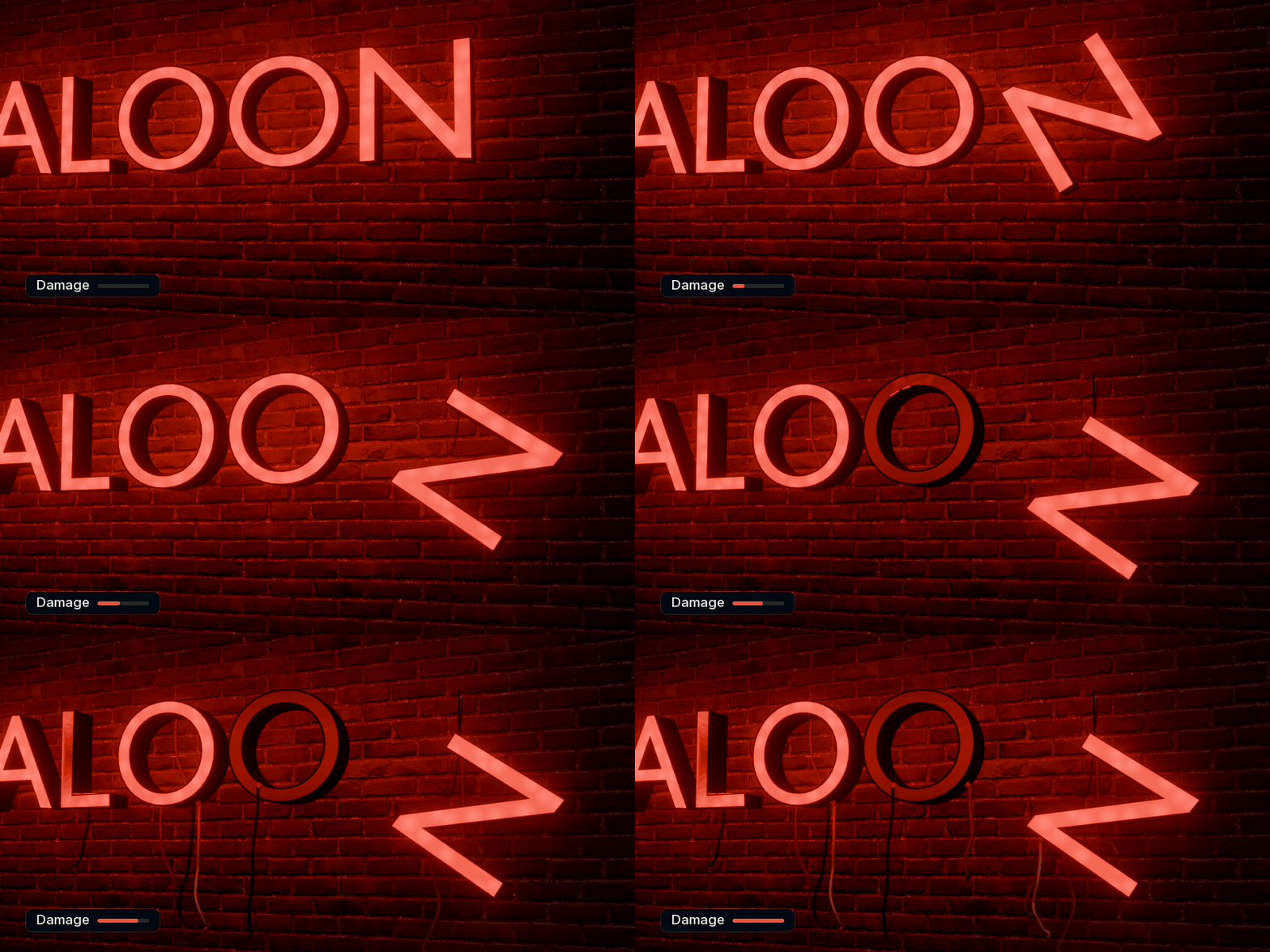
From new to abandoned
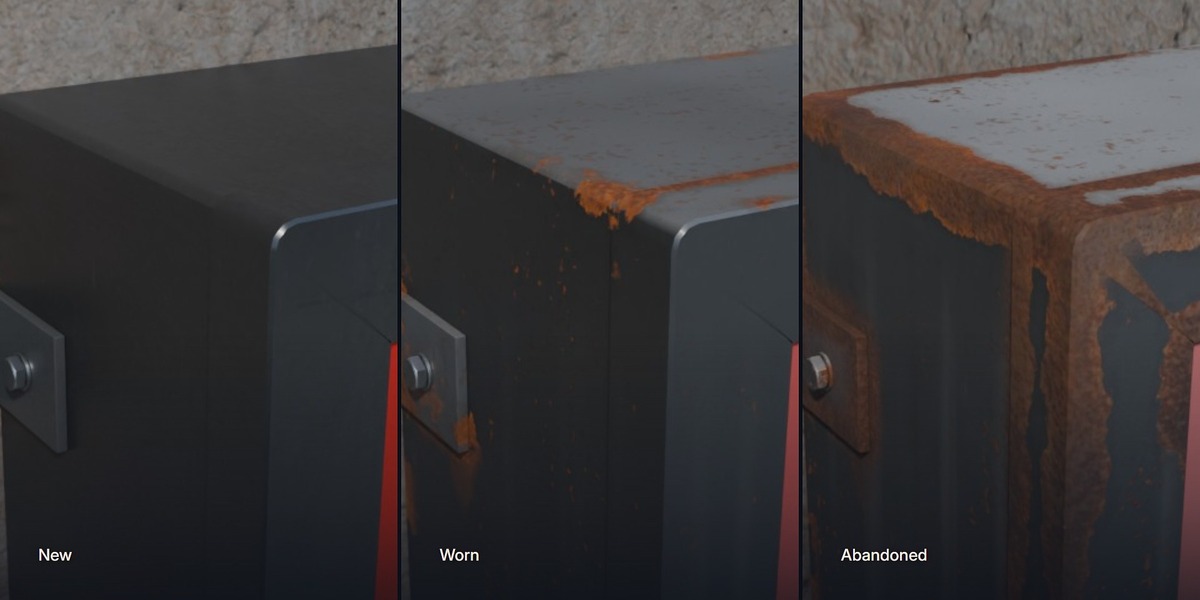
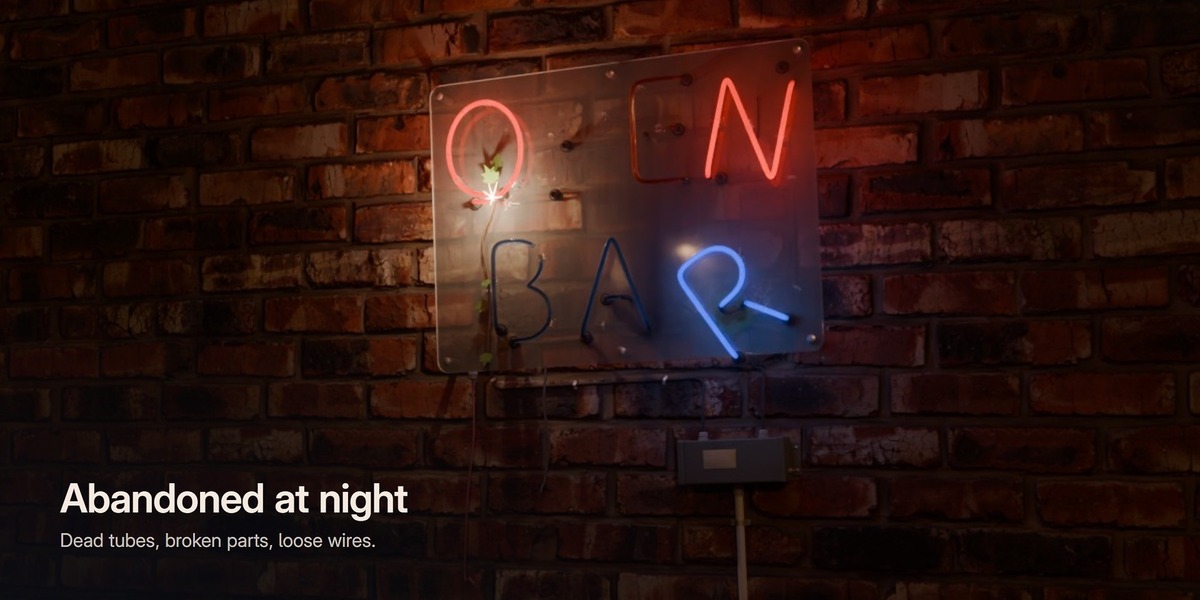
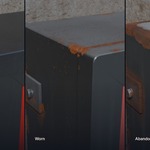
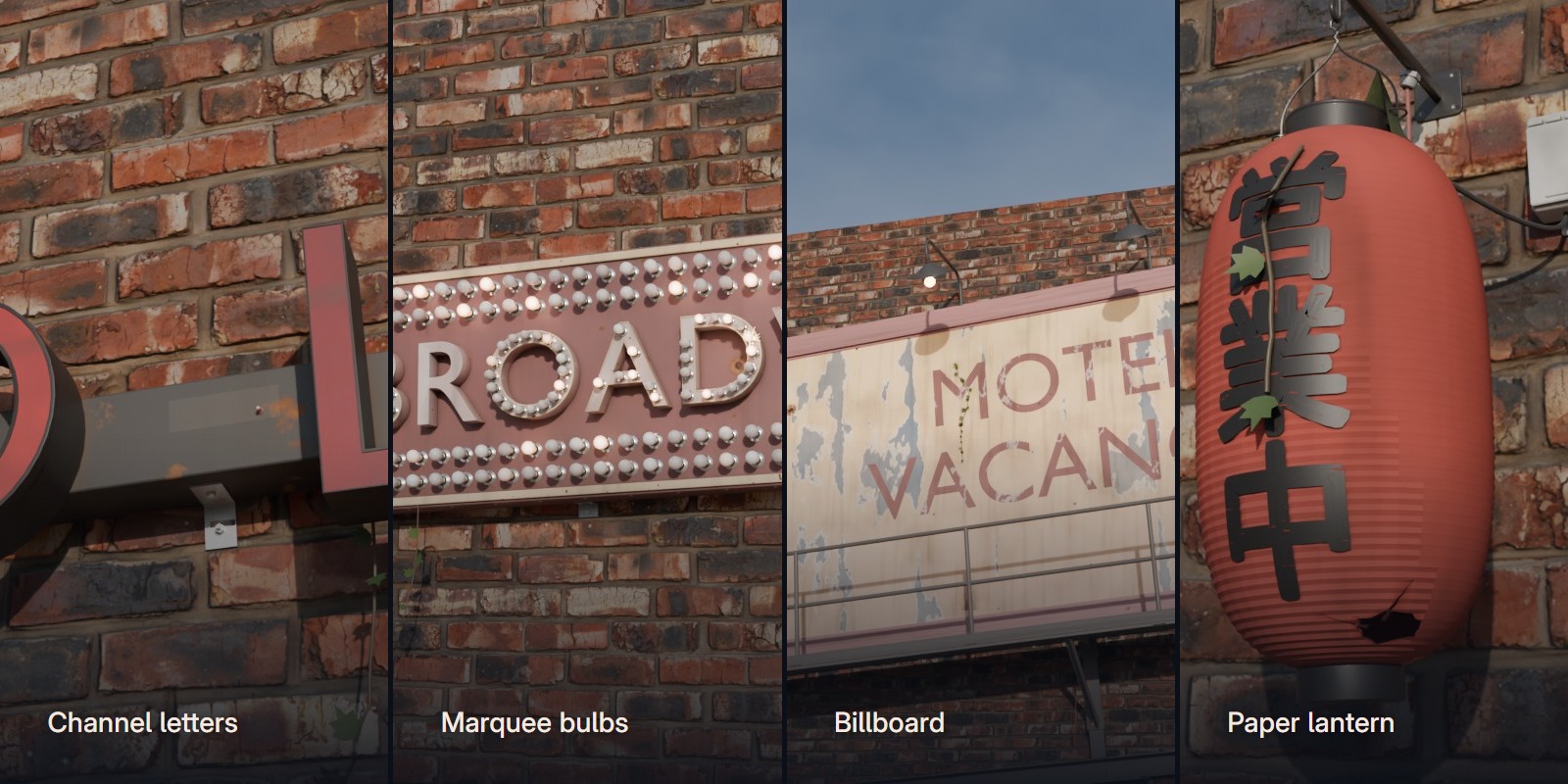
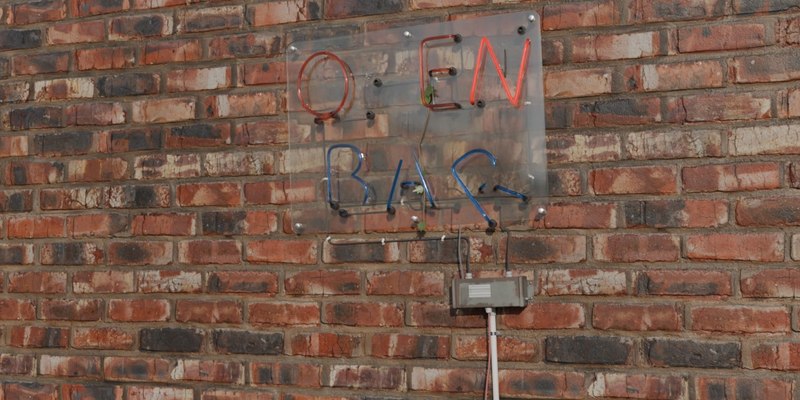
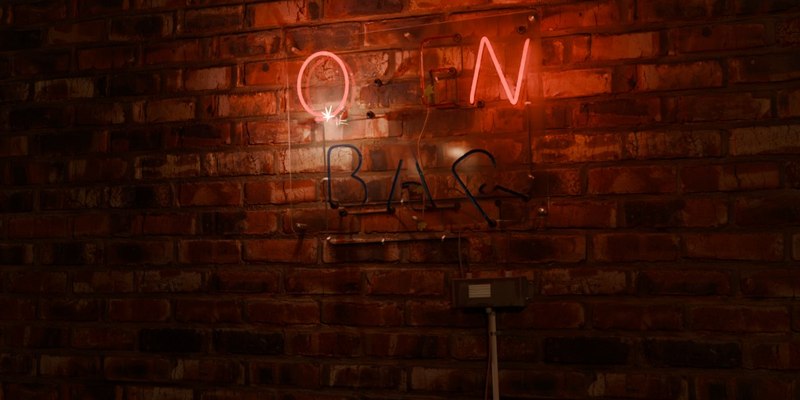
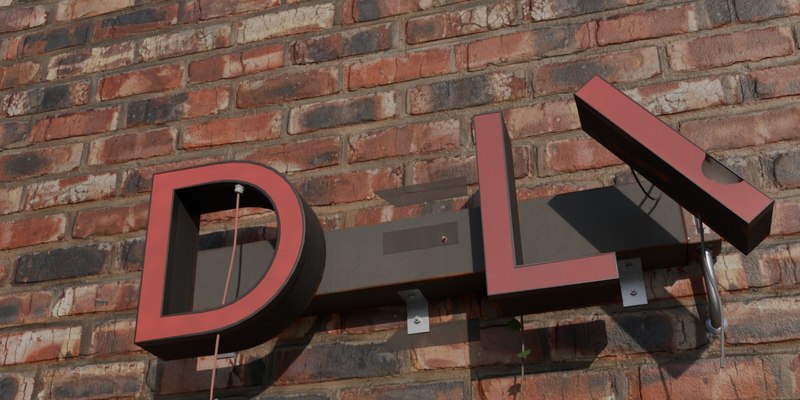
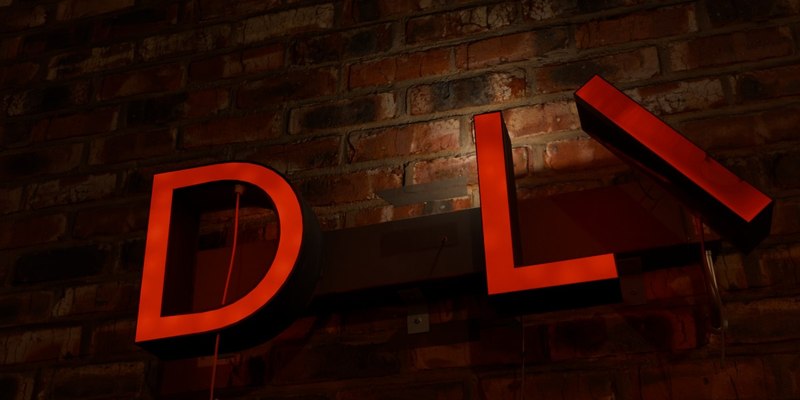
Age adds dirt, rust and sun fade. Damage breaks faces and tubes, lets letters hang or fall off, bends frames and adds loose wires, soot, bullet holes and plants. Every type has an Abandoned look to start from.
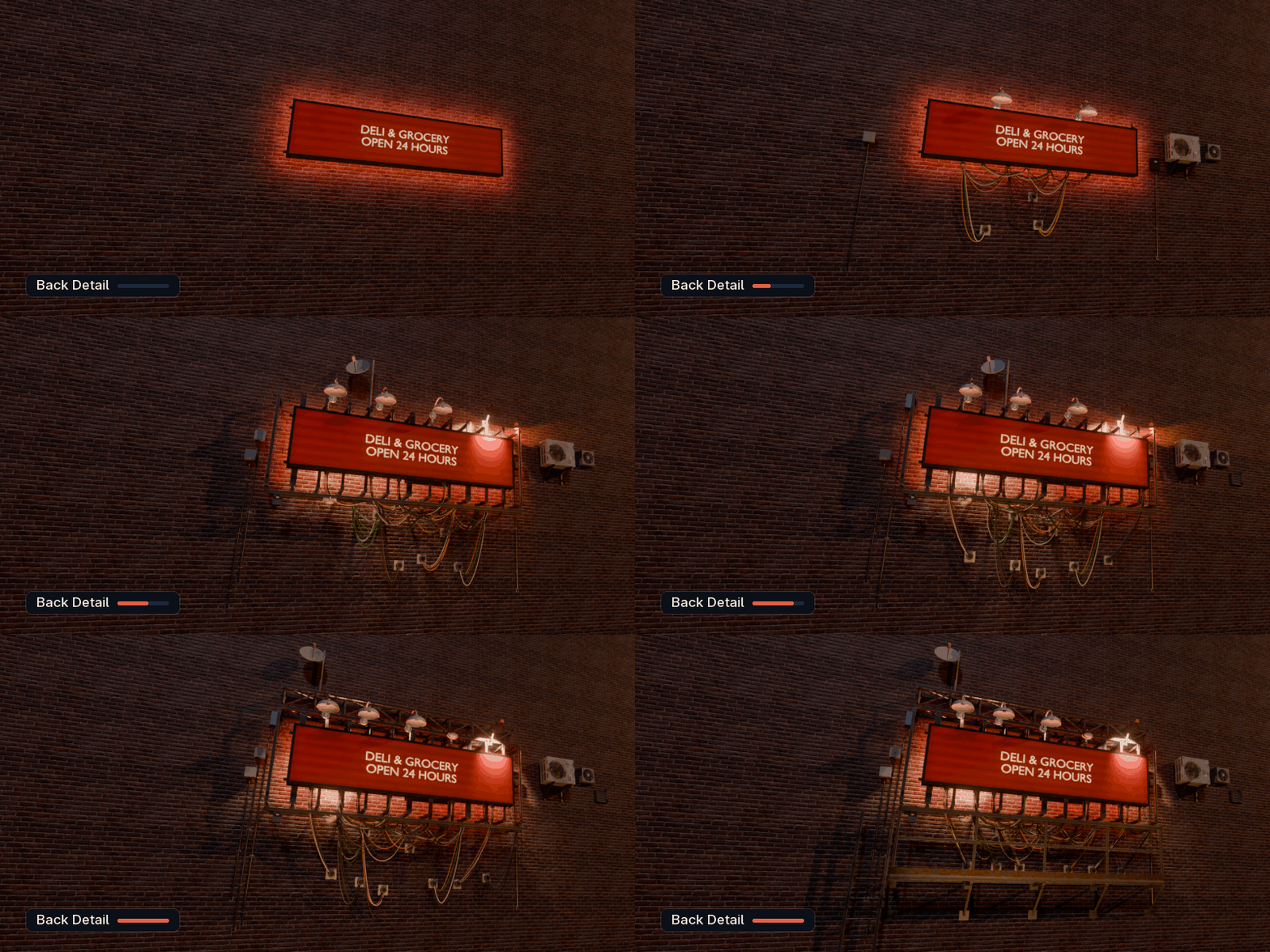
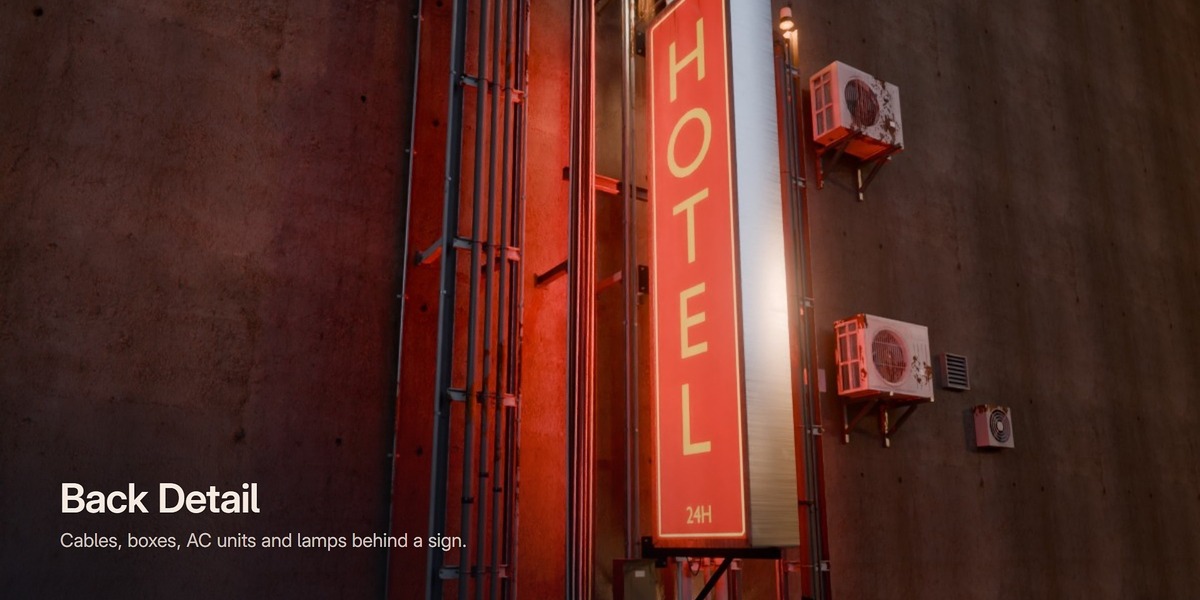
Back Detail
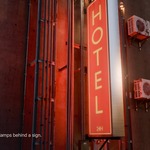
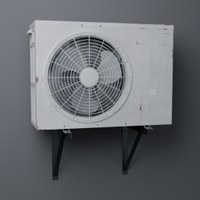
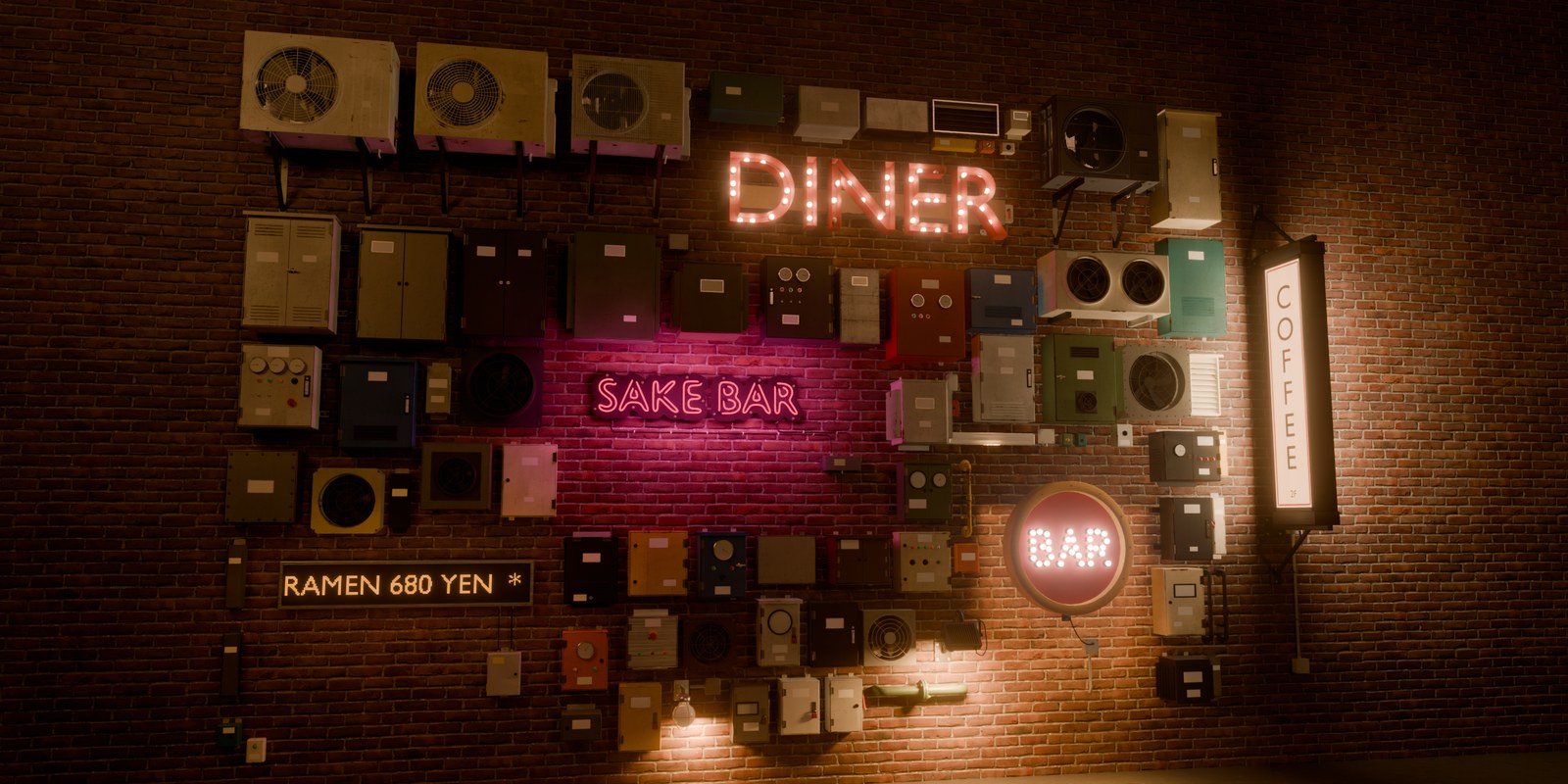
Real signs have clutter behind them. Back Detail adds a steel frame, cable bundles, junction boxes, AC units and lamps, from a clean install to a cyberpunk mess. Big signs can get a boom and a catwalk.
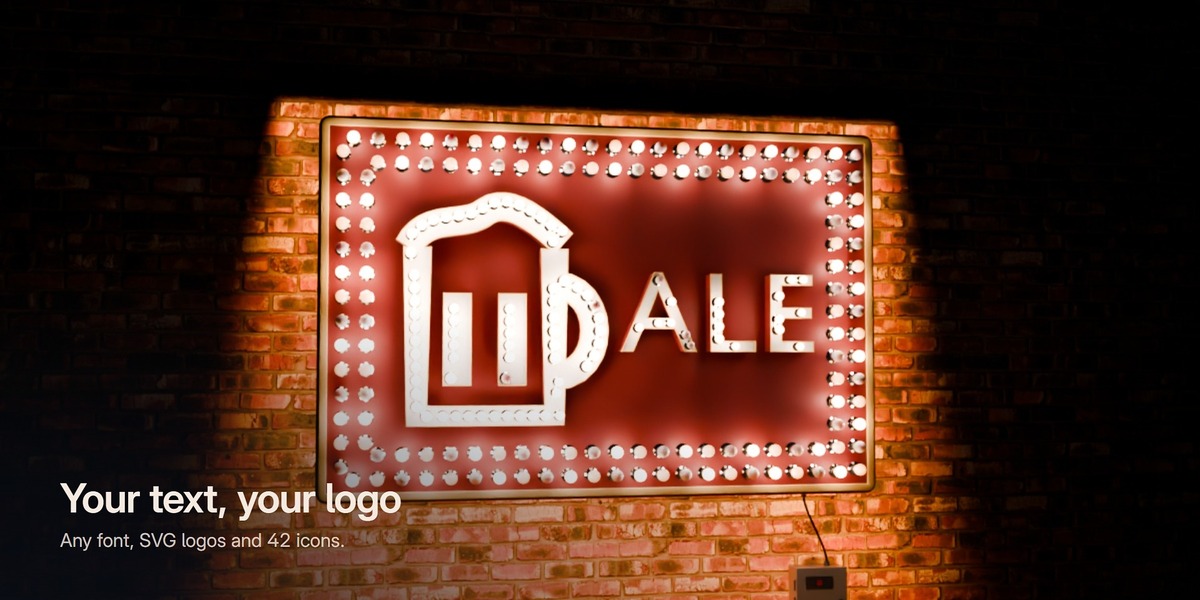
Your text, your logo
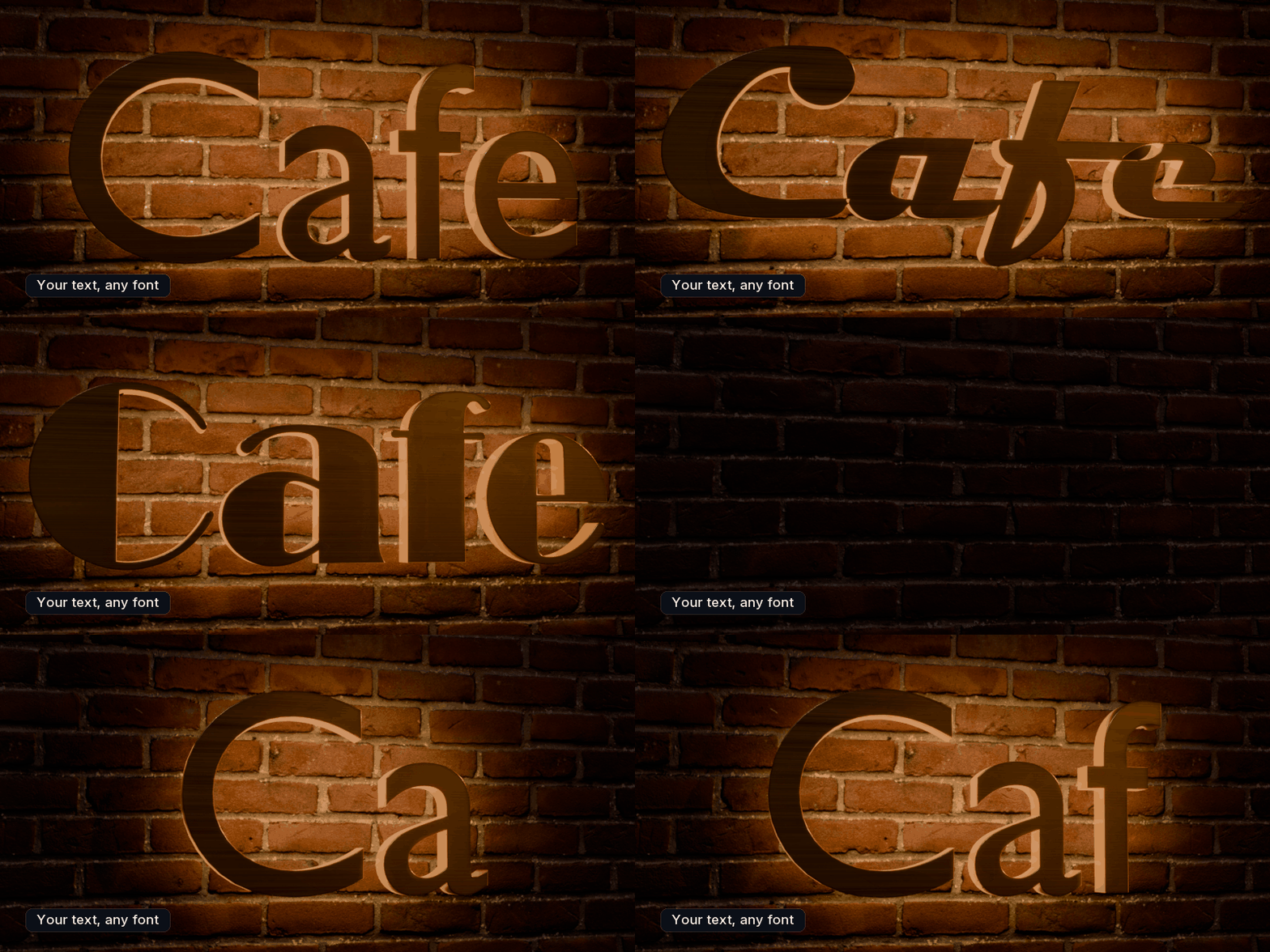
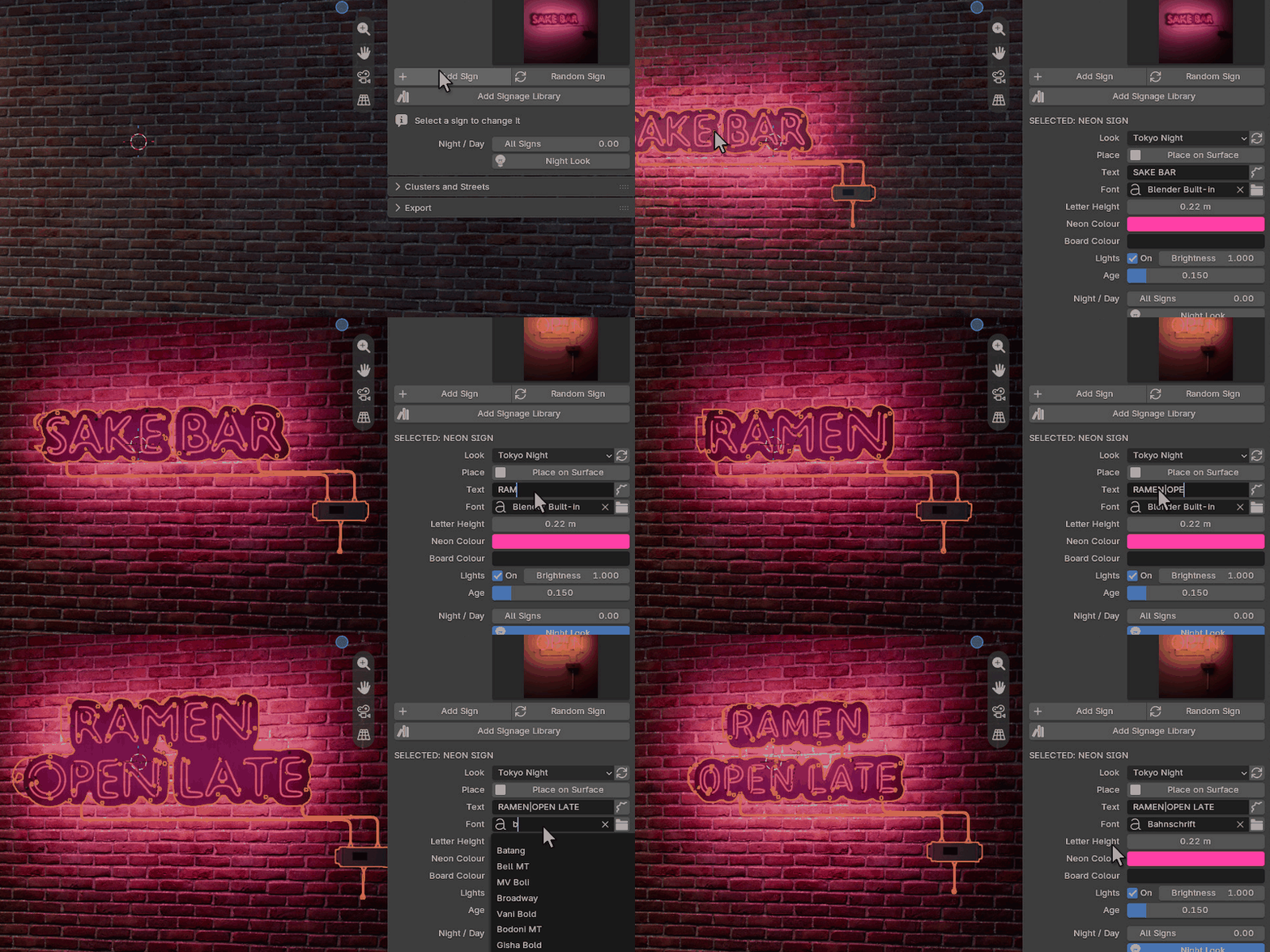
Type your own words, then pick any font on your computer, or Blender's own font. Neon, channel letters and marquee signs take a logo too.
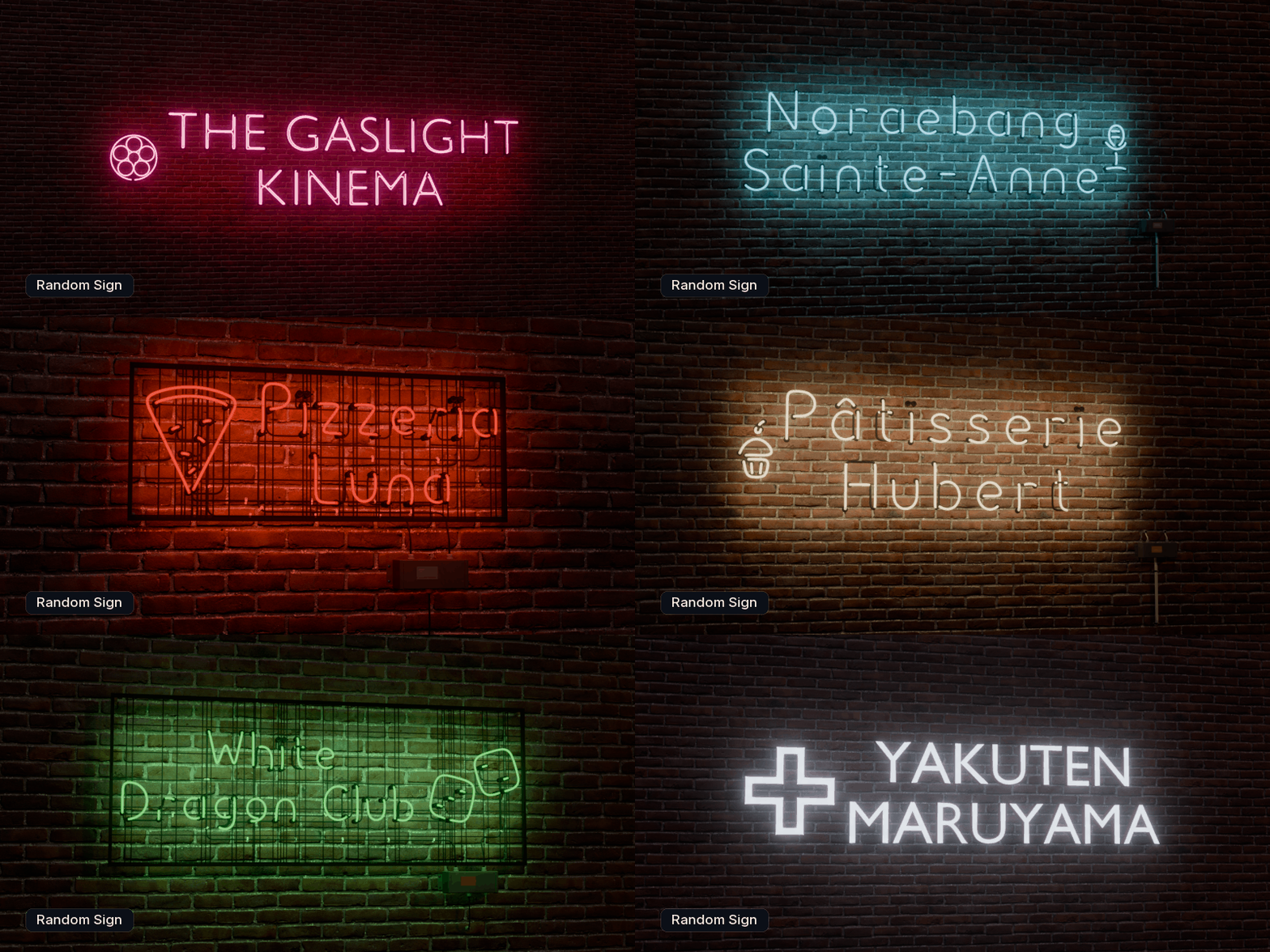
No shop name yet?
Random Sign makes one for you, with a tagline, colours and an icon that fits the shop: a tooth for a dentist, a croissant for a bakery, a film reel for a cinema. About 5,800 names for Japan, Hong Kong, New York, Las Vegas, London and Paris, plus a general list.
Fill a street in one click
Fill Street puts a row of random signs along a wall. Don't like one? Re-roll Selected changes it and can keep its type, colours or text.
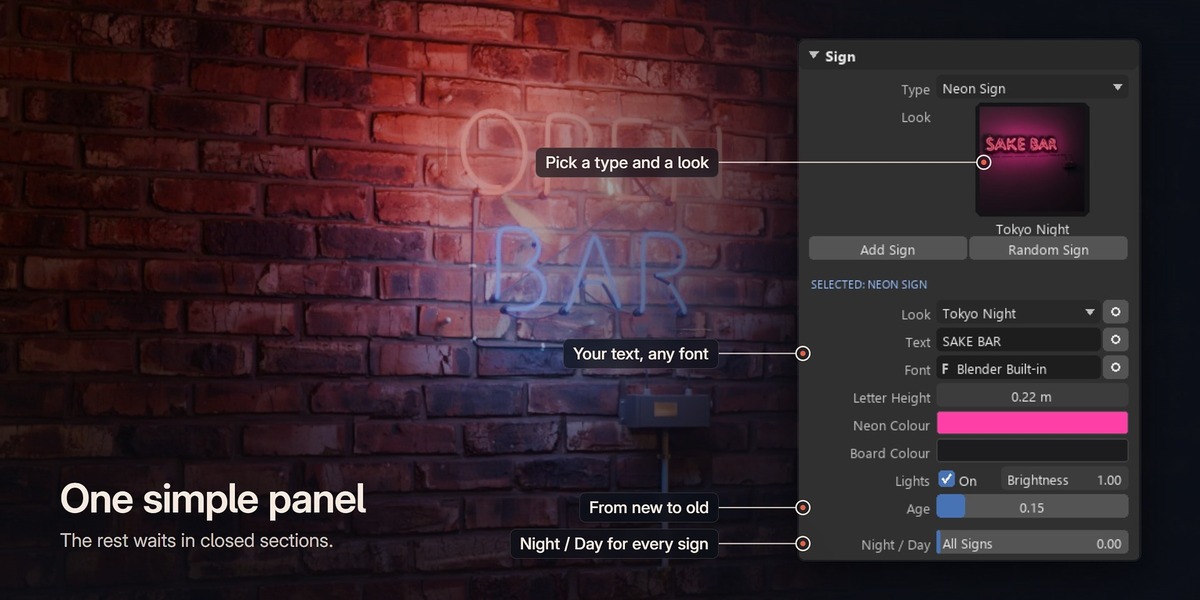
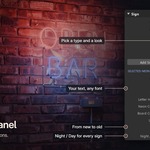
One simple panel
The things you change most sit in one panel: type, look, text, font, colours, lights and age. The rest waits in closed sections, and every control has a tooltip. Save My Look keeps a sign you like for the next scene.
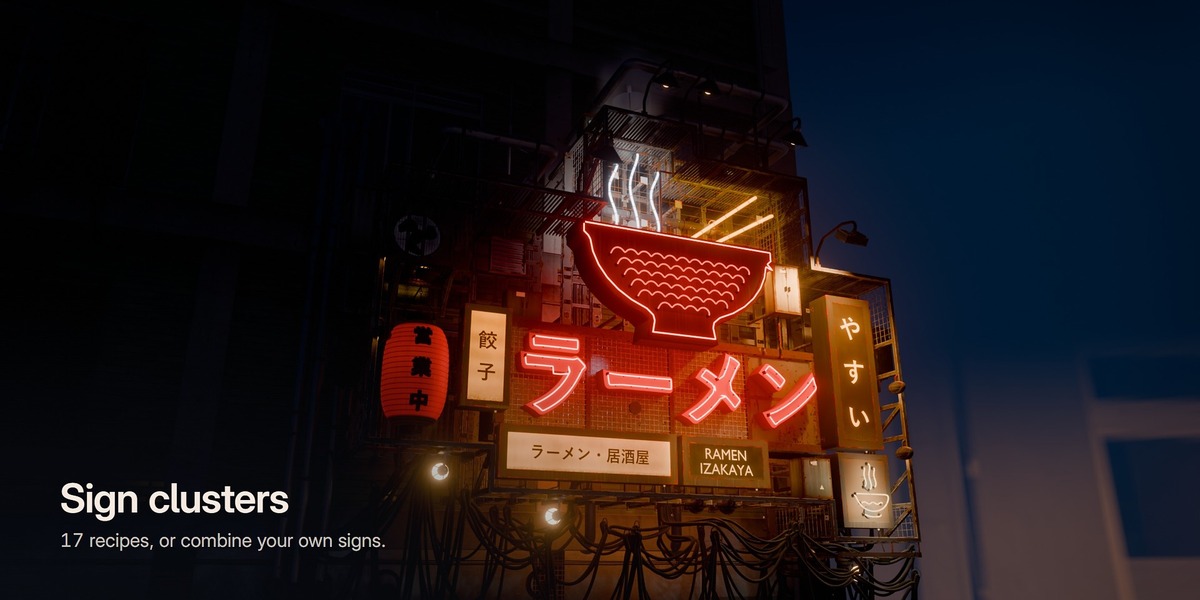
Sign clusters
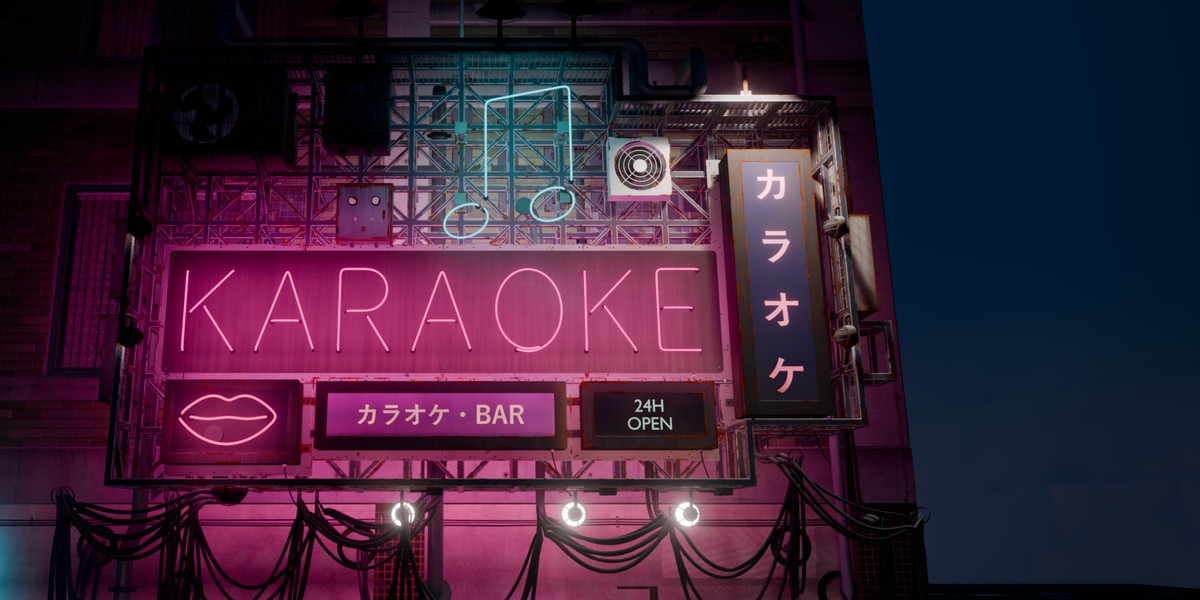
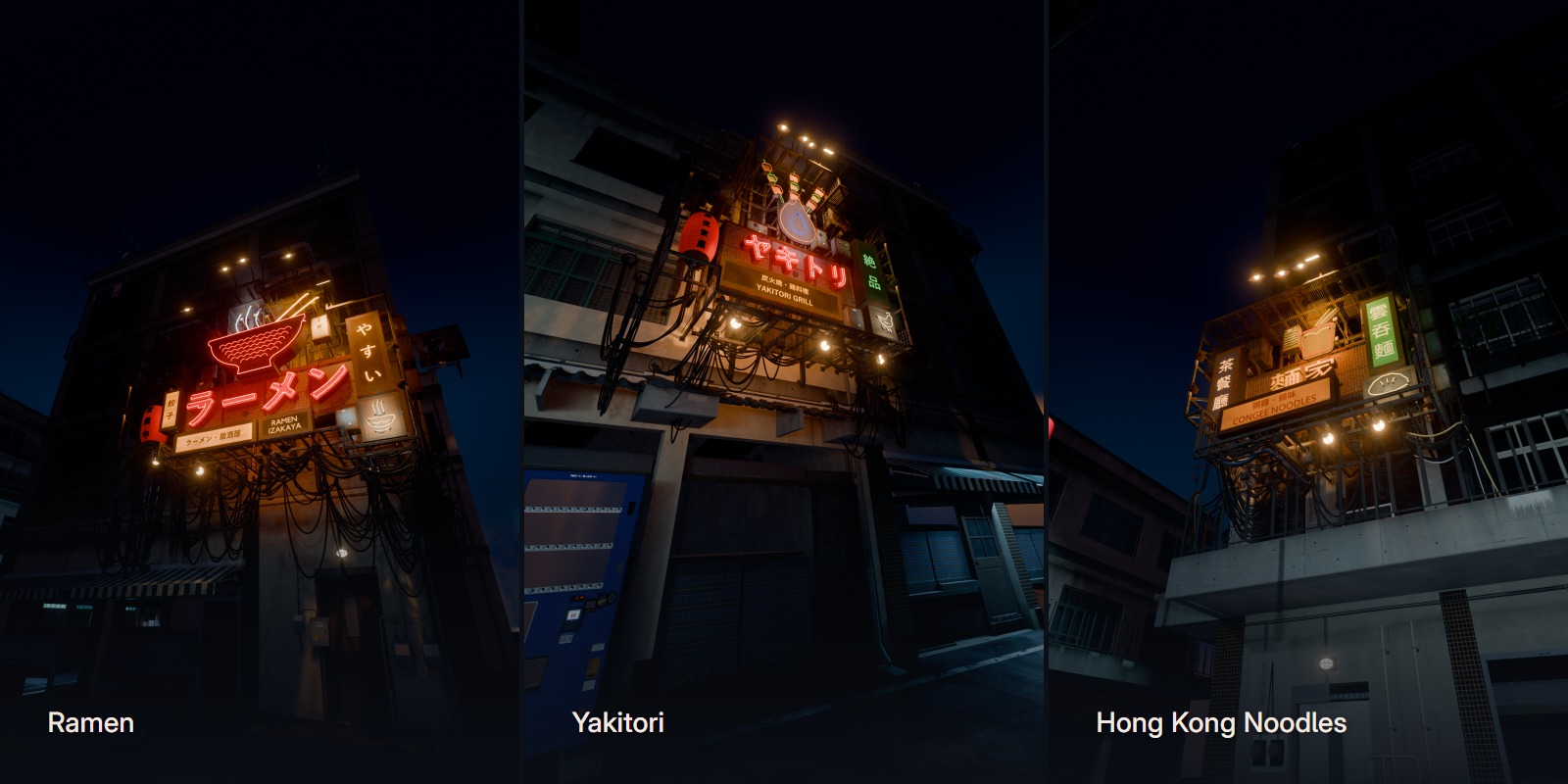
Stack several signs on one steel frame with cables, boxes, AC units and lamps, like the crowded signs of a Tokyo side street. Start from one of 17 recipes or combine your own signs. Save My Cluster keeps it for later.
Clusters for other cities
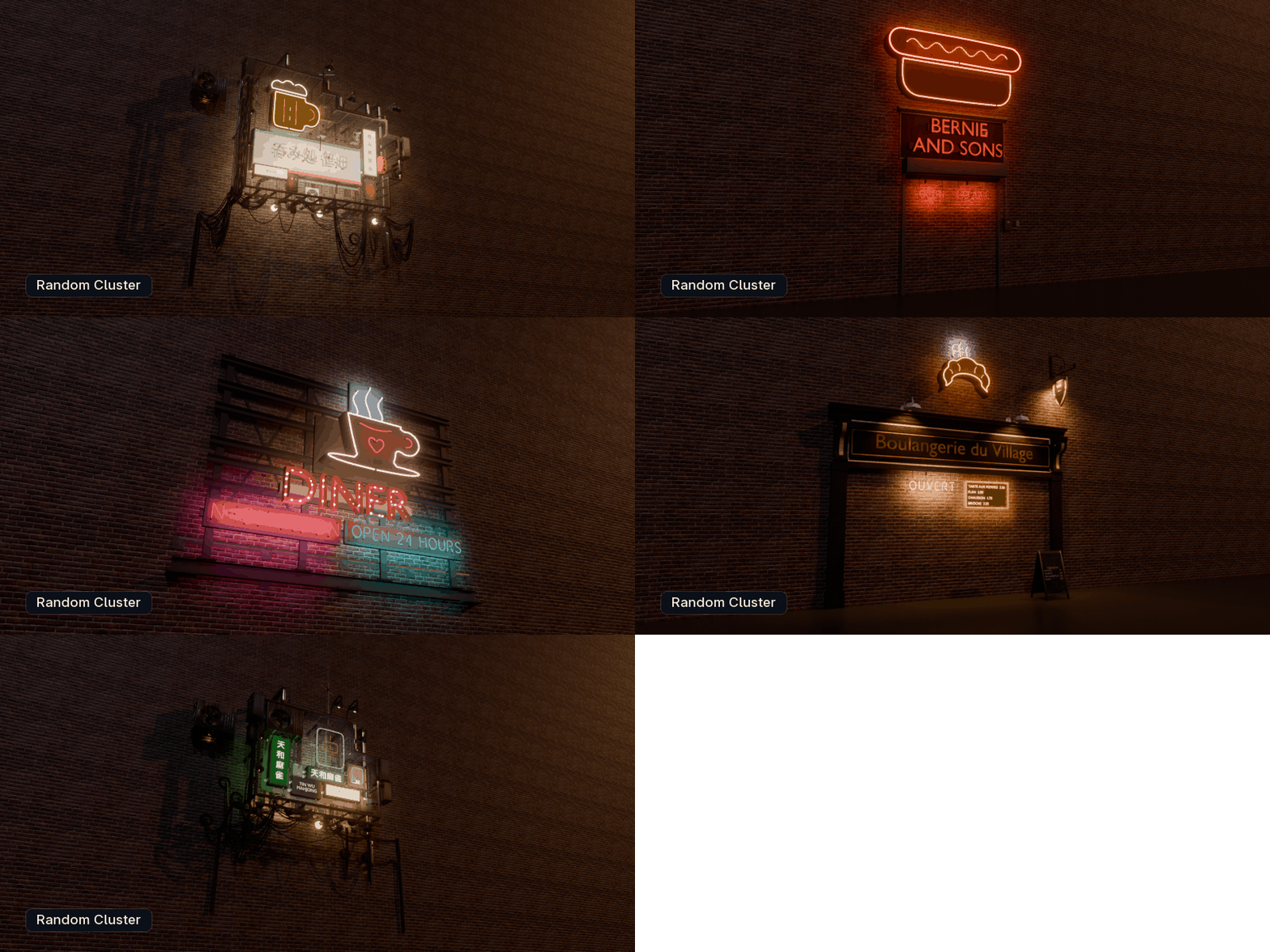
Nine recipes come from other cities: a New York deli, bar, pizza place and Broadway theatre, a Las Vegas casino, motel and diner, a Paris cafe and a London pub. Each one sits on a frame that fits it: a shop front, a theatre canopy, a pole sign or a roof frame.
Big neon pictures
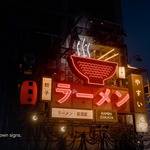
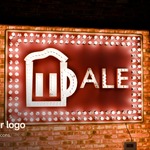
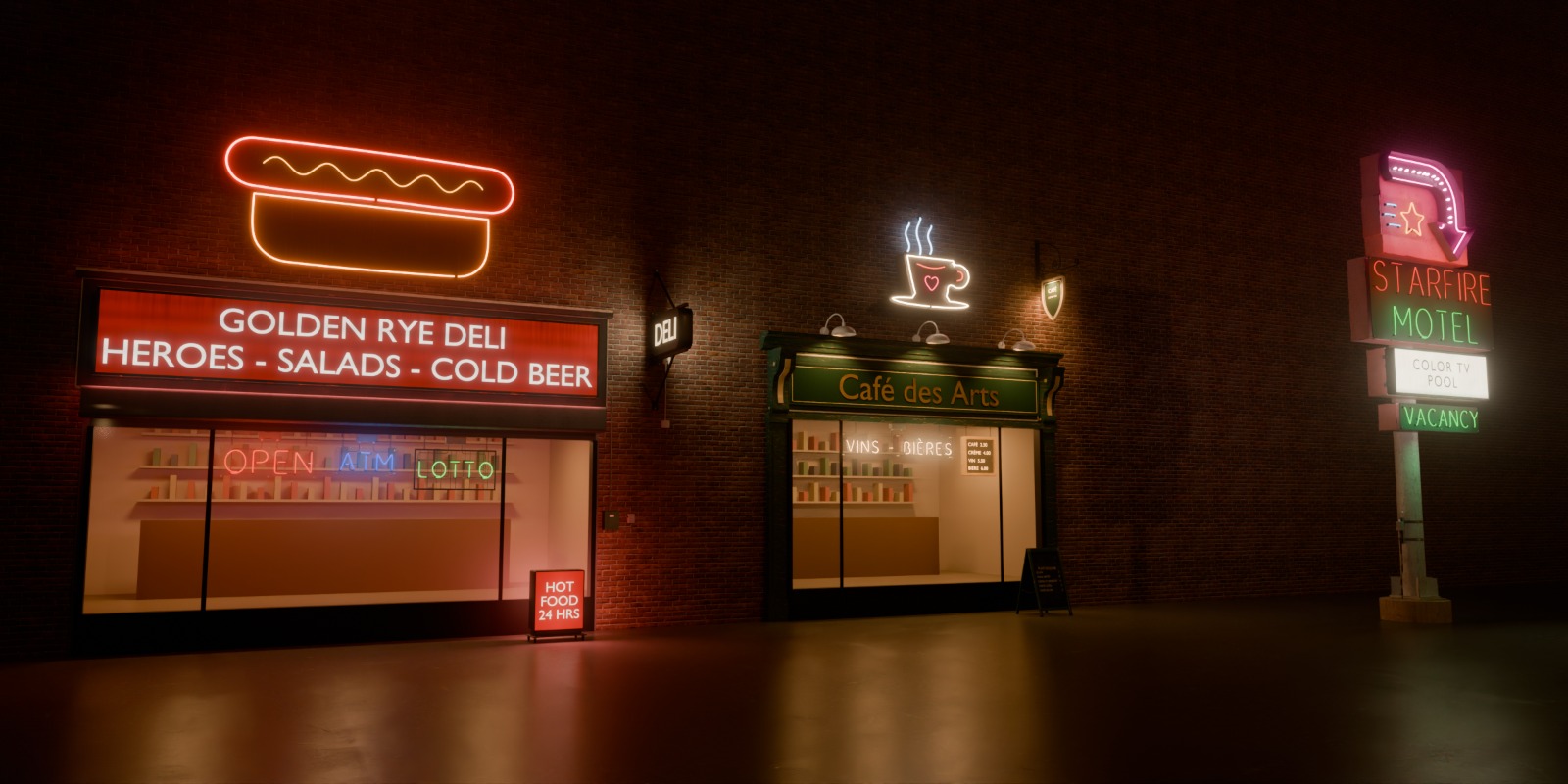
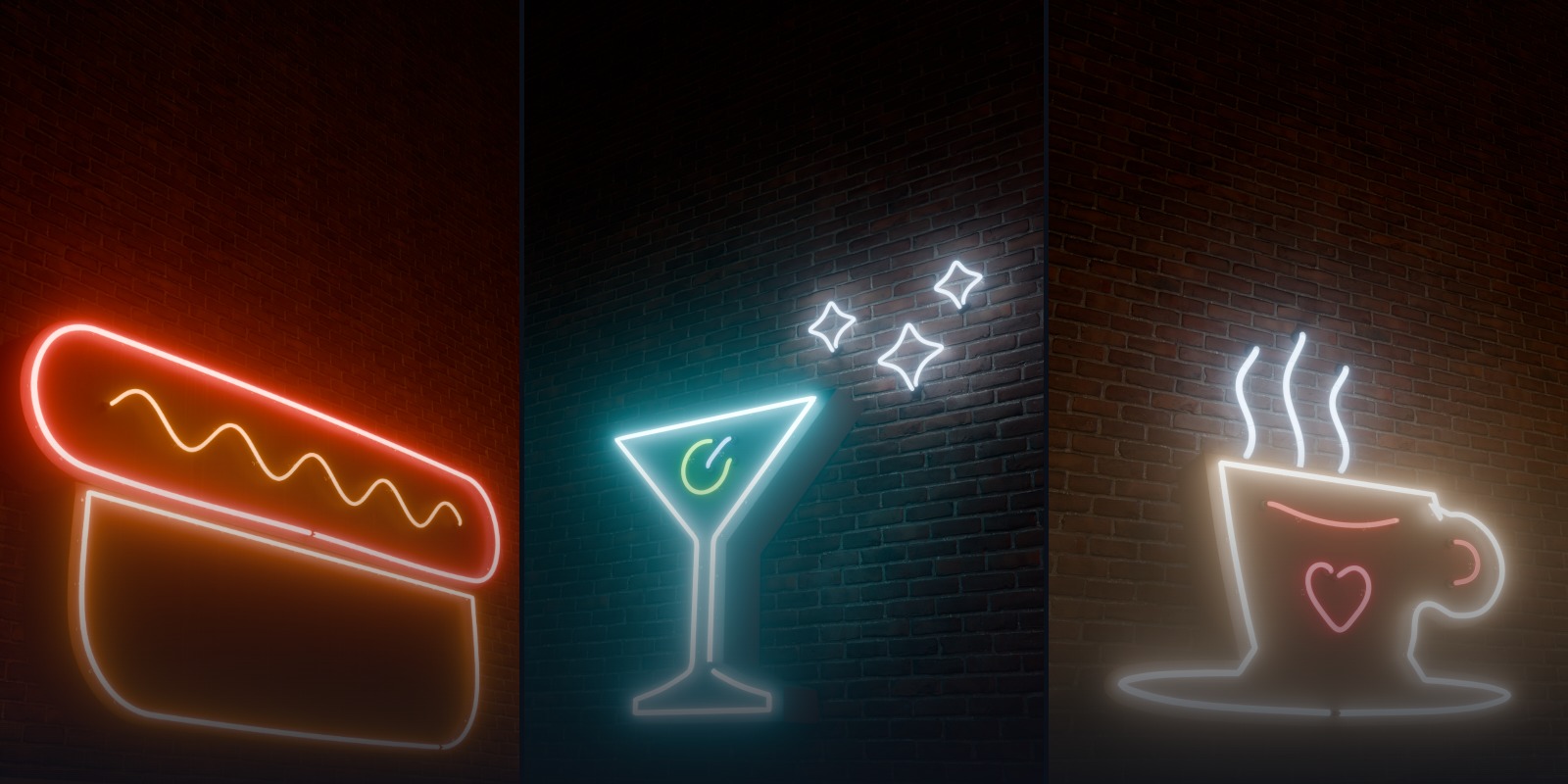
Like the ramen bowl over a noodle shop, a cluster can get a big neon picture of what the shop sells: a hot dog, a pizza slice, a martini, a coffee cup, a beer mug, a burger and more. Each part is its own sign, so the steam or the sparkle can blink on its own.
Asset Browser
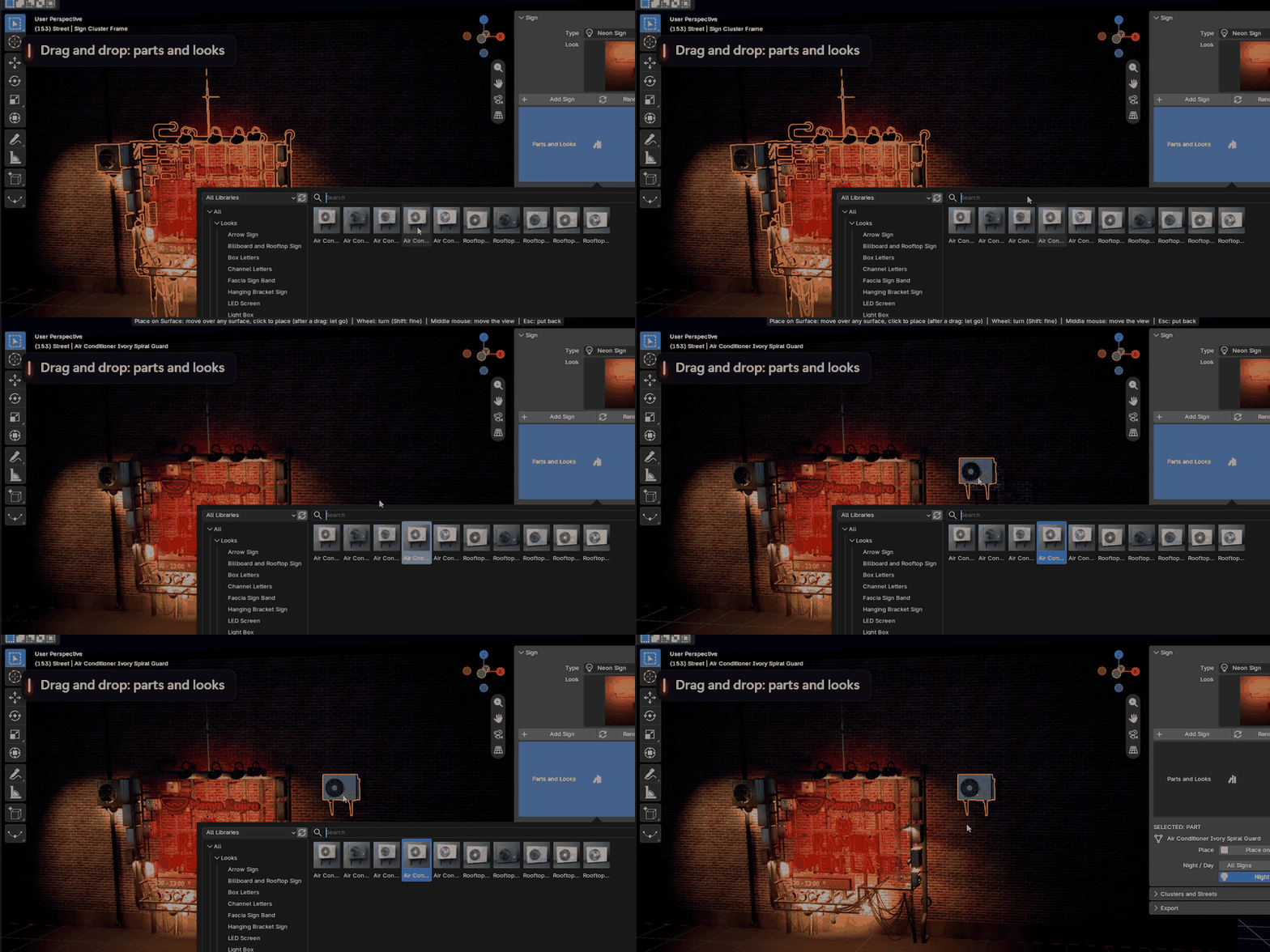
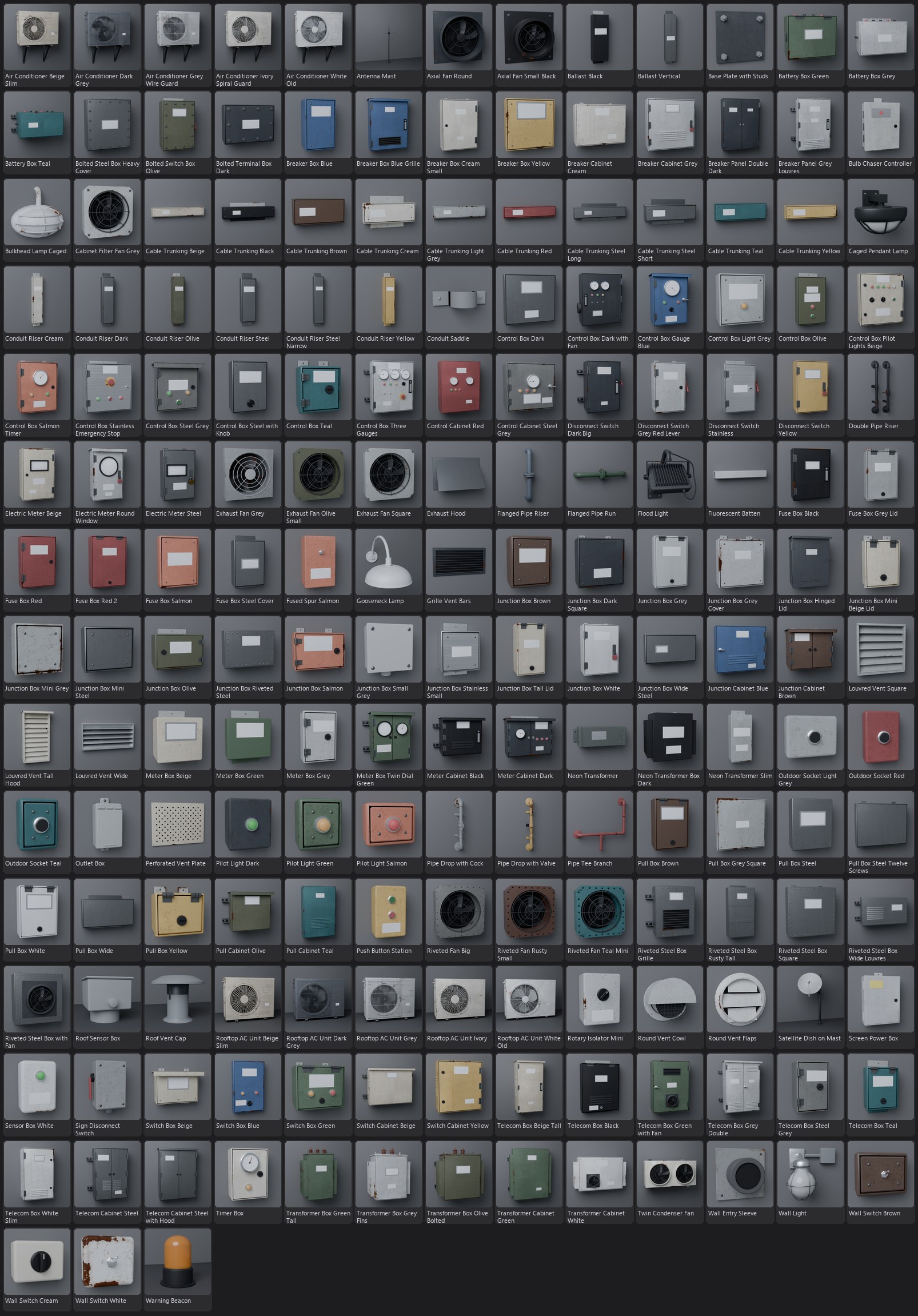
Every part I made for Signage sits in Blender's Asset Browser: 185 parts like air conditioners, power boxes, junction boxes, meters, lamps, vents, fans and pipes, plus every sign look. Drag a part onto your wall, or click it and click where it goes. It lands flat on the surface, the right way up, with its own materials.
Export and render
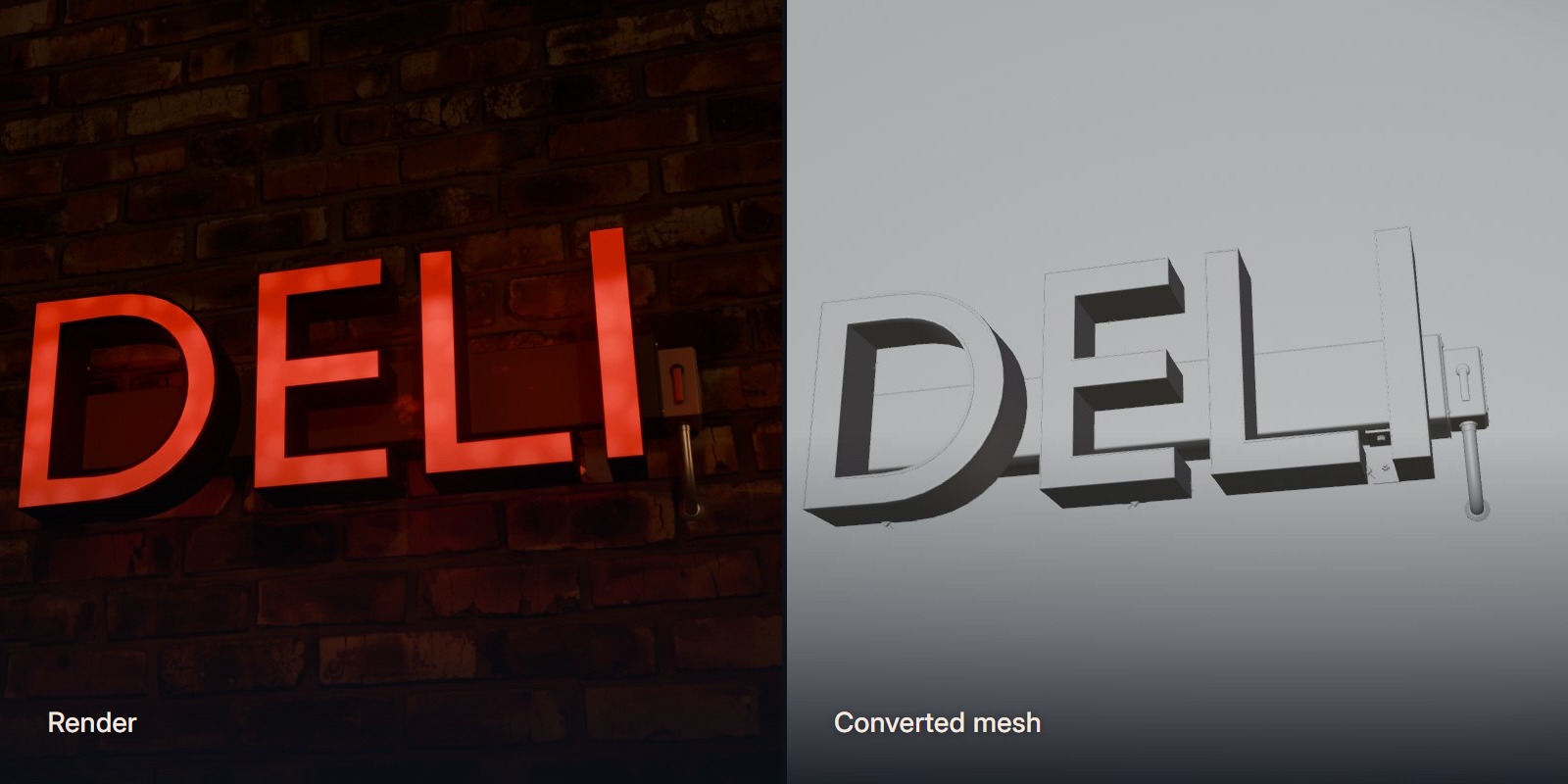
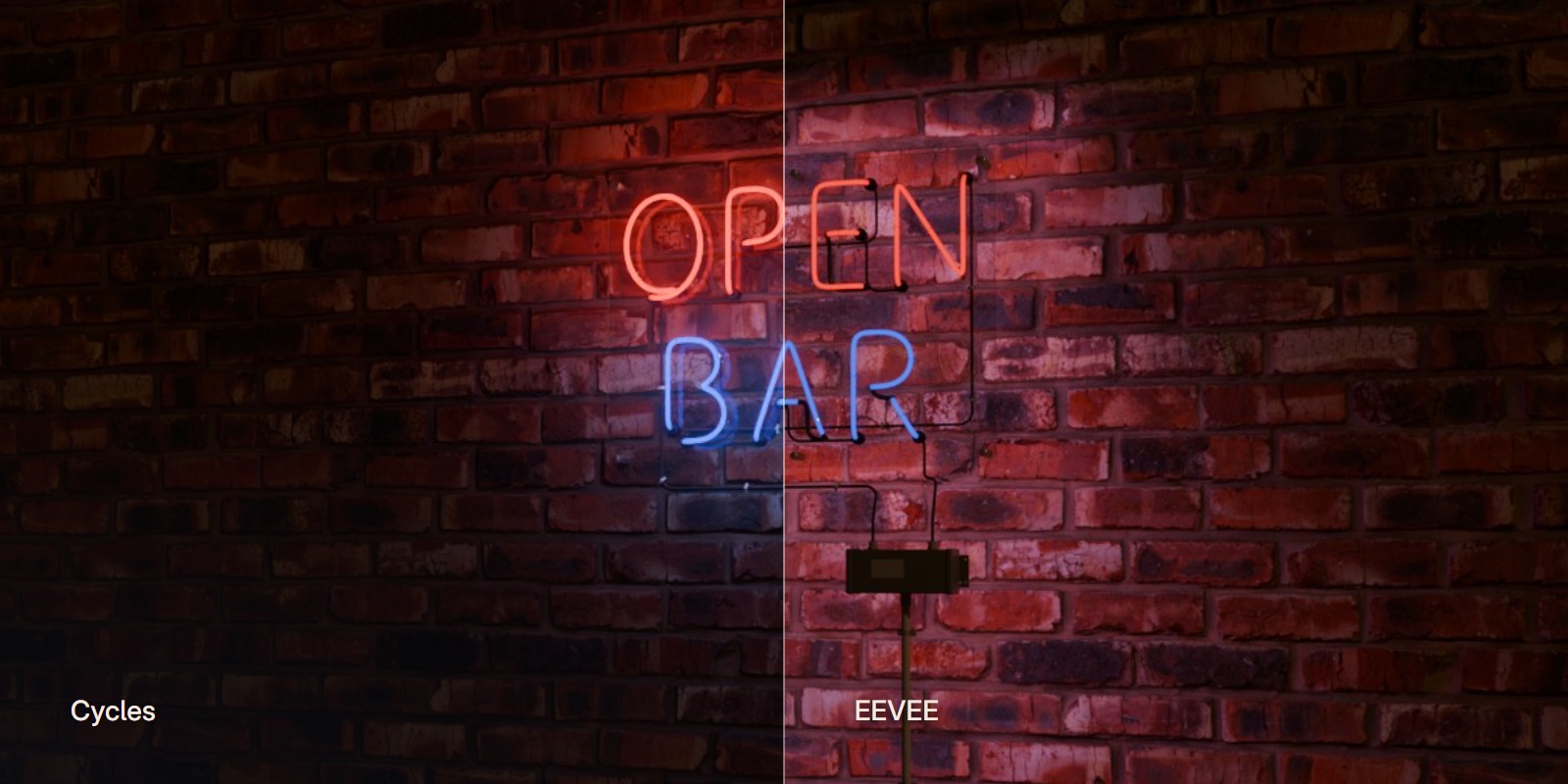
What you get
The add-on ships no fonts. It uses Blender's own font or any font you have. The buildings and streets in the pictures are not included.
Requirements
Blender 5.2 or newerCycles or EEVEETested in Blender 5.2 and 5.3 on WindowsFAQ
Signs that shine
Made by Bala. Questions before you buy? Use Contact the creator at the top of this page and I will answer.
▶ Watch the trailerWatch the tutorial