 jfmatheu


📖 Silhouette · Documentation
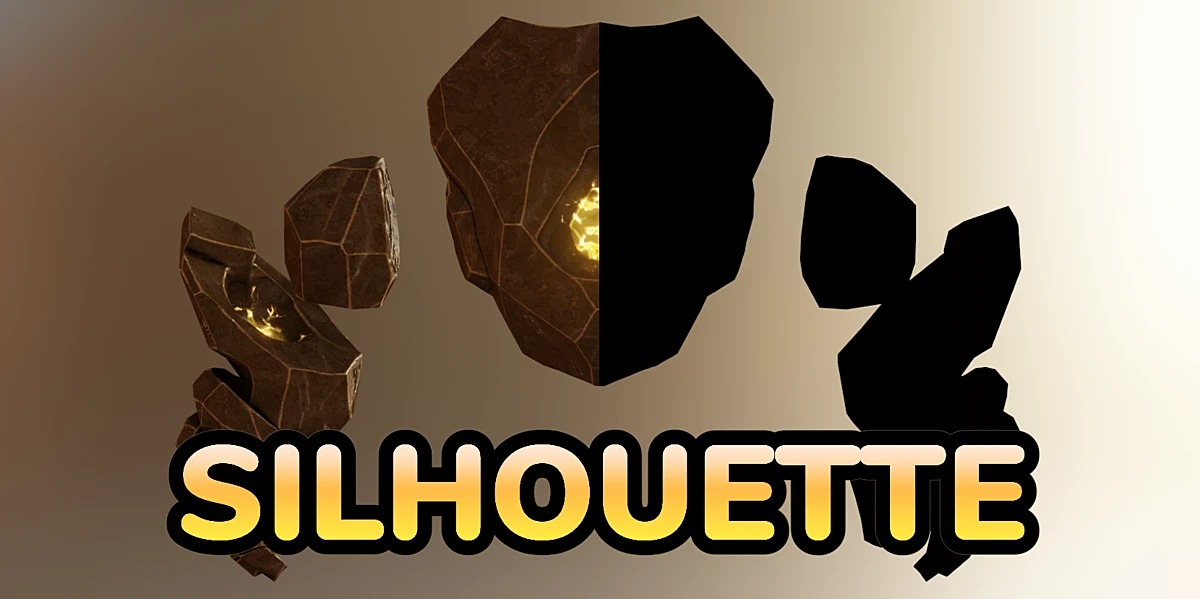
Everything you need to get the most out of Silhouette for Blender 5.3+.
Installation · Turning it on · View modes · Target · Style · Sculpting · Preferences · FAQ
1. Installation
- Download
silhouette_v2.2.0_blender-5.3.zip. Don't unzip it. - In Blender: Edit ▸ Preferences ▸ Get Extensions ▸ ⌄ ▸ Install from Disk… and pick the zip, or drag it onto the Blender window.
- Make sure it's enabled in Preferences ▸ Add-ons.
Silhouette 2.2 requires Blender 5.3 or newer.
2. Turning it on
On the right side of the 3D viewport header you'll find a ghost 👻 and a small arrow:
| 👻 | Turns the silhouette on or off. |
| ⌄ | Opens the settings panel. |
A card appears in the bottom-left corner of the viewport. Below it there are three quick buttons: 🟢 Front, 🔴 Side and 🔵 Top.
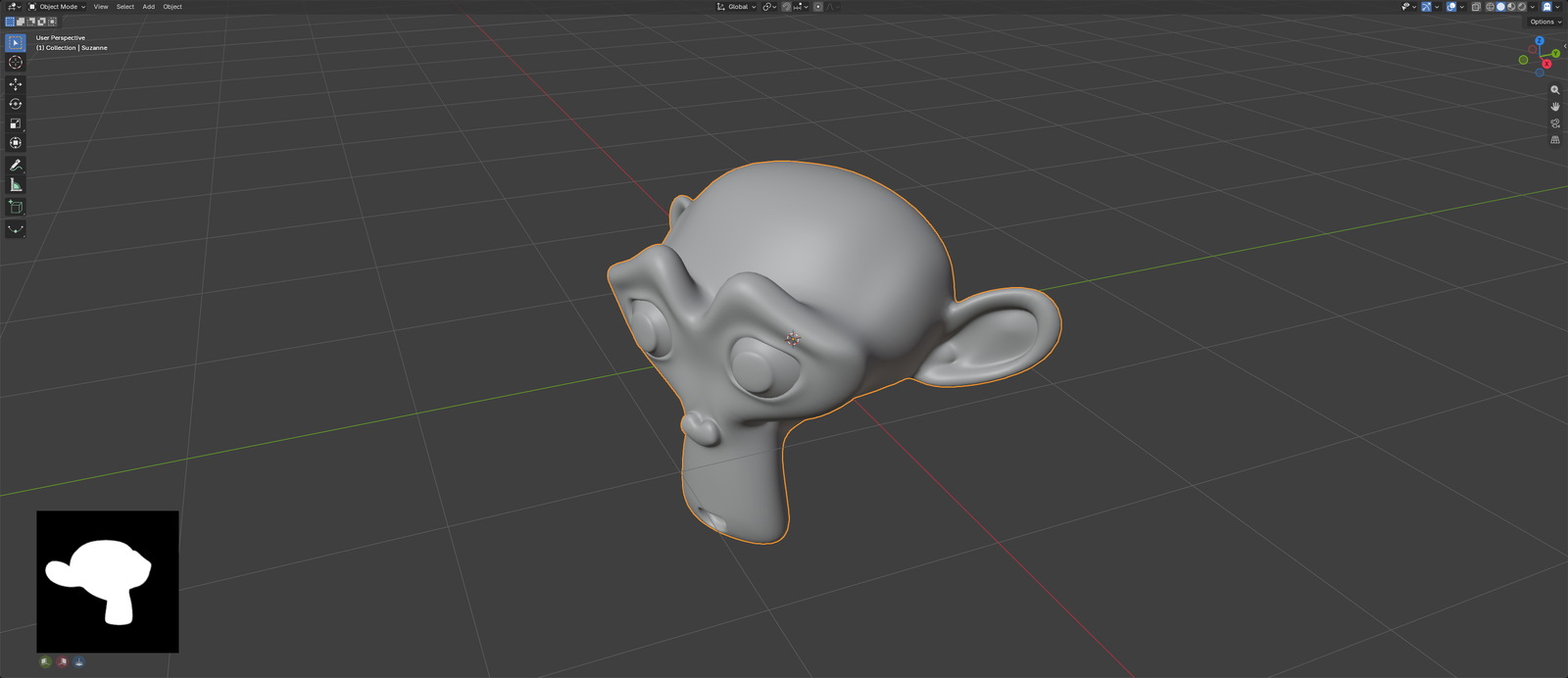
3. View modes
Pick the mode with the three buttons at the top of the panel.
| Mode | What you see | Best for |
|---|---|---|
| Preset | Orthographic view, framed automatically around the target. | Checking the shape along the axes. |
| Camera | The active scene camera by default, or the one you pick. | Keeping your final shot in sight. |
| Navigation | Exactly your viewport, same framing and perspective. | Working and sculpting while you move around. |
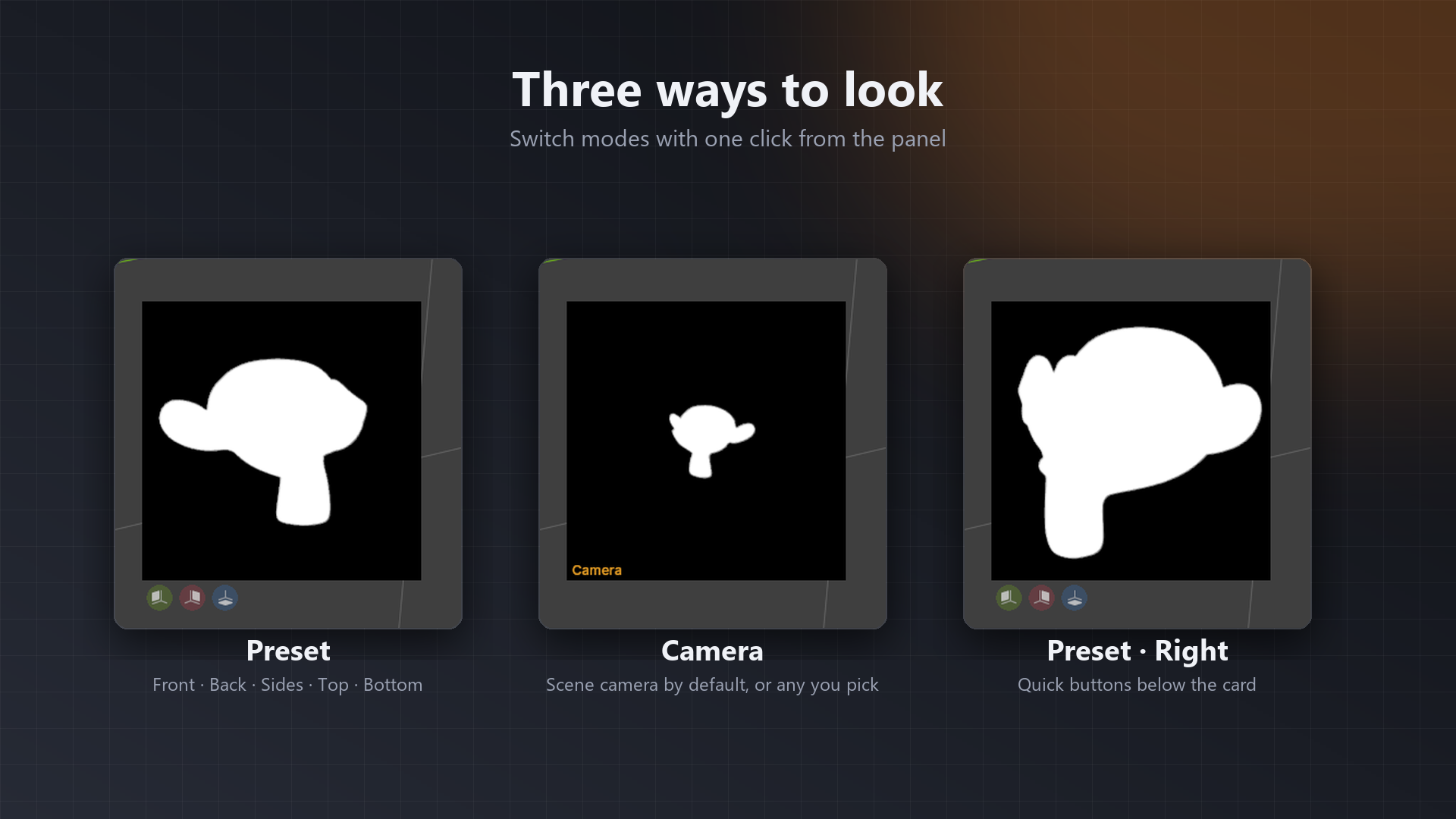
Transform options
- Dimensions: width and height of the card in pixels (64 to 1024).
- Use Viewport Proportions (Navigation only): the card follows the viewport's aspect ratio and you only set a Scale. With manual dimensions the model never gets stretched, you just see more or less space on the sides.
4. Target
Preset mode only. Decides what gets framed:
- Active Object: the active object (default).
- Selected Objects: every selected mesh at once.
- Fixed Object: one specific object, even if you change the selection.
- Collection: every mesh in a collection.
💡 Tip: use Fixed Object or Collection when you're working on separate pieces of a character but still want to see the whole body.
5. Style
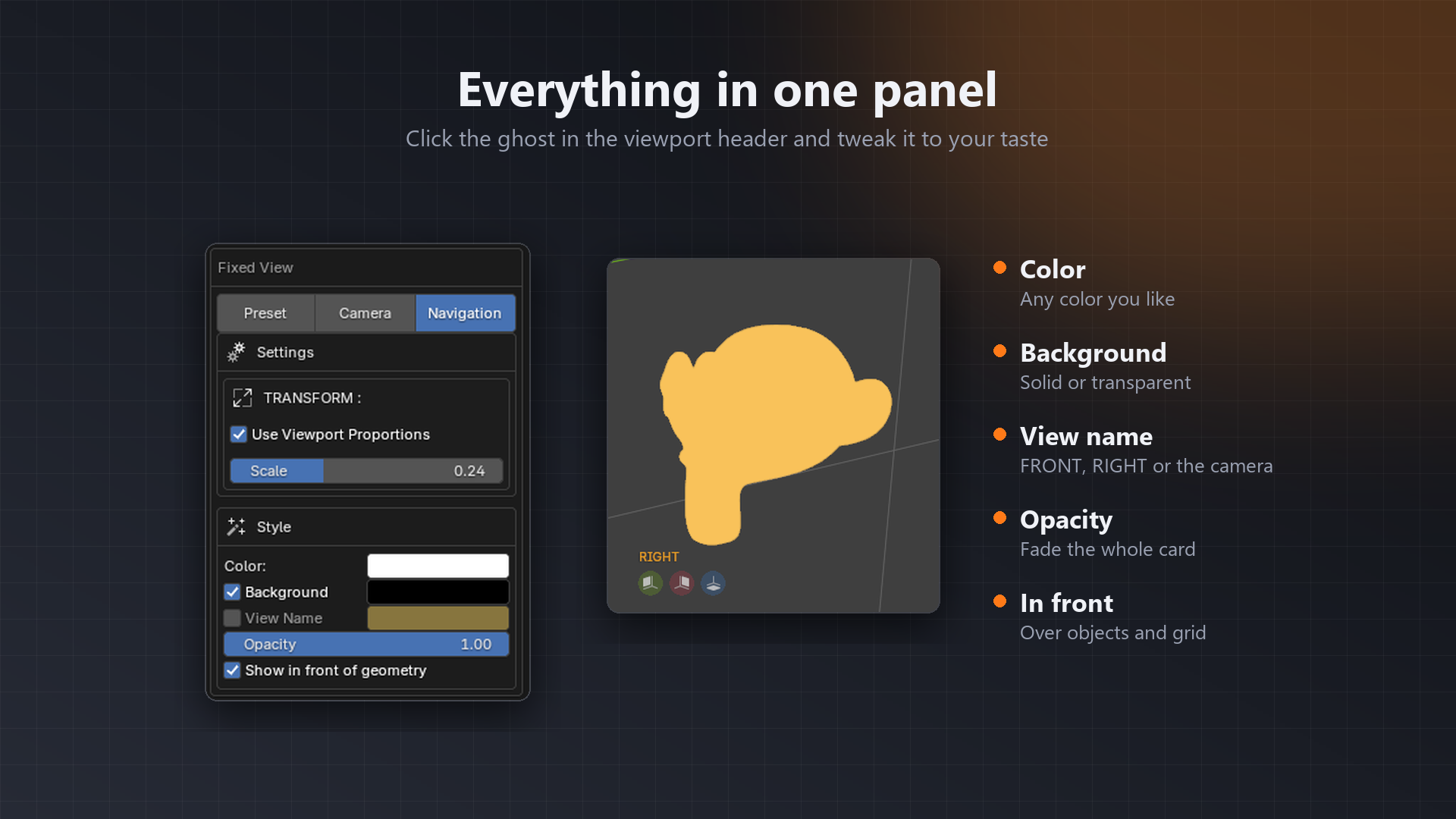
| Color | Silhouette color. |
| Background | When off, the background is transparent and only the shape stays. The color next to it is the background color. |
| View Name | Writes FRONT, RIGHT… or the camera name in the corner. |
| Opacity | Transparency of the whole card. |
| Show in front of geometry | Draws the card on top of objects and the grid. On by default. |
6. Sculpting
In Sculpt mode Blender doesn't report every stroke, so in Preset and Camera modes the card can't tell on its own that the mesh changed:
- Click the card to refresh it. You'll see a Tap to refresh! hint.
- Or enable Auto-Update on Sculpt Mode (in Other Settings) to refresh every 5 seconds. This option only shows in Preset and Camera.
- Navigation mode redraws along with the viewport, so it's always up to date.
7. Preferences
In Edit ▸ Preferences ▸ Add-ons ▸ Silhouette you can set the default silhouette style.
8. FAQ
I don't see anything when I click the ghost.
Make sure a mesh is the active object (or you have a valid target). In Camera mode the scene needs an active camera, or pick one in the panel.
The floor grid shows on top of the card.
Enable Show in front of geometry in the style settings (it's on by default).
Does it work with Blender 4.x or older?
Version 2.2 is made for Blender 5.3 and newer.
Something's not working.
Send a message through SuperHive or open an issue on GitHub. Include your Blender version and OS.
Full guide with more screenshots: jfranmatheu.github.io/Blender-Silhouette
Have questions about this product?
Login to message
Discover more products like this
silhouette concept art modelling sculpting design silhouettes Concept animation