 NineLine


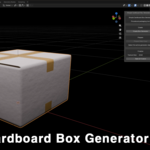
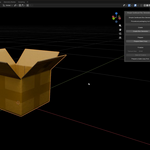
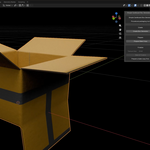
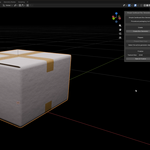
Features
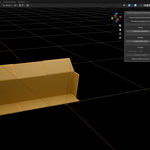
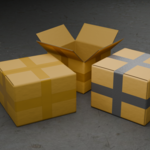
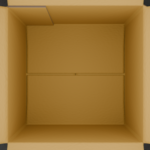
- Create customizable cardboard box models in Blender
- Geometry Nodes-based procedural workflow
- Adjustable box dimensions
- Multiple folded states
- Tape options
- Material variations for cardboard and tape
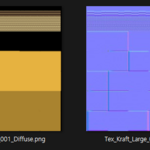
- Texture baking features
- Export-ready asset workflow
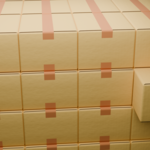
- Useful for games, visualization, product scenes, warehouses, offices, and background props
Basic Workflow
1. Create a cardboard box from the add-on panel.
2. Adjust the size, fold state, tape options, and material settings.
3. Save your Blender file before using the baking workflow.
4. Bake textures when needed.
5. Use the generated result in Blender or export it for other real-time projects.
Notes
- Developed and tested for Blender 5.1.
- Documentation is included.
- Textures are saved in a Textures folder next to the saved .blend file after baking.
Installation
1. In Blender, go to Edit > Preferences... from the top menu.
2. Open the Get Extensions tab.
3. Click the arrow menu in the upper-right corner and select Install from Disk....
4. Select the included archive file:
simple_cardboard_box_generator_extension.zip
5. After installation, a Box Generator tab will be added to the right sidebar of the viewport.
6. If the sidebar is not visible, press N in the viewport to show it.
Basic Usage
Simple Cardboard Box Generator consists of three main buttons:
Create Box Generator
- Creates a box object with Cardboard Box Geometry Nodes applied. This creates the base object that can be adjusted using dimensions, fold angles, and tape settings.
Prepare Bake Copy
- Applies the Geometry Nodes result of the selected box object and prepares it for baking. This step creates the required copy and materials for the bake process.
Bake & Finalize
- Bakes the materials of the object prepared through Prepare Bake Copy into textures and finalizes the object with baked texture materials.
Workflow
1. Click Create Box Generator to create a box object with Cardboard Box Geometry Nodes applied.
2. Select the generated object, then adjust the Geometry Nodes settings in the Modifiers tab. The main setting groups are Dimensions, Fold Angles, and Tape.
3. Once the Geometry Nodes settings are complete, keep the object selected and click Prepare Bake Copy.
4. Adjust the materials in the Material Properties tab.
5. After finishing the material settings, keep the object selected and click Bake & Finalize.
6. During the baking process, Blender may appear temporarily unresponsive. This is normal while texture baking is in progress. Once the bake is complete, the final object with baked texture materials will be created.
Important
Before clicking Bake & Finalize, make sure to save your Blender file first.
The baking process uses the current Blender file location as the save location for the generated texture files.
Have questions about this product?
Login to message
| Blender Extension Compatible | Yes |
| Published | 5 months ago |
| Blender Version | 5.1 - 5.2 |
| Extension Type | Add-on |
| Render Engine Used | Cycles |
| License | GPL |
Discover more products like this
props geometrynode bake addon cardboard procedual Generator useful texture-baking box