 TAngraFX



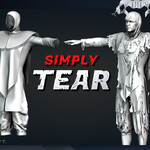
Simply Tear - Addon for Blender 4.4 and higherby Omid Ghotbi & Vjaceslav T.
Video Tutorial Simply Tear v1.0
Introducing
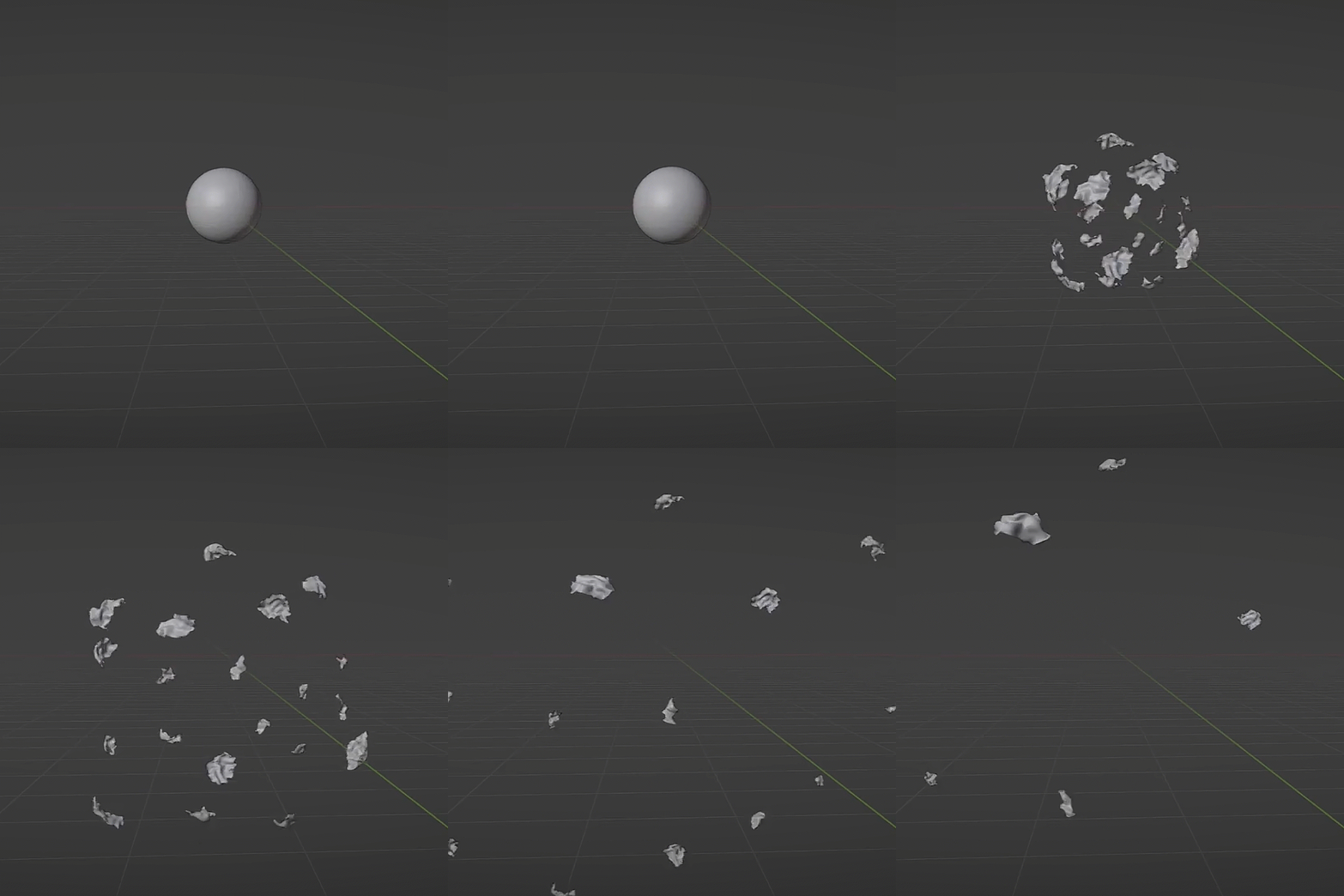
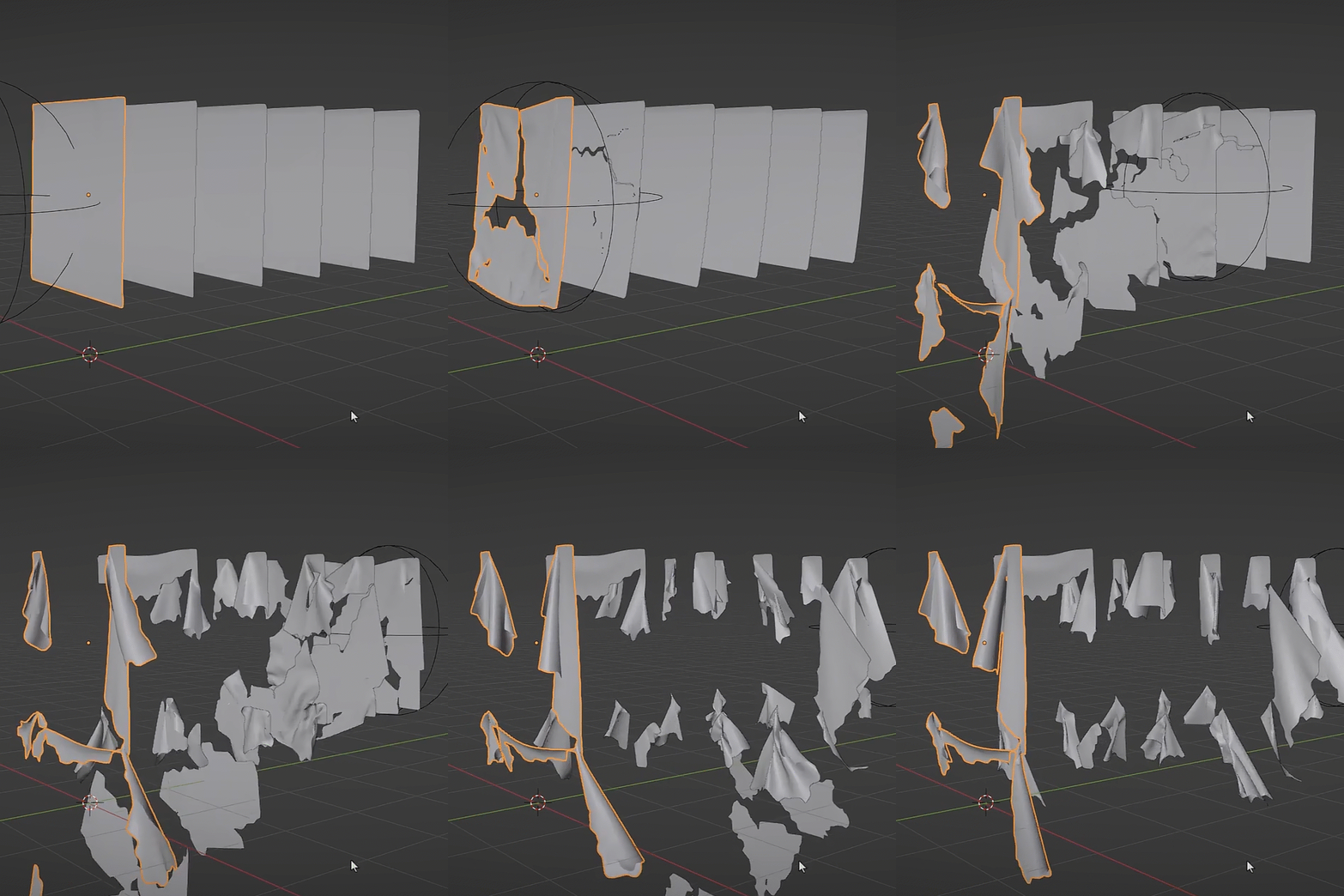
is a powerful add-on designed to quickly create realistic tearing or sharp cuts on your 3D objects. For optimal results, combine it with cloth simulation to observe how the object dynamically responds to the tears. Simply select your object, define the tear lines, and run the simulation—achieving high-quality results in no time.
Installation
Just drag & drop the downloaded zip file into Blender’s 3D Viewport and hit OK.


-
Select your object(recommend to backup your source object)
- Draw your tear lines.
- Simulate with Fast Cloth - Button… then watch the controlled chaos unfold.
PERFECT FOR:
● Epic battle damage
● Horror FX
● Stressed materials (fabric, paper, skin)
● Pure, unhinged creativity!"


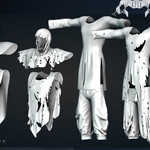
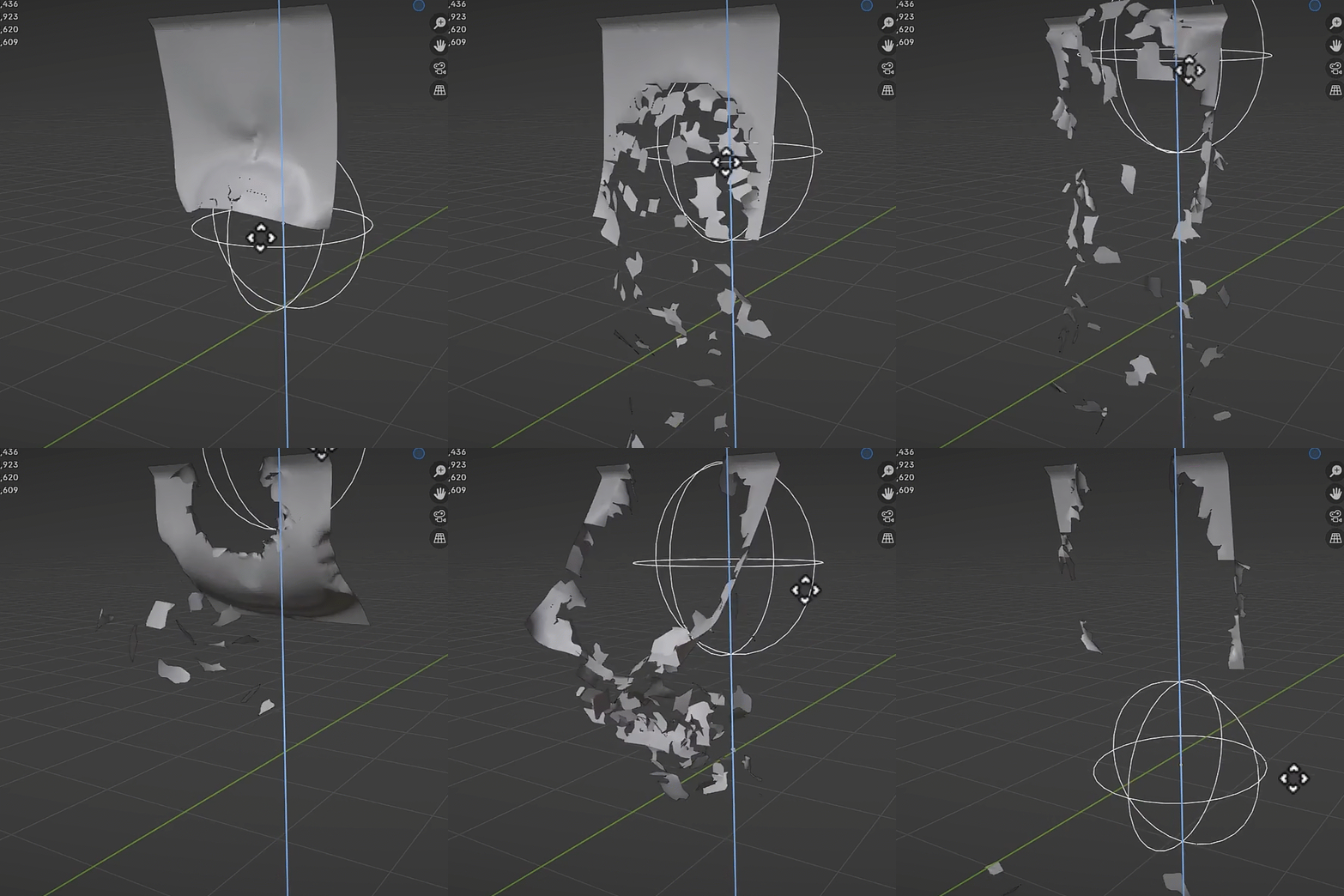
you can go totally crazy if you want, just draw more and more tearing and you get results like this:


Documentation
Simply Tear Pro - Functions update 2025-12
Subdivide
Easily subdivide objects.

Pin
Pinning a vertex is only possible with the "Random Tear" or "Dynamic" options applied. To pin, click the "Pin Button" and select the vertex in Edit mode.

Random Tear
To set up Random Tearing on your object, select "Random Tear" and click "Apply."
Once applied, the following window will appear for you to work with:

Random Settings
Modify the number of tears and seed value to customize the effect. Use Preview or apply Hard Edges after adjustment.
Activator (works in Random and Dynamic)
"Add Mesh Activator" prepares a selected mesh (e.g., a sword or knife) to act as an "activator," influencing the cutting effect on a randomly torn object.
Dummy Activator (works in Random and Dynamic)
This creates an empty sphere object for the Viewport. Use it for animation or drag in real-time to trigger the tearing effect on the Tear Object.
Simulation Settings
Manage the simulation by adjusting the cloth properties, restarting, playing, enabling Self Collision, or adding Pressure.

UI Elements & Parameters

Methods - Three different tearing algorithms available starts with Projection
Presets - Predefined configurations for common settings
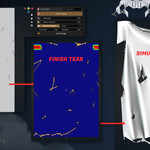
Draw Tear Line - Button to begin creating tear paths
Resolution - Controls resolution of created curve from drawing
Select Threshold - Sets width of Edges removed around tear (like thickness of line)
Adaptive Polygons - Toggle for automatic edge refinement (subdivide around tearing)
Cut Through - Toggle between surface tear or complete cut
Fast Cloth - Button to generate fast cloth simulation mesh
Tearing Method
Simply select the needed method to achieve different results.

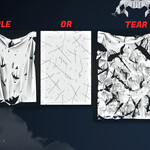
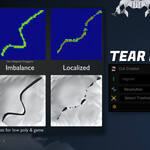
Choose from multiple TEARING METHODS to create different styles – compare the results below:

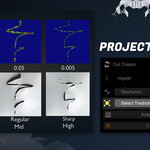
simply use Presets | Rough, Regular, Sharp | to instantly achieve your desired tearing style.
Important: The Sharp Preset (Imbalance method) is more performance-intensive. For optimal results, apply tears gradually (one-six at a time) - especially with high-resolution meshes.
Presets
Simply select different presets like rough, regular and sharp to get your desired result.

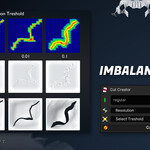
Select Treshold
You have control over the number of neighboring elements to include in the selection, allowing for more precise trimming around the cut area.

Here you see what these are affecting

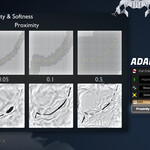
Adaptive Polygon

Level

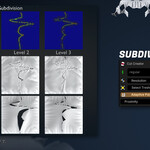
Increases subdivisions along the tear for higher-resolution results.
Proximity

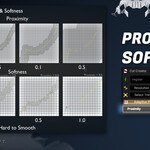
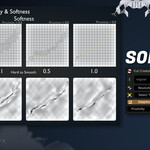
The Proximity parameter sets the maximum distance from the tear line where subdivision is applied, based on the defined intensity levels.
Softness

Softness controls the falloff gradient of subdivision influence in surrounding areas.
Cut Trough

Cut Through slices the mesh completely to the opposite side. It simulates realistic cuts, so some edges may not fully penetrate to maintain natural results.
Fast Cloth

Play - Starts the cloth simulation
Restart - Resets the simulation to initial state
Quality - Sets substep precision for simulation accuracy
Gravity - Controls downward force intensity on cloth
Shrink - Negative values expand, positive values contract mesh
Stiffness - Lower values = more flexible, higher = more rigid
Pressure - Toggle with adjustable intensity value
Self Collision - Toggle for inter-cloth collision detection
2.0.17
Dynamic tearing with activator
2.0
Random Tearing
1.0.19
Bug fix
1.0.17
Add multiple edit mode
1.0
First release
Static Tearing
Paint Tearing
Fast cloth simulation
Conact
TAngraFX - by Omid Ghotbi (TAO)
Simply Addons - by Vjaceslav T.
Special Thanks to Omid Ghotbi! - you are a real master!
-
$9
Static Tearing only - Commercial use for freelance or indie users
-
$27
Full Dynamic Tearing - Commercial use for freelance or indie users
-
$99
Fully Dynamic Tearing - commercial use for Studios up to 10 person.
-
$288
Fully Dynamic Tearing - commercial use for Studios more than 10 person.
 Included
Includes 12 months of
- Support from TAngraFX
- Product updates
Extend this product’s Support Period +12 months: 50% of product price
Have questions before purchasing?
Login to message
| Blender Extension Compatible | Yes |
| Sales | 1400+ |
| Rating | 15 ratings |
| Dev Fund Contributor | |
| Published | over 1 year ago |
| Blender Version | 4.4 - 5.1 |
| Extension Type | Add-on |
| Render Engine Used | Arnold, Blender-Internal, Blender-Game-Engine, Cycles, Eevee, Freestyle, Luxrender, Mental-Ray, Octane, Vray, Yafaray |
| License | Mit |