 Yashvanth

Simulation to Shapekeys — Full Version
Turn simulation into editable animation.
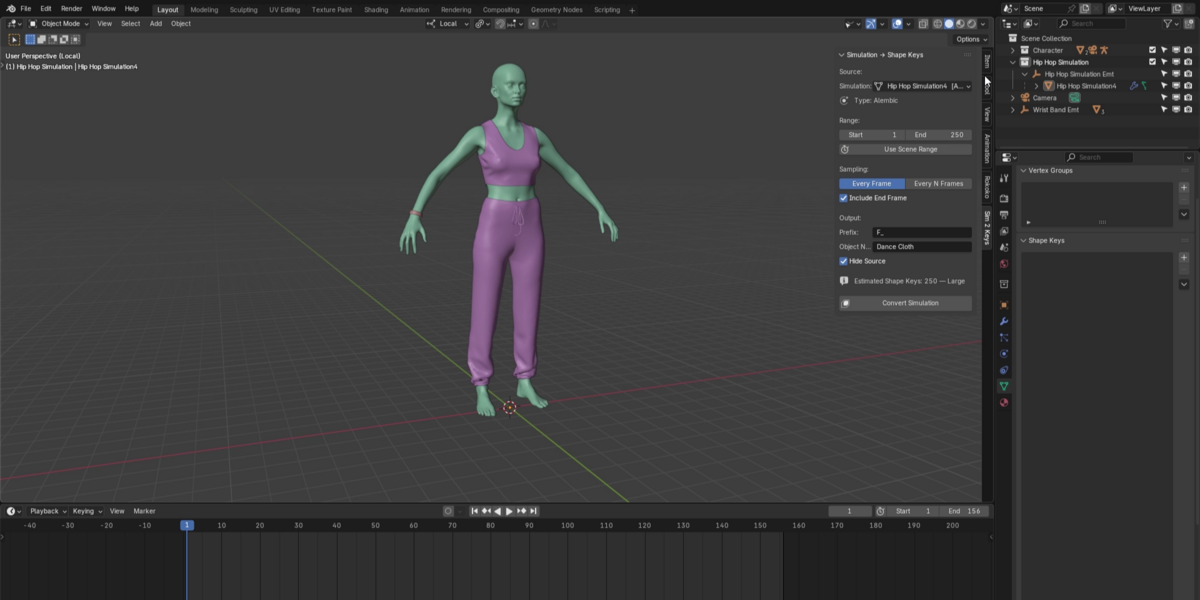
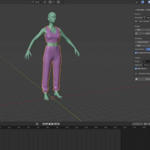
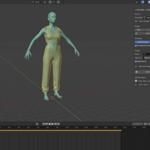
Simulation to Shapekeys converts blender's Cloth, Soft body simulation and Alembic-based deformation into editable Shape Key animation while keeping the Timeline, keyframes, and generated Shape Keys synchronized.
The goal is simple:
Simulate → Convert → Edit → Refine
Core Features
Simulation Support
Convert supported simulation results into editable Shape Key animation.
Supported workflows include:
- Cloth
- Soft Body
- Alembic deformation
For Alembic sources, the addon can detect animation offsets and align the imported deformation with the intended Blender timeline, helping prevent shifted or incorrectly timed Shape Keys.
Timeline ↔ Shape Key Sync
The addon keeps the generated animation structure synchronized between the Timeline/Dope Sheet and Shape Keys.
A logical animation key represents the relationship between:
Timeline Key → Generated Shape Key → Deformation
This means editing the animation does not have to become a manual process of fixing disconnected Shape Key data.
Edit / Sculpt Sync
The converted Shape Key result can be refined directly using Blender's editing and sculpting workflows.
Make a deformation correction, sculpt the required shape, and use the current result as part of the animation workflow.
This is especially useful for fixing simulation moments that are technically valid but artistically incorrect.
Snap to Keyframe
Snap to Keyframe lets you quickly move the current timeline position to existing generated animation keys.
This makes it easier to:
- inspect specific deformations
- edit an exact generated key
- compare neighboring shapes
- work precisely with converted simulation data
Instead of hunting for the correct frame manually, jump directly between logical keys.
Keyframe Overlap
The Full Version allows keyframes to overlap when the workflow requires multiple keys to occupy the same frame.
This is useful for situations where several generated or edited Shape Key events need to exist at the same timeline position without forcing the user into an artificial one-key-per-frame workflow.
The addon is designed to preserve the logical relationship between these keys rather than treating overlapping keys as an automatic error.
Output Controls
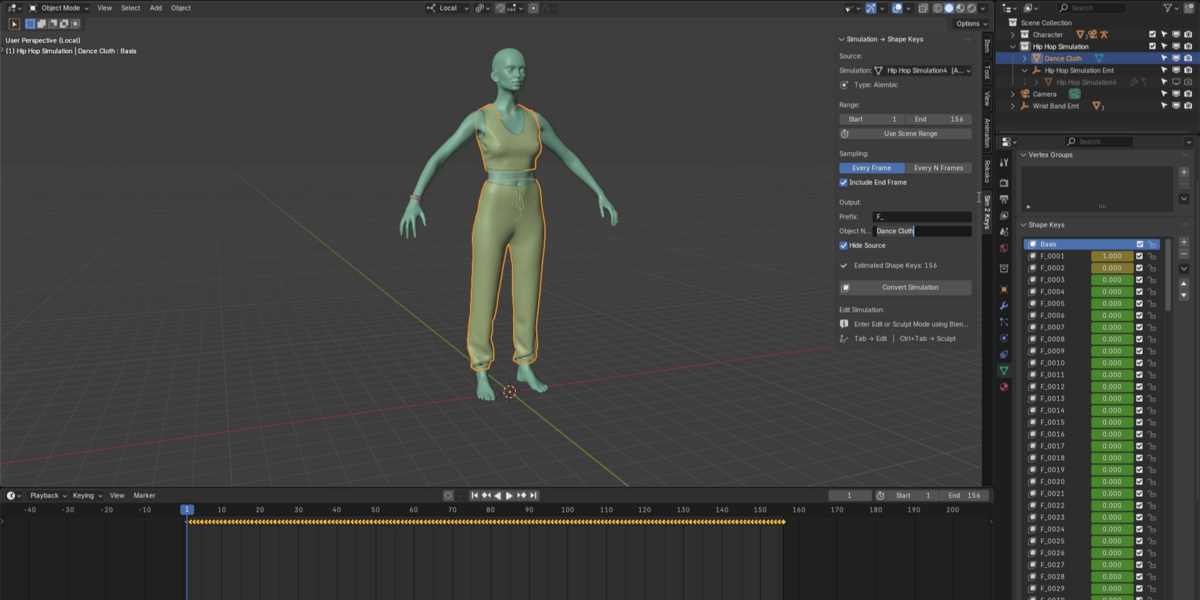
Prefix
The Prefix field lets you define a naming prefix for generated Shape Keys and output data.
For example:
Cloth_
can produce generated entries such as:
Cloth_001
Cloth_002
Cloth_003
This makes large converted animations easier to identify and organize.
Object Output
The Object Output option controls where the generated Shape Key animation is written.
This makes it possible to keep the original simulation/source object separate from the generated editable result, giving you a cleaner production workflow.
Source → Editable Output
Editing Tools
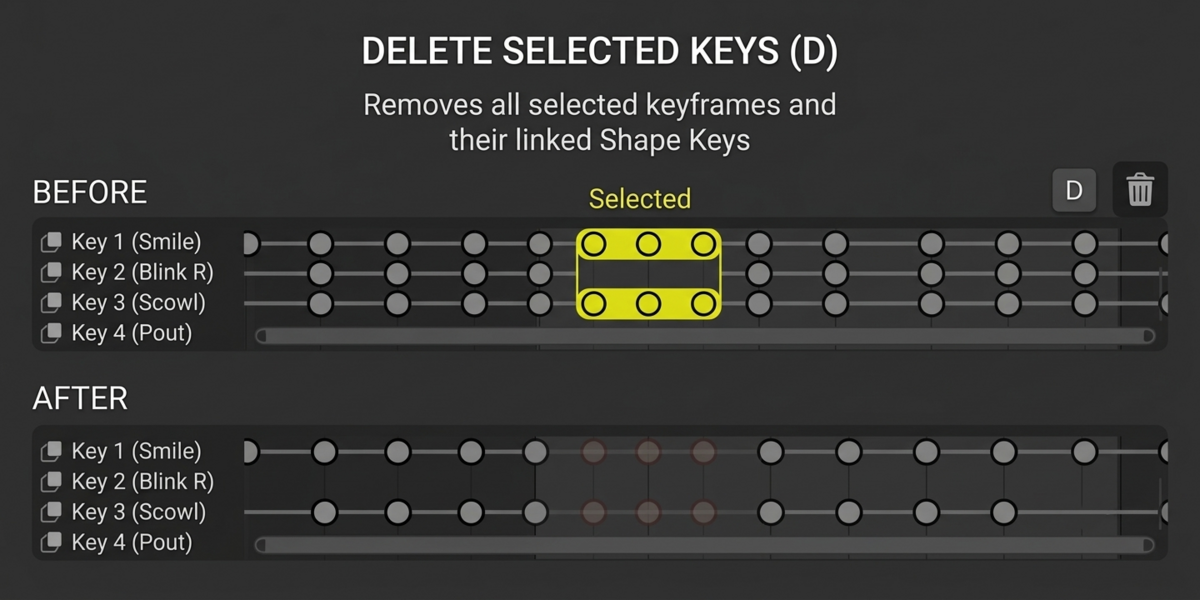
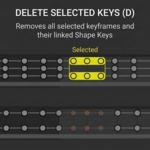
Delete Selected Keys — Single & Multiple Occurrences
Deletes selected logical animation keys and their associated generated Shape Key data while preserving the surrounding animation structure.
Single Occurrence
When a selected logical key appears only once, deleting it removes that single key and its associated generated Shape Key entry.
Example:
Key 01 → Key 02 → Key 03
Delete Key 02:
Key 01 → Key 03
Multiple Occurrences
A logical key may have multiple occurrences on the timeline(Means single shape key with multi keyframes in the timeline), such as when keys overlap or the duplicated keys in more than one place.
When a selected key has multiple occurrences, the addon handles the selected occurrences according to their individual timeline positions rather than automatically removing unrelated keys.
Example:
Key A → Key B → Key B → Key C
If one occurrence of Key B is selected, only that selected occurrence is removed.
Key A → Key B → Key C
This allows precise editing without unintentionally deleting other occurrences.
Important
Delete Selected Keys works on the selected logical key occurrences, not simply by searching for and deleting every matching Shape Key name.
This is especially important when working with overlapping keys, duplicated keys, and edited simulation data.
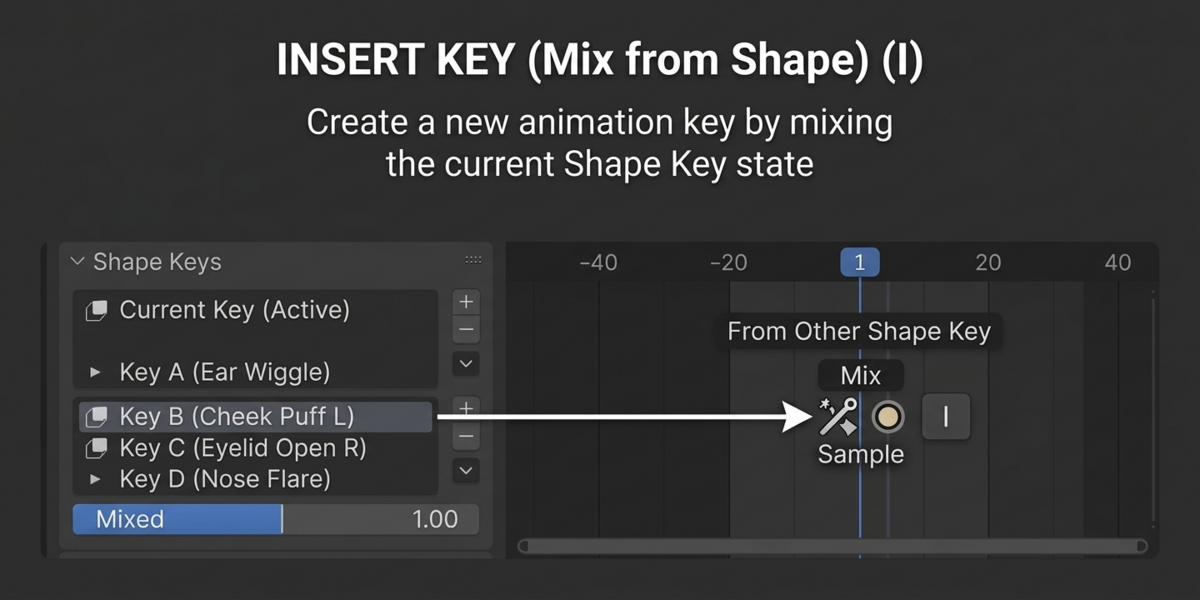
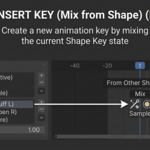
Insert Key — Mix from Shape
Creates a new logical key from the current Shape Key/deformation state.
Useful for manually correcting a simulated moment.
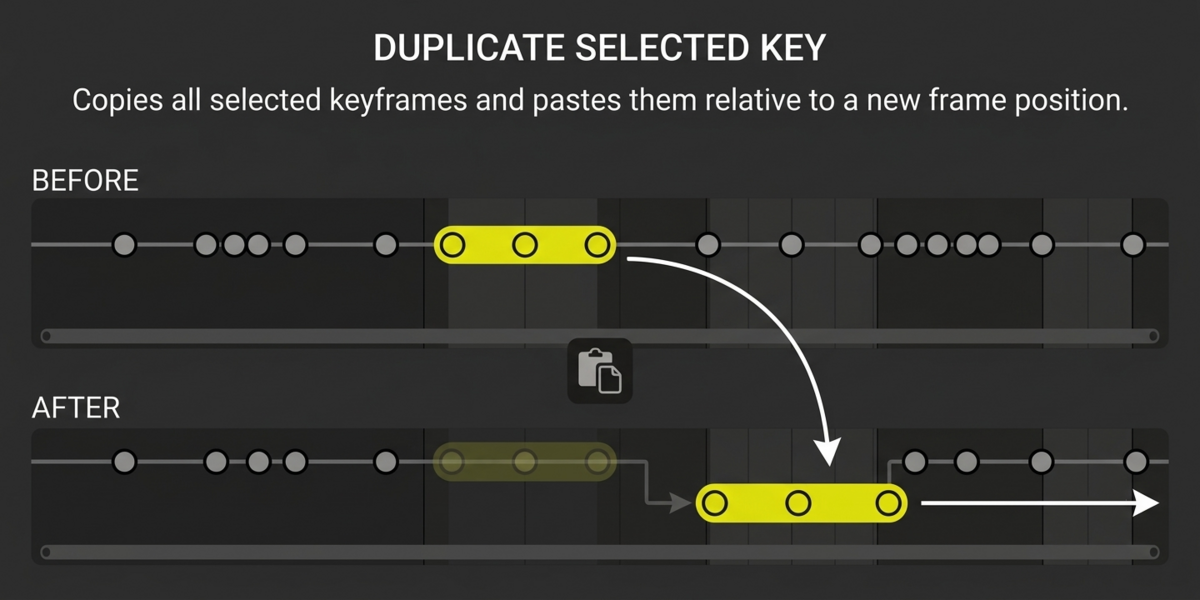
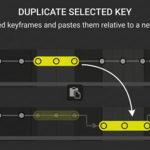
Duplicate Selected Key
Duplicates an existing logical key and its associated deformation for reuse or further editing.
Custom Keyboard Shortcuts
The Full Version lets you assign custom keyboard shortcuts to the main editing operations directly from the addon preferences.
Create your own shortcuts for:
- Insert Key (Mix from Shape)
- Delete Selected Keys
- Duplicate Selected Key
This allows you to build a faster workflow that matches your personal Blender shortcuts and editing habits.
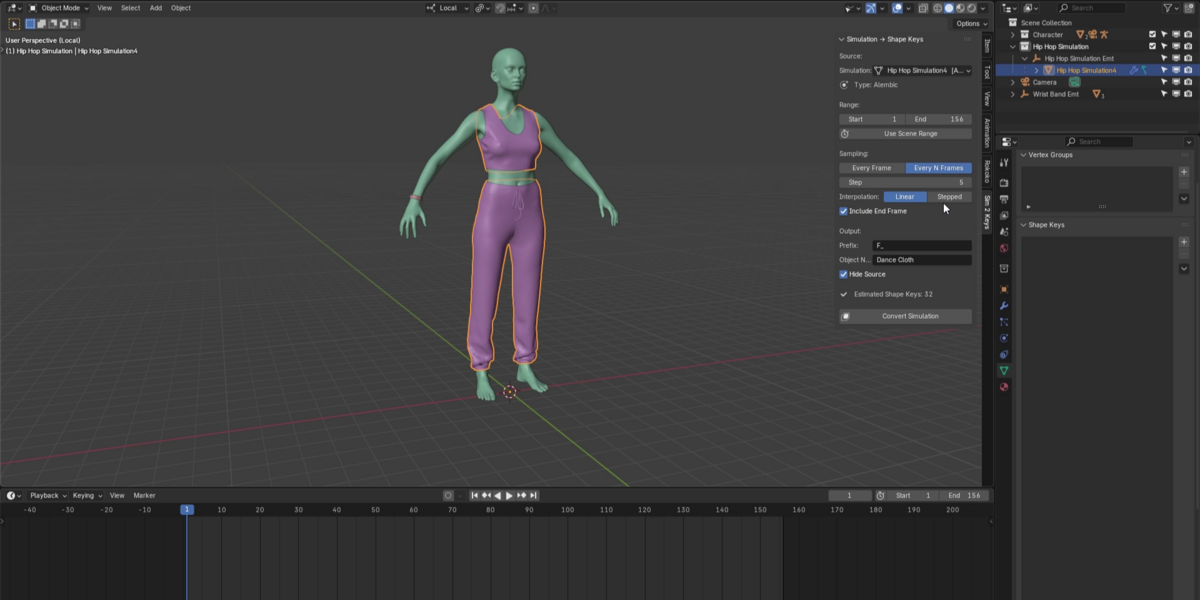
Sampling
Every Frame
Captures the simulation at every frame for maximum fidelity.
Every N Frames
Samples at a custom interval to reduce generated data and improve editability.
Include End Frame
Ensures the final frame of the selected range is included in the conversion.
Recommended Workflow
1. Simulate
Create your Cloth, Soft Body, or other supported deformation.
2. Convert
Choose the source, frame range, sampling method, and output settings.
3. Synchronize
The addon builds the Timeline/Shape Key relationship.
4. Edit / Sculpt
Correct problem areas directly.
5. Insert / Duplicate / Delete
Refine individual logical keys.
6. Polish
Continue editing the generated animation like normal Blender animation data.
Have questions about this product?
Login to message
| Blender Extension Compatible | Yes |
| Published | about 2 months ago |
| Blender Version | 4.0 - 5.2 |
| Extension Type | Add-on |
| Render Engine Used | Cycles, Eevee |
| License | GPL |

Discover more products like this
softbodyphysics shapekeys BlenderAddon meshcache characteranimation AnimationTools alembicconverter blender3d 3danimation ClothSimulation simulationtoshapekeys 3dmodeling