 SimuFlux


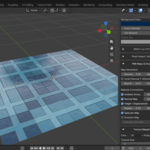
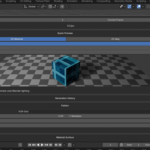
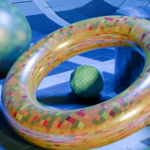
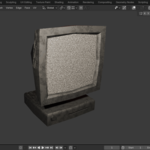
SimuPixel Procedural Materials for Blender
Version: 1.0.0
Blender: 4.2.0 and newer
License: GNU GPL v3.0 or later
Important Note for Mac / Safari Users: If your browser automatically unzips the downloaded file into a regular folder, Blender won't be able to install it. Please right-click the folder and select "Compress" to turn it back into a .zip file before installing. Alternatively, disable "Open safe files after downloading" in Safari preferences.
Overview
SimuPixel Procedural Materials is a Blender extension for creating editableglitch, lo-fi and pixel-art PBR materials directly inside Blender. It generatesa coordinated eight-map texture set, builds a Principled BSDF material, andkeeps the editable source settings inside the Blender file.
The workflow is designed for fast iteration: create a material, choose arecipe, preview it on a lit shape, adjust the controls, and export the finalmaps when the result is ready.
Key Features
- Eight coordinated PBR maps: Albedo, Height, Normal, Roughness, Ambient Occlusion, Metallic, Specular and Emission.
- Ten editable material recipes and eight procedural generator types.
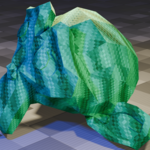
- Live preview, final-resolution generation and a lit 3D material preview.
- UV mapping by default, plus one-click Triplanar (Box) Mapping for models without a UV map.
- Edit Mode face variants: select faces and adjust a material only for that selected face group.
- Object Mode Unify Textures to apply the active SimuPixel material across the complete mesh.
- Generation History with source snapshots and restore support.
- PNG export for the complete eight-map set and native
.glppreset import/export. - Prebuilt native modules for macOS Apple Silicon, macOS Intel and Windows x64.
Installation
Blender 4.2 and newer — Extension installation
- Download
SimuPixel-Addon-1.0.0.zipfrom your Superhive order page. - Keep the ZIP compressed. Do not extract it before installation.
- Open Blender and go to Edit > Preferences > Get Extensions.
- Open the menu in the top-right corner and choose Install from Disk.
- Select
SimuPixel-Addon-1.0.0.zipand confirm. - Enable SimuPixel Procedural Materials if Blender does not enable it automatically.
- Open a 3D Viewport, press N, and select the SimuPixel tab.
Superhive may also offer drag-and-drop installation from the order page orinstallation through its Blender extension repository. The ZIP remains avalid direct-install fallback.
Updating an existing installation
- Save open Blender files.
- Install the new ZIP from Get Extensions > Install from Disk.
- If Blender reports a duplicate or the old panel remains visible, disable the older SimuPixel entry, remove it, and restart Blender.
- Reopen the project. SimuPixel source settings, generated images and material history are stored in the
.blendfile.
Getting Started
- Select a mesh object.
- Open the SimuPixel tab in the 3D View sidebar.
- Click Create & Apply SimuPixel Material.
- Choose a recipe, such as Stone Surface, Concrete, Woven Fabric or Brushed Steel.
- Use Preview for a fast working result, then use Generate Final for the chosen production resolution.
Core Workflow
Generator and recipes
Recipe is the fastest starting point. It sets a coordinatedgroup of generator and material parameters. Use Apply to applythe recipe, then refine individual settings in the other sections.
Generator controls the pattern family, seed, frequency,phase and pattern-specific controls. Use a stable seed when you need arepeatable result.
Quick Preview
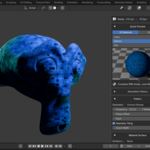
Expand Quick Preview to inspect the complete material on acube, sphere or flat surface. Switch to 2D Map to inspect oneof the eight generated maps individually.
Texture Mapping
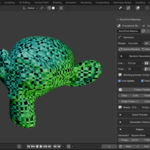
UV mapping is the default and remains available for traditional Blenderworkflows. Enable Triplanar (Box) Mapping when the model has noUV map. This mode uses Generated coordinates and blends the texture projectionacross three axes.
Box Blend controls the transition between the three boxprojections. Texture Size, Rotation andOffset control the shared mapping for the complete PBR set.
Face-local material variants
- Enter Edit Mode on a mesh with a SimuPixel material.
- Select one face or a group of faces.
- Change a SimuPixel control, apply a recipe, or generate a preview.
- SimuPixel creates a local material variant for the selected group. The original material and other face variants remain unchanged.
- Deselect the group and select another group. The new group receives its own variant, so it can be edited independently.
This is useful for quickly giving different panels, tiles, armor plates orother regions of one model different procedural surfaces without separating themesh into multiple objects.
Unify Textures
- Return to Object Mode.
- Make the SimuPixel material you want to keep active in the material slot.
- Click Unify Textures.
Every polygon is assigned to the active SimuPixel material. Existingmaterial datablocks are not deleted, so you can still reuse or remove them manually later.
PBR controls
The PBR section controls generated normal strength, height contrast, baseroughness, specular response and optional shader connections. Height anddisplacement are opt-in so a fast preview does not unexpectedly change themesh silhouette.
Random Generation
Explore Random can randomize selected parameter groups. Usethe strength control to blend between the current material and a new result.Pattern generator filters and opaque/transparent background modes are availablefor controlled exploration.
Generation History
When history is enabled, manual generations store compact source snapshotsrather than duplicate bitmap sets. Restore a snapshot to return to an earlierparameter state, then generate it again.
Export
- Set the final resolution in the Generator section.
- Choose the export directory and filename prefix in Presets & Export.
- Click Generate Final & Export PBR Set.
SimuPixel writes the eight PNG maps as one coordinated set. Generated imagescan also be packed into the .blend file whenPack Into .blend is enabled.
Panel Reference
| Panel | Purpose |
|---|---|
| Generator | Recipes, random exploration, preview and final generation. |
| Quick Preview | Complete 3D material or individual 2D map preview. |
| Generation History | Restore, rename or remove compact source snapshots. |
| Pattern | Generator family, seed, frequency and pattern controls. |
| Material Surface | Optional directional surface detail and scale. |
| Color | Base color, background, mix and filter tint. |
| Glitch / Lo-Fi FX | Pixelation, scanlines, VHS and chromatic effects. |
| Pixel Output / Alpha | Palette, dithering and alpha behavior. |
| PBR Maps & Shader | Map generation and Principled BSDF connections. |
| Texture Mapping | UV, Generated/Object coordinates, Box projection and transforms. |
| Presets & Export |
.glp presets, PNG export and material repair. |
Best Practices
- Use Preview while exploring and Generate Final only when the material is ready.
- Use Triplanar (Box) Mapping for meshes without UVs; use UV mapping when you need a deliberately authored UV layout.
- Keep a stable seed for repeatable materials across revisions.
- Use face-local variants for quick regional edits, then use Unify Textures when the entire mesh should share one material again.
- Pack generated images into the
.blendbefore moving the file to another computer. - Save the Blender file before generating 4K or 8K maps; high resolutions require substantially more memory.
Troubleshooting
The SimuPixel tab is not visible
Confirm that the extension is enabled in Blender Preferences, select a meshobject, press N in a 3D Viewport, and choose theSimuPixel tab. Restart Blender if an older installation waspreviously enabled.
The texture is not visible in the viewport
Switch the viewport to Material Preview or Rendered mode. Confirm that theobject has a SimuPixel material slot and that a preview or final generation hascompleted.
Triplanar mapping looks stretched
Adjust Texture Size and Box Blend. Apply aconsistent object scale in Blender when the model has non-uniform scale, thenregenerate the material.
A face group changed the wrong material
Return to Edit Mode, select the intended faces, and make sure the selectedgroup is visible before changing a material control. Each changed selection isgiven its own local variant. In Object Mode, use Unify Texturesonly after making the material you want to keep active.
The native module is unavailable
Verify that Blender is running on a supported prebuilt platform: macOS AppleSilicon, macOS Intel or Windows x64. Linux users must build the native bridgefrom the corresponding source included in the full GPL package.
Compatibility and License
SimuPixel Procedural Materials 1.0.0 is licensed under theGNU General Public License v3.0 or later. Copyright (c) 2026SimuFlux. Buyers receive the GPL rights to use, study, modify and redistributethe covered software. The full license text and corresponding source areincluded in the downloaded package.
Prebuilt modules are provided for macOS Apple Silicon, macOS Intel andWindows x64. The package does not claim a prebuilt Linux binary, code signing,notarization or universal runtime reliability.
Version History
1.0.0 — 2026-07-24
- Initial Superhive-ready commercial package.
- Eight-map procedural PBR generation and editable material recipes.
- UV and Triplanar (Box) mapping.
- Per-face material variants and Object Mode Unify Textures.
- Quick Preview, Generation History, presets and eight-map export.
Copyright (c) 2026 SimuFlux. SimuPixel Procedural Materials is licensedunder GNU GPL v3.0 or later.
Have questions about this product?
Login to message
| Blender Extension Compatible | Yes |
| Dev Fund Contributor | |
| Published | 3 months ago |
| Blender Version | 4.2 - 5.2 |
| Extension Type | Add-on |
| Render Engine Used | Cycles, Eevee |
| License | GPL |
