Slot Slider
 Bartosz Joniec



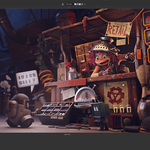
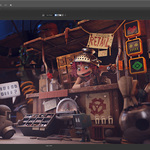
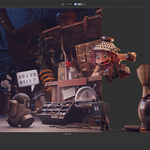
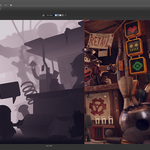
# Slot Slider — Documentation
**Version:** 2.68.17
**Blender compatibility:** 4.5 LTS / 5.0 / 5.1+
**Last updated:** May 31, 2026
---
## What Slot Slider does
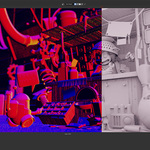
Slot Slider turns Blender's 8 render slots into a side-by-side comparison tool. Pick two slots, drag the divider across the image, and see the difference in real time — color, depth, normals, or any other render pass. GPU-accelerated, works with multi-View-Layer scenes, and supports all render engines.
---
## Installation
### Step 1 — Download
Download `slot_slider_dl.py` from your Superhive purchase page (Orders → Slot Slider → Download).
### Step 2 — Install in Blender
1. Open Blender (4.5 LTS, 5.0, or 5.1+).
2. **Edit → Preferences → Add-ons**.
3. In Blender 4.5: click **Install...** at the top, browse to `slot_slider_dl.py`, click Install Add-on.
4. In Blender 5.x: click **Install from Disk...** (in the dropdown menu next to the Refresh icon), browse to `slot_slider_dl.py`.
5. After install, find **Render: Slot Slider** in the list. Tick the checkbox to enable.
6. (Optional) Click **Save Preferences** if you want it enabled in every new file.
### Step 3 — Verify install
Open the **Image Editor** (any window). Press **N** to open the sidebar if it's hidden. You should see a **Slot Slider** tab.
---
## Quick start (3 minutes)
1. **Render your scene** (F12). The result appears in Render Slot 1.
2. In the Image Editor header, **click the slot dropdown** (next to the "Image" menu) and switch to **Slot 2**.
3. Change something — turn off a light, increase samples, change the world background, anything.
4. Render again (F12). Slot 2 now contains a different version of the same scene.
5. Open the **Image Editor → N-panel → Slot Slider** tab.
6. Set **Slot A = 1** and **Slot B = 2**.
7. Click **Build Comparison**.
8. **Drag the divider** in the Image Editor to reveal Slot A on one side and Slot B on the other.
You're now comparing two renders in real time.
---
## Panel reference
The Slot Slider panel lives in the **Image Editor N-panel**.
### Section: Setup
- **Slot A** — dropdown to pick which slot is shown on one side of the slider
- **Slot B** — same, for the other side
- **View Layer A / B** — appears for multi-View-Layer scenes. Picks which View Layer's data is displayed for each side.
- **Build Comparison** — activates the slider. Must be clicked once after picking slots.
- **Disable** — removes the slider overlay, returns to normal Image Editor behavior.
### Section: Channels
- **Channel A** — what to display on side A. Options:
- **RGB** — full color
- **R**, **G**, **B** — individual color channel as grayscale
- **Alpha** — alpha channel as grayscale
- **Any rendered pass** — Depth, Normal, Mist, Diffuse, Glossy, AO, Position, Vector, and others, depending on what was enabled in View Layer Properties → Passes
- **Channel B** — same dropdown for side B
- **Vector display** (for Normal / Position / Vector passes) — controls how 3-channel vector data is colorized
The dropdowns are populated dynamically based on which passes were actually rendered. If a pass is missing, render with that pass enabled and the dropdown updates automatically.
### Section: Slider Control
- **Divider position** — slider showing where the boundary is (also controllable by dragging directly in the viewport)
- **Orientation** — Vertical / Horizontal
- **Drag in viewport** — toggle whether mouse dragging in the Image Editor moves the divider
### Section: Save
- **Save As** — exports the current comparison as PNG or JPG, with the slider position frozen at its current value
- **Include metadata overlay** — optional small caption showing slot/pass/channel for each side
- **Filename** — choose where the file goes
### Section: Snapshot
- **Snapshot** — saves the current state (slots, channels, divider position) so you can return to it later
### Section: Logs
- **Open Log Folder** — opens the addon's log directory (useful for support requests)
- **Copy Log Path** — copies the path to clipboard
---
## Enabling render passes
To compare passes (not just the final color image), you need to enable passes **before** rendering:
1. **Properties → View Layer Properties → Passes**.
2. Tick the passes you want — common useful ones:
- **Combined** (always on by default — the final color image)
- **Depth (Z)** — distance from camera
- **Normal** — surface normals
- **Mist** — for atmospheric fog effects
- **Ambient Occlusion** — contact shadows
- **Diffuse Color / Diffuse Direct / Diffuse Indirect** — diffuse lighting components
- **Glossy Color / Direct / Indirect** — specular reflection components
- **Position** — world-space position per pixel
- **Vector** — motion vectors for motion blur
3. **Render** (F12). The addon automatically captures every enabled pass.
4. In the Slot Slider panel, the **Channel** dropdowns now include all your passes.
The addon writes a multilayer EXR alongside each render, in a temporary directory, capturing all enabled passes. These files are managed automatically and cleaned up when the addon is disabled.
---
## Workflow examples
### Example 1: Lighting comparison
1. Render your scene with lighting setup A → Slot 1.
2. Modify lights, switch to Slot 2, render → Slot 2.
3. Build Comparison: A=1, B=2, Channel A=RGB, Channel B=RGB.
4. Drag slider to see which lighting reads better.
### Example 2: Denoiser before/after
1. Enable denoising in Render Properties, render → Slot 1.
2. Disable denoising, render → Slot 2.
3. Build Comparison: A=1, B=2.
4. Compare the noise floor and any over-smoothing artifacts.
### Example 3: Sample count study
1. Set samples=32, render → Slot 1.
2. Set samples=128, render → Slot 2.
3. Set samples=512, render → Slot 3.
4. Build Comparison: A=1, B=3.
5. After comparing, change to A=2, B=3 — see if 512 is worth it over 128.
### Example 4: Final composite vs raw pass
1. Render with full compositor → Slot 1.
2. Compare against the raw Diffuse Direct pass: A=1 with Channel=RGB, B=1 with Channel=Diffuse Direct.
3. See exactly how much of the final look comes from direct lighting alone.
### Example 5: Multi-View-Layer comparison
If your scene has two View Layers (e.g., Foreground and Background):
1. Render the scene — both VLs render in Slot 1.
2. Build Comparison: A=1 with View Layer = Foreground, B=1 with View Layer = Background.
3. Inspect how the two layers compose into the final image.
---
## Compatibility notes
### Blender versions
- **4.5 LTS** — fully supported
- **5.0** — fully supported
- **5.1+** — fully supported
- **Older (4.2 LTS, 4.3, 4.4)** — not officially supported. The addon may load but compositor APIs and pass naming changed significantly. Buy at your own risk on these versions.
### Render engines
- **Cycles** — fully supported, all passes
- **EEVEE / EEVEE Next** — fully supported, supported passes only (some Cycles-only passes like Sample Count are not available in EEVEE)
- **Workbench** — basic support (Combined + Depth)
- **Third-party engines** (RenderMan, Octane, etc.) — depends on the engine's pass output. Standard passes (Combined, Depth, Normal) typically work. Engine-specific passes (e.g. AOV outputs) may need manual compositor setup.
### Operating systems
- **Windows 10 / 11** — primary development and test platform
- **macOS** — should work, not extensively tested. Logs help diagnose any issues.
- **Linux** — should work, not extensively tested.
### GPU requirements
Slot Slider uses Blender's `gpu` Python module for the slider compositing. Any GPU that runs Blender's viewport runs Slot Slider.
---
## How the addon works (technical detail)
When you click **Build Comparison**, Slot Slider:
1. Reads the multilayer EXR for each slot (written automatically during the previous render).
2. Loads the requested channels into GPU textures.
3. Hooks into the Image Editor's draw callback to composite a slider blend on top of the displayed image.
4. Listens for mouse events to drag the divider.
When you enable the addon, it adds a **green frame** to your compositor positioned **2000 pixels to the right** of any existing nodes. Inside the frame are:
- A **Render Layers** node per View Layer
- A **File Output** node that writes the multilayer EXR
If you have your own compositor setup, the addon detects your Composite / Group Output node and reads the final signal **in parallel** without modifying your links. Your render output is unchanged.
When you disable the addon, the entire green frame is removed, the compositor tree is restored to its prior state (including `use_compositing` and `use_nodes` flags), and temporary EXR files are deleted.
---
## Troubleshooting
### "Build Comparison" does nothing / panel is grayed out
You haven't rendered yet in the current session. Render at least one slot (F12), then try again. Render slots are not stored in `.blend` files — they live in memory only.
### "Pass not available" in dropdown
The pass wasn't enabled when the slot was rendered. Go to **View Layer Properties → Passes**, enable the pass you want, **re-render** that slot, then refresh the dropdown by clicking Build Comparison again.
### Slider doesn't appear / divider not visible
- Make sure you clicked **Build Comparison** after selecting slots.
- Make sure the Image Editor is showing the **Render Result** (not an external image).
- Try toggling the slider Orientation between Vertical and Horizontal.
### Comparison looks wrong / pixels misaligned
The two slots may have been rendered at different resolutions. Render both slots at the same resolution and try again.
### Blender crashes after enabling the addon
This is rare but possible with very large scenes or unusual compositor setups. To diagnose:
1. **Open Log Folder** in the panel and find the most recent `ss_*.log` file.
2. Email it to support along with a description of what you were doing when the crash happened.
### After disabling the addon, my compositor changed
This shouldn't happen — the addon snapshots the compositor state on enable and restores it on disable. If your custom nodes are missing, check Undo (Ctrl+Z) first. If still wrong, include the log file when contacting support.
### Render slows down with the addon enabled
The addon adds a File Output node to the compositor which writes a multilayer EXR after each render. For typical scenes the overhead is negligible (1-2% of total render time). If you have a very fast render (under 1 second) on a scene with many passes, the file I/O might noticeably show. You can:
- Disable passes you don't need in View Layer Properties.
- Temporarily disable the addon between A/B comparisons.
### Multi-View-Layer scene shows passes from wrong layer
Make sure you set both **View Layer A** and **View Layer B** dropdowns correctly. Each side has its own View Layer selector.
---
## Where files are stored
- **Temporary EXR captures**: `%TEMP%/Slot Slider Temp Files/` (Windows) or `/tmp/Slot Slider Temp Files/` (macOS/Linux). Cleaned on addon disable.
- **Logs**: `%TEMP%/Slot Slider Logs/ss__.log`. Kept until manually deleted.
- **Snapshots** (if you use Snapshot feature): saved to whatever path you choose in the Save dialog.
The addon does **not** write anything to your `.blend` file beyond standard compositor nodes (which are removed on disable).
---
## Updates
Updates are delivered through Superhive — log in, go to **Orders → Slot Slider → Download**, and grab the latest `slot_slider_dl.py`.
To update:
1. **Edit → Preferences → Add-ons**.
2. Find **Render: Slot Slider**, expand it, click **Remove**.
3. Install the new version via **Install...** (4.5) or **Install from Disk...** (5.x).
4. Enable the checkbox.
Your slot setups and preferences are stored in Blender's preferences and persist across updates.
---
## Support
If you have questions, issues, or feature requests:
1. **Read this documentation first** — most common questions are answered above.
2. **Check the log file** — many issues become clear from the log. Open Log Folder from the panel.
3. **Send a support request** through your Superhive purchase page. Include:
- Blender version (e.g., 5.1.0)
- Slot Slider version (visible in the panel header, e.g., 2.68.17)
- Operating system
- A description of what you were doing when the issue happened
- The most recent log file (`ss_*.log`)
Response time is typically 1-3 business days.
---
## License
You may use Slot Slider on as many personal Blender installations as you wish. Slot Slider may not be redistributed, resold, or included in other products or bundles without explicit permission.
The full license terms are in the Superhive Standard License attached to your purchase.
---
## Changelog
### 2.68.17 (current)
- Late-attach to user output: when you add a Group Output / Composite node **after** the addon was already running, the addon now automatically detects it and connects to the final signal without requiring a manual rebuild.
### 2.68.16
- Compositor frame positioned 2000 pixels to the right of existing user nodes (was 400). Eliminates overlap with most user compositor setups.
- Frame label now explicitly says nodes inside are managed automatically.
### 2.68.15
- Frame positioning improvements for compositor.
### 2.68.14
- Debounce on pass-state changes set to 900 ms (was 200 ms). Toggling many passes in quick succession no longer triggers redundant rebuilds.
### 2.68.13
- Internal: state restoration on addon disable now covers `use_compositing` and `use_nodes` flags.
### 2.68.12
- Compositor state snapshot on enable. When the addon is disabled, the compositor returns exactly to its pre-enable state — including removing the compositor tree if it was created by the addon.
### 2.68.11
- Socket filtering for deprecated passes in Blender 5.x (was showing internal "Deprecated_001" sockets in some configurations).
### 2.68.10
- Inject deduplication: prevents redundant compositor rebuilds within a 1-second window.
### 2.68.9
- Multilayer EXR pass reader, single-part format for 4.5 LTS compatibility.
- Helpers for Blender 4.x / 5.x API differences (compositor node group / scene node tree, file output socket API).
- Pass name mapping for friendly display in dropdowns.
$14.90
Have questions about this product?
Login to message
| Blender Extension Compatible | Yes |
| Published | 4 months ago |
| Blender Version | 4.5 - 5.1 |
| Extension Type | Add-on |
| Render Engine Used | Cycles, Eevee |
| License | GPL |
