Slot Slider
 Bartosz Joniec


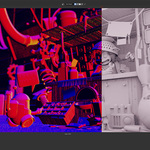
Why don't I see Depth / Normal / AO in the channel dropdown?
The dropdown shows only passes that were **actually rendered**. To add more options: go to **Properties → View Layer Properties → Passes**, tick the passes you want (Depth, Normal, AO, Diffuse, etc.), then **re-render** that slot. The dropdown updates automatically.
Build Comparison" does nothing — what's wrong?
You probably haven't rendered yet in this Blender session. **Render slots are not stored in `.blend` files** — they live in memory only. Render at least one slot with F12, then try again. Same applies if you open a saved file: the slots appear in the UI but are empty until you re-render.
I installed it but I don't see the panel — where is it?
The panel is in the **Image Editor**, not the 3D Viewport. Open any Image Editor window, press **N** to open the sidebar, and look for the **Slot Slider** tab.
Is this a one-time purchase, and can I use it on multiple computers?
One-time purchase, no subscription. Future updates of Slot Slider 2.x are included free. You can install it on any of **your own** machines — desktop, laptop, render farm node, no limit. Just don't redistribute the `.py` file to others.
What exactly does Slot Slider do?
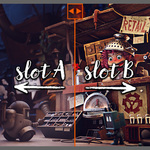
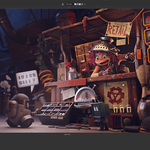
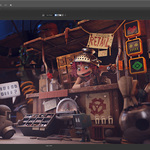
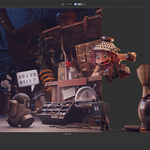
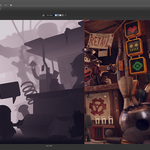
It lets you compare any two of Blender's 8 render slots side-by-side with a draggable divider — like an A/B image comparison slider inside the Image Editor. You can also compare specific render passes (Depth, Normal, AO, etc.), not just the final color image.
$14.90
Have questions about this product?
Login to message
| Blender Extension Compatible | Yes |
| Published | 4 months ago |
| Blender Version | 4.5 - 5.1 |
| Extension Type | Add-on |
| Render Engine Used | Cycles, Eevee |
| License | GPL |
