 Nodextree
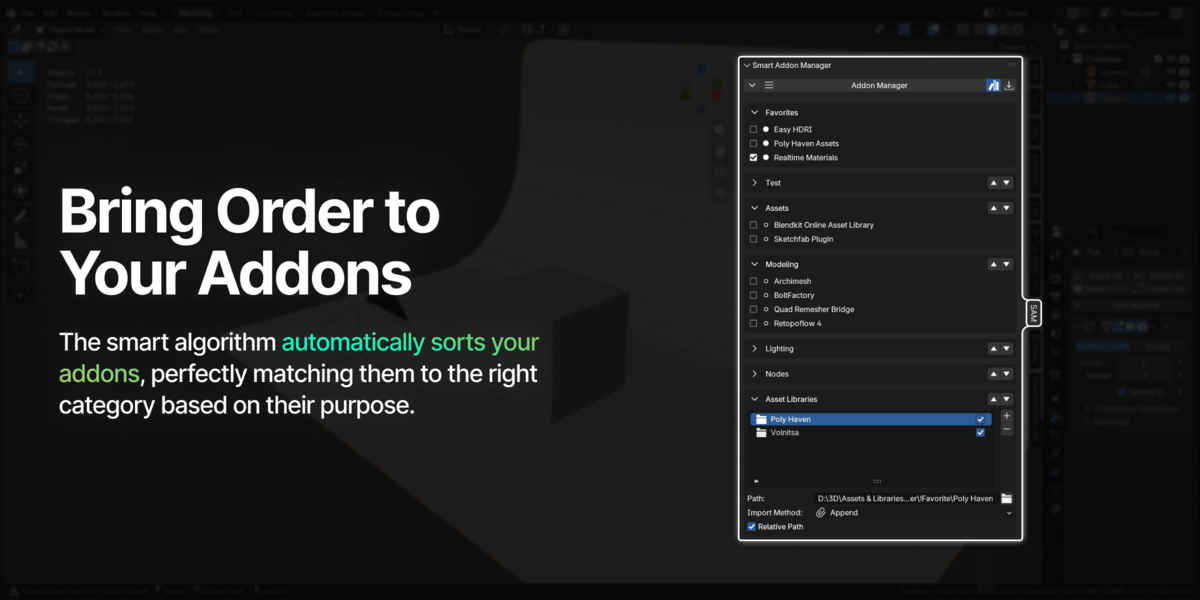


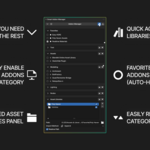


Simply put: it turns chaos into perfect order. SAM's main goal is to save your time when searching for the right tools.
In standard Blender settings, finding an addon you installed a while ago often turns into a nightmare: it's a giant list where your personal downloads are mixed with built-in system modules. SAM solves this with smart time sorting, logical categories, and by automatically hiding built-in system addons in the Locked section.
The main advantage is speed. In native Blender, this process takes too many clicks: open preferences, find the tab, search for the addon, expand the panel, find the remove button... Smart Addon Manager eliminates this routine.
The quick install button and the trash icon for uninstallation are always right at your fingertips directly in the N-Panel.
The color indicators are a visual way to gauge an addon's "freshness":
- Bright Green: Installed within the last week.
- Dark Green: Installed between one week and a month ago.
- Gray: An older addon (installed over a month ago).
But their real power shines when you click the Clock icon. Your list will instantly sort in strict chronological order—from the most recently added tool to the very first one. You'll never again lose an addon you downloaded five minutes ago just to test out.
The Favorites panel is designed for tools you toggle on and off frequently. This primarily applies to heavy asset libraries that can slow down Blender's performance if kept active all the time.
To add an addon to Favorites, just click the small circle icon next to its name. The tool will be pinned to the very top of your list so you can activate it in a single click whenever you need it.
It's all about saving your time. Instead of digging deep into Blender's File Paths preferences, SAM brings all native asset management functionality right into the N-Panel. You can add or remove paths and change import methods "on the fly".
And if you aren't currently working with assets, simply click the books icon in the top header—this completely hides the Asset Library section, freeing up your screen space.
This section works on a "set it and forget it" principle.
Its job is to declutter your main list by hiding tools you never turn off (like Node Wrangler). By clicking the Padlock, you move the addon to the very bottom of the list: it keeps working perfectly, but it no longer gets in your way.
Moreover, all built-in system addons that ship with Blender are automatically moved to the Locked section to keep your main list crystal clear.
When you install a new addon, the algorithm runs it through a "funnel":
- First, it checks against our large internal database of addons.
- If it's not found there, it scans the addon's technical description looking for keywords.
In both cases, it tries to assign the addon to one of 19 official categories (pulled from Blender Extensions tags). If the algorithm can't find a suitable category, it tags the addon as "New" so you can easily spot it.
The folders on the Main Dashboard are generated dynamically—they simply group addons that share the same category tag. To rename the whole folder:
- Go to the Settings screen and click the Category column header (this groups all addons of that category together).
- Type your new name (e.g., "Light") into the text field next to each addon in that group. They will automatically merge into a new folder on the main screen.
Yes, absolutely. You are not limited to the 19 standard folders. On the Settings screen, click the category name of any addon and type in your own custom word.
You can create as many new categories as your workflow requires. If you ever want to revert to the default name, just clear the text and leave the field blank.
The Refresh button is a fail-safe for rare situations. Normally, SAM auto-updates data whenever you switch tabs.
However, if you currently have the SAM Settings screen open and you install or remove an addon externally (e.g., via drag-and-drop or native Blender preferences) at that exact moment, the list in front of you won't update instantly. Just click Refresh, and the manager will sync the data.
The JSON file only saves your custom category names, Favorites, hidden (Eye) states, and Locked states. You can save this file to any convenient folder on your PC.
Go to Blender's standard preferences (Edit > Preferences > Add-ons), find the Smart Addon Manager card, and expand it.
There you'll find a dedicated "N-Panel Tab Name" field where you can set absolutely any name for the tab.
No, SAM itself is very lightweight. In fact, it's designed to speed up your software startup!
By keeping heavy addons disabled and activating them via the N-Panel only when necessary, you significantly reduce Blender's overall load time.
As for your third-party addons (whether they are enabled or disabled)—they will stay exactly as they are. Neither disabling nor uninstalling SAM will change their active states.
However, regarding your personal SAM settings, there is a difference:
- If you simply disable and then re-enable SAM, all your names and categories will be fully preserved. Nothing will be lost.
- But if you completely uninstall/remove SAM from your computer, all these settings will revert to factory defaults. Therefore, be sure to save your configuration to a JSON file using the Export button first.
 Included
Includes 12 months of
- Support from Nodextree
- Product updates
Extend this product’s Support Period +12 months: 50% of product price
Have questions before purchasing?
Login to message
| Blender Extension Compatible | Yes |
| Published | 1 day ago |
| Blender Version | 4.2 - 5.2 |
| Extension Type | Add-on |
| Render Engine Used | Cycles, Eevee |
| License | GPL |
Discover more products like this
clean workspace n-panel organizer organization utility Workflow asset library Addon manager categories interface tools productivity