Smart Batch Renamer
 auphinity.tools


Smart Batch Renamer
User Guide — Blender Add-on v1.0.0
Smart Batch Renamer — User Guide
Complete documentation for Blender add-on v1.0.0
What is Smart Batch Renamer?
Smart Batch Renamer is a Blender add-on that solves one of the most tedious problems in any 3D workflow: naming.
Whether you are preparing assets for a game engine, cleaning up a scene after heavy modeling, or enforcing a studio naming convention before handoff, this tool lets you rename dozens or hundreds of items in seconds instead of clicking through them one by one.
It works on objects, mesh data-blocks, materials, and collections — all from a single panel with a live preview before anything changes.
Who is this for?
- Game developers exporting assets to Unity, Unreal, or Godot who need consistent naming (SM_WallPanel_01, not Cube.003)
- Freelancers delivering organized files to clients
- Archviz artists managing large scenes with hundreds of objects
- Anyone who has ever opened a Blender file and found 47 objects named Cube.001 through Cube.047
Installation
Step 1 — Download
You will receive a single file: smart_batch_renamer.zip
Step 2 — Install in Blender
- Open Blender
- Go to Edit → Preferences → Add-ons
- Click the Install… button (top right)
- Navigate to
smart_batch_renamer.zipand select it - Click Install Add-on
Step 3 — Enable
After installation, the add-on appears in the list. Check the box next to "Object: Smart Batch Renamer" to enable it.
Step 4 — Find the panel
- Hover your mouse over the 3D Viewport
- Press N to open the sidebar
- Click the "Rename" tab
The entire tool lives in this one panel.
Requirements
- Blender 4.0 or newer (tested up to 5.1)
- Works with EEVEE, Cycles, and Workbench — no render engine dependency
Interface overview
The panel is divided into sections from top to bottom:
- Target selector — choose what to rename (Objects, Mesh Data, Materials, Collections)
- Operation selector — choose how to rename (Find & Replace, Prefix/Suffix, Clean, Numbering, Case, Sync Data)
- Settings area — changes depending on which operation is selected
- Action buttons — Preview, Apply, Quick Clean, Sync Data
- Preview list — shows before/after names (appears after clicking Preview)
- Selection counter — shows how many objects are currently selected
Target types explained
Before renaming, you choose what kind of data to rename. This is the row of buttons at the top of the panel.
Objects
Renames the objects themselves — the names you see in the Outliner. This is the most common target.
Example: Cube.003 → SM_Wall_Panel
Mesh Data
Every mesh object in Blender has two names: the object name and the mesh data-block name. They often fall out of sync, especially after duplicating. Game engines sometimes use the data-block name instead of the object name, causing confusion.
Example: Object is named SM_Crate but its mesh data is still called Cube. This target renames the mesh data.
Materials
Renames materials assigned to the selected objects. If multiple objects share the same material, it appears only once in the rename list (no duplicates).
Example: Material.004 → M_Wood_Dark
Collections
Renames the collections that contain the selected objects. It skips the Scene Collection (which cannot be renamed).
Example: Collection 2 → ENV_Forest_Props
Operations explained
1. Find & Replace
The most flexible operation. Searches for text in every name and replaces it.
Settings:
- Find — the text to search for
- Replace — what to put in its place (leave empty to delete the found text)
- Case Sensitive — when ON, "wall" will not match "Wall" or "WALL"
- Regex — when ON, the Find field accepts regular expressions for advanced pattern matching
Common uses:
| Goal | Find | Replace | Regex |
|---|---|---|---|
| Replace spaces with underscores |
|
_ |
OFF |
| Remove the word "old" from names | old |
(empty) | OFF |
| Add engine prefix | ^ |
SM_ |
ON |
| Remove everything after a dash | -.*$ |
(empty) | ON |
| Replace numbers at end | \d+$ |
01 |
ON |
Regex examples for advanced users:
-
^matches the start of the name -
$matches the end of the name -
\d+matches one or more digits -
.*matches any characters -
\.matches a literal dot (important: plain.matches any character in regex)
2. Prefix / Suffix
Adds or removes text at the beginning or end of every name.
Settings:
- Prefix — text added to the beginning (or removed from the beginning in Remove mode)
- Suffix — text added to the end (or removed from the end in Remove mode)
- Remove instead of add — toggles between adding and removing
Common uses:
| Goal | Prefix | Suffix | Remove |
|---|---|---|---|
| Add type prefix | SM_ |
(empty) | OFF |
| Add LOD suffix | (empty) | _LOD0 |
OFF |
| Remove existing prefix | old_ |
(empty) | ON |
| Remove file extension suffix | (empty) | .fbx |
ON |
How Remove mode works:
- It only removes the prefix if the name actually starts with that text
- It only removes the suffix if the name actually ends with that text
- Names that do not match are left unchanged
3. Clean Names
One-click cleanup for the most common naming problems in Blender files.
What it does:
-
Removes duplicate suffixes — Blender adds
.001,.002,.003etc. when you duplicate objects or import files. This operation strips them. - Trims whitespace — removes spaces at the start and end of names.
- Spaces to underscores (optional) — replaces all spaces with underscores. Enabled by default because most game engines and pipelines do not handle spaces in asset names.
Examples:
| Before | After |
|---|---|
Cube.001 |
Cube |
Wall Panel |
Wall_Panel |
SM_Door.003 |
SM_Door |
Rock_A.012 |
Rock_A |
Important note: If cleaning creates duplicate names (two objects both become "Cube"), Blender will automatically add a new suffix. This is Blender's built-in behavior and cannot be avoided — it guarantees unique names.
4. Numbering
Renames all selected items with a sequential pattern. Useful for organizing sets of similar objects.
Settings:
-
Base Name — the text before the number (e.g.,
Prop,SM_Wall,Tree) - Start — the first number in the sequence (usually 1 or 0)
- Padding — minimum digits, zero-padded (3 means 001, 002, 003)
-
Separator — character between the base name and the number (usually
_)
The panel shows a live example of what the first name will look like.
Examples with different settings:
| Base Name | Start | Padding | Separator | Result |
|---|---|---|---|---|
Prop |
1 | 3 | _ |
Prop_001, Prop_002, Prop_003 |
SM_Wall |
0 | 2 | _ |
SM_Wall_00, SM_Wall_01, SM_Wall_02 |
Tree |
1 | 1 | - |
Tree-1, Tree-2, Tree-3 |
Asset |
100 | 4 | . |
Asset.0100, Asset.0101, Asset.0102 |
Order: Objects are numbered in the order they appear in context.selected_objects, which is generally the order you selected them. If you need a specific order, select objects one by one in that order with Shift+Click.
5. Change Case
Converts the entire name to a different case style.
Modes:
-
UPPER CASE —
wall_panel→WALL_PANEL -
lower case —
Wall_Panel→wall_panel -
Title Case —
wall panel→Wall Panel -
snake_case —
WallPanel→wall_panel(inserts underscores before capital letters, replaces spaces and hyphens with underscores, lowercases everything)
6. Sync Data Names
A specialized operation that sets each mesh data-block name to match its parent object name.
Why this matters: When you export to FBX or glTF, some engines use the data-block name. If your object is named SM_Crate but the mesh data is still called Cube, you get confusion downstream.
What it does: For every selected object that has mesh data, it sets object.data.name = object.name.
It only affects mesh objects. Cameras, lights, empties, and other types are skipped.
Action buttons explained
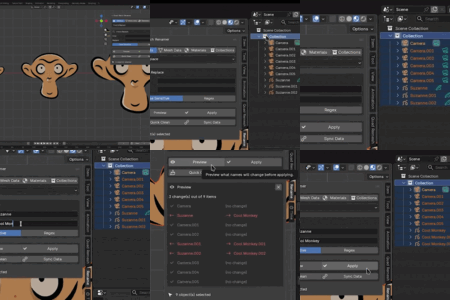
Preview
Generates a list of all names that will change and shows it directly in the panel. Nothing is modified yet. This is always the recommended first step.
The preview shows:
- Old name → New name (highlighted in orange for items that will change)
- A checkmark for items that will not change
- Total count of changes
Preview is limited to 50 items in the display to avoid slowing down the UI. All items will still be renamed when you click Apply.
Apply
Applies the rename operation. This action supports Ctrl+Z undo.
- Empty names are skipped (a name cannot be blank)
- Errors are logged to the system console (Window → Toggle System Console)
- After applying, the preview is cleared automatically
Quick Clean
A convenience button that performs three cleaning steps at once on all selected objects:
- Removes
.001/.002/.003suffixes from object names - Removes the same suffixes from their mesh data-block names
- Removes the same suffixes from their material names
This is the fastest way to clean up a freshly imported or duplicated scene. It does not require choosing a target or operation — it handles objects, meshes, and materials in one click.
Sync Data
A convenience button that runs "Sync Data Names" immediately without needing to switch the operation selector. Same as choosing "Sync Data Names" operation and clicking Apply, but faster.
Recommended workflows
Workflow 1: Cleaning up after import
You imported an FBX file and everything has .001 suffixes.
- Select all imported objects (A in the viewport)
- Open the Rename tab (N → Rename)
- Click Quick Clean
- Done. Objects, meshes, and materials are all cleaned.
Workflow 2: Adding engine prefixes for game export
Your studio uses SM_ for static meshes and SK_ for skeletal meshes.
- Select all static mesh objects
- Choose Objects target
- Choose Prefix / Suffix operation
- Type
SM_in Prefix - Click Preview to verify
- Click Apply
- Then click Sync Data to match mesh data-block names
Workflow 3: Organizing a large scene with numbering
You have 30 tree objects that need to be named Tree_001 through Tree_030.
- Select all tree objects
- Choose Objects target
- Choose Numbering operation
- Set Base Name to
Tree, Start to1, Padding to3, Separator to_ - Check the example shown in the panel:
Tree_001 - Click Preview to see the full list
- Click Apply
Workflow 4: Enforcing snake_case convention
Your pipeline requires snake_case names with no capital letters.
- Select all objects (A)
- Choose Objects target
- Choose Change Case operation
- Select snake_case
- Preview → Apply
- Repeat with Materials target if needed
Workflow 5: Regex power — removing unwanted patterns
Your file has objects named Rock_A_highpoly, Wall_B_highpoly and you want to remove _highpoly.
- Select all objects
- Choose Find & Replace
- Type
_highpolyin Find, leave Replace empty - Preview → Apply
Or with regex for more complex patterns — remove any text after the last underscore:
- Enable Regex
- Find:
_[^_]+$ - Replace: (empty)
- Preview → Apply
Tips and best practices
Always Preview first. There is no reason to skip the preview step. It takes one click and shows you exactly what will happen.
Work in stages. If you need to add a prefix AND clean suffixes AND renumber, do them as separate operations rather than trying to combine everything at once.
Selection order matters for Numbering. If you need a specific order, select objects one by one with Shift+Click, or sort them in the Outliner first.
Undo works. If you applied a rename and do not like the result, press Ctrl+Z immediately. This works because the Apply operator is registered with the UNDO flag.
Use Sync Data after renaming objects. It is a good habit to click Sync Data after any batch rename to keep mesh data-block names in sync with object names. This prevents export confusion.
System console shows errors. If something goes wrong during rename, check Window → Toggle System Console (or Terminal on macOS/Linux) for detailed error messages.
Troubleshooting
"No targets found" message: Make sure you have objects selected in the viewport. The tool operates on the current selection. If you chose "Materials" target, make sure the selected objects actually have materials assigned.
Names got new .001 suffixes after cleaning: This happens when cleaning creates duplicate names. If two objects were both named Cube.001 and Cube.002, after cleaning they both try to become Cube, but Blender requires unique names. The second one becomes Cube.001 again. Solution: rename them with numbering instead.
Regex not working: Make sure the Regex toggle is enabled. Also check your pattern syntax — common mistakes include using * instead of .* (regex requires a preceding character for *).
Panel not visible: Press N in the 3D Viewport to toggle the sidebar, then look for the "Rename" tab. The panel only appears in the 3D Viewport, not in other editors.
Technical details
- The add-on uses only
bpy.datadirect property assignments for renaming — no fragilebpy.opscalls - All operations are non-destructive with full undo support
- Preview generates a temporary list that is never saved to the file
- Regex operations use Python's
remodule with proper error handling for invalid patterns - The tool never deletes objects, data, or materials — it only changes names
- Compatible with Blender 4.0 through 5.1+
Changelog
v1.0.0 — Initial Release
- 6 rename operations: Find & Replace, Prefix/Suffix, Clean Names, Numbering, Change Case, Sync Data Names
- 4 target types: Objects, Mesh Data, Materials, Collections
- Live preview with before/after comparison
- Quick Clean one-click convenience button
- Sync Data Names one-click convenience button
- Regex support in Find & Replace
- Full undo support
Have questions about this product?
Login to message
| Published | 6 months ago |
| Blender Version | 4.0 - 5.1 |
| Extension Type | N/A |
| Render Engine Used | Cycles, Eevee |
| License | GPL |
Discover more products like this
find replace Workflow rename objects utility clean-names renamer outliner batch-rename organization rename-materials batch tools naming-convention