 peterz


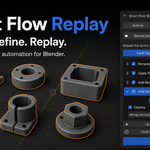
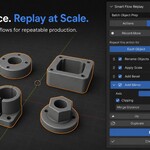
Smart Flow Replay — Documentation
Version: 0.14.0
Blender Compatibility: Blender 4.2 or later
Location: 3D Viewport → Sidebar → Flow Replay
Workflow File Format: .sfrflow
1. Introduction
Smart Flow Replay is a no-code workflow automation add-on for Blender. It allows artists to record, edit, save, share, and batch-run repeatable object-processing workflows without writing Python scripts.
A workflow consists of an ordered list of steps. Each step represents an operation such as renaming an object, applying transforms, adding a modifier, publishing an asset, or exporting an FBX file.
Workflows can be executed on:
- Selected objects
- Objects in a collection
- All visible mesh objects
- Each object independently
- An entire selection as a group
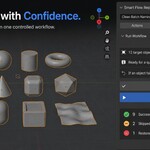
Smart Flow Replay also includes automatic safety checks, conditional steps, progress reporting, cancellation, failure recovery, and workflow sharing.
2. Installation
- Download the Smart Flow Replay ZIP package.
- Open Blender.
- Go to Edit → Preferences.
- Select Get Extensions.
- Open the menu in the upper-right corner.
- Choose Install from Disk.
- Select the downloaded ZIP file.
- Enable Smart Flow Replay if Blender does not enable it automatically.
- Return to the 3D Viewport.
- Press
Nto open the sidebar. - Select the Flow Replay tab.
Do not extract the ZIP package before installing it unless instructed otherwise.
System Requirements
- Blender 4.2.0 or later
- Windows, macOS, or Linux supported by the corresponding Blender version
- Write access to the selected export directory when using file-export steps
3. Interface Overview
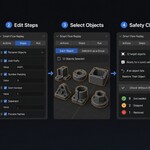
Smart Flow Replay is divided into several functional areas.
Actions
The Actions view is the workflow library. Use it to:
- Browse saved workflows
- Search by workflow name
- Mark frequently used workflows as favorites
- Access recently used workflows
- Open a workflow for editing
- Run a workflow directly
- Create a workflow from a Starter Action
Steps
The Steps view contains the active workflow’s operations.
Use it to:
- Review recorded steps
- Edit step parameters
- Reorder steps
- Enable or disable steps
- Duplicate steps
- Remove steps
- Add conditions
- Add steps manually
Steps execute from top to bottom.
Run
The Run section lets you:
- Choose target objects
- Select the execution mode
- Review active-object roles
- Perform safety checks
- Start the workflow
- Monitor progress
- Review results
- Recover failed or skipped targets
Manage My Workflows
This section manages workflows saved to the current Blender user configuration.
Each saved workflow has its own:
- Open control
- Delete control
Saving a workflow makes it available across different Blender projects.
4. Quick Start
Record and Run Your First Workflow
- Open the Flow Replay tab.
- Create a new workflow.
- Enter a descriptive workflow name.
- Click Start Recording.
- Perform supported operations in Object Mode.
- Click Stop and Review Steps.
- Review the recording completeness summary.
- Edit or remove any unwanted steps.
- Select one or more target objects.
- Open the Run section.
- Click Choose Targets & Run.
- Choose a target source.
- Review the automatic safety check.
- Confirm warning-marked operations if required.
- Run the workflow.
- Review the result report.
For important production files, save the .blend file before running a new or imported workflow.
5. Creating a Workflow
Smart Flow Replay provides three ways to create workflows.
5.1 Use a Starter Action
Starter Actions are built-in example workflows designed to be immediately useful while demonstrating key features.
Included examples cover workflows such as:
- Clean batch naming
- Transform adjustment
- Hard-surface finishing
- Conditional mesh optimization
- Asset Browser publishing
- FBX delivery
Starter Actions may demonstrate:
- Editable values
- Batch indices
- Relative transforms
- Modifier stacks
- Step conditions
- Conditional skips
- Asset status changes
- External file output
- Safety confirmations
Expand a Starter Action’s details to see its purpose, target requirements, and demonstrated features.
5.2 Record a Workflow
- Create or open a workflow.
- Click Start Recording.
- Perform the desired operations in the 3D Viewport.
- Click Stop and Review Steps.
- Inspect the captured operations.
- Edit the steps as required.
Recording is intended primarily for operations performed in Object Mode.
5.3 Add Steps Manually
Use Add Step to construct a workflow without recording.
Available step types include:
- Rename Object
- Apply Transform
- Move Object
- Rotate Object
- Scale Object
- Add Modifier
- Add to Asset Browser
- Remove from Asset Browser
- Export FBX
- Other Blender Action — Advanced
Manual steps are useful when the desired operation was not recorded or when building a workflow from scratch.
6. Recording Workflows
Supported Recording Context
The supported recording context is:
- 3D Viewport
- Object Mode
- Object-processing operations
Smart Flow Replay observes completed Blender operations and meaningful changes to object state.
Filtered Activity
The recorder attempts to ignore actions that should not become workflow steps, including:
- Viewport navigation
- Selection-only changes
- Undo and Redo
- Smart Flow Replay interface operations
Recording Status
Each detected operation is classified as one of the following.
Captured
The action was successfully converted into a replayable workflow step.
Partially Captured
The operation was captured, but part of its behavior may depend on Blender context. Review the step before running it on production assets.
Not Recorded
The action is unsupported and is not added to the workflow.
Unsupported operations are reported immediately when possible.
Unsupported Contexts
The following contexts are not intended for recording:
- Edit Mode
- Sculpt Mode
- Other non-Object modes
- Node editors
- Image editors
- Animation editors
- Video Sequence Editor
- Text Editor
- Python Console
Operations performed in these contexts will not later be misidentified as Object Mode workflow steps.
Recording Completeness Summary
After recording stops, a summary displays the number of:
- Captured actions
- Partially captured actions
- Unsupported actions
Partially captured steps remain highlighted for review.
Always inspect recorded steps before applying the workflow to important files.
7. Managing Workflow Steps
Each workflow contains an ordered list of steps.
For every step, you can:
- Move it up
- Move it down
- Duplicate it
- Disable it temporarily
- Enable it again
- Edit its values
- Add conditions
- Remove it
Disabled steps remain in the workflow but do not run.
Step Parameters
All editable values appear inside the step they affect.
Examples include:
- Rename text
- Translation values
- Rotation values
- Scale values
- Transform space
- Modifier type
- Modifier width
- Segment count
- Array count
- Subdivision level
- Boolean role
- Export path
Use Reset to Recorded Value to restore supported transform values to their originally recorded state.
Workflows created in previous Smart Flow Replay versions remain compatible. Their saved values appear as normal fields in the corresponding steps.
8. Supported Modifier Steps
The Add Modifier step supports commonly used Blender modifiers, including:
- Bevel
- Mirror
- Array
- Solidify
- Subdivision Surface
- Boolean
- Decimate
- Weld
- Weighted Normal
The settings shown depend on the selected modifier type.
Examples include:
- Bevel width and segment count
- Mirror axis, clipping, and merge distance
- Array count and offset
- Solidify thickness
- Subdivision level
- Boolean operation and object role
- Decimate ratio
- Weld distance
Structural settings remain attached to their corresponding workflow steps.
9. Step Conditions
Conditions determine whether a step should execute for a particular target.
When the conditions do not match, the step is skipped. A skipped condition is not treated as an error.
Condition Matching Modes
A step can require:
- All conditions to match
- Any condition to match
Supported Conditions
Conditions can check:
- Object type
- Object name pattern
- Blender mode
- Existing modifiers
- Assigned materials
- Custom properties
- Minimum selection count
Inverting a Condition
Enable Invert to reverse the result of a condition.
For example:
- Normal condition: run when the object has a Bevel modifier
- Inverted condition: run when the object does not have a Bevel modifier
Example
A workflow can contain these rules:
- Apply transforms to every target.
- Add Decimate only to objects whose names contain
LOD. - Add Bevel only when a Bevel modifier does not already exist.
- Export only objects with a custom property named
delivery_ready.
This allows one workflow to process mixed selections intelligently.
10. Rename and Path Variables
Rename templates and FBX paths support dynamic placeholders.
Available Variables
| Variable | Description |
|---|---|
{object_name} |
The object’s name when the step executes |
{index} |
The target’s one-based batch index |
{workflow_name} |
The current workflow name |
Rename Example
PROP_{index}_{object_name}Possible results:
PROP_1_Chair
PROP_2_Table
PROP_3_Lamp
Export Example
//exports/{object_name}.fbxEach target will be exported using its current object name.
Paths beginning with // are relative to the current .blend file. Save the Blender project before using relative paths.
11. Selecting Targets
Open Choose Targets & Run to select the objects that will receive the workflow.
Selected Objects
Runs the workflow on the currently selected objects.
Use this when manually choosing specific assets in the 3D Viewport.
A Collection
Runs the workflow on objects from a named collection.
Use this for organized production batches or collection-based exports.
All Visible Meshes
Runs the workflow on visible mesh objects in the current view layer.
Hidden or unavailable objects are not included.
12. Execution Modes
Each Object
The workflow runs independently for every target object.
This mode is recommended for:
- Batch renaming
- Transform cleanup
- Modifier creation
- Asset Browser preparation
- Per-object FBX export
A failure on one object does not have to stop the remaining objects. By default, changes made to the failed object are restored.
Selection as a Group
The workflow runs once using the complete selection.
Use this for operations that depend on relationships between selected objects, including Boolean workflows.
Selection as a Group is treated as one indivisible operation rather than a series of independent object runs.
13. Boolean Workflows
Boolean operations may depend on the active object and the roles assigned to selected objects.
Available role choices include:
- Use as Cutter
- Modify It
The active-object role card displays:
- The current active object
- The assigned role
- The number of selected meshes expected to change
In Blender, select the object that should be active last.
Review the role card before executing a Boolean workflow.
14. Safety Check
Smart Flow Replay validates the workflow before making scene changes.
The safety check examines:
- Target objects
- Step values
- Step conditions
- Required Blender context
- Selection requirements
- Active-object roles
- Advanced Blender actions
- Export destinations
- Existing output files
- Overwrite permissions
Errors
Errors block execution and must be corrected.
Warnings
Warnings identify operations that require attention. Review every warning before continuing.
Notices
Notices provide useful information but do not normally block execution.
Automatic Validation
In the default interface, clicking Choose Targets & Run performs validation automatically.
Editing the following invalidates the previous check:
- Workflow steps
- Step values
- Conditions
- Targets
- Execution settings
- Output settings
A new safety check is performed before the next run.
Check Without Running
Enable Advanced Controls to access Check Without Running.
Use it to inspect the validation report without changing the scene.
15. File Overwrite Protection
Smart Flow Replay does not replace an existing output file unless Allow replacing existing files is enabled.
Before exporting:
- Review the export path.
- Confirm that the directory exists or can be created.
- Check whether the file already exists.
- Enable overwrite permission only when replacing the file is intentional.
External files are not removed automatically during rollback or cancellation.
16. Progress and Cancellation
Multi-object runs remain responsive between objects.
During execution, the interface displays:
- Current object
- Current step
- Completed target count
- Total target count
- Overall progress
- Failure count
- Skip count
Cancelling a Run
Use either:
- Cancel After Current Object
Escape
Smart Flow Replay allows the current object to finish before stopping. This prevents an object from being interrupted in an unknown state.
Selection-as-a-group workflows are indivisible, so they cannot stop between individual selected objects.
Some Blender operators may remain busy until Blender returns control to the add-on.
Files written before cancellation are not automatically deleted.
17. Failure Handling
Advanced Controls provides three failure-handling modes.
Restore That Object
Only the failed object is restored. Processing continues with the remaining targets.
This is the recommended default for most independent batch operations.
Restore Entire Batch
Execution stops after the first failure, and every target is restored to its pre-run state.
This mode also restores all targets when a cancellable batch run is stopped.
Use it when the batch should succeed or fail as a complete unit.
Keep Partial Changes
Changes made before the failure remain in the scene.
Use this only when partial results are acceptable or when debugging a workflow.
Restored Data
Supported rollback can restore:
- Object names
- Object transforms
- Supported object data
- Modifier stacks
- Asset Browser state
External files already written by export steps are not silently deleted.
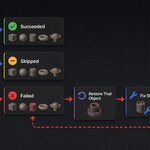
18. Run Results
After a workflow finishes, the Run page reports:
- Succeeded targets
- Failed targets
- Skipped targets
- Restored targets
A target may be reported as skipped when none of its workflow steps execute.
Select Failed
Selects failed objects that still exist in the current view layer.
Rerun Failed
Opens the Run dialog with only the failed targets.
Their original batch numbering is preserved, so {index} produces the same values as the original run.
Select Skipped Objects
Selects targets for which no workflow step ran.
Open Output Folder
Opens the first output directory recorded by the run.
Copy Summary
Copies a plain-text execution summary for:
- Production notes
- Bug reports
- Team communication
- Support requests
Undo Last Run
Invokes Blender Undo.
Use this immediately after the workflow and before performing unrelated Blender operations.
19. Saving Workflows
Saving with the Blender Scene
The active workflow is stored with the current Blender scene and saved inside the .blend file.
Save to My Workflows
Use Save to My Workflows to store the active workflow in the Blender user configuration.
This makes it available in other projects.
Managing Saved Workflows
Open Manage My Workflows to view saved workflows.
Each workflow includes controls to:
- Open it
- Delete it
Newly saved workflows appear immediately.
Actions Library
The Actions view provides quick access through:
- Search
- Favorites
- Recently used ordering
- Direct Run access
- Step editing
Use descriptive workflow names to keep the library easy to search.
20. Sharing Workflows
Exporting a Workflow
Use Export to Share to create a UTF-8 .sfrflow file.
The exported file contains serialized workflow information and does not contain Python source code.
Importing a Workflow
Use Import Shared Workflow and select a .sfrflow file.
After import, Smart Flow Replay displays a permission card describing what the workflow may do.
The card can include:
- Object changes
- Modifier changes
- Asset Browser changes
- Disk writes
- Approved advanced Blender actions
The first run is blocked until the permission card has been reviewed and confirmed.
Warning-marked operations and export steps may require additional confirmation.
21. Imported Workflow Security
Smart Flow Replay applies restrictions to imported workflows.
The importer limits:
- Workflow file size
- Number of steps
- Number of conditions
- Accepted data types
- Allowed Blender operator categories
Imported workflows cannot:
- Execute Python code
- Delete objects
- Open
.blendfiles - Save
.blendfiles - Bypass required safety confirmation
Even with these protections, imported workflows should be reviewed before use.
Recommended practice:
- Save the current Blender file.
- Review the permission card.
- Inspect every workflow step.
- Check export paths.
- Test the workflow on duplicate objects.
- Use Check Without Running if Advanced Controls are enabled.
- Run on production assets only after verifying the result.
22. Recommended Production Workflow
For reliable results:
- Save the
.blendfile. - Test new workflows on duplicate objects.
- Give workflows descriptive names.
- Review partially captured steps.
- Disable unnecessary steps instead of deleting them when testing.
- Use conditions to protect incompatible objects.
- Verify the active object for group workflows.
- Run the safety check after changing targets or parameters.
- Review external output paths.
- Keep overwrite protection disabled unless replacement is intentional.
- Use Restore Entire Batch for all-or-nothing processes.
- Review the result card before continuing with unrelated work.
23. Troubleshooting
The Flow Replay Tab Is Missing
- Confirm that Smart Flow Replay is installed.
- Confirm that the extension is enabled.
- Move the cursor over the 3D Viewport.
- Press
Nto open the sidebar. - Look for the Flow Replay tab.
- Restart Blender if the interface does not update after installation.
No Target Objects Are Found
- Select one or more objects in the 3D Viewport.
- Confirm that the selected target source is correct.
- Make sure collection targets belong to the current scene or view layer.
- Confirm that mesh objects are visible when using All Visible Meshes.
- Verify that the required active object is selected.
Run Is Unavailable
- Click Choose Targets & Run.
- Review the safety report.
- Correct every reported error.
- Confirm warnings when required.
- Recheck the workflow after changing targets or values.
With Advanced Controls enabled, use Check Without Running to inspect the errors separately.
A Recorded Action Is Missing
The operation may have been:
- Navigation-only
- Selection-only
- Performed in an unsupported mode
- Performed in an unsupported editor
- Dependent on an interactive Blender context
- Unsupported by the current recorder
When possible, create an equivalent supported step manually.
An Action Is Marked Partially Captured
Open the step and inspect its parameters.
Confirm that:
- Its values are correct
- The operation does not depend on an unsupported editor
- The required selection state is available
- The active object is correct
- The workflow behaves as expected on a test object
A Step Is Skipped
Check whether:
- The step is enabled
- Its conditions match
- The object type is supported
- Its object-name pattern is correct
- Required modifiers, materials, or properties exist
- The selection count meets the configured minimum
Condition mismatches cause skips, not failures.
FBX Files Are Not Written
Check that:
- The output path is valid
- The destination directory is writable
- The
.blendfile is saved when using a//relative path - Dynamic variables produce a valid filename
- The file does not already exist
- Overwrite permission is enabled when replacement is intended
- The FBX step is enabled
- The step conditions match
A Boolean Workflow Produces Unexpected Results
- Confirm the active object.
- Select the intended active object last.
- Review the active-object role card.
- Confirm whether the active object should be the cutter or the modified object.
- Use Selection as a Group.
- Test the workflow on duplicate objects.
A Failed Object Was Not Restored as Expected
- Check the selected failure-handling mode.
- Confirm that Keep Partial Changes was not selected.
- Remember that exported files are external side effects and are not deleted.
- Use Blender Undo immediately if the run was the most recent scene operation.
Cancellation Does Not Happen Immediately
Cancellation occurs between objects. The currently running object is allowed to finish.
Some Blender operators may remain busy until they return control.
24. Known Limitations
- Recording is designed primarily for Object Mode.
- Not every Blender operator can be replayed reliably.
- Interactive tools may depend on editor context or temporary selection state.
- Edit Mode, Sculpt Mode, node editing, animation editing, and similar contexts are not supported recording environments.
- Some Blender operators cannot be interrupted until they finish.
- Selection-as-a-group workflows are treated as indivisible operations.
- External files created before failure or cancellation are not automatically deleted.
- Rollback is limited to supported Blender scene state.
- Advanced actions may require manual review and confirmation.
25. Uninstallation
- Open Edit → Preferences.
- Go to Get Extensions or the installed extensions list.
- Find Smart Flow Replay.
- Open its options menu.
- Select Uninstall or disable the extension.
Before uninstalling, export any workflows you want to keep as .sfrflow files.
Workflows stored inside .blend files remain part of those scene files, but the add-on is required to view or execute them.
26. Getting Support
When reporting an issue, include:
- Smart Flow Replay version
- Blender version
- Operating system
- A description of the expected result
- A description of the actual result
- The workflow steps involved
- Target selection and execution mode
- Failure-handling mode
- The copied Run Summary
- Screenshots of the safety report or error
- A minimal
.blendfile when sharing is permitted
Avoid sending confidential production assets. Reproduce the problem in a simplified file whenever possible.
27. License
Smart Flow Replay is licensed under the GNU General Public License, version 3.0 or later.
See the included license file for the complete license terms.
 Included
Includes 12 months of
- Support from peterz
- Product updates
Extend this product’s Support Period +12 months: 25% of product price
Have questions before purchasing?
Login to message
| Blender Extension Compatible | Yes |
| Published | 3 months ago |
| Blender Version | 4.2 - 5.2 |
| Extension Type | Add-on |
| Render Engine Used | Cycles, Eevee |
| License | GPL |
Discover more products like this
addons Batch processing Blender Automation asset presentation artist workflow batch-export productivity Blender Workflow Automation 3d-workflow-automation Workflow no-code-automation