Smart Morph: Body and Face Shape Sliders
 blenderustad
Requirements
- Blender 5.2 or newer
- Tested on Blender 5.2.1 LTS on Windows. Other operating systems and Blender versions have not been tested.
- No external Python packages, account login or internet connection needed.
Installation
- Download
Smart-Morph-1.1.0-BlenderUstad.zip. Do not extract it. - In Blender open Edit > Preferences > Add-ons.
- Open the menu at the top right, choose Install from Disk, and select the ZIP.
- Enable Smart Morph if it is not enabled automatically.
- In the 3D View press N and open the Smart Morph tab.
Upgrading: disable the older version first, then restart Blender after installing the new one. Do not run an older Bodiez Prototype build and Smart Morph together.
First use
- Work in Object Mode.
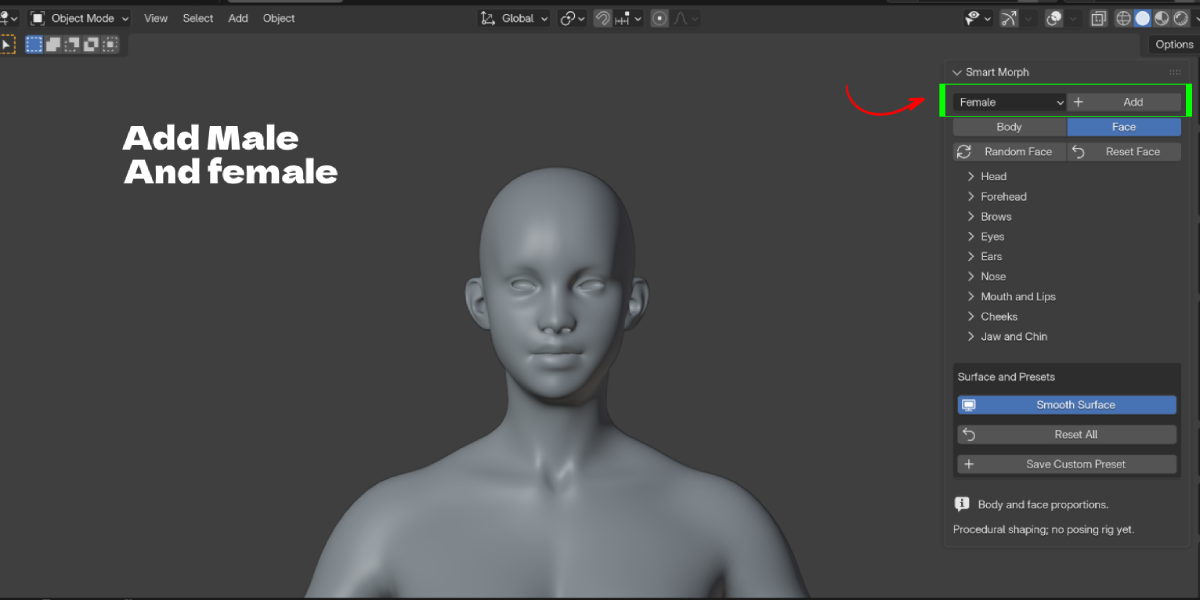
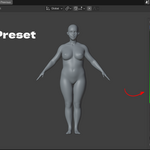
- Pick Female or Male in the mesh selector and click Add. A new character appears at the 3D cursor. Each click creates an independent character.
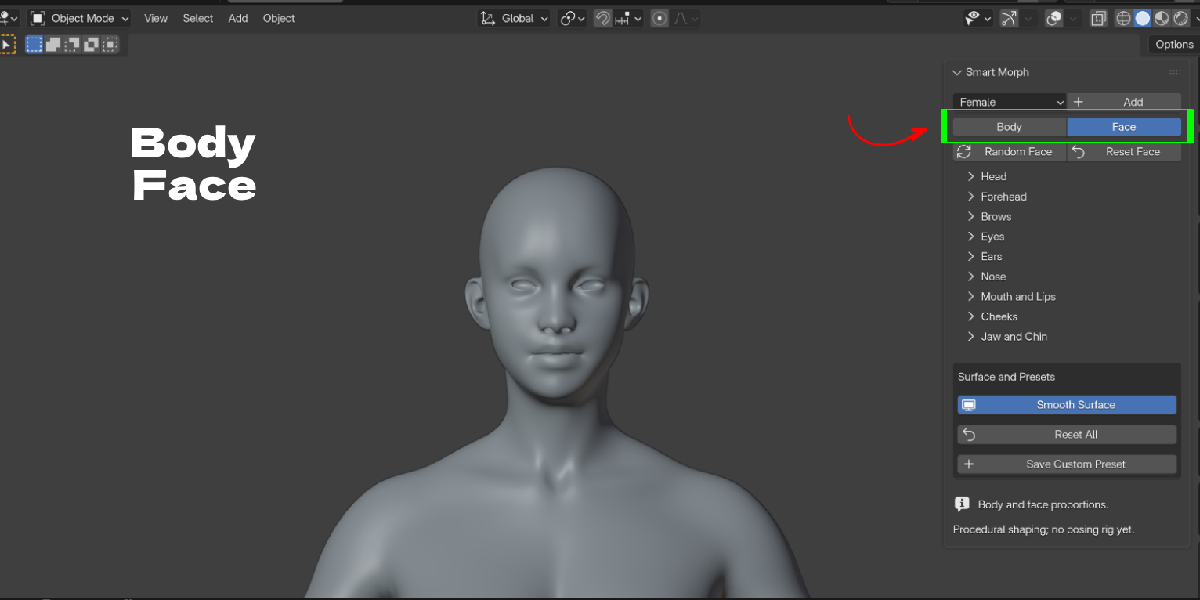
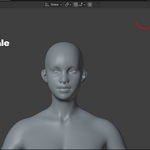
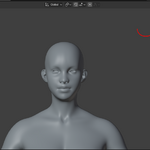
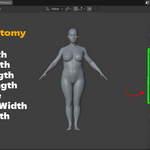
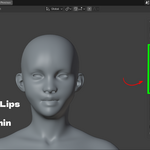
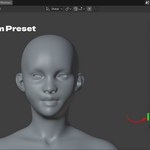
- Select the character. Click Body to show body sliders and frame the whole body, or Face to show face sliders and a close up. Click again to reframe.
Body tab
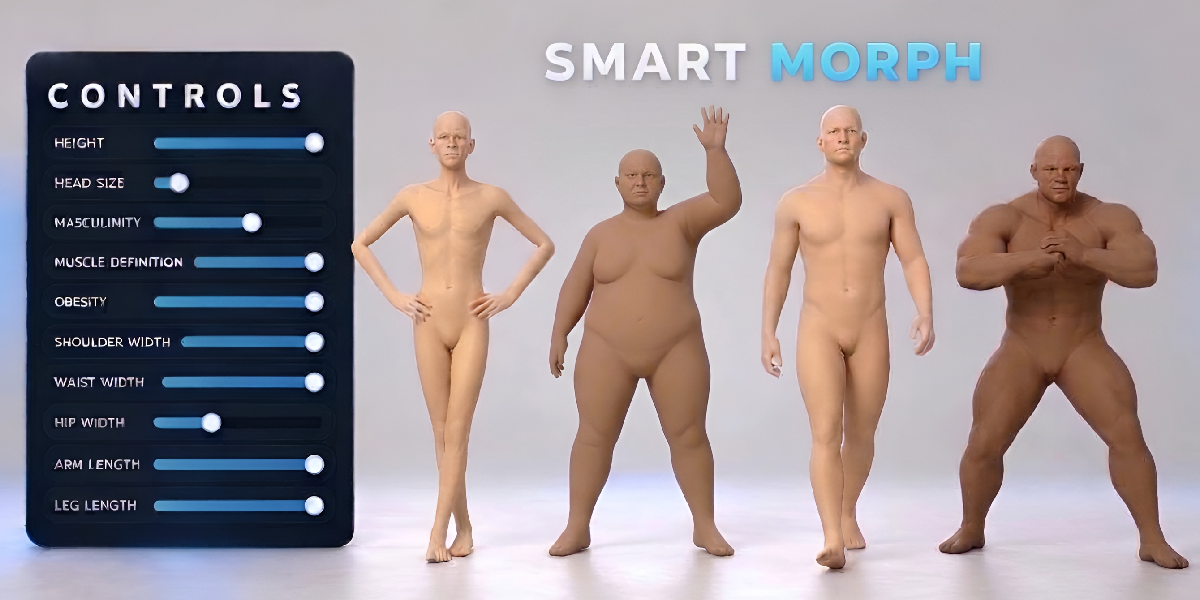
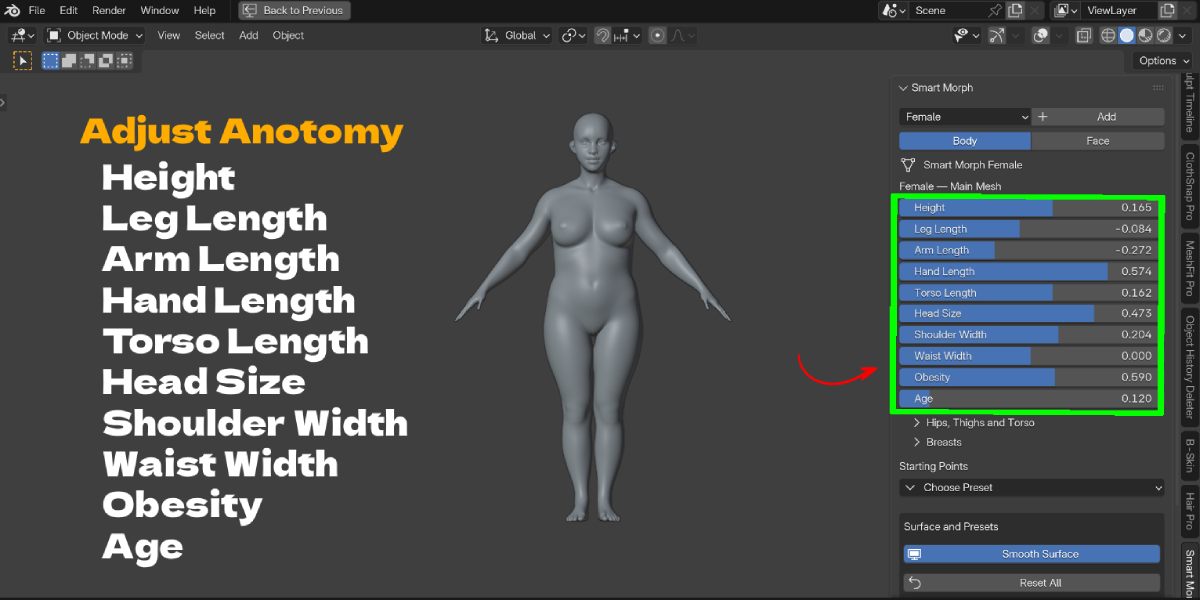
- Main sliders: Height, Leg Length, Arm Length, Hand Length, Torso Length, Head Size, Shoulder Width, Waist Width, Obesity, Age (and Masculinity, Muscle Definition on the male).
- Hips, Thighs and Torso panel: Hip Width, Thigh Volume, Glute Volume, Torso Depth, Belly Size, Belly Drop.
- Breasts panel (female): Volume, Position (Close / Apart), Projection, Upper Fullness, Lower Fullness, Breast Hang. Left and right are linked.
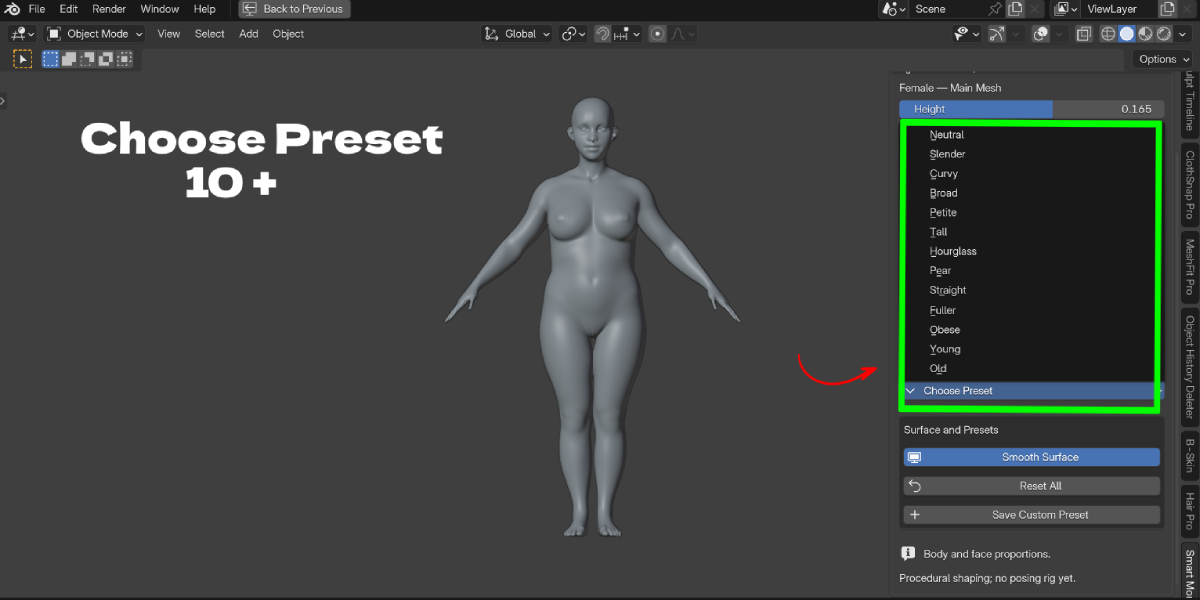
- Starting Points: choose a preset. It applies at once and resets controls it does not set, including face values, to neutral.
- Age is an artistic shape control, not a number of years.
Face tab
- Random Face creates a new face. Body proportions, transforms, presets and smoothing are kept.
- Reset Face sets only face values back to neutral.
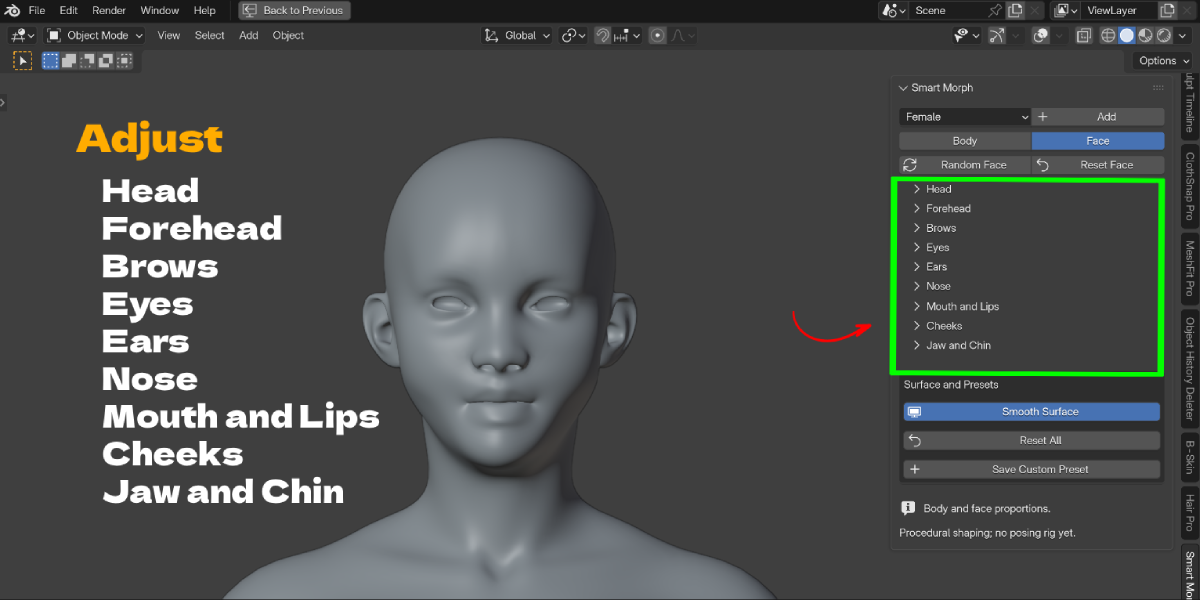
- Groups: Head, Forehead, Brows, Eyes, Ears, Nose, Mouth and Lips, Cheeks, Jaw and Chin. Zero is neutral.
- Eyes, Ears and Cheeks include left and right offsets. Left means the character's left (positive local X).
Surface and Presets box
- Smooth Surface: toggles viewport subdivision.
- Reset All: clears body and face values.
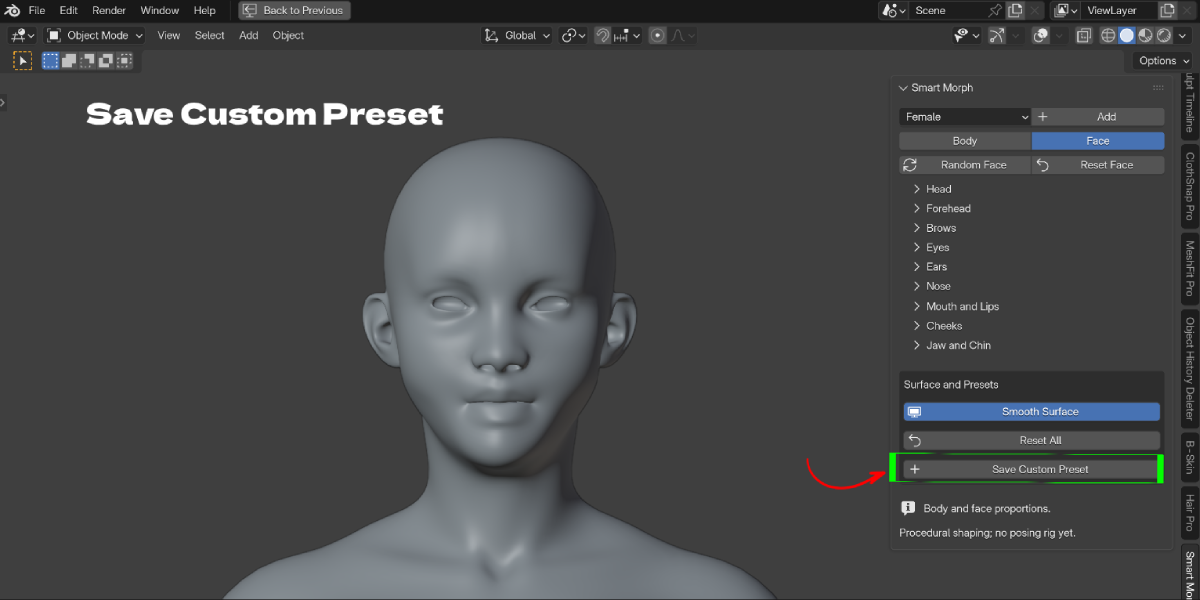
- Save Custom Preset: saves body and face values by name on the selected character. Saving the same name replaces it. Click a saved preset to load it, X to delete it.
- Save your .blend file to keep characters and custom presets.
Existing characters
Select an older Female, Male or Legacy character and click Update Body Controls or Enable Face Controls to add missing sliders. Existing values and presets are kept. Upgrades need the original topology, so back up edited files first.
Performance tips
- Turn off Smooth Surface while adjusting many sliders.
- Keep only the characters you need in the scene.
Troubleshooting
- The panel says "Add or select a Smart Morph character": select a character created by Smart Morph, or click Add.
- Sliders are greyed out: switch to Object Mode.
- Only an Update or Enable Face Controls button shows: the character is from an older version. Click the button to add the missing controls.
- A preset reset my face: Starting Points reset unspecified values to neutral. Save a custom preset first if you want to keep a face.
- Shape looks odd at extreme values: lower one of the conflicting sliders, or finish the shape in Sculpt mode.
- Addon does not show after updating: disable the old version, restart Blender, then enable Smart Morph again.
- Custom presets are gone: presets live in the .blend file. Save the file before closing Blender.
Support
Email [email protected] with your Blender version, operating system, Smart Morph version and clear steps to reproduce the issue.
Website: https://blenderustad.com
YouTube: https://www.youtube.com/@BlenderUstad
Have questions about this product?
Login to message
| Blender Extension Compatible | Yes |
| Published | 1 day ago |
| Blender Version | 5.2 |
| Extension Type | Add-on |
| License | GPL |
