Smart Scatter Kit — Smart Environment Scattering
 Voyde Procedural


Smart Scatter Kit Documentation
Smart Scatter Kit is a Geometry Nodes-based environment scattering system designed to distribute complete asset collections across mesh surfaces.
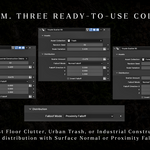
The product includes three ready-to-use environment collections and supports two primary distribution methods:
- Surface Normal Distribution
- Proximity Falloff Distribution
Included Collections
- Forest Floor Clutter — Plants, flowers, rocks, branches, weeds, and organic ground debris.
- Industrial Construction Debris — Brick ruins, pallets, pipes, valves, containers, tools, and construction clutter.
- Urban Trash & Litter — Garbage, packaging, damaged props, discarded objects, and street debris.
Basic Setup
- Select the mesh on which you want to scatter assets.
- Add the Smart Scatter Kit Geometry Nodes modifier.
- Select an asset collection from the Asset Collection input.
- Choose a distribution mode.
- Adjust the seed, scale variation, density, and other available controls.
Surface Normal Distribution
Surface Normal mode controls asset placement according to the orientation of the target surface.
Use this mode when you want assets to appear only on upward-facing, vertical, downward-facing, or angled areas.
- Set the distribution mode to Surface Normal.
- Adjust the normal direction or angle controls.
- Modify the density and random seed until the desired distribution is achieved.
Proximity Falloff Distribution
Proximity Falloff mode uses a controller object, typically an Empty, to define where scattering occurs.
- Add an Empty to the scene using Shift + A → Empty.
- Assign the Empty to the proximity controller input.
- Move the Empty toward the area where assets should appear.
- Adjust the falloff distance and smoothness controls.
Moving the Empty allows you to art-direct the scattering area without modifying the target mesh.
Using Your Own Asset Collection
You can replace the included collections with your own Blender collection.
For the best results:
- Keep each asset as a separate object.
- Place the origin at the bottom center of each asset.
- Apply rotation and scale using Ctrl + A → Rotation & Scale.
- Use consistent real-world dimensions.
- Place every asset origin at the collection’s local origin when preparing scatter collections.
- Use optimized geometry and texture resolutions for dense scattering.
Asset Origin and Ground Placement
Incorrect object origins may cause scattered assets to float above or sink into the target surface.
The recommended origin position is the bottom center of each asset.
If an asset is floating:
- Check its origin position.
- Apply rotation and scale.
- Remove unnecessary parent offsets.
- Check for loose or hidden geometry below the visible model.
- Disable excessive X or Y rotation for objects that must remain upright.
Performance Recommendations
- Use optimized assets for high-density scattering.
- Reduce texture resolution when 8K or 16K textures are unnecessary.
- Prefer 1K or 2K textures for small environment props.
- Use lower-detail LOD versions for distant or heavily scattered assets.
- Reduce density while building the scene, then increase it for the final render.
- Use viewport simplification when working with large collections.
Recommended Asset Complexity
- Small props: approximately 500–5,000 faces.
- Medium props: approximately 3,000–15,000 faces.
- Large environment props: approximately 10,000–30,000 faces.
These values are general recommendations. Suitable geometry density depends on camera distance, scene density, and the intended output.
Troubleshooting
Assets are floating above the surface
- Move the asset origin to its bottom center.
- Apply rotation and scale.
- Check collection instance offsets.
- Set X and Y rotation variation to zero for upright objects.
Assets appear too large or too small
- Check the dimensions of the source objects.
- Use Metric units for consistent real-world scale.
- Apply scale after resizing the assets.
- Reduce the Scale Variation value.
The scene becomes slow
- Reduce density.
- Use lower-poly assets.
- Reduce texture resolution.
- Remove unused LOD levels and hidden source objects.
- Purge unused Blender data before packaging.
The proximity controller has no effect
- Make sure the correct controller object is assigned.
- Move the controller closer to the target surface.
- Increase the falloff distance.
- Verify that Proximity Falloff mode is active.
Compatibility
Use the Blender version range listed on the product page. The product should be opened and used in a supported Blender version to avoid Geometry Nodes compatibility issues.
License
The included assets and Geometry Nodes setup may be used in personal and commercial renders, animations, games, and other completed projects according to the product license.
Redistribution, resale, sharing, or repackaging of the source files, Geometry Nodes setup, or included assets as standalone products is not permitted.
Copyright © Voyde Procedural
Have questions about this product?
Login to message
| Published | 2 months ago |
| Blender Version | 4.0 - 5.2 |
| Render Engine Used | Cycles, Eevee |
| License | Royalty Free |
Discover more products like this
proximity forest asset scattering blender environment surface normal procedural debris geometry nodes scatter trash foliage