Smart Wobble
 aflatsprite



Installation
Download: Get the latest
.blendfile from your product downloads.-
Setup: * Asset Library: Add the file to your Blender Asset Library folder for instant access across all projects.
Manual Append: Alternatively, go to
File > Append, select the.blendfile, and navigate to the NodeTree folder to bring the effect into your current project.
Initial Setup
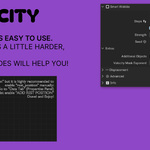
Important Note: While "Smart Wobble" automatically handles its own rest position, it is highly recommended to manually enable it for the best results. To do this, go to the Data tab (green triangle icon) in the Properties panel. Under the Shape Key list, ensure "Rest Position" is enabled.
How to Use
1. Apply the Modifier
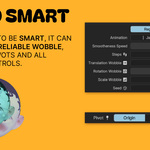
Once appended or dragged from the Asset Library, the effect will appear in your Modifier Properties panel as a Geometry Nodes modifier.
2. Choose Your Wobble Type
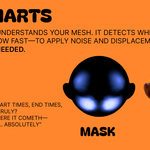
Smart: Only applies the wobble effect to the specific parts of your mesh that are currently in motion.
Regular: Applies a uniform wobble to the entire mesh regardless of movement.
Strength: Adjust this slider to control the intensity of the displacement.
3. Adding Secondary Objects
If your character has clothing, hair, or accessories, you can sync them to the effect. Use the "Additional Objects" selection box in the modifier panel to include them in the wobble calculation.
4. Velocity Mask
Use this section to fine-tune the "Smart" detection. You can adjust the tightness and strength of the mask or toggle the Preview mode to see exactly which areas of your mesh are being influenced by motion.
5. Displacement (Claymation Look)
To achieve a handcrafted, stop-motion aesthetic, enable the Displacement panel. This adds jittery surface imperfections characteristic of traditional claymation.
Discover more products like this
stepped displacement stop motion wobble animation claymation