 Amir
Amir


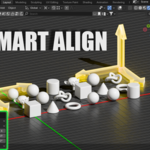
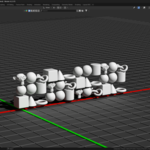
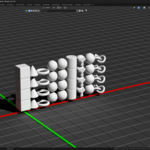
Smart Align: Effortless Object Arrangement for Blender
Transform Your Workflow with Precision and Speed!
Are you tired of manually aligning dozens, or even hundreds, of objects in Blender for your renders and presentations? Smart Align is the ultimate solution, designed to quickly arrange multiple 3D assets with unparalleled ease and precision.
Whether you're showcasing a vast collection of models, preparing an asset pack, or simply need to organize your scene for a clean render, Smart Align provides a robust set of tools to array your objects exactly how you envision. Say goodbye to tedious manual adjustments and hello to a streamlined, efficient alignment process!
Key Features:
-
Multiple Alignment Modes: Choose from various intuitive alignment options:
Align X: Arrange objects in a single line along the X-axis.
Align Y: Arrange objects in a single line along the Y-axis.
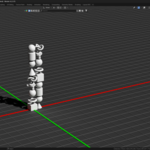
Align Z: Arrange objects vertically along the Z-axis.
Grid: Create perfect grids on any plane (XY, XZ, YZ, and their negative counterparts). Smart Align can even auto-calculate the ideal grid size for you!
Diagonal: Lay out objects diagonally with even spacing.
Intelligent Bounding Box Alignment: Precisely align objects based on their top or bottom bounding box extremes to a common reference height (your 3D cursor's Z-position). No more guessing where the "bottom" of your irregularly shaped object is!
Customizable Spacing: Define the exact distance between your aligned objects for a clean and organized look.
Individual Object Rotation: Apply a consistent rotation around each object's local Z-axis, perfect for adding variety or uniform orientation to your arranged assets.
One-Click Reset: Instantly revert selected objects to their original positions and rotations, giving you the freedom to experiment without fear.
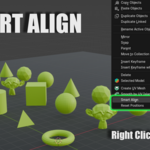
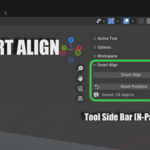
Seamless Blender Integration: Access Smart Align directly from the N-Panel (Tool tab) in the 3D Viewport or via the Object Context Menu (right-click in the 3D Viewport).
Why You Need Smart Align:
Save Hours of Manual Work: Automate repetitive alignment tasks and dedicate more time to creative design.
Professional Presentations: Create stunning, organized layouts for asset showcases and portfolio renders.
Boost Productivity: Quickly set up complex scenes with multiple objects.
Accuracy and Precision: Achieve perfect alignment every time, eliminating human error.
Intuitive and Easy to Use: Get started immediately with a user-friendly interface.
Licensing Terms:
IMPORTANT LEGAL NOTICE:
By using or installing this addon, you agree to the following terms:
You MAY NOT resell, redistribute, sublicense, or share this addon in any form, whether modified or unmodified, without explicit written permission from the author ([ab36 studio] Amir_B).
You MAY NOT modify, alter, or create derivative works of this addon for the purpose of resale or redistribution.
Personal use and modification for your own projects is permitted, but you MAY NOT distribute or sell the modified versions.
Unauthorized copying, distribution, or commercial use of this addon is strictly prohibited.
The author provides this addon "as-is" without any warranty. Use at your own risk.
By proceeding to use this addon, you acknowledge and agree to comply with these terms.
How to Use Smart Align:
Installation:
Download the SmartAlign_v#.#.#.zip file.
In Blender, go to
Edit > Preferences > Add-ons.Click the
Install...button and navigate to the downloadedSmartAlign_v#.#.#.zipfile. Select the zip file and clickInstall Add-on.Enable the addon by checking the box next to
Object: SmartAlign.
Using the Addon:
Select Your Objects: In the 3D Viewport, select all the objects you wish to align.
Position Your 3D Cursor: The 3D Cursor acts as the origin point for the alignment. Place it where you want the first object (or the start of your grid/line) to be positioned. For vertical alignment (using "Top" or "Bottom" Bounding Box Alignment), the 3D Cursor's Z-position will be your reference height.
-
Access Smart Align:
Open the N-Panel (press
N) in the 3D Viewport and navigate to the "Tool" tab. You'll find the "Smart Align" panel there.Alternatively, right-click in the 3D Viewport to open the Object Context Menu and select "Smart Align".
-
Configure Alignment Options:
Align Mode: Choose how your objects will be arranged (X, Y, Z, Grid, Diagonal).
Grid Plane (if Align Mode is Grid): Select the plane on which your grid will be formed (e.g., XY for a floor grid, XZ for a wall grid). Negative options (-XY, -XZ, -YZ) allow for alignment in the opposite direction.
Grid Size (if Align Mode is Grid): Enter the number of objects per row/column. Set to
0for Smart Align to automatically calculate an optimal grid size.Spacing: Define the distance between each object.
Rotation (Degrees): Enter a value in degrees to rotate each object around its local Z-axis after alignment.
-
Vertex Alignment (BBox Align): This is crucial for consistent vertical alignment!
None: No vertical alignment based on bounding box.
Top: Aligns the topmost point of each object's bounding box to the 3D cursor's Z-height.
Bottom: Aligns the bottommost point of each object's bounding box to the 3D cursor's Z-height.
Run Alignment: Click the "Smart Align" button within the panel or context menu.
Reset Positions: If you want to revert your selected objects to their state before the last Smart Align operation, click the "Reset Positions" button. This is incredibly useful for experimenting with different layouts!
Compatibility and Support:
Smart Align has been tested and confirmed to work seamlessly with Blender versions 4.2 to 4.4.
If you encounter any bugs or have suggestions for future improvements, please don't hesitate to report them. Your feedback helps us make Smart Align even better!
Get Smart Align today and revolutionize the way you organize your 3D assets in Blender!
