Leonid Altman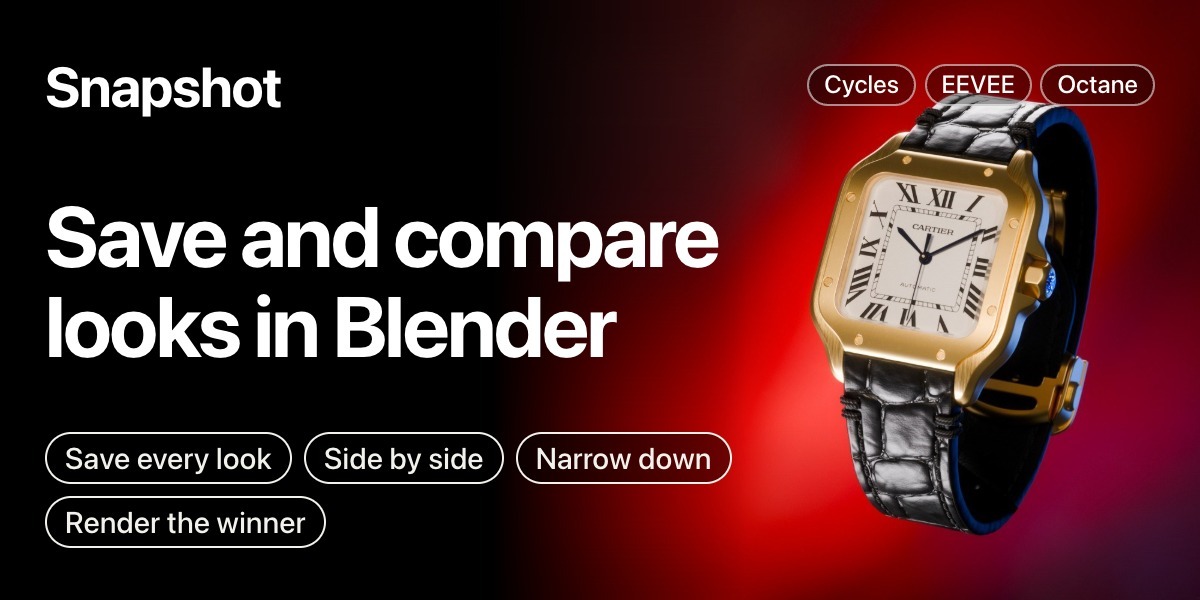




Hi, I'm Leonid
I'm a designer who became a CG artist, and I build the tools I need for my own renders.
Save and compare looks in Blender.
Snapshot saves the look of your scene as you work, as a picture you can go back to. Try as many directions as you like, compare them, and keep the best one.
Shoot.
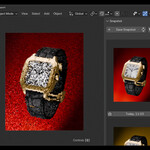

Press Shift+\ to save a snapshot of how the scene looks right now. Change anything, press it again, and you have two. Each one shows what that version looked like, and clicking it takes you back to it.
Every save is a new snapshot and nothing gets overwritten, so the whole history stays.
Restoring a snapshot does more than show the image: it puts every light, camera setting and material back the way it was, so you can carry on from there.

Compare.
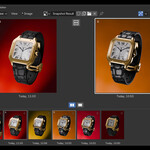
Open the filmstrip in the Image Editor to see all your snapshots as thumbnails. Click any to see a larger preview. Compare two side by side. Evaluate your options the way you would in Capture One after a shoot.


You can also press Alt+\ to cycle between snapshots directly in the viewport for live A/B comparison.
Narrow down.
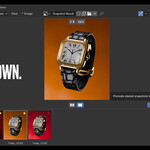
Star your favorites and move to the next round, and the unstarred ones drop away. Each round narrows it further. When one is left, render it.

Render the winner.
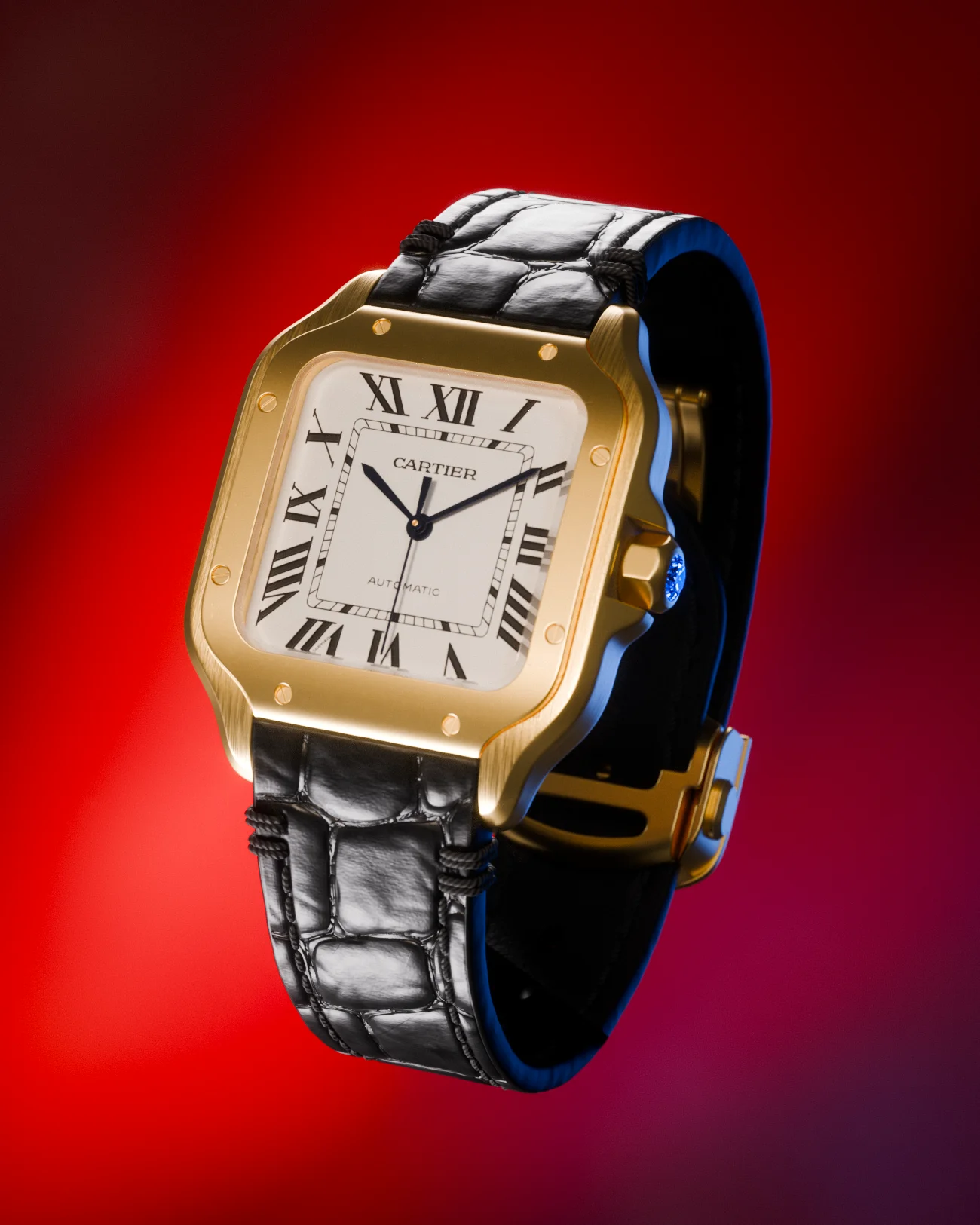
When one snapshot is left, press render. Snapshot restores it, finds an empty render slot and starts the render.
What gets saved.
Snapshot saves everything that changes how the scene looks. It doesn't save geometry.
What Snapshot is not.
Snapshot doesn't save lighting presets to reuse across scenes. It's a look development tool: snapshots live inside your scene file and capture how everything looks right now so you can try different directions, compare them, and pick the best one.
Keyboard shortcuts.
All shortcuts are customizable in addon preferences.
Works with.
Blender 4.0 — 5.2. Cycles, EEVEE, Workbench and Octane.
Light Wrangler — automatically includes flags, reflectors, and stencils in snapshots.
PolyDome — saves dome objects, scene properties, and compositor settings.
Requirements & Support
Blender 4.0 or newer. Windows, macOS, Linux.
Found a bug or want a feature? I read every message and usually reply quickly.
Email feedback · Discord community
Pairs well with Snapshot