Snowflake Conductor
 Valeriia Orlova








❄ Snowflake Conductor
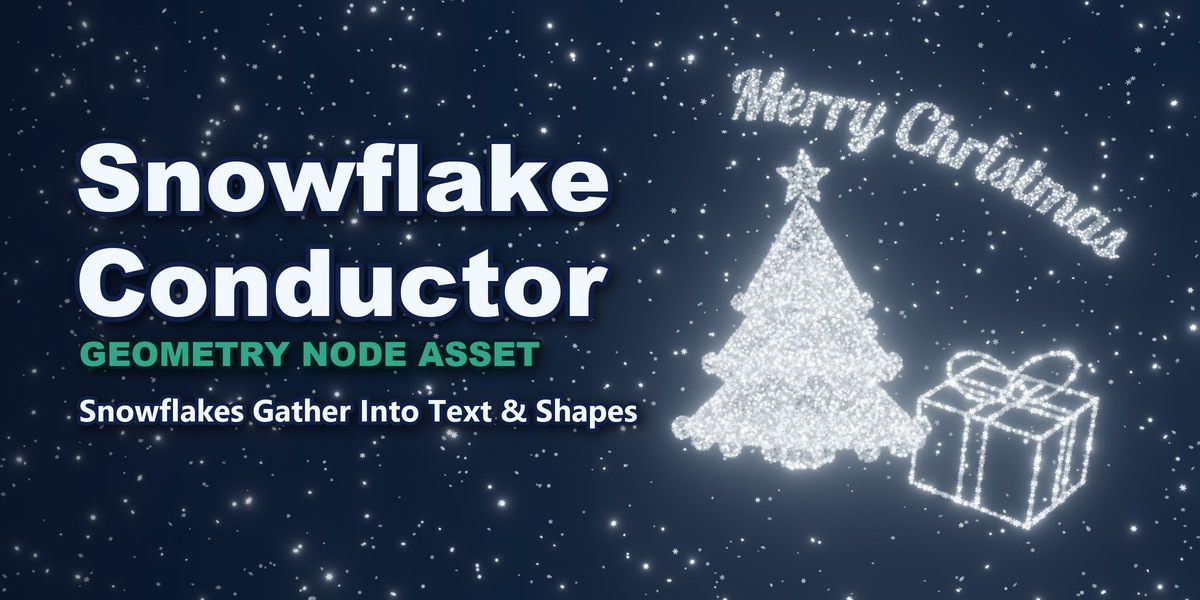
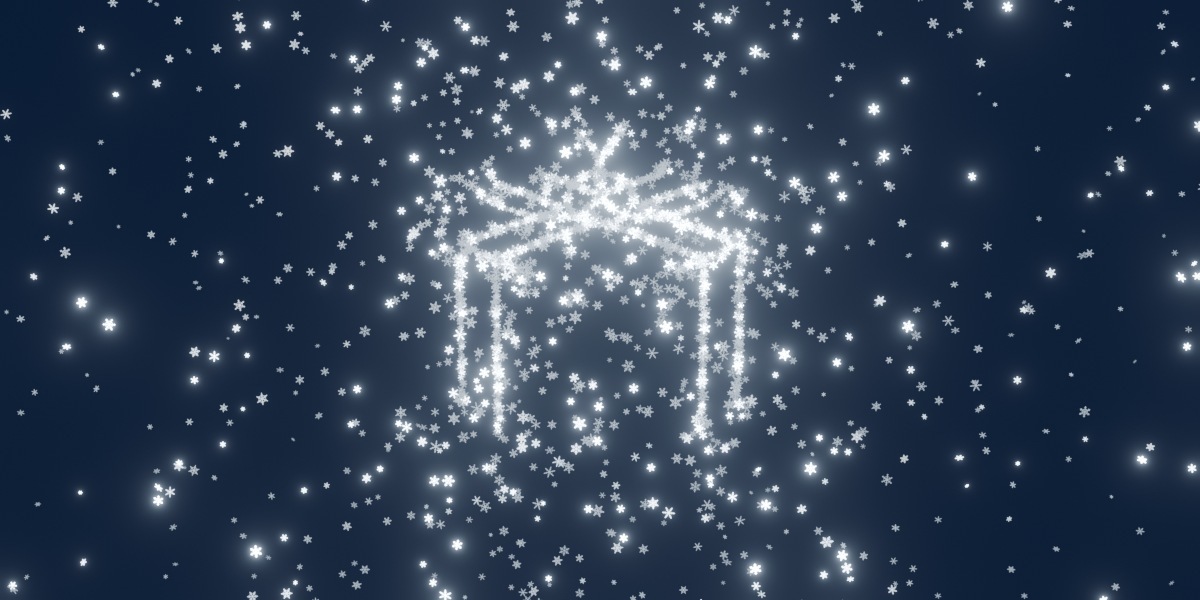
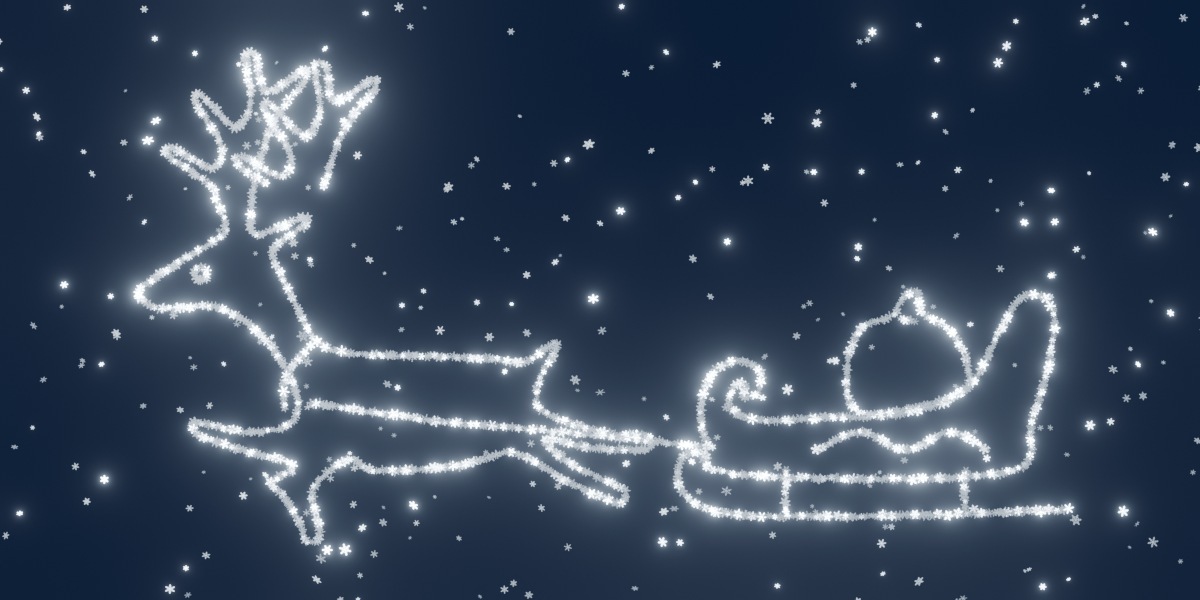
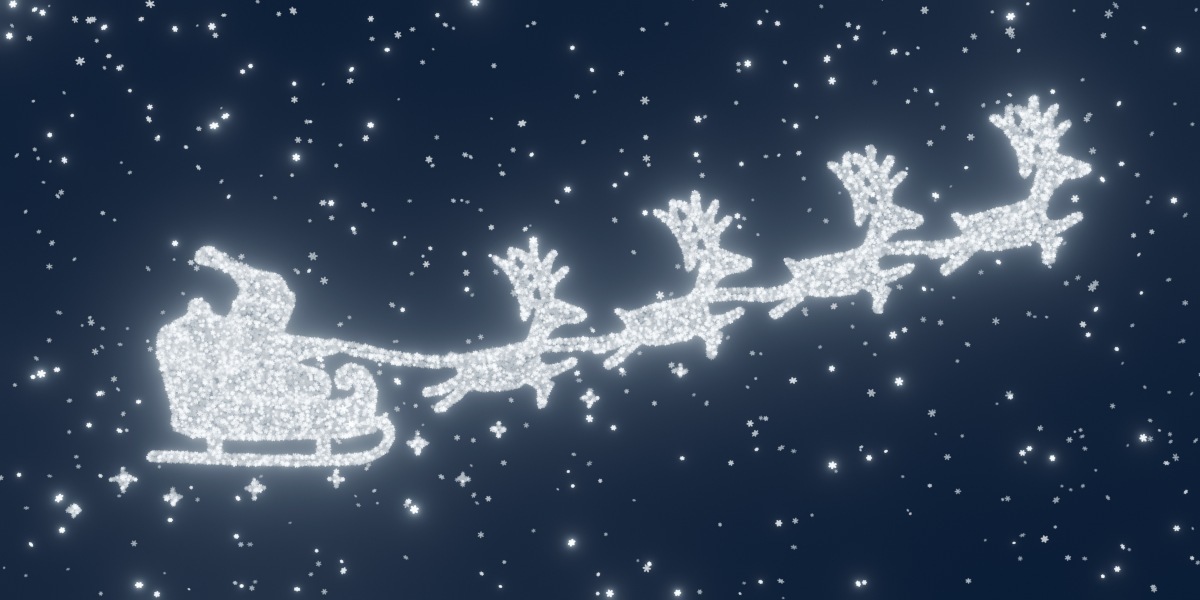
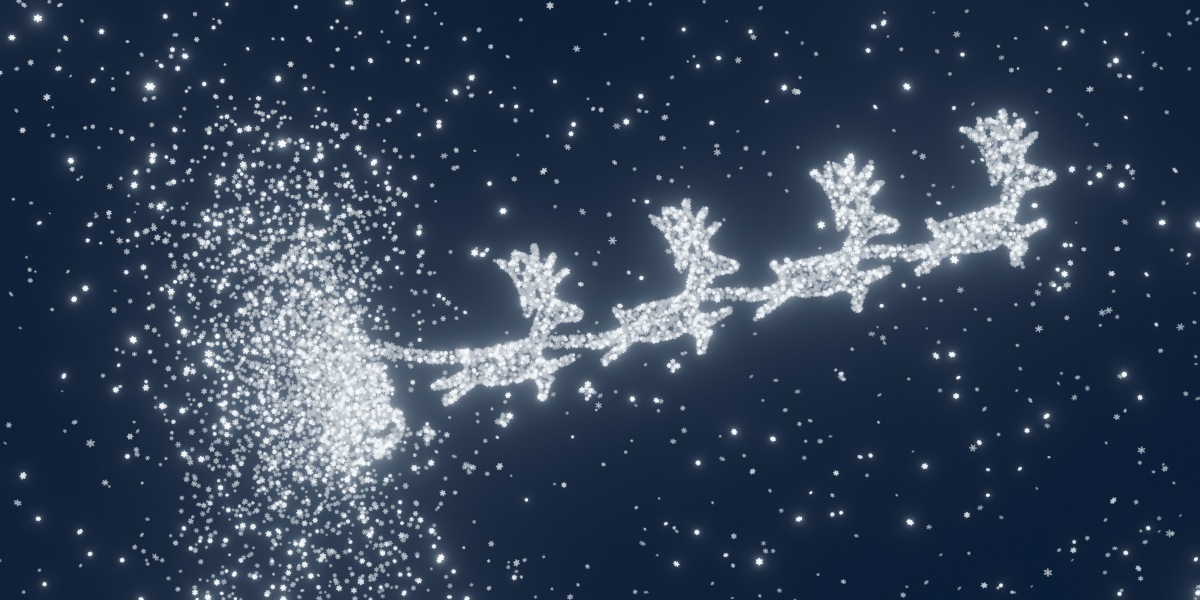
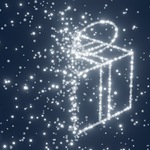
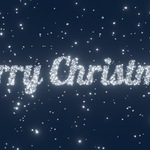
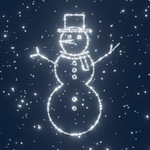
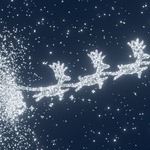
Snowflakes fall, fly together into your text, logo or any shape, hold it for a moment and then blow away. Made with Geometry Nodes. You control it with sliders in the modifier panel.
There's no simulation inside. Every frame is calculated from the frame number, so you can scrub the timeline in any direction, nothing needs baking, and the loop is exact: the last frame leads straight into the first one.
Requirements
- Blender 5.2 (files for 5.2) or Blender 4.5 (files for 4.5)
- No add-ons required
- Works with Cycles and Eevee
Installation and usage (Asset Library)
1. Unzip the archive for your Blender version:
Snowflake_Conductor_v1.0_Blender_5.2.zip or Snowflake_Conductor_v1.0_Blender_4.5.zip
2. Put snowflake_conductor_v1.0_<version>.blend into a folder for your assets, for example Documents/Blender Assets/Snowflakes.
Keep only one version of the file in this folder (5.2 or 4.5). If both are there, the Asset Browser shows the asset twice.
3. Register the folder in Edit → Preferences → File Paths → Asset Libraries → "+" and choose the folder.
4. Open any file, open the Asset Browser editor and select your library.
5. Drag "Snowflake Conductor" onto any mesh object, for example a plane. The object's own geometry is replaced by the snowflakes.
6. Press Play. The text "Merry Christmas" gathers in front of the -Y side, so look at it from the front view (numpad 1).
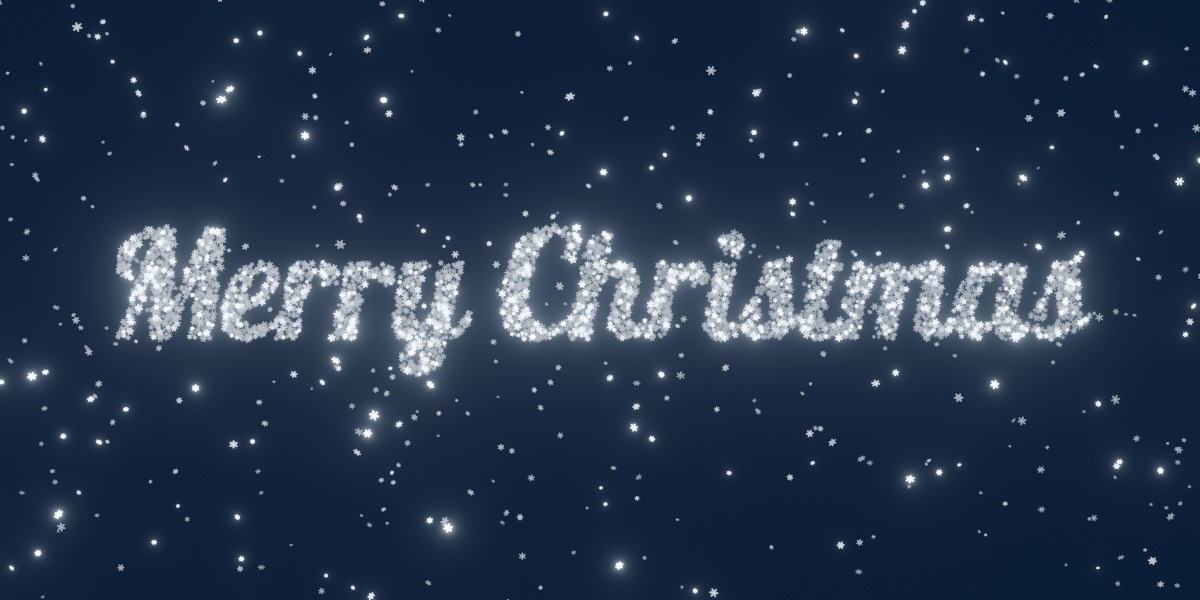
Demo scene. Open snowflake_conductor_v1.0_demo_<version>.blend and press Play or Render. It has the snowflakes with "Merry Christmas" in the Lobster font, a camera, two lights, a night sky and a soft glow (Glare in the compositor). The animation is 252 frames at 24 fps and loops.
The animation
One cycle has four phases, each set in seconds:
Fall. Snow falls over the whole area.
Gather. Each snowflake flies to its place in the shape along a curved path.
Hold. The shape stays, the snowflakes sway a little and glint.
Scatter. The shape breaks apart and the snowflakes turn back into snowfall.
With Loop on, the cycle repeats forever. The length of one cycle is Fall + Gather + Hold + Scatter. For a video loop, set the scene end frame to Start Frame + cycle length × fps - 1 (the demo uses 1 to 252 for 10.5 seconds at 24 fps).
Parameters
Blender shortens some names in the panel. Target Type is shown as Type, Target Object as Object, Wind Direction as Direction and Wind Strength as Strength. Fields that don't apply to the current choice are hidden.
Target
- Type (Target Type) - Text uses the words you type. Object uses any mesh, curve or text object.
- Font - Font of the text. Default is Blender's built-in font, Lobster and Pacifico are built into the file. Custom is your own font (see "Your own font" below).
- Custom Font - Blender 5.2 only. Your own font for Font: Custom.
- Custom Text Object - Blender 4.5 only. A Text object with your own font for Font: Custom.
- Text - The words the snowflakes gather into.
- Text Size - Height of the letters in meters.
- Object (Target Object) - Any mesh, curve or text object for Type: Object. The shape is taken from where this object stands relative to the snowflakes object, so you can move, rotate and scale it.
- Fill - Fill covers the whole shape with snowflakes. Outline lines them up along the edges. For an open mesh the edges are its border. For a closed mesh (a ball, a gift box) all its edges are used.
Snowflakes
- Flake Style - Crystal gives six-pointed ice crystals with branches. Fluffy gives soft round flakes. Mix uses both.
- Density - How many snowflakes per square meter of the shape. More gives a denser, brighter text.
- Seed - Random seed. Change it to get new snowflake shapes and new paths.
- Size - Size of one snowflake in meters.
- Size Random - Random variation of size, as a fraction of Size.
- Variety - How many different snowflake shapes are made.
- Spin - Turns per second while a snowflake falls. It slows down when the snowflake is in the shape.
- Sparkle - Strength of the glints. 0 turns them off.
- Custom Collection - Optional. Your own snowflakes, confetti or anything else. Each object of the collection becomes one shape. Lay them flat in the XY plane.
Timing
- Start Frame - Frame where the animation starts.
- Fall - Seconds of snowfall before the snowflakes gather.
- Gather - Seconds the snowflakes fly into the shape.
- Hold - Seconds the shape holds still.
- Scatter - Seconds the snowflakes leave the shape and turn back into snowfall.
- Stagger - At 0 all snowflakes move together. At 1 they come and go one by one in the Gather Order.
- Gather Order - Random, Left to Right, Right to Left or From Center. The snowflakes leave in the same order.
- Scatter Mode - Wind blows the snowflakes away in the wind direction. Fall makes them crumble and drop. Burst throws them outwards from the center.
- Loop - Repeats Fall, Gather, Hold and Scatter forever. With Loop off the shape gathers once and the snow keeps falling after that.
Wind
- Direction (Wind Direction) - Direction the wind blows, X and Y.
- Strength (Wind Strength) - How much the snow drifts sideways. 0.1 means 10 cm sideways for every meter down. 0 makes it fall straight.
- Turbulence - Swirling of the flakes in the air and how curved their paths into the shape are.
- Fall Height - Height of the top of the snowfall above the object, in meters.
- Area Size - Width, depth and height of the snowfall area in meters.
Export
- Realize for Export - Off gives instances, which are fast and light, best for working in Blender. On gives one regular mesh for applying the modifier or exporting to FBX, glTF or OBJ. The glints don't work on the mesh.
Your own font
Blender 5.2
1. Set Font to Custom. The Custom Font field appears under it.
2. Click Open in Custom Font and choose your font file (.ttf or .otf).
3. Type your words in Text.
Blender 4.5
Blender 4.5 has no font field for Geometry Nodes, so the font comes from a Text object.
1. Add a Text object (Add → Text).
2. In its Object Data properties (the "a" icon) open your font in the Font panel.
3. Press Tab and type your words in the Text object. Press Tab again.
4. In the Snowflake Conductor modifier set Font to Custom and choose the Text object in Custom Text Object.
5. Hide the Text object in the Outliner (eye and camera icons), so only the snowflakes show.
The words come from the Text object, the Text field isn't used. Text Size still scales the letters, and the text is centered automatically.
For any font in both versions you can also use Type: Object with a Text object. Then the text keeps the position, rotation and scale of the Text object.
Glow around the snowflakes
The soft glow in the demo comes from the compositor, so it belongs to the scene and doesn't come with the asset. To add it to your scene:
- Blender 5.2: in the Compositor add a Glare node between Render Layers and the output. Set Type to Bloom, Threshold 1.0, Strength 0.6, Size 0.55.
- Blender 4.5: in the Compositor turn on Use Nodes, add a Glare node between Render Layers and Composite. Set it to Bloom, Threshold 1.0, Strength 0.6, Size 0.55.
Without the Glare node the snowflakes still shine and glint, there's just no halo.
Tips
- Script fonts have thin strokes. Use smaller snowflakes and more of them, for example Size 0.045 and Density 3000 with Text Size 1.8, like in the demo.
- A dark background makes the snowflakes stand out. The demo uses a dark blue world color.
- To show the snow straight from the front, keep the camera on the -Y side looking along +Y.
- For a logo, use a curve or a mesh in Type: Object. Curves are filled in their own flat plane, so draw them flat and rotate the object, not the curve points.
- Keep Realize for Export off while you work. Instances are much faster.
License
Standard Royalty Free License
You may use this asset in personal, educational, or commercial projects.
Redistribution or resale of the original .blend file or any part of it is not allowed.
© 2026 Valeriia Orlova. All Rights Reserved.
The fonts Lobster and Pacifico are licensed under the SIL Open Font License 1.1. Their font files and license texts are in the fonts folder.
Free updates for existing customers. Includes 12 months of support from Valeriia Orlova.
Author
Created by Valeriia Orlova
Contact: [email protected]
Built into the .blend files (no separate files needed):
- The Lobster and Pacifico fonts are packed into the .blend. The files in fonts/ are copies with their licenses.
- Materials SC Ice Crystal (crystals) and SC Fluffy Snow (fluffy flakes). The glints come from the sc_sparkle attribute, type Instancer.
- The snowflake shapes are made by the node tree itself, no meshes needed.
- No external files, add-ons or scripts are used.
 Included
Includes 12 months of
- Support from Valeriia Orlova
- Product updates
Extend this product’s Support Period +12 months: 50% of product price
Have questions before purchasing?
Login to message
| Published | 13 minutes ago |
| Blender Version | 4.5 - 5.2 |
| Render Engine Used | Cycles, Eevee |
| License | Royalty Free |
Discover more products like this
particles Text animation winter Procedural Animation logo reveal geometry nodes holidays snowflakes motion graphics new year snow greeting card