 Yatima



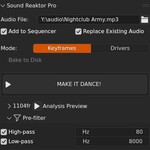
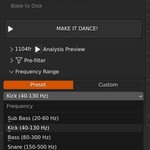
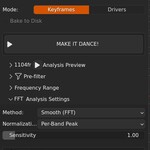
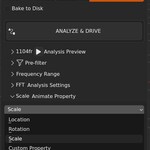
Sound Reaktor supports Blender 4.2 through Blender 5.2. Since version 2.0, Sound Reaktor uses Blender's new extension format, and therefore Blender versions earlier than 4.2 are not supported. In any case, updating to Blender 4.5 or later is recommended.
Sound Reaktor works on Windows, Linux, and macOS. In the downloads section, once the addon has been purchased, you can choose the specific version for your operating system, which includes all the necessary dependencies to function.
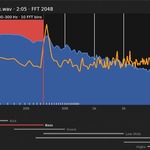
Sound Reaktor uses NumPy, SciPy and PyAV, three Python libraries that provide the mathematical and signal processing capabilities needed for audio analysis and multiple audio formats loading. NumPy handles fast numerical computations on large arrays of audio samples, while SciPy provides the FFT (Fast Fourier Transform) and signal detection algorithms that extract frequency and beat information from audio. PyAV handles the load of MP3, OGG, FLAC, OPUS, M4A and AAC sound format files.
This happens when Sound Reaktor is disabled and re-enabled within the same Blender session. On Windows, Blender's extension system attempts to unload the addon's binary dependencies while they are still locked in memory, which can leave the installation in an inconsistent state that persists after re-enabling. The fix: disable Sound Reaktor, restart Blender, then re-enable it. Do not re-enable it in the same session after disabling.
Since version 2.4.2, audio analysis and keyframe generation are 50 to 100 times faster than in previous versions. This currently applies only to the free version, Sound Reaktor Lite.
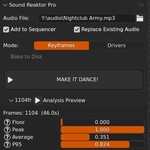
The audio analysis itself is quite fast, typically a few seconds even for lengthy tracks. What takes time is keyframe generation. Sound Reaktor creates one keyframe per frame of animation, and Blender's keyframe insertion has inherent overhead.
A 3-minute song at 24 FPS generates about 4,320 keyframes per animated property. Each keyframe requires Blender API calls that add up over thousands of iterations. The cache system helps when animating multiple objects: analysis happens once, and subsequent objects skip that step. But keyframe creation must happen for each object individually and cannot be cached.
For very long audio, consider whether you need the entire duration or can work with a portion of it.
Yes and no! ;-) The Custom Property data path is absolute. It specifies the exact location of the property in Blender's data structure, regardless of what's selected. The animation will be created on whatever object the path points to.
However, Sound Reaktor stores its metadata (the SR Animation Info panel data) on the currently active object. This means the tracking information may end up on a different object than the one actually being animated.
For clarity, it's best to select the object you're animating, but the animation itself will work regardless.
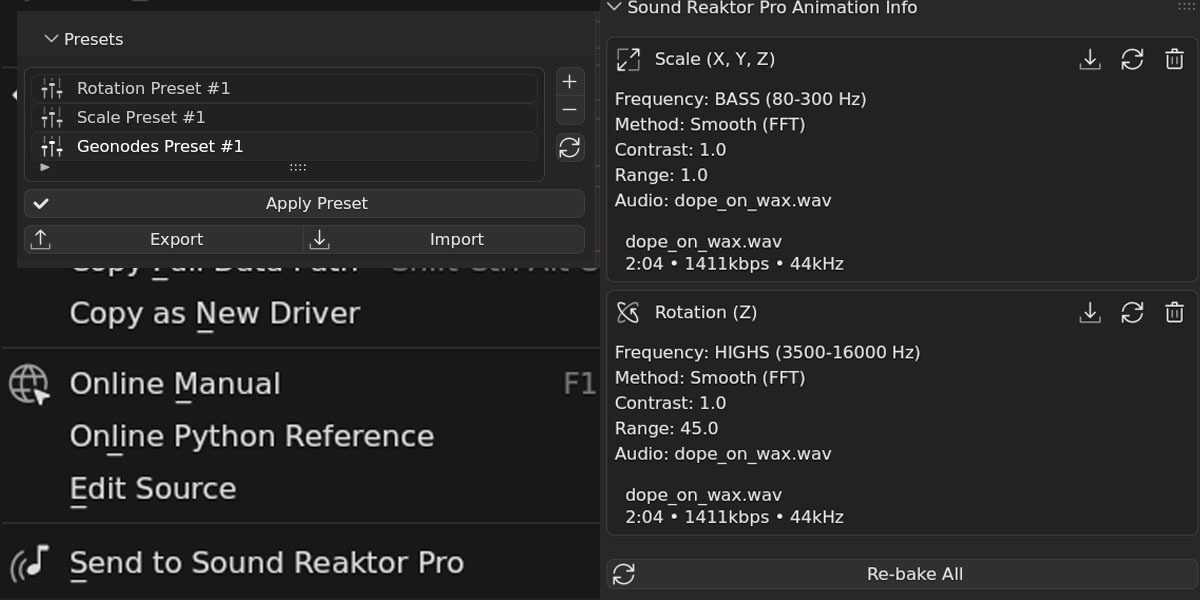
Although the method of copying and pasting the data path still works, since version 2.2 there is an option in the context menu, "Send to Sound Reaktor", that automates the entire process in a single click.
Geometry Nodes inputs are exposed in the modifier panel, not inside the Geometry Nodes editor. To get the data path:
- 1. Go to the Properties panel > Modifiers tab.
- 2. Find your Geometry Nodes modifier. Your exposed inputs appear as fields in the modifier panel.
- 3. Right-click on the input value and select Copy Full Data Path. If you don't see your input in the modifier panel, you need to expose it first by connecting it to a Group Input node inside the Geometry Nodes editor.
Yes!, and this is where the cache system helps. Animate your first object, then select the next object and click MAKE IT DANCE! with the same audio settings. The addon reuses the cached analysis, skipping straight to keyframe generation.
No! Sound Reaktor automatically replaces existing keyframes for the property you're animating. If you've animated scale and want to try different settings, just adjust the parameters and click MAKE IT DANCE! again.The old scale keyframes are removed and new ones are created.
This makes experimentation fast and friction-free. You never need to manually clear keyframes between attempts. In fact, under the hood the first thing Sound Reaktor does before creating new keyframes is to delete the old ones.
Yes! Run Sound Reaktor multiple times with different settings, selecting a different property each time. For example:
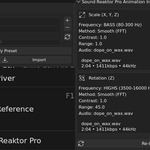
- 1. Set frequency to Kick, animate Scale, click MAKE IT DANCE!
- 2. Change frequency to Highs, change property to Rotation, click MAKE IT DANCE!
- 3. Switch to Custom Property, paste a material emission path, click MAKE IT DANCE! Each run adds or replaces keyframes for that specific property without affecting others. You can have scale reacting to bass, rotation reacting to hi-hats, and emission reacting to vocals, all on the same object.
Sound Reaktor animates relative to the Base Value settings. If your object jumps to an unexpected position or size when the animation starts, your Base Value doesn't match the object's original transform. Use the Get Current button to capture your object's current transform as the base value.
This ensures the animation starts from where your object already is. For Custom Property mode, the Base Value auto-fills when you paste a valid data path, but you can adjust it manually if needed.
The validator checks that your data path points to a valid, animatable float property.
Common causes of errors:
- Typo or incorrect path: Make sure you used Copy Full Data Path (not Copy Data Path) and pasted it correctly without modifications.
- Object or property no longer exists: If you deleted or renamed the object, material, modifier, or node that the path references, it becomes invalid.
- Unsupported property type: Sound Reaktor only animates float values. Integer properties, booleans, and enums cannot be animated directly.
- Property not exposed: Some internal properties don't have accessible data paths. If right-clicking doesn't offer Copy Full Data Path, that property cannot be animated this way.
Onset detection depends on finding clear transients in your audio. If detection isn't working as expected:
- Too few beats detected: Increase Sensitivity to lower the detection threshold. Also check that your frequency range includes the transients you want to detect.
- Too many beats detected: Decrease Sensitivity to raise the threshold so only strong transients trigger. Increase Min Time Between to prevent rapid-fire detection. If the audio is noisy or busy, a narrower frequency range may help isolate the beats you want.
- Double triggers on single hits: Increase Min Time Between to 0.1 or higher. This prevents the same hit from registering multiple times.
There's no hard limit, but practical considerations apply. Longer audio files require more memory during analysis and generate more keyframes. A three minute song at 24 FPS creates over 4,300 keyframes per animated property. Blender handles large keyframe counts reasonably well, but extremely long animations may slow down viewport performance and file save times.
Sound Reaktor automatically converts stereo audio to mono by averaging the left and right channels. This happens during loading and requires no action on your part. With Sound Reaktor 2.5 you can choose one channel or the full audio mix.
Several factors could cause weak or absent reaction.
- Wrong frequency range: If your audio doesn't have significant energy in the selected frequency band, there's nothing to react to. Try different presets or switch to Custom mode and experiment with broader ranges.
- Sensitivity too low: Increase the Sensitivity value. For quiet or highly dynamic audio, values of 2.0-5.0 may be necessary to bring out the reaction.
- Range too small: Check your Range setting (Location Range, Scale Range, etc.). A Range of 0.1 produces much subtler movement than a Range of 2.0.
- Audio issues: Ensure your audio file isn't corrupted and actually contains audible content in your target frequency range. Very quiet audio may need normalization in an audio editor before use.
The opposite problem has opposite solutions.
- Sensitivity too high: Reduce Sensitivity to tame the reaction. Values below 1.0 make the animation respond only to the loudest moments.
- Range too large: Reduce your Range value for subtler movement.
- Enable Smoothing: In FFT mode, increase Smoothing to 0.3-0.5 to reduce rapid fluctuations.
- Enable Noise Filter: This eliminates small variations that contribute to a chaotic appearance.
- Try FFT instead of Onset: If you're using Onset mode and getting too many triggers, FFT mode may produce smoother results for your audio.
Absolutely yes! Sound Reaktor is licensed under the GNU General Public License v3, which governs the addon code itself. The animations you create, the keyframes, the rendered output and the creative work belong entirely to you. There are no restrictions on using your animations in commercial projects, client work, content for sale, or any other purpose.
-
$25
The full experience.
Have questions about this product?
Login to message
Discover more products like this
addon audio visualization audio audio analysis audioreactive audio animation motiongraphics keyframe sound music visualizer audio-reactive animation