 Designers
Speech Translator: Documentation
Version 1.0.10 · Blender 4.2 or newer
Overview
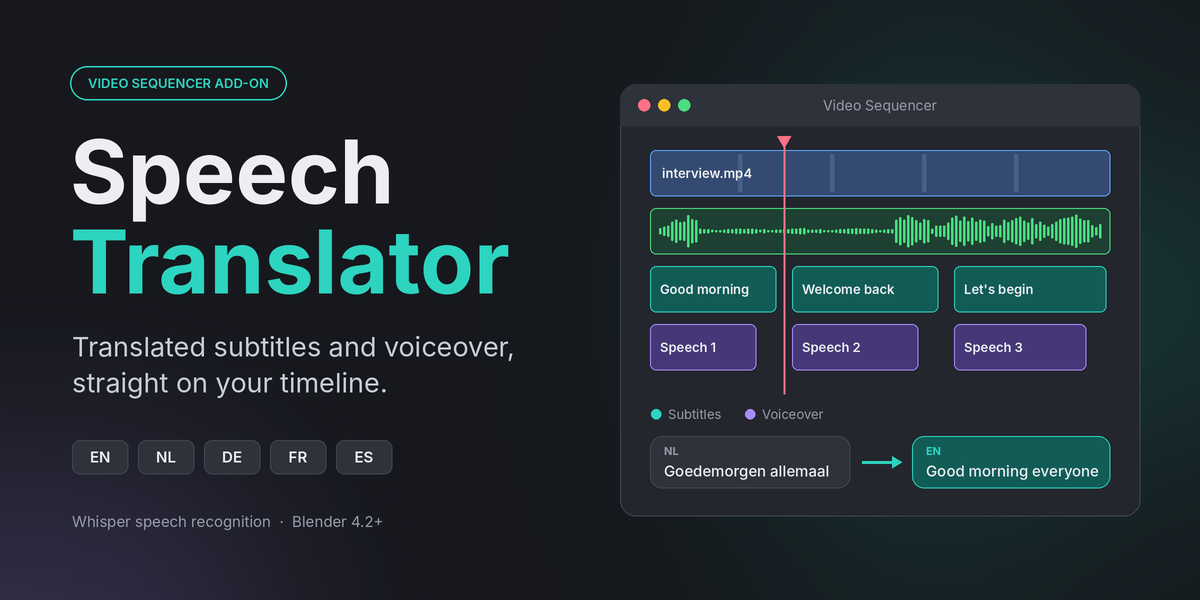
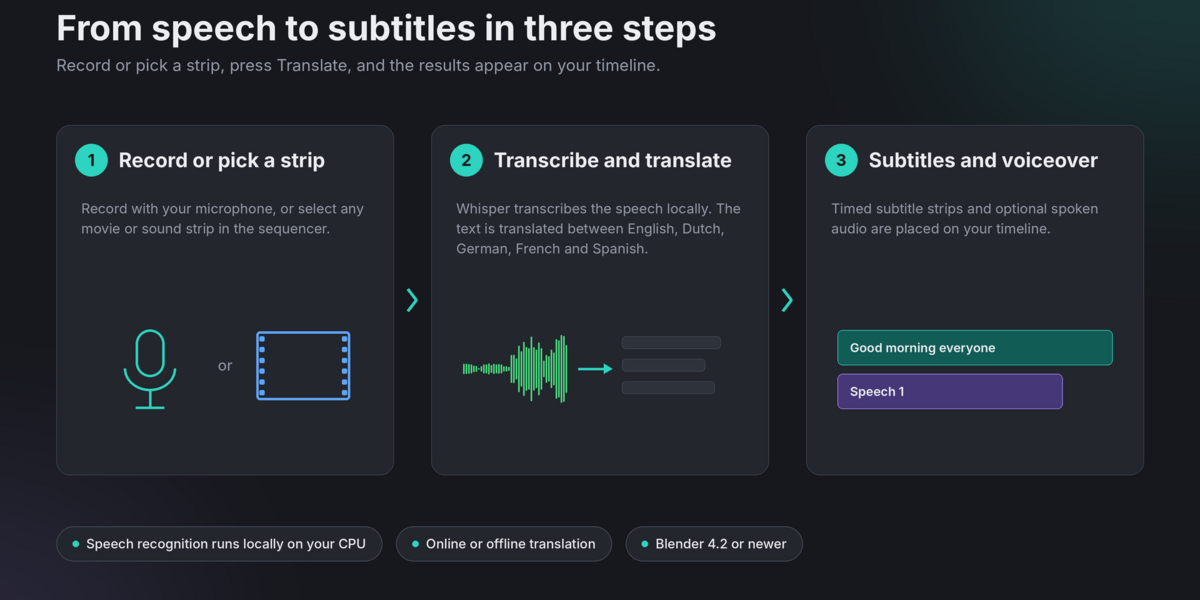
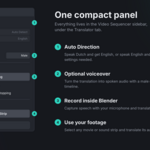
Speech Translator adds a Translator tab to the Video Sequencer sidebar. It turns spoken audio, from your microphone or from the footage in your project, into translated subtitle strips and, optionally, a spoken voiceover.
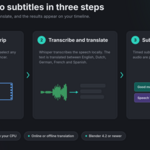
Speech recognition runs locally on your computer with faster-whisper. Translation and voiceover use online services by default (see Privacy and online services). An offline translation option is available.
Requirements
- Blender 4.2 or newer.
- An internet connection for the first setup (Python packages and the speech model), and for online translation and voiceover afterwards.
- A microphone, if you want to record inside Blender.
- Everything runs on the CPU. Larger speech models are more accurate but slower.
Installation
- Open Edit > Preferences > Add-ons, choose Install from Disk (in the drop-down menu at the top right), and select the add-on file.
- Enable Speech Translator in the add-on list.
- In the add-on preferences, click Install Missing Base Packages. The status line below the button shows progress. This installs faster-whisper, sounddevice, deep-translator and edge-tts into a dedicated folder (
vertaler_libs) inside Blender's user scripts folder. Blender's own Python files are not modified. - If a package does not load right away, restart Blender.
The first time you translate, the speech model you selected is downloaded automatically. This can take a while for the larger models.
Optional: click Install Offline Translator (large) if you want to translate without an online service (see Preferences).
Install only one version of Speech Translator at a time. Two versions in the same Blender session will conflict.
Quick start
Record your voice
- Open the Video Sequencer and press N to open the sidebar.
- Go to the Translator tab.
- Click Start Recording, speak, then click Stop Recording.
- With Translate immediately after stopping enabled (default), processing starts automatically.
Use your footage
- Select a movie or sound strip in the sequencer (or make it the active strip).
- Click Translate Active Strip.
When processing finishes, the status box shows how many subtitles were created.
Panel reference
| Option | What it does |
|---|---|
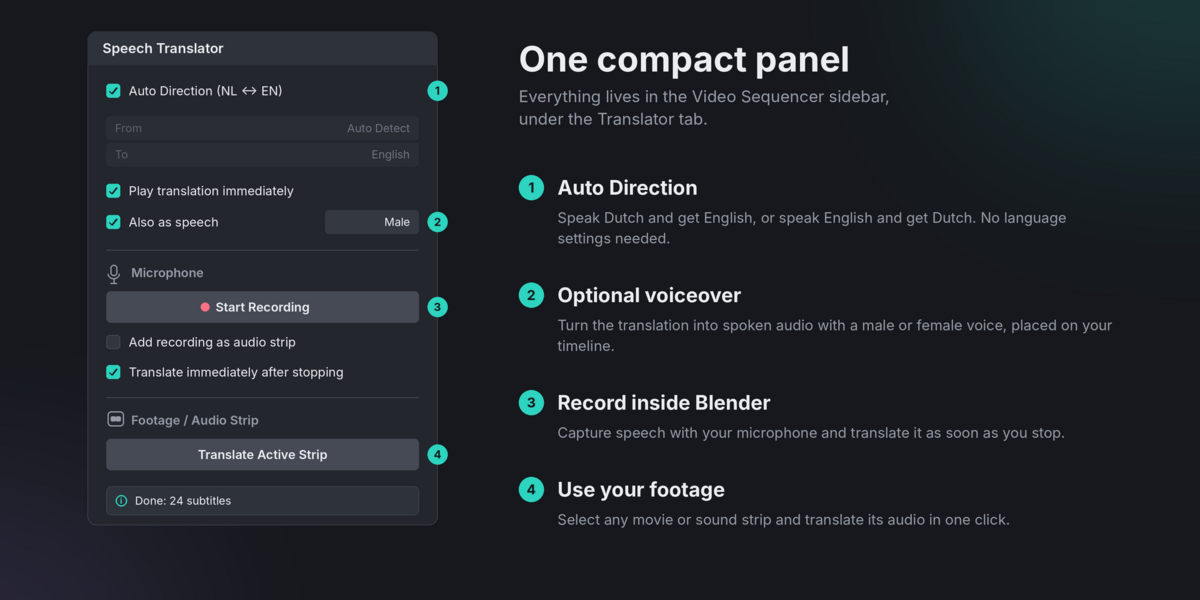
| Auto Direction (NL ↔ EN) | On by default. Detects whether you speak Dutch or English and translates to the other language. When it is on, the From and To fields are greyed out. |
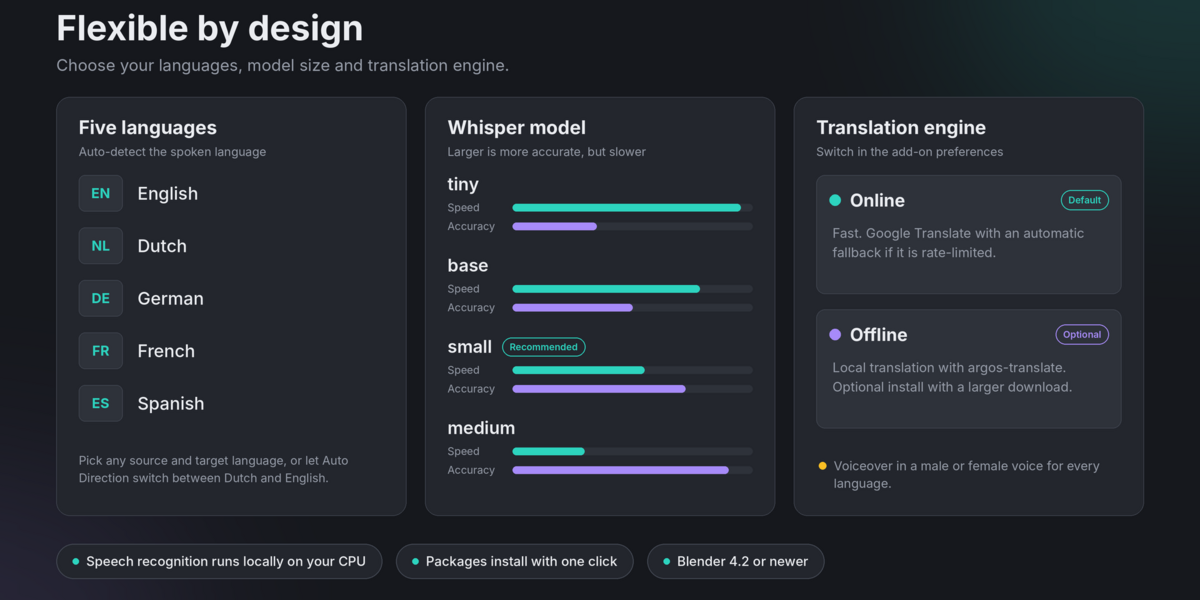
| From | The spoken language: Auto Detect, English, Dutch, German, French or Spanish. |
| To | The language to translate into. |
| Play translation immediately | After a recording, plays the generated voiceover right away. Requires Also as speech. |
| Also as speech | Generates spoken audio of the translation and places it on the timeline. |
| Voice | Female or Male (default: Male). |
| Start / Stop Recording | Records from your default microphone. |
| Add recording as audio strip | Also places your raw recording on the timeline. Off by default. |
| Translate immediately after stopping | Starts processing as soon as you stop recording. On by default. |
| Translate Last Recording | Processes the most recent recording again, for example after changing languages. |
| Translate Active Strip | Processes the audio of the active movie or sound strip (or the first selected one). |
Press Esc while processing to cancel. Only one job can run at a time.
Preferences
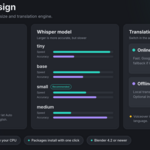
Whisper Model
- tiny: fastest, least accurate
- base
- small: recommended, and the default
- medium: heavy, most accurate
Text Translation engine
- Online (default): uses Google Translate and switches automatically to MyMemory if Google rate-limits your connection.
- Offline: uses argos-translate and runs fully on your computer. It requires the optional offline install, and language packs are downloaded the first time you use a language pair.
The preferences also list every required package with a check mark or cross, and include a button to open the packages folder.
How translation works
- Into English (for example Dutch speech to English subtitles): Whisper translates directly. No separate text translator is used.
- From English into another language: the speech is transcribed first, then translated by the text translation engine you selected.
- Same language in From and To: you get subtitles in the spoken language (transcription only).
- Auto Direction: limited to Dutch and English. For any other combination, switch it off and set From and To yourself.
What gets created
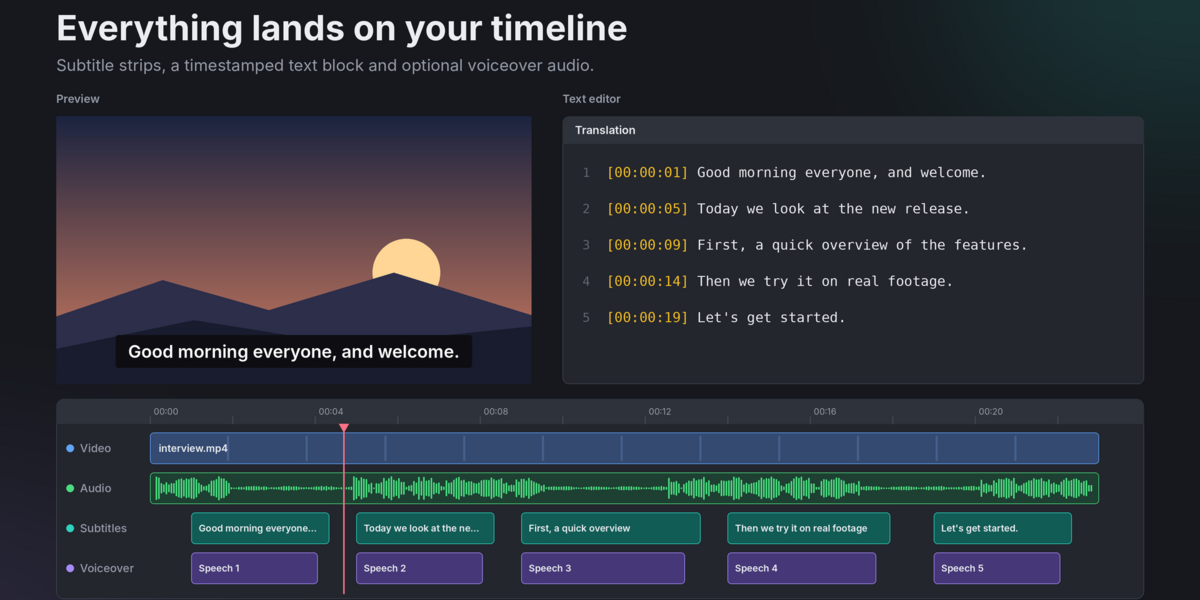
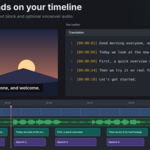
- Subtitle strips: one text strip per spoken segment, on a new channel above your existing strips. The text is large, centered near the bottom of the frame, with a background box. You can restyle or edit the strips like any other text strip.
-
A text block named "Translation": open it in the Text Editor to see every subtitle with a timestamp, for example
[00:00:05] Today we look at the new release. - Voiceover strips (if enabled): named "Speech 1", "Speech 2" and so on, placed at the start of each segment.
Placement: recordings start at the current frame. For a strip, subtitles are aligned to the start of that strip, and only segments inside its trimmed range become subtitle strips.
Where files are stored: recordings, extracted audio and voiceover clips are saved in your system's temporary folder (blender_translator). To keep them with your project, pack them (File > External Data > Pack Resources) or copy them into your project folder before your system cleans its temporary files.
Languages and voices
| Language | Female voice | Male voice |
|---|---|---|
| English | Jenny | Guy |
| Dutch | Colette | Maarten |
| German | Katja | Conrad |
| French | Denise | Henri |
| Spanish | Elvira | Alvaro |
Voices are neural text-to-speech voices provided through edge-tts.
Privacy and online services
- Speech recognition is local. Your audio is not uploaded for transcription.
- Online translation sends the transcribed text to Google Translate, and to MyMemory if Google is unavailable.
- Voiceover sends the translated text to an online text-to-speech service (through edge-tts).
- To keep everything on your computer after setup, use the Offline engine and turn off Also as speech. Downloads for packages, speech models and offline language packs still need an internet connection.
- These are third-party services. Their availability, limits and terms can change, and this add-on is not affiliated with them.
Tips
- Start with a short clip to check the settings, then run the full footage.
- Clear audio with one speaker at a time gives the best results. Silence and background noise are filtered out.
- Use tiny for quick tests, small for everyday work, and medium for difficult audio when you can wait longer.
- If the wrong language is detected, turn off Auto Direction and set From manually.
- Always review the subtitles before publishing. Accuracy depends on audio quality, accents and background noise.
Troubleshooting
| Problem | What to do |
|---|---|
| "Packages missing!" in the panel | Click Install Packages in the panel, or Install Missing Base Packages in the add-on preferences. |
| Installation failed | Check your internet connection and try again. Details are printed in the System Console (on Windows: Window > Toggle System Console; on macOS and Linux, start Blender from a terminal). |
| "File locked! Restart Blender and try again" | Close Blender, delete the vertaler_libs folder (use Open Packages Folder in the preferences to find it), then reinstall. |
| A package does not load after installing | Restart Blender. |
| "Failed to start microphone" | Check that a microphone is connected and set as the default input, that Blender is allowed to use it in your operating system's privacy settings, and that no other app is using it exclusively. |
| "Select a movie or sound strip…" | Select a movie or sound strip, or make it the active strip, then try again. |
| "Strip media file not found on disk" | The file the strip points to is missing. Relink or restore the media. |
| "Failed to extract audio from file" | The file may have no audio track or an unsupported format. Try another file or format. |
| Subtitles but no voiceover | edge-tts may be missing (install the base packages) or you may be offline. Voiceover needs an internet connection. |
| Some lines stay untranslated | The online service may have rate-limited you. Lines that cannot be translated keep their original text. Try again later or use the Offline engine. |
| Few or no subtitles | The speech may be too quiet or unclear. Try a larger model or a cleaner recording. |
| Processing is slow | Use a smaller model. The first run also downloads the model. |
Limitations
- Auto Direction supports Dutch and English only.
- Five languages are supported: English, Dutch, German, French and Spanish.
- Processing runs on the CPU only.
- One job can run at a time.
Version
1.0.10: added compatibility with the strip property names introduced in Blender 5.1. Behavior on earlier Blender versions is unchanged.
Questions or problems? Contact me through this product page.
Author: Nuh Ünver
Have questions about this product?
Login to message
| Published | about 18 hours ago |
| Blender Version | 4.2 - 5.3 |
| Extension Type | N/A |
| Render Engine Used | Cycles, Eevee |
| License | GPL |