Splat Stage — Gaussian Splat Workflow (Beta)
 AS Formworks
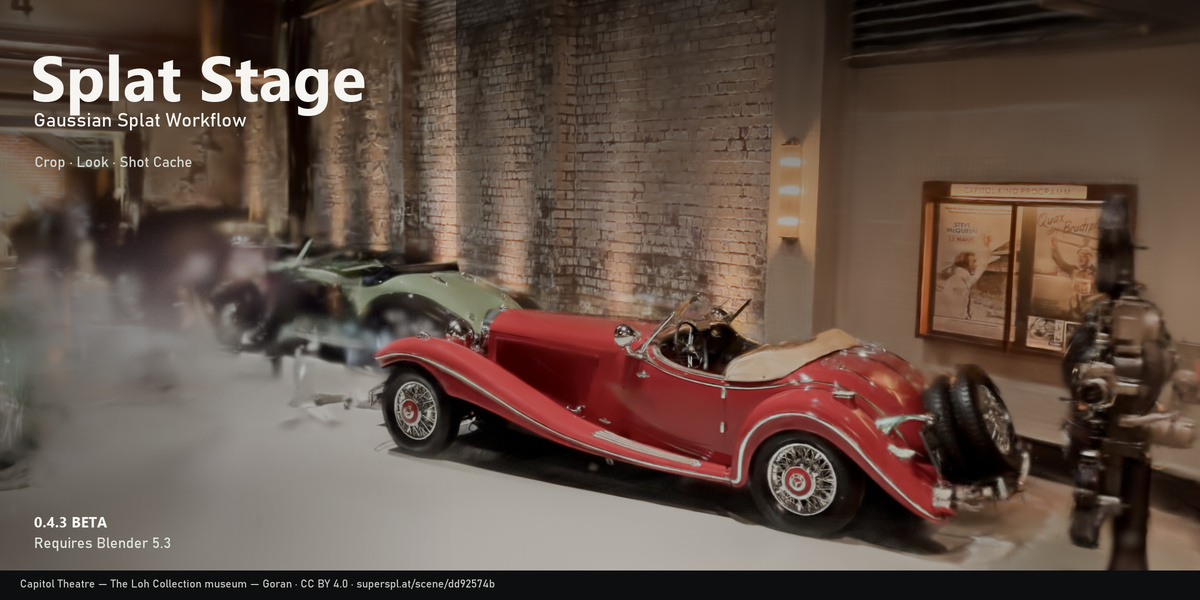
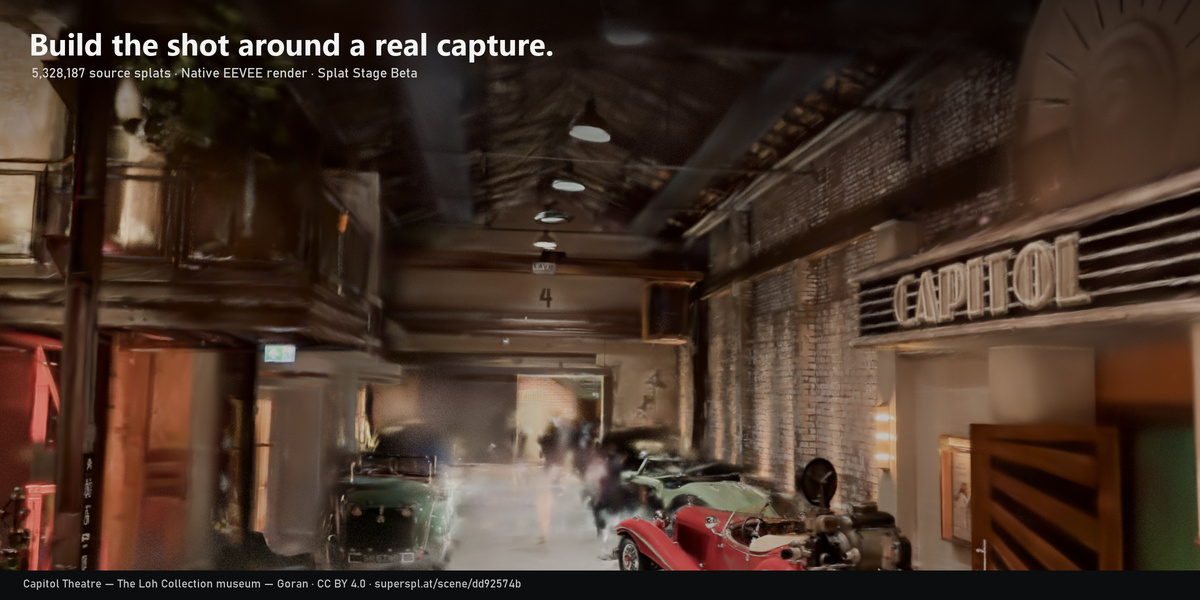
SPLAT STAGE 0.4.3 BETA — USER GUIDE
Glare Digital · Requires Blender 5.3 with native Gaussian Splat support
Tested: Windows, Blender 5.3.0 Beta ace25df17a10, RTX 4060 Ti. Other builds/platforms are unvalidated.
INSTALL AND UPDATE
1. Download splat_stage-0.4.3.zip. Keep this inner extension ZIP intact.
2. In Blender 5.3 open Edit > Preferences > Get Extensions. Open the top-right menu > Install from Disk; choose that ZIP and enable Splat Stage.
3. In the 3D View press N and choose Splat Stage. A section header expands/collapses its tools.
4. For an update, close any crop editing/bake/render job first, keep a backup of important work, and install the new extension ZIP from disk. Do not install the outer Launch or Companion ZIP as an addon.
5. To uninstall, disable/remove Splat Stage in Preferences. The addon restores its managed preview setting and exposes the native render path. If you want to remove managed tools from a scene first, use Options > Remove Tools · Keep Scan.
FIRST SHOT
Import a native Gaussian PLY/SPZ capture, crop unwanted areas, set a camera, choose a look if needed, then render with F12. Ordinary mesh PLY files are not Gaussian Splat captures. The addon does not produce scans, train models or export splats.
IMPORT AND ALIGNMENT
Import stays at the top of the panel. File-browser options include orientation, import scale and sampled floor placement at Z=0. Auto uses the common PLY convention; choose Blender orientation when importing the included synthetic PLY. If the scan is sideways, adjust the stage root under Prepare > Alignment & Tools. Center XY and Floor to Zero operate on the stage. Sampled bounds/floor fitting can be affected by capture outliers. Use Selected Splat adopts an already imported native Gaussian point cloud. Multiple scans have a list at the top of the sidebar.
CROP AND CUTOUTS
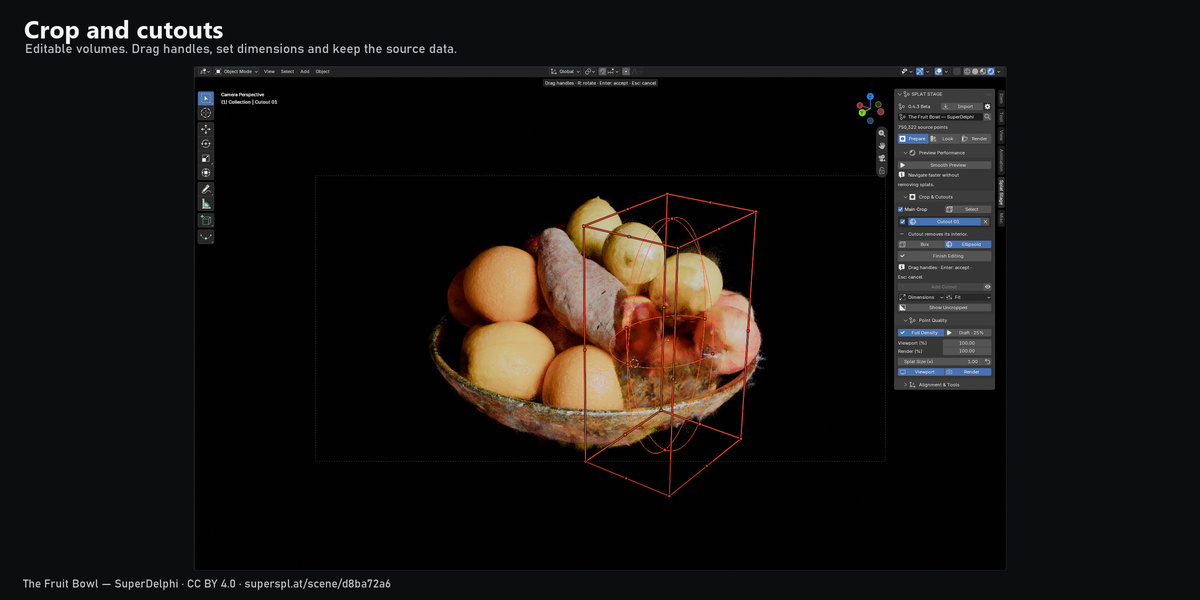
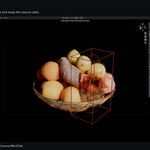
Prepare > Crop & Cutouts controls the main crop. Keep Inside retains the interior; Remove Inside removes it. Choose Box or Ellipsoid. Draw Crop draws a rectangle in the current viewport and constructs an editable 3D region spanning sampled scan depth. In perspective it is a box at a reference depth, not an exact camera-frustum selection. Verify from another angle.
Edit Handles opens the interactive tool: drag handles, Enter to accept, Esc to cancel. Finish Editing exits the tool. Select chooses the current region for ordinary G/R/S transforms. Dimensions opens exact XYZ sizes. Fit samples up to 50,000 points, with outlier trim and padding controls. Refit explicitly after a large alignment change.
Add Cutout draws an additional region that subtracts its inside. Up to eight cutouts may be enabled independently, selected, redrawn or removed with X. Cutouts combine with the main crop. Their geometry is editable and source points/attributes are preserved.
Show Uncropped bypasses filtering in the viewport only; the final render keeps its crop. The eye button controls bounds visibility, and Blender overlays must also be enabled to see edit guides. The focus icon frames the active region.
POINT QUALITY
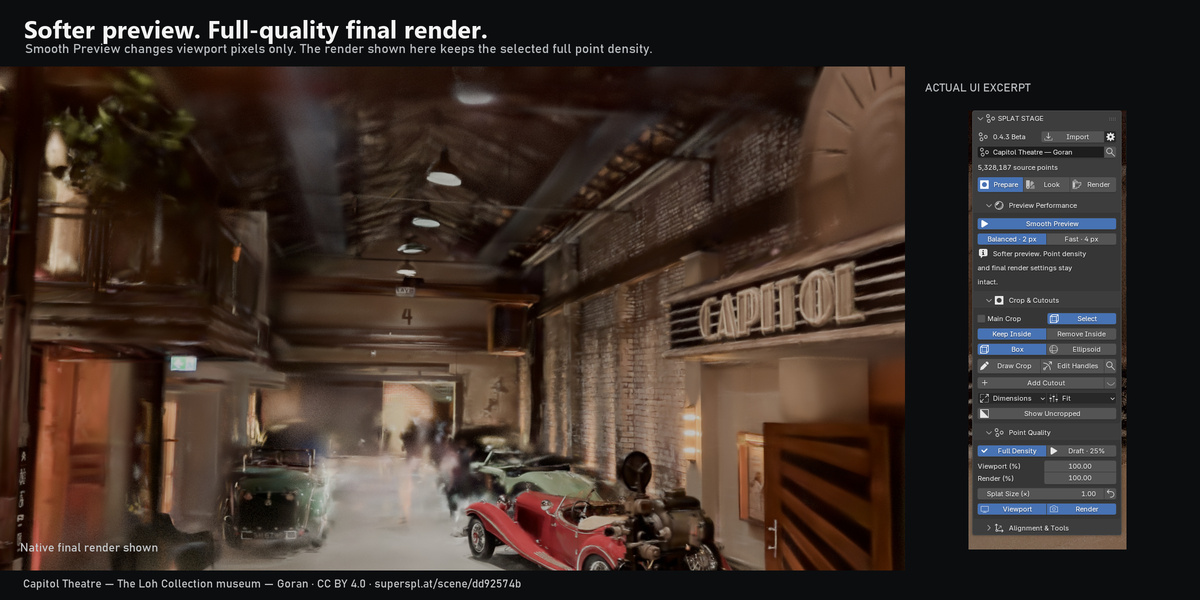
Full Density sets viewport and render density to 100%. Draft sets the viewport to 25%. Each percentage can be set separately. Point thinning can create gaps. Splat Size changes evaluated footprints: increasing it may cover some gaps but can blur details and create overlaps. Reset restores 1.0. These controls do not reconstruct missing capture data. The visibility toggles control viewport and render visibility separately. Density Seed changes the deterministic density selection.
SMOOTH PREVIEW
Preview Performance appears in all three workspaces. Enable Smooth Preview and choose Balanced (2 px) or Fast (4 px). Blender shades fewer viewport pixels while retaining the chosen splat density and final-render settings. The preview gets softer. This is scene-wide native preview pixel-size control; it is not lossless acceleration at the original resolution. Disabling restores the prior native setting, unless you changed that setting manually afterwards. First switching resolution may briefly stall. Measure Viewport is intentionally absent from the customer interface in 0.4.3.
SCAN APPEARANCE
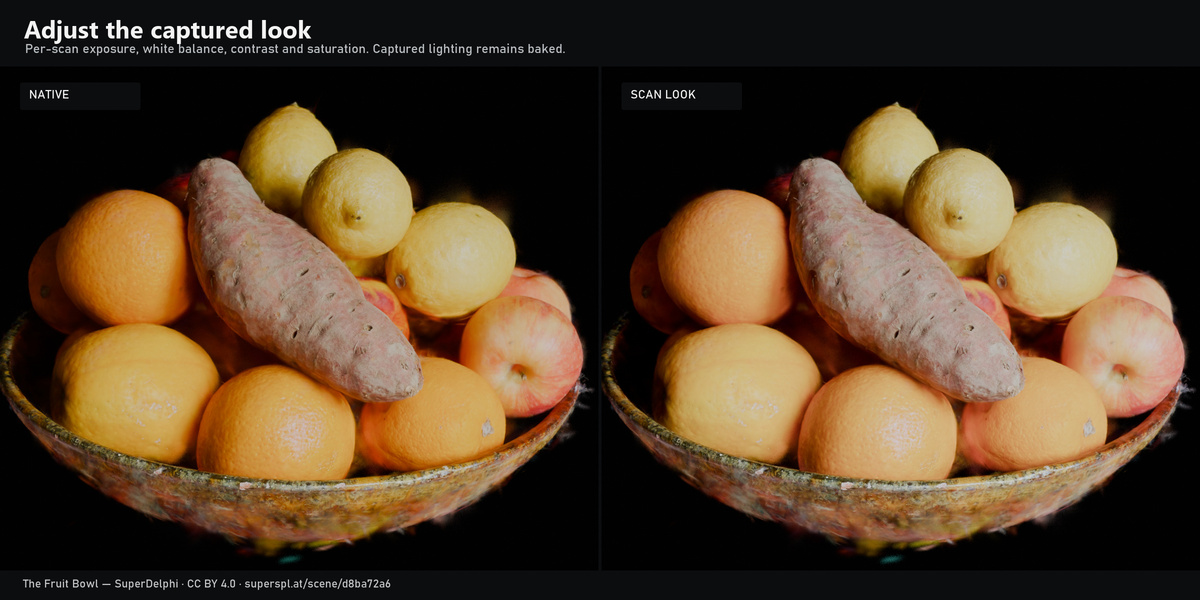
Look > Scan Appearance > Color Adjustments enables per-scan exposure in stops, approximate RGB white balance, tint, contrast and saturation. Neutral settings match the native radiance shader. Changes apply through evaluated material assignment; raw source material slots/point attributes and unrelated actor materials stay intact. Show Original Colors is a viewport comparison. Final renders retain the chosen look. Reset disables the look and returns to neutral controls. Captured illumination/shadows remain baked; color controls do not physically relight geometry.
ATMOSPHERE
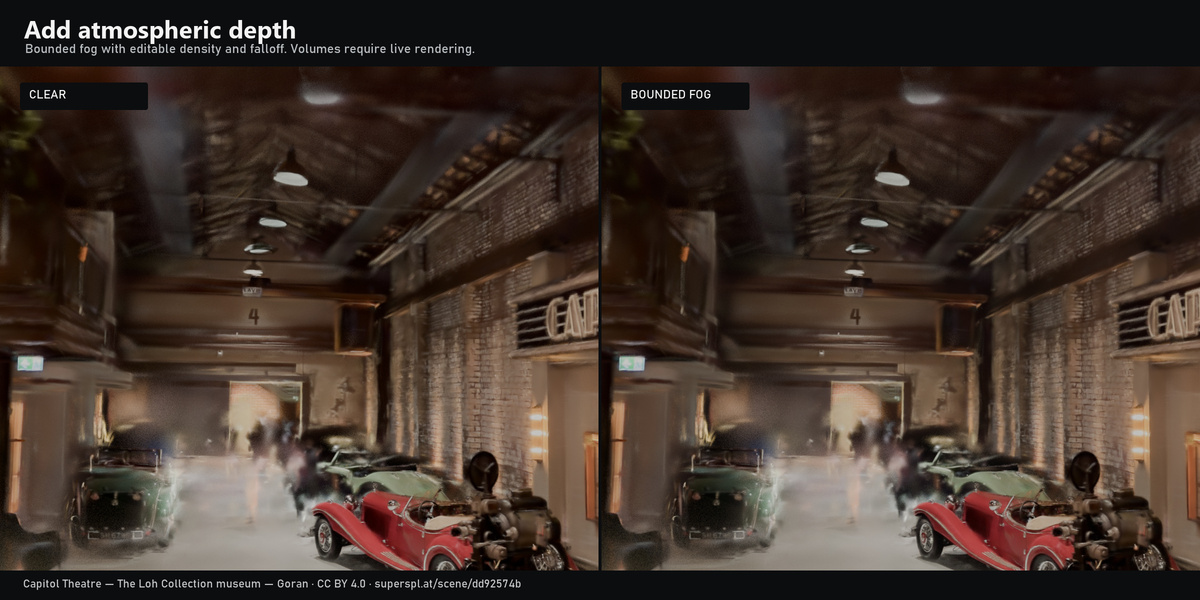
Look > Atmosphere > Bounded Fog adds a closed volume fitted to the current region. Haze, Ground and Shafts are editable presets. Density uses scene units, so verify scale. Height Falloff concentrates density near the local bottom; Edge Softness fades the volume's edges. Color and anisotropy control scattering. Edit Bounds selects the volume; G/R/S or Volume Dimensions changes its size. Fit Crop / Fit Scan refits explicitly. Slider changes preserve the edited bounds.
Sun Light adds an owned Sun with strength, azimuth and elevation controls. It lights ordinary objects and fog; captured splat shadows stay baked. Shafts need suitable blockers and camera/light angles; the preset does not guarantee visible beams. Remove Atmosphere deletes owned fog/Sun only. Existing user lights stay intact. Fog can add render cost. Visible volumes require live 3D rendering and disable plate caching/Shot Turbo.
CAMERA, QUALITY AND OUTPUT
Render > Camera & Render exposes the scene engine, quality profile, samples and camera. Camera from View creates/positions a camera from the current 3D view. Apply a Quick/Balanced/Final profile to change sample/volume/transparent-ray settings for the selected engine. Profiles do not reduce points, change output resolution or select a GPU. Restore returns the captured pre-profile settings. Select a render device in Blender as usual; only Windows EEVEE and Cycles CPU have been validated for this release.
Output contains width, height, scale, image format and output path. Render Frame starts Blender's normal F12 render. A Final profile is a starting point, not a noise-free guarantee.
BEFORE/AFTER PREVIEW
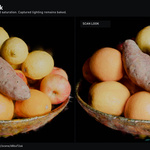
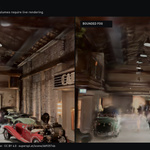
Preview Before / After renders a maximum 640 px comparison at 64 samples and 100% selected-scan density. Before temporarily disables the stage's look/fog/owned Sun; After restores them. Native Render Result slots retain both images and earlier slots. Before/After buttons open the relevant slot. Settings and paths are restored after completion/cancellation. Esc cancels between renders; an individual native render can briefly block. This is a look comparison, not a full-resolution speed benchmark.
SHOT CACHE — FIXED CAMERA
1. Finish scan/crop/look and choose a camera in the source scene. Disable visible volumes.
2. Expand Shot Cache; select Still Camera and choose a persistent folder. An empty folder uses temporary storage, which can be cleared by Blender/the OS.
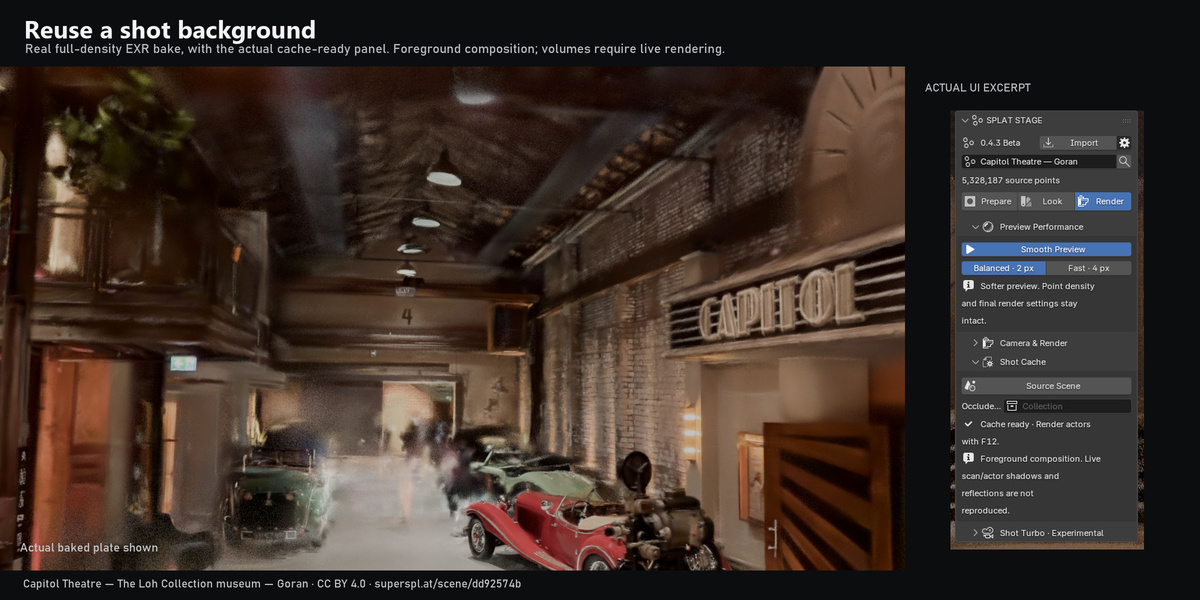
3. Click Bake Scan · 100%. Scan and world are baked at full density to scene-linear 32-bit EXR; editable actors are excluded from the plate.
4. Open Actor Scene. Linked actor objects remain editable. Render with F12. Return to Source Scene to change camera, crop, scan or look and rebake.
5. A background-heavy repeated shot can render faster after the initial bake. A cheap scan or expensive actors may gain little; bake cost and EXR storage are additional.
SHOT CACHE — MOVING CAMERA
Choose Moving Camera and Start/End. Each camera/frame is rendered once and produces its own plate/signature. Reuse those plates while revising foreground animation. This does not eliminate the first background render at every frame. Frames outside the baked range fall back to live rendering. Camera/crop/look/supported-setting changes or missing plates invalidate the affected cache and trigger the native path. Reverting settings can revalidate existing plates. Explicitly rebake after isolated raw-point edits from external scripts.
CACHE OCCLUSION AND LIMITS
The actor scene composites actors over a 2D background. It does not recreate live scan/actor shadows, reflections, translucent depth interaction, source compositor effects or depth/AOV passes. For furniture, prepare simple mesh occluders in a separate source collection and choose it under Occluders. Hide the source collection from rendering; leave individual mesh render visibility on. The addon creates owned holdout copies, retaining your source meshes/materials. These are approximate geometric occluders, not reconstructed splat geometry. Stereo, motion blur and custom source splat material slots are outside the plate workflow. Detected volumes require live rendering.
SHOT TURBO — EXPERIMENTAL
This secondary tool is disabled and collapsed by default. It conservatively culls out-of-camera splats for supported EEVEE shots while keeping in-frame density. Free orbit keeps the full scan. Cycles, depth of field, motion blur, stereo, scaled cameras, ray tracing and volumes bypass the tool. Offscreen shadows and sampling can change; inspect your output. Analyze and Speed Test are local, small-preview diagnostics with scene-linear error reporting. They do not guarantee a speedup or identical final image. Shot Turbo is not the main product claim.
REPAIR AND REMOVE
Options > Repair Controls reconnects owned controls; Stage Diagnostics inspects the stage. Remove Tools · Keep Scan removes addon-owned controls and modifiers while retaining the scan and unrelated objects. With a saved backup available, inspect the native scan afterwards. Removing the last stage restores the managed preview pixel size. Import Another Scan and Remove Missing Entries manage the stage list.
DEMO AND EVIDENCE
Install the addon, then open demo/synthetic-cafe.blend. The point cloud is embedded in the blend; the companion PLY is also supplied for re-import. Choose Blender orientation for that PLY. The environment and figure are original procedural fixtures, not a captured cafe or a rigged character. The saved scene has fog off and an editable crop/scan look. Turn on Show Uncropped to reveal outside debris; test cutouts, colors and bounded fog. It contains no external textures or baked cache files. F12 reproduces the demonstration composition.
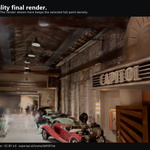
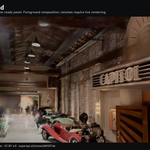
Evidence includes unretouched native renders, UI captures, test JSON and reproducible fixture scripts. Marketing layouts resize/place the actual captures with captions. They do not use AI-generated result images. Cache renders may differ from the live scene; the current actor test RMSE is reported rather than described as exact.
BETA COMPATIBILITY AND SUPPORT
This is 0.4.3 Beta, tested against Blender 5.3.0 Beta ace25df17a10 on Windows with RTX 4060 Ti. Native splat APIs and renderer behavior may change in later builds. macOS/Linux and future Blender builds are not validated. No bundled scan generator, trainer, reconstructed mesh or splat exporter. Quality and memory use depend on the capture and Blender.
Contact the creator using the marketplace purchase/support channel. Current storefronts are AS Formworks; product author is Glare Digital. Report version/build, engine, OS/GPU, reproduction steps and a small file you are permitted to share. Do not send private captures without permission. Code and original demo are GPL-3.0-or-later; see LICENSE.txt.
Have questions about this product?
Login to message
| Blender Extension Compatible | Yes |
| Published | about 11 hours ago |
| Blender Version | |
| Extension Type | Add-on |
| Render Engine Used | Cycles, Eevee |
| License | GPL |