SplatPilot
 Pilot Studio
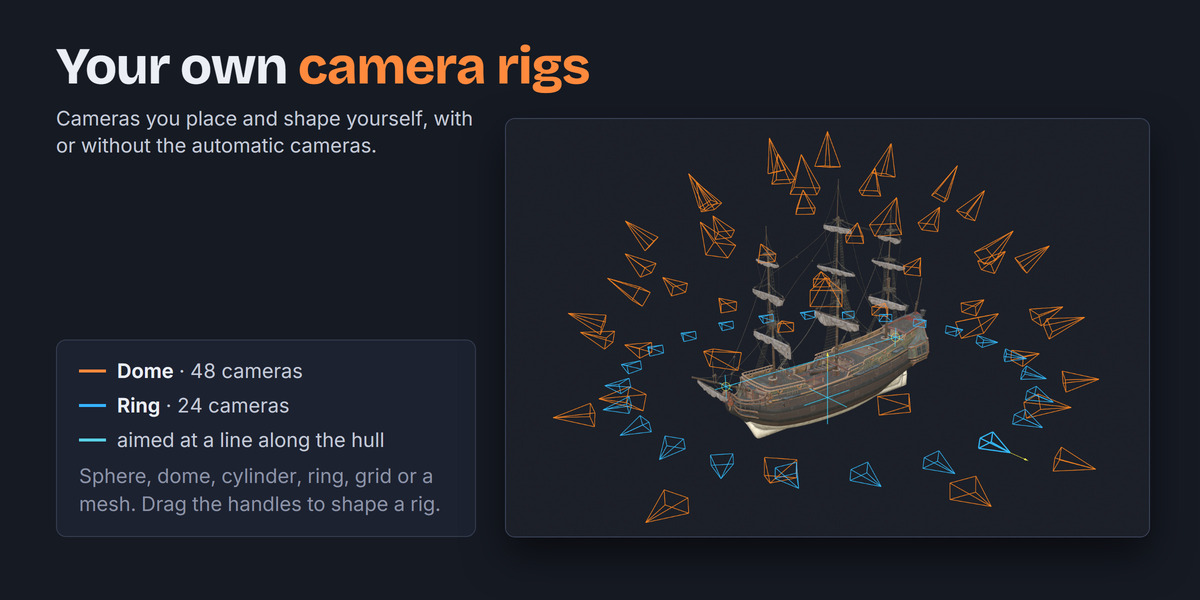
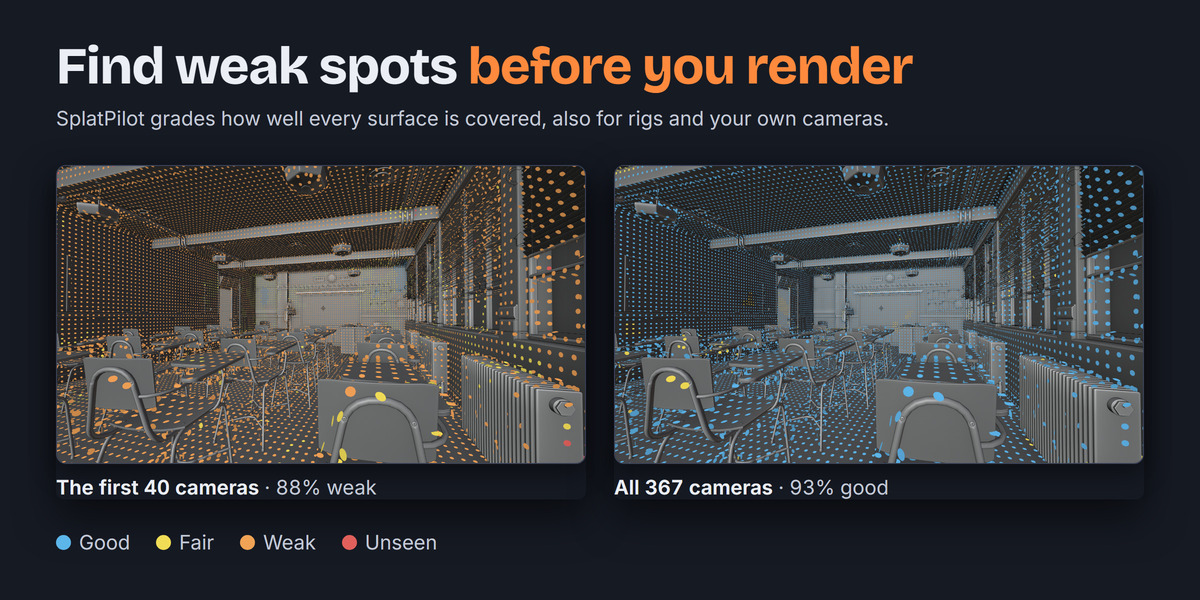
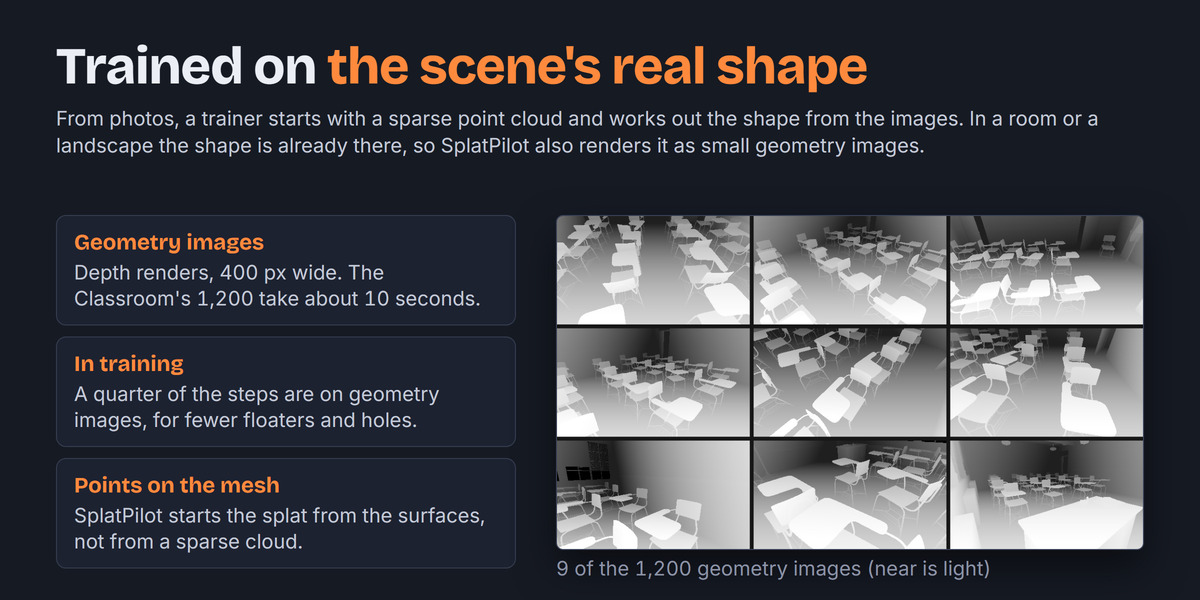
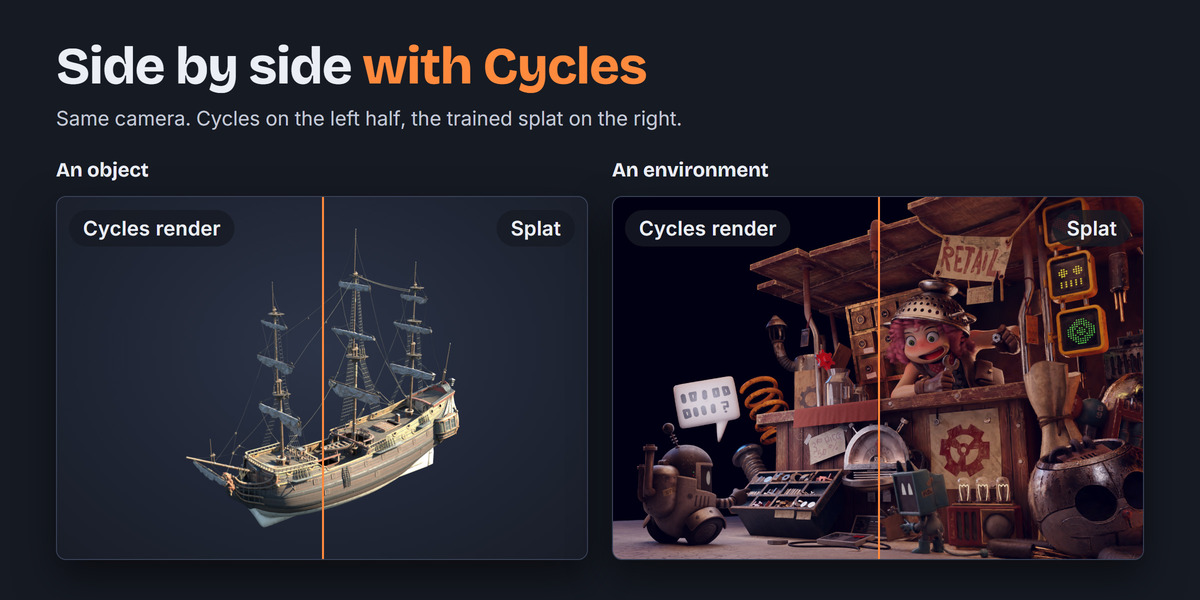
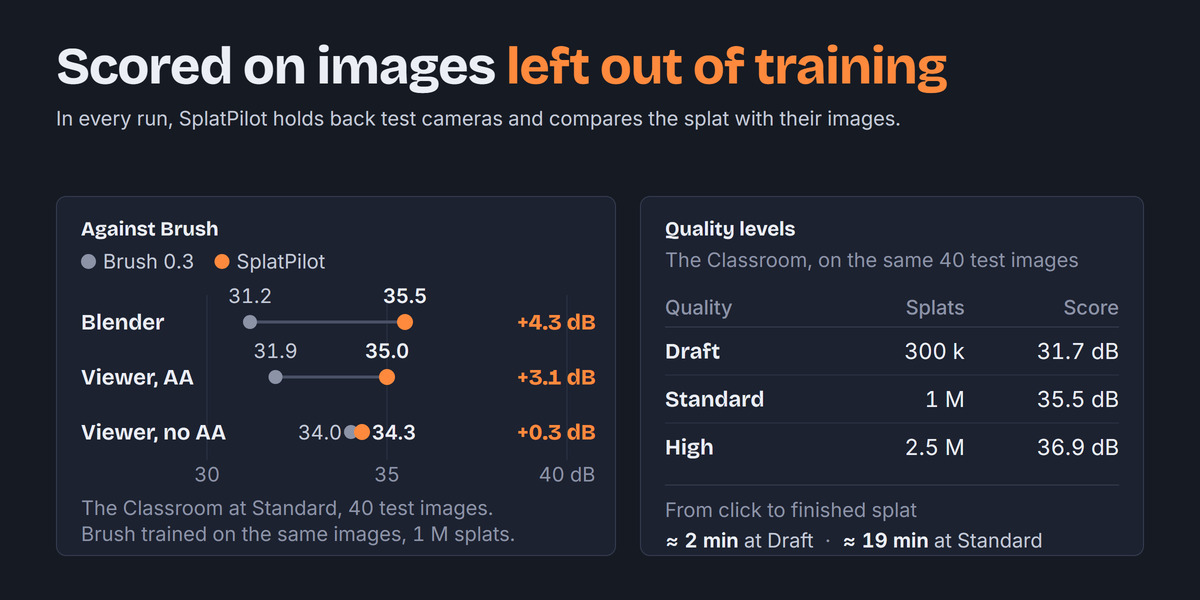
The full manual, with every setting, is at splatpilot.com.
Requirements
| Blender | 5.3 or newer |
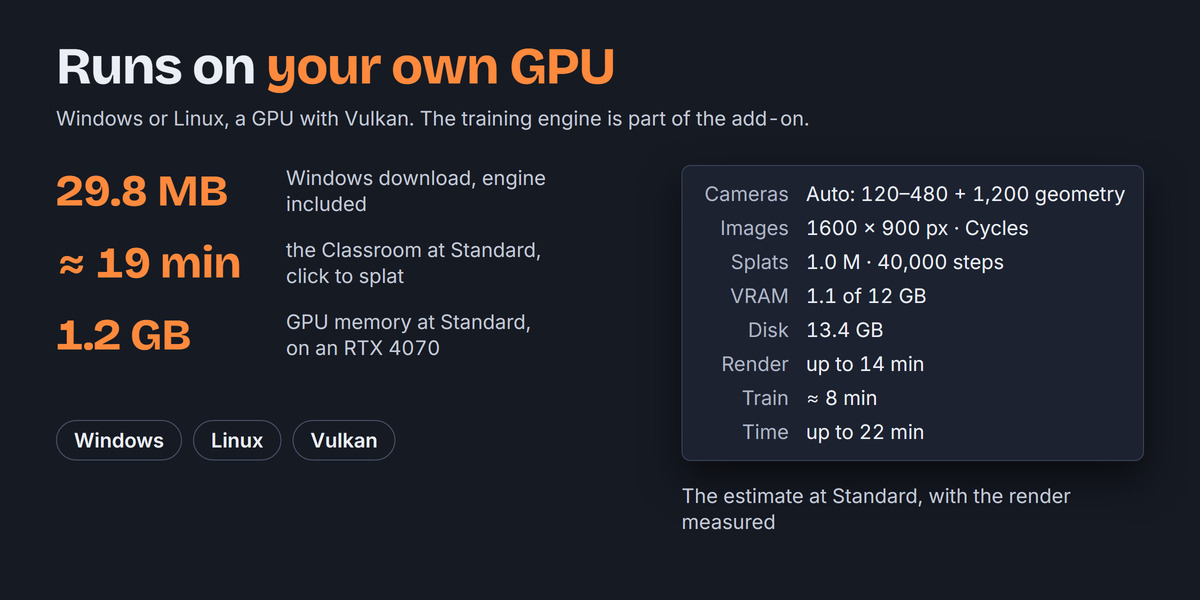
| System | Windows or Linux, 64-bit (Linux: glibc 2.34 or newer; ldd --version shows yours). Not macOS. |
| Graphics card | A GPU with Vulkan support and a current driver |
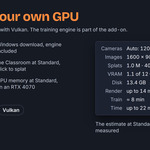
| GPU memory | About 1 GB at Standard, 3 GB at High |
| Disk space | About 8 GB for an object at Standard with Cycles, 26 GB for the Classroom at High. EEVEE needs about a third. |
Install
splatpilot-…-windows_x64.zip or splatpilot-…-linux_x64.zip. Keep it zipped.Update or remove
To update, install the newer zip the same way. To remove SplatPilot, open its menu in Get Extensions and choose Uninstall. Splats you made stay in your .blend files.
Your first splat
A room or a landscape
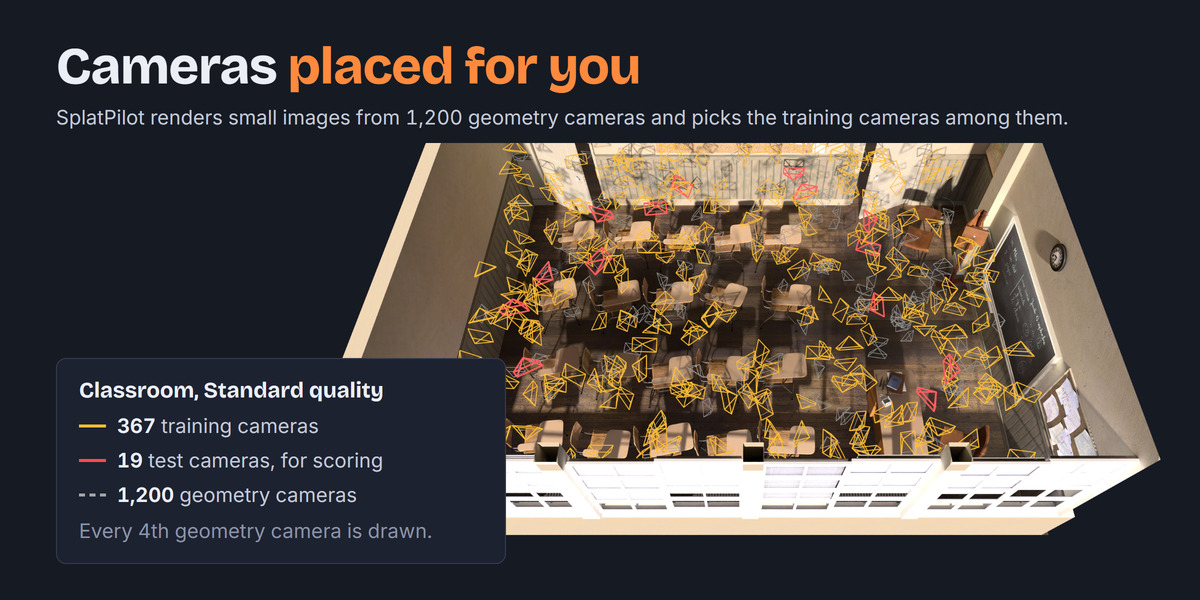
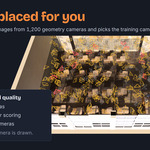
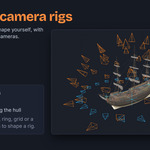
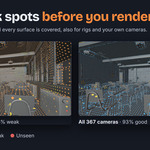
Set Subject to Scene and Kind to Indoor for a room or a house, or Outdoor for a street, a site or a landscape. To see the cameras before rendering, click Cameras under Create Splat. SplatPilot places the cameras by the surfaces and shows them in the viewport. To see what the cameras miss, click Map in Coverage, at the bottom of the Cameras panel. Then click Create Splat.
The panels
| Panel | What you find there |
|---|---|
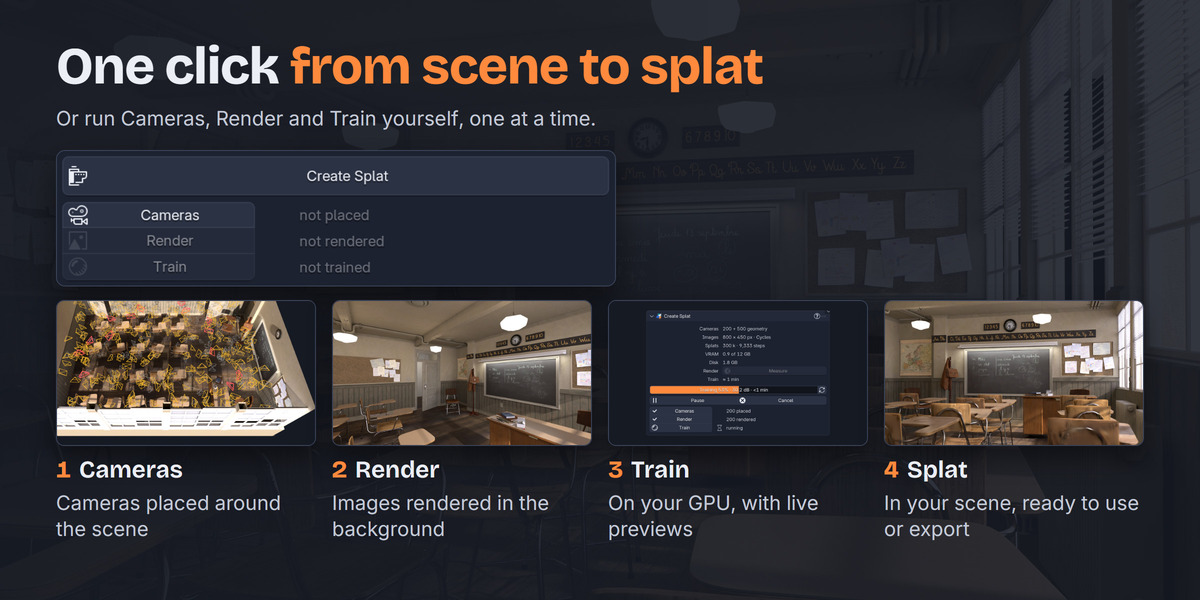
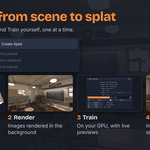
| Create Splat | The estimate and Create Splat. Below the button, the steps Cameras, Render and Train, each with its result. During a run, the progress with Pause and Cancel. |
| Setup | Subject (Object, Collection or Scene), Kind (Indoor, Outdoor or Object), Quality (Draft, Standard, High or your presets) |
| Cameras | Automatic, Rigs and Collections, each turned on in its header. You can use all three together. Also Count, focus points and Look Through. At the bottom, Coverage with the coverage map and its problem areas |
| Rendering | Engine, Samples, Image Size, Subject Only, Min Roughness, Sky Dome |
| Training | Made For, Steps and Max Splats. With Advanced Settings also SH Degree, Opaque Splats, Start Detail, Focus Detail and Preview Every |
| Results | Your splats with their scores, Improve… and Export…. Each splat's menu has Train Again, Use This Splat's Settings, Export Training Dataset, Mark as Asset and Open Run Folder. |
| Storage | The disk space of rendered images, training runs and splats, and Clean Up… |
Qualities
| Quality | Cameras | Splats | Steps |
|---|---|---|---|
| Draft | 100 800 px, 32 samples |
300 k | 7,000 |
| Standard the default |
240 1600 px, 64 samples |
1 M | 30,000 |
| High | 400 2048 px, 128 samples |
2.5 M | 30,000 |
Indoors and outdoors, SplatPilot places as many cameras as the space needs, from half to twice these. SplatPilot also renders geometry cameras there and trains a third more steps for them. At High, SplatPilot renders objects at 1600 px. You can change every number in the panels and keep your own with Save as Preset….
Make a splat better
Click Improve… in Results to train a splat further from where training stopped. With Add Cameras, on by default, SplatPilot renders more images and trains on all of them. Raise More Steps to train longer. Tick Keep the Current Splat to train into a new splat, so you can compare the two.
Export
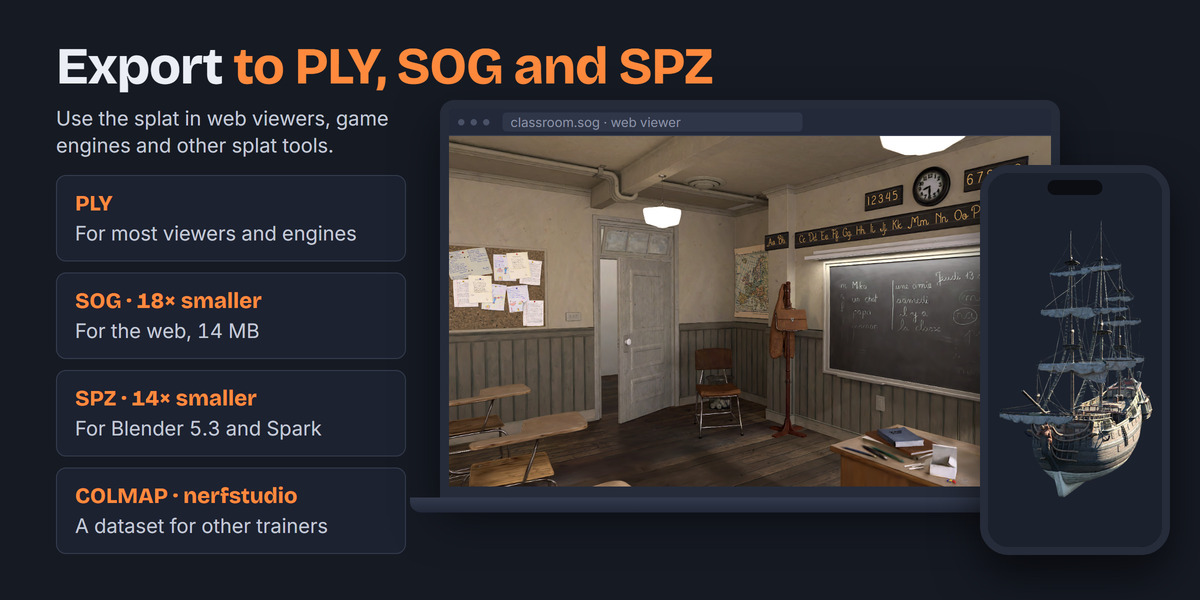
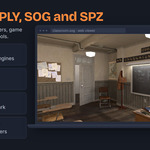
Click Export… in Results, or use File > Export > Gaussian Splat (.ply/.sog/.spz) for the active splat. SplatPilot saves the splat as it sits in the scene.
| Format | For |
|---|---|
| PLY | Most splat viewers, editors and engines Options: up axis, SH degree 0 to 3, sky dome |
| SOG | Web viewers such as SuperSplat and PlayCanvas. About 15 times smaller than PLY. A million splats take about 20 seconds to export. Options: SH degree, sky dome |
| SPZ | Spark, Octane and Blender 5.3's own importer. About 14 times smaller than PLY. A million splats take a few seconds to export. Options: SH degree, sky dome |
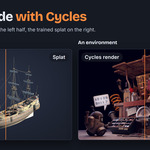
With Colours at For Viewers, the default, SplatPilot bakes your file's view transform, look, exposure, curves and white balance into the colours. The compositing that changes each pixel's colour on its own is baked in too. Glare, blurs and other screen effects are left out, and SplatPilot names the ones your file uses in the export options. The splat then looks the same in SuperSplat, PlayCanvas and game engines as in Blender. Pick As in Blender to keep the colours as trained, for a viewer's own tone mapping. Where a viewer has antialiasing for splats, turn it on.
To train in another program, choose File > Export > Splat Training Dataset (COLMAP/nerfstudio). SplatPilot exports the images rendered last for Postshot, LichtFeld Studio, GraphDECO 3DGS, OpenSplat or nerfstudio. You can export the images without the training engine.
Files and disk space
SplatPilot saves rendered images and training runs in a splatpilot folder beside your .blend file. To keep them elsewhere, set Storage Folder in the preferences. In a Blender Project, SplatPilot uses a splatpilot folder in the project's folder instead. You see how much space each takes in the Storage panel. Click Clean Up… to delete the training runs that belong to no splat in the file. With Rendered Images ticked, SplatPilot deletes the unused images too. The splats themselves are saved in the .blend file, and 2.5 million splats add about 600 MB.
When a message comes up
| Message | What to do |
|---|---|
| No object | Pick the object in the Object field in Setup. |
| … has nothing that renders | Pick an object or collection that renders, or change Subject. Cameras, lights and empties do not render, but an empty's children can. |
| The working space is …: SplatPilot needs Linear Rec.709 | In Render Properties, set Color Management > Working Space > File to Linear Rec.709. |
| Only … of … cameras found | The subject leaves little room for cameras. Choose a smaller subject or the other kind. |
| … renders differently from the viewport | SplatPilot leaves out cameras inside the object or right against it. To keep those cameras, make the object look the same in the viewport as in a render. |
| Cameras, Render or Train is red | The step was run with other settings. Click the red step to run it again with the current ones. |
| Over the … GB VRAM limit | Click Use … Splats under the warning, or lower the camera Count or the image size. |
| Training failed: not enough memory (GPU or system) | Close other programs, or lower Max Splats, the camera Count or the image size. Then click Resume to go on from the last checkpoint. |
| Not enough disk space | Free space on the drive, for example with Clean Up… in the Storage panel. |
More help
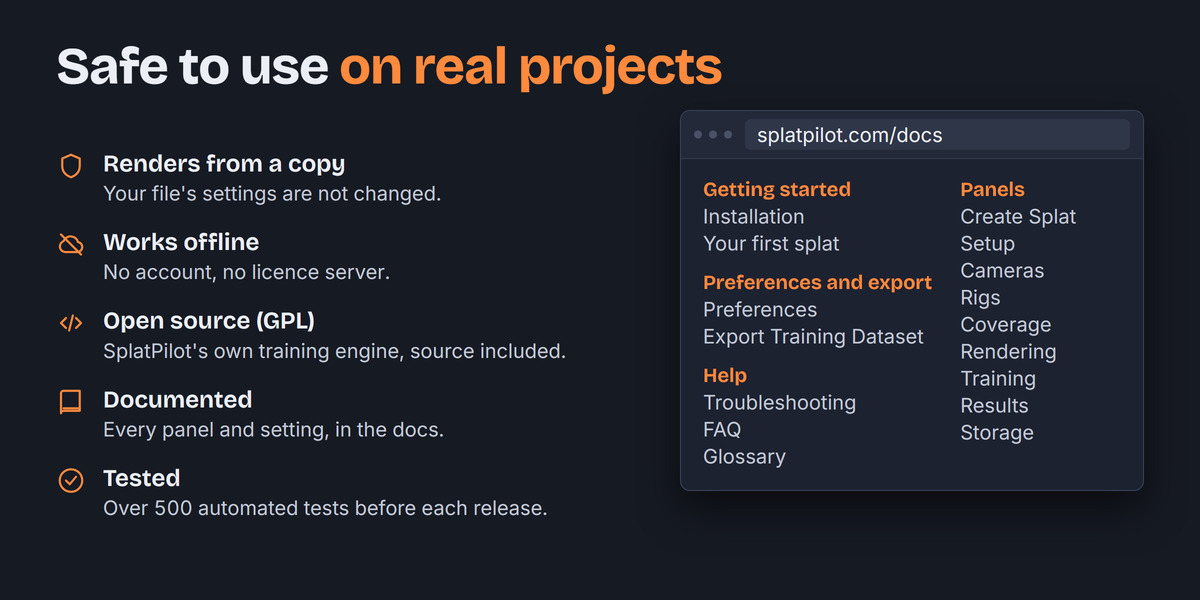
At splatpilot.com you find every panel and setting, and pages on rigs, shiny surfaces, Blender Projects and more messages. Send questions and bug reports to [email protected].
Have questions about this product?
Login to message
| Blender Extension Compatible | Yes |
| Dev Fund Contributor | |
| Published | about 16 hours ago |
| Blender Version | |
| Extension Type | Add-on |
| Render Engine Used | Cycles, Eevee |
| License | GPL |
Discover more products like this
vr ply gaussian splatting splats gaussian splats sog colmap Radiance Field ArchViz 3dgs web real-time