Spring Physics
 Mergim Sahiti
Spring Physics – Documentation
1. Introduction
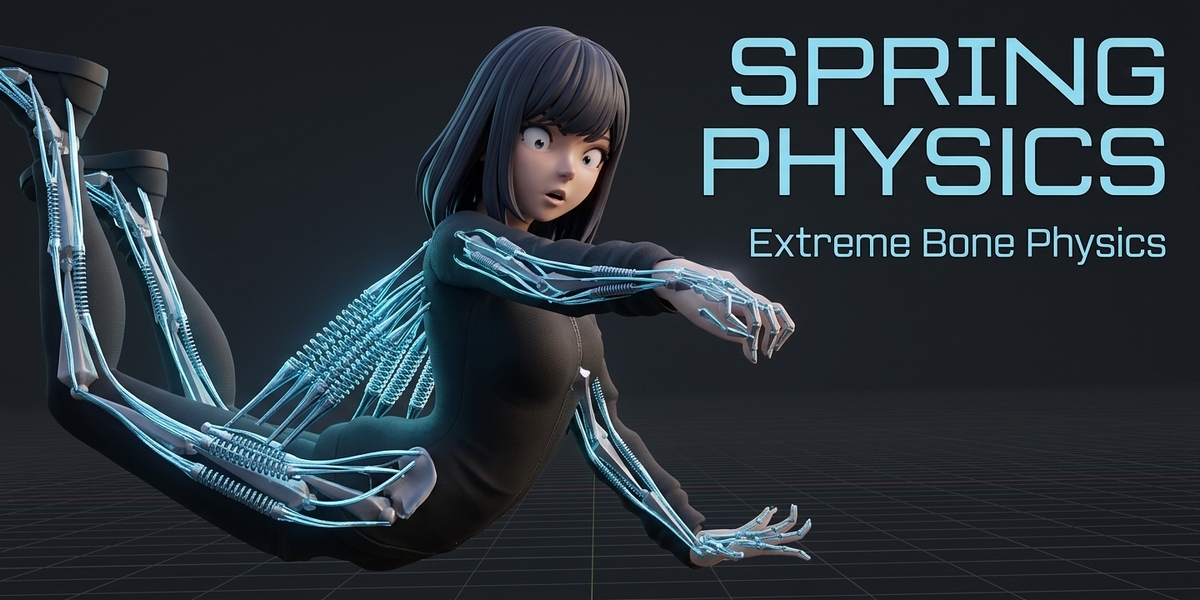
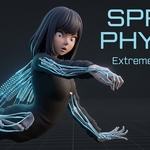
Spring Physics is a Blender add-on that helps you create and manage multi-bone chains using Damped Track constraints and adjustable physics-style parameters.
It is designed for secondary animation elements such as character tails, ears, tentacles, and other connected bone structures.
The add-on provides a dedicated interface where you can create chains, manage individual bones, apply presets, and adjust their settings.
2. Installation
Download the Spring Physics add-on
.pyfile.Open Blender.
Navigate to Edit → Preferences → Get Extensions or the add-on installation interface available in your Blender version.
Install the downloaded add-on file.
Enable Spring Physics.
Open the 3D Viewport and press N to open the sidebar.
Find the Spring Physics tab.
3. Preparing Your Armature
Before creating a chain:
Select your armature.
Enter Pose Mode.
Make sure your bones form a connected hierarchy.
Select the bones you want to include in the chain.
Make the starting bone the active bone.
Important:
Main Bone is the starting bone and must be active.
First Bone is the ending bone.
The chain must contain at least three bones.
The add-on follows the first child in the bone hierarchy when building the chain.
4. Creating a Bone Chain
Open the Modern Rig tab in the 3D Viewport sidebar.
Locate the Chain Physics & Collision panel.
Set the Default Influence value.
Select the Main Bone and First Bone as described above.
Click Create Damped Chain.
The add-on will create Damped Track constraints for the intermediate bones and add them to the chain list.
The starting and ending bones are treated as chain endpoints.
5. Chain Settings
Each bone in the chain has individual settings.
Influence
Controls the influence of the Damped Track constraint.
Head / Tail
Provides a stored head/tail setting in the interface. The current Damped Track implementation may not expose this property, depending on the Blender constraint API.
Track Axis
Determines the tracking direction used by the Damped Track constraint.
Available options:
X
Y
Z
-X
-Y
-Z
6. Physics Parameters
Bounciness
A configurable parameter included in the bone settings and presets.
Speed
Multiplies the bone's Influence value when updating the constraint.
Gravity
Applies a basic vertical location adjustment to the bone.
Stretch
Adjusts the bone's scale to create a stretching-style effect.
Squash
Adjusts the bone's scale to create a squash-style effect.
7. Physics Presets
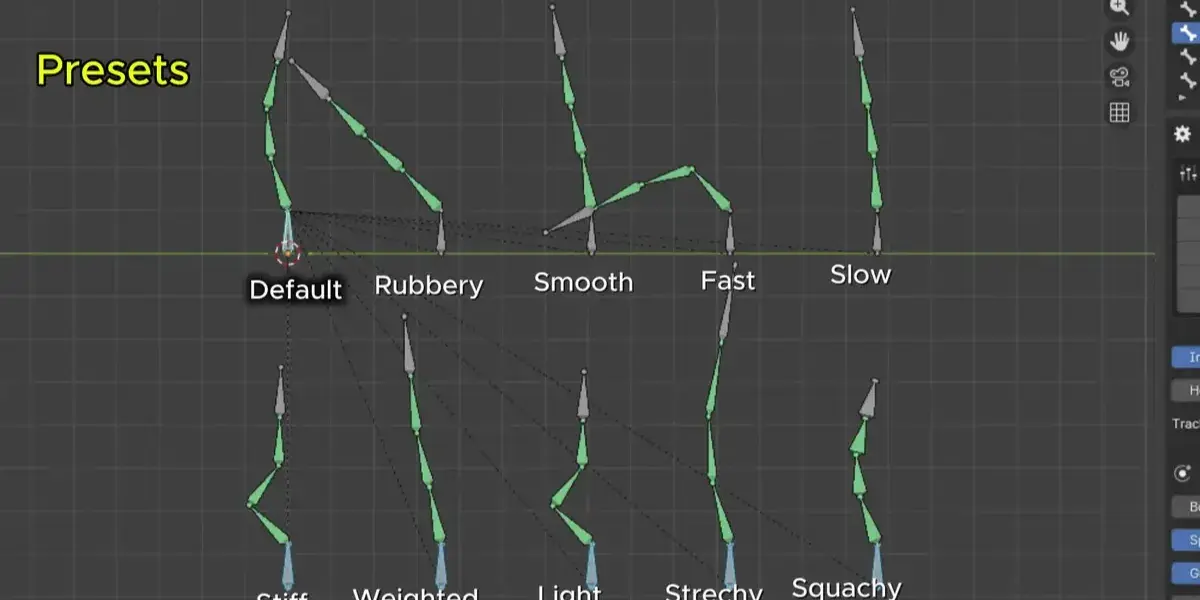
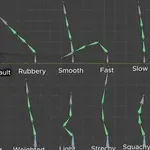
Spring Physics includes several presets to help you quickly configure your chain.
| Preset | Description |
|---|---|
| Default | General starting settings |
| Rubbery | Higher bounciness and stretch/squash values |
| Smooth | Lower influence and softer settings |
| Fast | Higher speed settings |
| Slow | Lower speed settings |
| Stiff | High influence and speed with no bounce |
| Weighted | Increased gravity and stretch |
| Light | Lightweight-style settings |
| Stretchy | Increased stretch |
| Squashy | Increased squash |
To apply a preset, click its button in the Physics Presets section. The selected preset is applied to all bones in the current list.
8. Collision Object
Spring Physics provides a basic collision-object assignment option.
Select a mesh object using the Collision Object field.
Create your bone chain.
Adjust the chain settings.
Click Update Constraints & Physics.
The add-on uses a simplified distance-based calculation to adjust bone positions around the assigned object's center.
Note: This is a basic collision approximation, not a full mesh collision or physics simulation system.
9. Updating Settings
After changing the settings of individual bones or applying a preset, click:
UPDATE CONSTRAINTS & PHYSICS
This applies the available constraint and transform adjustments to the bones in the list.
10. Managing the Bone List
The chain editor displays all bones currently included in the chain.
Select a bone to edit its individual settings.
Use the Clear List button to remove all bones from the editor list.
Create another chain using the chain creation workflow.
11. Requirements
Blender 5.0 or later.
An armature with a connected bone hierarchy.
Basic knowledge of Blender Pose Mode and armature selection.
Have questions about this product?
Login to message
| Published | about 6 hours ago |
| Blender Version | 4.0 - 5.0 |
| Extension Type | N/A |
| Render Engine Used | Cycles, Eevee |
| License | GPL |
