 Loops3D
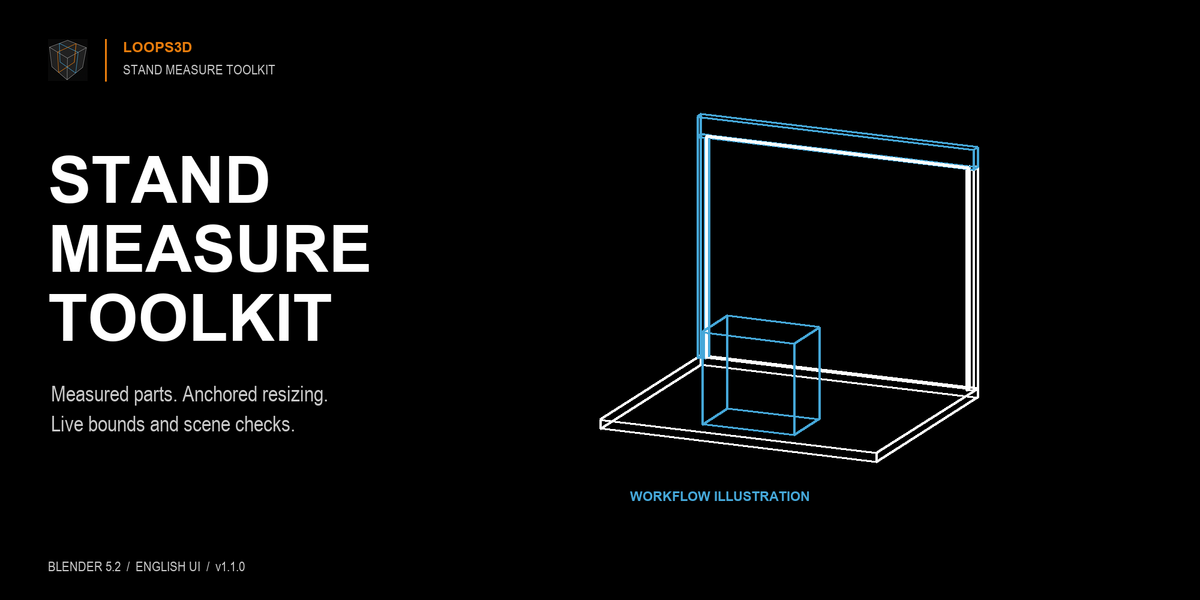
Stand Measure Toolkit 1.1.0
By Loops3D. Tested with Blender 5.2.0 LTS on Windows. English interface.
INSTALL
In Blender Preferences, open Add-ons, choose Install from Disk, select StandMeasureToolkit_v1.1.0.zip, and enable Stand Measure Toolkit. Do not enable two copies of the module. Open the 3D View sidebar with N and select Measure.
UNITS
Use Set scene to meters before creating or resizing parts. It sets Metric, Meters and unit scale 1. It changes unit settings, not existing geometry size. The meters/millimeters readouts account for the scene's unit scale; creation and resize require Metric with unit scale 1.
SELECTION BOUNDS AND LIVE DIMENSIONS
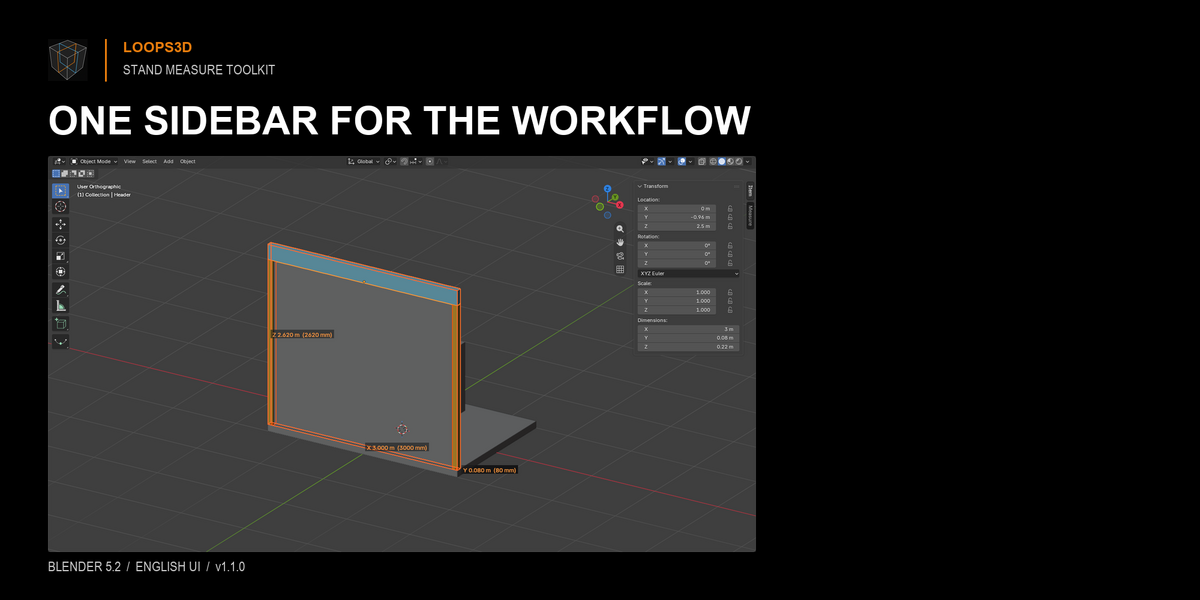
Select objects to read the world-axis-aligned bounding box. Enable Live dimensions to draw bounds in the viewport. In mesh Edit Mode the tool reads selected vertices from the editable mesh. Whole part and Adjacent spans add context to the selection, including distances around a selected cut. The high-density fallback above 120,000 vertices uses cached object bounds; it is not a guarantee of live edit-mode precision. Drawings are viewport overlays, not persistent annotations or rendered dimensions.
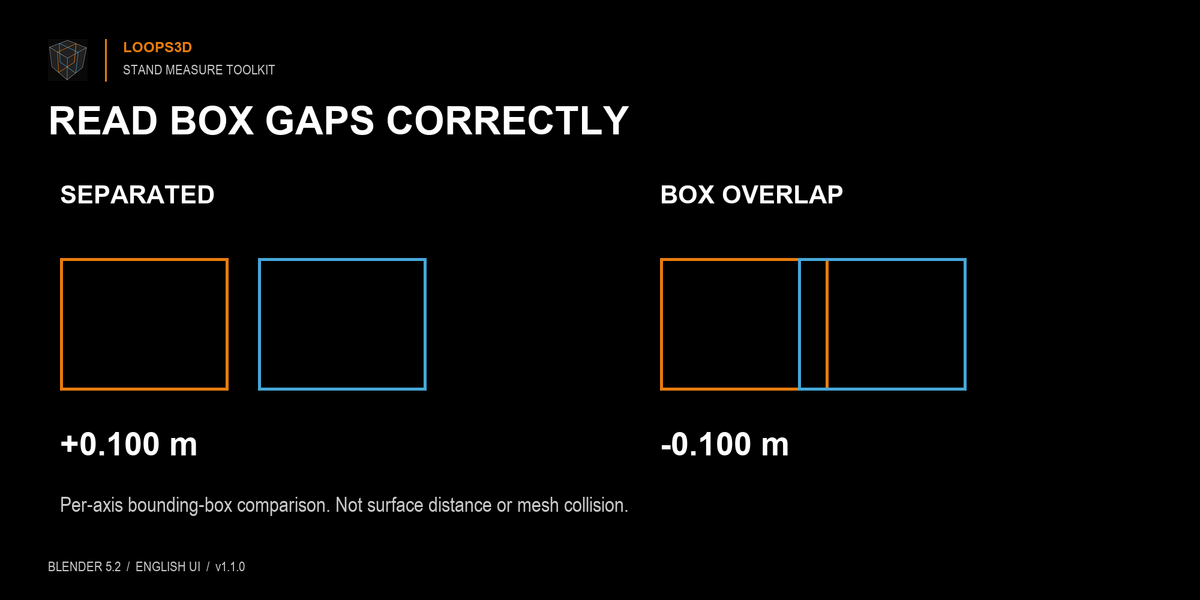
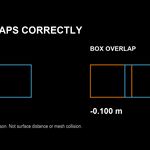
With two objects selected, World bounding-box gap / overlap shows a signed value per axis: positive means boxes separated; negative means boxes overlap on that axis. This is not minimum distance between surfaces or a collision test. Rotated, concave or hollow geometry can have overlapping bounds without a mesh intersection. Zero separation on one axis does not prove surface contact.
CREATE MEASURED PARTS
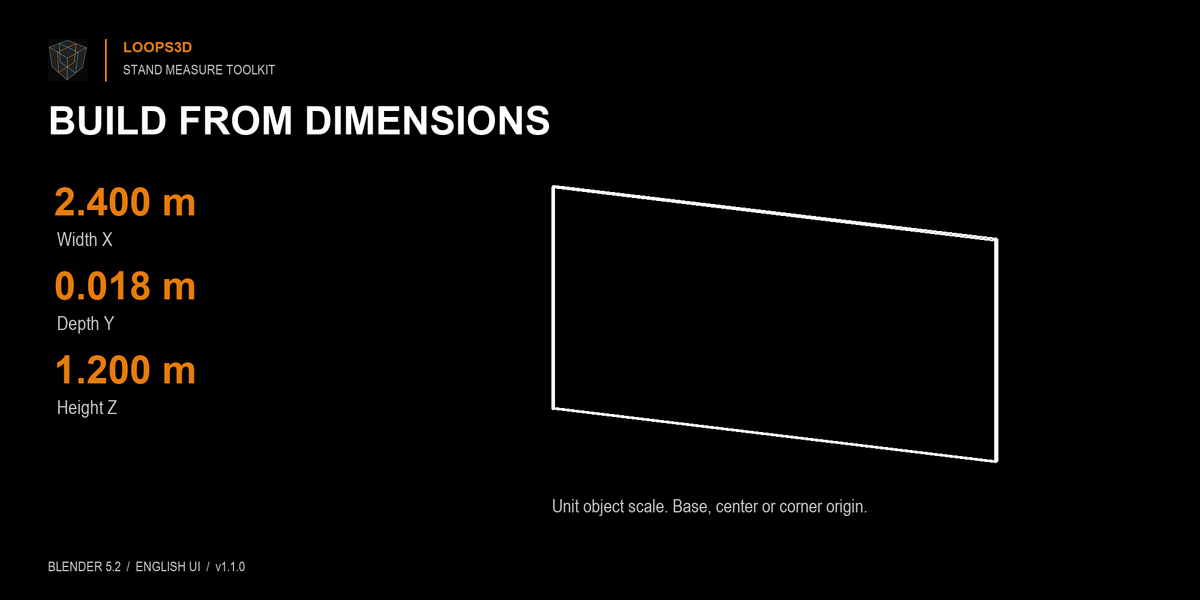
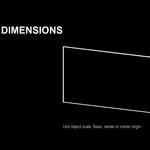
Choose Box or Cylinder, enter X/Y/Z dimensions and an origin, then Create measured part. The new mesh is placed at the 3D cursor with unit object scale. Base origin is horizontally centered at the bottom; Center is at the middle; Corner is at the lower corner of the part's bounding box. Cylinder X/Y are diameters; different values produce an elliptical solid. It is not a hollow tube. Segment counts are rounded to a multiple of four to preserve diameters.
RESIZE MESH GEOMETRY
Choose World or Local explicitly, select the axis, target dimension, anchor and optional Uniform resize. The operation edits independent mesh data and leaves object transforms and origins unchanged. If objects share a mesh, selected copies become single-user; unselected instances retain their data. This differs from Blender Transform Scale.
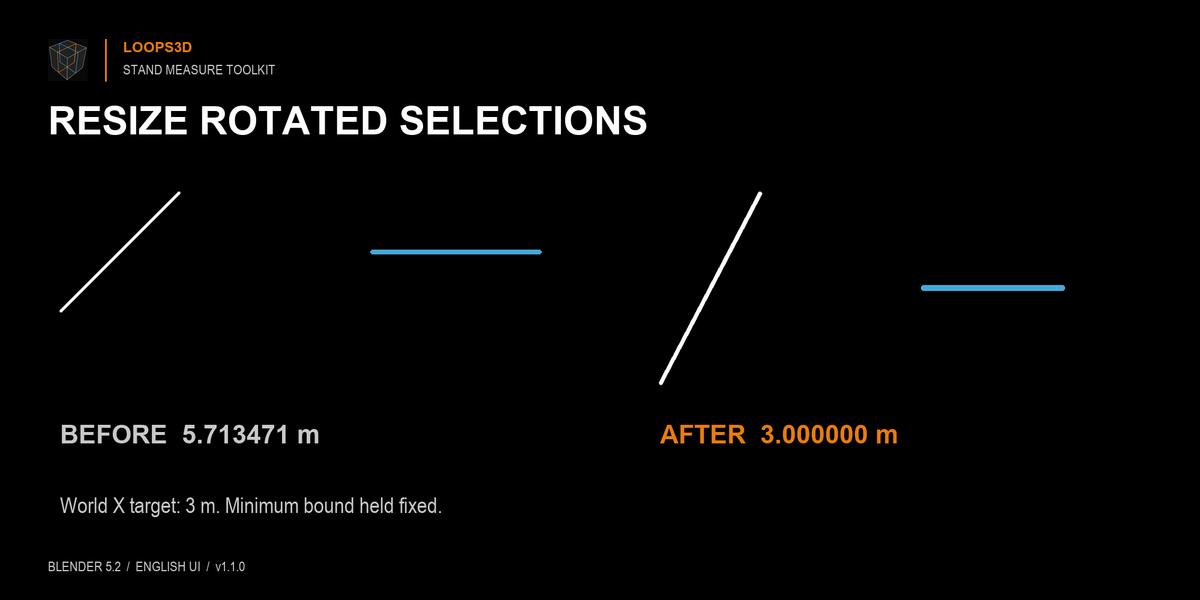
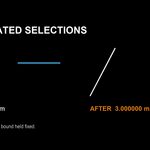
World: the combined world bounding box reaches the target dimension. Supports rotated meshes, scaled/rotated parents and parent/child selections. Minimum/Maximum keeps the selected world bound fixed. Center keeps the bounding-box center fixed. Uniform resize changes all three axes about the anchor and center of the other axes.
Local: select one mesh. The target is measured along its own axis, including world length of that axis under parent scaling. Anchor refers to that local bound. For a skewed parent transform this is an axial extent, not a perpendicular wall-thickness measurement. Use World for groups.
The operation prepares and checks all replacement meshes before committing. It rejects active viewport modifiers, shape keys, constraints, object animation, library-linked data and singular transforms. Use a plain mesh copy for these cases; the tool does not automatically apply or delete modifiers. Blender Undo restores a completed resize. Single-axis world resizing can change face angles on a rotated part. Use Local or Uniform resize to keep proportions. Pre-existing object scale remains unchanged; Apply object scale is separate. The numeric acceptance threshold is max(0.00001 m, target * 0.000001), not a manufacturing tolerance certification. Very large coordinates may be rejected by the precision check.
SCENE CHECKS
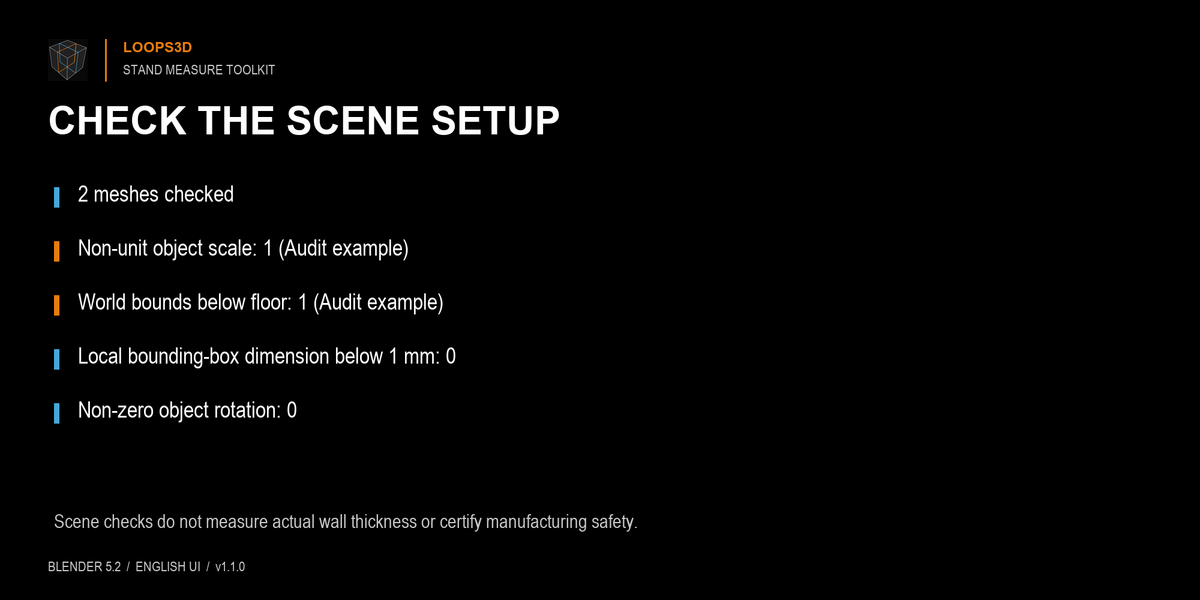
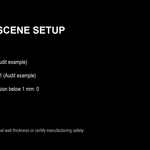
The audit reports scene units, non-unit object scales, world bounds below the floor, object-local bounding-box dimensions below 1 mm and non-zero rotations. It does not certify geometry, measure actual wall thickness, check structural strength, detect all collisions or validate shop drawings. Non-zero rotation is informational and does not automatically mean a part is wrong. Measure two vertices works in mesh Edit Mode and reports world-space distance and per-axis differences. Apply object scale requires mesh-only selection and rejects shared mesh data; it does not apply rotation or location.
TROUBLESHOOTING
Resize canceled: read the error; use a local plain mesh and correct units. If a single rotated part changes width differently than expected, choose World or Local explicitly. A negative box gap does not mean surfaces touch; inspect actual surfaces. If live dimensions are off after reopening, toggle Live dimensions off/on. For dense edit meshes, reduce geometry for measurements or inspect the base mesh.
SUPPORT AND CHANGES
Contact Loops3D through Superhive's Contact Creator. Include Blender version, steps, expected/actual dimension and a minimal non-confidential test file.
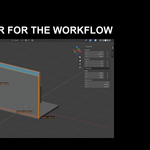
1.1.0 fixes parent-scaled anchoring and rotated group dimensions; adds explicit World/Local resize, single-user mesh preparation, signed bounding-box wording, honest audit labels, English UI and unit-aware meters/millimeters readouts. StandMeasureToolkit_Demo.blend, downloaded next to this add-on, uses synthetic geometry. Screens and diagrams illustrate this workflow, not third-party client projects.
Copyright 2026 Loops3D. SPDX-License-Identifier: GPL-3.0-or-later. License text: https://www.gnu.org/licenses/gpl-3.0.html
Have questions about this product?
Login to message
| Published | about 16 hours ago |
| Blender Version | 5.2 |
| Extension Type | N/A |
| License | GPL |
Discover more products like this
units dimensions precision modeling stand design measurement bounding box scene audit