Stop-Motion Advanced Toolkit
 aflatsprite


Video Overview:
https://youtu.be/43sJKjY8-No?si=dY7KCAE5vzHm3jVQ
Welcome to the Advanced Stop-Motion Toolkit!
Thank you for your support!
Below is a quick overview:
Installation:
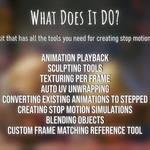
Stop-Motion (Advanced) Toolkit Panel
You can also access a quick text overview using the info button at the top of the panel.
Options:
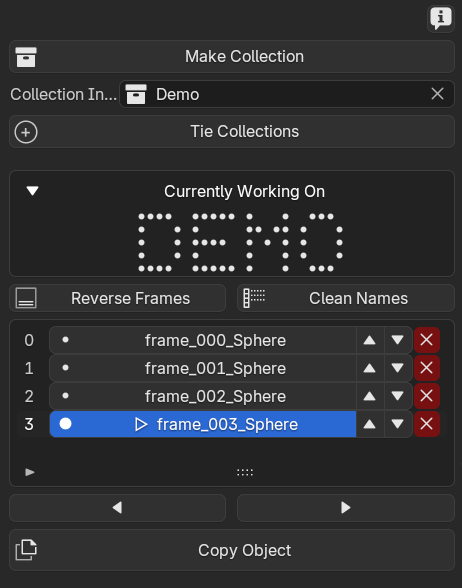
1. Select an object and click 'Make Collection' to create a new animation collection.
2. Select an existing collection from Current Collection:
• Click 'Use Collection' to make it active.
• ⚠️ Warning: This will rename the objects for correct indexing.
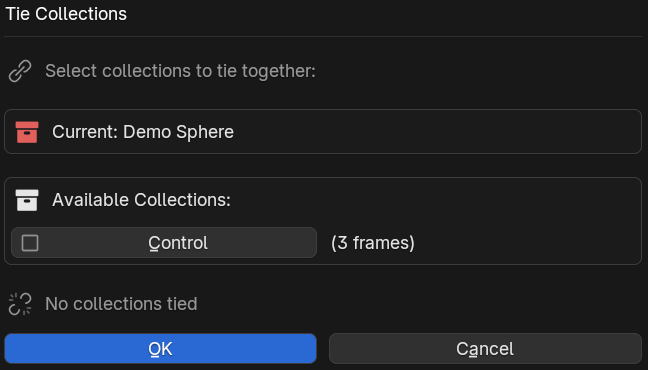
3. Tie Collections — link multiple collections to synchronize their frames.
Handy for managing multiple animations at once.
From the newly appeared panel just select other collections you would like to "tie" to the currect one.
4. Within the list area: Select, use arrow buttons to move the object(frame) in the hierarchy, or delete objects using X symbol from the list. Their order updates automatically.
Use horizontal arrows below the list to select previous or next frame. Use 'Copy Object' to create a clean duplicate.
5. Click 'Reverse' to reverse the order of the frames.
6. 'Clean Names' will remove the .001 type suffixes in case you duplicated the objects using "Shift-D".
Animation Tools Sub-Panel
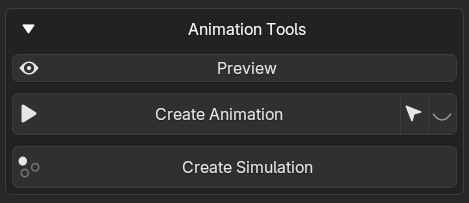
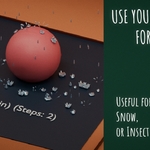
• Preview — generates a temporary object to play the animation from the collection. Click on it and move it using gizmos. You can access
playback options in the modifier panel.
Preview object will be deleted when "Preview" is pressed again
• Create Animation — generates an animation object in its own collection.
All animation settings (stepped interpolation, playback type, etc.) are
adjustable in the Modifier Panel.
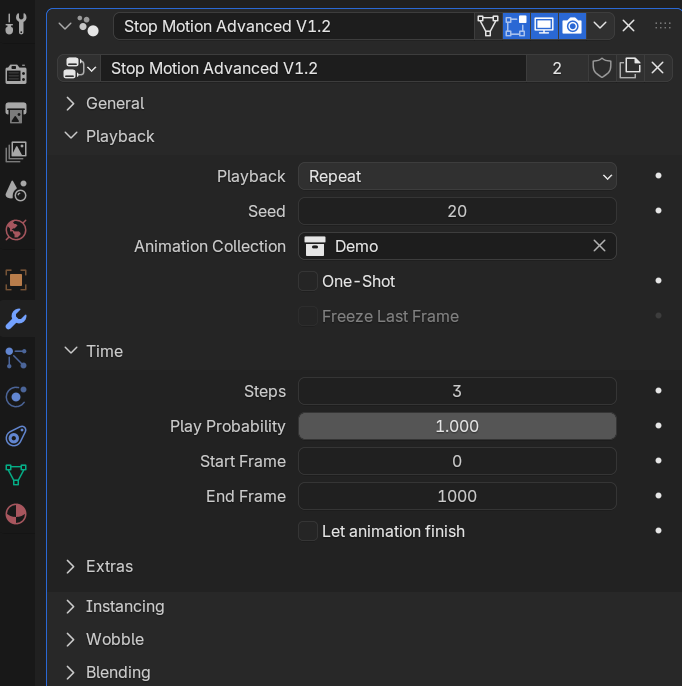
• Create Simulation — generates a simulation object in its own collection.
Animation and simulation settings (stepped interpolation, velocity, playback type, etc.)
are also found in the Modifier Panel.
UV Unwrap Sub-Panel
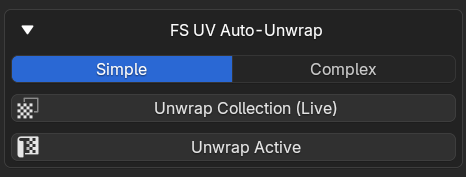
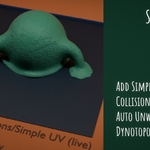
Automatically unwrap meshes:
• Use Simple or Complex unwrap for either the current object or a
live-updating modifier for the entire collection.
Great for a Dynotopo workflow (see Dynotopo Helper below for more tips).
Onion Skinning Panel
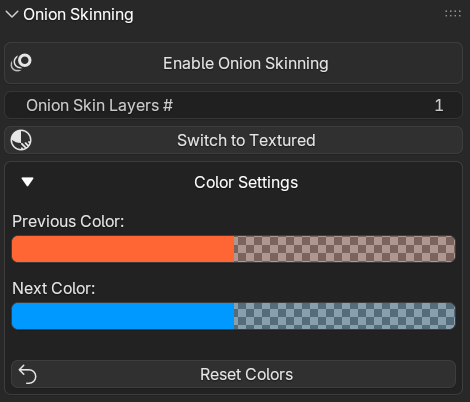
• Enable or disable onion skinning.
• Two modes: Object (Classic) or Texture (for previewing textures).
• Control tint colors and opacity in the Color Settings dropdown.
Contextual Tools Panel
Depending on context, you'll see either:
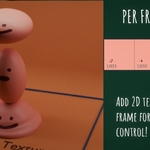
1. Texturing Panel
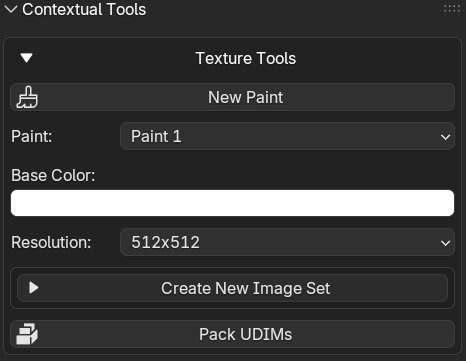
• Add a new paint tile for the current object. Choose base color and resolution.
• Each object can have its own unique texture paint.
• Switch between paints later using the Paint Selection Dropdown.
• Create new paint sets.
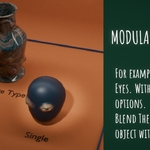
2. Blending Panel
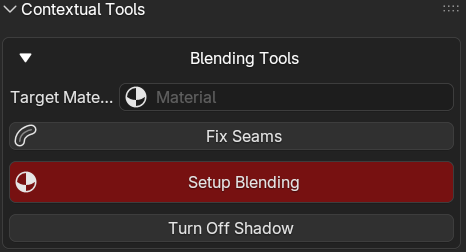
• If Blending is enabled for an animation object (found in the "Blending" section in the modifier), this panel appears.
• Select the target material and click 'Setup Blending'
(Make sure the Shader Editor is open.)
• All blending controls appear in the Shader Editor within the 'Mixing Mask' node.
• Fix Seams — repairs seams on objects being blended (more advanced).
Reference Panel
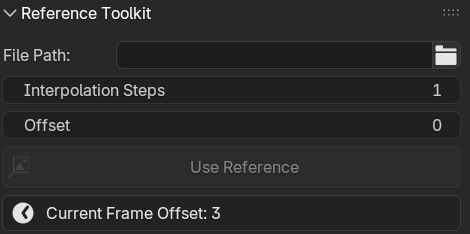
• Choose a video or image sequence as reference.
• Adjust interpolation and offset — updates automatically with object selection.
Sculpt Helper
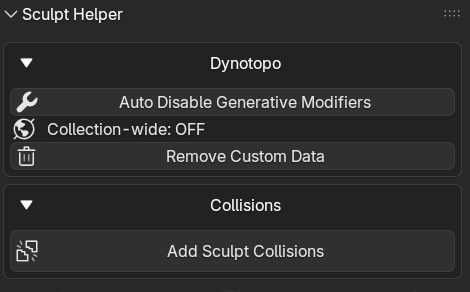
• Remove custom data for smooth Dynotopo sculpting with no pop-ups.
• If using generative modifiers, use 'Auto Generative Modifier Disabling'. They will be disabled when in Sculpt mode and enabled in other modes.
• You can also enable stylized (Add) Collision for the objects. It works for all modes.
• Click 'Global' and adjust collision settings for the current object.
• Click 'Sync' to apply to all objects in the collection.
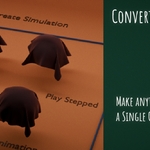
Convert Existing Animation
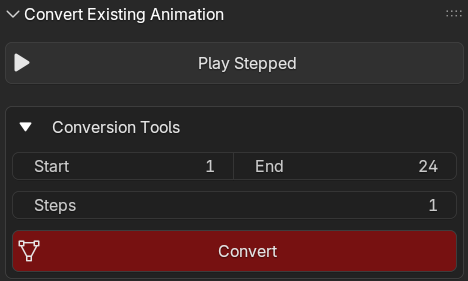
• Play Stepped — plays the animation in steps (set in the Modifier Panel).
• Convert — set the time frame and convert the animation to a collection (each frame as an object) for
use with the Stop-Motion Toolkit Animation Tools. (e.g you can choose it as an add-on collection and use create animation or simulation)
Discover more products like this
Stop Motion Style 3D Simulation stepped animation automatic texture blending clay stepped interpolation clay-character stepped sculpting