 iralon


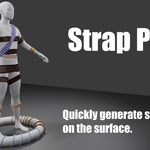
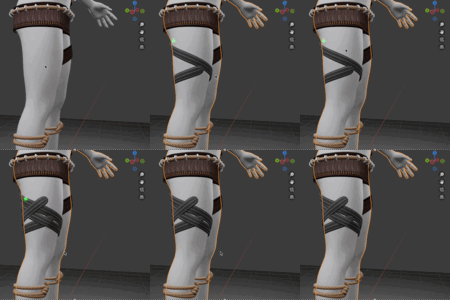
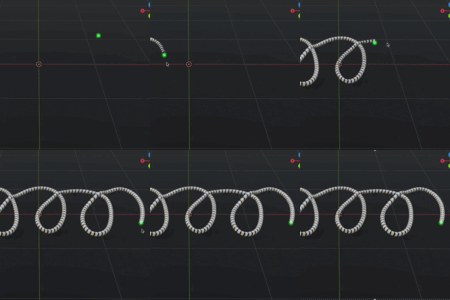
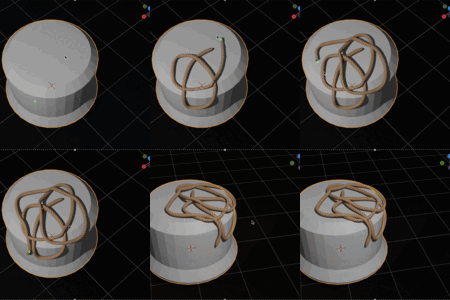
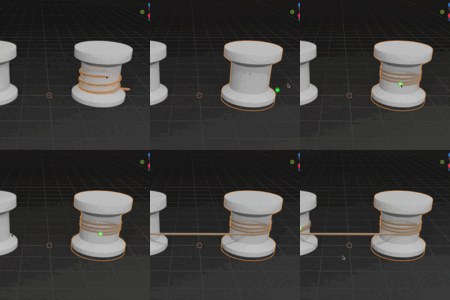
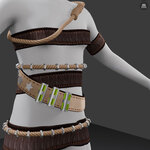
Installation:
- Download the strap_paint.zip file.
- In Blender, navigate to
Edit > Preferences > Add-ons - Click Install, and find where you downloaded the zip file. Then hit the
Install Add-onbutton. - In the sidebar panel, (shortcut key N), you will see StrapPaint, click on it.
How to use:
- You can select a preset at the top of the add-on panel to load a set of parameters , or just leave it None and adjust the parameters like width and thickness yourself.
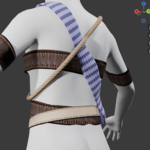
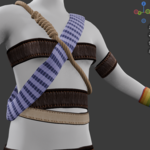
- Press Start Painting button at the bottom of the panel, and move mouse over a surface then hold down the left mouse button to move(Just like drawing something). A strap will be created and extend to follow the mouse cursor position.
-
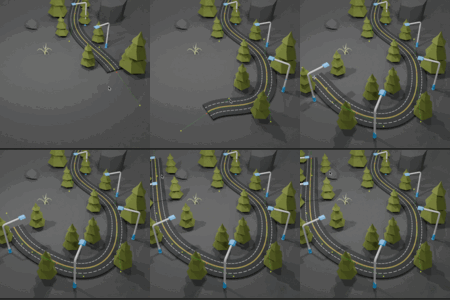
For more precise control, press Start Curving button at the bottom of the panel, then Simply left-click on the surface to add a new point, then left-click again at another location on the surface to form a strap. Right-click on a point to delete the point, the strap will be updated accordingly.
- After creating the strap, click it to bring up the panel for adding additional objects. Select an object as the target and configure its start, end (-1 for unlimited), spacing, and other parameters.
Update Logs:
-
1.1.8 : Adjust drawing logic; material can be changed even when set the preset to "None"; adjust UV density when editing curves. Please delete the previous version before installing 1.1.8. -03/24/2026
-
1.1.7 : By holding down the Alt key, you can connect straps or ropes between different objects from a distance.
-
1.1.6 : Optimized the UI and improved the erasing effect when straps are overlaid and the algorithm for re-editing curves.
- 1.1.5 : Enhanced the auto-growth and overlapping effect.
- 1.1.3 : Make it easier to pick control points.
$12
Have questions about this product?
Login to message