 hodgson3d

Creating Straps, Ropes & Insulation
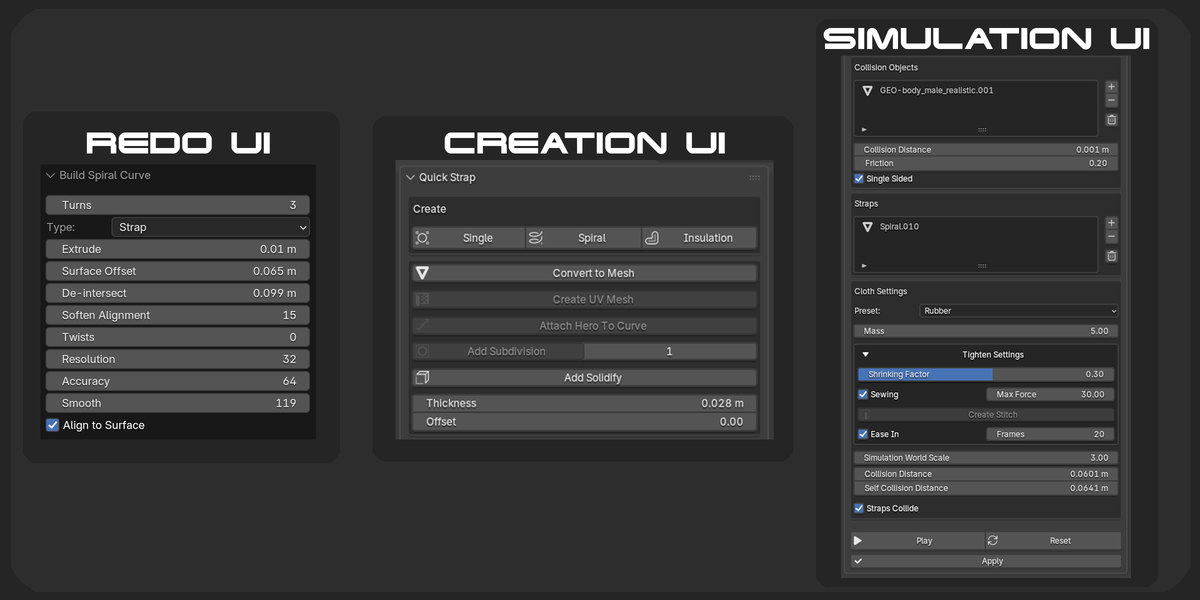
Quick Strap allows you to quickly generate straps, ropes, spiral wraps and insulation around existing geometry. Simply draw a line across your objects and Quick Strap will automatically generate the appropriate wrapping geometry.
There are three creation tools available in the Create section of the Quick Strap panel:
Single – Creates individual straps or ropes around selected geometry.
Spiral – Creates continuous spiral wraps between two positions.
Insulation – Generates a fitted mesh sleeve around selected geometry.
All three tools support mesh and curve objects, allowing you to create new straps and ropes over existing ones.
Getting Started
Select the objects you want to wrap. These can be meshes, curves, or a combination of both.
Open the Quick Strap panel in the 3D Viewport sidebar.
Choose Single, Spiral, or Insulation.
Click and drag across the selected geometry to define a cross-section.
Quick Strap calculates the outer cross-section of the selected geometry and uses it to generate the new wrapping geometry.
Drawing Controls
| Action | Control |
|---|---|
| Draw cross-section | Left-click and drag |
| Confirm Single | Enter or Space |
| Finish Spiral / Insulation | Draw the second cross-section |
| Cancel | Right-click or Esc |
| Open Redo Panel | F9 |
Note: When working with curves, they must have surface geometry generated by Extrude or Bevel Depth. Existing modifiers are also taken into account.
Single
The Single tool creates individual straps or ropes around selected objects. This is ideal for creating bindings, cable ties, lashings, belts, and other wrapped details.
How to Use
Select the objects you want to wrap.
Click Single.
Click and drag a line across the geometry where you want the strap or rope to appear.
Continue drawing additional lines to create multiple straps or ropes.
Press Enter or Space to finish.
Adjust the results using the Redo Panel (F9).
Each line generates a separate, closed curve. Multiple straps or ropes can be created in a single operation and adjusted together.
Single – Redo Settings
| Setting | Description |
|---|---|
| Type | Choose between Strap (flat ribbon) and Rope (round profile). |
| Extrude | Controls the flat strap's profile using the curve's Extrude property. Only available in Strap mode. |
| Depth | Controls the radius of the rope using Bevel Depth. Only available in Rope mode. |
| Bevel Resolution | Controls the smoothness of the rope's circular profile. Only available in Rope mode. |
| Resample | Redistributes points evenly along the generated curve. Higher values produce more geometry. A value of 0 preserves the original cross-section points. |
| Surface Offset | Offsets the generated curve away from or toward the underlying geometry. |
| Soften Alignment | Smooths the sampled surface normals to reduce abrupt changes in orientation and offset. |
| Twists | Adds complete 360° twists along the curve. Negative values reverse the direction. |
| Align to Surface | Adjusts the curve's tilt to follow the surface normals of the underlying geometry, helping flat straps conform to the surface. |
| Randomize Start | Randomizes the starting point of each curve, varying the seam and twist positions between multiple straps. |
Strap vs Rope
Both modes use the same underlying curve. The difference is how its profile is generated.
Strap uses the curve's Extrude property to create a flat ribbon-like profile. This is best suited to straps, belts, bands, and flat bindings.
Rope uses Bevel Depth to generate a circular cross-section. Bevel Resolution controls the smoothness of this profile, making it ideal for ropes, cables, cords, and rounded bindings.
You can switch between Strap and Rope directly from the redo panel without redrawing the curve.
Spiral
The Spiral tool creates continuous spiral wraps around selected geometry. It is particularly useful for wrapping ropes around poles, creating handle bindings, winding cables, and producing tightly packed straps.
Unlike Single, Spiral requires two cross-sections that define where the wrapping begins and ends.
How to Use
Select the objects you want to wrap.
Click Spiral.
Draw the first line across the geometry to define the start of the spiral.
Draw a second line at the end of the desired wrapping area.
The spiral is generated automatically.
Open the Redo Panel (F9) to adjust the wrapping.
Quick Strap generates a closed spiral that winds from the first cross-section to the second and returns to the starting position.
The spiral is automatically fitted to the underlying geometry, allowing it to follow tapered, curved, or irregular surfaces.
Spiral – Redo Settings
| Setting | Description |
|---|---|
| Turns | Controls the number of spiral revolutions between the start and end positions. The return path also winds the same number of turns. |
| Type | Switches between a flat Strap and a round Rope. |
| Extrude | Controls the flat strap profile. Only available in Strap mode. |
| Depth | Controls the rope's radius. Only available in Rope mode. |
| Bevel Resolution | Controls the smoothness of the rope's circular profile. |
| Surface Offset | Moves the spiral outward or inward from the underlying surface. |
| De-intersect | Separates overlapping strands by lifting sections that pass too close to one another. A value of 0 disables this feature. |
| Soften Alignment | Smooths sampled surface normals to create more consistent alignment and offsets. |
| Twists | Adds complete 360° twists along the generated spiral. |
| Resolution | Controls the number of curve points generated per spiral turn. |
| Accuracy | Controls how accurately the spiral follows changes in the underlying surface. |
| Smooth | Smooths irregularities in the generated spiral while maintaining its alignment to the underlying surface. |
| Align to Surface | Adjusts curve tilt to match the underlying surface normals. |
Understanding Resolution, Accuracy and Smooth
These three settings control different aspects of the generated spiral.
Resolution determines the number of points along the spiral curve. Higher values allow the curve to represent more detailed shapes.
Accuracy controls the quality of the internal surface-fitting geometry. Increasing this value helps the spiral conform more accurately to uneven, tapered, or complex surfaces.
Smooth reduces unwanted irregularities along the generated path. The curve is repeatedly smoothed and reprojected onto the underlying geometry to preserve its wrapped shape.
For most objects, the default values should provide a good starting point. Increase these settings when wrapping complex or irregular surfaces.
Preventing Intersections
When multiple spiral strands overlap, you can use De-intersect to separate them.
This setting detects sections of the curve that pass too close to each other and moves them outward along the surface normal, allowing the wraps to layer over one another rather than intersect.
You can also use Surface Offset to increase the clearance between the spiral and the underlying objects.
Insulation
The Insulation tool creates a continuous mesh sleeve that conforms to the shape of selected objects.
This is useful for creating protective coverings around cable bundles, pipes, ropes, and other grouped geometry.
Unlike Single and Spiral, Insulation generates a mesh rather than a curve.
How to Use
Select the objects you want to cover.
Click Insulation.
Draw the first line across the geometry to define the beginning of the sleeve.
Draw a second line to define where the insulation should end.
Quick Strap automatically generates the insulation mesh between the two positions.
Open the Redo Panel (F9) to refine the result.
Quick Strap samples additional cross-sections between the start and end positions, allowing the generated mesh to follow changes in the underlying geometry.
Insulation – Redo Settings
| Setting | Description |
|---|---|
| Interpolated Sections | Controls the number of additional cross-sections generated between the start and end. Higher values help the insulation follow changes in the underlying geometry more accurately. |
| Resample | Controls the number of evenly spaced points around each cross-section. A value of 0 preserves the original cross-section points. |
| Surface Offset | Expands or contracts the insulation mesh relative to its centre, allowing you to adjust the fit around the underlying geometry. |
Improving the Fit
For relatively straight or uniform objects, the default number of interpolated sections will usually be sufficient.
For geometry that bends, tapers, or changes shape significantly, increase Interpolated Sections so the generated sleeve follows these changes more closely.
Use Resample to control the resolution around each cross-section, and Surface Offset to adjust the clearance between the insulation and the underlying objects.
The generated insulation is an open-ended mesh sleeve. If you need additional wall thickness, you can apply a Solidify modifier afterward.
Tips and Best Practices
Working with Existing Straps and Ropes
All three tools support existing curve geometry as wrapping surfaces. This allows you to layer new straps and ropes over previously generated ones.
Ensure the source curves have actual surface geometry through Extrude or Bevel Depth.
Drawing Accurate Cross-Sections
For the most predictable results, draw your lines across the entire group of objects you want to wrap. The generated shape is based on the outer convex outline of the intersected geometry, rather than reproducing every internal gap or concavity.
Adjusting Surface Clearance
Use Surface Offset when the generated geometry intersects the underlying objects or needs additional clearance.
Smoothing Irregular Results
If the generated curves appear uneven, try increasing Soften Alignment. For Spiral, you can also increase Smooth or Accuracy.
Working with Simulation
Single and Spiral generate editable curves. To use them with Quick Strap's cloth simulation tools, first use Convert to Mesh.
Once converted, the objects can be added to the Straps list and simulated using Quick Strap's cloth and collision settings.
Preparing, Simulating & Finishing Straps
Quick Strap includes a range of tools for preparing your straps and ropes, setting up cloth simulations, tightening geometry around objects, and refining the final results.
This guide covers the settings and tools available outside the Single, Spiral, and Insulation creation operators.
You can access Quick Strap from the 3D Viewport → N-Panel → Quick Strap.
Preparing Geometry
Convert to Mesh
The Convert to Mesh operator converts selected curve objects into meshes, allowing them to be edited and simulated using Blender's Cloth system.
By default, Single and Spiral generate editable curves. However, these need to be converted to mesh geometry before they can be used for cloth simulation.
How to use:
Select the straps or ropes you want to convert.
Click Convert to Mesh.
The selected curves are converted into mesh objects, ready for further editing and simulation.
The tool also standardizes UV map naming where necessary.
Note: Converting a curve to a mesh removes its editable curve properties, such as Bevel Depth and Extrude. If you want to preserve the original curve, duplicate it before converting.
Create UV Mesh
The Create UV Mesh operator automatically prepares UVs for your straps and generates a UV-based mesh using Geometry Nodes.
The tool performs several operations automatically:
Unwraps the selected strap geometry.
Creates seams where required.
Straightens and aligns UV islands.
Packs the resulting UVs.
Adds the strapSim_UVMesh Geometry Nodes modifier.
This is particularly useful for generating flattened UV-based representations of your straps while maintaining the relationship with the simulated geometry.
How to use:
Select one or more mesh straps.
Click Create UV Mesh.
Quick Strap automatically processes their UVs and adds the Geometry Nodes setup.
The modifier is positioned after the cloth simulation and before Solidify.
Note: This operator modifies the existing UV layout and seam markings. If you have custom UVs you want to preserve, duplicate your object first.
Attach Hero to Curve
The Attach Hero to Curve tool allows you to deform an existing mesh along a selected curve using Geometry Nodes.
This is useful when you want to replace a simple strap or rope profile with more detailed geometry while maintaining the ability to control its overall shape using a curve.
How to use:
Select the curve you want to use as the deformation path.
Select the mesh you want to deform, making it the active object.
Click Attach Hero to Curve.
Adjust the resulting Curve Deform Geometry Nodes modifier as required.
The original curve remains editable, allowing you to modify the path without permanently applying the deformation to the mesh.
Subdivision
The Subdivision section is primarily intended to increase the mesh resolution of your straps before running a cloth simulation.
Unlike subdivision used purely for visual smoothing, subdivision in Quick Strap is designed to provide additional geometry for the cloth solver.
Why subdivision is important
Cloth simulation works by deforming the vertices and edges of a mesh.
If your strap has very little geometry, the simulation has fewer points available to deform. This can result in uneven bending, angular shapes, and poor conformity around curved surfaces.
Adding subdivision creates additional geometry, allowing the strap to bend and settle more naturally around the underlying objects.
Add Subdivision
The Add Subdivision operator adds a Catmull-Clark Subdivision Surface modifier to selected mesh objects.
Quick Strap automatically places the modifier above the Cloth modifier in the modifier stack, ensuring that the subdivided geometry is used during simulation.
| Setting | Description |
|---|---|
| Levels | Controls the number of subdivision levels applied to the strap. Default: 2. |
Higher subdivision levels produce smoother geometry, but also increase the number of vertices that need to be simulated.
For best results, start with a relatively low subdivision level and only increase it when additional detail is required.
Important: Increasing subdivision improves the available simulation resolution, but it also significantly increases computation time. Excessive subdivision can make simulations unnecessarily slow.
Solidify
The Add Solidify operator adds thickness to your straps using Blender's Solidify modifier.
This is particularly useful for creating realistic fabric straps, belts, bands, and other flat materials that require physical thickness.
The operator supports both mesh and curve objects.
Add Solidify Settings
| Setting | Description |
|---|---|
| Thickness | Controls the overall thickness of the generated geometry. Default: 0.01 m. |
| Offset | Determines which direction the thickness is generated relative to the original surface. Default: 0. |
The Offset setting supports the following values:
-1: Thickness extends inward from the original surface.
0: Thickness is centered around the original surface.
1: Thickness extends outward from the original surface.
Quick Strap automatically positions the Solidify modifier after the Cloth modifier.
This allows the cloth simulation to operate on a relatively thin surface rather than attempting to simulate the fully thickened geometry.
As a result, simulations are generally faster and easier to control.
Cloth Simulation
Quick Strap includes a cloth simulation workflow designed to tighten straps and ropes around underlying geometry.
Rather than manually deforming the strap until it conforms to the surface, you can use Blender's Cloth simulation to produce a more natural result.
The simulation system consists of two main components:
Collision Objects: The geometry that the straps will tighten around.
Straps: The mesh objects that will receive the cloth simulation.
Collision Objects
The Collision Objects section manages the geometry that your simulated straps interact with.
Objects added to this list act as physical obstacles, allowing simulated straps to collide with and wrap around their surfaces.
Adding Collision Objects
Select the mesh objects you want the straps to wrap around.
Click the + button beside the Collision Objects list.
Quick Strap automatically adds or reuses the required collision physics.
The selected objects are added to the list.
You can remove individual objects using the - button or clear the list using the trash button.
Existing physics modifiers that were not created by Quick Strap are preserved.
Note: Although the Single, Spiral and Insulation tools support wrapping around curves, collision objects must be meshes for simulation. Convert any curve geometry to a mesh before adding it to the Collision Objects list.
Collision Object Settings
| Setting | Description |
|---|---|
| Collision Distance | Controls the clearance between the collision surface and simulated straps. Default: 0.001 m. |
| Friction | Controls how easily a strap can slide across the collision surface. Default: 5. |
| Single Sided | Limits collisions to the front-facing side of the geometry. Enabled by default. |
Collision Distance
Increasing Collision Distance creates additional spacing between the simulated strap and the collision object.
Lower values allow the strap to sit closer to the surface, while higher values can help prevent unwanted intersections.
Avoid setting this unnecessarily high, as the strap may appear to float above the object.
Friction
Friction determines how easily straps move across collision surfaces.
Lower values allow straps to slide more freely, while higher values create more resistance and help the strap grip the underlying geometry.
For straps that need to tighten around complex surfaces, increasing friction can help prevent excessive sliding.
Single Sided
When enabled, collision detection uses the front-facing side of the object's surface.
This can be useful for reducing unwanted collision behaviour, but it is important that the collision geometry has correctly oriented normals.
Straps
The Straps section contains the mesh objects that will receive cloth simulation.
Once a strap has been converted to a mesh, it can be added to this list.
Adding Straps
Select the strap meshes you want to simulate.
Click the + button beside the Straps list.
Quick Strap automatically adds or reuses the necessary Cloth modifiers.
The straps are now ready for simulation.
You can remove individual entries using the - button or clear the list using the trash button.
When adding a new strap, Quick Strap automatically returns the timeline to the starting frame before configuring its cloth simulation.
Important: Objects cannot be registered as both a Strap and a Collision Object in these lists at the same time.
Cloth Settings
The Cloth Settings section controls the physical behaviour of the straps during simulation.
These settings are shared across the objects managed by the Straps list.
Preset
The Preset dropdown provides several predefined cloth material configurations.
Each preset adjusts a combination of cloth stiffness and damping settings to produce different physical behaviour.
| Preset | Description |
|---|---|
| Cotton | A relatively soft and flexible material, suitable for lightweight fabric straps. |
| Denim | A stronger fabric with moderate bending resistance. |
| Leather | A relatively stiff material suitable for thicker and more rigid straps. |
| Rubber | A flexible material with greater resistance to bending. |
| Silk | A soft, highly flexible material with low bending resistance. |
The default preset is Leather.
These presets provide convenient starting points rather than exact real-world material simulations.
You may need to experiment with different presets depending on the shape, size and complexity of your strap.
Mass
Mass controls the mass assigned to the simulated cloth.
Default: 5.0
Increasing the mass can change how the strap responds to forces during simulation.
For certain setups, particularly when straps are buckling or reacting too aggressively, adjusting the mass may help produce a more stable result.
Mass works alongside the stiffness settings provided by the selected material preset.
Tighten Settings
The Tighten Settings section controls how straps are pulled tighter around underlying geometry during simulation.
There are two main methods available:
Shrinking Factor reduces the strap's target dimensions, causing it to contract around the collision objects.
Sewing pulls selected open borders of the strap together, allowing you to cinch the strap closed.
Both methods can also be used together.
Shrinking Factor
Shrinking Factor controls how much the strap attempts to contract during simulation.
Default: 0.15
Increasing the value causes the strap to tighten more aggressively around the collision geometry.
Lower values result in more subtle tightening, while higher values produce greater contraction.
This is particularly useful for straps that already form a complete loop around an object and need to be pulled snugly against its surface.
Tip: If the strap folds or becomes unstable when tightening, try reducing Shrinking Factor or increasing the Ease In duration.
Sewing
Sewing allows you to tighten straps by pulling two open borders together using Blender's cloth sewing springs.
This is an alternative to Shrinking Factor and provides more control over how a strap closes during simulation.
It is particularly useful for situations where you want a strap to cinch tightly around an object, rather than shrinking the entire surface uniformly.
Creating a Sewn Strap
To create a strap that tightens using sewing:
Convert the strap to a mesh.
Enter Edit Mode.
Delete a small section of faces from the strap, creating two separate open borders.
Select both open edge chains.
Click Create Stitch.
Enable Sewing in the Tighten Settings.
Run the simulation.
The sewing springs will attempt to pull the two open borders together, cinching the strap around the underlying geometry.
This can produce a more controlled tightening effect, especially when you want the strap's tension to be concentrated around a specific opening.
Create Stitch
The Create Stitch operator automatically connects two selected open edge chains with sewing edges.
Both selected borders must contain the same number of vertices.
The operator pairs corresponding vertices and creates the edges required for Blender's cloth sewing system.
The Create Stitch operator is available in Edit Mode.
Create Stitch – Redo Settings
| Setting | Description |
|---|---|
| Flip | Reverses the pairing direction of one edge chain. |
If the generated sewing edges cross over one another or appear twisted, enable Flip in the redo panel to reverse their direction.
Sewing Settings
| Setting | Description |
|---|---|
| Sewing | Enables sewing springs during simulation. Disabled by default. |
| Max Force | Controls the maximum force applied by the sewing springs. Default: 30. |
| Create Stitch | Generates sewing edges between two selected open borders. |
A Max Force value of 0 removes the force limit.
Lower values can produce more gradual sewing behaviour, while higher values allow the sewing springs to exert greater force.
Important: Sewing will only produce the intended closing behaviour when suitable sewing edges have been created. Simply enabling Sewing on an unmodified strap will not automatically generate a stitched opening.
Ease In
Ease In gradually introduces the tightening effect rather than applying its full strength immediately.
This can help prevent the strap from snapping, folding or becoming unstable during the first few frames of simulation.
When enabled, Quick Strap gradually increases the Shrinking Factor and, if Sewing is enabled, the sewing force.
Ease In is enabled by default.
Ramp Frames
Ramp Frames determines how many frames it takes for the tightening effect to reach its full strength.
Default: 10 frames
For example, a value of 30 gradually introduces the tightening effect over the first 30 frames of the simulation.
Higher values are useful when simulating complex straps that need additional time to settle against the collision geometry.
Tip: If your simulation becomes unstable immediately after playback begins, increasing Ramp Frames is often a good first adjustment.
Simulation Scale & Collisions
Simulating at Larger Scales
One important consideration when using Blender's cloth simulation is the scale of your geometry.
Very small, real-world-sized straps can be difficult to simulate reliably.
For example, a strap only a few millimetres thick may require extremely small collision distances, which can cause inaccurate collisions, instability or unexpected deformation.
For this reason, it is often better to simulate straps at a much larger scale than their intended real-world dimensions.
Recommended Workflow
Create your strap and the underlying geometry.
Scale both the strap and collision objects up together.
Apply object scale where appropriate.
Configure the cloth and collision settings.
Run the simulation at the larger scale.
Apply the finished simulation.
Scale the completed geometry back down to the intended dimensions.
Depending on your scene, scaling the objects by 10× or even 100× may help produce more stable results.
Always scale the straps and collision objects proportionally so they maintain their original relationship.
Simulating at larger scales does not guarantee perfect results, but it can make the collision and deformation calculations easier to manage.
Simulation World Scale
Simulation World Scale allows you to adjust the distance-related collision settings across your simulation.
Default: 1.0
This acts as a multiplier for the cloth's collision and self-collision distances, as well as the collision objects' thickness settings.
It is useful when you need to adjust collision clearance consistently across multiple objects.
Important: Simulation World Scale does not physically change the size of the objects in your scene.
If you need to simulate larger geometry, scale the actual objects. Simulation World Scale should be used to fine-tune collision-related distances.
Collision Distance
Collision Distance controls the minimum separation between the simulated cloth and other collision surfaces.
Default: 0.001 m
Increasing this value creates additional clearance and can help prevent the strap from intersecting the underlying geometry.
However, excessively high values can cause the strap to float above the surface.
For tight-fitting straps, use the lowest stable value that prevents unwanted intersections.
This setting applies to the simulated straps and is separate from the Collision Distance setting for Collision Objects.
Self Collision Distance
Self Collision Distance controls the minimum separation between different parts of the same strap.
Default: 0.001 m
This helps prevent the strap from passing through itself when it folds, bends or tightens.
Higher values provide more separation, while lower values allow different regions of the strap to sit closer together.
For tight wraps or complex folded straps, this setting may need adjustment to prevent intersecting geometry.
Straps Collide
Straps Collide enables collisions between separate strap objects.
Enabled by default.
This is particularly useful when creating multiple overlapping straps or layered wraps that need to interact with one another during simulation.
When enabled, Quick Strap adds the required collision physics to the strap objects.
Disabling this option can improve performance when your straps do not need to collide with one another.
Simulation Controls
Once your straps and collision objects are configured, you can start the simulation using the playback controls at the bottom of the Quick Strap panel.
Play / Stop
Play starts timeline playback and allows Blender's cloth simulation to calculate the strap deformation.
As the simulation progresses, the straps will respond to the configured shrinking, sewing and collision settings.
Use Stop to pause playback when you are satisfied with the current result.
Reset
Reset returns the timeline to the simulation's starting frame.
This allows you to review the simulation or make further adjustments to its settings.
For an actual fresh recalculation after changing physics settings, make sure the relevant cloth simulation cache is cleared or invalidated as needed.
Apply
Apply commits the simulated strap geometry at the current frame.
Once applied, the current deformation becomes the strap's permanent mesh shape.
Quick Strap applies its managed Subdivision, Cloth and strap Collision modifiers as part of this process.
It also removes collision modifiers that Quick Strap originally created on the underlying collision objects, while retaining unrelated existing physics modifiers.
UV Mesh, Solidify and other remaining modifiers are preserved for further adjustment.
Important: Apply the simulation at the frame where the strap looks best. Once the simulation is applied, you can no longer adjust that result using the original Cloth modifier.
It's good practice to save a copy of your scene before applying.
Recommended Simulation Workflow
For the best results, the following workflow is recommended.
Step 1 – Create your straps
Use the Single or Spiral operators to create straps or ropes around your selected geometry.
Adjust their shape and placement using the redo settings.
Step 2 – Convert to Mesh
Use Convert to Mesh to turn the generated curves into meshes suitable for simulation.
Step 3 – Adjust the Scale
If the geometry is very small, scale up both the straps and their underlying objects.
Simulating at a larger scale can help improve stability and collision accuracy.
Step 4 – Add Subdivision
Use Add Subdivision to increase the resolution of your straps.
The subdivision modifier is placed before Cloth, ensuring that the additional geometry contributes to the simulation.
Step 5 – Prepare Sewing (Optional)
If you want the strap to cinch closed, delete a small section of faces and use Create Stitch to connect the two open borders.
Step 6 – Set Up Collision Objects
Select the underlying meshes and add them to the Collision Objects list.
Step 7 – Add Straps
Select the strap meshes and add them to the Straps list.
Step 8 – Configure the Simulation
Choose a material preset and adjust the cloth settings.
Use Shrinking Factor or Sewing to control how the strap tightens.
For more gradual tightening, enable Ease In and adjust Ramp Frames.
Step 9 – Run the Simulation
Press Play to begin the simulation.
Watch how the strap tightens and conforms to the collision geometry.
Adjust the settings as needed until you achieve the desired result.
Step 10 – Apply and Finish
Stop the simulation at the desired frame and click Apply.
You can then add thickness using Solidify, refine the UVs or make further adjustments to the final geometry.
If you simulated at an enlarged scale, resize the finished geometry to its intended dimensions.
Troubleshooting
| Problem | Recommended Solution |
|---|---|
| Strap looks angular or doesn't bend smoothly | Increase Subdivision Levels to give the cloth more geometry to deform. |
| Simulation becomes unstable or explodes | Increase Ease In duration, reduce tightening strength, check collision distances and consider simulating at a larger scale. |
| Strap intersects the underlying object | Verify the object is added to Collision Objects and adjust the collision distances. |
| Strap floats too far above the surface | Reduce excessive collision distances or Simulation World Scale. |
| Strap slides around the object | Increase collision Friction. |
| Multiple straps intersect one another | Enable Straps Collide and check the collision settings. |
| Sewing edges are crossed or twisted | Enable Flip in the Create Stitch redo panel and ensure both borders contain the same number of vertices. |
| Strap doesn't tighten sufficiently | Increase Shrinking Factor or adjust the Sewing settings. |
| Strap tightens too aggressively | Reduce Shrinking Factor or increase Ramp Frames. |
| Simulation is very slow | Reduce Subdivision Levels or disable unnecessary strap-to-strap collisions. |
| Real-world-sized geometry behaves unpredictably | Try scaling the geometry up before simulation, then scale it back down after applying the result. |
For instructions on creating and drawing straps, ropes and insulation, including their redo-panel settings, see the separate Creating Straps, Ropes & Insulation guide.
Have questions about this product?
Login to message
| Blender Extension Compatible | Yes |
| Dev Fund Contributor | |
| Published | about 2 hours ago |
| Blender Version | 5.2 |
| Extension Type | Add-on |
| License | GPL |
