Studio Shapers
 Jerrythepopper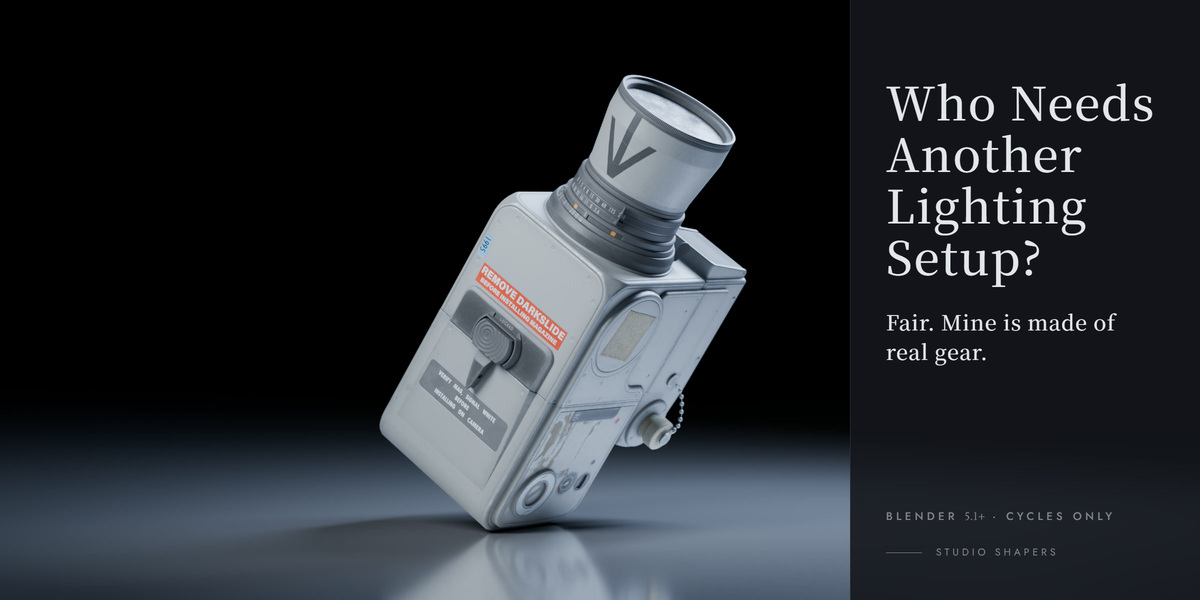

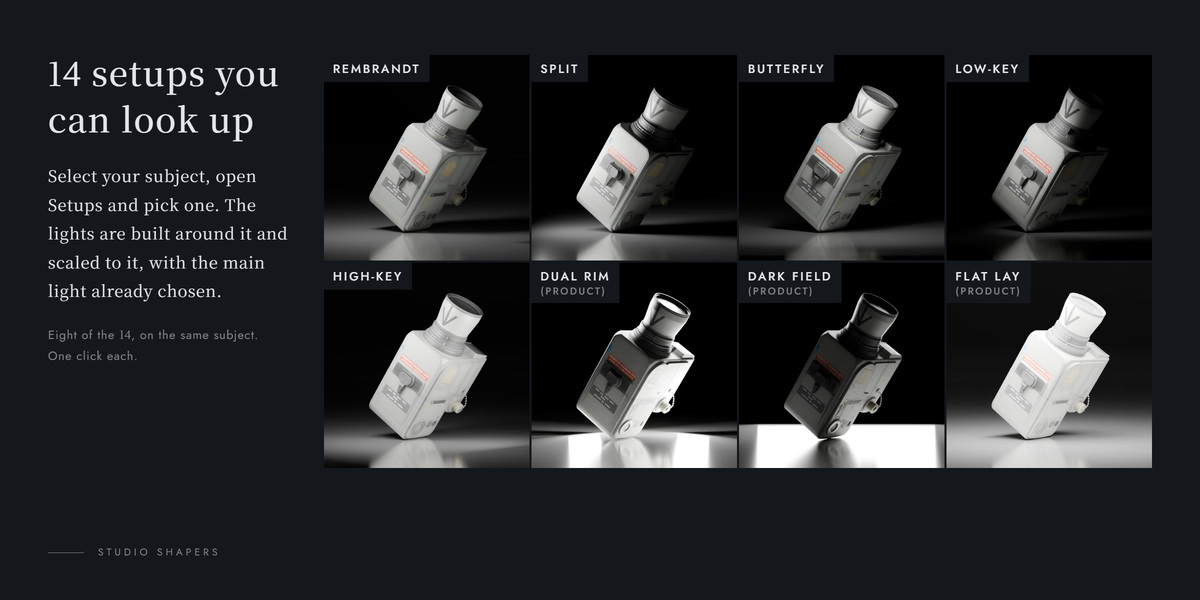


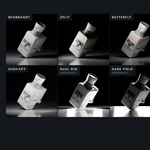
This is the full manual. A web version with the same content is at jerrythepopper.com/3daddon/studio-shapers (Traditional Chinese: zh.html). The manual also ships inside the .zip.
Who Needs Another Lighting Setup? — User Manual
Version 1.0.1 · Blender 5.1+ · Cycles only
The add-on's name is Studio Shapers: that is what the sidebar tab and the panel are called. In the add-on list it appears as Who Needs Another Lighting Setup? (Studio Shapers).
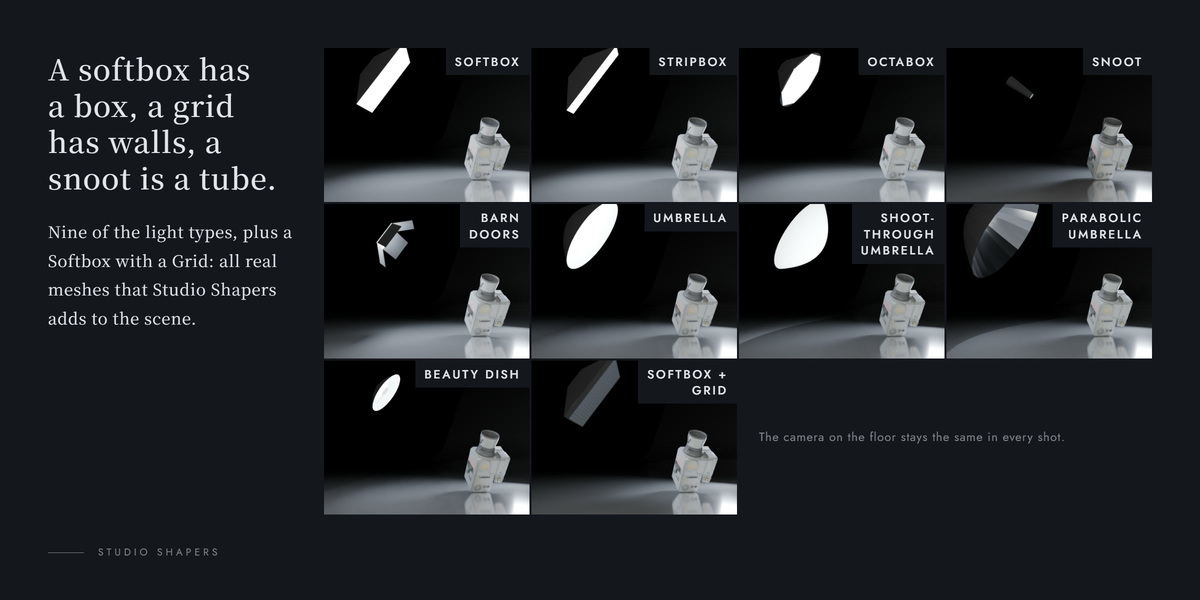
Studio Shapers adds photographic lighting gear to Cycles as real geometry: a softbox has a box, a grid has walls, a snoot is a tube, a flag is a board. They block, bounce and shape light the way the real gear does, because Cycles traces light through them instead of faking the result.
Photographers call this kind of gear light modifiers. This manual always says gear instead, so it never gets mixed up with Blender's Modifier stack. When the manual means Blender's own feature, it writes Blender Modifier.
1. What it is
Most "studio light" presets in Blender are just an Area light with a nice name. Studio Shapers builds the gear around the light as solid meshes, so Cycles calculates the physical effect by itself:
- A grid on a softbox narrows the beam because its walls actually stop light that travels at an angle.
- Barn Doors cut a hard edge because four real doors are in the way.
- A snoot gives a small pool of light because the light has to travel down a tube.
- A flag throws a shadow and a reflector bounces light, even though neither gives any light of its own.
- A scrim in front of a hard light softens the shadows it covers, and costs you light, just like the real cloth.
Each light in this add-on is a group of objects that belong together: a control object, the gear meshes, the Cycles light source inside the gear, and an aim point on your subject. In this manual, "light" always means that whole group, the light source is the Cycles light inside that actually emits (on the Beauty Dish, the glowing inside of the bowl), and the gear is the mesh around it. Flags, reflectors and scrims are gear with no light source; the menus list them as Gear (No Light).
You control each light from a panel that uses photographer terms — which side of the camera, how high, how far, how many stops brighter or darker — instead of XYZ values. One stop means double or half the light: +1 stop is twice as bright, −1 stop is half, −2 stops is a quarter.
Three words used throughout this manual.
- The main light (photographers also call it the key light) is the brightest light; it decides where the shadows fall on the subject. In the panel it is picked with the Main field or the Make Main Light button (section 10).
- A fill light is a weaker light (or a reflector) on the other side that lifts those shadows.
- A rim light (also called a back light) sits behind the subject and draws a bright edge around it, separating it from the background.
What it is not: a brand catalog. The gear is an engineering approximation of common shapes, not a measured copy of any manufacturer's product (see section 13).
2. Requirements & install

- Add-on Language Choose the language with the globe icon at the right end of the panel's title bar.
- Open Manual The ? next to the globe opens the web version of this manual, with pictures, in your browser, in the language the panel is using.
- Auto: Chinese only when Blender really shows its interface in Chinese, English otherwise. English and 中文 always use that language.
Requirements
- Blender 5.1 or newer (tested on 5.1 and 5.2).
- Cycles as the render engine. If the scene uses another engine, the panel shows This add-on lights for Cycles (Render Properties > Render Engine) and a Switch to Cycles button that changes this scene's render engine for you. EEVEE does not trace light through the gear meshes, so most of the effects this add-on is built on do not happen there. Box lights, barn doors and grids now cast EEVEE shadows close to Cycles (the add-on turns on the lamps' soft shadow jitter; the EEVEE viewport shows a little more grain at very low samples). Umbrellas and the Beauty Dish do not light the subject in EEVEE at all, a Diffusion Scrim turns its light black there and a Reflector adds nothing, so use Cycles for those.
- Unit Scale = 1 (Scene Properties > Units). All sizes are in meters. The add-on never changes your unit settings; if the scale is not 1 the panel shows Set Scene Properties > Units > Unit Scale to 1 to use Studio Shapers.
- The lights themselves must stay at Scale 1. Use the size fields in the panel instead of scaling the object (see section 14).
Install
The .zip installs either as an extension or as a classic add-on. Pick one, not both.
- As an extension: drag the .zip onto the Blender window, or go to Edit > Preferences > Get Extensions, open the drop-down at the top right and choose Install from Disk.
- As a classic add-on: Edit > Preferences > Add-ons, open the drop-down at the top right, choose Install from Disk, pick the .zip and tick it on.
Either way, it is listed as Who Needs Another Lighting Setup? (Studio Shapers); searching for either name finds it.
After installing, open the 3D Viewport sidebar (N) and choose the Studio Shapers tab. If you update from an older version, restart Blender — reinstalling alone does not always replace a module Blender has already loaded. The version number is in the add-on's entry in Edit > Preferences.
Language
The add-on's text is available in English and Traditional Chinese. Choose the language with the globe icon at the right end of the panel's title bar, or in the add-on's own preferences (Edit > Preferences > Add-ons > Studio Shapers, Add-on Language). The ? next to the globe (Open Manual) opens the web version of this manual, with pictures, in your browser, in the language the panel is using. The same text also comes in the add-on's docs folder, to read offline.
| Setting | Meaning |
|---|---|
| Auto | Chinese only when Blender really shows its interface in Chinese (a Chinese language with Interface ticked under Translate); English otherwise |
| English | Always English, whatever Blender's language: in a Japanese or Chinese Blender the panel, buttons, drop-downs, panel titles, dialogs and the redo panel stay English (no mixed words) |
| 中文 | Always Traditional Chinese |
Auto decides when you pick it and when the add-on starts. If you change Blender's language or the Interface box under Translate later, pick the add-on language again (or restart Blender). Tooltips are not covered by this rule. The Chinese text is Traditional Chinese, and where it names a place in Blender (for example 算繪屬性 > 光徑 > 限定 > 間接照明) it uses the names of a Traditional Chinese Blender. A Simplified Chinese Blender names these places differently (for example 渲染属性), so in that case compare with the English text.
The choice is remembered between sessions. Switching changes panel text, buttons, tooltips, menus and the top-map labels at once, and never moves or changes a light. A few things stay as they are:
- Object and Collection names do not change with the language. They are English names such as
Studio SoftboxandStudio Shapers; aim points are calledSS Aim Point(orSS Free Aim Pointwhen a light aims at the 3D Cursor). Files made with earlier versions of the add-on can contain aim points with Chinese names; they get these English names when the file is opened. - A status message already stored in a scene stays in its old language until that light is next updated.
- If the top map is open when you switch, it closes; open it again.
- The name and tooltip of the language option itself in the Preferences window change after the next Blender restart (the buttons change at once).
3. Quick start

- Title bar The language switch and Open Manual, which opens the web version of this manual (with pictures) in your browser.
- Add Light · Setups Two menus: add one light, or build a whole setup. Right of each menu is a picture button that shows the same choices as thumbnails.
- Hint line What the next light will aim at.
- Light list Every Studio Shapers light in the scene, plus a button to see the light. Above the rows, the group controls move all the lights on the subject together.
- Tips A small box under the list: how to see the light, and what to change when something looks off.
- Name, Type and the sub-panels Shown once a light is selected: Position, Brightness, Size (Shadow Softness), Color, Aim, Advanced.
The panel lives in 3D Viewport > Sidebar (N) > Studio Shapers tab. From top to bottom:
| Row | What it is |
|---|---|
| Title bar: globe, ? | The language switch (section 2) and Open Manual, which opens the web version of this manual (with pictures) in your browser; a text copy is in the add-on's docs folder. |
| Switch to Cycles | Only shown when the scene does not render with Cycles. |
| Add Light · Setups | Two menus: add one light, or build a whole setup (the Setups menu is titled Lighting Setups, section 11). Both menus start with a one-line sub-menu, Main Light: Left ▸: hover over it and pick Left or Right, the side of the camera (as seen from the camera) where new lights and the built-in setups put the main light. The line itself shows the current side; Left by default. Right of each menu is a picture button that shows the same choices as thumbnails (below). |
| Hint line | What the next light will aim at (below). Gray while there is a subject; with no subject it reads New light aims at the 3D Cursor with an orange warning triangle, and a second line: Select a mesh to aim new lights at it. |
| Light list | Every Studio Shapers light in the scene, plus a button to see the light (section 7). Above the rows, the group controls Group Distance, Keep Brightness and Pick Group Aim Point move all the lights on the subject together (section 7). |
| Tips | A small box under the list: how to see the light, and what to change when something looks off (section 7). |
| Name, Type and the sub-panels | Shown once a light is selected: Position, Follow a Light (scrims and flags only), Brightness, Size (Shadow Softness), Color, Aim, Advanced (section 4). |
One light at a time

- Main Light: Left ▸ Hover over it and pick Left or Right: the side of the camera (as seen from the camera) where new lights put the main light.
- The menu is grouped into Light Sources, Umbrellas and Dishes and Gear (No Light); hover an item for a one-line description.
- Lights by Role The menu ends with Lights by Role (see Lights by role, further down).

- Hint line With no subject it reads New light aims at the 3D Cursor with an orange warning triangle, and a second line: Select a mesh to aim new lights at it.
- An empty list says No lights yet; select your subject, then use a button above.
- Select your subject (a Mesh) in the viewport.
- Open Add Light and pick a type. The menu is grouped into Light Sources, Umbrellas and Dishes and Gear (No Light), and ends with Lights by Role (below); hover an item for a one-line description.
- The light appears on a classic position relative to the scene camera, already aimed at your subject (its center, or the main light's aim point once the subject has a main light, below), with a power that suits its distance.
- To see the light, click See the Light: the icon at the right end of the list's title row, or See the Light (Rendered) in the Tips box. The viewport switches to Rendered, so the light and its shadows update as you work.
- Adjust it in the sub-panels under the list: Position (where it stands), Brightness, Size (Shadow Softness), Color and Aim (what it points at). Every value is live — there is no Apply button.
- Add more lights the same way. Each new one takes the next free classic position instead of landing on top of the first.
Where new lights go. Each new light on a subject takes the first free slot in the list below. A slot counts as taken when another light on the same subject is within 25° of it. Angles use the Position convention (− is camera left, + is camera right), written for the main light on the Left (the default, picked on the Main Light: Left ▸ line at the top of the Add Light menu). With Right, every angle flips (−45° becomes +45°, and so on).
- Main light: −45° (camera left), 35° up
- Fill: +45° (camera right), 20° up
- Back right: +150°, 30° up
- Back left: −150°, 30° up
- Left: −90°, 25° up
- Right: +90°, 25° up
When all six are taken, the new light goes to the first slot. Some types start elsewhere:
- A Reflector tries +60°, −60°, +90° and −90° first (a low bounce, starting on the side away from the main light), then the list above. It starts at least 5° up and is raised just enough for the board's lower edge to sit level with the bottom of the subject, so it does not sink into the floor.
- A Stripbox tries the two back slots first (+150°, then −150°), because a stripbox is usually a rim light.
- A Diffusion Scrim or Flag added while an emitting light is selected hangs on that light instead (section 8).
A new light starts 1.5 × the subject's largest side from its aim point, at least 1.5 m and at most 8 m beyond the subject's outer reach (so a building gets its lights outside it, with power raised to match the distance), or 3 m without a subject. A new Reflector starts 2.5 × the size away, between 0.5 and 1.5 m, and always at least 0.3 m outside the subject (1.5 m without a subject). If the aim point is near a corner of a big subject and the new light would still land inside it, the light moves back along the same direction until it is outside. A new emitting light gets 100 W at 1.5 m, and more when it is farther away, scaled with the square of the distance so that about the same light reaches the subject: 400 W at 3 m, 1600 W at 6 m. This only affects newly added lights; existing lights never move and keep their power.
What a new light aims at. The hint line under Add Light tells you before you click — for example New light aims at: Head. The rule, in order:
- A Studio Shapers light is selected → the new light uses the same subject (and aim point).
- A Mesh is selected → that Mesh.
Only a Mesh can be a subject. Text, curves, volumes, point clouds and collection instances (for example a linked car) are skipped as if nothing were selected, so the light goes to the subject you used last or to the 3D Cursor. For those, add a simple Mesh (a cube scaled to the object's size) as a stand-in subject.
3. Nothing, a camera or an ordinary Blender light is selected → the subject you used last in this scene.
4. None of the above → the 3D Cursor.
So once your first light is on the subject, you can click empty space or select the camera and keep adding lights: they all go to the same subject. Only selecting a different Mesh changes it. When the line says New light aims at the 3D Cursor (with the orange triangle), no subject has been found yet: select a Mesh first if the light is meant for an object.
Where on the subject. The first light on a subject aims at the center of its bounding box. Once the subject has a main light, each new light shares the main light's aim point instead, so if you picked a point on the face for the main light (section 5), the next lights aim there too. This holds for Add Light and Lights by Role (except Background Light, which aims at the background). Only a main light that gives light, is switched on and aims at a point on this subject counts; otherwise the new light aims at the center as before. A lighting setup builds its own lights and is not affected.
A whole setup in one click

- Main Light: Left ▸ The top line is the main light's side: hover over it and pick Left or Right.
- Swap Left and Right Flips the whole setup to the other side.
- A line further down confirms the target (Place around: Head).
- Pick a setup, for example Rembrandt or Three-Point.
- Select your subject.
- Open Setups (the menu is titled Lighting Setups). The top line, Main Light: Left ▸, is the main light's side: hover over it and pick Left or Right. A line further down confirms the target (Place around: Head).
- Pick a setup, for example Rembrandt or Three-Point. (The picture button next to Setups shows the built-in setups as thumbnails, if you would rather choose by look.)
- The lights are built, scaled to your subject, with the main light already chosen and the other lights set in stops against it. Any light the subject already had is hidden, not deleted, and ordinary Blender lights in the scene are switched off; Show All brings them back. A light that would reach below the floor is tilted up to clear it (section 11).
- Click See the Light to look at it in Rendered view. Want the main light on the other side after all? Swap Left and Right at the top of the same menu flips the whole setup.
See section 11 for the full list and options.
Lights by role
At the bottom of the Add Light menu, the Lights by Role group adds a light for a job instead of a light type: you pick what the light is for, and the add-on places it and sets its brightness against the main light.
| Item | Where it goes | Light | Brightness at first |
|---|---|---|---|
| Rim Light | Behind the subject on the side away from the main light, a little above it: a bright edge along the shoulder and jaw. | Stripbox | 1 stop brighter than the main light (+1) |
| Hair Light | High behind the subject on the main light's side, lighting the hair from above. | Stripbox turned on its side | 1 stop darker (−1) |
| Kicker | Low behind the subject on the side away from the main light, skimming the side of the face. | Stripbox | 1 stop darker (−1) |
| Cross Rim (2 Lights) | Two lights behind the subject, one on each side: a bright edge on both sides. | Two stripboxes | Both 1 stop brighter than the main light (+1) |
| Background Light | Low behind the subject, lighting the background behind it (below). | Softbox | As bright on the background as the main light is on the subject (0) |
| Negative Fill | On the subject's dark side, opposite the main light, at the subject's height (below). | Black flag, no light | — (it takes light away) |
Rim, Hair, Kicker and Cross Rim stand 1.5 × the subject's largest side from their aim point. They aim at the main light's aim point when the subject has a main light, and at the center of the subject when it does not (above).
Photographers usually run a rim light a little brighter than the main light, which is why Rim Light and Cross Rim start at +1. On a matte subject a rim light still shows only as a thin edge: most of its light lands on the back.
- Left or right comes from the menu, not from the main light. "The side away from the main light" means the side opposite the one picked on the Main Light: Left ▸ line at the top of the menu. Pick Right there and every role light is mirrored. Where your main light actually stands is not checked.
- Brightness in stops. The new light is set straight to its stops against the main light, measured at the subject like vs Main, and follows the main light from then on (Compared to Main with Follow the Main Light on, section 10). For a different ratio, open Blender's Adjust Last Operation panel (bottom-left of the viewport, or F9) right after adding and change Stops vs Main: −2 makes the light a quarter as bright as the main light. The next role light starts from its own default again. Later, change it in Brightness like any other light.
- The new light (both of them, for Cross Rim) ends up selected. The main light, its power and your other lights are not changed. The message says what was done, for example Rim Light added around Head - set to +1.0 stops against the main light; its brightness follows the main light.
When there is nothing to compare with, the light is still added and the message says why:
- No main light yet. The new light becomes the main light for now and gets the power any new light gets (above): There is no main light yet, so this light is the main light for now. With Cross Rim, the first of the two becomes the main light and the second is set to 0 stops against it.
- The main light is at 0 W, and it remembers its last power. The new light is set against that last power, so the ratio is right once you bring the main light back: The main light is at 0 W: set -1.0 stops against its last power, so the ratio is right once the main light is back.
- The main light is at 0 W with no earlier power on record (for example it was already at 0 W when you made it the main light). The new light keeps the default power: The main light is at 0 W and has no earlier power to compare with: the default power was kept.
- The main light is on another subject (its aim point is more than 0.5 m from the new light's, section 10). The new light keeps the default power and is not compared: The main light is on another subject, so there is nothing to compare with: the default power was kept.
The default power kept in these cases is the one a new light gets at its usual spot next to the subject, not at the role's spot: on a subject smaller than about 1 m, and for a background light, check the render and adjust.
Background Light
- It looks for the background straight behind the subject, away from the camera, and takes the first surface it meets: a wall, a backdrop, any Mesh. The subject itself and Studio Shapers lights and gear are skipped. The aim point is placed on that surface.
- The light stands between the subject and the background, a little lower than its aim point, at 0.4 × the gap between the back of the subject and the background (at least 0.3 m, at most 3 m). It always stays between the two; when the background is very close, it goes halfway.
- If nothing is found behind the subject, the aim point is a free point behind it: 1 m behind the subject's back, or the subject's size if that is more.
- A background almost touching the subject (about 1 mm away) leaves no room: the light is not added, and the message says it is too close to the aim point.
- Its brightness is set and shown in stops like the other roles. vs Main compares the light arriving on the background with the main light on the subject. The light belongs to the subject it was added for, so it is compared with that subject's main light and follows it, even though its aim point is far from the subject (the 0.5 m rule in section 10 does not apply to it).
- While a background light is selected, the next light, a lighting setup and a role light all go to its subject, and the gray hint line names the subject. A setup's Hide Current Lights and Swap Left and Right include the background light.
Negative Fill
- The last item of the group. It is not a light: it is a square black flag on the subject's dark side, there to take away light bouncing into the shadows.
- "The dark side" is the side away from the one picked on the Main Light: Left ▸ line, as for the other roles. How far round it goes follows your main light: as far round the subject as the main light is, kept between 45° and 100°. It stands at the height of its aim point (the subject's center), upright and facing the subject.
- Its side is 4 × the subject's largest side, at least 0.6 m and at most 2.0 m. It stands half its side from the aim point, or 0.25 m beyond the subject's farthest corner if that is farther.
- With no main light the dark side cannot be told: the flag goes where a new light would go, and the message says so (There is no main light, so the dark side cannot be told: the flag was put on a default spot).
- It is placed once and does not follow the main light afterwards.
- Like all gear it starts hidden from the camera. If you turn Visible to Camera on while the flag is inside the camera frame, the Advanced sub-panel says so: This black flag is inside the camera frame and will show in the render. Move it out of frame, or turn Visible to Camera off. Nothing is moved for you.
- A flag can only take away light that is there. In a dark room with nothing for light to bounce off, it changes almost nothing; it shows when walls, a floor or a bounce card light the shadow side.
- It is not part of Group Distance (section 7) and is not raised by Keep Gear Above Floor (section 11).
Known limits:
- Hair Light aims where the other role lights aim: the main light's aim point, or the center of the subject when there is no main light. On a full-length figure (for example 1.8 m tall) that can be the middle of the body, not the head; use Pick Aim Point (section 5) to aim it higher.
- In paired lights such as Cross Rim and Dual Rim (Product), "Left" and "Right" are seen from the camera: they are placed and named for Main Light: Left or Right when you add them. Press Swap Left and Right later and they change names along with their sides (lights you renamed yourself keep your name). Exceptions: lights from My Setups move but keep their names when swapped, and lights placed or saved with 1.0.0 may already have the names the wrong way round. In either case, just rename them.
- Role lights are saved in My Setups with their role, Background Light and Negative Fill included, and come back as the same role (section 11).
- While a background light is selected, a Diffusion Scrim or Flag you add does not hang on the background light; it goes to the subject instead.
- Duplicate Light keeps the role: the copy of a role light is the same role, and the copy of a background light still belongs to the same subject, so it is compared with the main light and follows it.
- If the subject a background light belongs to is deleted or moved out of the scene, the light is no longer compared with the main light and does not follow it. Its Brightness sub-panel says The subject this background light belongs to is gone (deleted or not in this scene), so it is not compared with the main light.
- When the light's Collection is hidden, no note tells you that you will not see the new light (a light from the light-type groups gets one).
- A file opened in an older version. Versions before 1.0.0 do not know the roles: role lights are ordinary lights there (the Chinese interface shows Hair and Kicker in English). A background light is an ordinary light aimed at the wall; it says No main light on this subject to compare with and does not follow the main light.
Picking by picture

- Add Light by Picture Three tabs: Lights, Gear (No Light) and Lights by Role.
- An egg and a small ball lit by that light alone. The small picture in the top-left corner is the light's lit face, seen from the subject.
- Click the name under a picture to do exactly what that menu item does.

- A sample subject lit by the setup, with a small map from above in the top-left corner. On the maps, the gray dot is the subject and the triangle at the bottom points to the camera; a large warm dot is the main light, white dots are the other lights.
- Lighting Setups by Picture Shows the 14 built-in setups. My Setups stay in the Setups menu.
Right of Add Light and of Setups on the main panel there is a picture button. Each opens the same choices as small pictures, three to a row; click the name under a picture to do exactly what that menu item does.
- Add Light by Picture has three tabs: Lights, Gear (No Light) and Lights by Role. The Lights by Role tab starts with the same two lines as the menu: Main Light: Left ▸ and Keep Gear Above Floor (section 11).
- Lighting Setups by Picture shows the 14 built-in setups. My Setups stay in the Setups menu.
What the pictures show:
- Lights: an egg and a small ball lit by that light alone. The small picture in the top-left corner is the light's lit face, seen from the subject.
- Gear (No Light) and Negative Fill: the whole picture is a map from above of where the gear stands (their effect would not show on a picture of a lit subject anyway).
- The other role lights and the setups: a sample subject lit by them, with a small map from above in the top-left corner.
On the maps, the gray dot is the subject and the triangle at the bottom points to the camera. A large warm dot is the main light, white dots are the other lights, white bars are reflectors, gray bars are scrims, hollow frames are flags (and Negative Fill), a hollow yellow ring is the main light switched off, and a gray line along the top is the background wall.
The pictures of Rim Light, Hair Light, Kicker and Cross Rim show where the light lands: the main light is switched off and the role light is turned up 8 times. In your scene it starts at its stops against the main light, so expect it to be quieter than its picture.
Before you render
- Render with Cycles. The gear and its lit face are hidden from the camera by default (Visible to Camera is off), but the gear still blocks and bounces light.
- Umbrellas (including the parabolic one) can need more samples than a bare Area light. The Beauty Dish renders about as cleanly as an Octabox. See section 13.
4. The 12 light types
The light's settings
Select a light (for example by clicking its name in the list). Two rows appear in the main panel, under the list:
| Control | What it does |
|---|---|
| Name | The light's name. Default names follow the type (see below). The small button to its right is Duplicate Light (below). |
| Type | Switch the type. The light keeps its position, aim, color and power; the new gear is rebuilt in place. |
Below them come sub-panels, in this order. Click a header to fold or unfold it; Size (Shadow Softness), Color, Aim and Advanced start folded.
| Sub-panel | What is in it |
|---|---|
| Position | Where the light stands: the top map, the direction buttons, Distance, Exact Numbers and Camera & Diagnostics. See section 6. |
| Follow a Light | Diffusion Scrim and Flag only. See section 8. |
| Brightness | Power (W), the -1 / -1/3 / +1/3 / +1 buttons, and how this light compares with the main light. See section 10. On a softbox, stripbox or octabox the last line is Let Other Lights Through (section 10). |
| Size (Shadow Softness) | The size fields of this type (listed below) and, where it applies, Honeycomb Grid. The size fields' tooltip sums it up: Bigger and closer = softer shadows. |
| Color | Color, Color Temperature, Kelvin, Gel. See section 9. |
| Aim | What the light points at. When the light has no aim point, its header shows a warning icon. See section 5. |
| Advanced | Visible to Camera, Viewport Wireframe, Rebuild Geometry, Reset Size, Delete Light. |
Gear with no light (flag, reflector, scrim) has no Brightness or Color sub-panel; under Type the panel says This gear gives no light; it only blocks, bounces or softens light.
Power (W) is the Cycles light power in watts. It is not the Ws (watt-second) number printed on studio flashes, and the two cannot be converted. Light lost inside the gear is not compensated.
Units. The size fields and the height under the top map show the scene's length unit (Scene Properties > Units): metres as before, a fixed metric unit such as centimetres (the top map then reads 172.00 cm), feet in an Imperial scene (5.65'), and a plain number when the unit system is None (H 1.72). The values are still stored in metres, so switching the unit system changes neither the light nor old files. Error messages also give lengths in the scene's unit; the list of adjusted values after applying a setup still gives plain metre values.
In Advanced:
- Visible to Camera and Viewport Wireframe — see section 12.
- Rebuild Geometry — builds the gear again. The light's position and aim point stay the same.
- Reset Size — puts this type's size, grid, barn-door and surface settings back to their defaults. Power, color and position stay.
- Delete Light — the same as the X in the light list: deletes the light with its gear and aim point. Ctrl+Z undoes it.
Duplicate Light (the button next to Name) makes a second light with the same settings — type, sizes, power, brightness mode, color and gel — placed 20° further around the subject (Azimuth + 20°) at the same Elevation and Distance. A copy of a scrim or flag that follows a light follows the same light. Use this button instead of Blender's Shift+D, which makes a copy the add-on cannot edit (section 14). A light that shows an error is not duplicated (fix it first), and if a duplicate fails part-way nothing is left behind: the scene is as it was before you clicked. A copy of a role light keeps its role (section 3).
Sizes are remembered per type: switch a softbox to a snoot and back, and the softbox gets its old size again. While a light still has its default name (e.g. Studio Softbox or Studio Softbox.002), switching the type renames it (to Studio Snoot) together with its Collection. Once you rename a light yourself (e.g. Hair Light), it is never renamed automatically.
If a value would produce invalid geometry (a grid too dense, a baffle touching the dish…), the panel shows Not updated: the last valid shape is kept with the reason. The light keeps working — power, color and visibility still respond — and the shape updates as soon as the value is valid again.
If any part of a light's gear, or its light source, has been deleted by hand (for example by selecting it in the viewport and pressing X), the panel shows Part of this light's gear was deleted; Rebuild Geometry brings it back, with a Rebuild Geometry button right below it. The check goes part by part, so it also notices a part that was copied by hand (for example with Shift+D on one barn door) or a deleted part replaced by a copy of another; Rebuild Geometry puts the gear right again.
Light Sources
Softbox — a rectangular box with a black outside and white inside; the front is an even rectangular Area light. Size (Shadow Softness): Width, Height (default 0.6 × 0.9 m), Box Depth, and an optional Honeycomb Grid. To lay a softbox on its side, swap width and height.
Stripbox — a long, narrow softbox (default 0.25 × 1.0 m). Same controls as the softbox plus Rotation: 0° stands it upright, 90° lays it flat, anything between tilts it. Position and aim stay the same while it rotates.
Octabox — a disk-shaped Area light inside a solid octagonal housing and opening. Size (Shadow Softness): Diameter (default 0.8 m), Box Depth, optional Honeycomb Grid.
Honeycomb Grid (softbox, stripbox, octabox, snoot) — tick it to put a solid honeycomb of small cells in front of the opening. Each cell only lets through light that travels fairly straight, so the beam gets narrower. Pattern is Rectangle or Hexagon. Cell Size is the distance from one cell's center to the next for rectangles, and the corner-to-corner width of one cell for hexagons. Grid Depth and Wall Thickness change the real mesh: deeper cells narrow the beam more. Cells are trimmed at the edge of the opening, and a wall runs around that edge. On the softbox, stripbox and octabox the grid sits flush against the lit face, so no light slips out sideways between grid and box. A new grid starts with 4 cm cells, 5 cm deep, with 1 mm walls; Reset Size in the Advanced sub-panel goes back to these values. Limits: Wall Thickness must stay under 40% of Cell Size, and a grid over 100,000 faces is refused (the previous shape is kept). A hexagon grid at the default cell size fits under that limit even on a 1.2 × 1.8 m softbox. Very dense grids take a moment to rebuild. Lights from files saved with 0.9.9 or earlier keep their old grid sizes (see section 14).
Snoot — a disk light at the back of a thick-walled, hollow, light-absorbing tube. Size (Shadow Softness): Diameter (the light source, default 0.12 m), Length (tube length, default 0.35 m), Opening Diameter (exit diameter, default 0.07 m), optional Honeycomb Grid.
Barn Doors — a rectangular Area light with four independent doors. Size (Shadow Softness): Width and Height of the light source (default 0.3 × 0.3 m), Door Length, and one angle per door: Left, Right, Top, Bottom (0°–140°, default 45°). 0° opens a door flat outward, 90° points it straight forward, past 90° it folds inward and cuts the beam.
Umbrellas and Dishes
Umbrella — a reflective umbrella with the light source facing into it; the light that reaches the subject is the bounce. The outside of the umbrella is dark and very little light spills backward. Size (Shadow Softness): Diameter (default 1.0 m), Reflector Depth, Source / Baffle Distance, Surface (White or Silver). On the umbrella, Source / Baffle Distance is how far the light source sits in front of the opening (the same idea as Light to Opening on the shoot-through umbrella).
Shoot-through Umbrella — a single layer of translucent white cloth with the light source behind it, shining through toward the subject. About half of the light passes, the rest bounces back, so the room around and behind the light gets lit too — that is how a real shoot-through behaves. Size (Shadow Softness): Diameter, Umbrella Depth, Light to Opening (light source to the umbrella opening).
Parabolic Umbrella — a deep parabolic reflector (default 1.3 m, 0.55 m deep, smooth silver) with a point light at its focus and a small black cap in front that blocks the direct light. The reflector is made of 24 panels with ribs behind them; the center shaft follows the focus. Size (Shadow Softness): Diameter, Umbrella Depth, Focus Shift, Surface. Focus Shift 0 puts the light source at the focus (tightest beam); positive values move it toward the opening, negative values toward the bottom — both spread and soften the beam. Read the note on Filter Glossy in section 13 before judging this control: Cycles' default settings hide most of its effect.
Beauty Dish — a deep metal dish whose inside glows, with a small disc in the center, the baffle, held by three thin rods. There is no light object in the dish: the inside of the bowl is the light source, brightest in a thin ring at the rim and in a ring just outside the baffle, with the baffle as a dark spot in the middle — the look of a real beauty dish. Size (Shadow Softness): Diameter (the outer diameter of the dish, default 0.55 m), Reflector Depth, Source / Baffle Distance, Baffle Diameter, Surface. On the beauty dish:
- Source / Baffle Distance sets where the baffle sits. It is measured along the dish's axis from a point 2 cm in front of the bottom of the dish, where earlier versions kept their lamp; larger values move the baffle toward the opening.
- Surface (White or Silver) only changes the baffle's finish, which you see as the color of the dark center in shiny reflections. The glow of the bowl stays the same.
- At the same Power (W), changing Diameter or Baffle Diameter keeps the subject about as bright as before, the same as with the other lights.
- The baffle must be smaller than 90% of the dish and must not touch it.
A beauty dish built with 0.9.9 or earlier keeps its old inner lamp until it is rebuilt (see section 14).
The Parabolic Umbrella and the Beauty Dish have more faces than the other types, so dragging their sliders updates the shape a little slower. Render time is not affected in a noticeable way.
Gear (No Light)
These have no light source. They only work when another light hits them.
Flag — a black board that blocks light (default 0.6 × 0.9 m). Size (Shadow Softness): Width, Height, Board Thickness, Keep Upright. A flag can hang on a light — see section 8.
Reflector — a white or silver bounce board (default 0.6 × 0.9 m). Size (Shadow Softness): Width, Height, Surface, Board Thickness, Keep Upright.
Diffusion Scrim — a single sheet of translucent white cloth (the same material as the shoot-through umbrella: half passes, half bounces back), put between a light and the subject to turn a hard light soft. Default 1 × 1 m, upright, hidden from the camera. Size (Shadow Softness): Width, Height, Keep Upright. Follow a Light: Follow Light, Distance from Light — see section 8.
Keep Upright (on by default) keeps a board perpendicular to the floor and only turns it left and right to face its aim point, like a board on a stand — it does not tip down however high it is. Turn it off to tilt the whole board straight at the aim point. If you rotate an upright board by hand with R, it straightens itself the next time the light position changes.
5. Aim
The Aim sub-panel (folded by default) decides what the light points at. Changing the aim never moves the light — only its rotation and its aim point change. This is deliberate: a light you placed back-left should not jump to front-left because you picked a different point.
| Control | What it does |
|---|---|
| Subject | The Mesh the light aims at. Choosing it aims the light at the center of the object's bounding box. |
| Aim point: … | Shows what the light is aimed at now. |
| Pick Aim Point | Turns only this light to look at an exact point on the Subject's surface (below). Available once Subject holds a Mesh; until then the button is grayed out and the line under it says Set a Subject above to pick a point on it. |
| Create / Repair Aim Point | Only shown when a light has no aim point (for example a light from an older file), together with No aim point yet. Click Create / Repair Aim Point. Creates one without moving the light. If the aim point was deleted with X, Aim says it is not in the scene, and this button puts it back. |
Pick Aim Point step by step:
- Click Pick Aim Point. The viewport header reads Pick Aim Point: click the subject's surface | Esc or right click: cancel | the light stays where it is, the cursor turns into an eyedropper, and the status bar at the bottom of the window lists the mouse buttons: Confirm, Cancel, Rotate View.
- Move the mouse over the Subject: a green disc marks the hit point, and a label next to the mouse says Click: this light aims at this surface point. Off the Subject the disc stays on the last point and turns orange, and the label says Move onto the subject.
- Click to confirm; the message says Aim point set: this light now looks at it. Esc or right-click cancels. The middle mouse button and the wheel still navigate the view.
- A click that misses the Subject does not pick the background instead; the aim point stays where it was.
Things to know:
- The picked point follows the object's transform (move / rotate / scale), not its deformation. If a Blender Modifier (for example Subdivision or Displace) or an armature changes the shape, pick the point again.
- Picking a point on the far side of an object does not let the light shine through it. Solid objects still block light.
- After the aim changes, the light stays where it is, but the Azimuth, Elevation and Distance numbers in Position may change because they are now measured from a different center.
6. Position

- Open Top Map Opens a small top-down map in the viewport; the button changes to Close Top Map.
- Direction buttons A 3 × 3 grid of shortcuts. They are starting points, not limits — fine-tune with the numbers afterwards.
- Distance From the light to the aim point. Its tooltip gives the rule of thumb: closer = softer shadows.
- Exact Numbers Folded by default: Azimuth, Elevation, Height and Gizmos.
- Camera & Diagnostics Click it at the bottom of Position to unfold it.
- Check Path / Collisions Reports whether the gear overlaps other surfaces, whether the central light path to the aim point is blocked, and whether the aim point faces away. It only reports; nothing moves.
- The latest message about this light, for example Light path not checked yet or the result of the check.
The Position sub-panel places the light around its aim point. Angles are measured from the camera's point of view: 0° is between the subject and the camera (front), +90° is camera right, −90° is camera left, and 180° is behind the subject.
Front, back, left and right are taken from the scene camera when the light is created. If the scene has no camera at that moment, they come from your current view instead. When a camera is added later, the panel shows Left and right were set without a camera. The scene has one now with a Set Front from Camera button.
Numbers
Distance (from the light to the aim point) sits right under the direction buttons. Its tooltip gives the rule of thumb: closer = softer shadows. The other numbers are in Exact Numbers, folded by default:
| Control | What it does |
|---|---|
| Azimuth | Around the subject, horizontally: 0° front, +90° right, −90° left, 180° back. |
| Elevation | How many degrees the light is above (+) or below (−) its aim point. |
| Height | World height (Z) only; the light's position seen from above stays the same. |
| Gizmos | Show or hide the handles in the viewport (below). |
Distance, Azimuth, Elevation and Height move the light live and accept any value.
When a change can't reach the light yet. If a change can't reach the light yet (Unit Scale is not 1, the light is scaled, its aim point is inside it, another constraint uses the aim's name, it shares its identity with a Blender copy, a Scrim follows a light), the panel keeps your value and shows why. Once the cause is gone, the light takes the panel's value by itself; the other lights do not follow that change. This holds for the size, colour and power settings too. Reset Size and the direction buttons check first; if they can't be applied they change nothing and say why.
- If another constraint is named "Studio Shapers Aim", or the aim point is parented inside the light, a Position change waits: rename that constraint, or unparent the aim point, and the light moves to the panel's value by itself. For an aim point inside the light the message reads Pick another object; the actual fix is to move the aim point out of the light.
- When a change on Position, on the settings (including Follow Light and its distance and offsets) or on Subject waits for another constraint named "Studio Shapers Aim", the message says your value is applied once you rename that constraint. Buttons that change nothing when they are refused (Reset Size, Rebuild Geometry, the direction buttons, Pick Aim Point) still say "Rename it, then try again": rename it, then click the button again. Front is not set yet. Click Set Front from Camera, then try again. means what it says too: after Set Front from Camera, type the value again.
- After Set Front from Camera the status may read Light moved although the light did not move.
- If a light is held back for two reasons at once (for example Unit Scale is back to 1 but the light is scaled), the error box can still show the older message; the red line above it gives the current reason.
- While the light is locked, if both Distance and Height are changed only the last one takes effect; the other field is set to match the light's real position.
- A Height typed while a Scrim follows its light is applied once you stop following (if the main light did not move in the meantime).
- Undo back to a step where a change was held back puts the Position numbers back to where the light actually is.
- While the aim point is parented inside the light, a distance you type can be read back from the light's actual position when the scene updates, so your typed value may not be kept.
- If you change a light's Type while the change is held back (for example Unit Scale is not 1), the light becomes the new type once the cause is gone, but its name is not changed automatically.
Direction buttons
A 3 × 3 grid of shortcuts: Back Left, Back, Back Right / Left, Top, Right / Front Left, Front, Front Right. They are starting points, not limits — fine-tune with the numbers afterwards. After Top, a side button puts the light back at the elevation it had before you pressed Top. This way you do not end up with a new azimuth while the light is still straight overhead.
Top (and typing 90°, or dragging to the very center of the top map) stops at 89.9°, not 90°. See section 13 for why.
Viewport handles
With Gizmos on (in Exact Numbers), a selected light shows three handles in the viewport: a blue ring (Azimuth), an orange ring (Elevation) and a green arrow (Distance). Drag one to move the light along that axis; Shift gives fine control, the mouse wheel changes the distance, and Esc restores the starting position.
Moving with G
Select the light (click its name in the list) and press G as usual: G then X / Y / Z to constrain, Shift for fine control, Esc to cancel. The light stays aimed at its target, and the position numbers in the panel update automatically.
If you move or change a Studio Shapers light with another light-placing add-on, the Studio Shapers panel may pull the light back to where it was.

Top map

- White dot in the middle: the aim point.
- Orange dot: the light you are editing.
- Faint white dots: the other visible lights in the scene (for reference; they cannot be dragged).
- Small blue triangle at the bottom: the camera side.
- Bottom-left: the light's world height and elevation.
- The height bar: Aim is the aim point's height, Floor at the bottom is the ground, and the orange dot is the light's height.
Click Open Top Map to open a small top-down map in the viewport; the button changes to Close Top Map. The map stays open while you work.
What is on the map:
- White dot in the middle: the aim point (its name on the side away from the orange dot).
- Orange dot: the light you are editing.
- Faint white dots: the other visible lights in the scene (for reference; they cannot be dragged).
- Small blue triangle at the bottom: the camera side. Back is at the top; L and R mark left and right.
- Bottom-left: the light's world height and elevation, e.g. H 2.54 m · Elev 28° (the height uses the scene's length unit).
- The thin vertical bar on the right: the height bar. The short white line Aim is the aim point's height, Floor at the bottom is the ground (Z = 0), and the orange dot is the light's height.
What you can do:
- Drag inside the ring → moves the light around, as seen from above. Its height stays the same.
- Drag up and down on the height bar → changes only the height. The position seen from above stays the same.
- You can alternate the two freely; the elevation is worked out from both.
- Mouse wheel over the map → height ±5 cm per notch; hold Shift for ±1 cm. Consecutive notches count as one Undo step. With the mouse elsewhere, the wheel zooms the viewport as usual.
- Each drag is one Undo step. Esc or right-click during a drag cancels that drag.
- A light directly overhead can be dragged off the center.
Closing: click anywhere in the viewport outside the map (that click still does its normal job, such as selecting what you clicked), press Esc, or click Close Top Map. A click on the map but outside the ring does nothing and does not select what is behind it. The sidebar, middle-mouse orbit and the wheel do not close the map.
The map keeps a fixed scale while you drag. If you move the light far away with the numbers, the map widens to fit it; it does not shrink back by itself — close and reopen it to fit the current distance.
Camera & Diagnostics
Click Camera & Diagnostics at the bottom of Position to unfold it.
| Control | What it does |
|---|---|
| (reference line) | What "front" is measured from: Camera: …, Locked to the working view, World axes: front is −Y, or Not locked yet. |
| Reference Camera | Empty = the scene camera. Once locked, the reference does not follow camera moves. |
| Set Front from Camera | Redefine front / back / left / right from the reference camera now. The light does not move; the direction numbers are recalculated. Rotating the viewport never changes the reference — only this button does. |
| Check Path / Collisions | Reports whether the gear overlaps other surfaces, whether the central light path to the aim point is blocked, and whether the aim point faces away. It only reports; nothing moves. |
| (message line) | The latest message about this light, for example Light path not checked yet or the result of the check. |
Check Path / Collisions is a quick test, not a full one. It looks for surfaces that cut into each other and follows one ray from the center of the light to the aim point; it does not test the whole beam. It ignores instanced objects (for example from Geometry Nodes or particles) and cannot tell whether the light is completely boxed in. For glass and other transparent materials, or objects with complex Blender Modifiers, check a render yourself.
7. Scene light list

- The title row reads Lights: N (click it to fold the list), followed by · Hidden N when some are hidden.
- Two icon buttons: the camera icon looks through the scene camera, and See the Light switches the viewport to Rendered.
- Main When there is more than one emitting light, this field lets you choose the main light.
- Group Distance, Keep Brightness and Pick Group Aim Point move all the lights on the subject together.
- Star (Solo): only this light stays on. Eye (Hide / Show Light): hidden = gone from both the viewport and the render. X (Delete Light): Ctrl+Z undoes it.
- The main light has a sun icon; the other emitting lights show how many stops they are above or below it, for example
-2.0 st. - Show All Only appears when something is hidden, soloed, or switched off by a lighting setup.
Under Add Light is a list of every Studio Shapers light in the scene. Its title row reads Lights: N (click it to fold the list), followed by · Hidden N when some are hidden. On the right are two icon buttons: the camera icon looks through the scene camera (shown when the scene has one), and See the Light switches the viewport to Rendered (it goes away once the view is Rendered). An empty list says No lights yet; select your subject, then use a button above.
The list is in the order you added the lights, newest at the bottom, so it reads like your lighting order (main → fill → rim). Renaming a light or switching its type does not change its place.
Each row:
| Part | What it does |
|---|---|
| Name | Click to select the light and show its settings below; Shift-click to add to the selection. A light from a lighting setup, or one added by role, shows its role (Main, Fill, Rim, Hair…); only when two lights would read the same is the setup name added, for example Main · Three-Point. After you rename a light, your name is shown. In a file from an older version, only lights from the built-in setups of version 0.9.3 get their role back; every other light (for example a My Setup saved with 0.9.1–0.9.6, or a light you named yourself) shows its name as it is. |
| Sun icon / a number | The main light has a sun icon; the other emitting lights show how many stops they are above or below it, for example -2.0 st (st = stops; anything that rounds to zero reads 0.0 st). See section 10. |
| Star (Solo) | Only this light stays on. See below. |
| Eye (Hide / Show Light) | Hidden = gone from both the viewport and the render; the light is effectively off. Click again to restore. A hidden light stays hidden if you switch its type. |
| X (Delete Light) | Deletes the light with its gear and aim point. Ctrl+Z undoes it. Your subject, and any objects you parented to the light yourself, are kept. |
Name quirks you may meet in the list:
- Lights from a My Setup saved with 0.9.1–0.9.6 are named "<setup name> <role>". In a narrow list two of them can be cut to the same start (for example two rows reading My Portr…); widen the sidebar or look in the Outliner.
- Two sets of the same built-in setup in one scene give two identical rows (for example two Main · Three-Point), in new and old files alike.
- A single light whose name starts with a built-in setup's name (for example one you called "Three-Point Spare" yourself) shows only the end, Spare.
The camera icon in the Outliner. Turning off the camera icon (Disable in Renders) on a light's control object switches the whole light, gear and all. A light whose Collection is off for renders, or unticked in the View Layer, shows a camera icon in the list and counts as hidden; the eye in the list does not turn it on, so turn the Collection back on in the Outliner. Solo, Follow the Main Light and Save as My Setup skip such lights.
Above the rows, when there is more than one emitting light, a Main field lets you choose the main light (see section 10). With several scenes that share lights (Scene > New > Linked Copy), each scene uses its own main light for the stops in the list and for following.
Below the rows:
- Show All — only appears when something is hidden, soloed, or switched off by a lighting setup. It shows every hidden light, ends Solo, and turns back on the Blender lights a lighting setup switched off.
- Organize — only appears when a light is not in its own Collection (see below). Deleting a light's aim point with X also brings it up; pressing it then puts the aim point back, the same as Create / Repair Aim Point (section 5). It does not appear for lights that share their identity (copies made with Blender's Shift+D / Alt+D, or a Scene > New > Full Copy scene): delete the extra copy first. If something is still outside its Collection after that, the button comes back and one press is enough.
Deleting in the viewport. If you select a light in the viewport and delete it with Blender's own delete (X), the add-on also removes the rest of that light — gear, light source, aim point and its empty Collection — so nothing is left behind still lighting the render. Ctrl+Z brings the whole light back. This also holds when a copy of the light exists (Shift+D, a Full Copy scene): each light's own gear goes with it. A copied aim point that no light aims at is removed.
Moving the whole group

- The header reads Pick Group Aim Point: click the subject | Esc or right click: cancel | the lights keep their angles and distances.
- The label says Click: all lights aim at this point inside the subject.
- Click the subject: every light moves to aim at the new point, each keeping its angle and its distance.
Above the rows (under the Main field, when there is one), the list can show controls that move all the lights on one subject together: the selected mesh, or the subject of the selected light.
- Group Distance — shown when the subject has two or more lights that can move. It reads how far the main light stands from its aim point. Change it and every light moves nearer or farther by the same factor, each along its own direction; the angles stay as they are. Scrims and flags that follow a light come along with it.
- Keep Brightness (on by default) — changes each light's power with its distance, power × (new distance ÷ old distance)², so the subject stays as bright and the lights keep their ratios. Off: only the distances change.
- Pick Group Aim Point — shown once the subject has one such light. Click it, then click the subject: every light moves to aim at the new point, each keeping its angle and its distance, so the whole set shifts by as much as the aim point did. Followers come along; power is not changed. The header reads Pick Group Aim Point: click the subject | Esc or right click: cancel | the lights keep their angles and distances, with the same eyedropper, disc and status bar as Pick Aim Point (section 5); the label says Click: all lights aim at this point inside the subject. When it is done, the message says how many lights moved, for example Group aim point set: 3 lights moved with it.
Where the group aim point lands. Inside the subject: halfway from where you click to the far side, along your view. A light from any side then aims into the subject, not at one spot of its skin. A thin sheet with no far side gets the point on its surface (No far side found: the aim point is on the surface). In hollows such as under the chin or along the neck the far side is close, so the point stays near the surface there.
Limits.
- Not part of the group: Background lights, Negative Fill, scrims and flags that follow a light (they move with it), lights that are hidden or switched off, and lights that Position cannot move right now.
- Group Distance stops when any piece of gear, a following scrim or flag included, would come within 1 cm of the subject's bounding box, or when a light reaches the farthest a drag of Distance goes (20 m). The line under the slider names the light that stopped it, for example Cannot move closer: "Rim" would touch the subject.
- Pick Group Aim Point does not hold lights back. If some gear now touches the subject, the line under the controls says so ("Rim" touches the subject: move the group farther, or pick another aim point); a light that could not move is named in the message (Left where they were: …).
- Ctrl+Z undoes either one.
- My Setups do not keep the aim point: a saved setup applied to a new subject aims at the center of its bounding box again (section 11), and so do the built-in setups.
Tips
Once the scene has a light, a Tips box sits under the list.
- While the viewport is not Rendered, it says You see the light only in Rendered view and offers a full-width See the Light (Rendered) button.
- In Rendered view it lists four quick fixes instead: Too dark or too bright: press +1 or -1; Shadow on the wrong side: use the direction buttons; Shadow too hard: make the light bigger and closer; Whose shadow is that? Press the star to light only that one.
- The X in its corner (Hide Tips) closes the box for good. To bring it back, tick Show Tips in the add-on's preferences (Edit > Preferences > Add-ons > Studio Shapers).
Solo
Solo (the star) temporarily switches off every other light — the other Studio Shapers lights and ordinary Blender lights in the scene — in the viewport and the render. A red bar at the top of the list shows Solo: name with an End button.
- End it with the star again, End, or Show All.
- Ending Solo only turns back on what Solo turned off. Lights you hid yourself before Solo stay hidden. A Blender light that you hid in the viewport only (eye closed, but still rendering) also stays that way.
- Clicking the star on another light moves the Solo to that light.
- Deleting the soloed light ends Solo and turns the other lights back on, whether you use the list's X, Delete Light, or Blender's own delete in the viewport.
- Emissive materials on meshes and the World are not affected by Solo.
- The Solo state is saved with the file.
- Lights linked from another file are not switched off; the message says how many.
- If a light's Disable in Renders is animated (keyframed with K, or driven), that animation is paused while Solo (or a lighting setup) keeps the light off, so the light really stays off in the render. Show All or ending Solo turns the animation back on. (An animation that comes from an NLA strip is not paused. If several objects share one action slot, pausing it pauses them all.)
- Several scenes that share lights (Linked Copy): Solo started in one scene shows its red bar (Solo in scene "A": …) in the others too, and can be ended from any of them. Starting a Solo in another scene ends the first one.
Collections
New lights are placed in their own Collection, Studio Shapers > light name: the control object, the gear meshes, the light source and the aim point all live there. Deleting a light removes its empty Collection; deleting the last one also removes Studio Shapers.
When a light is not in its own Collection (lights made with older versions, or objects moved by hand), Organize appears below the list. It gathers every light in the scene into this structure and renames each Collection to match its light's current name. It only rearranges Collections in the current scene; other scenes that use the same objects are not changed. Lights copied with Shift+D are skipped, and the message says how many. A light whose Collection another scene also uses stays in that Collection as well (and is added to this scene's own), so the other scene keeps it; the message says how many. Linked and Library Override lights are left where they are. Organize leaves no empty Collection behind; if you deleted the Studio Shapers Collection, Organize reuses the lights' own Collections.
If the Studio Shapers Collection is unticked in the View Layer (or its viewport display is disabled), no light can be added; the panel says so. Closing only its eye does not stop you: the light is added, you just do not see it.
8. Scrims and flags that follow a light
A Diffusion Scrim or a Flag can hang on a light, like gear clamped to the same stand: when the light moves or turns, the scrim or flag goes with it. This uses standard Blender constraints, so it keeps working however you move the light — top map, Azimuth slider, gizmo or G.
Setting it up
- Select an emitting light first, then Add Light > Diffusion Scrim (or Flag). The new piece follows that light straight away.
- Without a light selected, a scrim or flag is placed like any other light and stays free.
- To attach an existing scrim or flag later, choose the light in its Follow Light field (in the Follow a Light sub-panel, right under Position). Clear the field to set it free again; it stays where it is.
While a piece is following, its Position sub-panel only shows Follows <light name> and a short note (plus, for a scrim that is too large for its spot, the note described under Scrim); the direction numbers, the top map and the gizmos are paused for it. Distance and offsets are set in the Follow a Light sub-panel.
If you delete the light it follows (with the list's X or with Blender's own delete), the scrim or flag stays where it is and simply stops following, and its status says so (checked with the light moved beforehand, after changing frames, and after saving and reopening; the add-on must be enabled for this). The Follow Light field only lists lights in the current scene.
Do not re-parent a following flag or scrim (or any other Studio Shapers part) by hand with Ctrl+P: the part then drifts away from the place it should follow. Use the Follow Light field instead.
Swap Left and Right moves the light to the other side of the camera, and the scrim or flag goes along with it.
Scrim

- While a piece is following, its Position sub-panel only shows Follows <light name> and a short note.
- Follow Light Choose the light here to attach the scrim; clear the field to set it free again (it stays where it is).
- Distance from Light How far in front of the light, measured along the line to the aim point. The default is 30% of the way from the light to the subject.
- Brighten Light +… Stops (Scrim Loss) raises the power of the light it follows to make up for the light the cloth absorbs and bounces back. The number is the add-on's estimate, so yours may differ.
- It sits on the line from the light to its aim point, with the cloth facing the light, so the beam passes straight through it.
- Distance from Light: how far in front of the light, measured along that line. The default is 30% of the way from the light to the subject.
- When you add a scrim with a light selected, a large cloth at 30% could hang below the bottom of the subject, into the floor. The add-on then slides it along the line toward the light until its lower edge clears the subject's base, but no closer than 10% of the way. If even 10% is not enough, it stays there and the scrim's Position sub-panel says so (…its lower edge sits below the subject's base and may dip into the floor…). If that edge is out of frame there is nothing to do; otherwise use a smaller scrim or raise the light. The note is written when the scrim is added and does not update when you move things later.
- If the distance is longer than the light-to-subject line, the panel warns you: The scrim is now behind the subject. Lower Distance from Light.
- While following, a scrim tilts with the light's elevation. Tick Keep Upright if you want it to stay vertical and only turn left and right.
- Brighten Light +… Stops (Scrim Loss) raises the power of the light it follows to make up for the light the cloth absorbs and bounces back. The button shows the add-on's estimate for the scrim's current distance and size and the light's size, to one decimal place — for example Brighten Light +0.8 Stops (Scrim Loss) — and pressing it adds exactly that number. It brightens only this light: lights set to follow the main light stay as they are, so their ratio to it at the subject comes back to what it was before the scrim.
- Once pressed, the button greys out and reads Compensated +N Stops (Scrim Loss). Move or resize the scrim, or resize the light, and it comes back, offering only the difference (or Dim Light … Stops (Scrim Loss Now Smaller) if the scrim now takes less). It remembers how much it has added, not the light's current power: if you set the power back by hand afterwards, it still reads Compensated.
- When the light is much larger than the scrim, the loss can be under 0.05 stops; the button is then greyed out and reads Nothing to Make Up (< 0.05 Stops) (its tooltip explains that this is the scrim's light loss).
- On a Snoot there is no reliable estimate: the button is grayed out and reads Snoot: No Estimate, Adjust by Eye (a snoot's narrow beam spreads over the scrim; check the render and set Power by eye). A scrim inside the light (between the lamp and the umbrella or dish) cannot be estimated either: the button is greyed out and reads Scrim inside the light (between its lamp and reflector): check the render and adjust by eye.
- If the scene's Transmission bounces (Render Properties > Light Paths > Max Bounces) are 0, a line under the button says so; the scrim then takes more light than the estimate. The add-on never changes this setting. How the number is worked out, and how close it is: section 13.
Flag
Unlike the scrim, a following flag does not sit in the middle of the beam. It hangs beside the beam to block spill: light that leaks outside the area you want lit, for example onto the background or into the lens.
- Distance from Light: how far in front of the light, measured along the light's own axis. Default: 60% of the light-to-subject distance, with no upper limit.
- Side Offset: across the beam, to the light's right (+) or left (−).
- Up / Down Offset: above (+) or below (−) the beam. The default puts the flag's lower edge on the line from the top edge of the light's lit face to the center of the subject, which blocks upward spill without shading the subject.
- All three are in the light's own frame, so they stay correct as the light turns. You can also drag the flag with G; the values update to match. Keep it in front of the light: dragged behind the light's face (or to within 5 cm in front of it), the flag stays where you dropped it but Distance from Light reads 0.05 m, and the next change to the flag's settings moves it to 5 cm in front of the light. Behind the light a flag blocks no light anyway.
- On a very large subject, a following flag or scrim can end up inside the subject's bounding box when the light aims at a corner (the beam itself passes through the subject there).
- Keep Upright is not shown for a following flag: it turns with the light instead.
9. Color temperature & gels
Both live in the Color sub-panel (folded by default).
Color temperature
Tick Color Temperature to set the light color in Kelvin with Kelvin. Lower values look warmer (more orange), higher values cooler (more blue): 5600 K, the default, is daylight or flash, and 3200 K is a warm tungsten (incandescent) studio light. The color comes from Blender's blackbody setting, the color a hot object glows at that temperature. While Color Temperature is off, the Kelvin field is grayed out and the light is plain white (only the Color swatch tints it); a gel then starts from that white light (see below). The Color swatch above works as an extra tint on top; leave it white for a clean blackbody color.
Gels

- Color Temperature While it is off, the Kelvin field is grayed out and the light is plain white.
- Gel Puts a color-correction gel on the light.
- With Color Temperature off, the panel says Color Temperature is off: the gel starts from Blender's white light (about 6500 K).
- The result, here After the gel: 3196 K, lets 55% through (-0.9 stops) (the sidebar may cut a long line short).
Gel puts a color-correction gel on the light: a sheet of colored filter plastic that photographers clip in front of a light. CTO (Color Temperature Orange) makes the light warmer; CTB (Color Temperature Blue) makes it cooler. Full, 1/2, 1/4 and 1/8 are the strengths. Plus Green and Minus Green (Magenta) (and their 1/2 versions) add or remove a green tint, for example to match fluorescent or LED lights; CC30 and CC15 give the strength of that tint in photographic color-compensating units. The Shift column below is in mired (1,000,000 ÷ Kelvin), the unit gel makers use because one gel shifts any light by the same number of mireds. Like a real gel, it changes the color and passes only part of the light.
With a gel chosen, the panel shows the result, for example (Full CTO with Color Temperature off): After the gel: 3196 K, lets 55% through (-0.9 stops).
| Gel | LEE number | Shift | Passes | ≈ Stops |
|---|---|---|---|---|
| Full CTO (Warm) | 204 | +159 mired | 55% | −0.9 |
| 1/2 CTO (Warm) | 205 | +109 mired | 70% | −0.5 |
| 1/4 CTO (Warm) | 206 | +64 mired | 81% | −0.3 |
| 1/8 CTO (Warm) | 223 | +26 mired | 85% | −0.2 |
| Full CTB (Cool) | 201 | −137 mired | 34% | −1.6 |
| 1/2 CTB (Cool) | 202 | −78 mired | 55% | −0.9 |
| 1/4 CTB (Cool) | 203 | −35 mired | 69% | −0.5 |
| 1/8 CTB (Cool) | 218 | −18 mired | 81% | −0.3 |
| Plus Green | 244 | about CC30 green | 74% | −0.4 |
| 1/2 Plus Green | 245 | about CC15 green | 82% | −0.3 |
| Minus Green (Magenta) | 247 | about CC30 magenta | 58% | −0.8 |
| 1/2 Minus Green | 248 | about CC15 magenta | 71% | −0.5 |
How it is calculated:
- CTO / CTB shift the light's color temperature by the mired value in the table (mired = 1,000,000 ÷ Kelvin). With Color Temperature on, they start from the Kelvin value: at 5600 K, Full CTO (Warm) gives about 2962 K. With it off, they start from Blender's white light (about 6500 K), and the panel says Color Temperature is off: the gel starts from Blender's white light (about 6500 K). Full CTO (Warm) then gives about 3196 K.
- Plus / Minus Green are color tints, not temperature shifts.
- The light that reaches the scene is Power (W) × the "passes" percentage. The Power (W) field keeps showing the value before the gel, so adding a gel darkens the light without changing that number. The stop numbers in section 10 do include the gel.
The mired shifts and transmission figures are the published values for the listed LEE filter numbers. The color itself is not a measured filter spectrum: with Color Temperature on it is Blender's blackbody; with it off it is a blackbody ratio against 6500 K that the add-on calculates from Planck's law (within 1% of Blender's own colors between about 3200 K and 8400 K; above 12000 K Blender's colors stop changing, this calculation keeps going, so the 1/2 and Full CTB still look different); the green / magenta gels are a simple RGB tint. Treat it as a close starting point rather than a color match.
10. Brightness & the main light
Photographers compare lights in stops. One stop is a doubling or halving of light: +1 stop is twice as bright, −1 stop is half, −2 stops is a quarter. The Brightness sub-panel uses the same unit.
- -1 / -1/3 / +1/3 / +1 under Power (W) change the power by that many stops, on any light that gives light. At 0 W, +1/3 and +1 start from 1 W (+1 gives 2 W) and -1 / -1/3 are greyed out. Pressing + on a main light at 0 W does not dim or brighten the lights that follow it.
The main light
- One emitting light per scene is the main light (the key light). Choose it with the Main field at the top of the light list (shown when there is more than one emitting light), or click Make Main Light in the Brightness sub-panel of any other light. Left empty, the main light is the first light you added. Applying a lighting setup sets it for you.
- The main light's Brightness sub-panel says Main light: the other lights are compared with this one. In the list it has a sun icon.
- A light that is at 0 W when you make it the main light starts fresh: raising it from 0 W moves no other light. Give it a rough power before you make it the main light — dragging it up from 0 W takes the first step as its level, and the other lights follow from there.
Two ways to set the other lights

- -1 / -1/3 / +1/3 / +1 under Power (W) change the power by that many stops.
- Two buttons at the top: Compared to Main (the default) and On Its Own.
- vs Main How many stops this light is brighter (+) or darker (−) than the main light; next to it the same in plain words, 1/4 as bright.
- Follow the Main Light When you change the main light's Power (W), this light's power changes by the same factor, so the ratio between them stays the same.
- Make Main Light Makes this light the main light.
- Let Other Lights Through The last line on a Softbox, Stripbox or Octabox. Ticked, the box and its back stop blocking the other lights (see Let Other Lights Through, below).
Every other emitting light has two buttons at the top of its Brightness sub-panel, Compared to Main and On Its Own:
Compared to Main (the default)
- vs Main is how many stops this light is brighter (+) or darker (−) than the main light, measured at its aim point. Next to it the same thing is said in plain words: 1/4 as bright, 2x as bright, as bright. Type a value to set it: enter −2 and the power is changed so this light is a quarter as bright as the main light.
-
Follow the Main Light (on by default): when you change the main light's Power (W) — by typing or with the stop buttons — this light's power changes by the same factor, so the ratio between them stays the same. Untick it to keep this light's power where it is.
- Lights you hide with the eye do not follow; lights that Solo switched off for the moment still do.
- New lights follow the main light by the same factor too. That includes a light you add, set by hand, duplicate or switch back to following while the main light is very dim or at 0 W: when the main light is brought up, it goes up by the same factor as the others. For example, drag the main light down to 0 W and every following light dims along with it; drag it back and they all come back together. If you do not want a light to be carried along, untick its Follow the Main Light.
- Picking the same 0 W light again in the Main field while it is at 0 W clears what it remembered, and the other lights then no longer come back to their old ratio. Make Main Light does not do this.
- Lights made with Blender's own Shift+D or Alt+D, or appended or linked in, follow from whatever power they came with; the add-on does not adjust them first.
- If this light aims at a different subject than the main light (aim points more than 0.5 m apart), there is nothing to compare, and the sub-panel says No main light on this subject to compare with. A Background Light is the exception: it belongs to the subject it was added for, so it is compared with that subject's main light although its aim point is on the background; its light is measured on the background (section 3).
- If this light is at 0 W the sub-panel says This light is at 0 W. Raise its power to compare it with the main light; if the main light is at 0 W it says The main light (name) is at 0 W, so there is nothing to compare with yet. Follow the Main Light stays available in both cases.
On Its Own
- Level sets this light's own brightness in stops: 0 = 100 W, and each stop doubles or halves it (+1 = 200 W, −1 = 50 W). The watts are shown next to it. Changes to the main light never affect it.
The chosen mode and Follow the Main Light are saved with My Setups. The list shows every emitting light's stops against the main light (for example -2.0 st), whatever its mode.
What the number means — and what it does not
The stop value is an approximation:
light arriving ≈ power after the gel ÷ (distance to its aim point)²
It does not include light lost inside the gear — the bounce in an umbrella, the absorption of a grid, snoot or softbox, or a scrim in front. So:
- Comparing lights of the same type (softbox with softbox, stripbox with stripbox) is the most reliable.
- Comparing different types of gear (an umbrella against a softbox) is a starting point, not a light-meter reading. Check the render and adjust.
- Lights aimed at different subjects (aim points more than 0.5 m apart) are not compared, and no number is shown (a Background Light is the exception, above). "Same subject" here means aim points no more than 0.5 m apart — not the same object. On a large subject (a car) an aim point picked 2 m from the main light's loses vs Main and does not follow; on small objects close together (two rings), lights on different objects are compared. Give a large subject one shared aim point, or set such lights to On Its Own.
- Gear with no light (flags, reflectors, scrims) has no stop value.
The Clamp Indirect note (umbrellas)
Cycles' Clamp Indirect (the Indirect Light field in Render Properties > Light Paths > Clamping; 10 in a new Blender scene) cuts very bright bounced light to fight fireflies. The Umbrella, Shoot-through Umbrella and Parabolic Umbrella get much of their light through a bounce, so a low value makes them far darker than their power says. In our renders, Clamp Indirect 10 against 0 cost the Parabolic Umbrella about 50% of its light, the Umbrella about 30–37% and the Shoot-through Umbrella about 22%.
- When Cycles is the render engine and Clamp Indirect is above 0 but below 20 (Umbrella, Shoot-through Umbrella) or 100 (Parabolic Umbrella), that light's Brightness sub-panel shows a note and a Set Clamp Indirect to 0 button.
- The button changes only Clamp Indirect (not the Direct Light field above it), and only when you press it. Ctrl+Z brings the old value back.
- With only that one light in the scene, raising the exposure works too.
- The other types do not show the note: their light reaches the subject directly, so the clamp barely touches it.
Let Other Lights Through
A softbox is a real box, so it casts a shadow when another light shines past it, just as it would in a studio. When a box stands between a light and the background, for example a stripbox in Three-Point or Cross Rim, that shadow can show as a darker band on the background, which is easy to read as "the background is not bright enough".
Let Other Lights Through is the last line of the Brightness sub-panel on a Softbox, Stripbox or Octabox. Ticked, the box and its back stop blocking the other lights.
- The light's own light is unchanged: in our test renders it matched pixel for pixel with the box on and off.
- A Honeycomb Grid still blocks other lights, and so do the Octabox's cut corners (they shape its own light into an octagon).
- The other types (Snoot, Parabolic Umbrella, Beauty Dish and the rest) do not have the switch: their gear is what shapes their own light.
- It is off by default, and the built-in setups leave it off, because a box that blocks light is what real gear does. Tick it when the band bothers you.
- EEVEE behaves the same way: the box blocks light there too, the switch removes the band, the light's own light does not change, and the grid still blocks.
- It is saved in My Setups with the light's other settings.
11. Lighting Setups
The Setups button (next to Add Light) opens the Lighting Setups menu, which builds a whole arrangement around a subject in one click. From the top down, the menu has:
- Main Light: Left ▸ — hover over it and pick Left or Right: the side of the camera (as seen from the camera) where the built-in setups (and new lights) put the main light. The line shows the current side, so after you pick Right it reads Main Light: Right.
- Swap Left and Right — moves the lights already on the current subject (every light, when there is no subject) to the other side of the camera, and switches the line above to match (Main Light: Left becomes Main Light: Right, and back). Scrims and flags that follow a light go along with it. Ctrl+Z undoes it.
- Keep Gear Above Floor — on by default; see below.
- A line saying where a setup will go — Place around: Head — using the same rule as Add Light (section 3); with no subject it says Place around: 3D Cursor.
- The built-in setups, then My Setups. Hover a setup for a one-line description.
The 14 built-in setups
What each one looks like:
- Rembrandt — a small triangle of light on the cheek that is in shadow.
- Loop — the nose shadow curves down toward the mouth without touching the cheek shadow.
- Butterfly — a small butterfly-shaped shadow right under the nose.
- Clamshell — soft, even beauty light from above, with a reflector filling from below.
- Split — half the face lit, the other half in shadow.
- Three-Point — main and fill light in front, plus a rim light behind that separates the subject from the background.
- Low-Key — one main light with a grid and no fill: deep shadows, and little light spilling onto the background. It needs a dark background and a dark world.
- High-Key — bright and light: a large main light, a fill from the other side and two lights on the wall behind. It needs a light-colored wall (the lights brighten the wall, but they cannot turn a dark wall white), and works best for head-and-shoulders framing.
- Top Light (Product) — soft light from above, with a white reflector lighting the front of the product.
- Dual Rim (Product) — bright edges on both sides that separate the product from a dark background.
- Flat Lay (Product) — even light for top-down shots of objects laid on a table.
- White Background (Product) — the product on a clean, bright background: a main light, a fill from the other side and slightly behind, and two lights on the background. It needs a light-colored wall or sweep behind the product.
- Bright Field (Product) — for glass: a lit panel straight behind it, in the picture, so the glass shows dark edges on a bright background. Frame the shot inside the panel, and keep the world dark.
- Dark Field (Product) — for glass: a large light behind it, with a black flag in between that the camera sees, so the glass shows bright edges on a black background. Keep the wall and the world dark.
Broad and short lighting have no setup of their own: apply Loop, then turn the head (or the subject). Turned away from the main light, the side of the face nearer the camera is lit: broad lighting. Turned toward the main light, the side nearer the camera falls into shadow: short lighting.
The exact positions are below. Angles use the Position convention (azimuth − = camera left, + = camera right; elevation + = above, − = below) and are written for the main light on the Left, the default. With Right, every azimuth flips sign. Distances are multiples of the subject's largest dimension. Portrait setups are designed around a 0.6 m head and shoulders, product setups around a 0.3 m table-top product.
The background lights in High-Key and White Background (Product) work like the Background Light role (section 3): they aim at a point on the background behind the subject, their angles are measured around that point, and their distance is a share of the gap between the subject and the background (at least 0.3 m, at most 3 m). They do not flip with Right; the two are mirror images of each other anyway.
Portrait
| Setup | Lights |
|---|---|
| Rembrandt | Main softbox −50°, 45° up, 2.5×; white reflector fill +45°, 0°, 1.8× |
| Loop | Main softbox −30°, 30° up, 2.5×; reflector fill +45°, 0°, 1.8× |
| Butterfly | Beauty dish straight in front, 40° up, 1.8× |
| Clamshell | Large softbox (0.9 × 0.9 m) straight in front, 40° up, 1.5×; reflector straight in front, 30° below, 1.0× |
| Split | One softbox at −90°, 15° up, 1.8×; no fill |
| Three-Point | Main softbox −45°, 35° up, 2.0×; fill softbox +45°, 0°, 2.0×, −2 stops (a quarter as bright); stripbox rim straight behind (180°, 50° up), 1.5×, as bright as the main light (0 stops) |
| Low-Key | Main softbox with a honeycomb grid −45°, 35° up, 2.0×; no fill |
| High-Key | Large main softbox (0.9 × 1.2 m) −45°, 35° up, 2.0×; fill softbox +45°, 0°, 2.0×, −1 stop (half as bright); two background softboxes at −40° and +40° around their point on the background, 10° below it, 0.5 × the subject-to-background gap, +0.5 stops each |
Product
| Setup | Lights |
|---|---|
| Top Light (Product) | Softbox (0.9 × 0.6 m) in front, almost overhead at 75° up, 2.0×; white reflector in front, 15° below, 1.5× |
| Dual Rim (Product) | Two stripboxes behind at +135° and −135°, 10° up, 1.3×, equally bright |
| Flat Lay (Product) | Two softboxes at +45° and −45°, 60° up, 1.8×, equally bright |
| White Background (Product) | Main softbox −45°, 30° up, 2.5×; fill softbox +100° (just past the side, toward the back), 15° up, 2.5×, −1 stop; two background softboxes as in High-Key |
| Bright Field (Product) | Softbox (0.45 × 0.56 m) straight behind (180°, 0°), 2.0×, Visible to Camera on; 3.125 W at the reference size |
| Dark Field (Product) | Large softbox (1.2 × 1.2 m) straight behind (180°, 0°), 3.0×; flag (0.3 × 0.45 m) straight behind at 1.0×, between the light and the glass, Visible to Camera on |
The angles and ratios come from common photography teaching material. Those sources do not agree exactly — for example, the Rembrandt main light is described anywhere from 45° to 60° to the side — so each setup uses a middle value. Treat every setup as a starting point: move the lights until the face or product looks right to you.
What happens when you apply one
- The whole setup scales with the subject. The subject's size is its largest dimension (1 m when the target is the 3D Cursor). If the subject is four times larger, distances and gear sizes become four times larger and power becomes 16 times higher, because light gets weaker with the square of the distance (the inverse-square law). The subject ends up just as bright.
- Gear sizes scale from ¼ to 5 × the reference size; outside that range they stay at the limit (and within each field's normal range). Distances and power always follow the subject, so it still gets the same light — but a light that stops growing is relatively larger (softer) on a tiny subject and smaller (harder) on a huge one.
- On very small subjects a dish or umbrella that would be too shallow to build is set to the smallest size that builds; the message after applying lists what was adjusted. If something still cannot be built, nothing is added and the message names the field, its value and what it needs.
- If a setup fails part-way, nothing is left behind: the lights already built are removed, and existing lights, ordinary Blender lights, the main light and the selection are as they were.
- The main light gets 100 W at the reference size (scaled as above) and becomes the scene's main light; the others are set in stops against it (Compared to Main, with Follow the Main Light on). Reflectors give no light, so their effect comes from where they sit. Bright Field (Product) is the exception: its panel is the background the camera sees, so it starts at 3.125 W at the reference size (5 stops lower) to keep the panel from burning out to white.
- Gear starts hidden from the camera (section 12), except the panel in Bright Field (Product) and the flag in Dark Field (Product): those two are meant to be in the picture.
- Lights that would reach below the floor are raised (below).
- Lights are named
<setup> <role>, for exampleRembrandt Key,Three-Point Fill. These object names are always English. - Every light is an ordinary Studio Shapers light, fully adjustable.
- The main light ends up selected.
- If the scene has no camera, left and right follow your current view, and the message says no scene camera, so left and right follow the current view.
Right after applying, Blender's Adjust Last Operation panel (bottom-left of the viewport, or F9) offers:
- Mirror — swap left and right, so the main light comes from the other side of the camera than the Left / Right choice says. Later on, Swap Left and Right in the menu does the same for lights already built.
- Hide Current Lights (on by default) — the lights this subject already had are hidden, not deleted. Bring them back with the eye in the list or Show All. With no subject (the setup goes around the 3D Cursor), there are no "current lights" to hide: applying a setup again adds a second set in the same place, and their light adds up. Select a Mesh first, or hide the first set with the eye before applying another.
- Switch Off Other Lights (on by default) — also switches off the ordinary Blender lights in the scene (for example the default Light object), so they do not mix into the setup. Lights that were already off are left alone, and the message says how many were switched off. Show All turns them back on. Lights linked from another file are not switched off (the message says how many). A light whose Disable in Renders is animated has that animation paused while it is off, and resumed by Show All.
Ctrl+Z removes an applied setup in one step.
Keeping gear above the floor
The setups are written for a subject with room below it. Around a subject standing right on the floor, a light placed low or far can end up partly under the floor. Keep Gear Above Floor (on by default) takes care of that. The same switch appears in three places: in the Lighting Setups menu under Swap Left and Right, in the Add Light menu under Main Light: Left ▸, and on the Lights by Role tab of Add Light by Picture.
When you apply a built-in setup or a My Setup, or add a role light, each light that would reach below the floor is turned up:
- Only its elevation changes, around its own aim point. Its azimuth and its distance stay, so it is just as far from what it lights.
- It goes up until it is 1 cm above the floor, but at most 20° above the elevation the setup gave it. A background light may go up to 50° (around its point on the background).
- The floor is any visible, rendered Mesh straight below the gear, except the subject (and its children), the lights and the add-on's own helpers. A sweep's curve or a pedestal's top counts.
- The message names what was raised, for example raised 2 light(s) to clear the floor: Fill, Rim.
- A light still below the floor at that limit stays at the limit, and the message says so: 1 light(s) still reach below the floor: Backlight. Placing the subject on a table or pedestal works best. With the subject right on the floor, this can happen to the stripboxes of Dual Rim (Product) and the backlight of Dark Field (Product).
- Gear without light that is aimed up from below (the reflector in Clamshell, the card in Top Light (Product)) is not turned, because that would undo what it is there for. If it reaches below the floor, it is named in the same "still reach below the floor" sentence.
- A light that would end up inside the subject's box when turned, or a background light that would no longer stand between the subject and the background, is put back where the setup placed it and named the same way.
As the message says, a subject on a table or a pedestal gives the lights room and needs none of this.
Not checked: a light added from the light-type groups, Negative Fill, and any move afterwards (Swap Left and Right, Group Distance, moving a light yourself). With the switch off, every light goes exactly where the setup says.
My Setups
Save as My Setup... stores the visible lights on the current subject as a file: their types, sizes (including grid and door settings), color, color temperature and gel, camera visibility, Let Other Lights Through, positions, power, brightness mode and Follow the Main Light, which light is the main light, which scrim or flag follows which light, and each role light's role. A dialog asks for a Name.
- You need a subject Mesh to save (a setup cannot be saved around the 3D Cursor). Without one the button is grayed out, and hovering it says No subject selected yet. Select a mesh or one of its lights.
- Saving under a name that already exists never replaces the old file: the new setup is saved as "Name (2)" (then "(3)", and so on).
- After saving, the message shows the full path of the new file.
- Lights that show an error are left out of the saved setup, and the message says so; if every light shows an error, nothing is saved. Lights whose Collection is off for renders are left out too.
- Role lights come back as the same role: a saved Rim Light is a Rim Light again, a Negative Fill a Negative Fill. A Background Light looks for the background behind the new subject again and keeps its share of the gap between subject and background (still 0.3–3 m). When the main light is saved with it, its stops against the main light are kept; otherwise its power is.
- Aim points are not saved: on the new subject the lights aim at the center of its bounding box (a Background Light at the background). Pick Group Aim Point (section 7) moves them afterwards.
Saved setups appear under My Setups in the same menu and apply to any subject exactly like the built-ins: scaled to the new subject, with the same options after applying. Their lights are named <setup name> <original light name>.
Angles are stored relative to the camera, so if you apply a setup in another scene with a different camera, the main light is still on the same side of the camera. The Left / Right choice does not flip saved setups: they come back on the side you saved them. Mirror or Swap Left and Right still swaps them.
Delete a Saved Setup... (shown once you have saved one) deletes the file only; lights already built in your scenes are not touched.
Open Setups Folder opens the folder where the files live in your system's file browser. Each setup is one .json file, in presets/studio_shapers/setups/ inside your Blender user scripts folder. Copy these files to back them up or to use them on another computer. Only files saved by this add-on are listed.
12. Keeping gear out of the camera
Real gear often has to sit just outside the frame. Here it can sit inside the frame and still not show up.
Visible to Camera (in the Advanced sub-panel) is off by default. It switches only the Camera ray visibility (Object Properties > Visibility > Ray Visibility) of the gear meshes and of the light source inside them, so the gear and its lit face go in and out of the picture together. Shadow, Diffuse and Glossy stay on, so with it off the gear:
- does not appear directly in the Cycles camera image;
- still blocks, shapes and bounces light;
- can still appear in mirror-like reflections (a chrome product, a glossy floor). That is kept on purpose, because those reflections are part of what the gear does to the image.
Turn Visible to Camera on only when you want to photograph the gear itself. The gear then shows up with its lit face bright, like gear in a real studio photo: the front of a softbox reads as a glowing panel.
Two built-in setups turn it on for you, because the gear is the picture there: the lit panel in Bright Field (Product) and the black flag in Dark Field (Product) (section 11).
A Negative Fill flag with Visible to Camera on tells you when it is inside the camera frame: its Advanced sub-panel shows This black flag is inside the camera frame and will show in the render. Move it out of frame, or turn Visible to Camera off. Nothing is moved for you.
Files saved before 0.9.9: if a light already had Visible to Camera on, its lit face does not appear by itself. Turn Visible to Camera off and on again once (or click Rebuild Geometry) and it shows up.
Viewport Wireframe (on by default) shows the gear as wireframe in the viewport so it does not hide your subject while you work. It is display only; Cycles always uses the full solid. Untick it to see the solid shape.
Do not use other visibility switches to hide the gear from the camera:
- Hiding the gear meshes in the viewport (the eye icon in the Outliner) can remove them from Cycles' viewport preview, so the preview may lose the gear's effect.
- Turning off their render visibility removes the gear from the render entirely — including its effect on the light.
(The eye in the scene light list is different: it hides the whole light on purpose, which switches that light off.)
In most types the light source inside the gear is a Cycles Area or Point light, not a glowing fabric mesh; Visible to Camera shows it together with the gear. The Parabolic Umbrella uses a tiny Point light behind its black cap, so from the front you mostly see the reflector light up, not the bulb itself. The Beauty Dish has no light object: the inside of its bowl glows, and Visible to Camera shows that glowing bowl with the baffle in front of it.
13. Physics notes & honest limits
This section is here so you know what to expect before you rely on a number.
The light source
- The power is Cycles watts, not the Ws (watt-second) rating of a studio flash. There is no conversion between the two; judge exposure from the render.
- Light sources use Cycles' standard power settings, and Area lights keep their full 180° spread. Grids, snoots and barn doors control light only by blocking it with geometry — the add-on does not secretly narrow the light's spread or hide a spotlight inside to fake the look.
- Light that the gear blocks or absorbs is not added back automatically. A deep grid or a long snoot makes the light dimmer, just as in a studio.
Diffusion Scrim
- In a test render (version 0.8.6), a thin pole lit by a small light threw a clear shadow on the wall; with a scrim in front, the shadow practically disappeared, and the wall got about 2.3 stops darker. Measured on the subject instead, a scrim costs about 0.8 to 2 stops, depending on where it hangs and how big it is, and much less when the light is larger than the scrim. So the button in the scrim's Follow a Light sub-panel, Brighten Light +… Stops (Scrim Loss), works the number out for the scrim's current distance and size and the light's size.
- The number is worked out for Blender's default light paths (Transmission bounces 1 or more) and checked against 32 renders within ±0.15 stops, plus a large softbox, a scrim beside the beam and an umbrella within ±0.21. It counts the light's size: when the light is larger than the scrim, part of it reaches the subject around the cloth, so the button offers less (a 2 × 3 m softbox behind a 1 × 1 m scrim: about +0.5). If Transmission bounces is 0 the scrim takes more (about +0.15 on average, and nearly all the light of an umbrella or reflector); the panel says so. A scrim inside the light (between the lamp and the umbrella) cannot be estimated: check the render.
- A scrim only softens the light that passes through it. Direct light that misses the cloth still reaches the scene hard — you will see brighter hard-lit bands beyond its edges. To soften everything, make the scrim bigger or move it closer to the light.
Parabolic Umbrella and Filter Glossy
The Parabolic Umbrella focuses light by a path Cycles calls a caustic: point light → smooth silver reflector → subject. Cycles' default Filter Glossy = 1.0 (Render Properties > Light Paths > Caustics) blurs exactly that path.
- With the default 1.0, most of that focusing effect is blurred away.
- With Filter Glossy = 0, moving Focus Shift away from 0 changed the beam concentration by about 20% in our test — but the render was clearly noisier and needed more samples.
The add-on never changes Filter Glossy or your samples. If the focusing effect matters for your shot, lower Filter Glossy yourself and raise samples.
Stops are approximate
The vs Main value is power after the gel ÷ distance². It does not include the light lost inside the gear (umbrella bounce, grid, snoot, softbox) or a scrim. Comparisons are most accurate between lights of the same type; between different types of gear, treat the number as a starting point. See section 10.
Lights stop 0.1° short of straight up
Exactly above the aim point, "which way is up" for the light is undefined, and a light there can flip by 180°. For most shapes you would not see it, but barn doors would swap their top and bottom doors. So every light stops at 89.9° elevation — at 2 m that is about 3 mm off center. Typing 90°, pressing Top, or dragging to the center of the top map all end at 89.9°.
Shoot-through vs reflective umbrella
A shoot-through sends a large share of its light backward and sideways. In a comparison render, the wall behind the light received several times more light with the Shoot-through Umbrella than with the reflective Umbrella. This is real shoot-through behavior, not a bug; use the reflective umbrella or a flag if spill behind the light is a problem.
Gear is an engineering approximation
- The gear is modeled on common shapes. It is not a measured copy of any brand's product, and there are no brand-specific fabric wrinkles, Fresnel lenses, IES profiles or measured light distributions.
- A softbox front is an even Area light, not a simulation of a flash tube behind layers of fabric.
- Black parts (grids, snoot, barn doors, flags, softbox outside) use a very dark, rough material. They behave like black gear, but they still reflect a little light, as real black fabric does.
- A flag's board is blacker than the other black parts: it reflects about 0.4% of the light, against about 2.4% before, so a flag takes light away even with the main light spilling onto it. Boards in an older file keep the old black until the flag is rebuilt (Rebuild Geometry).
- White and silver surfaces are optical approximations, not calibrated materials.
Noise
Umbrellas (including the parabolic umbrella) send light through an extra bounce, so they are noisier than a bare Area light and can leave denoiser artifacts. Give them more samples (Render Properties > Sampling). No sample count is guaranteed to be noise-free.
The Beauty Dish is the exception: its bowl glows directly, so at 1024 samples our test render showed about as much blotchy noise as an Octabox (1.16×). It does take longer to render — about twice the time of the octabox at the same samples in that test — because Cycles' adaptive sampling keeps working on the uneven glow.
Generated meshes
The gear meshes are rebuilt whenever a setting changes. Any manual edit you make to them will be replaced. If you want to customize one, keep a copy of your edited version separately. When a rebuild fails, the previous valid shape is kept; the new shape is only swapped in once it is built successfully.
The gear's materials belong to the light too. A rebuild gives the gear fresh materials and deletes the old ones, even if you renamed or recoloured them. To restyle a light's gear, assign your own new material; the add-on leaves materials it did not make alone.
14. Troubleshooting & FAQ
Messages you may see
| Message | What to do |
|---|---|
| This add-on lights for Cycles (Render Properties > Render Engine) | Click Switch to Cycles right below it, or change Render Properties > Render Engine yourself. |
| Set Scene Properties > Units > Unit Scale to 1 to use Studio Shapers. / Nothing was changed. Set Scene Properties > Units > Unit Scale to 1, then try again. | Set Scene Properties > Units > Unit Scale to 1. Buttons such as Reset Size change nothing while it is not 1. |
| Set Scene Properties > Units > Unit Scale to 1. Your new value will be applied once this is fixed. | Shown when you typed a setting while Unit Scale is not 1. Set it to 1 and your value is applied by itself (section 6). |
| This light or its parent is scaled. Reset Scale to 1 (Alt+S), then use the size fields. | Reset the scale of the light (and anything it is parented to) to 1, and change its size in Size (Shadow Softness). |
| This light shares its identity with another light, usually a Blender copy (Shift+D) or the same light appended twice… / This light shares its identity with a light in scene "…", usually made by Scene > New > Full Copy… | Blender's Shift+D / Alt+D, Scene > New > Full Copy and appending the same light twice make lights that share one identity; while both exist neither can be changed. Delete the extra one and use Duplicate Light next to the light's name (section 4); for a variant of a scene use Scene > New > Linked Copy. See the FAQ below. |
| This light comes from another file (linked), and changes made here are not saved… | Append the light, or make a Library Override. Duplicate Light makes a copy of your own. |
| Size and type cannot be changed on a Library Override light… | Change size and type in the library file. |
| Not updated: the last valid shape is kept | A size value is out of range; the reason is shown below it. Change the value and the shape updates. |
| Part of this light's gear was deleted; Rebuild Geometry brings it back | Click Rebuild Geometry in the same box. |
| Grid too dense; increase Cell Size (limit 100,000 faces) | Raise Cell Size or make the light smaller. |
| The light source is too close to the bottom… / …too far from the opening… / The front cap would touch the reflector… | Parabolic Umbrella: adjust Focus Shift in the direction the message says. |
| No subject yet. Pick a mesh in the Subject field, then click its surface. | Pick Aim Point needs a Mesh in Subject. |
| That click missed the subject, so the aim point is unchanged. Click on the subject. | Click on the Subject itself; the old aim point is kept. |
| No aim point yet. Click Create / Repair Aim Point. | Click Create / Repair Aim Point in the Aim sub-panel. The light does not move. |
| The light is too close to the aim point; move it away with G first | Move the light away, then try again. |
| This follows a light; clearing Follow Light in "Follow a Light" below lets you move it yourself | The scrim or flag is following a light. Clear Follow Light in the Follow a Light sub-panel to place it by hand (section 8). |
| Flags, reflectors and scrims give no light, so they have no power | The stop buttons and Make Main Light only work on lights that give light. |
| The top map failed to draw; close it and open it again | Click Close Top Map, then Open Top Map. |
| This subject has no visible lights to save. Add or unhide a light, then save. | Save as My Setup... only saves visible lights aimed at the current subject. |
| Clamp Indirect is 10, so this light renders much darker than it should; … | Click Set Clamp Indirect to 0 below it, or raise the exposure if this is the only light (section 10). |
| …The scrim is large, so its lower edge sits below the subject's base and may dip into the floor… | If the scrim's lower edge is out of frame, nothing to do; otherwise use a smaller scrim or raise the light (section 8). |
| …The main light is on another subject, so there is nothing to compare with: the default power was kept / …The main light is at 0 W and has no earlier power to compare with: the default power was kept | A role light was added with the default power, not set against the main light. Check it in the render and set its power by eye; with a main light at 0 W you can also raise the main light first, then type the stops in vs Main (section 3). |
| The subject this background light belongs to is gone (deleted or not in this scene), so it is not compared with the main light | Its subject was deleted or moved out of the scene. Add a new Background Light to the subject you use now, or set this one to On Its Own (section 3). |
| …light(s) still reach below the floor: …. Placing the subject on a table or pedestal works best | The named lights were raised as far as allowed, or left as they were. Put the subject on a table or pedestal, or move those lights yourself (section 11). |
| …If this object is only a helper to aim at, pick the real subject instead, then use Pick Group Aim Point to aim where you want. | The setup went around a very small object. If that object is only something to aim at, apply the setup to the real subject and use Pick Group Aim Point (section 7). |
| Cannot move closer: "…" would touch the subject / Cannot move closer: "…" is at its nearest distance / Cannot move farther: "…" is at its farthest distance | Group Distance stopped at that light's limit. Move that light on its own first, or stop there (section 7). |
| "…" touches the subject: move the group farther, or pick another aim point | After Pick Group Aim Point, that light's gear meets the subject. Raise Group Distance or pick another point. |
| No far side found: the aim point is on the surface | The group aim point is on the surface you clicked, for example on a thin sheet. Nothing to fix unless you wanted it deeper. |
| Select the subject (a mesh) or one of its lights first. / No lights on this subject to aim together. | Pick Group Aim Point needs a subject with at least one light that gives light. |
| Left where they were: … / Could not be put back: … | The named lights could not follow the new aim point. Check them, or undo with Ctrl+Z. |
| There is no main light, so the dark side cannot be told: the flag was put on a default spot | Make one of your lights the main light, then add the Negative Fill again, or move the flag yourself (section 3). |
| This black flag is inside the camera frame and will show in the render. Move it out of frame, or turn Visible to Camera off. | Do one of the two (section 12). |
FAQ
I updated, but nothing changed. Restart Blender, then check the version number in the add-on's entry in Edit > Preferences. Reinstalling alone does not always replace a module that is already loaded.
I can't see any light in the viewport. The viewport shows lighting only in Rendered view. Click See the Light (the icon on the list's title row, or the button in the Tips box).
A button is grayed out. Hover over it: the tooltip says what is missing, for example that no subject or no Studio Shapers light is selected yet.
A light is missing from the render. Check the scene light list: is its eye closed, or is a red Solo bar showing another light? Ordinary Blender lights may have been switched off by a lighting setup; Show All turns them back on. A camera icon in the list means the light's Collection is off for renders (or unticked in the View Layer): turn it back on in the Outliner (section 7). A deep grid, a long snoot or a strong gel can also make a light much dimmer than you expect.
Why don't I see the softbox in the render? Visible to Camera is off by default on purpose. Turn it on to see the gear together with its lit face; in a file saved before 0.9.9, turn it off and on again once (section 12).
A light has no "vs Main" field. It is the main light, it is gear with no light, it is set to On Its Own, or it is aimed at a different subject than the main light (section 10). A Background Light is compared through the subject it belongs to (section 3).
New lights keep going to the wrong object. Read the hint line under Add Light before clicking. Select the Mesh you want once; later lights will remember it.
New lights and setups put the main light on the wrong side. Hover over the Main Light: Left ▸ line at the top of the Add Light or Setups menu and pick Left or Right. The choice affects new lights and the built-in setups; lights that already exist stay put. To flip those too, click Swap Left and Right in the Setups menu.
The scrim will not move. It is following a light. Move the light, change Distance from Light, or clear Follow Light to place it freely.
There is a darker band on the background. Often a softbox, stripbox or octabox standing between another light and the background casts it. Tick Let Other Lights Through on that light (section 10).
A setup moved some lights higher than the table says. Keep Gear Above Floor raised them so they do not reach below the floor; the message names them. Put the subject on a table or pedestal, or untick the switch to place them exactly as the setup says (section 11).
Can I use EEVEE? Not for the gear. The whole idea — real geometry blocking and bouncing light — needs a path tracer, and the add-on is built for Cycles. In EEVEE the softbox, stripbox, octabox, snoot and barn-door lights do light the subject, gels and flags work, and the add-on turns on the lamps' soft shadow jitter so box lights, barn doors and grids cast shadows close to Cycles (the EEVEE viewport shows a little more grain at very low samples, about 4; from 16 samples up we saw no difference). Umbrellas and the Beauty Dish do not light the subject at all, a Diffusion Scrim turns its light black, and a Reflector adds no fill. Lights in files from older versions get the shadow jitter once, when the file is opened; if you switch it off yourself, it stays off. Cycles renders are unchanged pixel for pixel.
Does the add-on change my scene or render settings? It never changes unit settings, samples or Filter Glossy. It changes the render engine only when you click Switch to Cycles, and Clamp Indirect only when you click Set Clamp Indirect to 0 (section 10). Otherwise it creates and edits its own lights, meshes, aim points and Collections. Solo and Switch Off Other Lights turn ordinary Blender lights off; ending Solo or clicking Show All turns them back on.
Lights from an older file have no aim point / are not in Collections. Use Create / Repair Aim Point in the Aim sub-panel — it does not move the light. Use Organize below the list to sort them into Collections.
A light says it shares its identity with another light. Scene > New > Full Copy, appending the same light twice, and Blender's own Shift+D / Alt+D make lights that share one identity; while both exist neither can be changed (the panel says so). Its settings are greyed out and its setting buttons only say why; Duplicate Light and the list's hide / Solo still work. For a variant of a scene use Scene > New > Linked Copy; for a light you can adjust on its own, delete the extra copy and use Duplicate Light. If a script (or anything else) changes the light's settings while it shares its identity, the lamp does not change but the panel keeps the new values; once you delete the extra copy, the light takes the panel's values (power, size, colour, position), and the other lights do not follow that change. If its type was changed meanwhile, the light is rebuilt as the new type but keeps its old name.
Can I link lights from another file, or use Library Overrides? A light linked from another file cannot be changed here: its settings are greyed and its buttons say why (changes would not be saved). Append it, or make a Library Override. Duplicate Light makes a copy of your own. Its Aim sub-panel shows its aim point normally, also when the file has Studio Shapers lights of its own (before 1.0.0 it could wrongly warn that there was no aim point). On a Library Override light, power, colour and the other settings go back to the library file's values after saving and reopening (position and hiding are kept); its size and type cannot be changed here. To change it for good, change it in its library file. Override lights suit trying out light for the moment. Undo does not fully work on them: after changing an override light's power or colour, Ctrl+Z puts the panel back but not the lamp — set the value back yourself, or reopen the file. An ordinary (non-Studio Shapers) override light that a setup or Solo switched off stays off after reopening, and Show All does not know it any more; turn it on in the Outliner. A Studio Shapers override light switched off by Solo is not turned back on by ending Solo after reopening; Show All turns it on.
My render of an umbrella is noisy. That is normal for bounced light. Raise samples; see section 13. The Beauty Dish no longer bounces its light and renders about as cleanly as an Octabox; if an older dish is blotchy, rebuild it (next question).
I opened a file made with 0.9.9 or earlier. Everything opens and renders. Three things to know:
- Grids keep the sizes they had. Grid sizes you never changed stay at the old defaults (15 cm cells, 12 cm deep, 2 mm walls), also on lights whose grid was off. New lights get the new defaults (4 cm, 5 cm, 1 mm); click Reset Size to switch an old light to them. When an old light is rebuilt, its grid gets the new wall around the edge, so its face count changes a little while the cell sizes stay the same. If you update the add-on while the file is open, save it and open it again before you edit those lights; otherwise they read the new defaults. Old lights you Append into a new file keep their grid sizes too.
- A Beauty Dish keeps its old inner lamp until it is rebuilt: change any of its sizes or click Rebuild Geometry, and it becomes the new glowing bowl. With the default sizes it stays as bright as before; with a larger dish or baffle the old version was darker (about 30% in our test), so the rebuilt dish can come out brighter than in the old file.
- A gel on a light with Color Temperature off now starts from Blender's plain white (about 6500 K) instead of 5600 K. Such lights keep their old colour until you change any of their settings; then the gel colour shifts (a 1/2 CTO looks a little lighter). Re-check gelled lights in old scenes.
How do I move my own setups to another computer? Click Open Setups Folder (in the Lighting Setups menu), copy the .json files, and put them in the same folder on the other computer (open it there with the same button) (section 11).
Can a render farm or a colleague without the add-on render my file? Yes. Everything the add-on builds is ordinary Blender data — meshes, lights, materials and standard constraints — so a Blender without Studio Shapers renders the same image, and moving a light there still carries its following scrim or flag along. We checked this with background (command-line) renders, which is how render farms work; opening such a file in the Blender interface without the add-on was not tested. Limits:
- Without the add-on you can render and move lights, but not change their Studio Shapers settings (power, gel, color temperature, gear shape).
- If someone edits a light's native strength or color directly, the panel's values win again once the file is back with you and you change any setting of that light in the panel.
- Different Blender versions give slightly different noise grain. That is true for any .blend; use the same Blender version as the farm for an exact match.
Have questions about this product?
Login to message
| Blender Extension Compatible | Yes |
| Published | about 4 hours ago |
| Blender Version | 5.1 - 5.2 |
| Extension Type | Add-on |
| Render Engine Used | Cycles |
| License | GPL |
Discover more products like this
Studio Lighting rembrandt lighting product lighting photography softbox light setup rim light gels Lighting three point lighting portrait lighting Cycles