 DanilGOE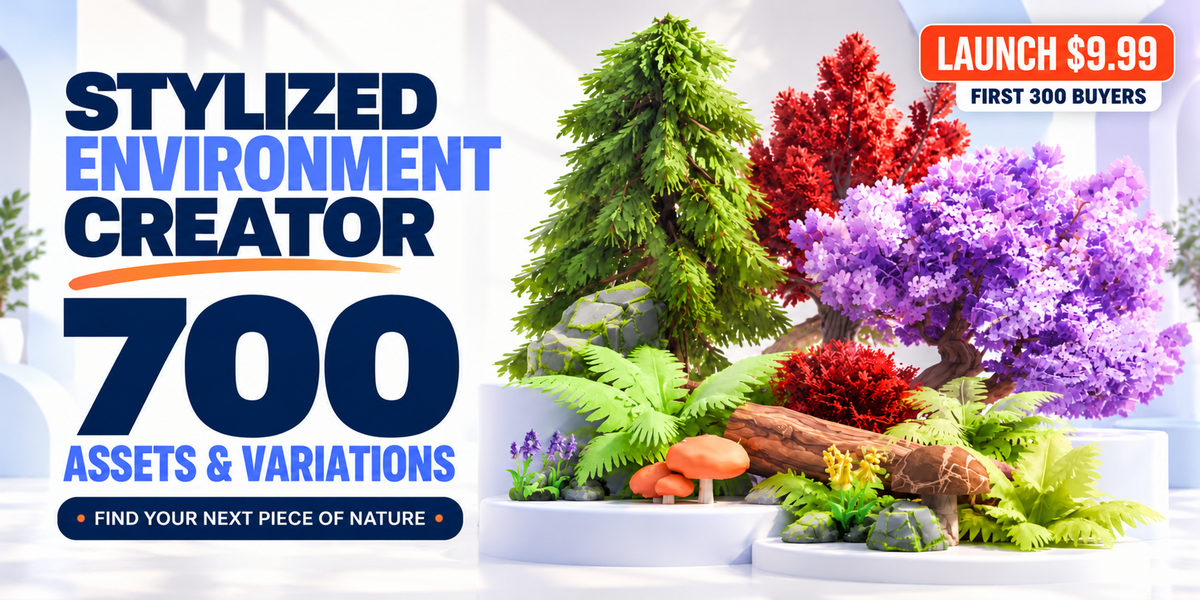
STYLIZED NATURE TOOLS FOR BLENDER
Paint stylized nature.
Make it move.
Build a setting for your next idea. Place assets, paint plants and shape the sky. Add wind and weather with 700 assets & variations and a complete environment toolkit inside Blender.

planting, seasonal assets, surfaces, clouds & snow
Build a scene.
Keep making it yours.
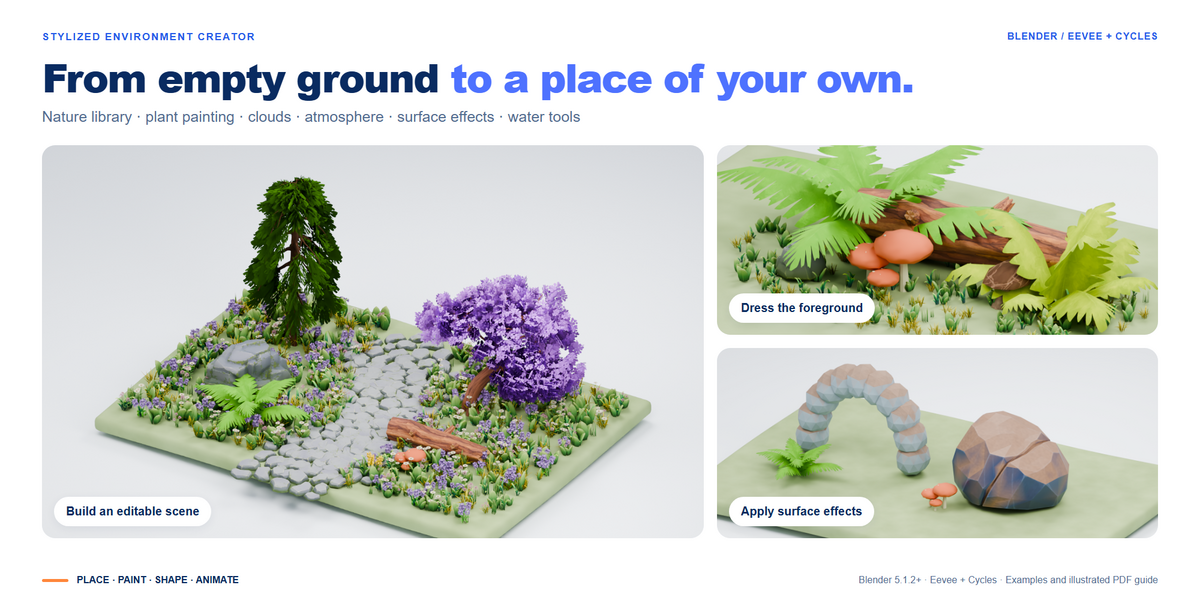
Place a few main objects, paint the ground cover and add the finishing details. Watch the garden come together, then explore the tools behind it.
700assets & variations
|
15plant brushes
|
20cloud shapes
|
20surface effects
|
Find your ingredients
Pick the trees, rocks and smaller details that give your scene its shape.
Build around your camera
Place the main objects, paint the spaces between them and keep your focal point clear.
Keep shaping the result
Swap a plant mix, refine the density or try a new atmosphere as the scene develops.
Already have a scene?
Build the world around it.
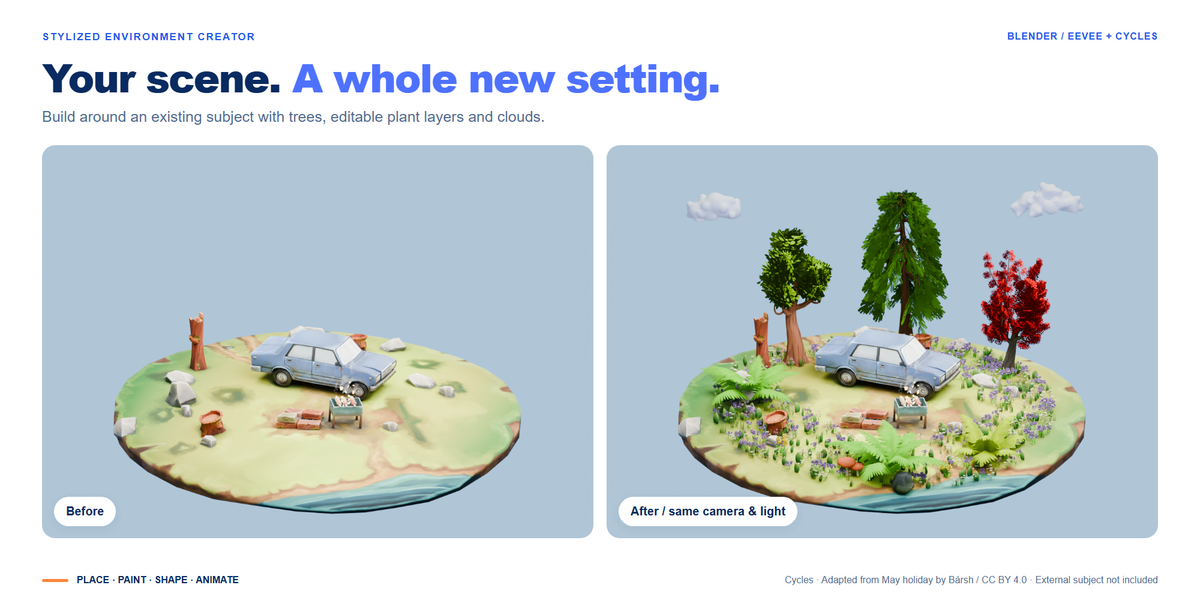
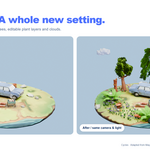
Keep your model. Add trees, painted ground cover, clouds and movement around it. Watch this car scene grow, then compare the result from the same camera.
Same camera and lighting · Cycles renders. Drag the handle to compare the environment pass.
Car, ground and picnic props adapted from May holiday by Bársh (CC BY). Starting project assembled from selected parts of the original scene. Trees, planted layers and clouds added with Stylized Environment Creator. External scene shown for demonstration; not included with the add-on.
Paint once.
Try a different direction.
Compare before and after planting. Then explore a new plant mix, an open path and added movement.
Find your next
piece of nature.
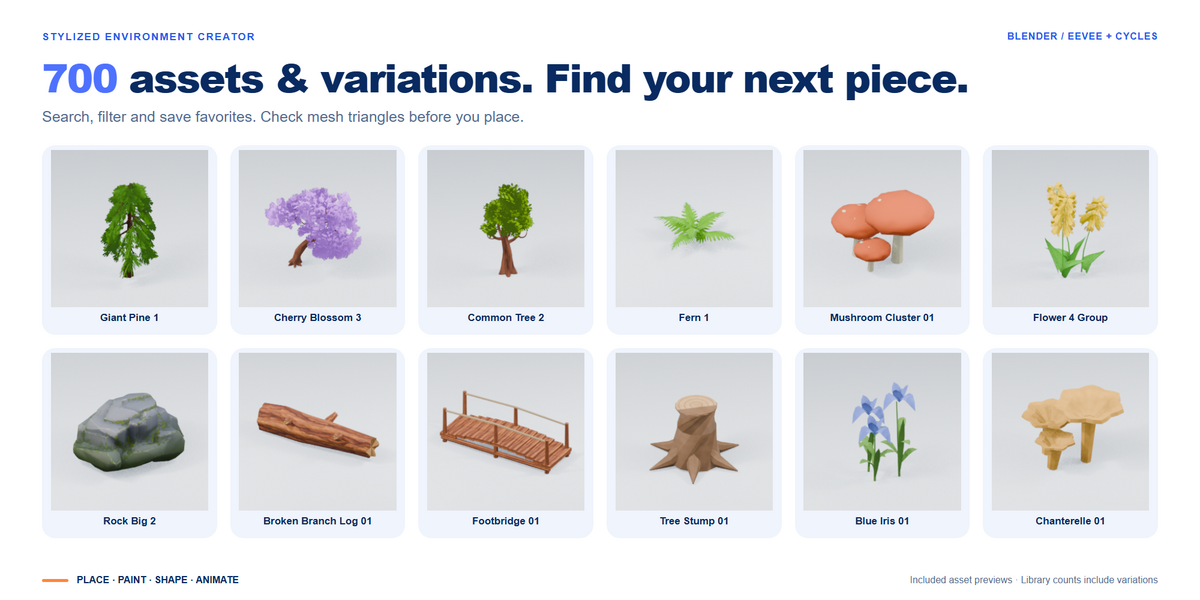
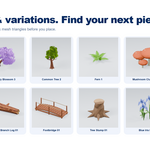
Browse 700 assets and variations. Search by name, filter by category or season, and open any asset for a closer look and its triangle count. Save your favorites as you go.
Shape the landscape
Trees, shrubs, rocks, terrain pieces and structures for your main shapes.
Fill the spaces between
Grass, flowers, ferns and ground cover to fill the spaces between them.
Give the foreground a story
Mushrooms, logs, branches and small props for close-up detail, with seasonal variations to explore.
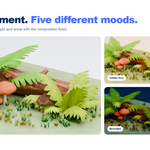
Try a different foreground.

Same place.
A different feeling.
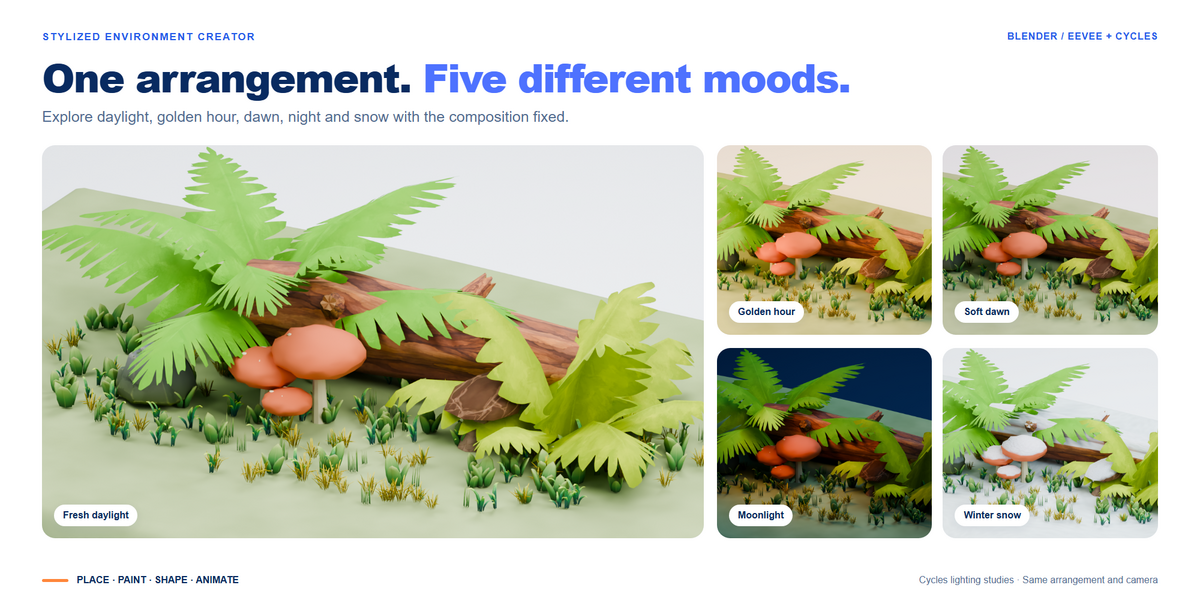
Explore daylight, warm evenings, moonlight and snow around the same log, mushrooms and ferns. Start with one of eight mood presets, then adjust the sky, clouds and lighting.
Pick an asset.
Place it in your scene.
Choose an asset and place it on your own ground mesh. Adjust its size and rotation, try a seasonal variation or swap the object as your composition develops.
Paint plants
directly onto your scene.
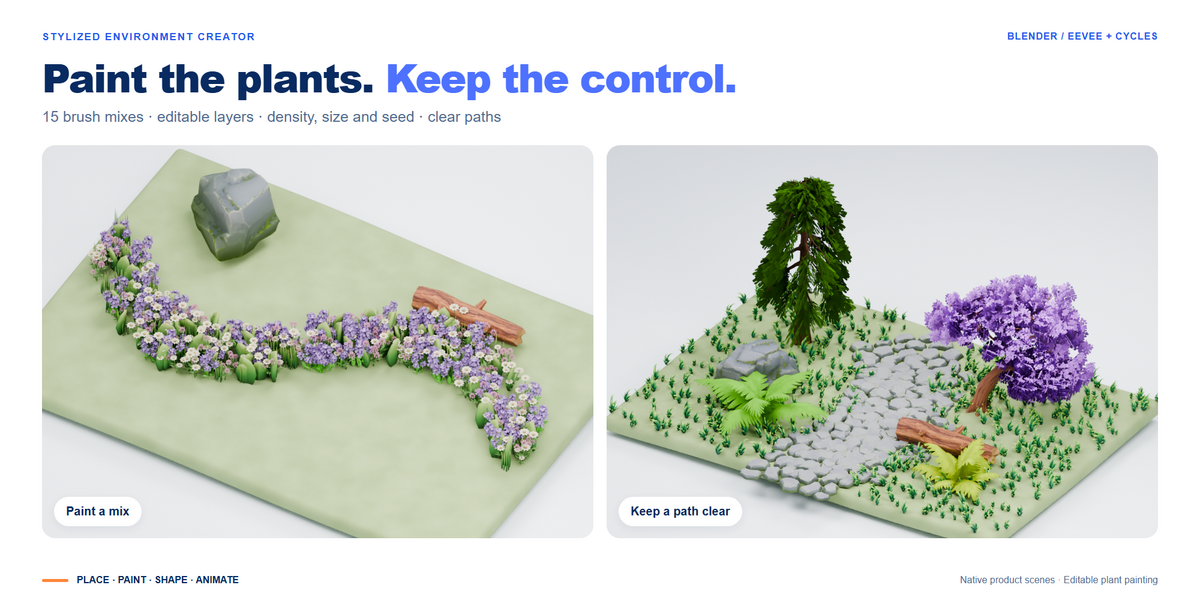
Draw grass, flowers, ferns and mixed planting onto your ground. Start with one of 15 brushes, erase where you need space and add individual plants for the final details.
Change the mix.
Keep your brushwork.
Your painted plants stay editable. Swap the mix, adjust density and size, or try another seed. Use separate layers for the foreground, paths and background.
Keep your paths
clear.
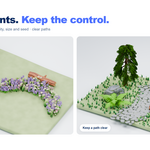
Leave room for paths, props and your main subject. Use masks and exclusion objects to control where plants grow.

Placement masks
Use a mask to control which parts of a surface receive scattered plants.
Object exclusions
Keep selected objects clear and adjust the surrounding clearance.
Separate layers
Adjust foreground and background planting independently.
Find the right shape
for your sky.
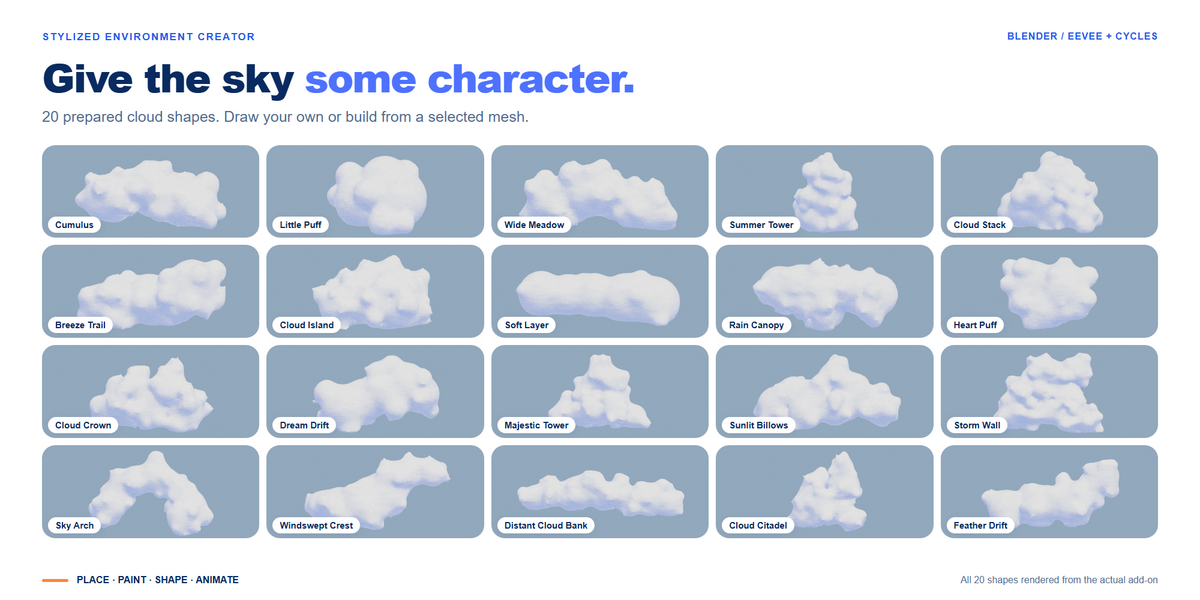
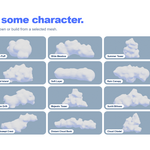
Start with one of 20 cloud shapes: small puffs, wide banks, tall towers and sweeping arches. Choose a silhouette, then adjust its scale and position around your scene.
All 20 shapes shown here are rendered from the add-on’s native cloud geometry.
Pick a cloud.
Or draw your own.
Draw a cloud guide, turn a mesh into a cloud or fill an area with several shapes. Refine the silhouette first, then prepare the detailed result.
Give your plants
a little movement.
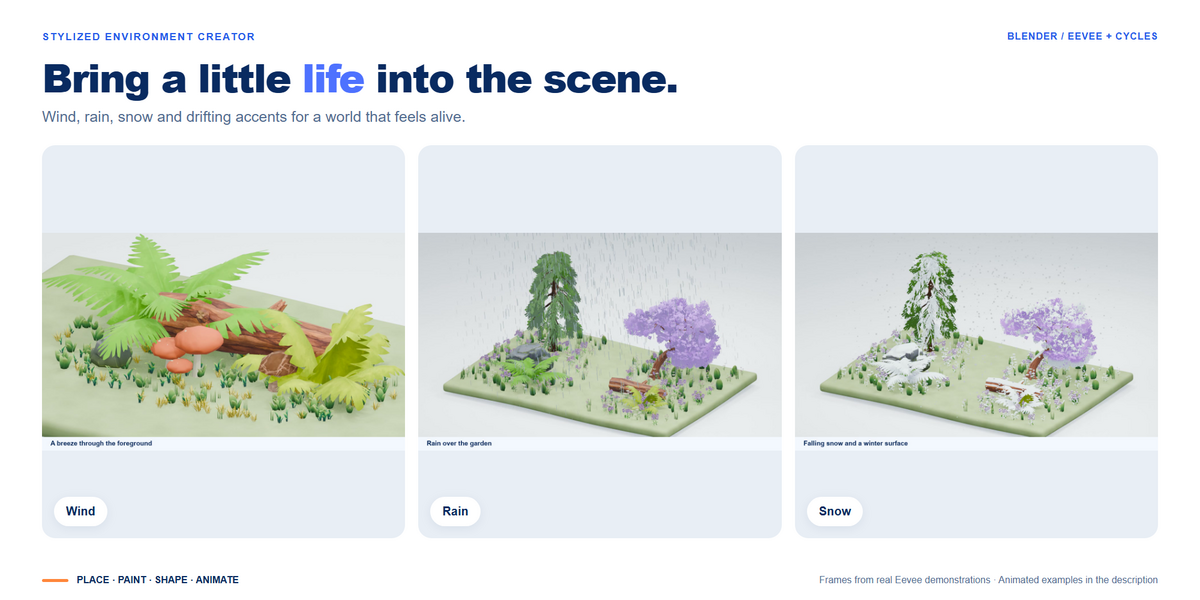
Add a breeze to grass, ferns and trees. Adjust its strength and direction, then check the movement from your camera.

Tune the breeze from your final camera so the movement fits the shot.
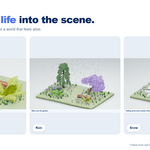
A little rain.
A fresh layer of snow.
Add falling rain or snow around your scene. Adjust the intensity and working area, then use wetness or snow coverage to carry the weather onto the surfaces.
Add petals, leaves
and fireflies.
Bring a little movement into the air. Choose petals, falling leaves or fireflies, then adjust their size, density and working area.
Create a loop.
Animate the atmosphere.
Prepare a 5, 10 or 15-second environment loop. Or capture two atmosphere states and animate the transition between them.

Capture A
Set the first atmosphere and capture the starting state.
Capture B
Change the atmosphere and capture the destination.
Choose the timing
Prepare the transition or an environment loop, then preview the animation before rendering.
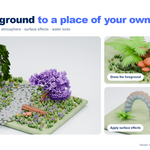
Add moss, snow
and weathered detail.
Choose from 20 surface effects to add moss, dirt, snow, wear and more. Adjust the amount to bring rocks, props and ground into the same setting.

Connect the details
Add a shared finish to rocks, props and foreground objects.
Control the amount
Adjust the coverage to suit each object.
Keep experimenting
Clear the effect and try another finish.
Four starting scenes.
Your next idea.
Generate a river meadow, woodland clearing, pine forest or overgrown ruin in a separate scene. Use it as a starting point, then change the assets, planting and atmosphere.

River meadow
An open landscape direction with room for planting and a water route.
Woodland clearing
A clearing framed by trees, ready for your focal point.
Pine forest
A pine forest to arrange around your camera.
Overgrown ruin
Structural pieces surrounded by natural planting.
From first asset
to finished scene.
Follow the whole workflow or jump straight to the tool your project needs. Every stage stays available as you develop the scene.
- 01
Find the ingredients ↗
Choose the main silhouettes and a few useful details.
- 02
Arrange the landmarks ↗
Place the objects that establish the composition.
- 03
Paint the connections ↗
Bring in ground cover, flowers or woodland planting.
- 04
Compose the sky ↗
Choose or draw clouds, then develop the atmosphere.
- 05
Refine the finish ↗
Adjust density, surfaces and movement around your final camera.
One download.
The complete toolkit.
Get the asset library, planting tools, clouds, weather, surface effects and animation controls, plus example scenes and a 23-page PDF guide.
700 assets & variations
Trees, shrubs, grasses, flowers, mushrooms, rocks, terrain, structures and smaller details. Native previews, search, filters, favorites, variants and Asset Browser integration.
Planting & placement
15 plant brushes, individual surface placement, erase and undo, editable plant layers, mix replacement, density, size and seed controls, masks and exclusions.
Sky & atmosphere
20 cloud shapes, cloud drawing and mesh conversion, area filling, sky and time controls, eight moods, saved looks, wind, rain, snow, leaves, petals and fireflies.
Finishing & animation
20 surface effects, river, bank and waterfall tools, four generated starting scene types, 5/10/15-second environment loops and A/B atmosphere transitions.
Examples & guidance
Example scenes and a 23-page PDF guide covering installation, the interface, library, planting, water, atmosphere and practical workflow.
Blender support
Blender 5.1.2 minimum. Tested on Windows in Blender 5.1.2 and 5.2.0 LTS. Both Eevee and Cycles are supported.
Your first session
Install and enable the add-on ZIP, then open the environment panel in the 3D View. Select your ground, place an asset and try a brush. The included PDF takes you through the setup and controls.
Before you start.
Compatibility, editing and the practical details.
Can I use it in a scene I already have?
Yes. Place assets and paint on your own mesh, then add the sky, weather or finishing controls you need. Generated scenes are optional starting points.
Do I have to use every part of the toolkit?
No. Use the library for a foreground arrangement, paint a patch of vegetation or build an atmosphere around an existing scene. The full workflow is available when you want it.
Can I edit the planting after painting?
Yes. Plant layers remain editable. Change the mix, density, size or seed, and keep separate layers for different parts of your composition.
Can I make my own clouds?
Yes. Draw a cloud guide or convert a selected mesh, then refine the shape. The 20 preset cloud shapes provide another way to begin.
Does it work in Eevee and Cycles?
Both are supported. The tool recordings on this page use Eevee; the detailed still studies use Cycles.
What does the library count include?
The library contains 700 assets and variations, with previews. Use the interactive catalog above to inspect the included collection.
How do I keep a dense scene practical to work with?
Use Preview mode while placing and painting, keep the active weather area around the scene you need, and prepare cloud detail after shaping the guide. Adjust density and scene complexity to suit your hardware.
What is included with the launch offer?
The complete add-on, the 700-entry library, example scenes and the PDF guide. The launch price is $9.99 for the first 300 buyers.
Your next environment
starts here.
Get the complete nature library and environment toolkit for Blender.
For the first 300 buyers.
The complete environment toolkit.
700 assets and variations, 15 brushes, 20 cloud shapes, surface effects, weather and animation tools, examples and the PDF guide.
Explore everything included ↑YOU MAY ALSO LIKE
More from DanilGOE
Explore more character tools and asset libraries. Sold separately.