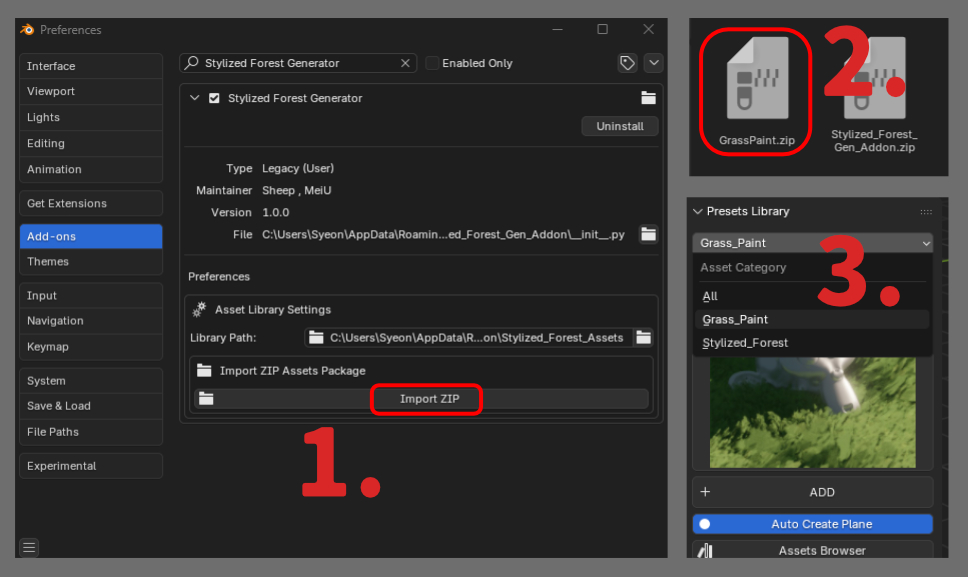
Installation & Activation
1
Open Blender, go to Edit > Preferences > Add-ons
2
Click the Install... button
3
Select the addon zip file (.zip)
4
Check the checkbox next to the addon to enable it
image.png
After enabling, you can find the addon panel in the 3D viewport sidebar (press N key to open).
Main Feature Panels
Presets Library
This is the core feature panel of the addon, used for browsing and applying presets:
-
Category Selection: Use the dropdown menu to select preset categories (All, Special, etc.)
-
Thumbnail Browse: Browse all available presets in a grid view
-
Auto Create Plane: When enabled, automatically creates a 15m × 15m plane when adding a preset, and applies 6 levels of simple subdivision
-
ADD Button: Apply the selected preset to the selected mesh object
Steps to Use Presets
- Select a mesh object (or enable Auto Create Plane)
- Select preset category in Presets Library panel
- Click thumbnail to select desired preset
- Click the
ADD button - The preset's materials and Geometry Nodes modifier will be applied to the selected object
Vertex Groups
This panel provides complete vertex group management functionality:
-
Vertex Group List: Displays all vertex groups of the object
-
Add/Remove: Quickly add or remove vertex groups
-
Weight Paint Mode: One-click switch to weight paint mode
-
Vertex Group Operations: In edit mode, you can assign, remove, and select vertices
-
Weight Tools: Provides various tools in weight paint mode:
- Normalize All / Normalize
- Mirror
- Invert
- Clean
- Quantize
- Levels
- Smooth
Control Panel
This panel is used to control Geometry Nodes modifier parameters:
-
Modifier Expand/Collapse: Click the modifier name to expand or collapse the parameter panel
-
Category Organization: Parameters are automatically organized into categories based on hidden string attributes
Enabling the Viewport OPT (OFF / ON) feature improves 3D viewport performance without affecting the final render result.
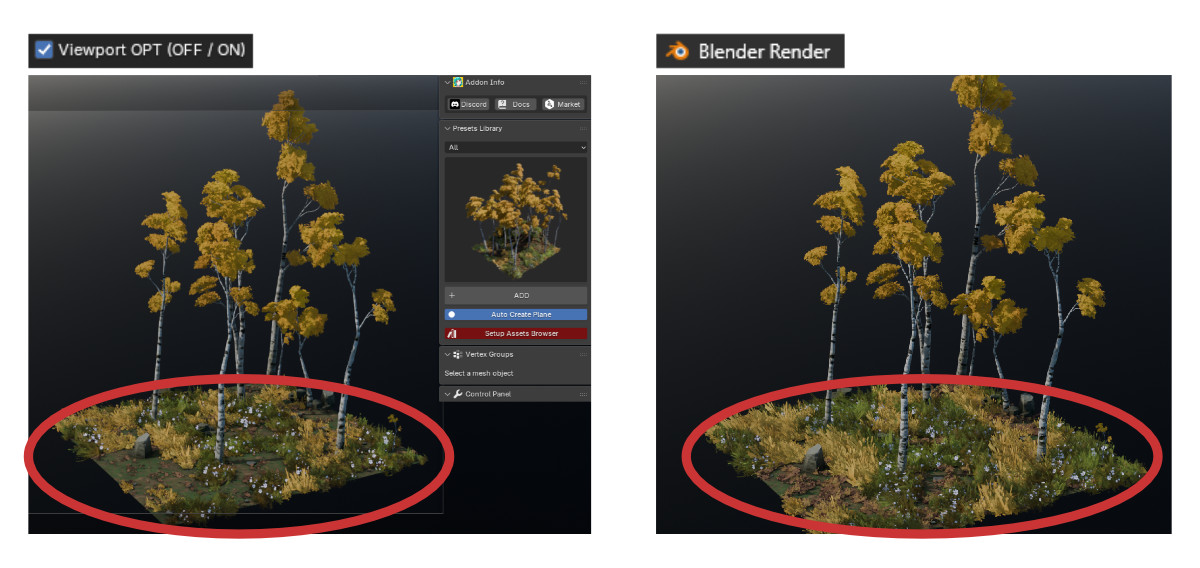
The particle effect can create mesh objects after opening, add to collection, and select the particle field in the assets panel. After opening, you can adjust it in the control panel.
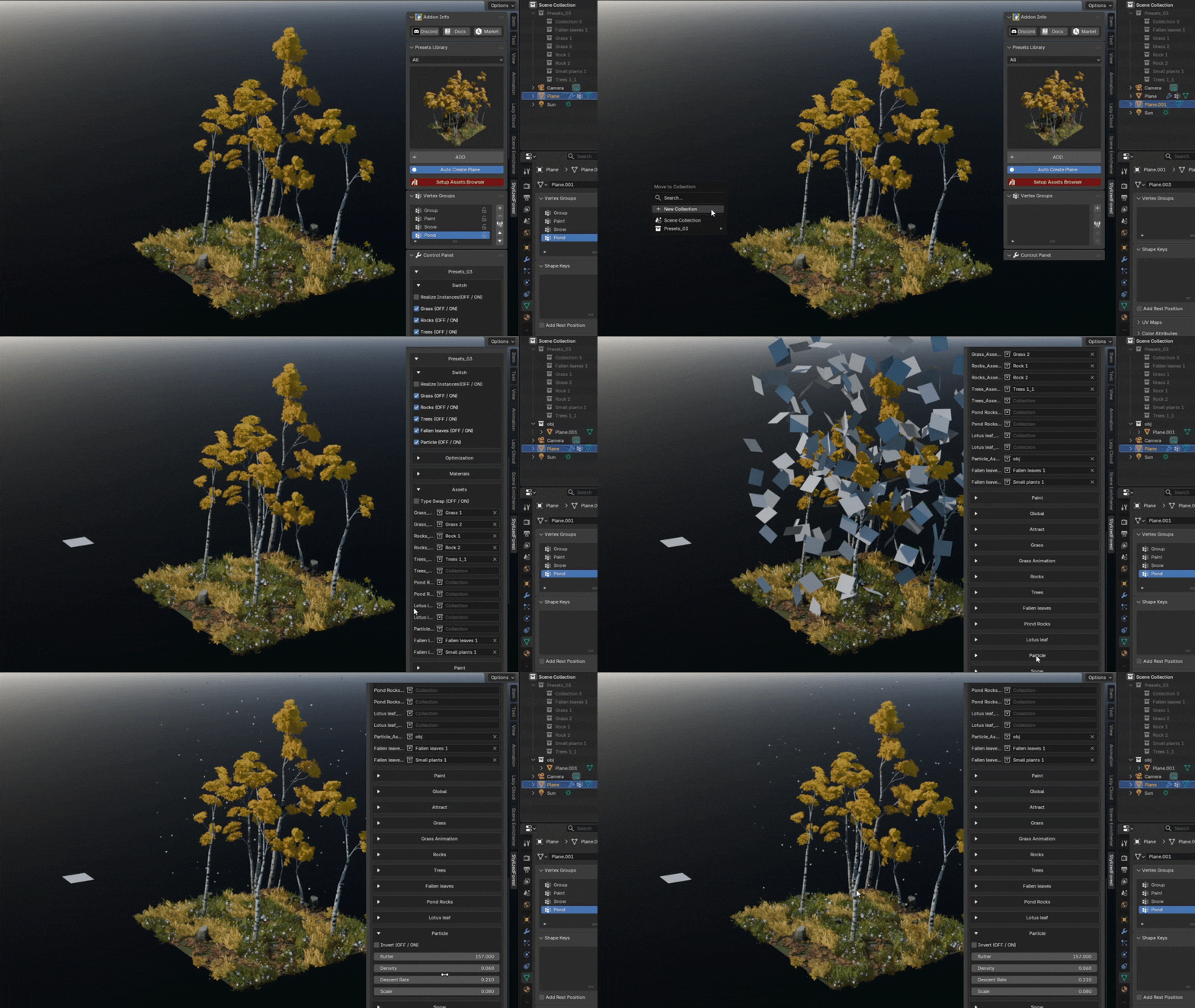
Core Features Explained
Auto Paint Mode
When an object has a preset modifier applied, this feature can:
- Automatically switch to weight paint mode
- Automatically select the corresponding vertex group (based on preset information)
- Automatically create the vertex group if it doesn't exist
- In weight paint mode, you can adjust weight values and use tools like invert, smooth, etc.
- Click "Back to Object Mode" to return to object mode
Auto Create Plane
After enabling the "Auto Create Plane" option, when adding a preset it will automatically:
- Create a 15m × 15m plane at the 3D cursor position
- Apply scale transformation
- Add a 6-level simple subdivision modifier and apply it
- Set the newly created plane as the active object
Automatic Light Path Settings
The addon automatically detects the rendering engine and optimizes settings:
-
EEVEE / EEVEE Next: Automatically enables ray tracing, sets shadow resolution scale to 0.7, and surface direct light limit to 1
If outdated rendering settings are detected, the panel will display a warning and provide a one-click fix button.
 Casey_Sheep