Stylized Master Tools - Craft Beautifully Stylized Renders in Minutes

MeiU in Surfacing


Stylized Master Tools User Manual

Blender Stylized Stamp & Texture Tool — Complete Usage Guide

📋 Table of Contents

  • 1. Add-on Overview
  • 2. Installation & Enable
  • 3. Basic Workflow
  • 4. Main Panels & Features
  • 5. Node Effects Panel
  • 6. Tips & Best Practices

Tutorials and Introductions:

▲ Watch the full tutorial for the complete workflow

1. Add-on Overview

🎨 What is Stylized Master Tools?

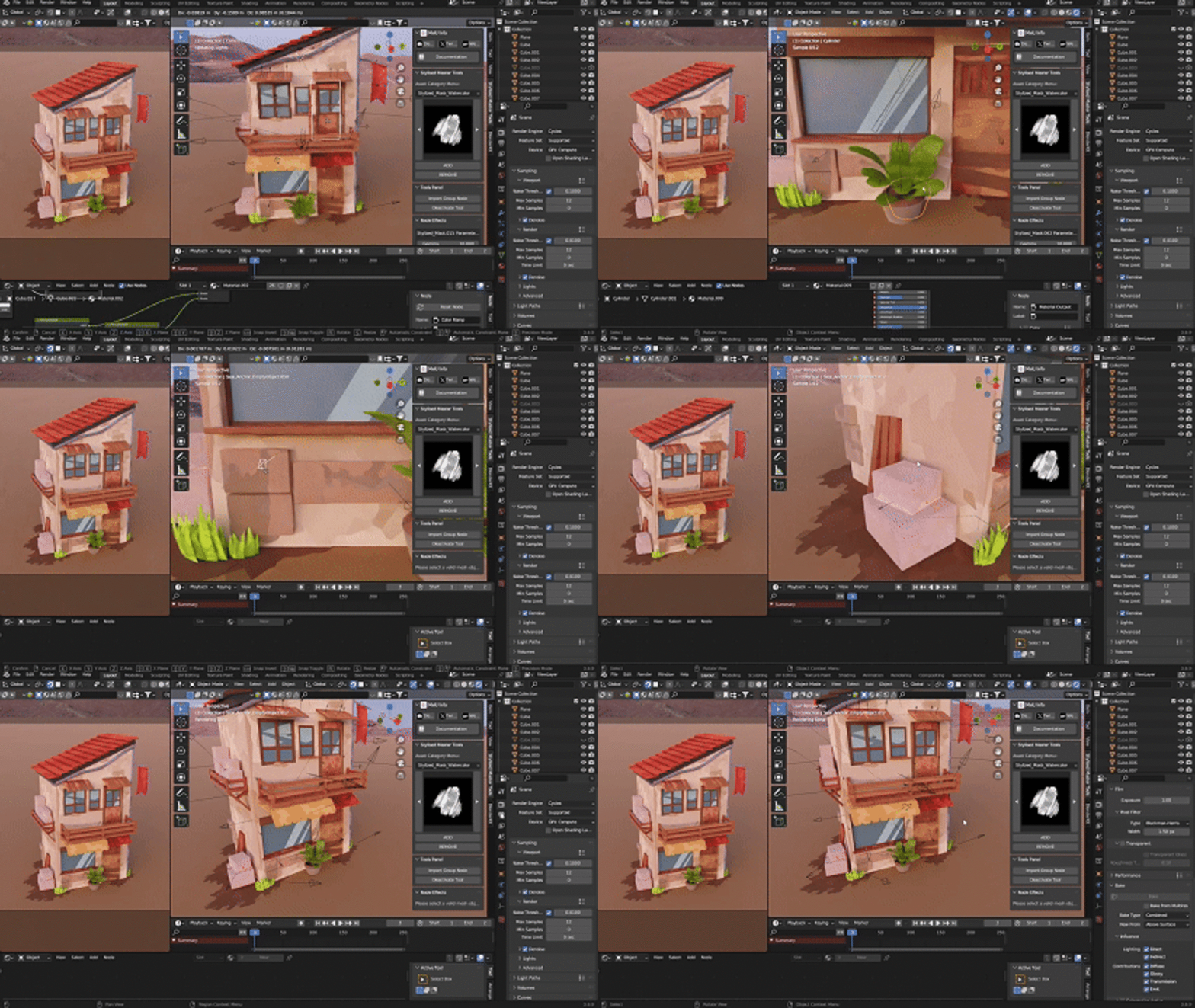
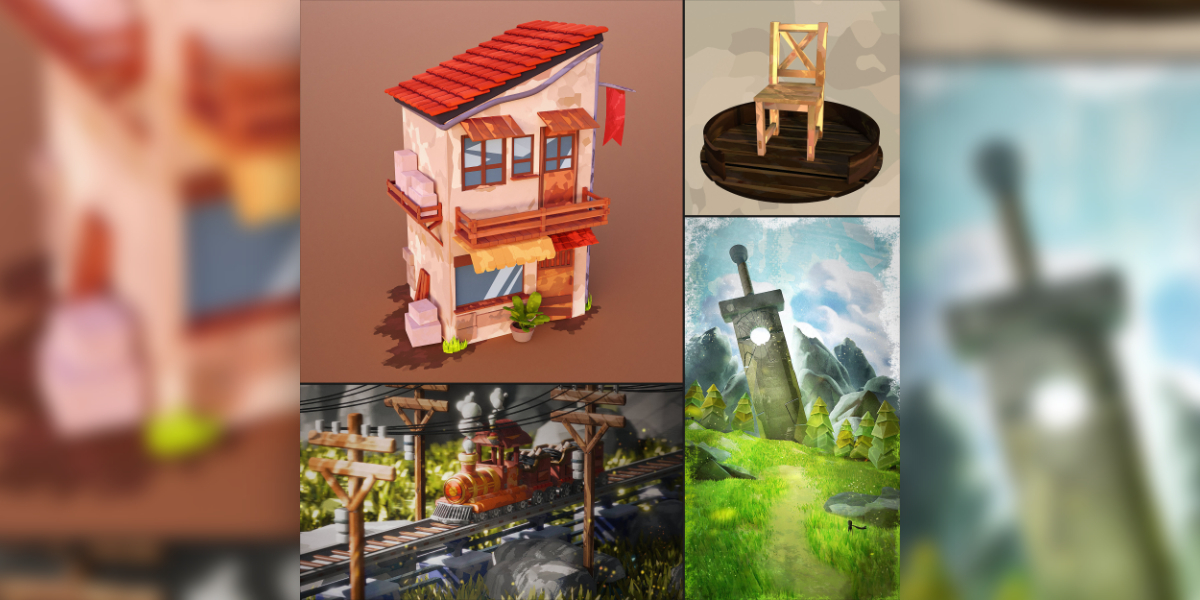
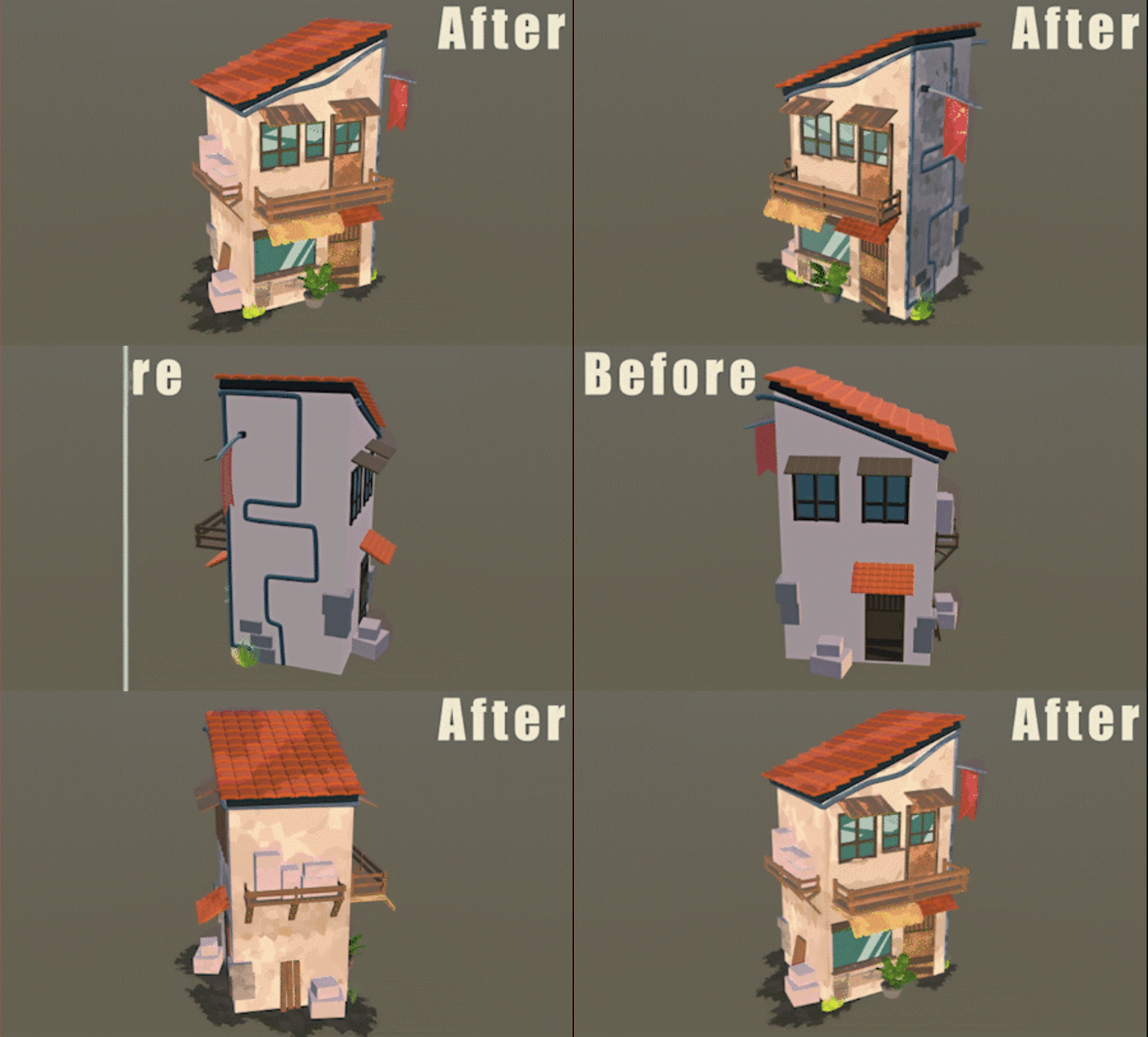
Stylized Master Tools is a user-friendly Blender add-on with 200+ stylized stamp textures organized in multiple categories. Quickly map stamps onto your models, adjust effects directly in the 3D viewport, and bake when you are satisfied with the look.

  • Thumbnail browser with category folders and prev/next navigation
  • One-click ADD / REMOVE for stamp node groups
  • Automatic node setup: Seal_Large Block + Stylized_Mask
  • Layered stamp control with reorder, anchor points, and opacity
  • Auto Snap for surface-aligned stamp placement

📋 System Requirements

  • Add-on Name: Stylised Master Tools
  • Author: MeiU
  • Version: 1.0
  • Minimum Blender: 3.4.1
  • Panel Location: View3D → N Panel → Stylised Master Tools
  • Category: Object

2. Installation & Enable

1

Install the Add-on

Edit → Preferences → Add-ons → Install → Select the Stylized Master Tools zip or folder
2

Enable & Verify Assets

Enable Stylised Master Tools in the Add-ons list. Ensure the add-on folder contains Data.blend and Stylized Master Tools/Thumbnails with category subfolders.

3. Basic Workflow

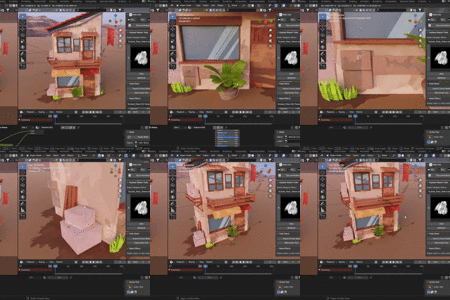
Select a texture, click ADD to apply it to your model, adjust placement in the 3D view, then bake the texture to finalize your stylized model.

1

Select a mesh object

Select the target mesh in Object Mode.

2

Import Group Node (Tools Panel)

Click Import Group Node to add Seal_Large Block and Stylized_Mask to the object’s material (required before adding stamps).

3

Choose category & thumbnail → ADD

Pick an Asset Category, browse thumbnails with ◀ ▶, then click ADD to insert the stamp into the node stack.

4

Adjust in Node Effects & 3D view

Fine-tune parameters in the Node Effects panel. Create anchor empties, enable Auto Snap, then move anchors with the cursor over the target face so snapping can find the nearest surface.

5

Bake & finalize

When satisfied with the stylized look, bake textures to your model as usual in Blender.

4. Main Panels & Features

🧩 Stylised Master Tools (Asset Manager)

  • Asset Category Menu: Switch between thumbnail folders (4+ categories, 200+ assets)
  • Thumbnail browser: Icon view with previous / next buttons
  • ADD: Import selected stamp node group into Seal_Large Block
  • REMOVE: Remove Seal_Large Block, Stylized_Mask, and related anchor empties from selected objects

🛠️ Tools Panel

  • Import Group Node: Loads Seal_Large Block and Stylized_Mask from Data.blend and wires them to Material Output
  • Activate / Deactivate Auto Snap: When anchor empties (Seal_Anchor_EmptyObject) are selected, enables face snap & align rotation for surface sticking

📌 How Auto Snap works

Auto Snap uses your mouse cursor position to find the nearest face on the mesh and snaps the anchor to that surface.

While moving an anchor empty, keep the cursor over the area of the model where you want the stamp to sit. If the anchor is selected but you drag it far away from the mesh, there is no face under the cursor — so it cannot snap to the correct position. Move back toward the surface (with the cursor on the target face) for reliable placement.

🔗 MeiU Info

  • Quick links: Discord, Twitter X, Website
  • Documentation button opens the online user manual

5. Node Effects Panel

Visible when a mesh with a valid node material is selected.

Stylized_Mask Parameters

  • Gamma — overall tone control
  • ColorRamp — expandable ramp editor for color grading

Seal_Large Block — per stamp group

  • Expand ▶ each Group to edit float / color inputs
  • ▲ ▼ — reorder stamp layers (updates node chain)
  • ⚙ (Create Anchor Tool) — adds Seal_Anchor_EmptyObject parented to mesh, linked to stamp anchor control
  • X — delete stamp group and its anchor empty

6. Tips & Best Practices

💡 Recommended Workflow

  1. Always run Import Group Node once per object before adding stamps
  2. Add stamps layer by layer; use ▲▼ to control blend order
  3. Create anchor empties for precise placement, then enable Auto Snap — move anchors with the mouse over the mesh; snap targets the closest face under the cursor (not the empty’s position in empty space)
  4. Tweak Gamma and ColorRamp on Stylized_Mask for final tone
  5. Use REMOVE to cleanly strip all stamp nodes and anchors when starting over

❌ Common Issues

  • ADD does nothing: Import Group Node first; ensure a mesh with material is active
  • Duplicate Seal_Large Block error: Object already has the node — use REMOVE or another material slot
  • No thumbnails: Check Stylized Master Tools/Thumbnails category folders contain PNG files

⚠️ Note

Example scenes may be included with the product to help you get started quickly. Performance depends on stamp count and mesh complexity — bake when the look is final.

  • Full Content.

    $16
  • Full Content. (Supports up to 10 seats) / 50%off

    $80
$16

Have questions about this product?
Login to message

Details
Sales 200+
Rating
1 ratings
Dev Fund Contributor
Published about 2 years ago
Blender Version 3.4 - 5.2
Render Engine Used Cycles, Eevee
License Royalty Free