Super Easy Face Animation
 Make It Move Media
Installation
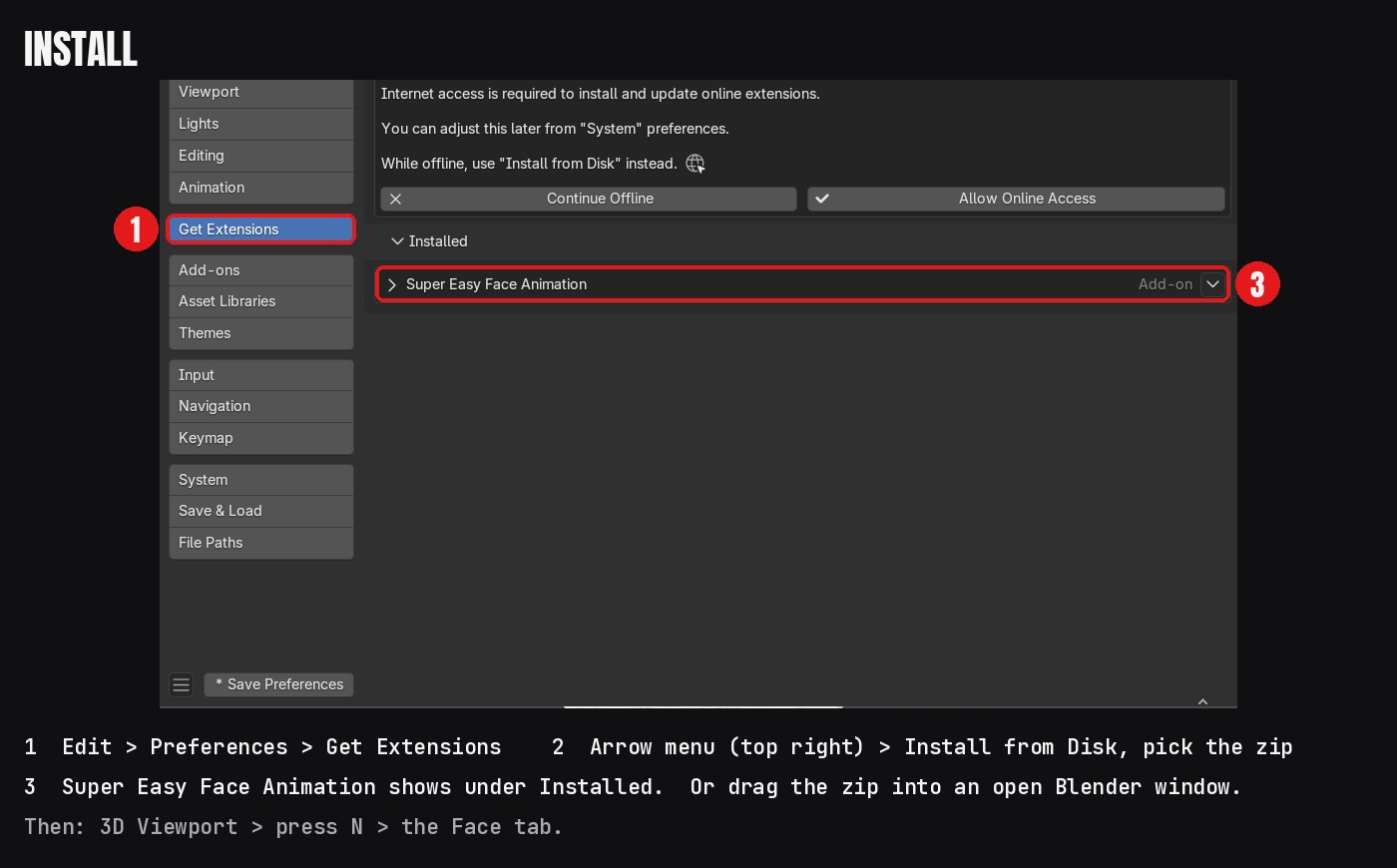
- Download super_easy_face_animation-1.4.10.zip from your Superhive library. Do not unzip it.
- Drag the zip into an open Blender window and confirm, or open Edit > Preferences > Get Extensions, click the drop-down arrow at the top right and choose Install from Disk.
- If Blender offers to add Superhive as a remote repository, accept it. Updates then appear in Get Extensions.
- In the 3D Viewport press N and click the Face tab. The panel is titled Super Easy Face Animation.
- Optional, for the best lip sync: turn on Edit > Preferences > System > Network > Allow Online Access, then press Download Rhubarb in the Lip Sync box (or in the add-on's Preferences).
Quick start (one talking character)
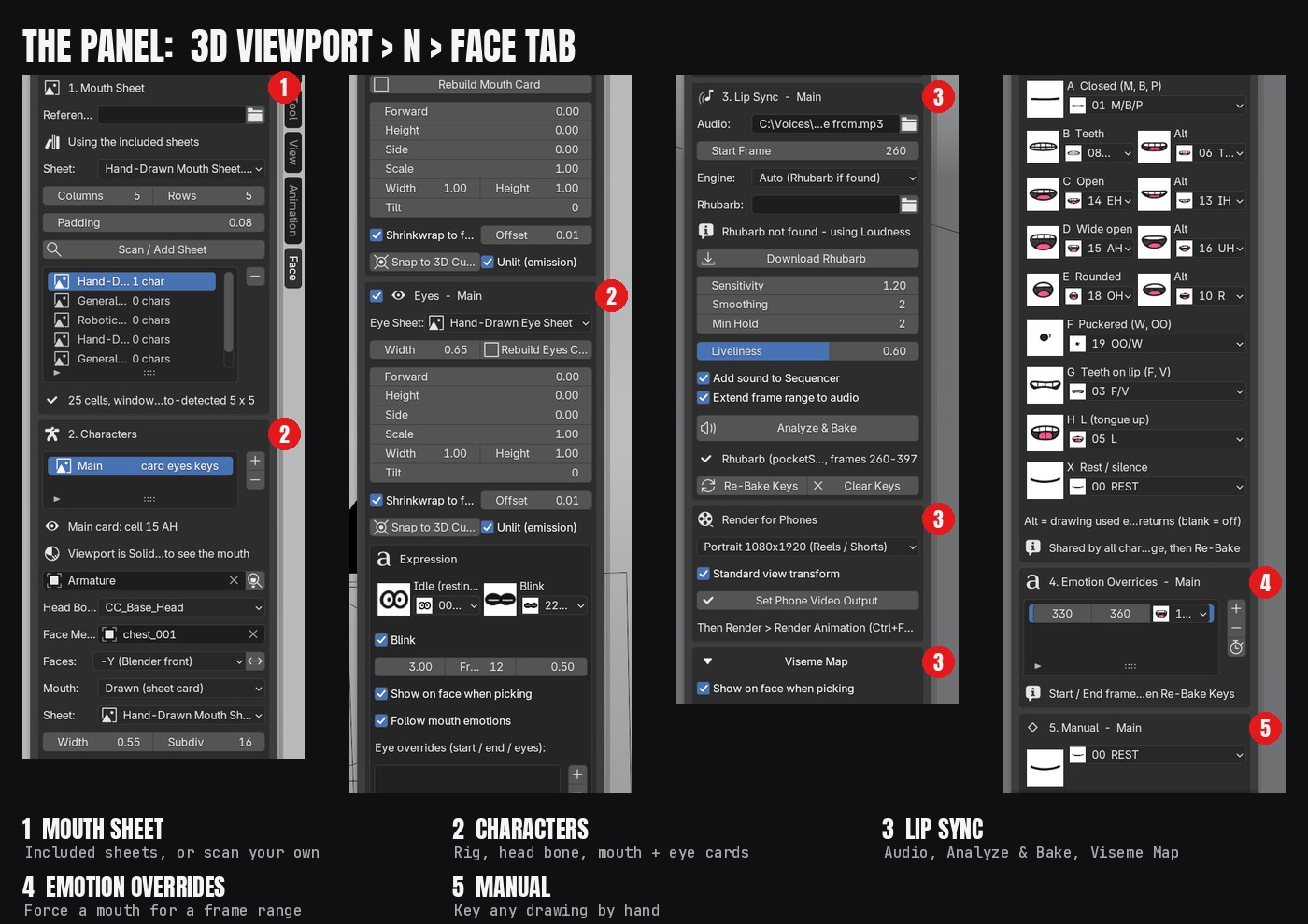
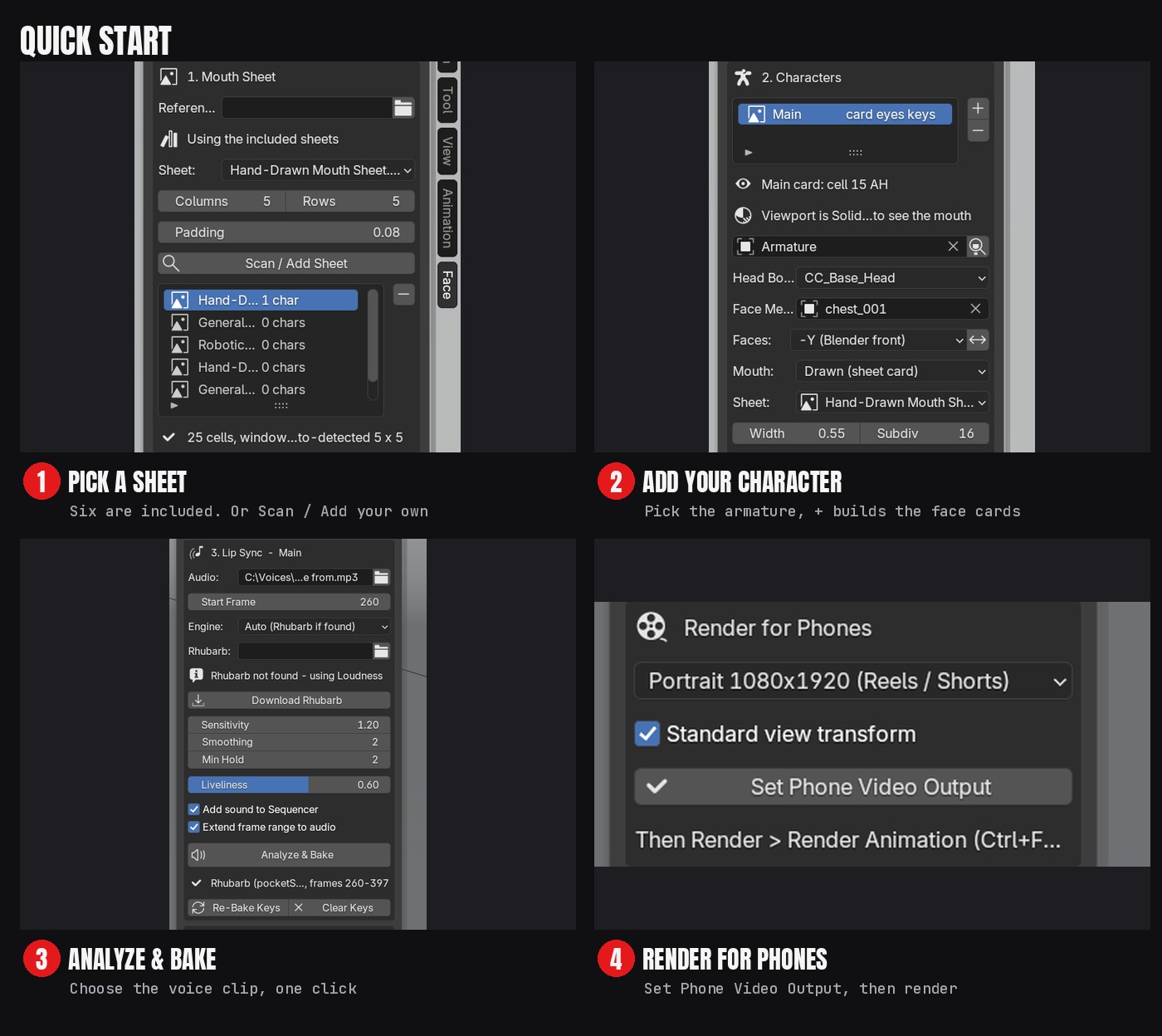
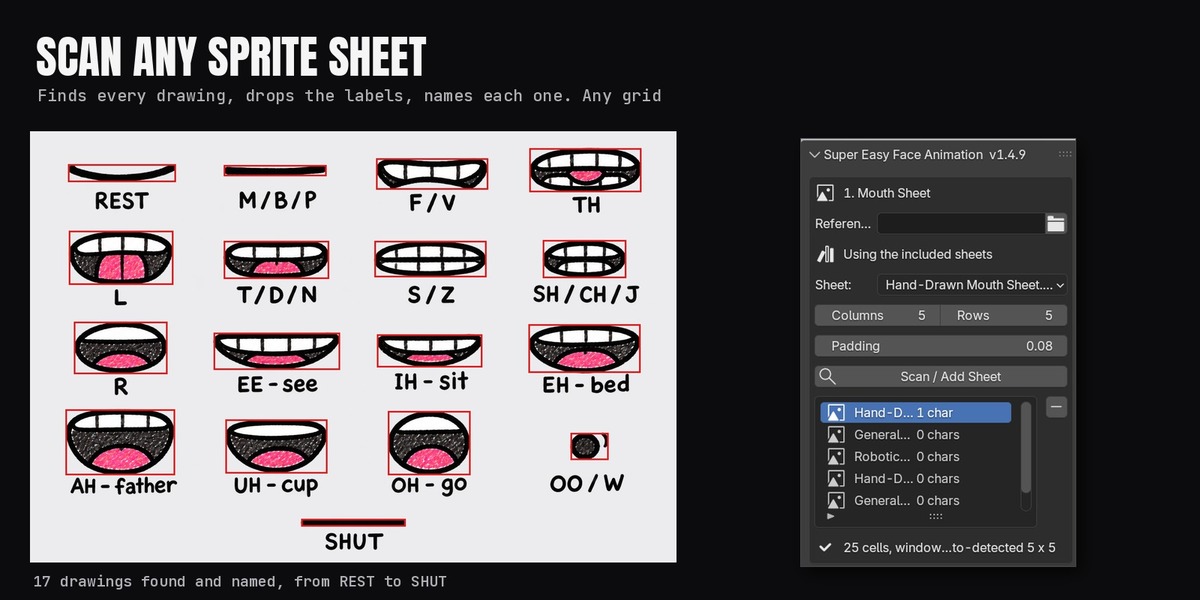
- 1. Mouth Sheet: leave Reference Folder empty, pick a sheet from the Sheet list (for example Hand-Drawn Mouth Sheet.png) and press Scan Sheet. Scan an eye sheet the same way.
- 2. Characters: press +. The armature, Head Bone and Face Mesh are found for you (or pick them).
- Press Build Mouth Card. Switch the viewport to Material Preview to see it.
- Tick Eyes and press Build Eyes Card.
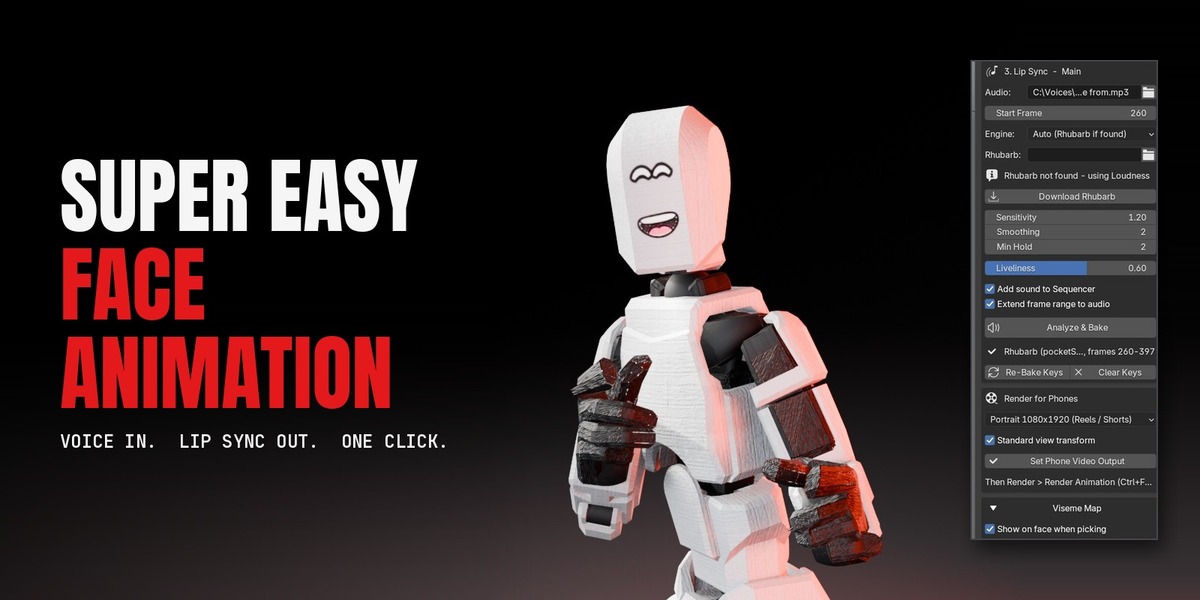
- 3. Lip Sync: pick the voice file in Audio, set Start Frame, and press Analyze & Bake.
- Press Play. To render a phone video, pick a size under Render for Phones and press Set Phone Video Output, then Render > Render Animation.
1. Mouth Sheet
| Setting | What it does |
|---|---|
| Reference Folder | Empty = the six included sheets. Set a folder to use your own sheets. |
| Sheet | The sheet image to scan. |
| Columns / Rows | Your guess of the grid. Wrong is fine: the scanner detects the real grid and writes it back. |
| Padding | Extra room around the largest sprite. |
| Scan Sheet / Scan / Add Sheet | Finds every drawing, drops the text labels, names each drawing and adds the sheet to the list. Scan again after you edit or replace the image. |
The six included sheets
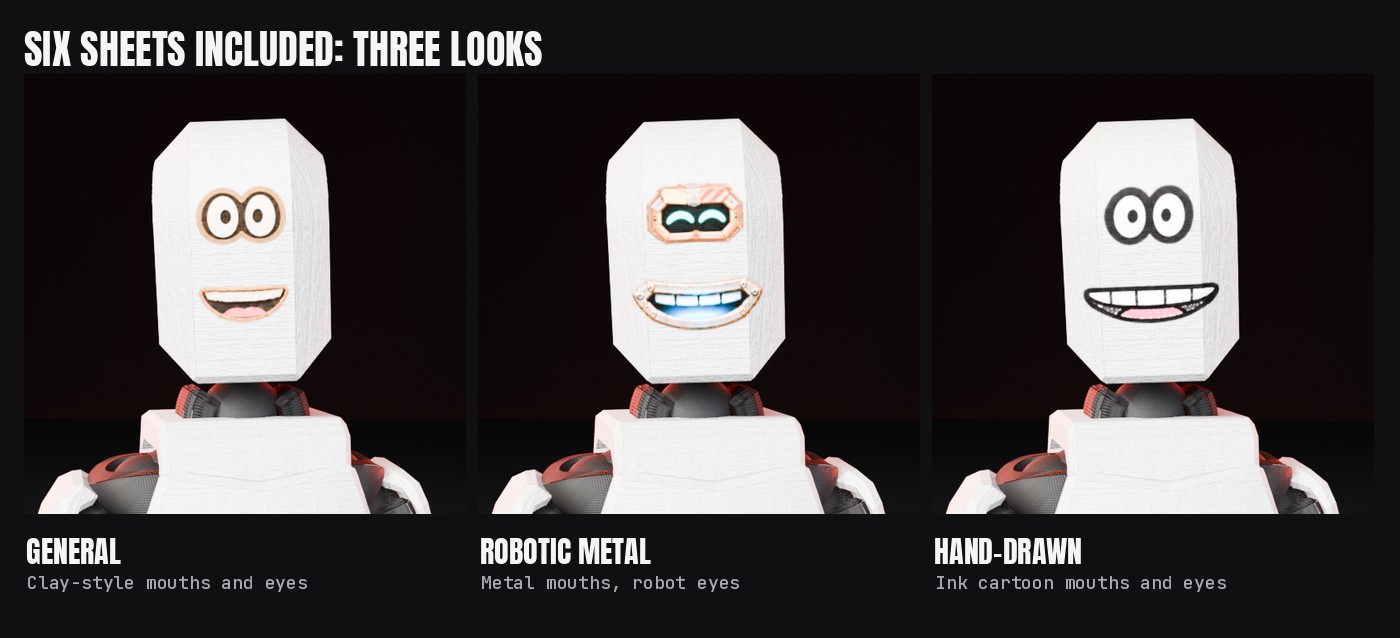
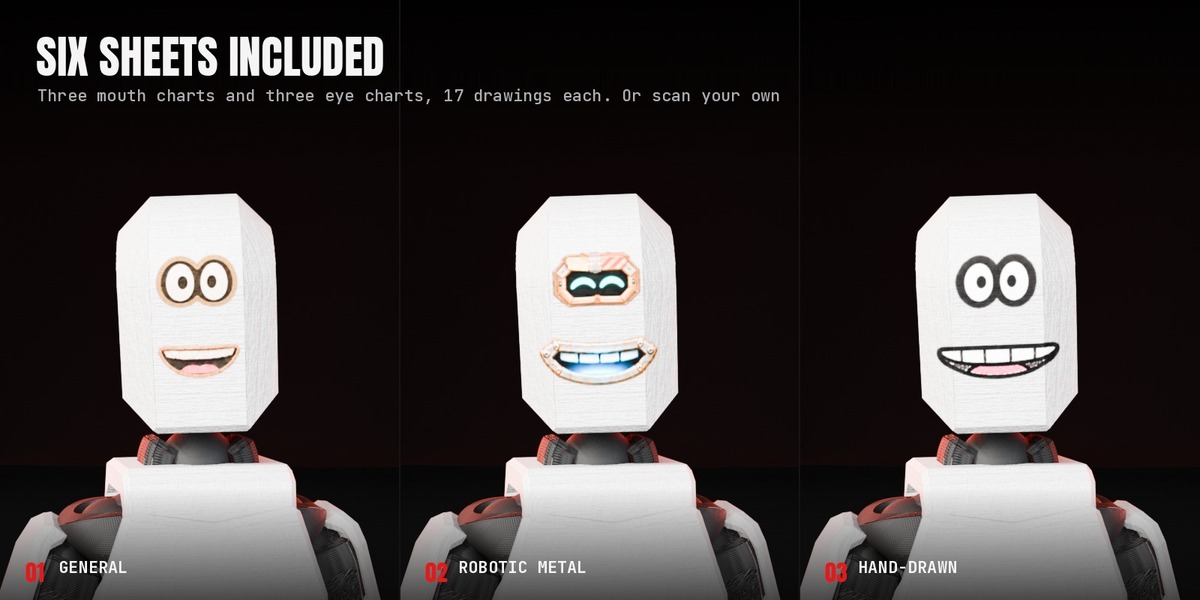
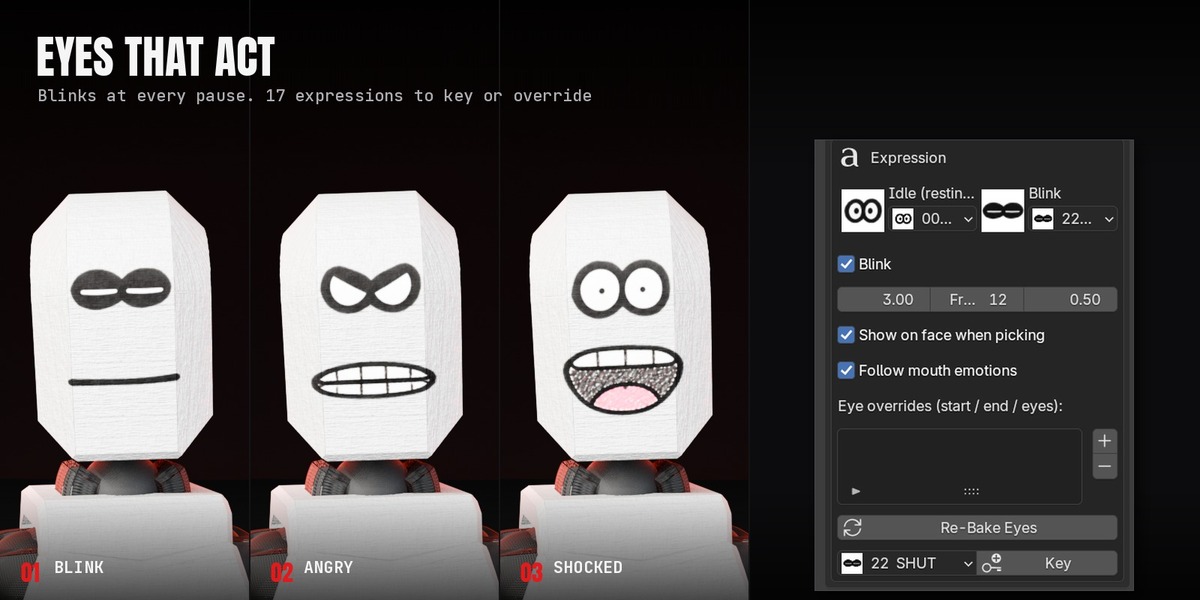
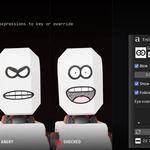
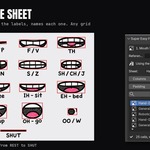
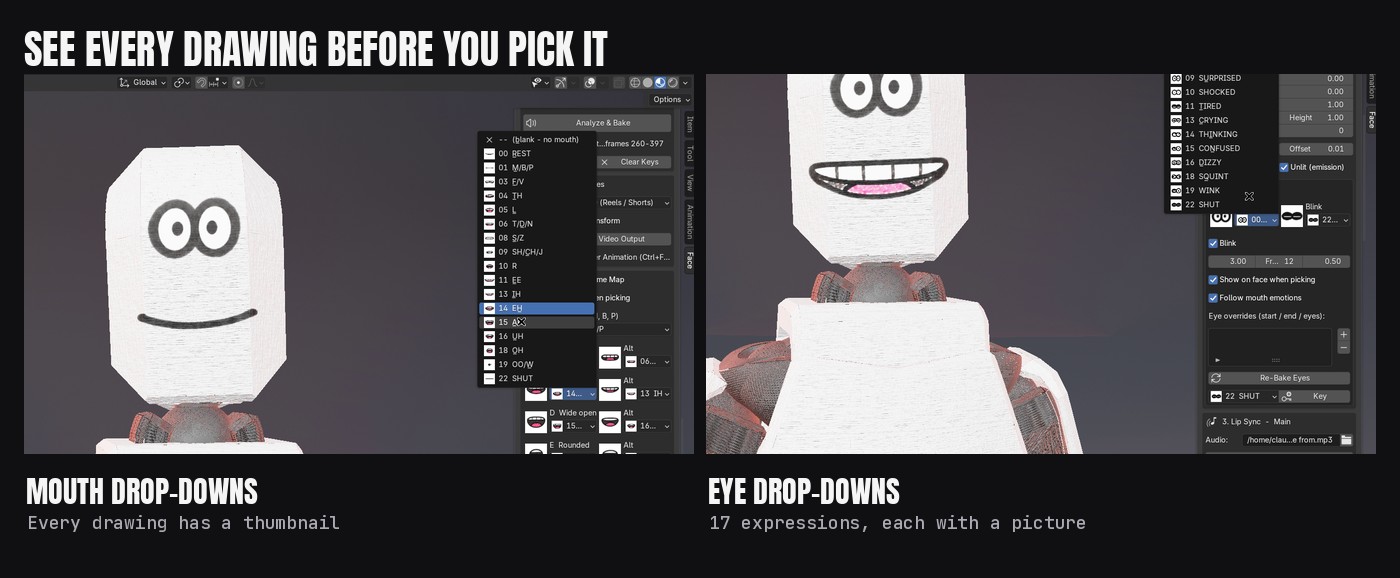
Three mouth charts (General, Robotic Metal, Hand-Drawn) and three matching eye charts. Each has 17 drawings. Mouths: REST, M/B/P, F/V, TH, L, T/D/N, S/Z, SH/CH/J, R, EE, IH, EH, AH, UH, OH, OO/W and SHUT. Eyes: OPEN / NEUTRAL, HAPPY, EXCITED, SAD, WORRIED, ANGRY, SKEPTICAL, SURPRISED, SHOCKED, TIRED, CRYING, THINKING, CONFUSED, DIZZY, SQUINT, WINK and SHUT. Every drop-down shows a thumbnail of each drawing.
2. Characters and cards
| Setting | What it does |
|---|---|
| + / - | Add or remove a talking character. Removing deletes its cards. |
| Armature, Head Bone, Face Mesh | The rig, the bone the cards follow, and the mesh they wrap to. The magnifier auto-detects them. |
| Faces / Flip | Which way the face points, if the card lands on the back of the head. |
| Mouth | Drawn (sheet card), Mask (deform mesh) or Both. |
| Sheet / Eye Sheet | Which scanned sheet this character uses (shown when you have more than one). |
| Forward, Height, Side, Scale, Tilt | Move and size the card on the face. |
| Width / Height (stretch) | Stretch the drawing wider or taller. |
| Shrinkwrap to face, Offset | Bend the card onto the face surface, and how far it floats above it. |
| Unlit (emission) | Shows the drawing at full brightness regardless of lights. |
| Snap to 3D Cursor | Moves the card to the 3D cursor; click the face first to place it exactly. |
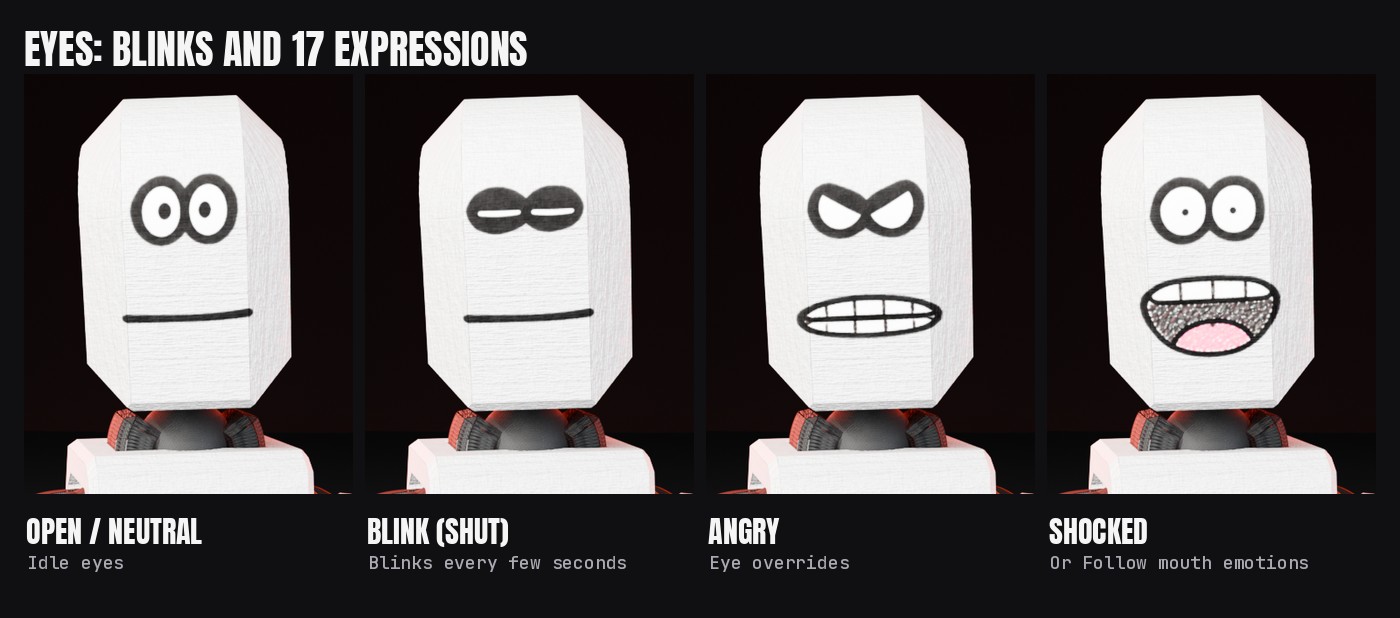
Eyes
| Setting | What it does |
|---|---|
| Idle | The eye drawing held between blinks (OPEN / NEUTRAL on the included sheets). Its thumbnail is shown beside it. |
| Blink + cell | Turn blinking on and pick the closed-eye drawing (SHUT on the included sheets). |
| Every (s), Frames, Random | How often, how long, and how irregular the blinks are. |
| Follow mouth emotions | For sheets with emotion mouths (your own General-style sheets): an Angry, Happy or Sad mouth override also changes the eyes. |
| Eye overrides | Start, End and an eye drawing for a frame range; these win over everything else. |
| Re-Bake Eyes, Key | Re-key the eyes, or key one eye drawing at the current frame. |
3. Lip Sync
| Setting | What it does |
|---|---|
| Audio | Voice file or video clip (.wav .mp3 .m4a .ogg .mov .mp4). Video audio is extracted to a WAV beside the clip. |
| Start Frame | Frame where the voice starts. |
| Engine | Auto (Rhubarb if found), Rhubarb, or Loudness. |
| Recognizer | PocketSphinx (English) or Phonetic (any language). |
| Dialog Text | Optional .txt with the spoken words. Makes Rhubarb noticeably more accurate. |
| Sensitivity, Smoothing, Min Hold | Loudness mode only. |
| Liveliness | Extra movement that follows each syllable's loudness (0 = off, default 0.6). Re-run Analyze & Bake after changing it. |
| Add sound to Sequencer | Puts the voice on its own Sequencer channel. |
| Extend frame range to audio | Makes the scene end with the voice. |
| Analyze & Bake / All | Analyze the voice and key the mouth (and eyes). |
| Re-Bake Keys / Clear Keys | Re-key after changing overrides or the Viseme Map, or remove the keys. |
Viseme Map
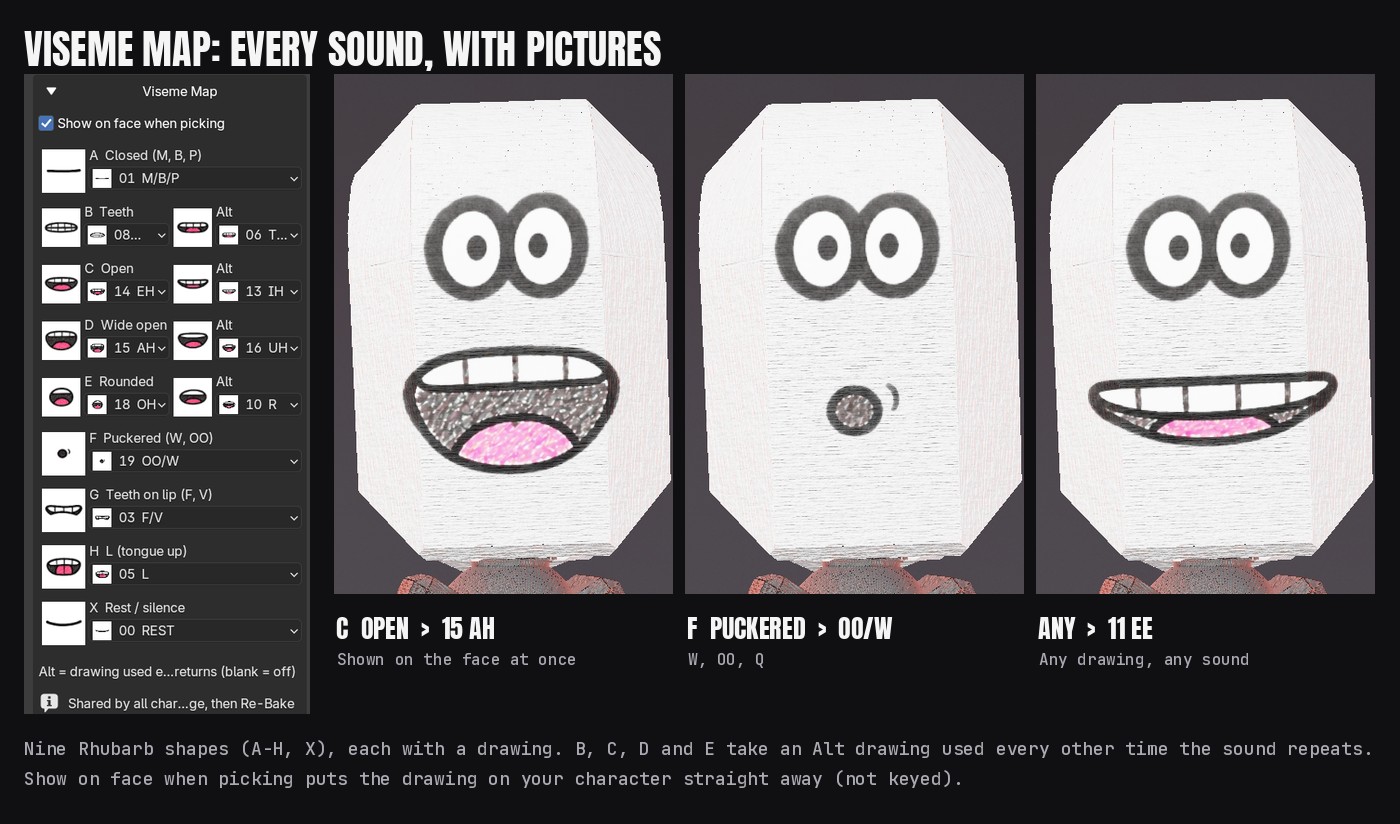
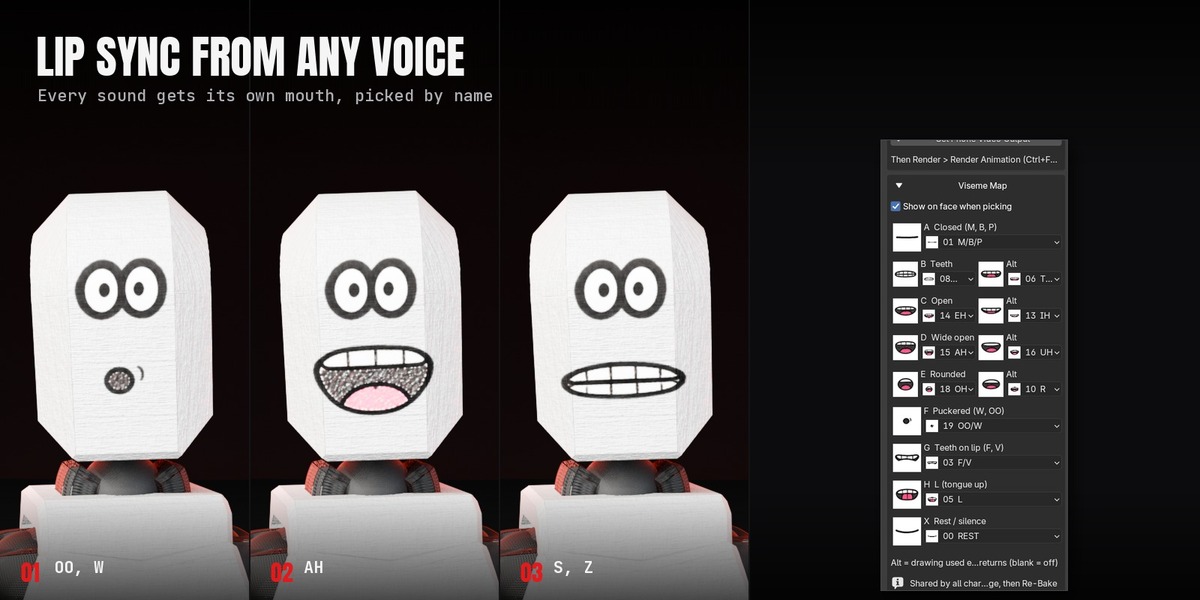
The Viseme Map links each Rhubarb mouth shape (A to H, X) to a drawing, with a thumbnail of each drawing beside its row. The included sheets fill it in by sound name when you scan them:
| Mouth shape | Drawing |
|---|---|
| A Closed (M, B, P) | M/B/P |
| B Teeth (most consonants) | S/Z, Alt T/D/N |
| C Open (E, AE) | EH, Alt IH |
| D Wide open (A) | AH, Alt UH |
| E Rounded (O) | OH, Alt R |
| F Puckered (W, OO) | OO/W |
| G Teeth on lip (F, V) | F/V |
| H L (tongue up) | L |
| X Rest / silence | REST |
Change a row, then Re-Bake. B, C, D and E each have an Alt drawing used every other time that shape returns, so long lines don't look frozen; set an Alt to blank to switch it off. With Show on face when picking on, the drawing you pick appears on the character straight away (not keyed); move the playhead to see the animation again.
4. Emotion Overrides and 5. Manual
| Setting | What it does |
|---|---|
| + / - | Add or remove an override: Start, End and a mouth drawing (any drawing on the sheet, for example AH for a shout). |
| Use Preview Range | Fills Start and End from the timeline preview range. |
| Cell + Key at Current Frame | Key any drawing by hand at the current frame. |
Mask mode (masked or helmeted characters)
| Setting | What it does |
|---|---|
| Build Mask Mouth | Adds Open, Wide and Pucker shape keys to the face mesh. |
| Region | Auto (around the mouth) or Vertex Group (a group you painted). |
| Region size, Height, Side, Region to 3D Cursor | Place and size the automatic region. |
| Save Region as Vertex Group | Turns the automatic region into a group you can repaint. |
| Jaw Drop, Wide, Pucker | How far each shape moves. Try them with the Open / Wide / Pucker sliders. |
Sprite sheets of your own
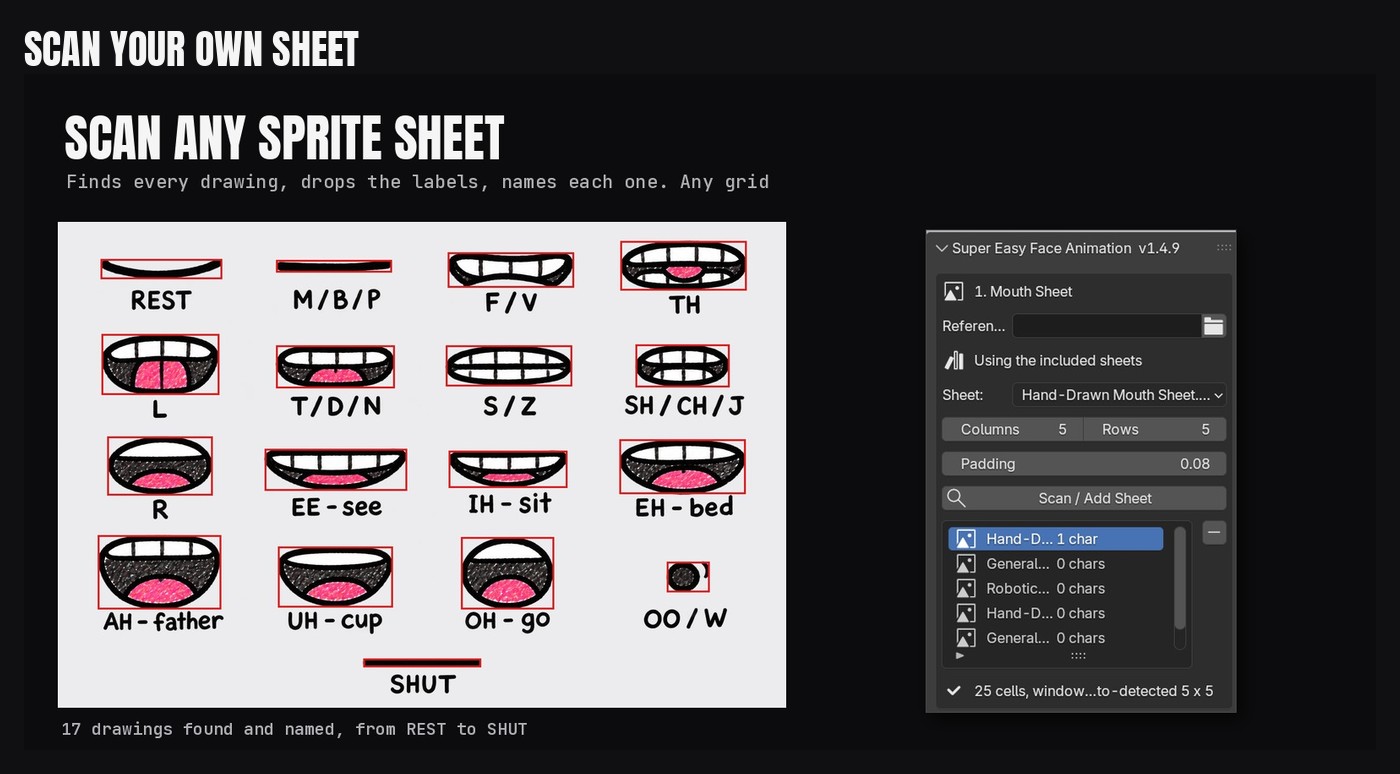
Use a PNG with a transparent background, drawings in a grid, and a text label under each drawing (optional; labels are left out of the drawings). Sheets laid out like the included charts (16 drawings in rows of four plus SHUT, in the same order) get names and the full Viseme Map automatically. Any other grid works too: pick the drawings in the Viseme Map using the thumbnails. Put "eye" in the file name of eye sheets so they appear in the Eye Sheet list. Empty grid slots are left out of the drop-downs.
Good to know
- Mouth changes are stepped keyframes, so they stay crisp at any frame rate and survive retiming in the Dope Sheet.
- Rhubarb runs while Blender waits; a one-minute clip takes a few seconds.
- Everything is normal Blender data. Renders and other computers don't need the add-on.
- The extracted WAV for a video clip is saved next to the clip as _audio.wav.
Update log
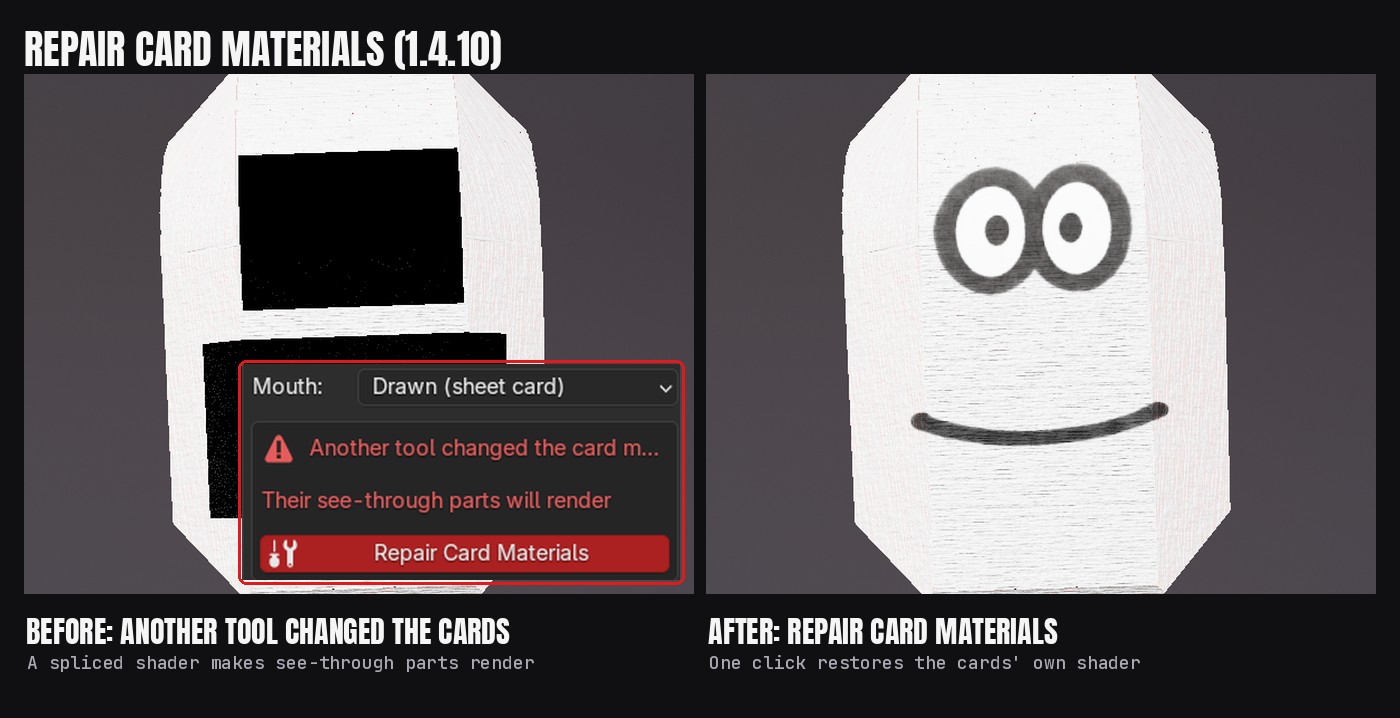
- 1.4.10: if another tool splices a shader (for example a Global AO group) into the mouth or eye card materials, the panel shows a warning and a Repair Card Materials button that restores the cards' own shader, so their transparent parts no longer render.
- 1.4.9: six new included sheets: three mouth charts with a drawing per sound and three eye charts with 17 expressions. Thumbnails in every drawing drop-down and beside the Viseme Map and eye pickers. Show on face when picking. Drawings named on scan and the Viseme Map filled by sound name. The scanner keeps every drawing's full outline and no label text. Empty grid slots are hidden from the drop-downs.
- 1.4.5: cards land on the front of the face even when the head is turned; sheets switched after reopening a file show correctly.
- 1.4.4: first release on Superhive.
Have questions about this product?
Login to message
| Blender Extension Compatible | Yes |
| Published | about 2 hours ago |
| Blender Version | 5.0 - 5.3 |
| Extension Type | Add-on |
| Render Engine Used | Cycles, Eevee |
| License | GPL |
Discover more products like this
lip sync mouth 2d face sprite sheet blink rhubarb face animation character animation eyes lipsync