za studio



BLENDER ANIMATION WORKFLOW SUITE
Super Graph Editor Tools
SGET
The ultimate animation and Graph Editor workflow suite for Blender. Shape timing, clean dense curves, create breakdowns, transfer motion and solve everyday animation tasks without leaving your working context.
GRAB & BAKE BOOKMARKS TOOLS LATTICE WARP SCALE CAGE / RETIME TWEENMACHINE LOOPS TOOL POSE FIX MOCAP CLEANUP SMART EASING PRESETS STAGGER KEYS EASY FADE SMOOTH & SCULPT BRUSH NOISE & FILL ANIM COPY TIME OFFSET NUDGE TIME OFFSETTER ANIMATION ANALYSIS
BUILT FOR THE WORK BETWEEN THE KEY POSES
Turn repetitive animation cleanup into a fast, visual workflow.
SGET brings familiar production workflows—such as Maya-style ReTime, TweenMachine-style breakdowns and lattice curve deformation—directly into Blender. It is designed for everything from refining mocap to creating overlapping action and transferring animation between rigs.
WHERE TO FIND IT
Install once. Work where you already animate.
INSTALLATION
Go to Edit > Preferences > Add-ons > Install, select the .zip file, then enable the add-on.
LOCATION
Open the Graph Editor or Dope Sheet, press N to open the Sidebar, then select the Super Tools tab.
01 · DYNAMIC PARENTING
Grab & Bake
INTERFACE
IN ACTION
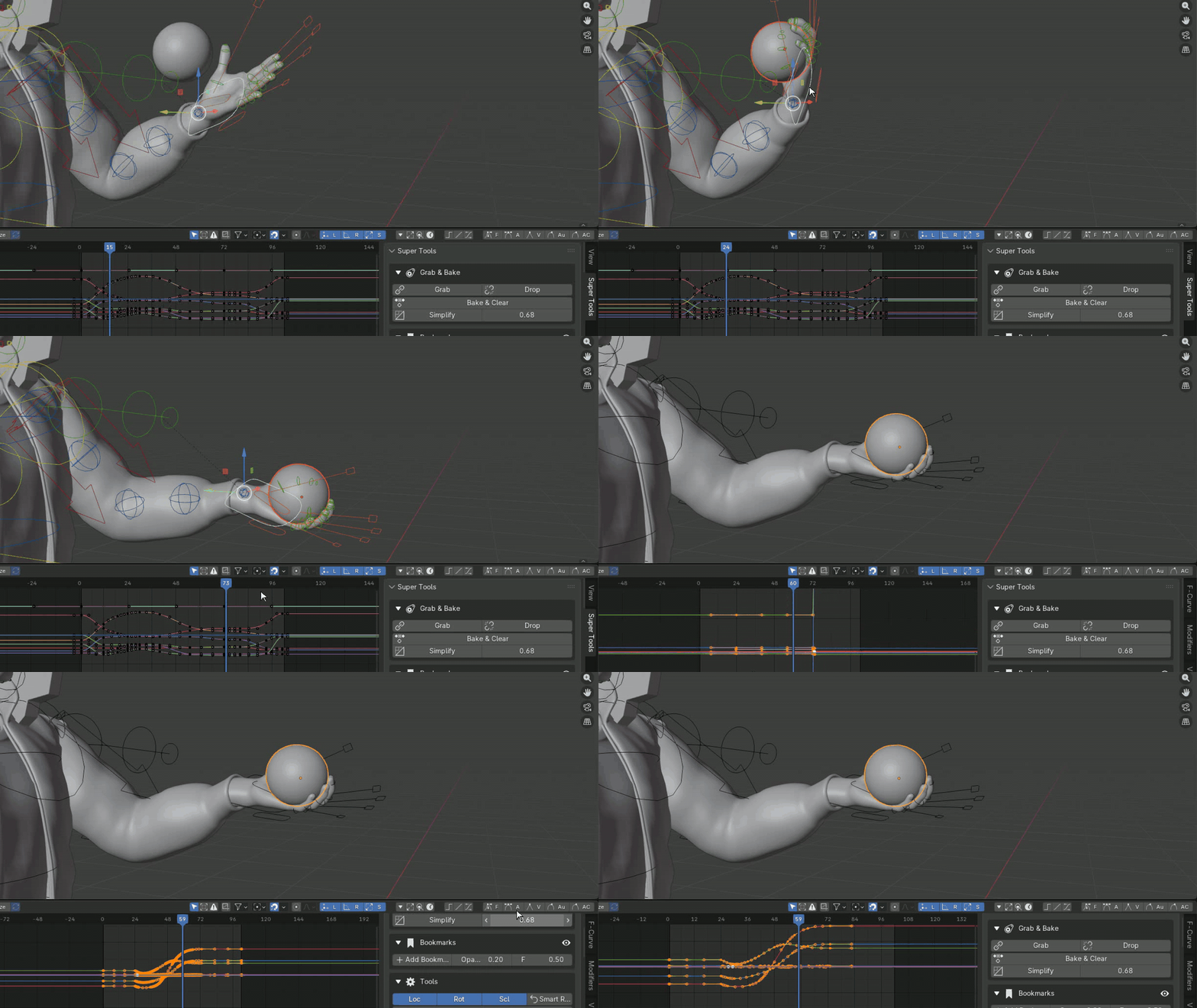
Parent, release and bake motion without visible pops.
Instantly parent and unparent objects or pose bones while preserving their world transform—ideal for holding weapons, picking up props or passing objects between characters.
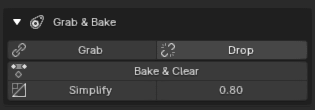
- Grab: Select the child, then Shift-select the parent and click Grab to snap and hold the world transform.
- Drop: At the release frame, click Drop. The object stays exactly where it was left.
- Bake & Clear: Convert constraint-driven motion to raw keyframes and remove the constraints.
- Simplify: Reduce baked keys with the Ratio slider to keep curves clean.
02 · TIMELINE ORGANIZATION
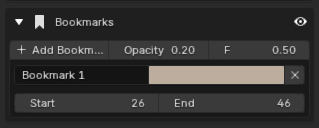
Bookmarks
INTERFACE
IN ACTION
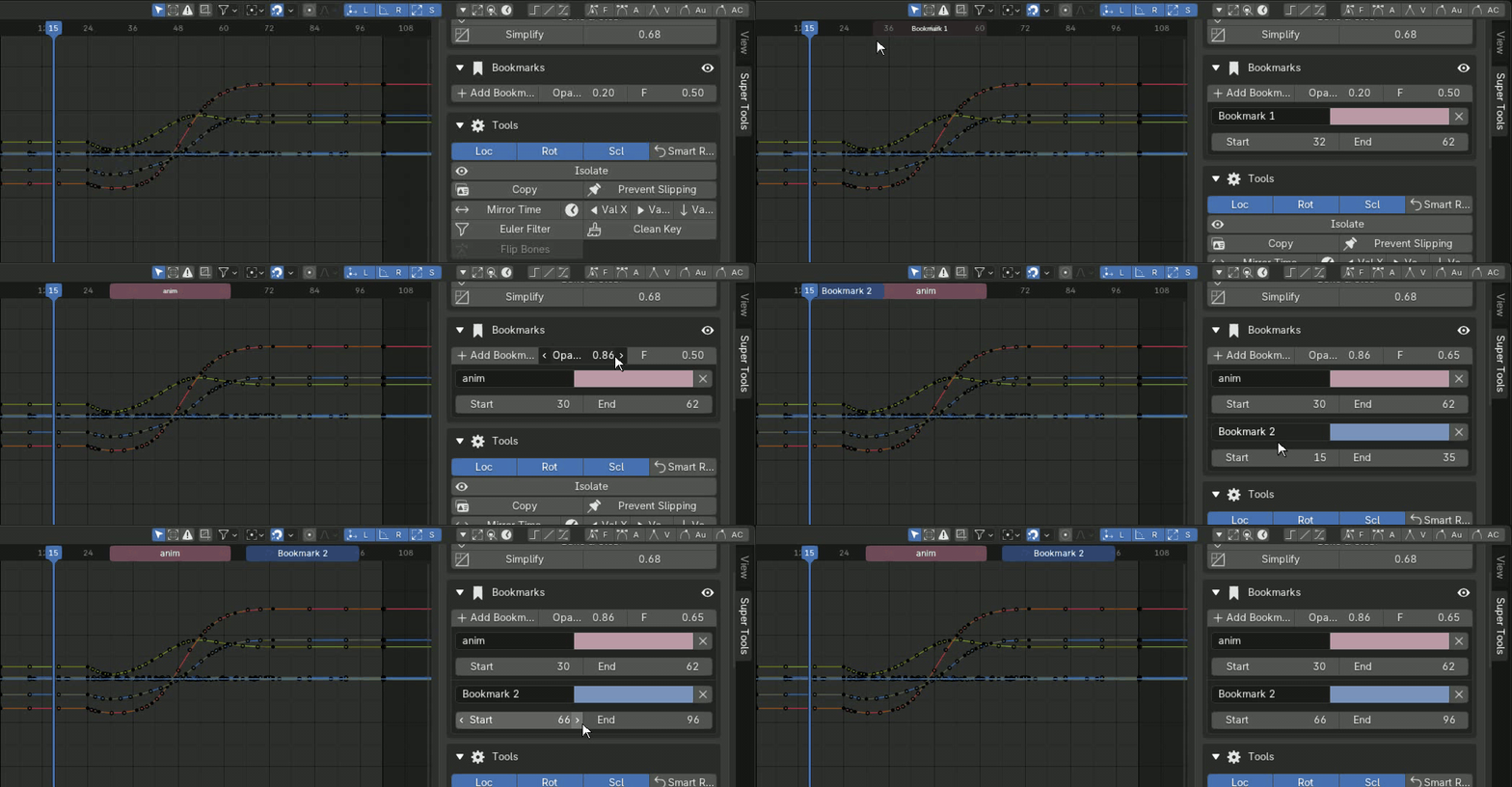
Make animation phases readable at a glance.
Mark beats such as Jump, Anticipation and Fall with colored blocks directly in the timeline.
- Add Bookmark: Create a new colored marker at the current frame.
- Global controls: Adjust bookmark opacity and text size with F.
- Edit directly: Ctrl + Left Click the body to move a bookmark, or drag its edges to resize it.
03 · QUICK UTILITIES
Tools
INTERFACE
Essential Graph Editor actions, close at hand.
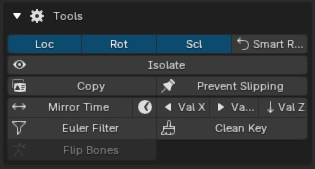
A focused collection of one-click workflow accelerators for channel visibility, keyframe cleanup, time editing and pose control.
- Loc / Rot / Scl: Toggle Location, Rotation and Scale channels instantly.
- Smart Reset: Clear selected transforms according to the active toggles.
- Isolate: Focus on a single F-Curve, then restore the rest with one click.
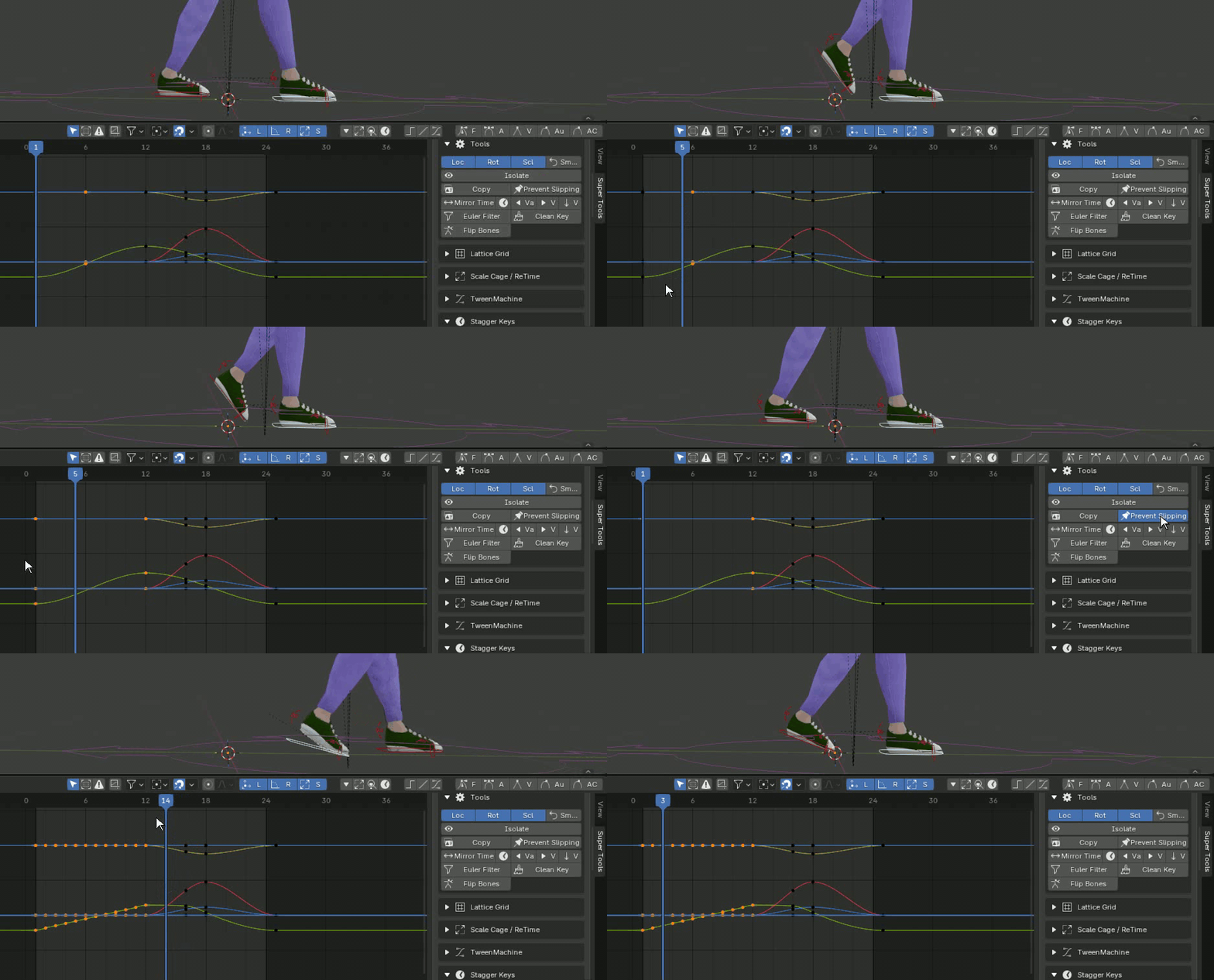
- Copy / Prevent Slipping: Lock a copied global transform across a range—great for feet and hands.
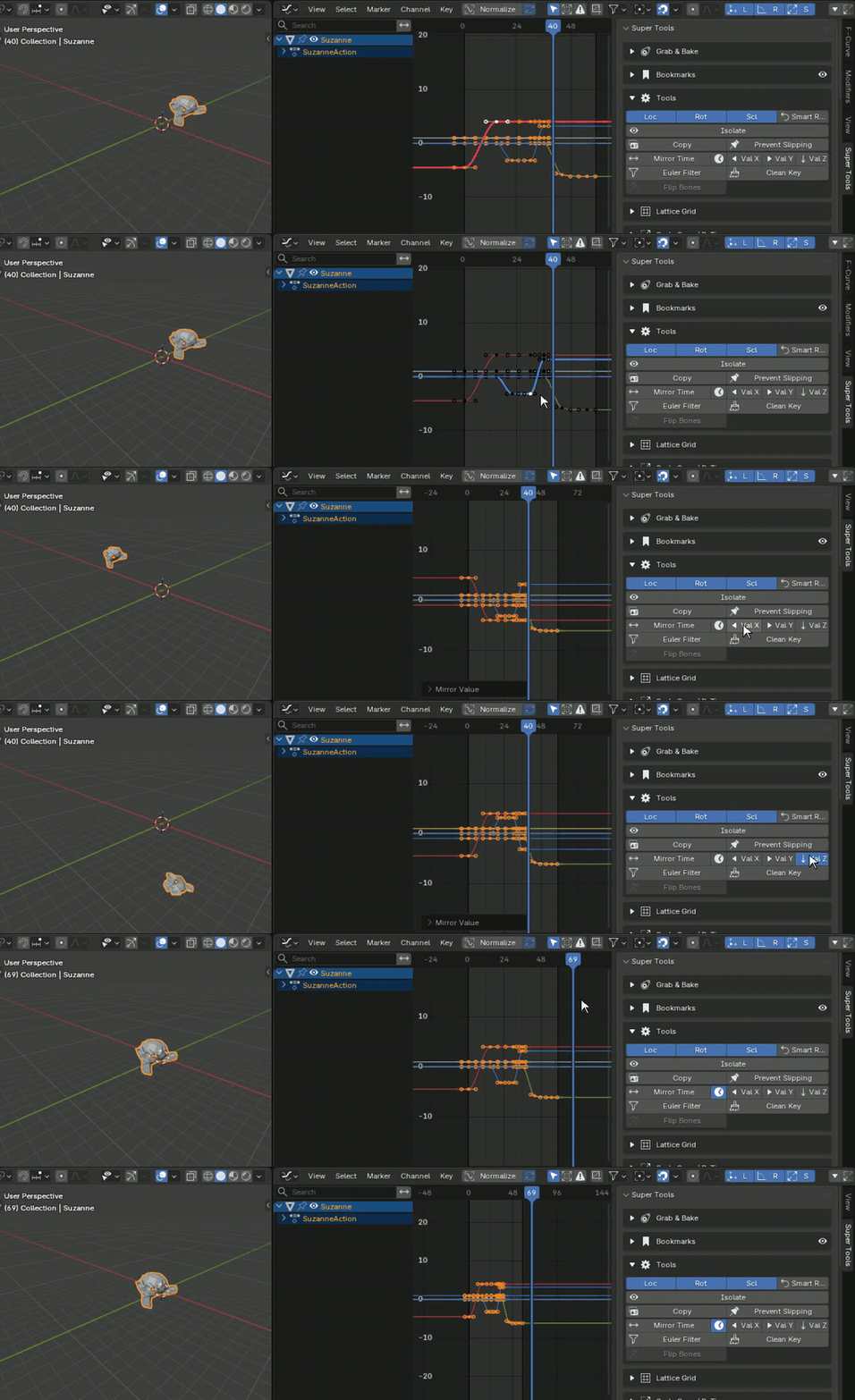
- Mirror Time and Val X / Y / Z: Flip selected keys in time or invert values by axis.
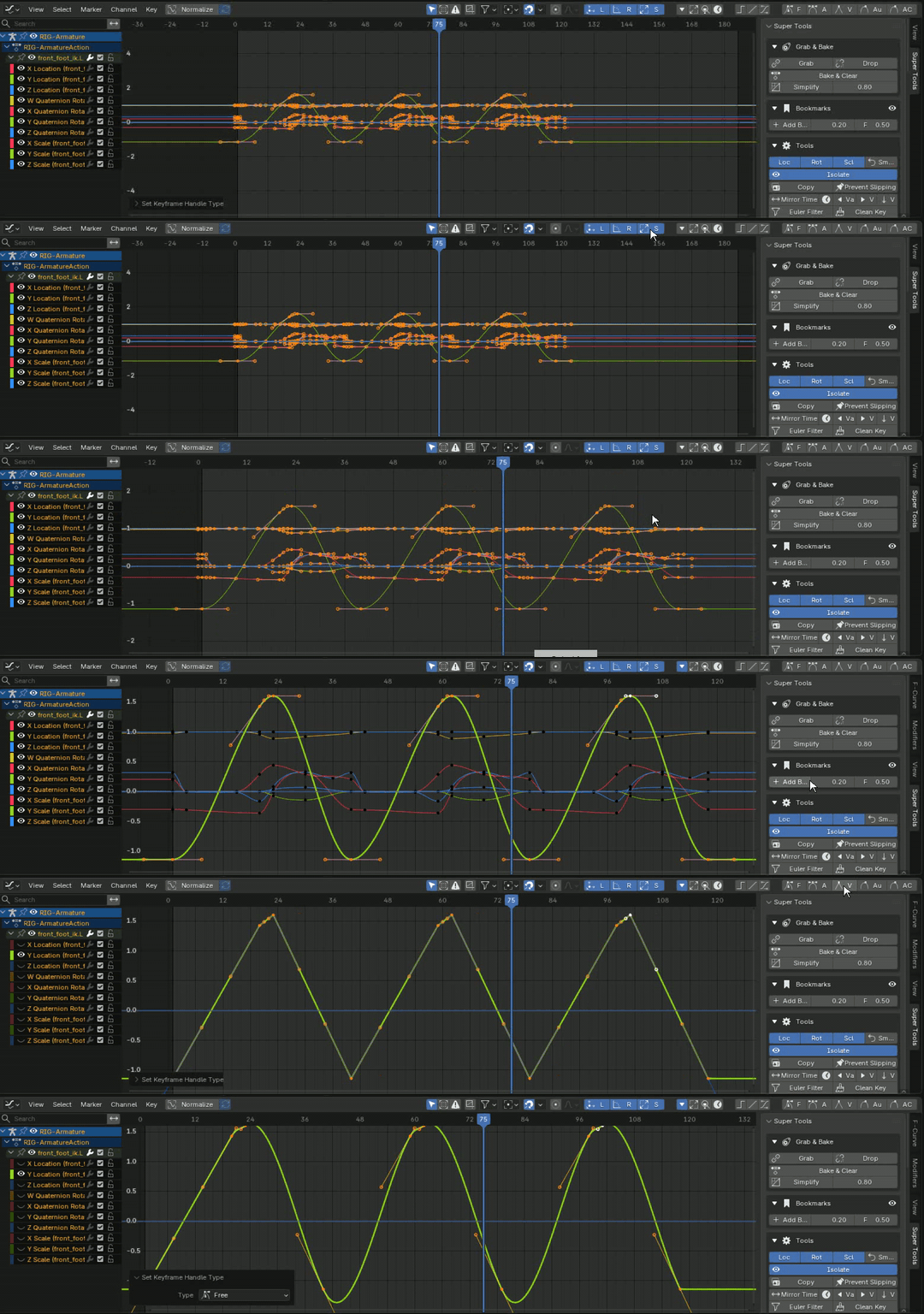
- Euler Filter & Clean Key: Resolve rotation discontinuities and remove redundant keys.
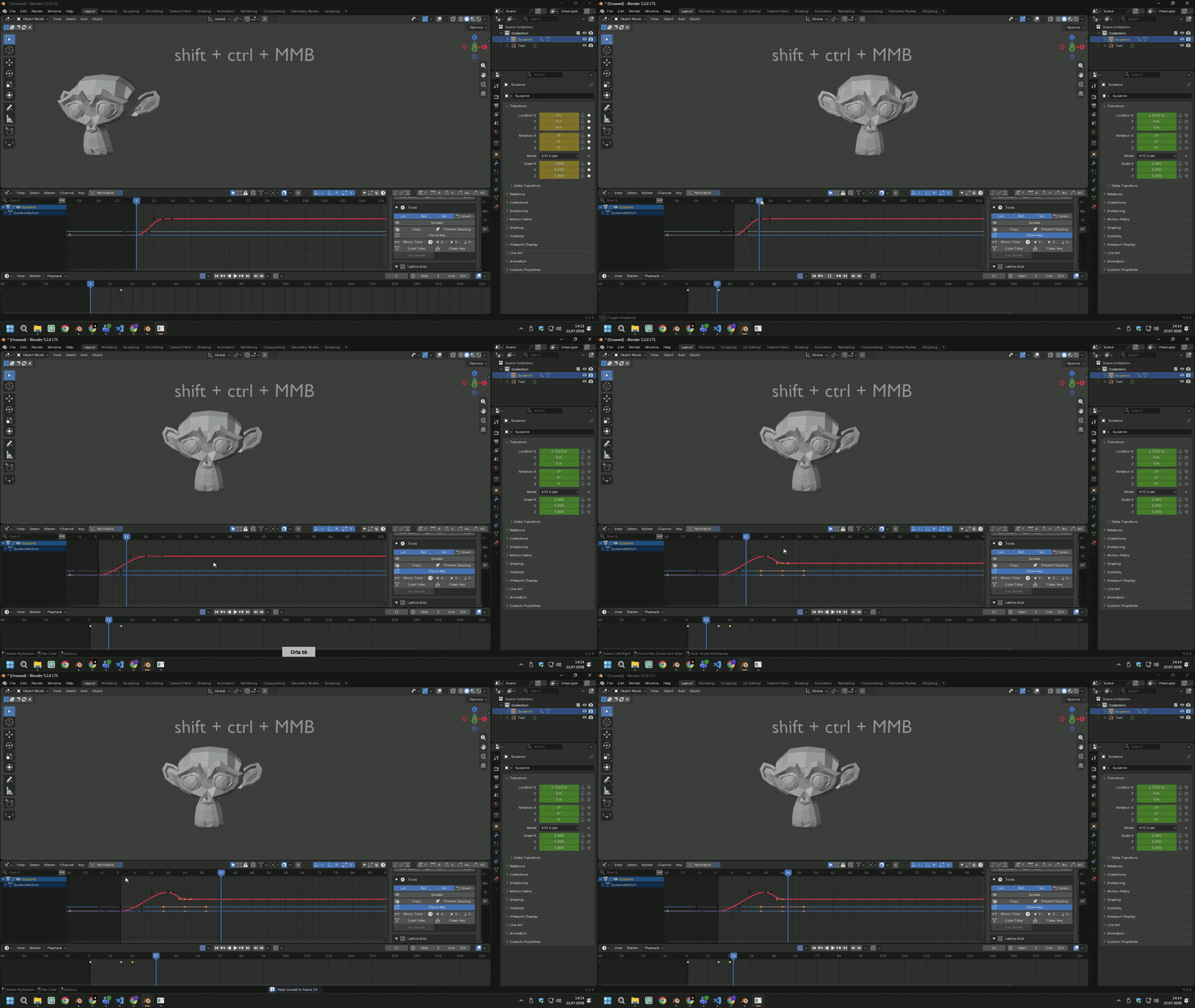
- Clone Key: Use Shift + Ctrl + MMB between keys to copy Location, Rotation and Scale, then drag and drop a new key.
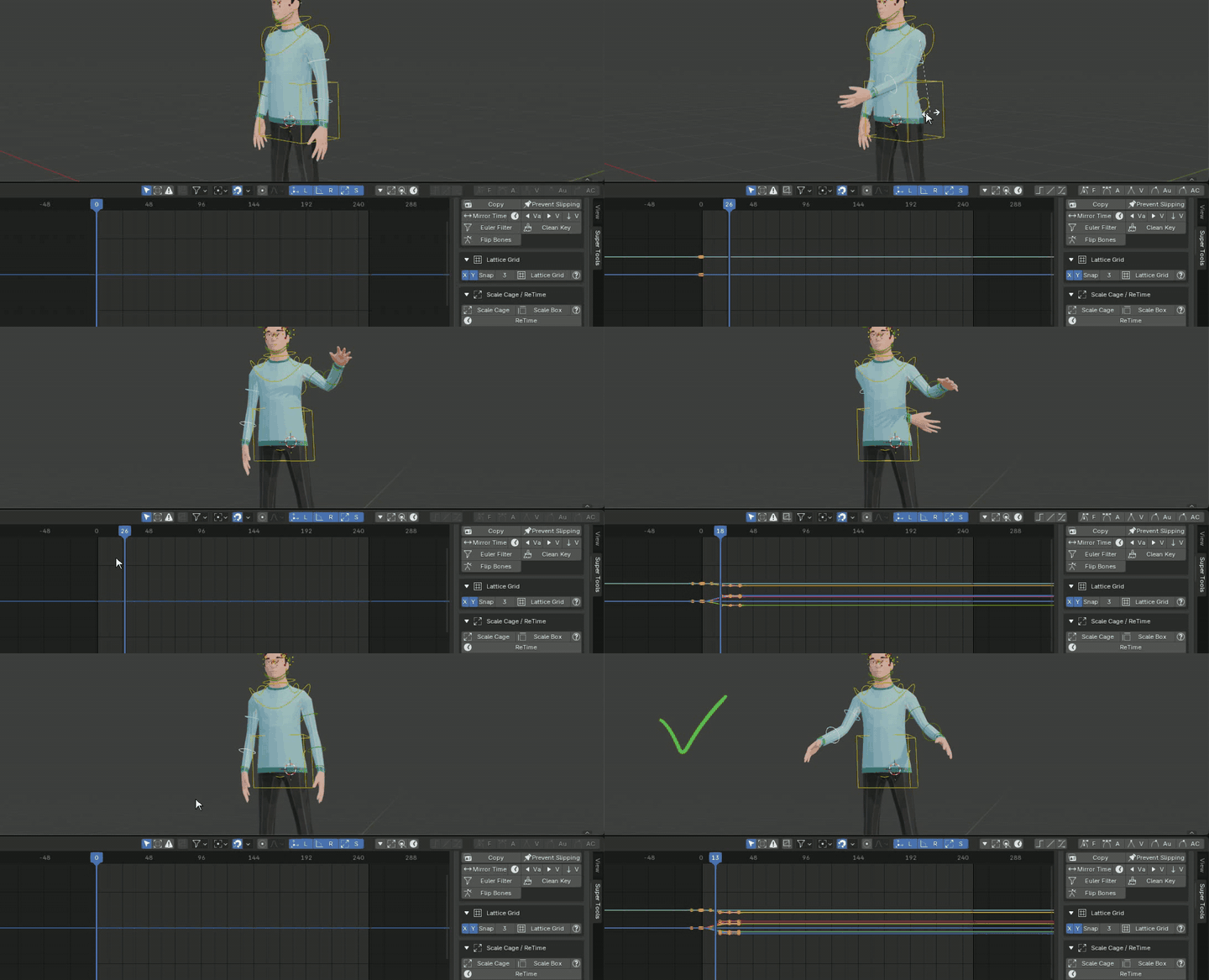
- Flip Bones: Paste copied keys to the symmetrical opposite bone, such as .L to .R.
TOOLS IN ACTION
04 · CURVE DEFORMATION
Lattice Warp
INTERFACE
IN ACTION
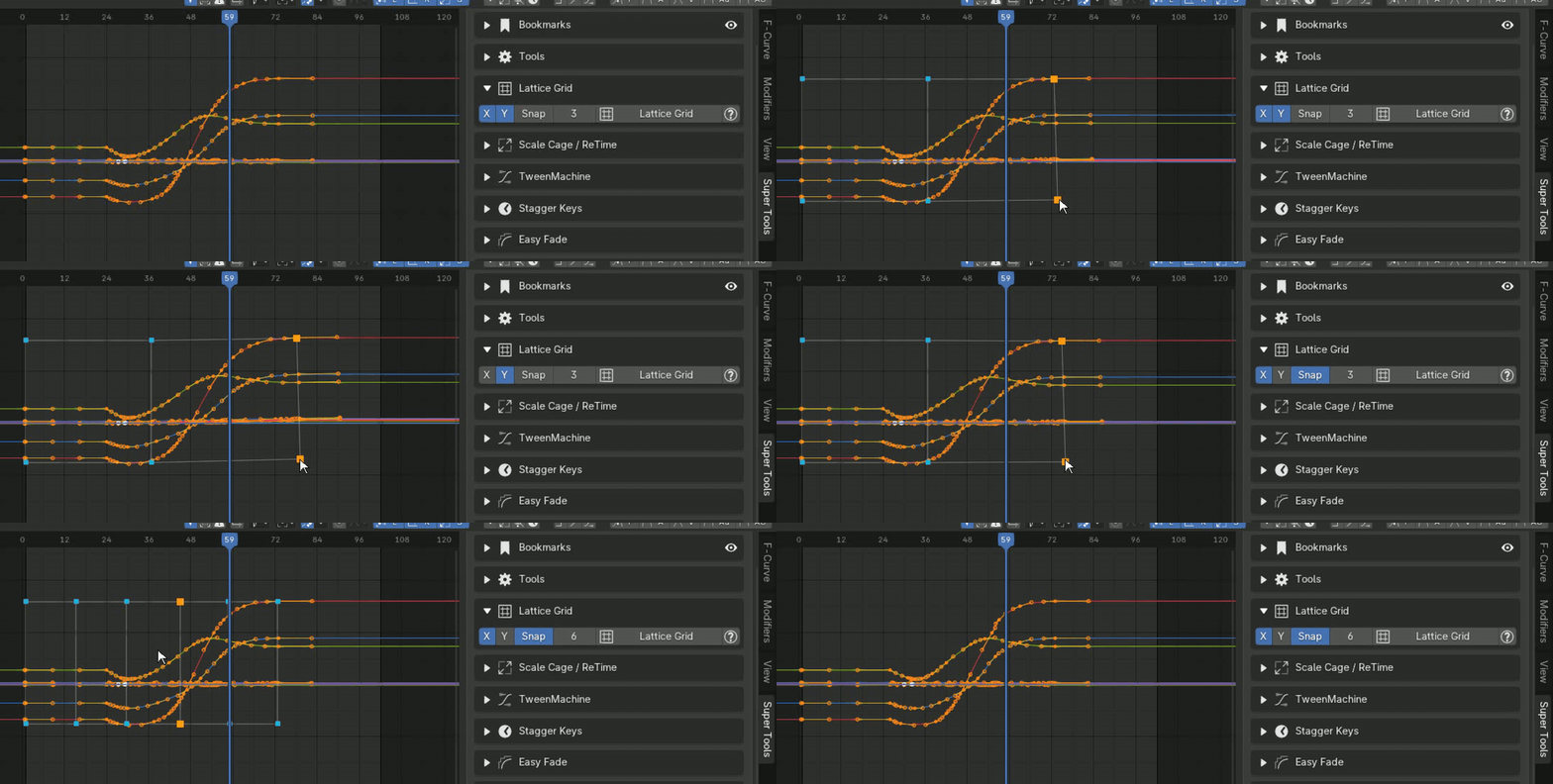
Reshape whole sections of animation like a 2D mesh.
Select keys, choose a grid resolution such as 3 Columns, then click Lattice Deform to proportionally reshape time and value.
- Left Click: Select or drag a control point. Shift + Click: select multiple points.
- G: Move selected points. X / Y: constrain movement to Time or Value.
- Arrow Keys: Add or remove grid columns and rows dynamically.
- Ctrl + Z: Undo the last lattice drag. Enter: apply. Esc: cancel.
05 · TIMING CONTROL
Scale Cage / ReTime
INTERFACE
IN ACTION
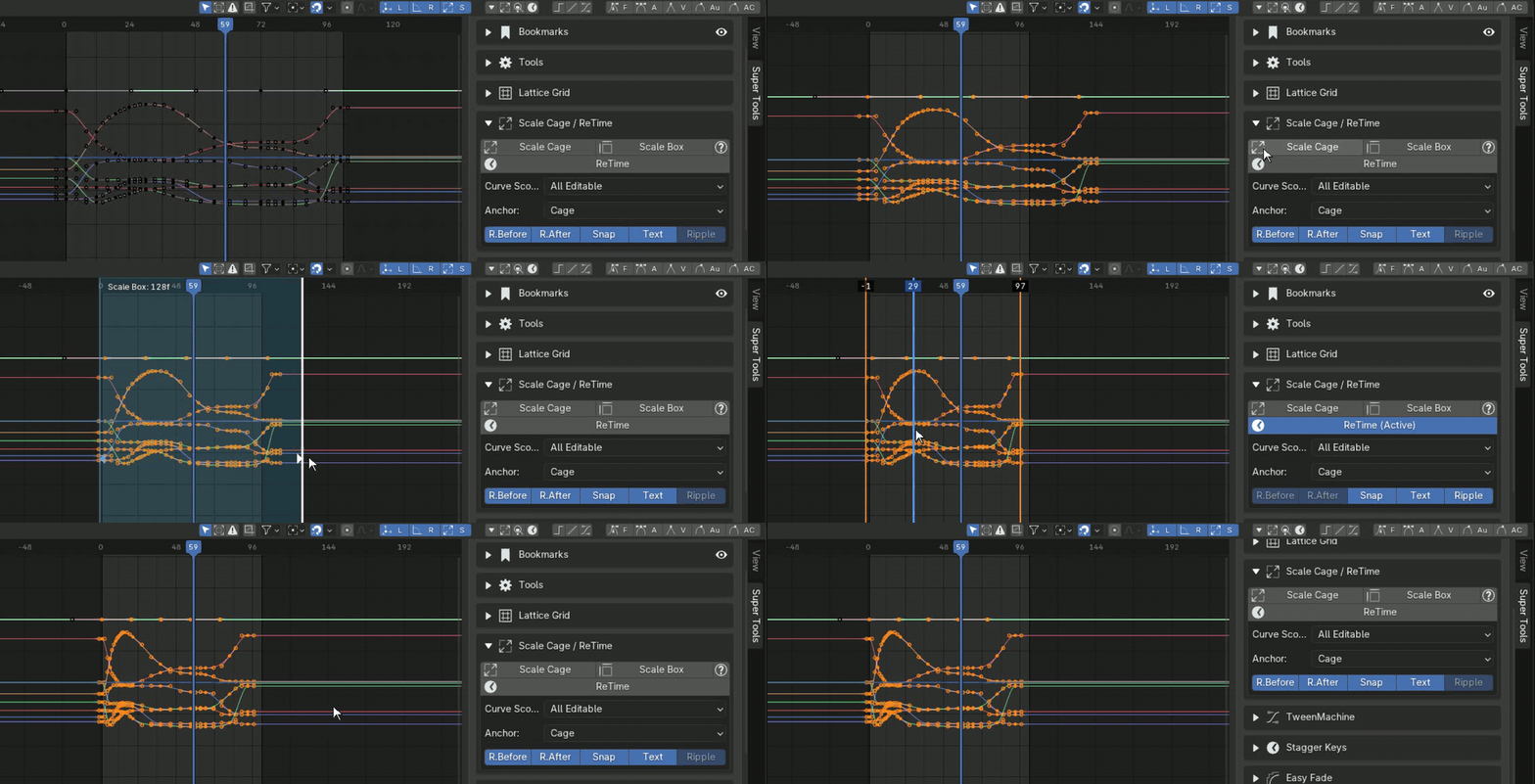
Stretch, compress and warp timing with direct control.
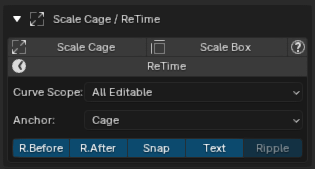
- Scale Cage: Draw a box over the timeline and release to fit selected keys to the box.
- Scale Box: Draw a persistent box, then drag its left or right edge for interactive timing scale. Press Enter to confirm.
- ReTime: Add vertical time markers and drag them to speed up or slow down the animation between them.
- ReTime shortcuts: R toggles Ripple, S toggles Snapping, and Backspace/Delete removes a hovered marker.
06 · BREAKDOWN POSES
TweenMachine
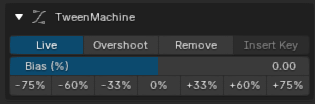
INTERFACE
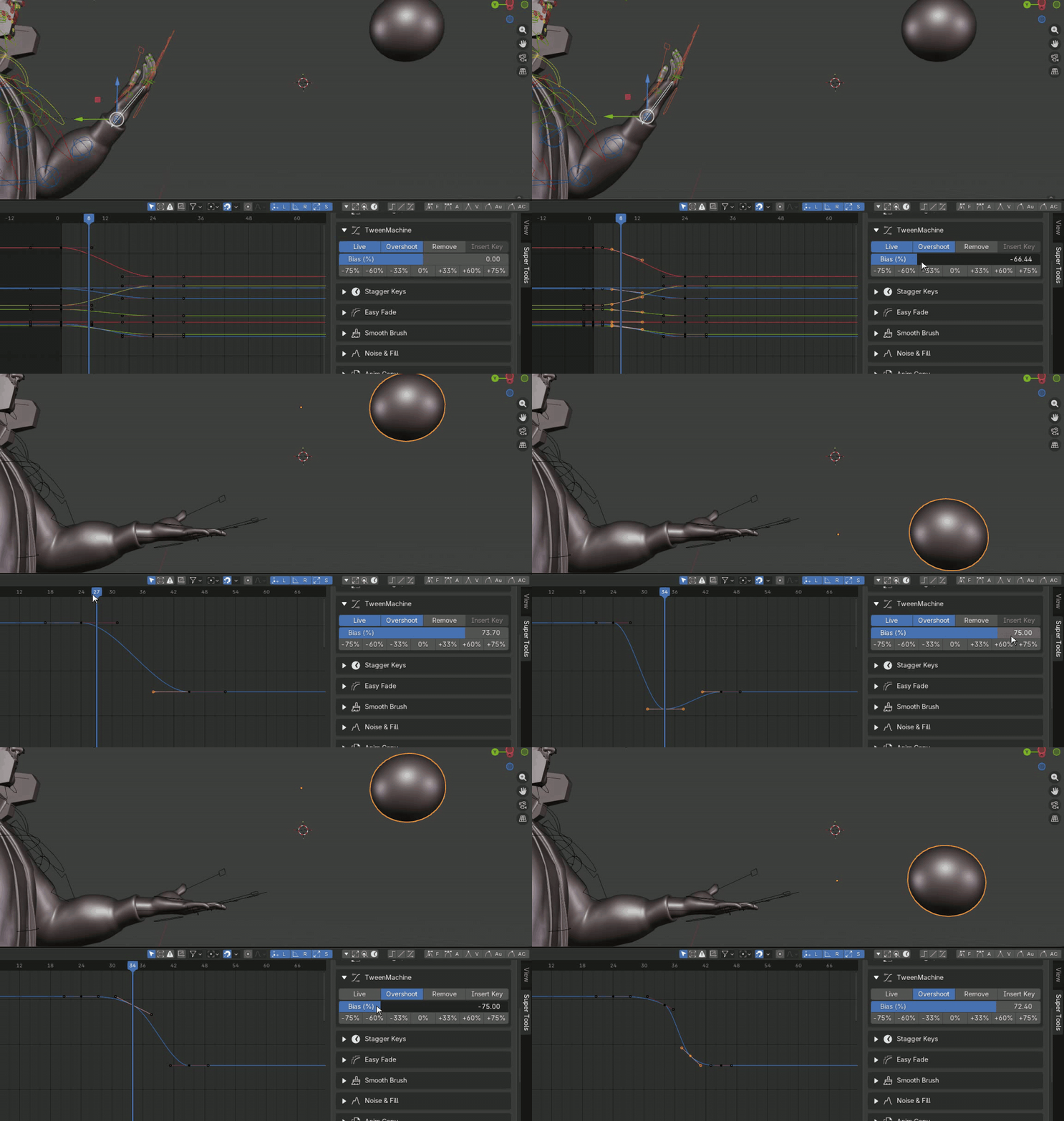
IN ACTION
Generate breakdown poses in seconds.
Bias a breakdown toward the previous or next keyframe with a single slider instead of posing each limb by hand.
- Live: Moving the slider automatically inserts or updates the breakdown key in real time.
- Overshoot: Expand the bias range to ±150% for instant anticipation and follow-through.
07 · CYCLE WORKFLOW
Loops Tool
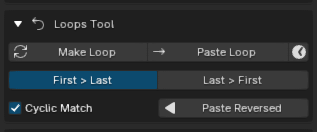
INTERFACE
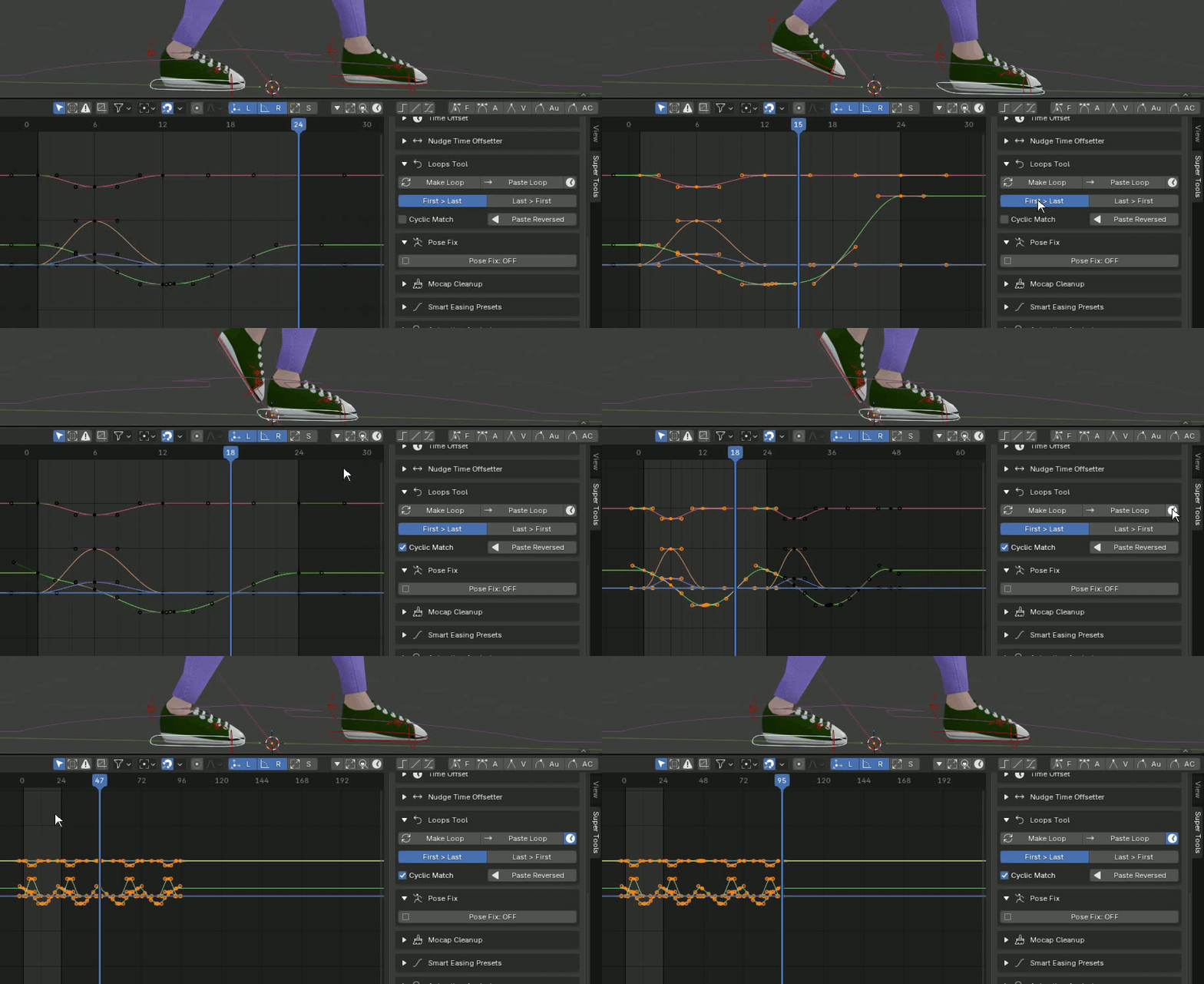
IN ACTION
Build seamless walk, run and repeating action cycles.
- Make Loop: Copy the first frame to the last, or the last to the first.
- Cyclic Match: Adjust entry and exit tangents so the curve loops without a visible hiccup.
- Paste Loop / Paste Reversed: Repeat selected keys forward in time, or mirror the curve for the second half of a cycle.
08 · NON-DESTRUCTIVE ADJUSTMENT
Pose Fix
INTERFACE
IN ACTION
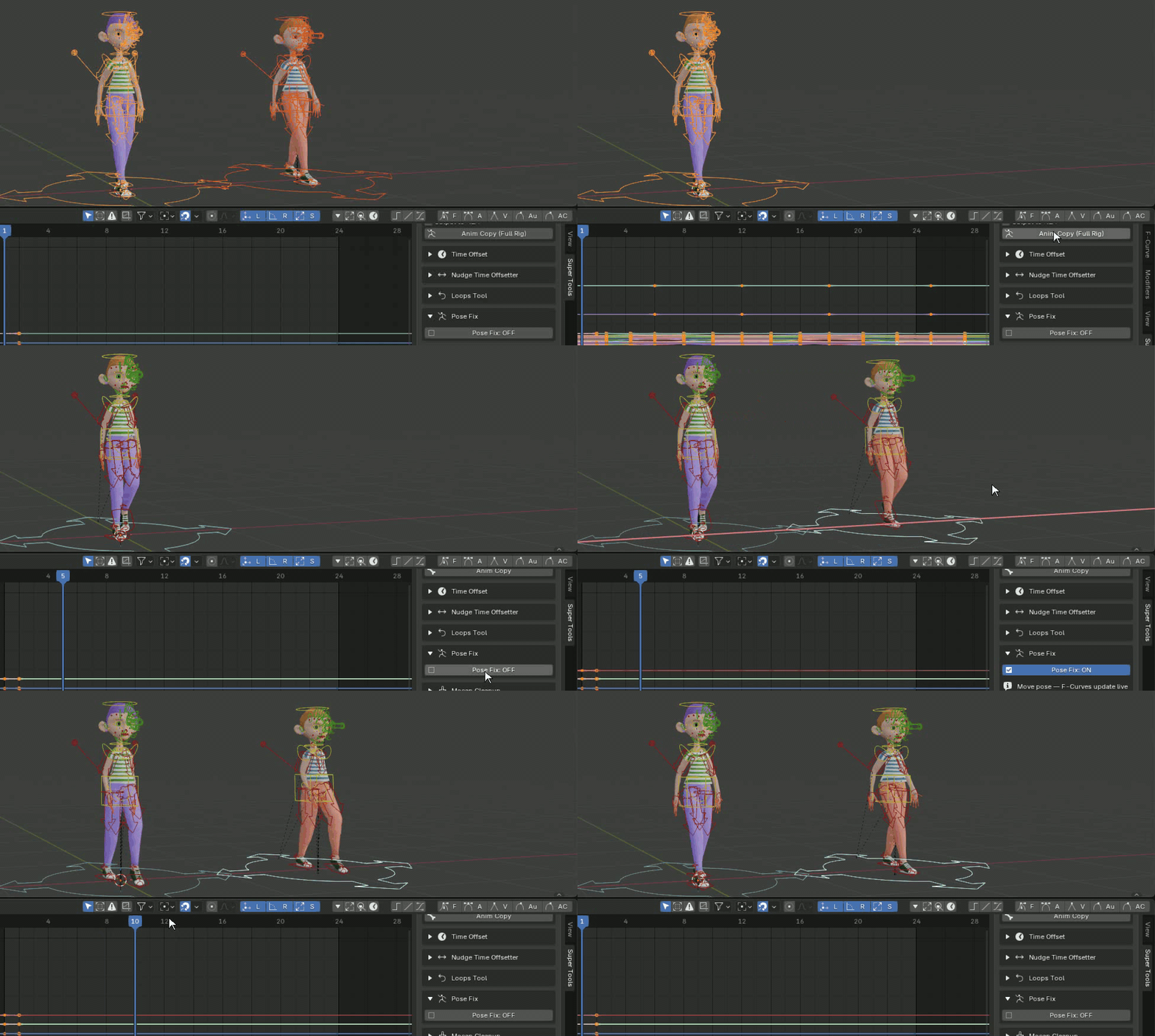
Adjust an animated pose without destroying its curves.
Turn Pose Fix: ON to temporarily suspend auto-keying. Move the character in the viewport and see the F-Curves shift visually to the new baseline. Turn it OFF to apply that offset across the curve.
09 · DENSE CURVE REDUCTION
Mocap Cleanup
INTERFACE
IN ACTION
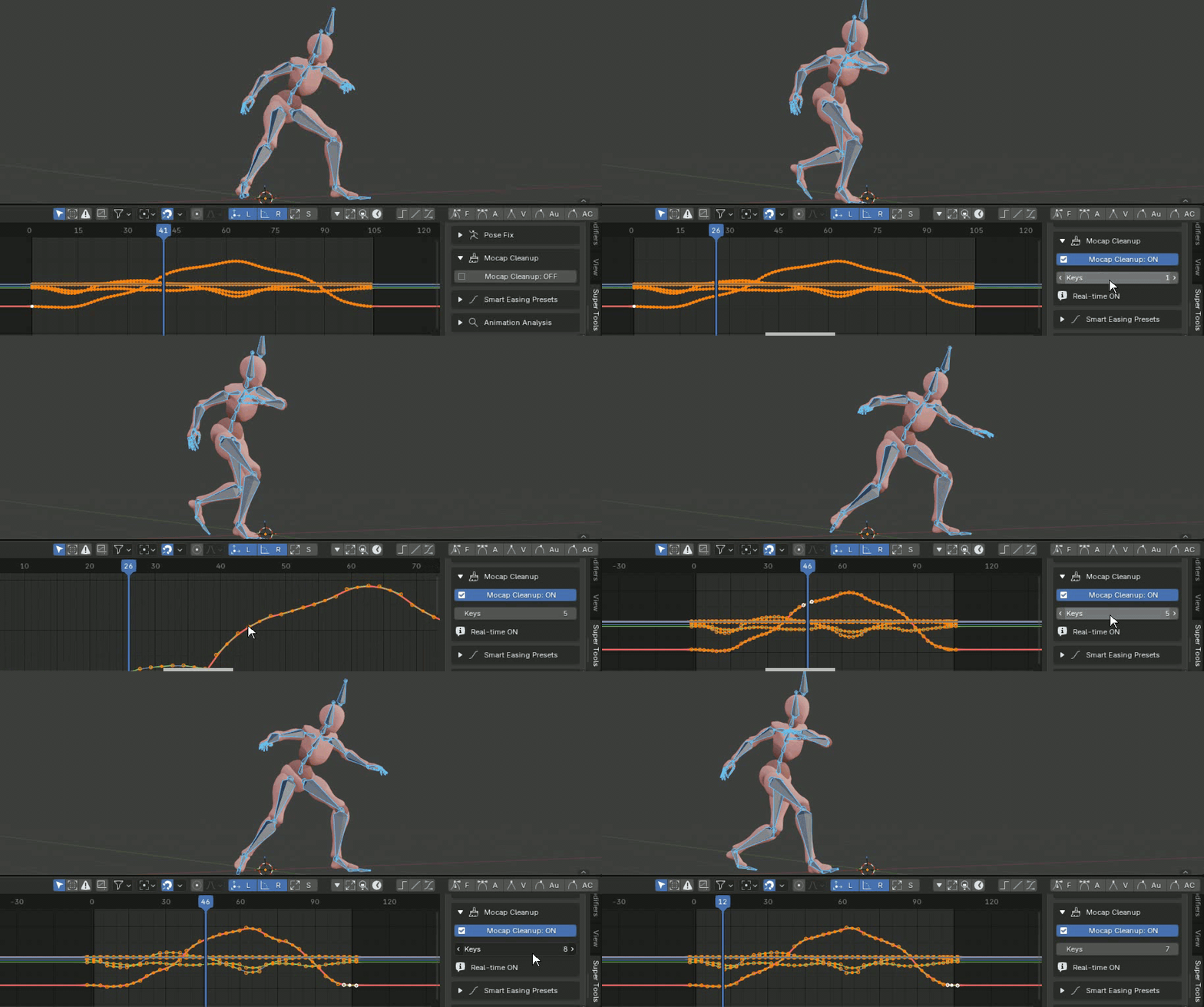
Make dense motion-capture curves editable again.
Choose an interval—such as keeping one key every 5 frames—and turn the tool on for a real-time preview. Turn it off or click Apply to commit a cleaner set of keys.
10 · CURVE CHARACTER
Smart Easing Presets
INTERFACE
Give curves character without manually shaping every handle.
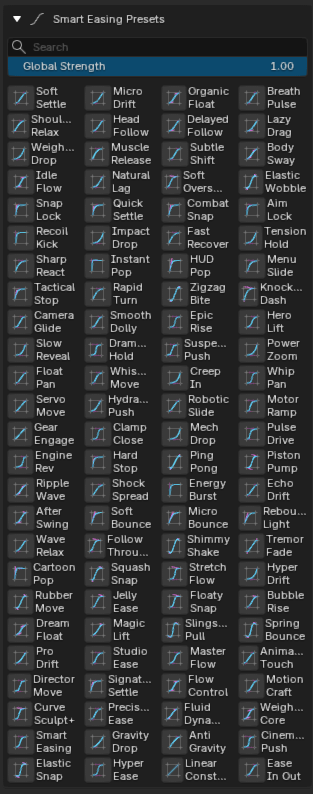
Choose from dozens of mathematical easing formulas for Organic Motion, Game / Snappy, Cinematic Cameras, Mechanical and basic easing. Select keys, set Global Strength, then click a preset such as Soft Settle or Elastic Snap to reshape the tangents.
11 · OVERLAPPING ACTION
Stagger Keys
INTERFACE
IN ACTION
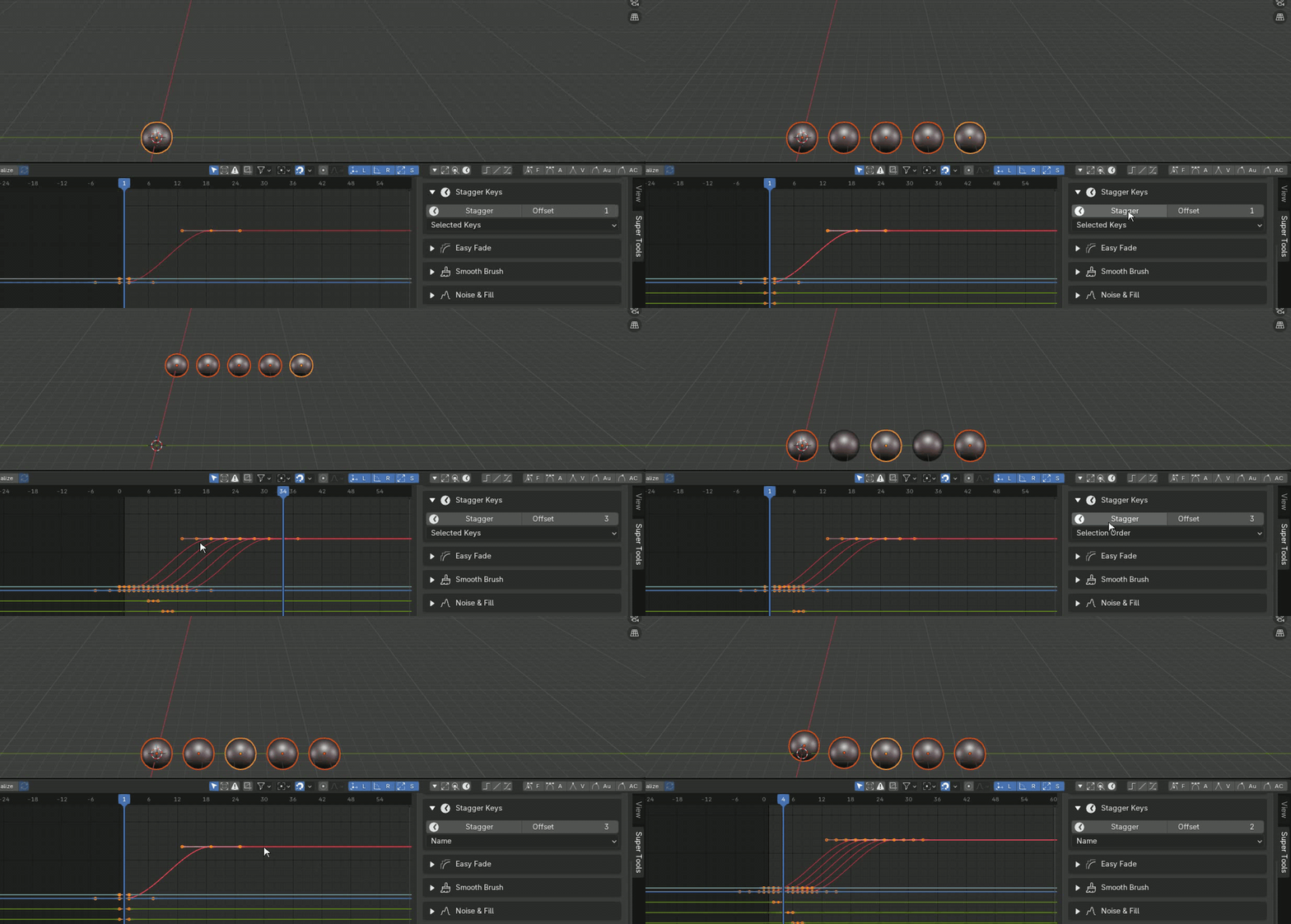
Create overlap across objects and bones in one step.
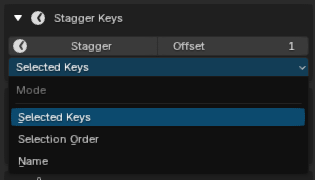
Select multiple objects or bones, set an Offset—for example, 2 frames—and click Stagger. The first selection stays at frame 0, the next shifts to frame 2, then frame 4, and so on.
12 · ANIMATION INTENSITY
Easy Fade
INTERFACE
IN ACTION
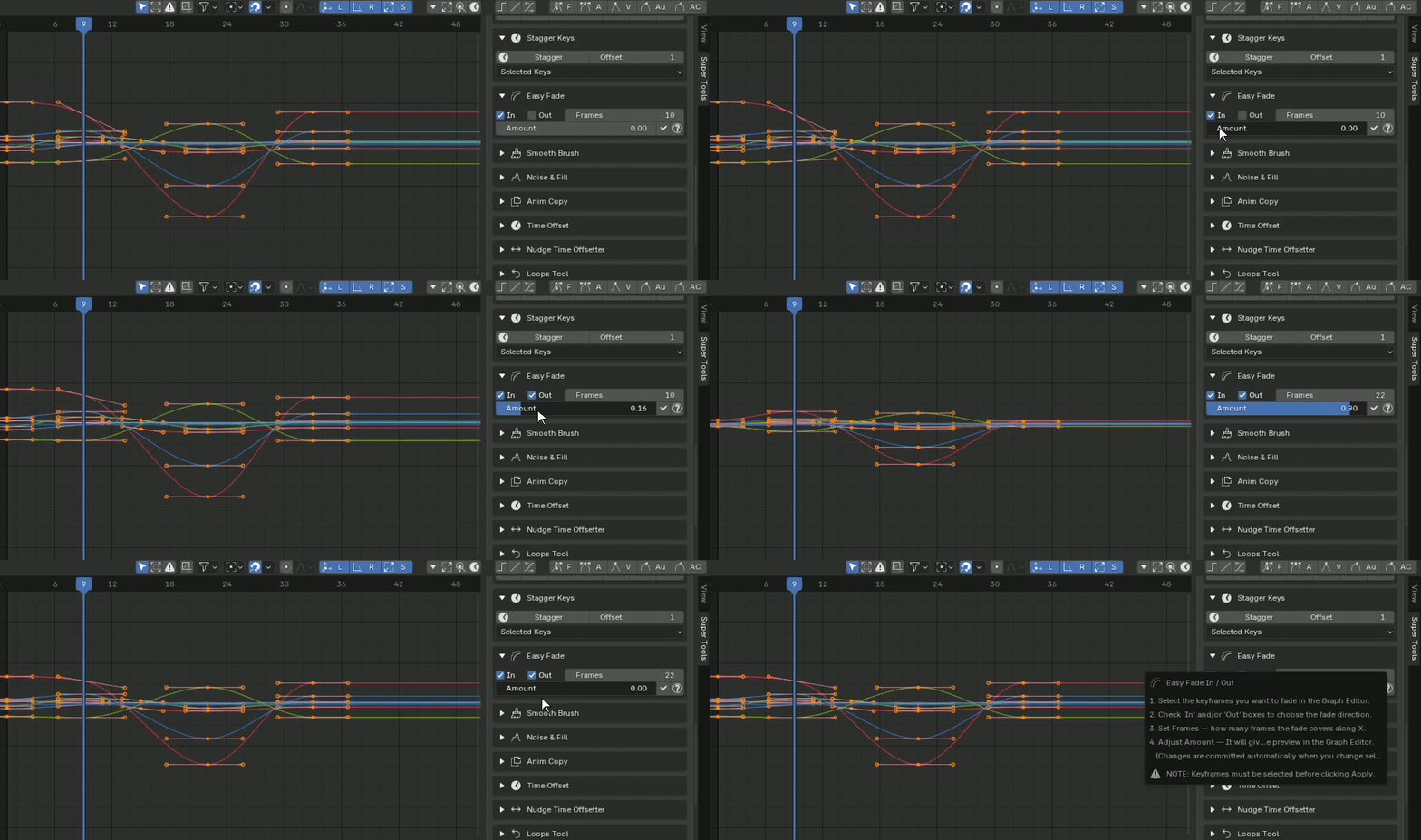
Fade an animation in or out with a controlled preview.
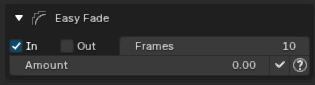
Select curves, choose In or Out, set the number of Frames, then drag Amount for a real-time preview. Click Apply & Reset to bake it.
13 · DIRECT CURVE SCULPTING
Smooth & Sculpt Brush
INTERFACE
IN ACTION
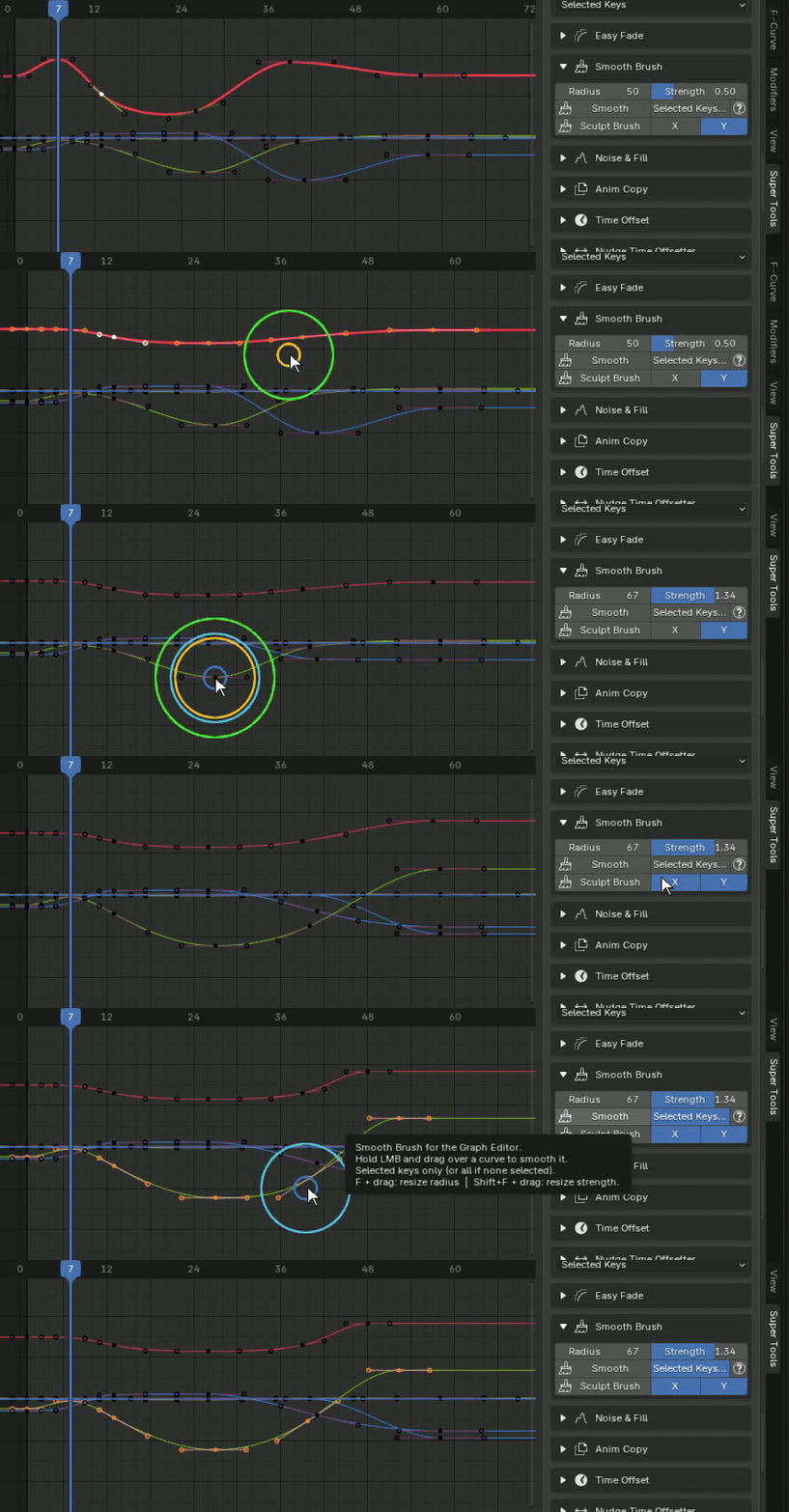
Paint away jitter or sculpt a key range with a brush.
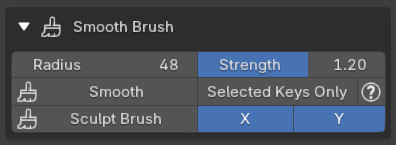
- Smooth Brush: Hold LMB and paint over curves to iron out jittery motion-capture data.
- Sculpt Brush: Move keys with a relaxed, proportional-style influence.
- Selected Keys Only: Limit the brush effect to selected keys.
- F: Drag to change brush radius. Shift + F: Drag to adjust smoothing strength.
14 · PROCEDURAL MOTION
Noise & Fill
INTERFACE
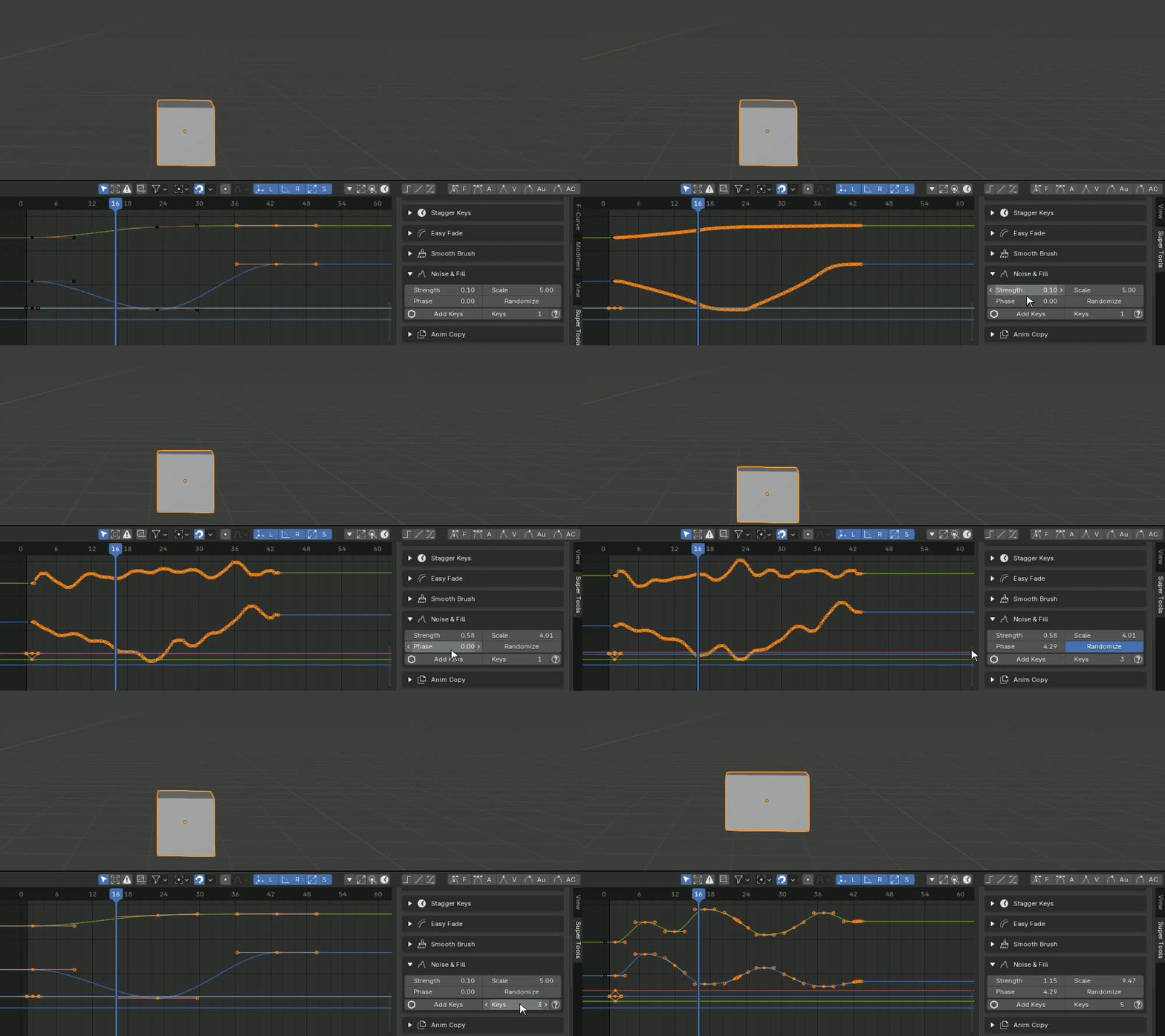
IN ACTION
Add controlled shake, tremble and organic variation.
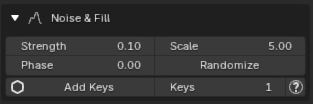
- Add Keys: Bake a keyframe on every frame so the noise has data to deform.
- Noise sliders: Adjust Strength, Scale and Phase with real-time feedback on selected keys.
- Randomize: Give X, Y and Z their own slightly different noise pattern.
15 · MOTION TRANSFER
Anim Copy
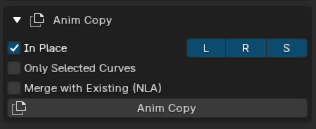
INTERFACE
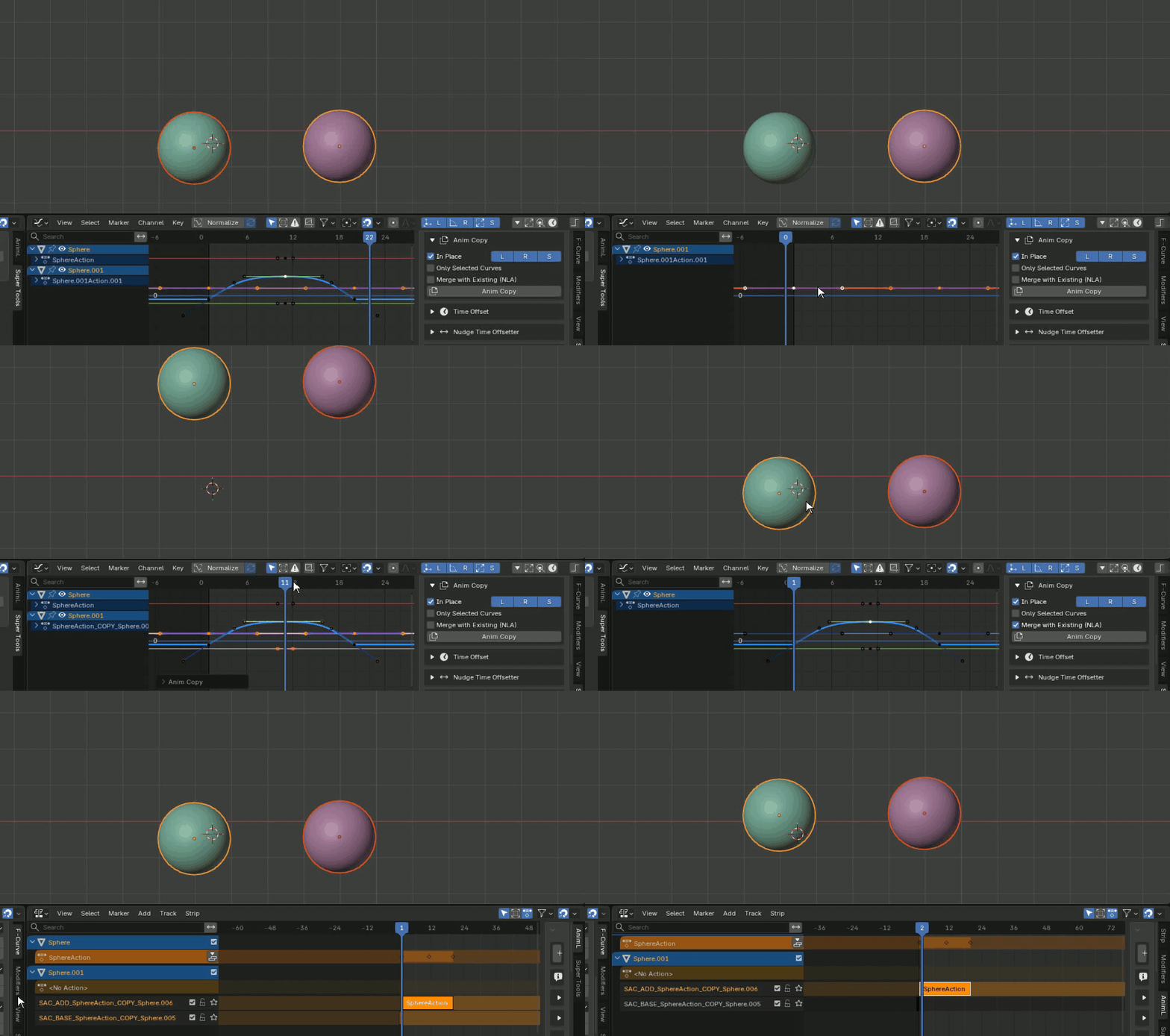
IN ACTION
Copy animation between an object, bone or complete rig.
- In Place: Calculate the source-to-target offset so pasted animation plays exactly where the target currently stands.
- NLA Support: Use Merge with Existing (NLA) to place copied animation on a new Add layer while preserving the target's original animation.
16 · PRECISE TIME SHIFTING
Time Offset
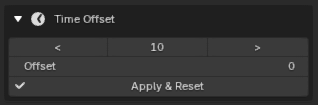
INTERFACE
IN ACTION
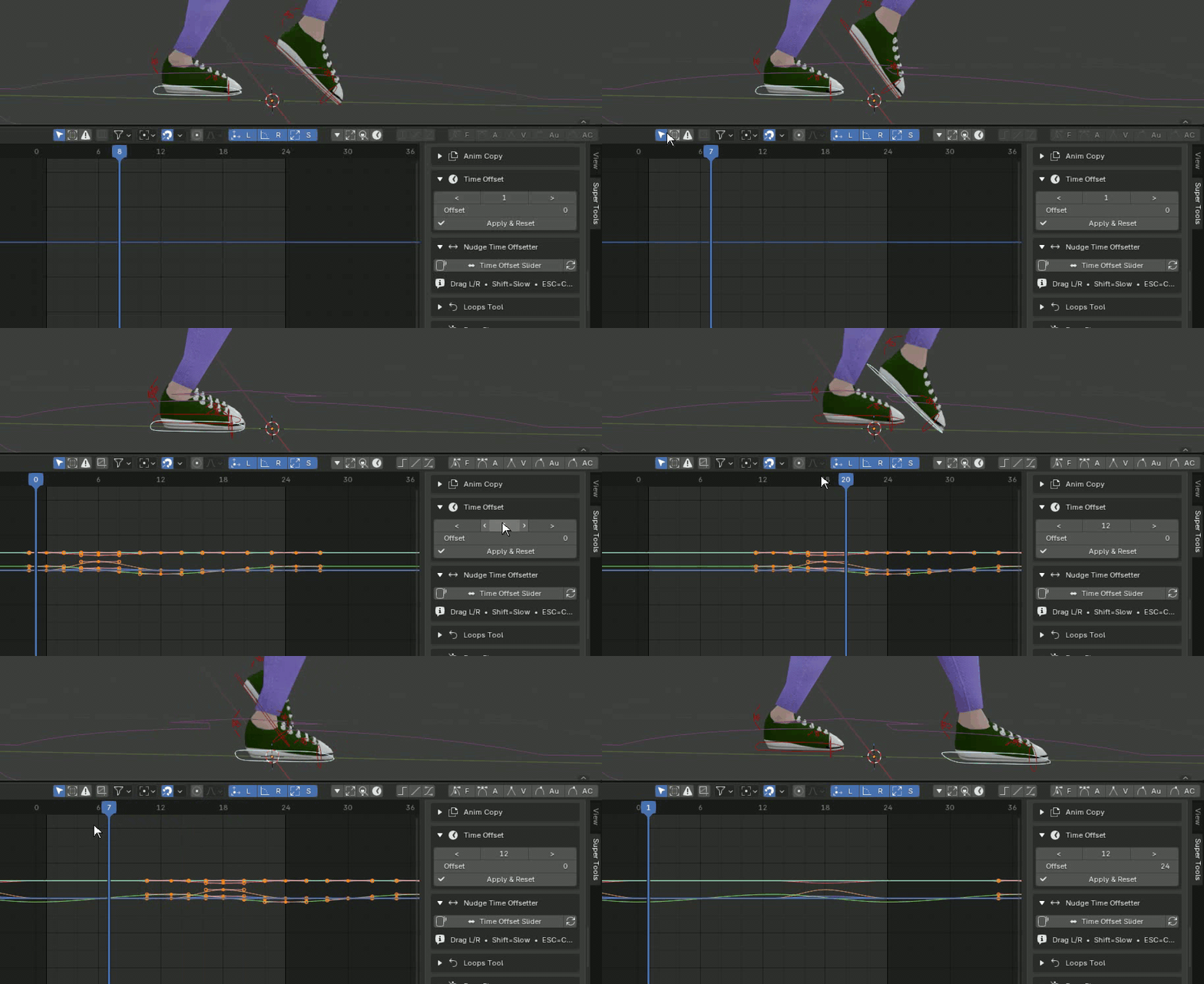
Slide selected keys forward or backward with exact control.
Use the < and > buttons to nudge keys by the set amount, or drag the Offset slider interactively. Click the checkmark to apply.
17 · VALUE PATTERN SHIFTING
Nudge Time Offsetter
INTERFACE
IN ACTION
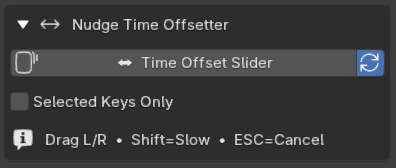
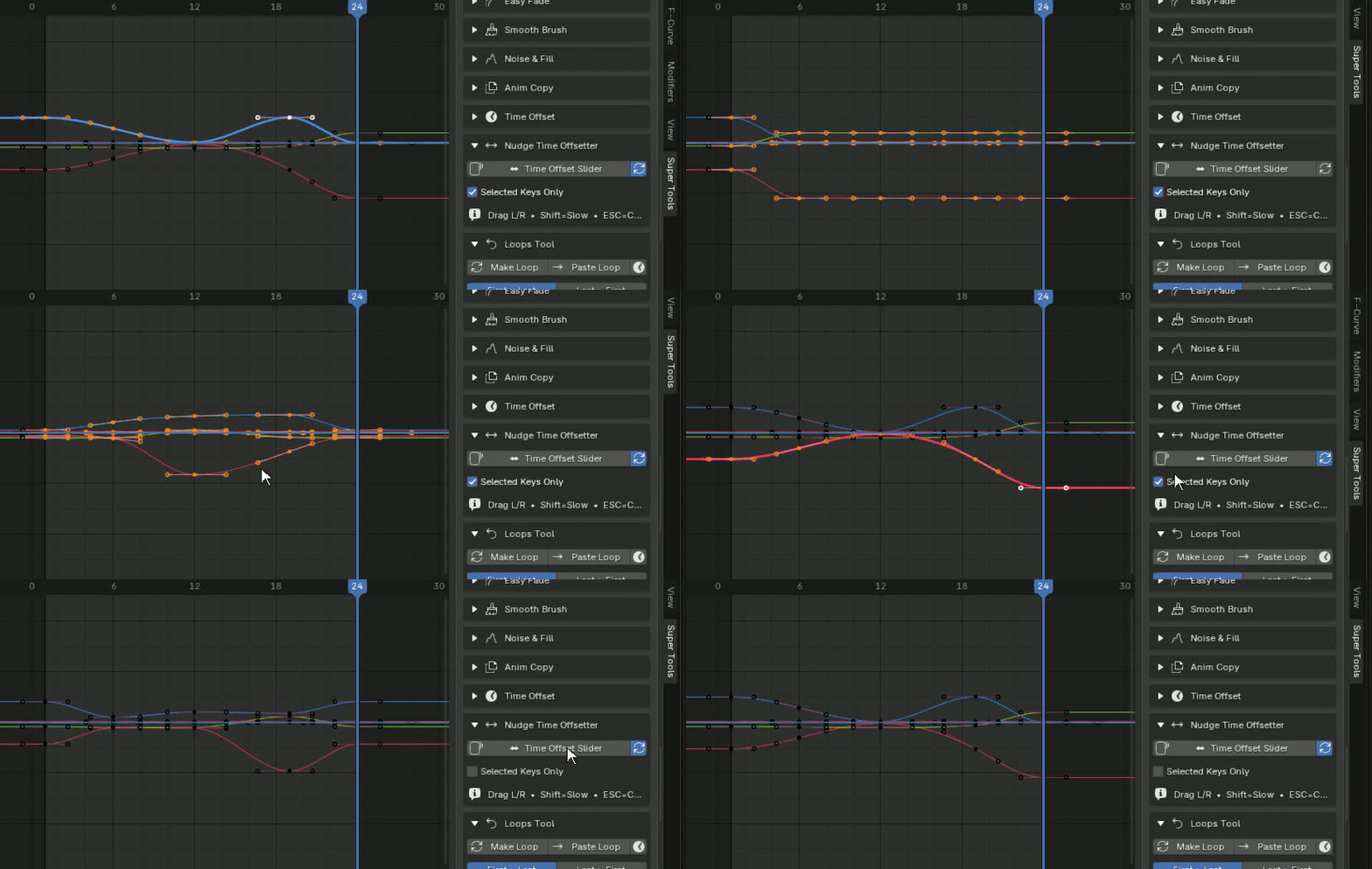
Slide curve values underneath fixed keyframe positions.
Enter modal mode and drag left or right. The keyframes stay in place on the timeline while the animation pattern shifts through them like a conveyor belt. Enable Cyclic to wrap the pattern, or Selected Keys Only to affect only the selected keys.
18 · MOTION VISUALIZATION
Animation Analysis
INTERFACE
IN ACTION
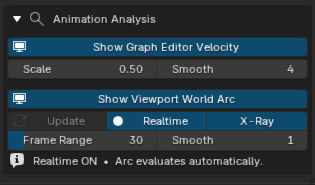
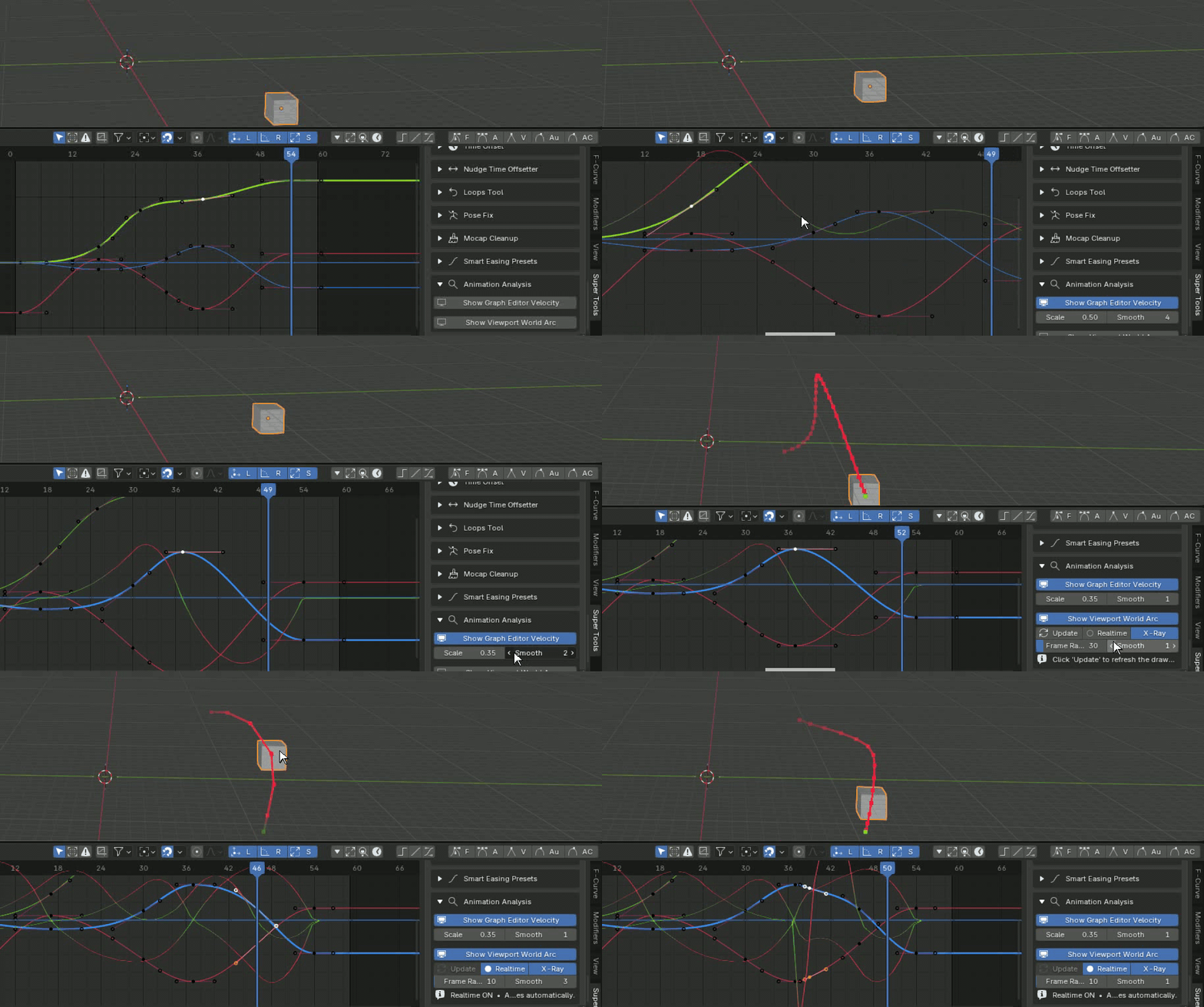
Read speed, spacing and arcs directly from your animation.
- Show Graph Editor Velocity: Draw a color-coded speed curve over F-Curves. Red indicates fast motion; green indicates slow motion.
- How to use: In Edit > Preferences > Add-ons > Animation, enable Only Show Selected F-Curve Keyframes (active). Select a Graph Editor channel, then increase Animation Analysis Scale if needed.
- Show Viewport World Arc: Draw the selected object or bone's 3D motion trail in the viewport. Enable Realtime to update it as you drag.
ANIMATE WITH MOMENTUM
Spend less time fighting keys. Spend more time animating.
From the first blocking pass to final polish, Super Graph Editor Tools keeps your timing, curves and animation decisions in motion.