Superposer
 Trestle Trotter


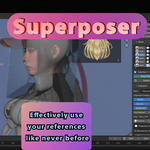
Superposer
Documentation
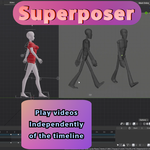
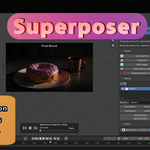
Reference overlays from files, clipboard sources, web images, GIFs, local videos, and video stream URLs, all managed directly inside Blender's 3D View.
What Superposer is for: Superposer keeps reference inside your viewport so you can import, position, scale, project, organize, save, and revisit visual material without constantly leaving Blender. This guide focuses on the actual controls exposed by the addon panels and operators.
Installation
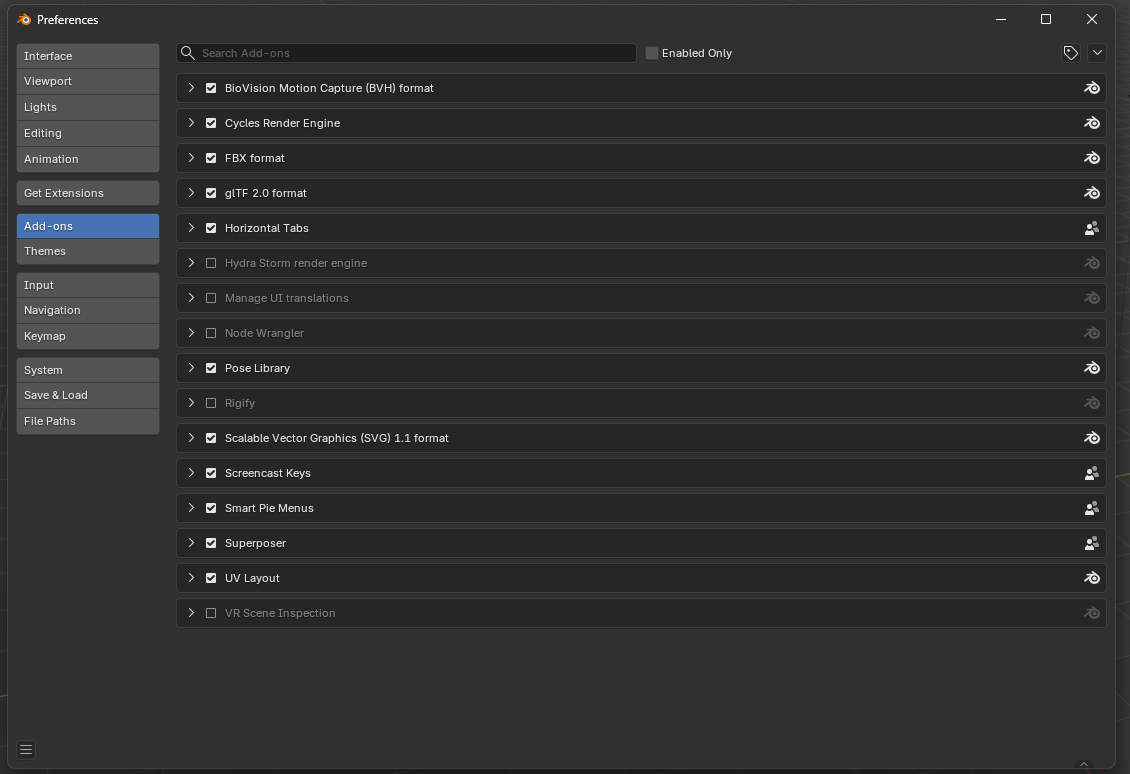
1. Open Blender Preferences
Go to Edit > Preferences and open the Add-ons section.
2. Install From Disk
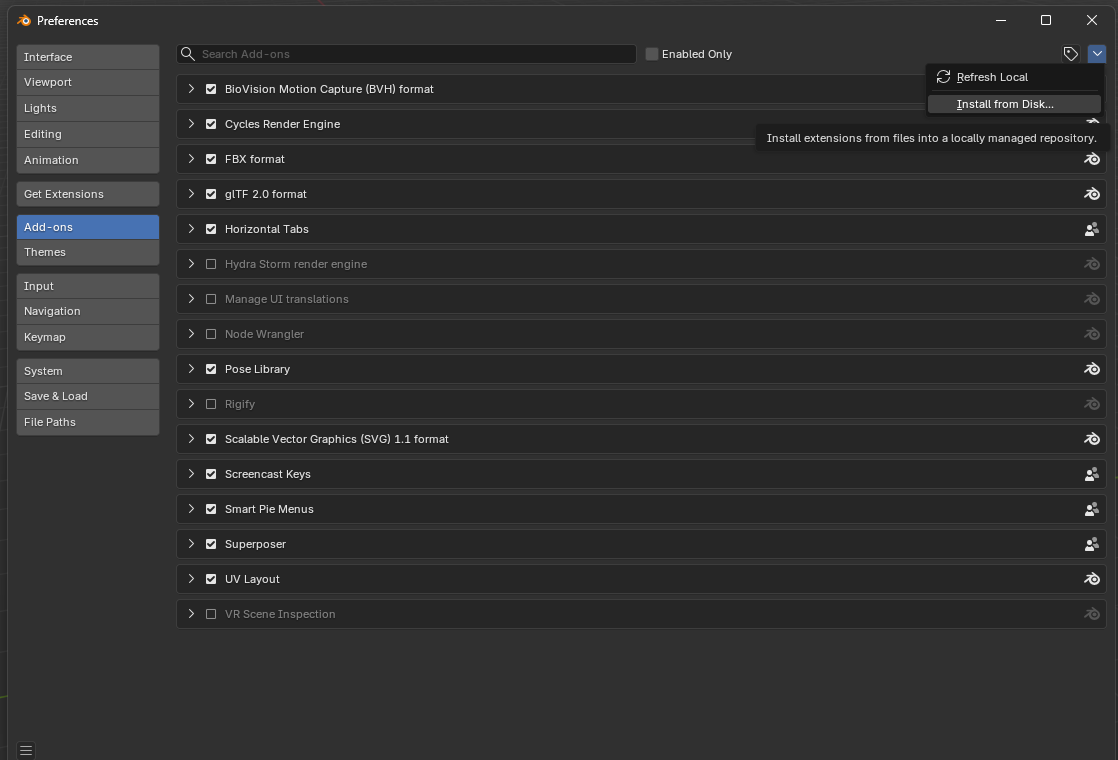
Open the add-on menu in the top-right corner and choose Install from Disk....
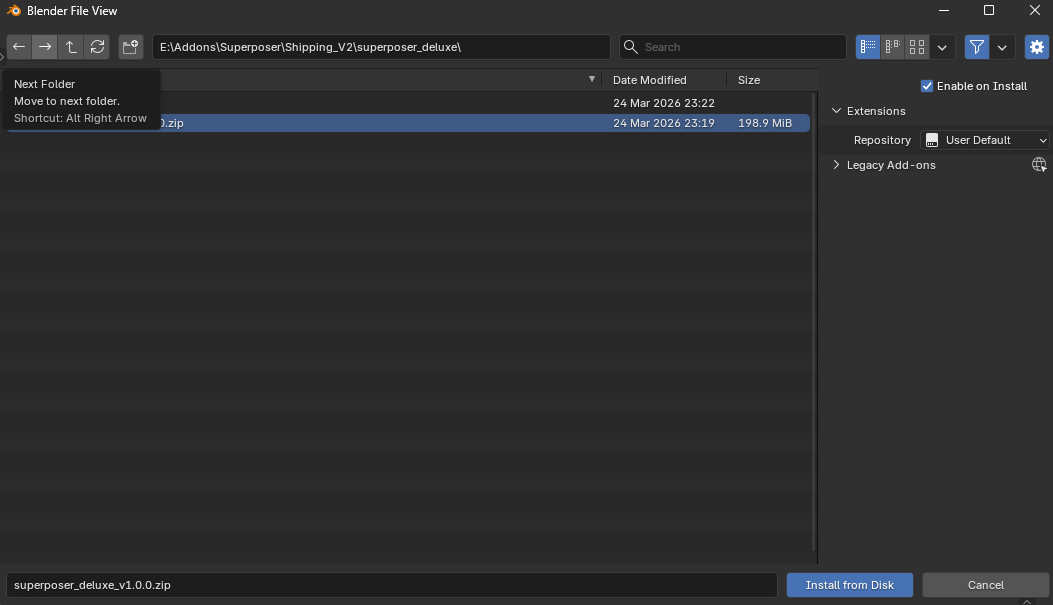
3. Locate the Addon Zip
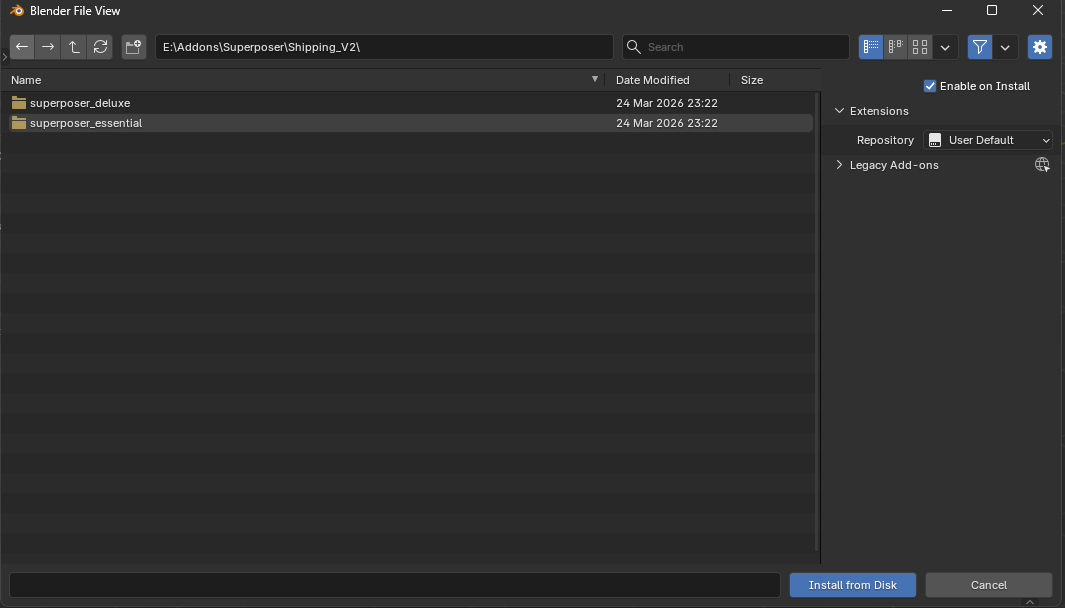
Browse to the downloaded Superposer version on your machine.
4. Install and Enable
Select the `.zip`, confirm the installation, and then enable the add-on. After that you will find Superposer in View3D > Sidebar > Superposer.
Quick Start
- Open the Import section and add a reference from a file, the clipboard, a web image URL, or a video stream URL.
- Use the Items list to choose the active reference and the Inspector to edit its properties.
- Keep it as a 2D overlay, project it from the current view, or convert it into an addon-driven plane when the reference should live in 3D space.
- Save your setup as a Board if you want to come back to the same collection of references later.
Import Operators
Superposer has multiple ways to bring media into the current board. All imported items are placed in the active 3D View and become editable immediately.

Add from File
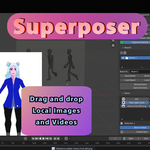
Opens Blender's file browser and imports supported local files. This includes regular images, animated GIFs, and supported local video files. Superposer can also accept drag and drop directly into the 3D View.

Add from Clipboard
Shortcut: Ctrl + Shift + V.
This operator is smart. It can import a copied image, a copied file path, a copied image URL, or even a copied video URL. If the clipboard contains a web URL that is not a supported image, Superposer attempts to treat it as a video stream instead.

Web Image
Downloads an image from an HTTP or HTTPS URL and caches it locally for use inside Blender. This is the direct route for PNG, JPG, GIF, WebP, and similar image sources.

Video Stream URL
Resolves a remote video source without downloading the whole video as a normal file first. This is the intended path for supported web video pages and direct stream URLs such as YouTube-style links, direct MP4/WebM links, and other stream-compatible URLs.

Clipboard Monitor OFF
The automatic clipboard watcher is inactive. Superposer will not keep polling for newly copied sources.

Clipboard Monitor ON
When enabled, Superposer checks the clipboard regularly and imports newly copied supported sources automatically into the center of the active 3D View. This is very convenient during reference gathering, but it is a good idea to turn it off when you are done using it for better performance and fewer accidental imports.
Reference Modes
Each item can live in one of three main states. The icon shown beside the item in the list tells you which state it is currently using.

Overlay
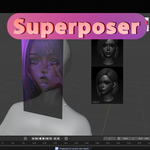
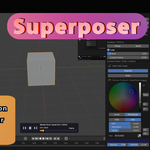
A 2D viewport overlay. This is the most direct mode for arranging reference on top of your view. Overlay items use X, Y, Scale, and Rotation controls and support opacity, brightness, flipping, visibility, and locking.
Projected View
A 3D projection built from the current view. Superposer calculates a plane-like placement from what you were seeing in the viewport at that moment, then stores 3D Size, Location, and Rotation for the projected item. This is useful when the reference should feel anchored in space while still being managed as a Superposer item.

Superposer Plane
A real addon-driven plane object in the scene. Converting to plane creates an object that can live in your scene while still staying linked to the Superposer item. You can later send it Back to Project View or all the way Back to Overlay.
Viewport Controls and Shortcuts
Move
Drag with Left Click on an overlay item to move it in the viewport. Locked items cannot be moved this way. Projected items can still be made active, but a locked projected item will ignore the interaction.
Scale
Use the Mouse Wheel over an item to scale it up or down. Superposer scales around the cursor position so resizing feels more direct while you work.
Selection
Click an item in the Items list to make it active. Shift + Click in the list extends the selection, which is useful when deleting multiple items at once.
Rotation
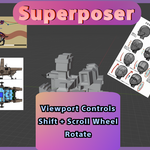
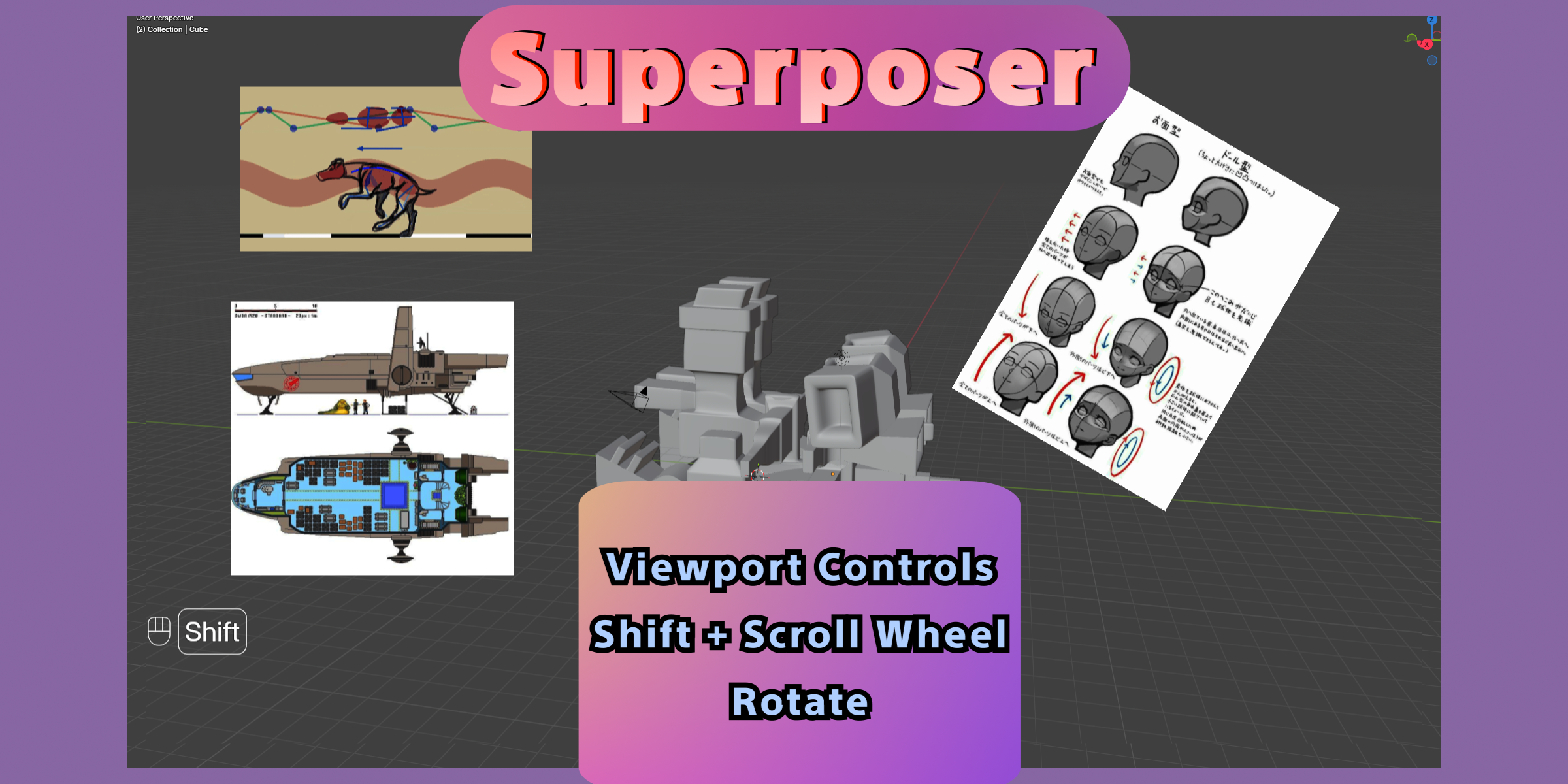
Shortcut: Shift + Mouse Wheel. This rotates the hovered item in fixed angle steps.
Opacity
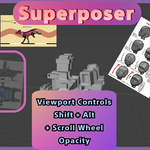
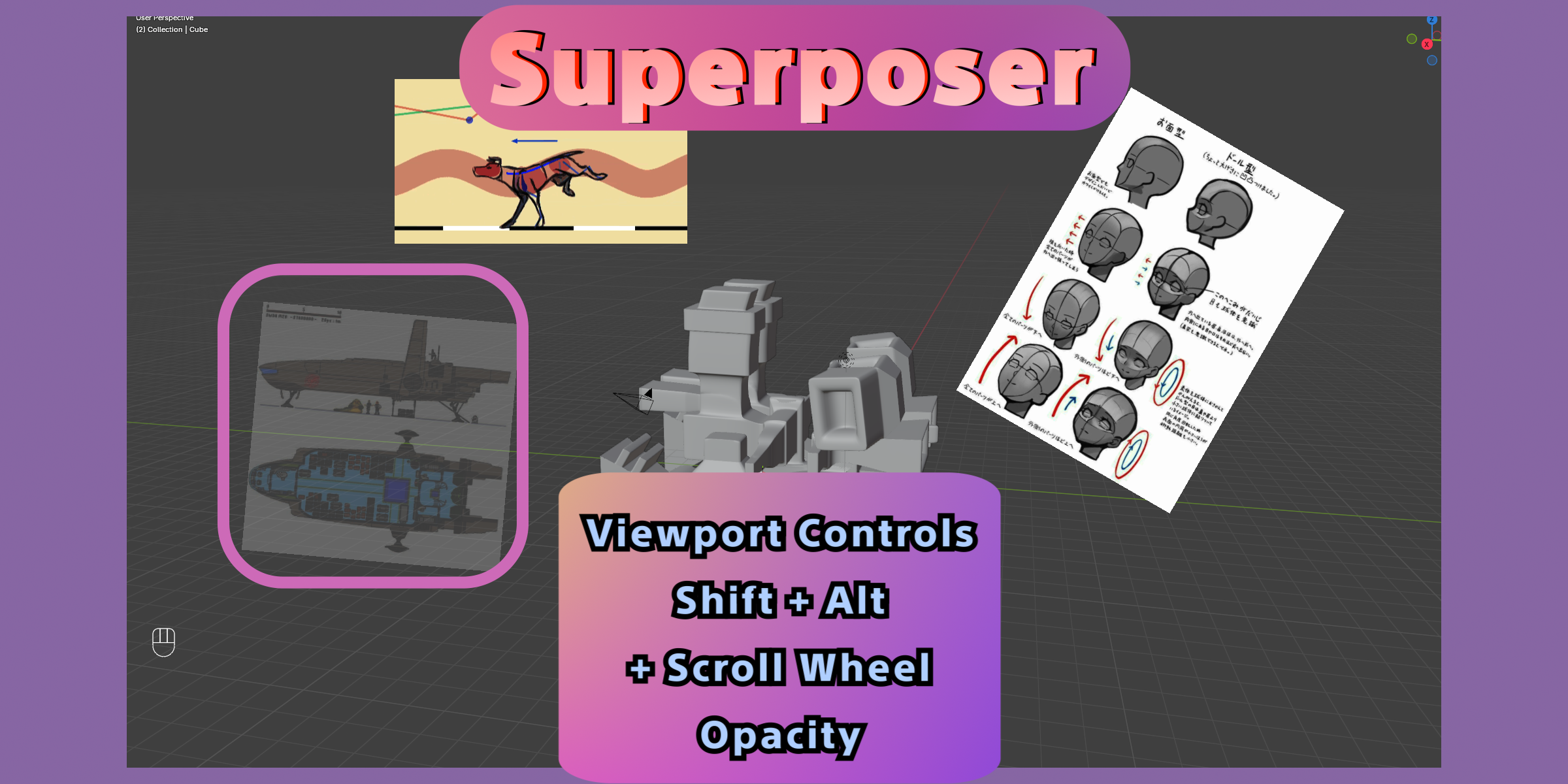
Shortcut: Shift + Alt + Mouse Wheel. This adjusts the active item's opacity from 0% to 100%. Remember that final visible opacity is also affected by the global opacity setting in the Setup panel.
Brightness
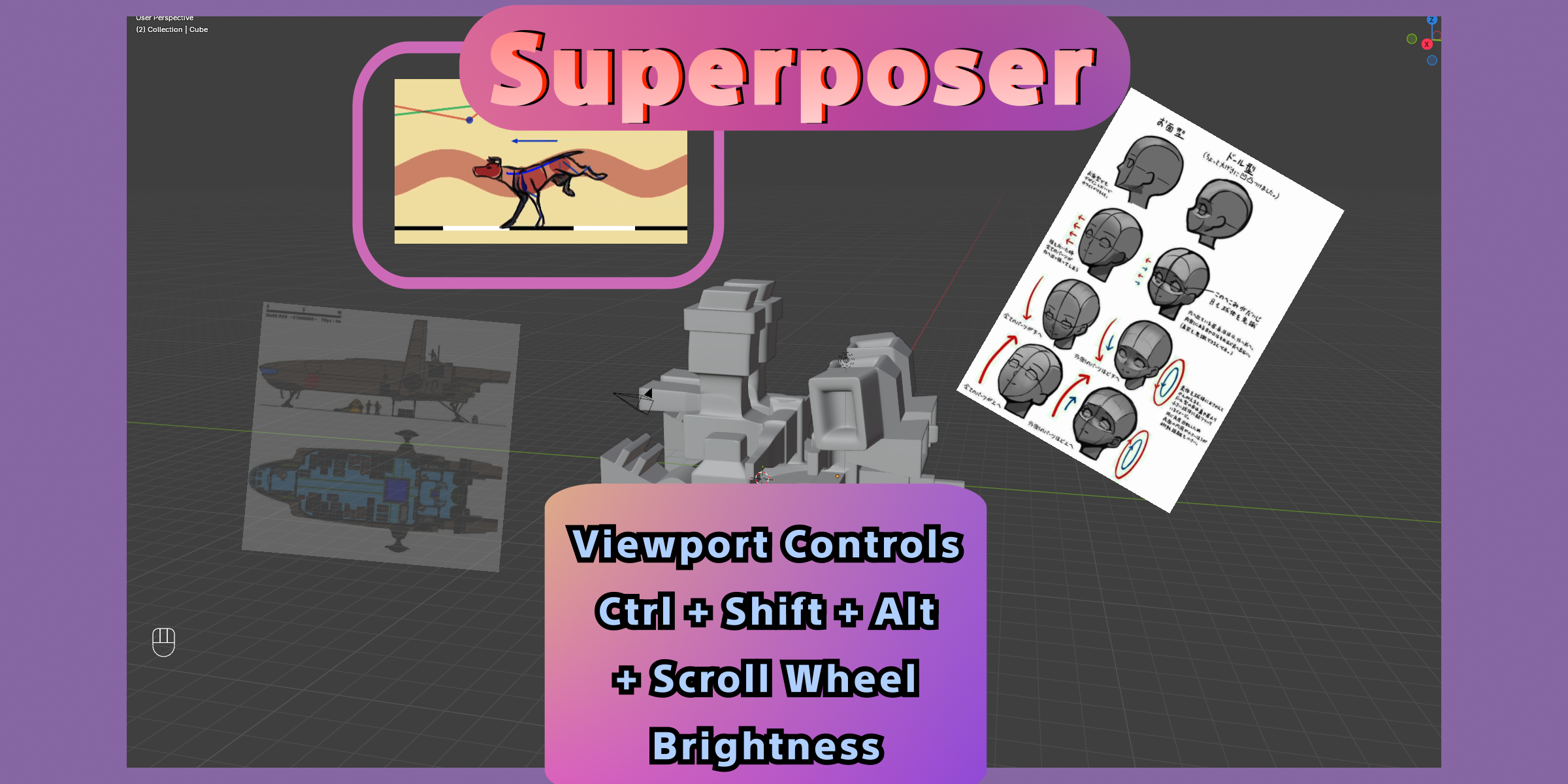
Shortcut: Ctrl + Shift + Alt + Mouse Wheel. This adjusts the brightness of the hovered item. The range is from 0.0 to 2.0, where 1.0 is the neutral default. This control is available for overlays and projected items, but not for addon planes.
Other Shortcut Details
- Double Click on a GIF or video item: toggles Play/Pause.
- Ctrl + Alt + Mouse Wheel: steps animated media frame-by-frame and pauses playback while you scrub. This works for GIFs and non-live video items.
- Alt + + or Alt + Numpad +: raises Deluxe audio volume for video items.
- Alt + - or Alt + Numpad -: lowers Deluxe audio volume for video items.
- X or Delete: removes the selected items, or the active item if nothing else is selected.
- Right Click in the 3D View context menu: exposes the Superposer menu for quick access to flipping, locking, projecting, plane conversion, playback actions, and deletion.
Panels
Setup Panel
The Setup panel contains the high-level behavior for the whole addon.
- Enabled: Master switch for Superposer drawing. When disabled, overlay drawing is turned off globally.
- Global Opacity: Multiplies the opacity of all visible references, including plane-driven opacity where relevant. This is useful when you want to fade the whole board without editing every item individually.
- Active Item on Hover: Makes the item under the cursor the active item automatically. Turning it off can improve performance and means Inspector edits apply after you explicitly click an item.
Boards Panel
Boards are saved collections of references. Each board has its own items, order, visibility state, and active item.
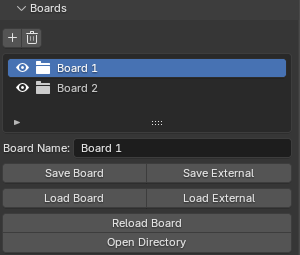
- Add / Remove Board: Creates a new board or deletes the current one.
- Board Name: Used both in the UI and when saving internally.
- Save Board: Saves the active board to Superposer's internal board directory as JSON.
- Save External: Writes the current board to a JSON file at a path you choose.
- Load Board: Loads an internally saved board and adds it back into the scene as a new board entry.
- Load External: Imports a board JSON from any path on disk.
- Reload Board: Refreshes the current board from its saved source file. This is useful if you edited the board JSON or want to re-open a stored version cleanly.
- Open Directory: Opens the internal boards directory in your file browser.
Items Panel
This panel shows every reference in the active board.
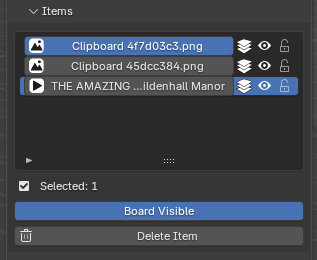
- Item Icon: Shows whether the media is an image, GIF, or video stream.
- State Icon: Shows Overlay, Projected View, or Superposer Plane state.
- Visible: Hides or shows that item.
- Locked: Prevents accidental viewport transforms like move, scale, and rotate.
- Selected Count: Shows how many items are currently selected for multi-item actions.
- Board Visible: Toggles the current board without disabling the addon globally. Use this when you want to hide one board but keep Superposer enabled.
Inspector / Item Panel
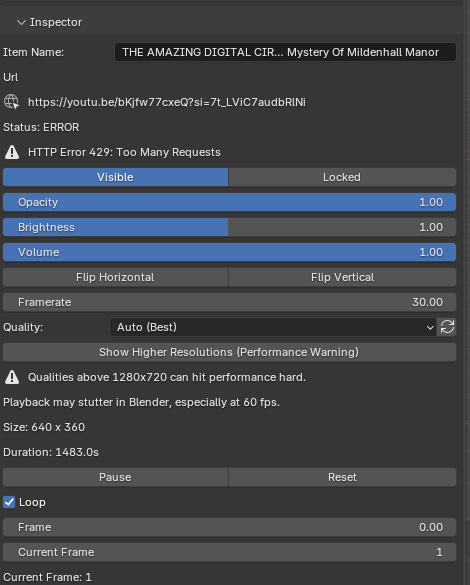
The Inspector is where most item-specific properties live.
General Item Properties
- Item Name: Custom display name for the reference in the item list and panel.
- Source Info: Non-file items display their source type, and URL-based items can show a shortened source URL. Video streams also show stream status and stream errors if there is a playback problem.
- Visible: Shows or hides the item.
- Locked: Prevents direct viewport transform edits.
- Opacity: Item-specific opacity from 0.0 to 1.0.
- Brightness: Adjusts display brightness from 0.0 to 2.0. Not shown for addon planes.
- Flip Horizontal / Flip Vertical: Mirrors the item visually without changing its source.
- Size Readout: Shows the current reference dimensions in pixels.
Animated Media Properties
- Framerate: Playback speed control for GIFs and videos. This is the speed Superposer uses for playback and frame stepping.
- Play / Pause: Starts or pauses GIF/video playback.
- Reset: Available for video items. Returns playback to the start.
- Loop: Controls whether playback repeats. Live streams cannot use looping.
- Frame Scrub: Slider for non-live video items. Lets you jump through the clip visually.
- Current Frame: Numeric frame input for non-live video items.
- Duration: Displayed for video items when that information is available.
- Live Stream: Shown when the source is live. Live streams do not expose frame scrubbing like regular clips.
Video Quality Properties
- Quality: Selects the preferred stream format for URL-based video items.
- Refresh Quality Options: Re-queries the available video formats for the current source.
- Show Higher Resolutions (Performance Warning): Includes options above 1280x720. These are hidden by default because higher resolutions can make playback stutter inside Blender.
- Automatic fallback behavior: If you hide higher resolutions again and your saved selection is above the safe cap, Superposer resets the item back to Auto (Best) so the stream can recover safely.
Projection and Transform Properties
- Project from View: Creates a projected 3D placement based on the current viewport.
- Convert to Plane: Turns the item into an addon-driven plane object.
- Back to Overlay: Returns a projected or plane item to 2D overlay mode.
- Back to Project View: Converts a Superposer plane back into a projected reference while keeping its synced transform.
- Overlay 2D Box: Contains X, Y, Scale, and Rotation.
- Projection 3D Box: Contains Blocked by Other Projections, Size, Location, and Rotation.
- Blocked by Other Projections: Draws this projected item behind the other projected references. This is useful when you want one projection to sit visually behind the rest.
- Addon Plane Box: Contains Size, Location, and Rotation for the created plane object.
- Missing Source Warning: File-based non-video items warn you when the original source file can no longer be found.
Locking and Visibility Behavior
Locked does more than just mark an item visually. Locked items ignore move, scale, and rotate style interactions from the viewport. Visibility changes also sync through the add-on so projected items and addon planes stay consistent with their current state.
Deluxe Audio Panel
Deluxe audio is available for video stream items when the source exposes playable audio and the Blender audio backend is available.
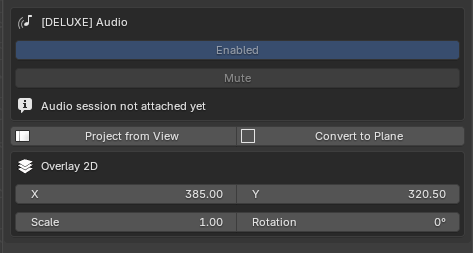
- Enabled: Turns synced Deluxe audio on or off for the current video item. This control is only meaningful when the source actually has audio available.
- Mute: Mutes the current audio session without disabling Deluxe audio entirely.
- Volume: Item-specific audio volume from 0.0 to 1.0. This can also be changed from the Inspector for video items.
- Source: Shows whether audio is being played from a cached file or another resolved source.
- Frame Sync: When the source reports an FPS clock, Superposer uses that to keep audio aligned to video timing.
- Status: Can report states such as Ready, Playing, Paused, Buffering, Disabled, Unavailable, or Error depending on the current playback situation.
- Speed Mismatch: If you set a playback speed that differs too much from the source timing, Superposer disables synced audio for that item to avoid obvious drift.
Deluxe Widget Settings
The Deluxe panel controls the appearance of the in-viewport GPU player widget for video items.
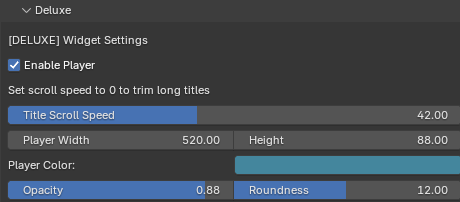
- Enable Player: Shows or hides the Deluxe video player widget for video items.
- Title Scroll Speed: Controls how quickly long titles scroll inside the widget. Setting this to 0 disables the scrolling animation.
- Player Width: Width of the widget in pixels.
- Height: Height of the widget in pixels.
- Player Color: Base color of the widget.
- Opacity: Opacity of the widget background and body.
- Roundness: Corner roundness of the Deluxe player panel.
-
$9
Includes every reference management feature. Video Streams (no audio), Clipboard Monitor, Drag and Drop Local Files, Image formats and GIFs support. Copy and paste from web sources.
-
$19
Includes Everything in the Super Edition + Audio Support for videos and Customizable Player Widget inside the viewport.
Have questions about this product?
Login to message

Discover more products like this
gifs video-player widget overlays references animation videos