 NineLine


Who is this for?
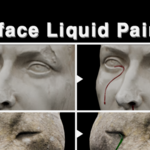
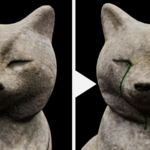
Need to add tears, blood trails, water streaks, sweat, or slime directly onto a character or prop?
Manually modeling thin liquid shapes along curved surfaces can be time-consuming. Surface Liquid Painter lets you draw guide strokes directly on selected mesh surfaces and convert them into editable liquid geometry.
Choose a target object or collection, draw the path in the 3D View, generate the liquid, and adjust its shape with simple controls.
Surface Liquid Painter is a Blender Extension for creating tears, blood trails, water streaks, and similar surface liquids from user-drawn guides.
Drawing is restricted to selected target meshes. The generated liquid follows the surface while the original Guide Curve remains editable until the final Apply operation.
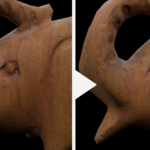
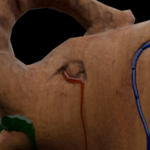
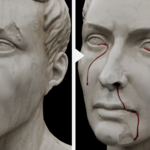
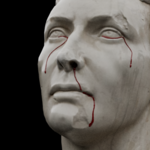
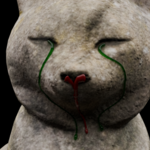
Examples
Product Overview
- Draw liquid paths directly on selected mesh surfaces
- Use one Target Object or an entire Target Collection
- Keep Guide Curves editable after generation
- Adjust width, height, pooling, taper, droplets, and irregularity
- Create an open surface or closed Solid Volume
- Use Tear, Blood, Clear Fluid, and Custom presets
- Save and load Custom presets as JSON files
- Preview the result with a basic Principled BSDF material
- Apply the result as a standard editable Blender mesh
Basic Workflow
- Assign a mesh as the Target Object, or choose a Target Collection.
- Adjust Draw Spacing if needed.
- Click Create / Draw Guides.
- Drag the left mouse button across the target surface.
- Press Enter or Esc to finish.
- Select the generated SLP_Guide and generate the liquid.
- Select the SLP_Liquid object and adjust its settings.
- Edit the Guide Curve when the path needs refinement.
- Click Apply Final Mesh when the result is ready.
Main Features
Targeted Surface Drawing
Guide strokes are created only on configured target meshes. Objects outside the selected Object or Collection are ignored.
This is useful for characters made from multiple mesh parts or scenes containing nearby background objects.
Editable Guide Workflow
Each stroke is stored as an editable Curve object.
Before applying the final result, you can:
- Move, extend, or shorten Guide points
- Refine the path in Edit Mode
- Regenerate the liquid after editing
- Keep the setup non-destructive
Stroke direction determines the Start Pool and End Droplet positions. For tears, draw from the eye toward the lower face.
Liquid Shape Controls
Width / Height
Control the overall width and raised height of the liquid.
Start Width / End Width
Adjust the width at the beginning and end of the trail.
Start Pool / Pool Length
Create and control a buildup of liquid at the beginning.
Auto Taper
Gradually narrows the trail before the end.
End Droplet / Droplet Length
Control the size and length of the final droplet.
Irregularity
Adds consistent, subtle variation to the liquid width.
Smoothing
Smooths the Guide before projecting it back onto the surface.
Profile Segments
Controls the smoothness and geometry density of the rounded profile.
Solid Volume
Enable Solid Volume to create a closed liquid mesh with a rounded upper surface, filled sides, a flat base, and closed ends.
Base Depth controls how far the bottom extends beneath the target surface.
Disable it when a lightweight open surface is sufficient.
Presets
- Tear — Thin and transparent, with pooling, tapering, and a small droplet
- Blood — Wider and thicker, with a dark preview material
- Clear Fluid — General-purpose transparent liquid
- Custom — Saves the current settings as a reusable JSON preset
Custom presets can be saved beside the Blender file or loaded directly through the Blender file browser.
Live Update
When an SLP_Liquid object is active, Live Update rebuilds the result after a short delay.
Shape changes regenerate the mesh, while material changes update only the preview material. For long Guides or dense settings, disable Live Update and use Force Update.
Basic Preview Material
The extension creates a simple Principled BSDF material for quick previews.
Available settings include Color, Roughness, Transmission, IOR, and Coat.
This is not a production-ready liquid shader. Refine or replace it in the Shader Editor before final rendering.
Apply Final Mesh
Apply Final Mesh converts the active liquid into a regular Blender mesh.
It applies the current modifiers, preserves Solid Volume, deletes the linked Guide, removes extension data, and leaves a standard editable result.
Apply is destructive, so keep a backup when the Guide-based setup may be needed later.
Important Limitations
This is an art-directed modeling tool, not a fluid simulation.
It does not calculate gravity, viscosity, collision, or splashing.
Start Pool and End Droplet depend on the drawing direction.
Thin, overlapping, or closely stacked surfaces may produce unexpected projection.
Animated characters may require additional rigging, Surface Deform, or Shrinkwrap work.
Long Guides and high Profile Segment values can reduce Live Update performance.
Apply Final Mesh permanently removes the editable Guide setup.
Material Notice
The material generated by this extension is a basic preview material intended for quickly checking the liquid’s color and transparency.
A production-ready liquid shader is not included, so please refine or replace the material in the Shader Editor for your final render.
Example Use Cases
Tears on character faces
Blood trails from wounds
Sweat, slime, oil, or wet streaks
Rainwater on props and environments
Liquid details on statues and creatures
Editable liquid geometry for rendering or export
Demo Assets:
Some of the 3D models used in this video are provided by Poly Haven.
https://polyhaven.com/