 JB FX
JB FX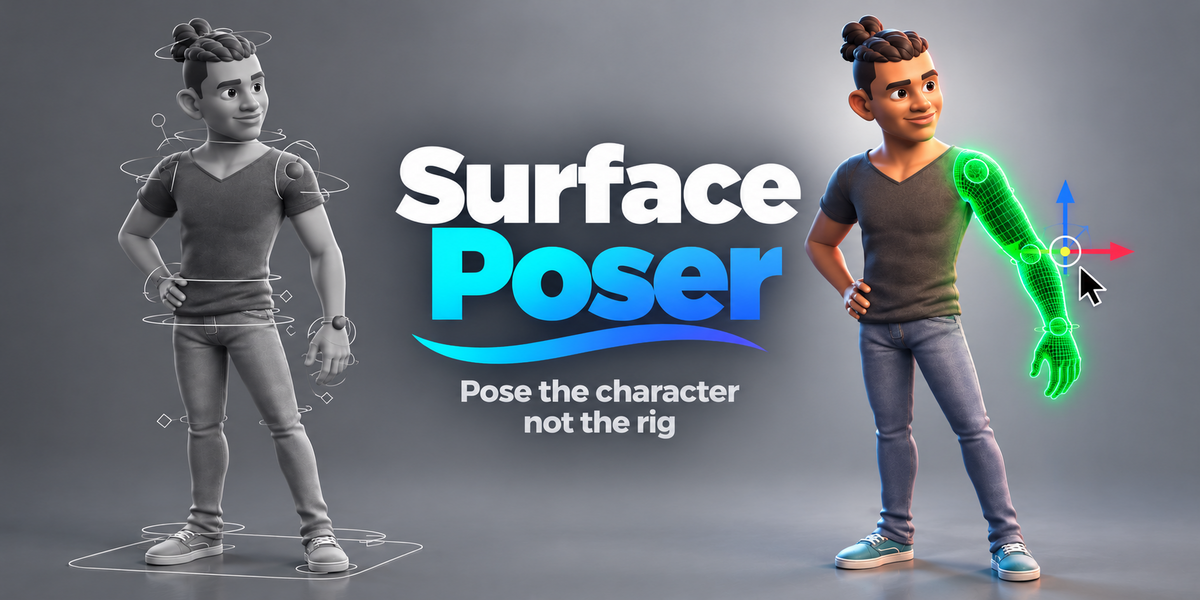


# Surface Poser 1.0.2 - User Documentation
**Tagline:** Pose the character, not the rig.
**Product:** Surface Poser for Blender
**Package:** `surface_poser-1.0.2.zip`
**Declared minimum Blender version:** 4.5.0
**License:** GPL-3.0-or-later
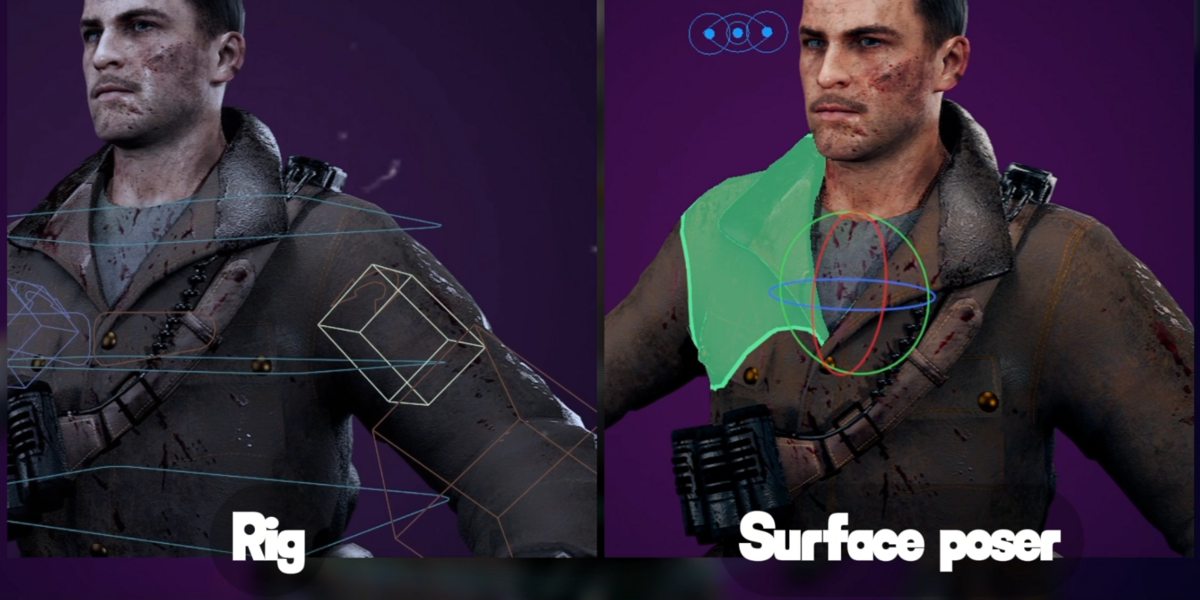
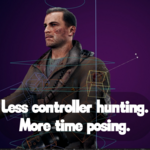
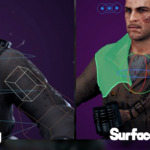
Surface Poser is a non-destructive visual wrapper around existing Blender armatures. You click highlighted regions on a character or compatible rigged mesh, and Surface Poser selects and transforms the original rig controls. It does not replace the rig, repaint skin weights, invent IK constraints or change the character's materials.
## 1. Quick Start
1. **Install:** Save a copy of your `.blend` scene. In Blender open **Edit > Preferences > Add-ons > Install from Disk**, choose `surface_poser-1.0.2.zip`, and enable Surface Poser. Menu wording can vary slightly by Blender version.
2. **Open the panel:** In the 3D Viewport press **N**, open the **Surface Poser** tab, and confirm the label reads **1.0.2**.
3. **Select your rig:** Select an editable armature or a mesh skinned to that armature. The rig should have bone-named vertex weights or meshes parented to individual bones.
4. **Start:** Click **Start Posing**. A newly detected character is set up automatically. If any regions need help, open **Region Mapping**.
5. **Pose:** Left-click a highlighted region. Drag it with **Direct Drag: Natural**, or use **G**, **R**, **S** and Blender transform tools. **Shift-click** adds more controls.
6. **Keyframe:** Click **Key Selected Controls** to insert keys on unlocked transform channels of the selected controls; normal Blender keying methods can also be used.
7. **Exit:** Click **Stop Posing** to restore normal rig interaction. If bone overlays remain hidden, use **Tools & Recovery > Restore Normal View** or **Viewport Overlays > Bones**.
**First practice:** Open **Playground > Add Practice Character**. It is an FK practice rig: rotate limbs and move the root. Try undo and keyframing before working on a production file.
## 2. Basic Controls
| Action | Behavior |
|---|---|
| Left-click region | Select mapped original rig control. |
| Click-drag region | Start natural manipulation or Blender Native transform, according to Direct Drag setting. |
| Shift-click | Add another existing control to the selection. |
| G / R / S | Move / rotate / scale where channels are not locked. |
| Ctrl+Z | Undo through Blender. |
| Middle mouse | Orbit 3D Viewport. |
| Shift + middle mouse | Pan. |
| Mouse wheel | Zoom. |
| Tab / Edit Mode | Posing is paused; returning to the rig resumes when possible. Use **Return to Surface Pose** if needed. |
| Show Rig | Temporarily show the rig's original controller interface. |
| Add Opposite Side | Select corresponding mirrored control where one is found. |
### Main N-panel
The main panel is intentionally compact: **Character > Pose > Keyframe**. Use **Body** selection for whole-hand/foot posing or **Fingers & Face** for finer weighted regions. More advanced controls live in **Look & Feel**, **Region Mapping**, **Pinned Controls**, **Rig Compatibility & Profiles**, **Tools & Recovery**, **Playground**, and **Quick Guide**.
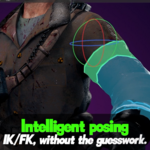
## 3. Intelligent Posing and IK/FK
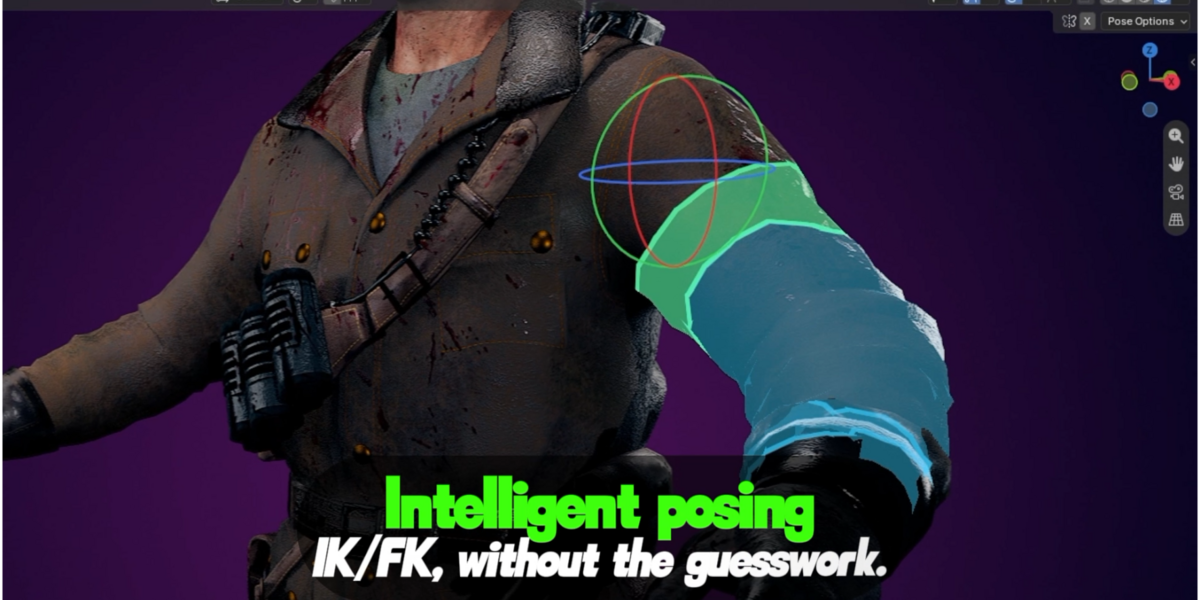
- **Smart** chooses Move for suitable IK targets and roots, and Rotate for typical FK joints.
- **Natural** direct drag moves simple supported IK targets in screen space or rotates safe FK controls around the original rig pivot.
- **Blender Native** delegates to Blender's established modal transform tools. This remains the fallback for complex constrained/driven controls and multi-selection.
- **Move**, **Rotate** and **Scale** can be selected explicitly. Surface Poser respects locked transform channels; not every control supports every tool.
- In **Tools & Recovery > Select Controls**, **Follow Rig** reads recognized IK/FK switches. **IK Override** and **FK Override** change control-selection routing only: they do not switch or snap the underlying rig.
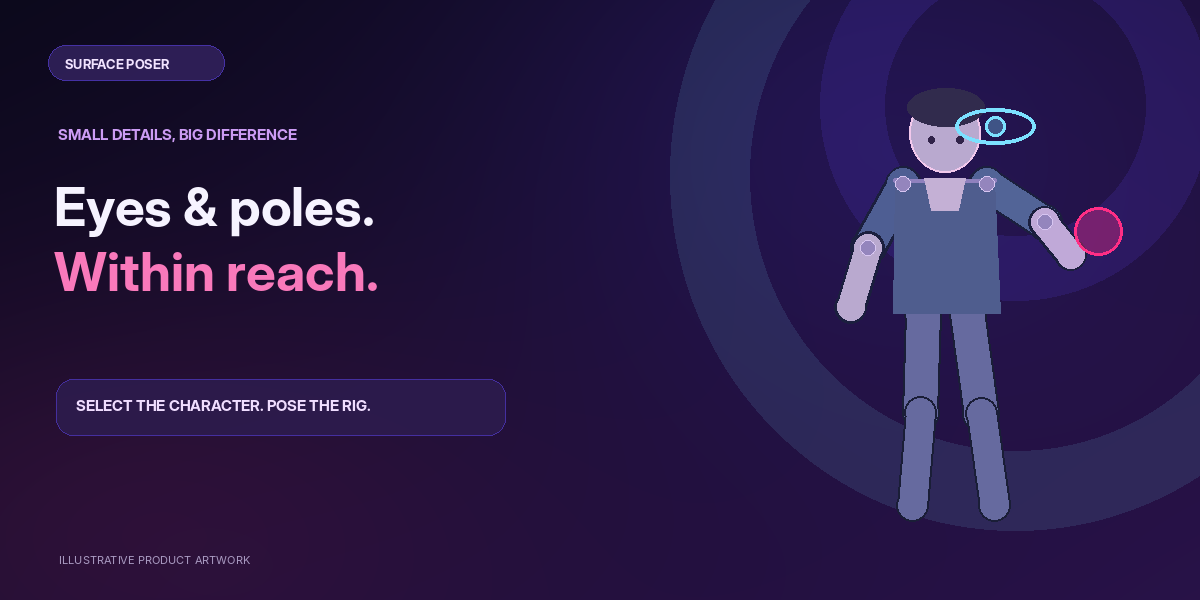
- When the rig already provides them, **Pole Balls** are clickable viewport controls for elbow and knee pole targets; **Eye Targets** expose the original eye controls. The shared eye widget is eye-shaped; individual eyes use simple circular reticles. Their scale follows apparent character size.
- When eye target detection fails, use **Tools & Recovery > Eye Control** to select an existing pose bone manually.
- If a controller is hard to reach through a region, use **Pinned Controls > Add Selected Rig Control**. This adds a convenient panel button, not a new bone.
## 4. Appearance and Performance
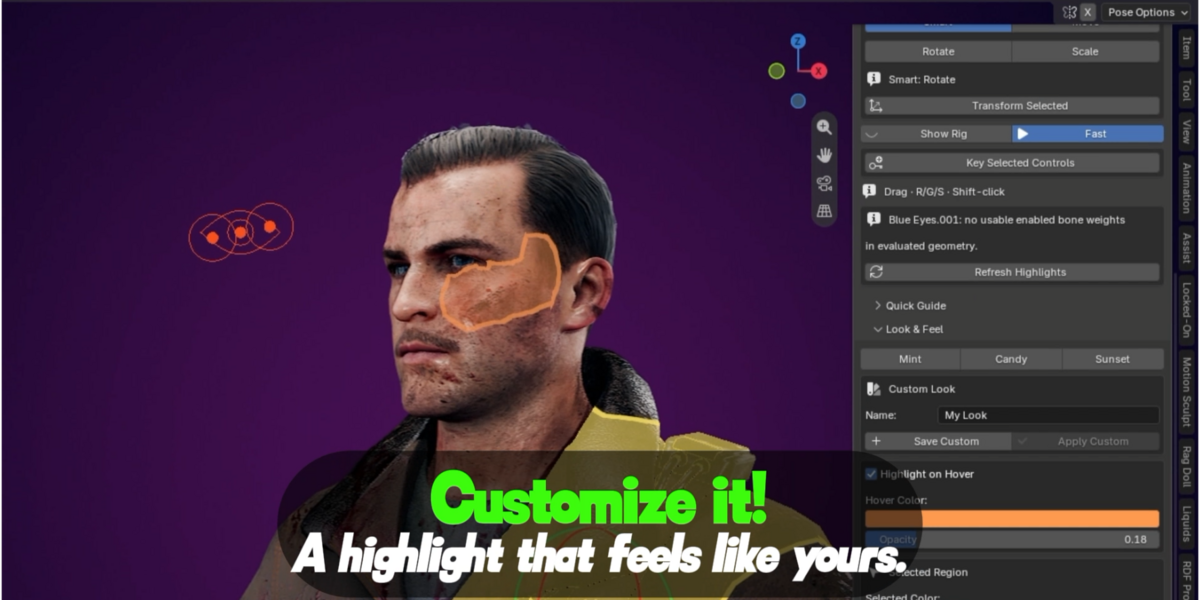
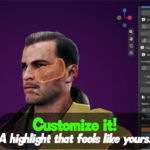
Open **Look & Feel** for **Mint**, **Candy**, and **Sunset** color palettes. Set **Hover Color**, **Selected Color**, the two opacities, outline visibility/width, and Edge Softness. These settings change viewport overlays only; they do not modify materials or weight paint.
To save your own colors, set the appearance, give **Custom Look** a name, click **Save Custom**, then **Apply Custom** when you need it. The slot lives in addon preferences. If preference auto-save is disabled, click **Save Blender Preferences**.
**Selected Region > Depth** offers:
- **Surface Lock (recommended default):** depth-tested highlighting with back-face rejection and adjustable **Close-up Precision**. Designed to avoid showing the rear of the character.
- **Classic Occlusion:** legacy depth-tested fallback for unusual geometry or GPU behavior.
- **X-Ray (legacy):** allows obscured and back-facing regions to show; not recommended for ordinary posing.
Use **Fast** to prioritize posing/playback. It keeps the selected region updating while deferring heavier hover/picking work. **Transform Handles > Sizing: Automatic** adjusts handle size to the projected selection, with Small, Large and a size multiplier as alternatives.
If highlights lag, reduce heavy viewport subdivision, keep Fast enabled, or check **Tools & Recovery > Vertex Budget**. You can try **Refresh Highlights** after modifier or rig changes.
## 5. Region Mapping and Boundary Editing
Surface Poser uses bone-named deformation groups and bone-parented mesh relationships to generate interaction regions. These regions are selection surfaces; they are not new rig elements.
### Fix a controller mapping
1. Open **Region Mapping** and select the relevant region.
2. Read the status/reason and current controller. Assign an existing controller through the **Controller** picker, or temporarily **Show Rig**, select the desired original bone and choose **Use Selected**.
3. Click **Confirm** to keep the mapping. **Re-detect This Region** retries automatic mapping.
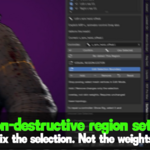
### Edit the visible selection boundary
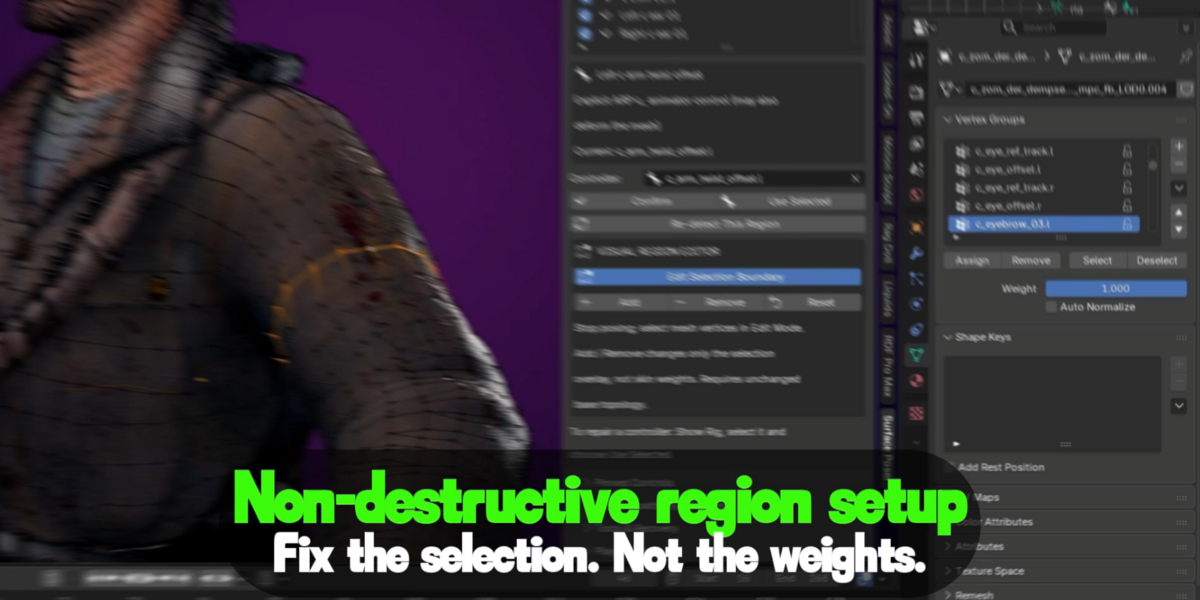
1. Select a region in **Region Mapping**, then choose **Edit Selection Boundary**. The addon enters Mesh Edit Mode on a mesh linked to that region.
2. Select vertices to affect and choose **Add** (include) or **Remove** (exclude). **Reset** clears manual overrides for that region.
3. Return to the rig/pose interface. These changes alter the region overlay only; original skin weights are unchanged.
Boundary overrides are stored with mesh data, keyed by base vertex indices. They require a stable base topology. Replacing/reordering the base mesh vertices can invalidate them. Do not confuse these overrides with modifying vertex groups or weight painting.
## 6. Rig Compatibility and Profiles
The addon's Blender manifest declares **Blender 4.5.0** as its minimum. This is not proof of live testing across every Blender release and rig variant.
- **Rigify:** supports recognizable typical controllers; less common arrangements may require manual mapping.
- **Auto-Rig Pro:** recognizes known controls and IK/FK switches; certain layouts remain experimental.
- **Mixamo-style:** can pose directly through its deform bones. Surface Poser cannot synthesize absent IK targets.
- **Generic custom rigs:** can be scanned when meshes have nonzero bone-named skin weights or are parented directly to bones. Driven/constraint-heavy rigs may need manual corrections.
- **Hard-surface machines, cars, robots:** partially supported when suitably armature-rigged. Universal mechanical controllers and object-only assemblies are not supported automatically.
To reuse mappings, open **Rig Compatibility & Profiles**, choose **Inspect** to review the current rig, **Save Map** to store a profile, and **Apply Map** on compatible rigs. **Import** and **Export** exchange JSON mapping profiles. Unmatched controls are skipped rather than guessed. The optional **Replace Confirmed Mappings** setting should be used carefully.
## 7. Troubleshooting
**No visible selection / no setup:** Select the correct armature or skinned mesh. Try **Detect Character** or **Refresh Character Setup**. Surface Poser needs a view-layer mesh with bone-named weights or direct bone parenting. It does not automatically guess from multiple armature modifiers.
**Wrong body part is selected:** Check **Region Mapping**, the current IK/FK state, and the correct target. Use **Confirm** after choosing the right controller.
**Jagged or intersecting highlight:** Start with **Look & Feel > Selected Region > Depth: Surface Lock**. Adjust Close-up Precision; use Classic Occlusion as a fallback. Thin overlapping meshes, transparent materials, inverted normals and missing weight coverage can still give artifacts.
**Eye/pole widgets missing:** Enable **Eye Targets** or **Pole Balls** in **Tools & Recovery**. If your rig's eye controller name is unusual, use the **Eye Control** override. Widgets do not create controls that are absent from the rig.
**Posing pauses after Tab:** Exit Edit Mode, return to the character rig, or click **Return to Surface Pose**.
**Bone controls remain invisible after Stop:** Use **Tools & Recovery > Restore Normal View**, or enable **Bones** in the 3D Viewport Overlays menu. An intermittent overlay-restoration issue has been reported for v1.0.2; do not assume Stop always recovers every changed viewport.
**`unsupported generated topology (EDGE_SPLIT)` warning:** This means an evaluated modifier was rejected rather than mapping the wrong vertices. For a copy of the scene, consider a compatible mesh/modifier workflow; do not destructively remove the original rig's modifiers without testing. Other topology-changing modifiers may also limit live overlays.
**Large/dense mesh warning:** Lower viewport subdivision or adjust the **Vertex Budget / Mesh** in Tools & Recovery. Keep in mind larger budgets may affect responsiveness.
**Unable to map custom machine/car rigs:** Bone-parented meshes and skin weights can work; object-only constraint rigs or specialized automotive solvers may not be recognized. Manual controller mapping helps only when a supported surface exists.
**Need support diagnostics:** Use **Tools & Recovery > Copy Diagnostics** or **Copy Support Report**. Include the Blender version, rig family, error text, what you clicked, and whether it reproduces in a new file.
## 8. Safety, Limitations and FAQ
**Does Surface Poser replace the armature?** No. It is a non-destructive wrapper over the original rig.
**Does it change weights or materials?** No. Its highlights and selection boundary overrides are separate from deformation weights and materials.
**Does it generate IK/FK rigs?** No. It follows the original rig's supported controls and constraints, and does not change IK/FK switches automatically.
**Does it support all topology modifiers?** No. For safety, some evaluated topology generators (such as Edge Split) and large evaluated meshes are not used for automatic surface picking.
**Can I use Quad View?** Surface Poser currently requires a normal single 3D Viewport for starting a pose session.
**Why did bones on another armature disappear?** Surface Poser hides bone drawing in the active viewport, which can affect other armatures' bone graphics temporarily. Stopping is intended to restore the previous state; use Restore Normal View if necessary.
**Can linked library characters work?** The armature must be editable locally or through a valid Blender library override.
**Support / feedback:** Provide a concise reproduction description, the current Blender version, rig system, screenshot if relevant, and a copied diagnostic report. Keep a backup of production `.blend` files before trying new add-on versions.
---
**Release:** Surface Poser v1.0.2 (final package). Documentation reflects the final add-on archive; no code or rigging functionality has been changed. The package includes source and GPL-3.0-or-later license. Final live Blender testing and marketplace support policies are separate from this documentation.
 Included
Includes 12 months of
- Support from JB FX
- Product updates
Extend this product’s Support Period +12 months: 50% of product price
Have questions before purchasing?
Login to message
| Blender Extension Compatible | Yes |
| Published | about 8 hours ago |
| Blender Version | 5.0 - 5.2 |
| Extension Type | Add-on |
| Render Engine Used | Cycles, Eevee |
| License | GPL |

Discover more products like this
animation rigs rigify 3danimation skinnedmesh ARP animation skin rig rigging