 Soyoyo
What is Switch Mesh Select Mode
Switch Mesh Select Mode is a blender addon that provides two other ways to switch Mesh Select Mode with a single shortcut. In modeling, switching Mesh Select Mode is a frequently used operation. Blender uses the keys 1, 2, and 3 to choose the vertex, edge, and face selection modes. These keys take up three keys and they are a bit far from the default finger position on the keyboard and are sometimes prone to misclick. So I developed this addon to provide another two ways to switch Mesh Select Mode efficiently with a single shortcut. The first way is the Cycle Switch. The second way is the Pie Menu.
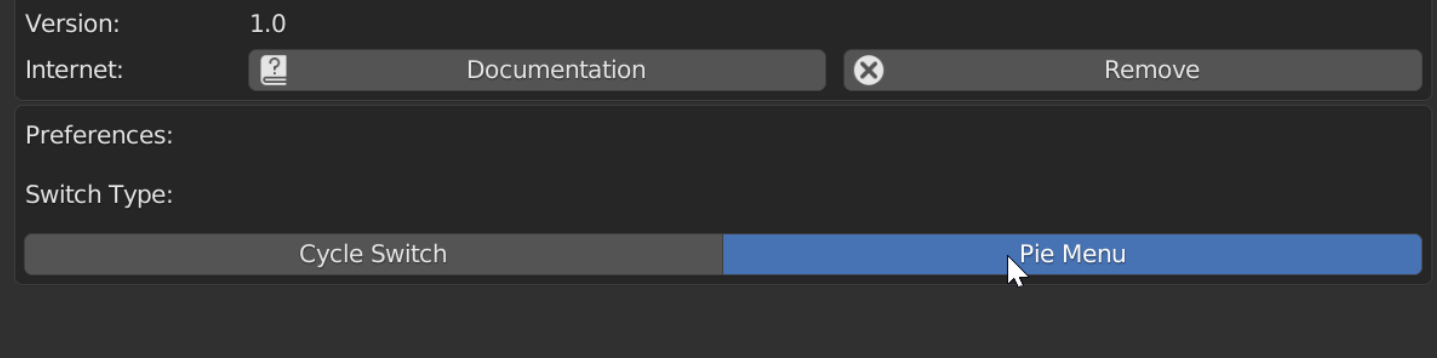
Both ways use the same shortcut. You can choose which way to use in this addon's Addon Preferences setting. I recommend trying both and deciding which works better for you. The default shortcut of this addon is the D key. The reason I choose the D key is that I found that it's not used yet in edit mode. If you need to change the shortcut, you can change it in the keymap setting. The path is: Edit > Preferences > Keymap > 3D View > Mesh > Mesh (Global) > Switch Mesh Select Mode.
The following are two types of switching:
The first type: Cycle Switch

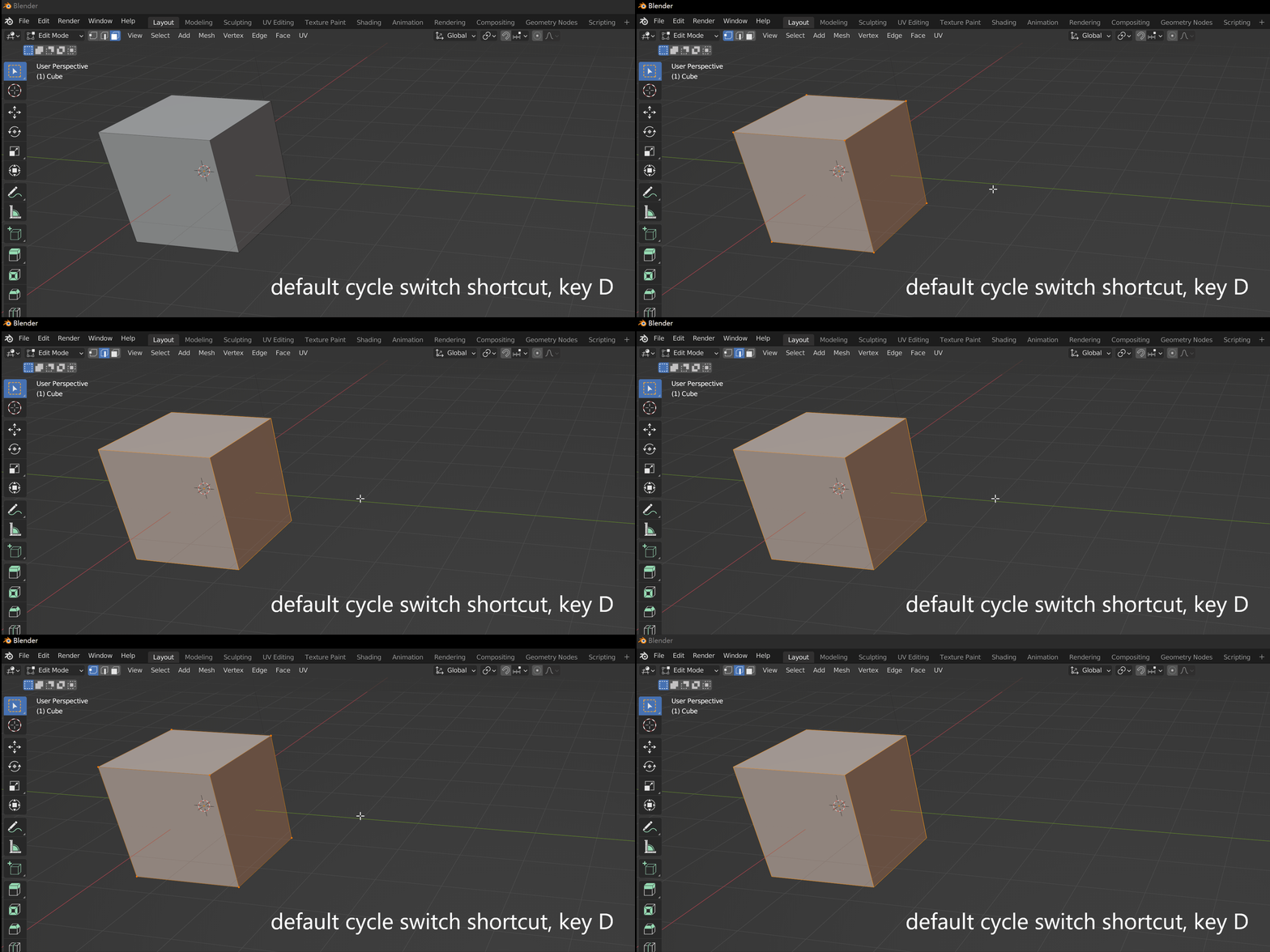
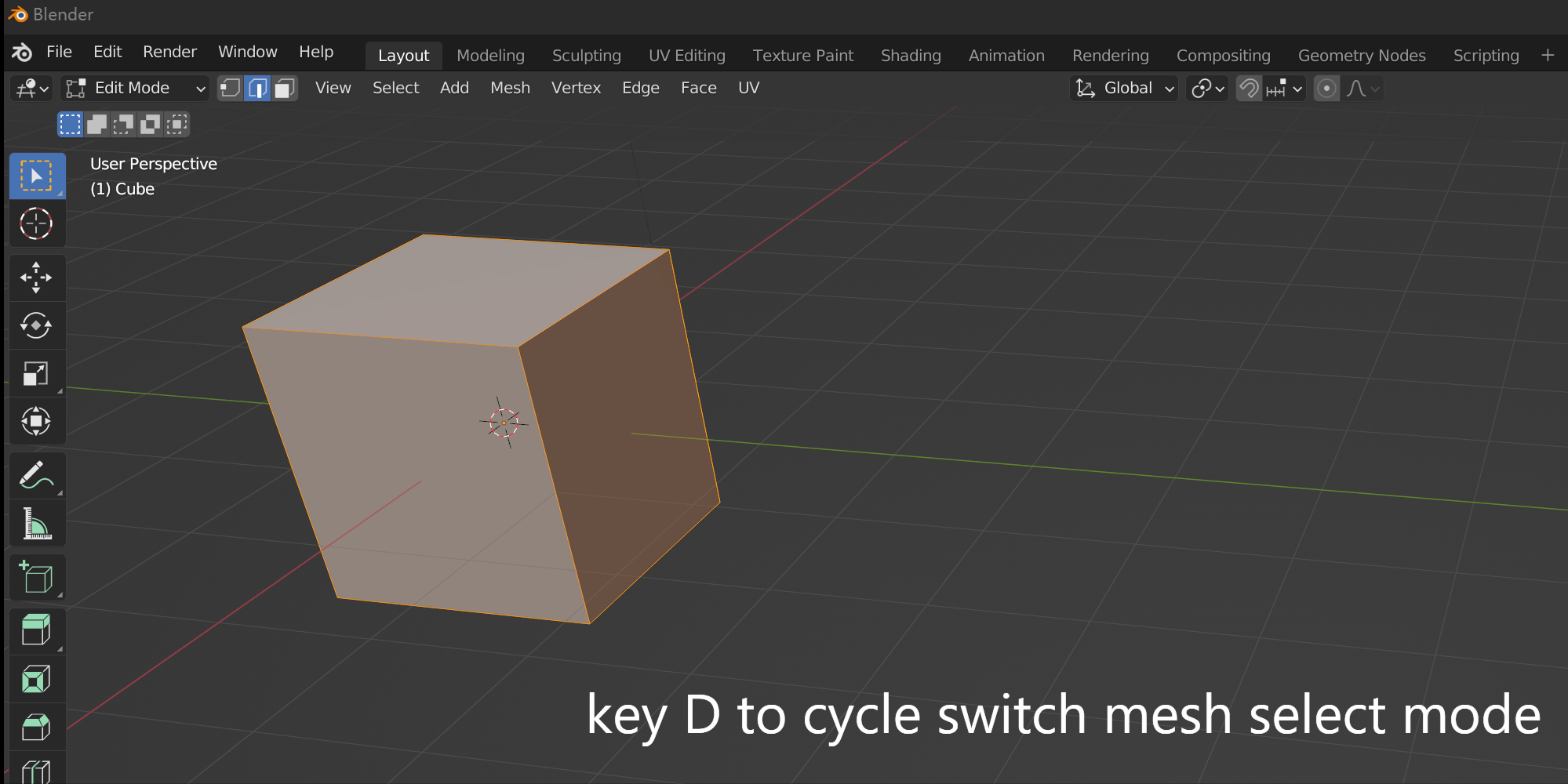
This is the default type for this addon (but it doesn't mean it's the recommended type, You should try both types before deciding which one to use). This type cycle switches the mesh select mode with a single shortcut. It takes the mesh select modes as a circle.
To use this type better, you can think of it in this way: single-click means one step forward, and double-click means one step backward. At the same time, a single-click also represents two steps backward, and a double-click also represents two steps forward. All because it is a circle. Expand it and repeat, and it would be a list like this [..., vertex, edge, face, vertex, edge, face, vertex, edge, face, ...], an endless list.
In this type, if you had chosen multiple modes, this addon will do nothing. Please note that.
The second type: Pie Menu
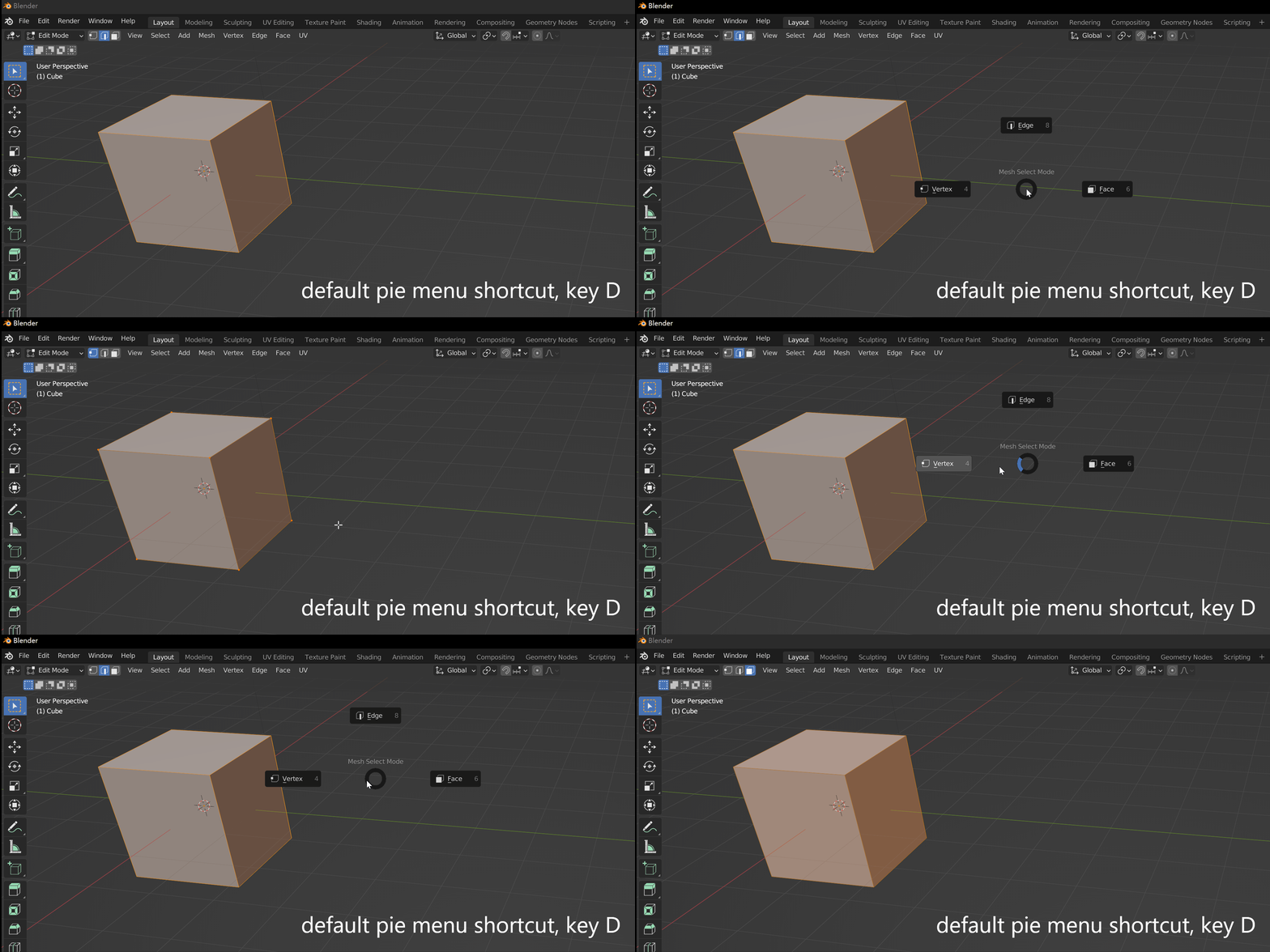
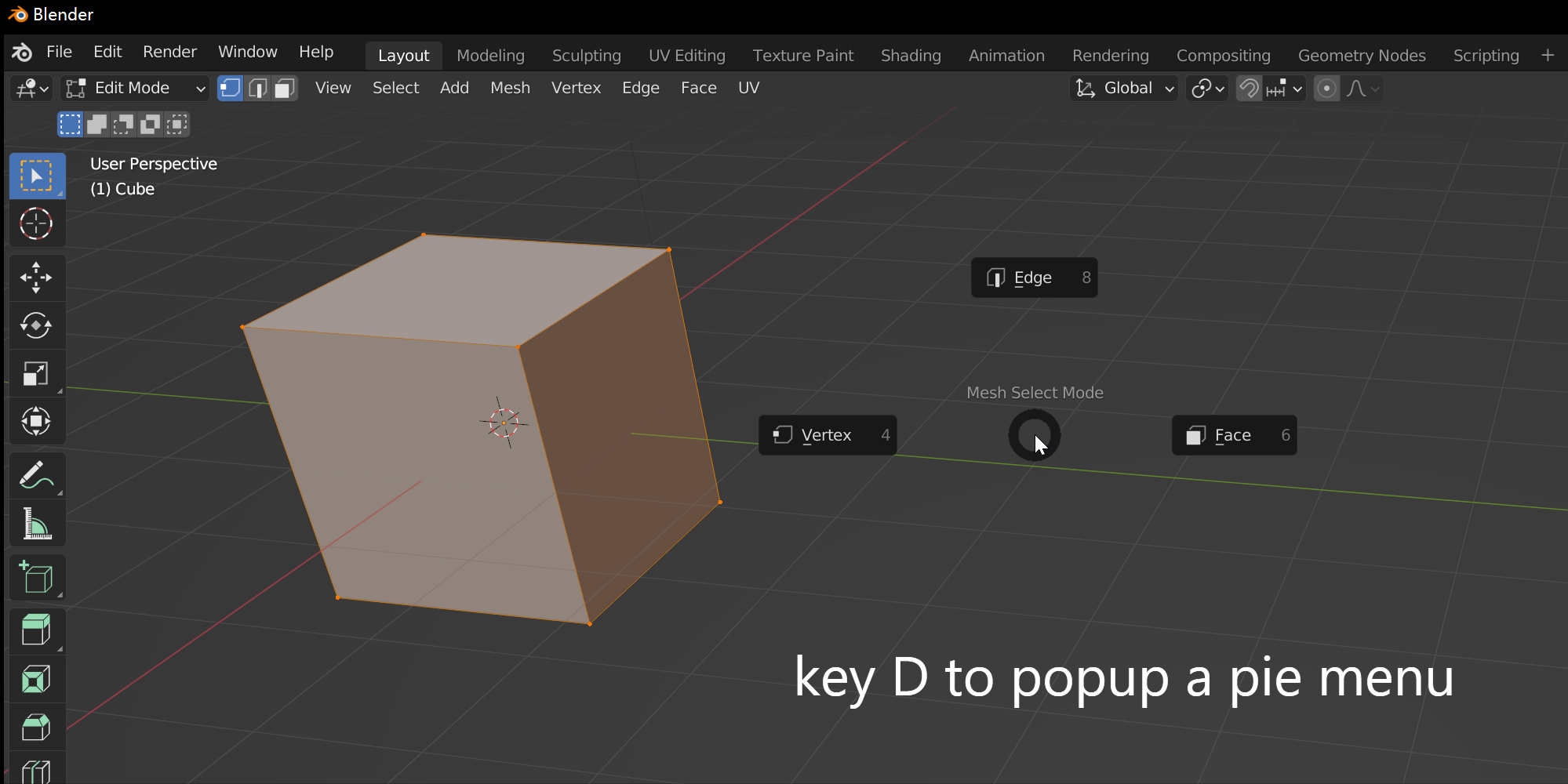
The pie menu is an efficient tool in Blender. Using it well can produce high efficiency. So this addon also provides this way to switch mesh select mode. There is a little trick to use the pie menu: when you start pressing a key, you should start moving the mouse so that the keyboard key is pressed during the mouse is moving. Doing this way can quickly select the Mesh Select Mode without an additional click. Don't press the keyboard key first, and then move the mouse. In that way, it will require an additional mouse click.
Installation:
1. Edit > Preferences > Add-Ons
2. Click “Install…” button in the top right of the window
3. Find the Add-On file to install
4. Click “Install Add-on”
5. Check the checkbox to enable the addon. Then in the edit mode, press the shortcut D key, it will switch the mesh select mode or popup a pie menu depending on which switch type you choose.
A little different from Blender 4.2: choose 'install from disk', or Drag the .zip into Blender and confirm.