SymSolv — Symmetry Restoration for Blender
 Captain Pixel
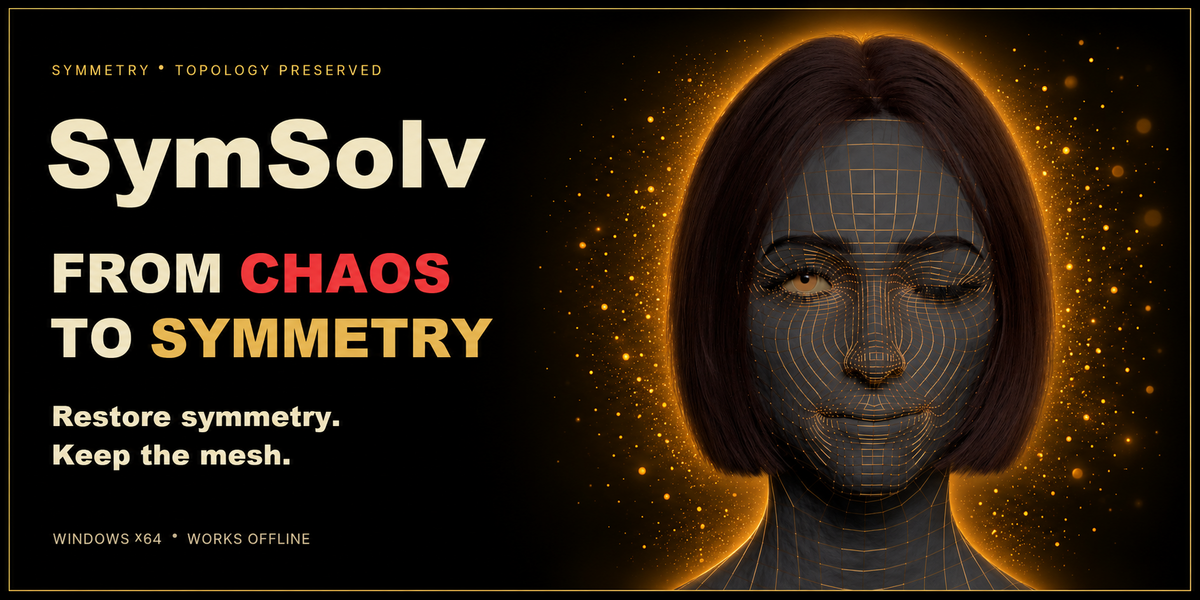
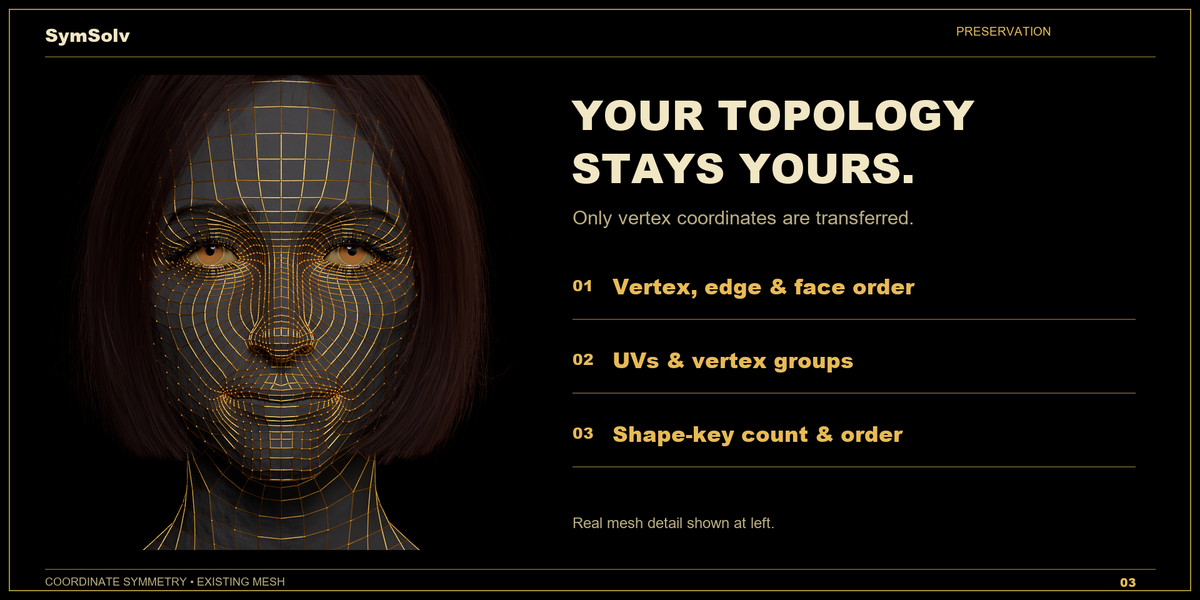
SYMSOLV FOR BLENDER
Installation and first use
Windows x64 · Blender 2.80–5.2 · SymSolv 1.0.0
1. Install both components
- Download SymSolv-Blender-1.0.0-windows-x64.zip from your purchase and extract this outer bundle to a local folder.
- Run SymSolv-Blender-Engine-1.0.0-windows-x64.exe. Read and accept the Engine EULA, then complete the per-user installation under the Windows account that runs Blender.
- Open Blender and go to Edit > Preferences > Add-ons.
- In Blender 2.80–4.1, choose Install. In Blender 4.2 and later, open the Add-ons menu and choose Install from Disk.
- Select SymSolv-Blender-Addon-1.0.0-windows-x64.zip from the extracted bundle. Keep this inner ZIP packed. Do not select the outer customer bundle.
- Enable SymSolv in the Add-ons list.
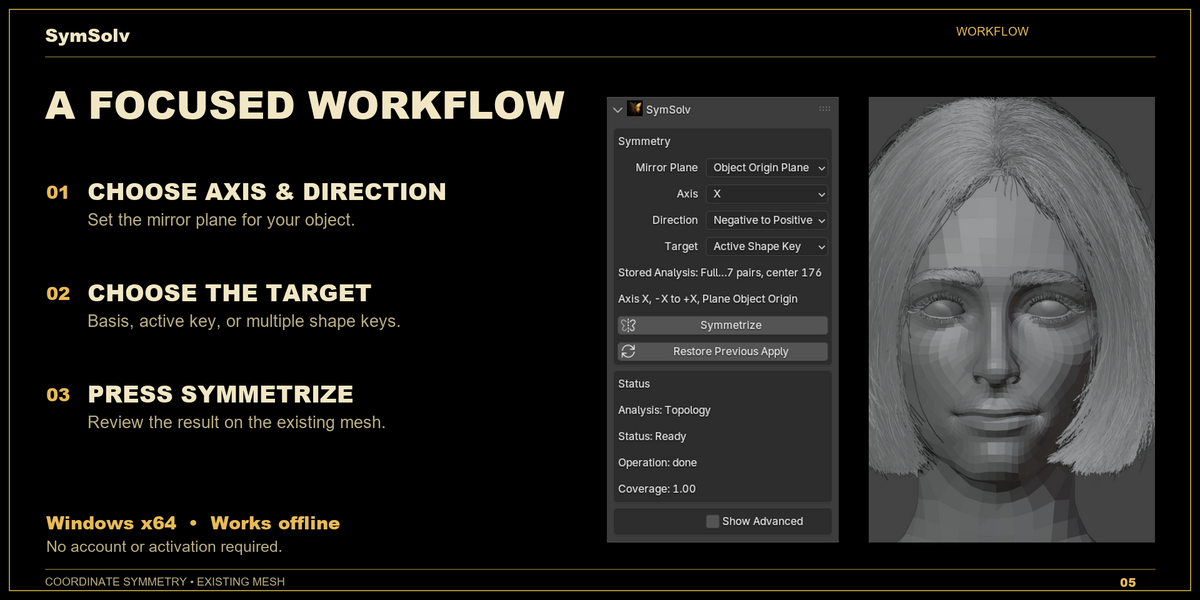
- Select a mesh in the 3D Viewport. Press N to open the sidebar, then open the SymSolv tab.
The Engine installer and Blender add-on ZIP are separate components. Install both from the same bundle; do not mix versions. The bundle includes installation instructions, license texts, notices, privacy/support information, and checksums.
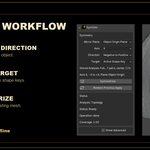
2. Choose the plane and direction
For a first operation, save a copy of your scene and start in Object Mode. Select the mesh you want to repair.
- Object Origin Plane: uses the active object's local origin.
- World Origin Plane: uses the world origin.
- Custom Empty Plane: assign an Empty as the plane reference.
Choose X, Y, or Z. Negative and positive sides refer to this plane and axis, not the current screen view.
- Negative to Positive: copies coordinates from the negative side onto the positive side.
- Positive to Negative: copies coordinates in the opposite direction.
- Average Both Sides: updates both sides into a symmetric result.
For a one-way repair, choose the intact side as the source.
3. Choose the coordinate target
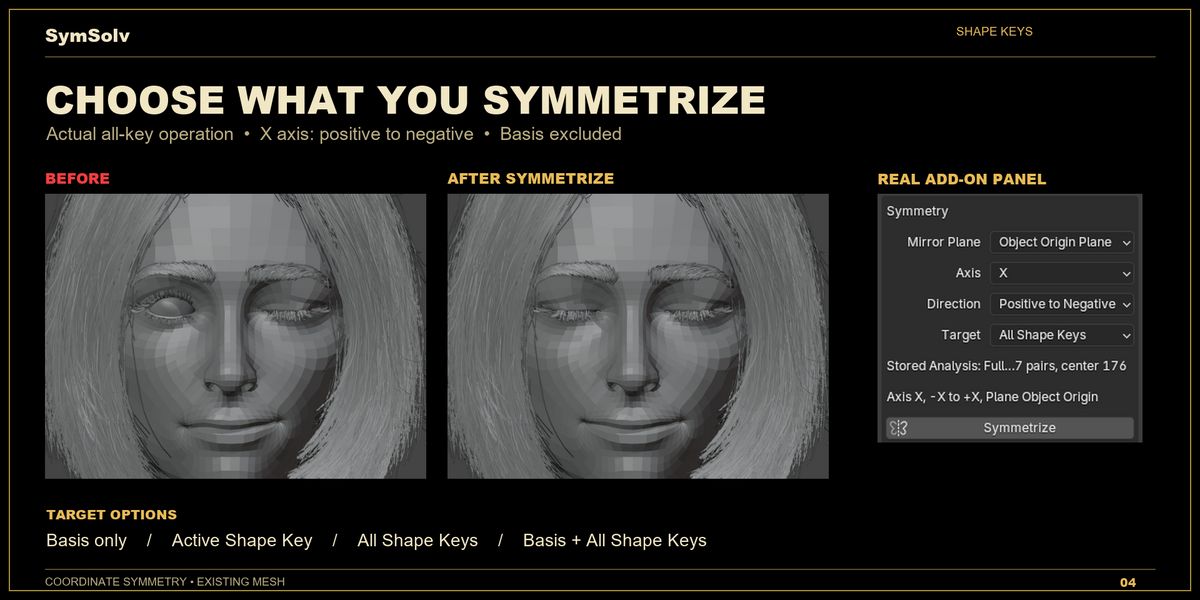
- Basis only: changes base mesh/Basis coordinates.
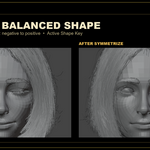
- Active Shape Key: changes the active non-Basis shape key. Select the intended non-Basis key first.
- All Shape Keys: changes all non-Basis keys and leaves Basis unchanged.
- Basis + All Shape Keys: changes Basis and every non-Basis key.
Use Object Mode for shape-key targets. The number and order of shape keys stay unchanged.
4. Symmetrize and review
Click Symmetrize. Correspondence validation is part of the operation; the normal retail workflow does not require a separate Analyze step. Review the result, quality information, and warnings before continuing.
Blender Undo is available. Restore Previous Apply appears when an applicable stored restore snapshot is available. Keep a saved scene copy as well.
Choose the right mode
- Object Mode: whole-mesh operation and all four coordinate targets.
- Edit Mode: select the intended region and use Basis only for scoped coordinate work.
- Sculpt Mode: use Basis only. Under Show Advanced, Sculpt Mask controls determine how the mask affects the operation.
Sculpt Mask offers Off, Protect Masked Targets, Affect Masked Targets Only, and Copy From Masked Source. The last option requires a one-way Direction. Choose the behavior and Threshold deliberately: a mask can protect destinations, select destinations, or choose source vertices. Follow panel warnings if a combination is unavailable.
Manual guidance when needed
In Edit Mode, open Show Advanced > Manual Guidance. These controls supply evidence; they do not replace topology validation.
- Center Guide: select the vertices, edges, or faces that represent the intended center evidence, then click Set Manual Center Guide.
- Anchor pair: in vertex selection mode, select exactly two corresponding vertices on opposite sides, then click Set Selected Anchor.
Stored guide and anchor counts appear in the panel. Use the adjacent clear controls to remove incorrect guidance. Return to Object Mode for a whole-mesh repair, confirm the plane, Direction, and Target, then run Symmetrize again. Staying in Edit Mode keeps the operation scoped to the current selection.
If the operation is blocked
Read the reported reason. Check the plane, axis, source side, selected region, and target first. SymSolv expects topology-compatible, predominantly quad meshes. It cannot reconstruct missing or independently rewired topology, and triangle-dominant meshes are outside this release's advertised automatic workflow. Unproven correspondences are not guessed.
Installation problems and support
If the Engine cannot be found, reinstall the Engine from the same bundle under the Windows account that runs Blender. If integrity checks fail, reinstall the complete official bundle instead of mixing files from different versions.
Use the Superhive Creator Inbox for product and purchase help, or email [email protected] for technical support. Include your order ID, SymSolv version, Blender version, Windows version, reproduction steps, and exact error message. Do not send payment-card data, credentials, or production assets with an initial request.
Additional reference: SymSolv documentation. Installation and first-use instructions are provided above so this external link is supplementary.
Have questions about this product?
Login to message
| Published | 26 minutes ago |
| Blender Version | 2.8 - 5.2 |
| Extension Type | N/A |
| License | GPL |
Discover more products like this
mesh symmetry symmetry symmetry restoration shape keys #Character Modeling modeling topology preservation vertex order uv-preservation