 Captain Pixel

SYMSOLV FOR BLENDER
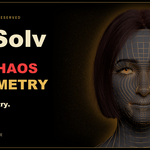
Restore symmetry. Keep the mesh.
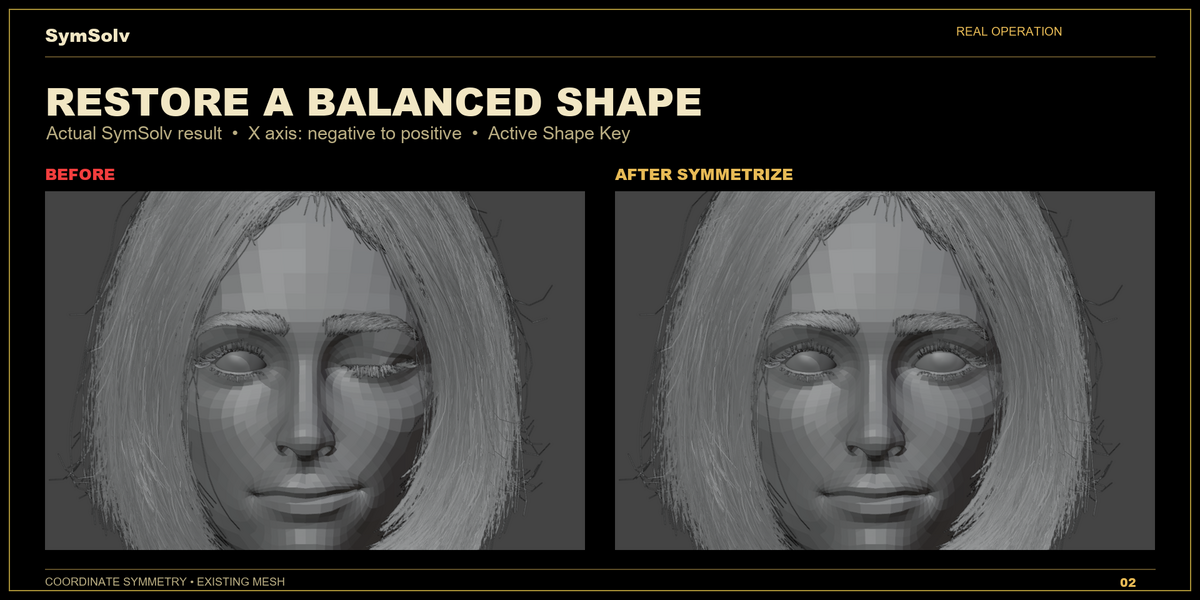
Repair coordinate asymmetry on the mesh you already have. Preserve the structure that your UVs, weights, shape keys, and production pipeline depend on.
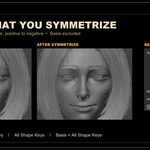
A character was edited on one side. A sculpt drifted away from symmetry. A finished asset needs to match again, but rebuilding its geometry would disrupt the work already invested in it.
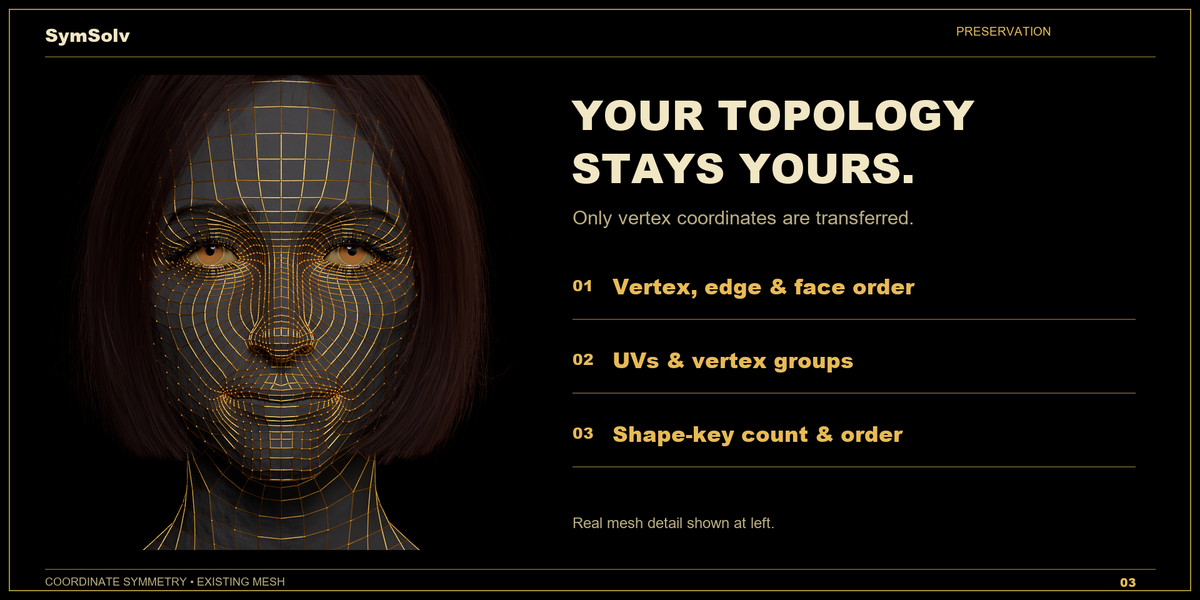
SymSolv finds validated vertex correspondences and transfers coordinates between existing indices. It does not generate mirrored geometry or replace your mesh. A native SymSolv Engine performs topology analysis while Blender keeps the original mesh structure.
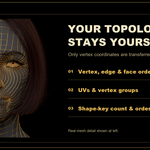
Keep your indices
Vertices, edges, faces, and loops retain their order. Only the chosen coordinate targets change.
Preserve UVs and weights
UV data, material assignments, and vertex-group data stay attached to the existing mesh.
Keep the shape-key stack
Choose which coordinates to update without adding, removing, or reordering shape keys.
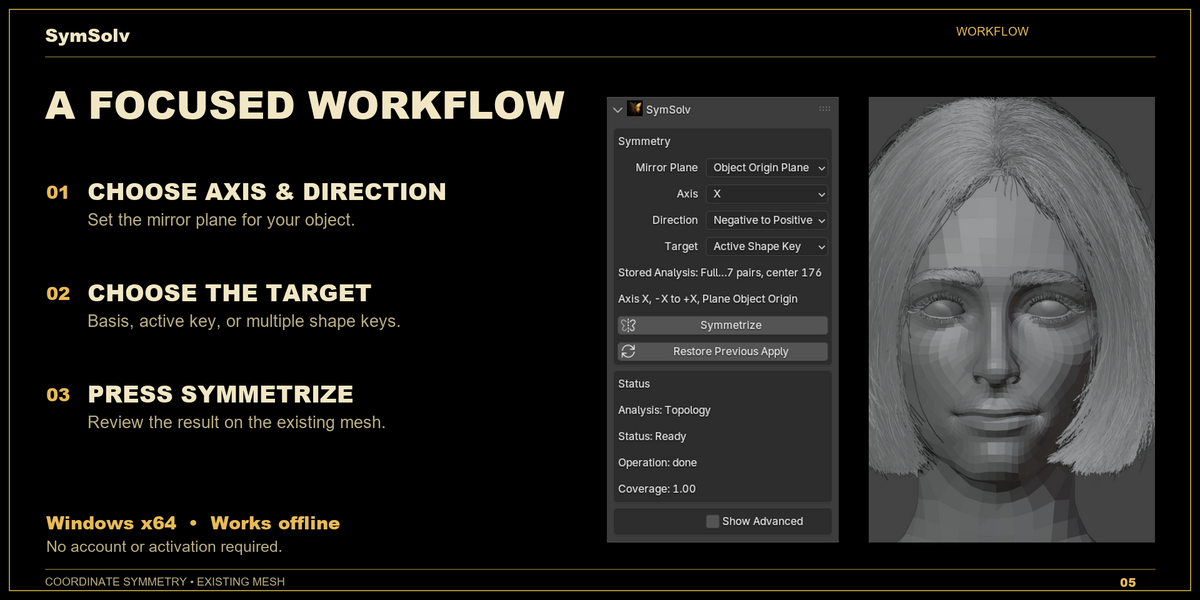
Three steps to a checked result
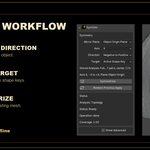
- Select your mesh. Start in Object Mode. Press N in the 3D Viewport and open the SymSolv tab.
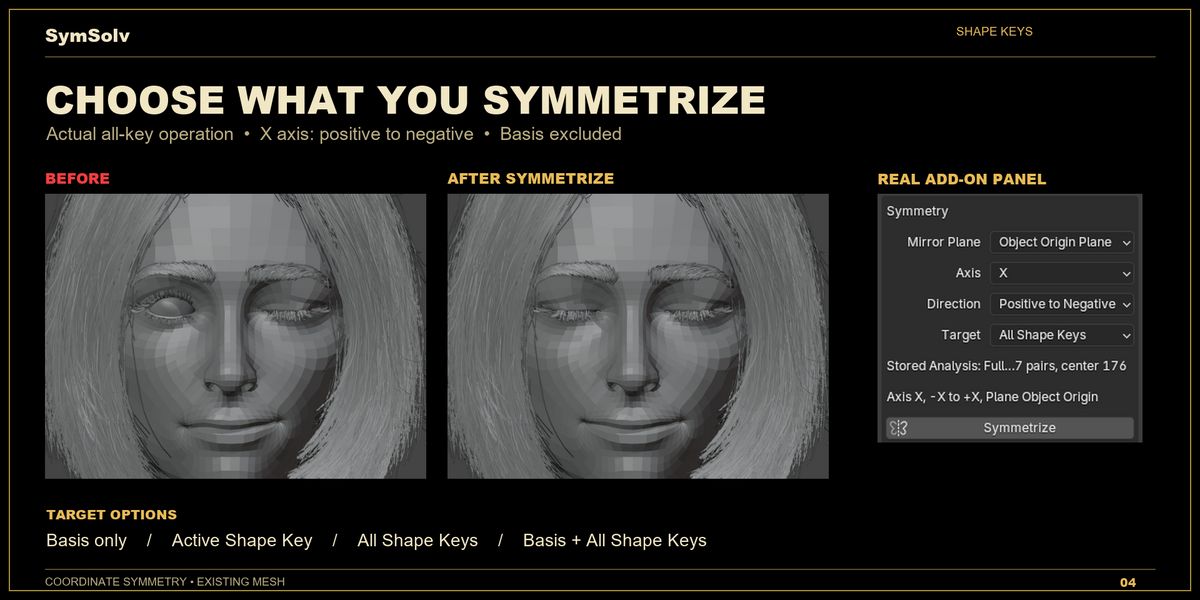
- Choose the operation. Set Mirror Plane, axis, Direction, and Target.
- Click Symmetrize. Correspondence validation is part of the operation. Review the mesh, quality information, and any warnings.
Control what changes
Plane and axis: choose Object Origin Plane, World Origin Plane, or Custom Empty Plane. For a custom plane, assign an Empty as the reference. Choose X, Y, or Z.
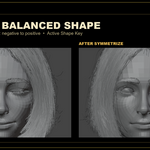
Direction: Negative to Positive copies the negative side to the positive side; Positive to Negative does the reverse. Average Both Sides changes both sides. Side names refer to the chosen plane and axis, not the screen view.
Scope: Object Mode operates on the whole mesh. In Edit Mode, select the intended region for scoped work. Sculpt mask controls support more specific workflows. Follow the panel's mode and target warnings.
Manual guidance: advanced controls offer a Center Guide and a manual anchor pair when automatic correspondence needs help. Topology-compatible detached components can be handled when the solver can prove their correspondence.
- Basis only: updates base mesh/Basis coordinates.
- Active Shape Key: updates the active non-Basis key; select that key first.
- All Shape Keys: updates all non-Basis keys, leaving Basis unchanged.
- Basis + All Shape Keys: updates Basis and every non-Basis key.
Blender Undo is available. Restore Previous Apply appears when an applicable stored restore snapshot is available. Keep a saved copy of important scenes and inspect the result before continuing.
Compatible topology matters
SymSolv is best suited to predominantly quad meshes whose two sides remain topology-compatible and differ mainly in coordinates. It cannot reconstruct independently added, deleted, or rewired topology. Triangle-dominant meshes are outside this release's advertised automatic workflow. Unproven correspondences are not guessed; blocked operations report the limitation.
Install both components
Requirements: Windows x64 and Blender 2.80–5.2. This is SymSolv for Blender 1.0.0; other hosts and operating systems are not included.
- Download SymSolv-Blender-1.0.0-windows-x64.zip from your purchase. Extract this outer bundle to a local folder.
- Run SymSolv-Blender-Engine-1.0.0-windows-x64.exe. Read and accept the Engine EULA, then complete the per-user installation.
- In Blender, open Edit > Preferences > Add-ons. In Blender 2.80–4.1, choose Install. In Blender 4.2 and later, open the Add-ons menu and choose Install from Disk.
- Select the inner SymSolv-Blender-Addon-1.0.0-windows-x64.zip. Keep this inner ZIP packed; do not select the outer bundle.
- Enable SymSolv in the Add-ons list. Select a mesh, open N > SymSolv, then follow the three steps above.
The bundle also includes installation instructions, license texts, component notices, privacy/support information, and SHA-256 checksums. Install both components from the same bundle. The Blender add-on ZIP itself does not contain the native executable.
If the Engine cannot be found, reinstall it under the Windows account that runs Blender. If integrity checks fail, reinstall the complete official bundle instead of mixing versions.
Local processing. Clear support.
SymSolv processes meshes on your computer and works offline. The Python add-on is GPL-licensed, with Python source included. The separate proprietary Engine is governed by the supplied Engine EULA. Purchased variant limits apply.
For product and purchase help, use the Superhive Creator Inbox. Technical support is also available at [email protected]. Include your order ID, SymSolv version, Blender version, Windows version, reproduction steps, and exact error message.
For additional reference, visit the SymSolv documentation. Installation and first-use instructions are included above so you can get started directly from this page.