Synctools Pro For Unity And Blender -- Bidirectional Asset Transfer
 blenderVfxMaster
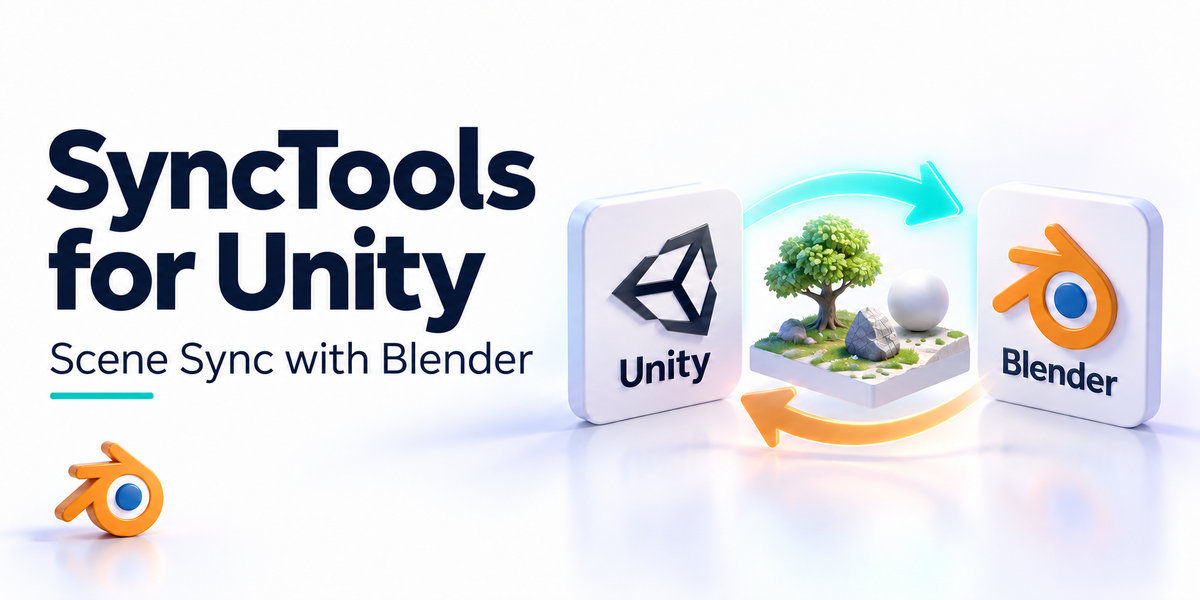



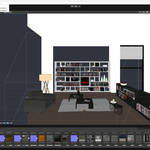
SyncTools Pro Installation & Usage Guide
📦 Installation
Unity Setup
Step 1: Install the FBX Exporter Package
Open the Unity Editor
Go to Window > Package Manager
Click the + button (top-left) and choose Add package from git URL
-
Enter:
com.unity.formats.fbxOr search FBX Exporter in Unity Registry and install it
Wait for the installation to complete
Step 2: Install the SyncTools Plugin
Copy the
SyncToolsfolder into your Unity project’sAssetsdirectoryUnity will compile automatically. Once finished, you’ll see the SyncTools menu in the top menu bar
Step 3: Configure Settings
Open SyncTools > Settings
-
Set Cache Path
Default:
Documents/cache⚠️ Important: Must match the cache path used in Blender/Maya
-
Set Import Folder
Default:
Assets/SyncToolsCache/IncomingMust start with
Assets/
🚀 Quick Start
Copy from Unity to Blender/Maya
-
Select objects
In Unity, select the GameObjects you want to export in the Hierarchy
-
Copy (Export Selected)
Menu: SyncTools > Copy (Export Selected)
Shortcut:
Ctrl+Shift+C(Windows) orCmd+Shift+C(Mac)
-
Done
The exported data is saved to the cache directory
You can now paste/import on the Blender/Maya side
Paste from Blender/Maya into Unity
-
Make sure the cache path matches
Confirm Unity’s Cache Path is the same as Blender/Maya’s
-
Paste (Import Latest)
Menu: SyncTools > Paste (Import Latest)
Shortcut:
Ctrl+Shift+V(Windows) orCmd+Shift+V(Mac)
-
Done
The latest cached content is imported and instantiated in the scene
Object names and hierarchy are automatically restored
⚙️ Settings Reference
Cache Path
Purpose: Stores cache files used for copy/paste exchange
Default:
Documents/cacheRequirement: Must be the same path used in Blender/Maya
Import Folder
Purpose: Where imported assets are placed inside the Unity project
Default:
Assets/SyncToolsCache/IncomingRequirement: Must start with
Assets/
Delete Cache Files After Import
Purpose: Automatically cleans up cache files after a successful paste
Default: Enabled
Recommendation: Keep enabled to prevent the cache folder from growing
Set Imported Camera Near Clip
Purpose: Automatically sets the near clipping plane for imported cameras
Default: Enabled, value
1.0Use case: Helps avoid rendering issues caused by overly small near clip values in Unity
⌨️ Shortcuts
| Action | Windows | Mac |
|---|---|---|
| Copy | Ctrl+Shift+C |
Cmd+Shift+C |
| Paste | Ctrl+Shift+V |
Cmd+Shift+V |
Customize shortcuts: Unity menu Edit > Shortcuts
📋 Workflow Examples
Scenario 1: Unity → Blender
1. Unity: Select objects → Copy (Ctrl+Shift+C)
2. Blender: Open target scene → Paste operation
3. Done: Objects are imported into Blender
Scenario 2: Maya → Unity
1. Maya: Select objects → Copy operation
2. Unity: Open target scene → Paste (Ctrl+Shift+V)
3. Done: Objects are imported into the Unity scene
Scenario 3: Iteration Loop
1. Unity → Blender (edit materials)
2. Blender → Unity (preview results)
3. Unity → Blender (continue tweaking)
... repeat as needed
⚠️ Troubleshooting
Issue 1: Copy fails and says FBX Exporter is missing
Solution:
Verify the FBX Exporter package is installed
In Package Manager, search and install
com.unity.formats.fbx
Issue 2: Paste fails and cannot find cache files
Solution:
Confirm the Cache Path matches Blender/Maya
Make sure you performed a copy/export on Blender/Maya first
Check that
export_*.fbxfiles exist in the cache folder
Issue 3: Imported object names are incorrect
Solution:
Confirm
hierarchy.txtexists in the cache directoryCheck whether the file is locked by another process or corrupted
Issue 4: Materials are missing after import
Solution:
Check material/texture paths inside the file
Ensure texture files are in the expected directory
Inspect the FBX import Materials settings in Unity Inspector
📌 Important Notes
✅ Cache path must match across Unity, Blender, and Maya
✅ FBX Exporter is required on the Unity side
✅ Naming rules: avoid special characters (e.g.,
@#%)✅ Version matching: use the same SyncTools version on all platforms
✅ Undo supported: all operations support Unity Undo (
Ctrl+Z)
🔄 Version Compatibility
Unity Support
✅ Official: 2021.3 LTS / 2022.3 LTS / 2023.x
⚠️ Experimental: 2020.3 LTS
FBX Exporter
Minimum: 7.1.0
Recommended: Latest stable
📞 Getting Help
If you run into issues:
Check Unity’s Console for error messages
Confirm plugin versions match across all apps
Verify your cache path settings are correct
SyncTools Pro — making cross-software collaboration easier! 🎨🚀
-
$12
1 seat. For individual creators or small commercial projects.
-
$18
Up to 3 seats / single studio team. Use across all internal projects within one company.
-
$72
15+ seats / company-wide / unlimited internal use across subsidiaries.
Have questions about this product?
Login to message
| Published | 8 months ago |
| Blender Version | 3.6 - 5.2 |
| Extension Type | N/A |
| License |
Discover more products like this
Maya integration Workflow Scene Management unity integration scene-sync FBX Export productivity multi-software Asset Transfer Copy-Paste FBX Import animation pipeline