Tab Sorter – Organize N-Panel Sidebar Tabs
 Lilia Ellis
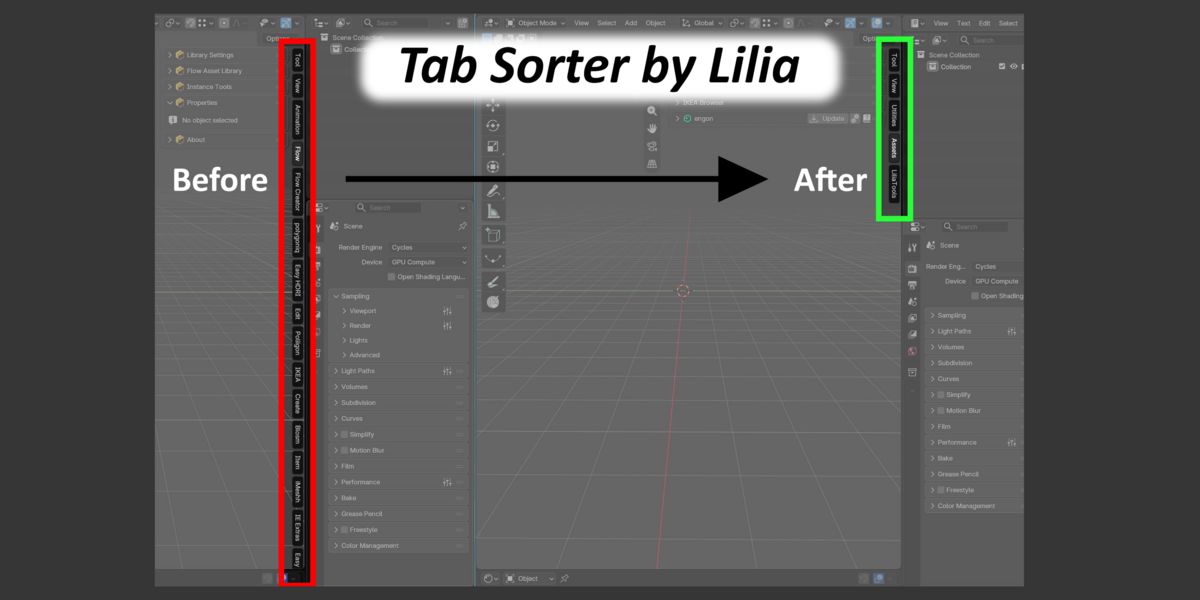
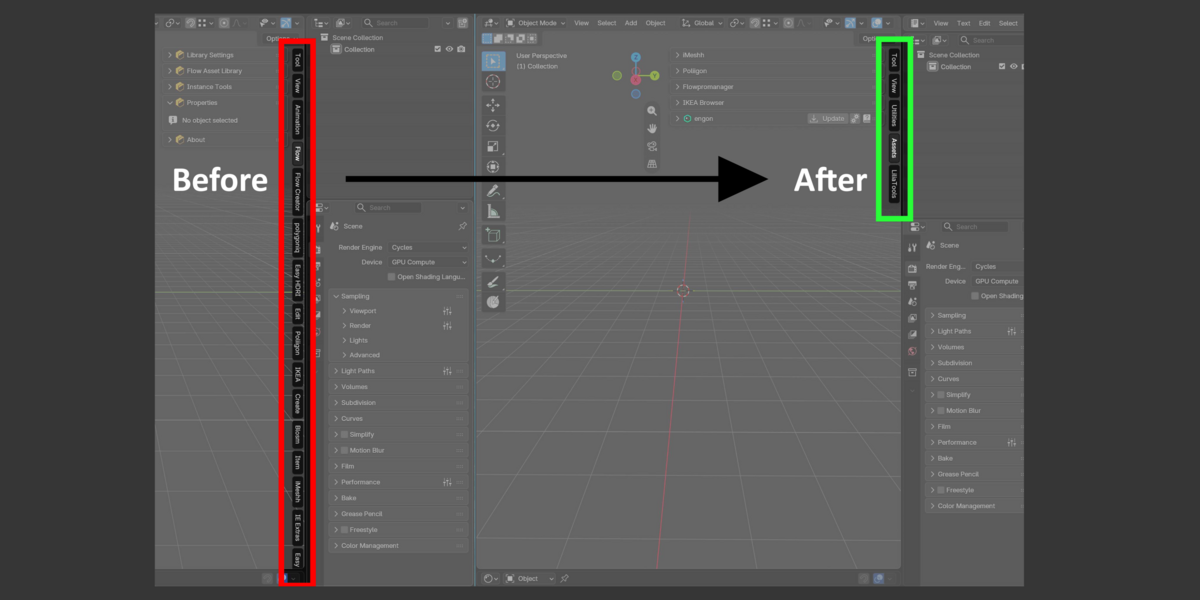
Getting started
- Install the zip: Edit > Preferences > Get Extensions, open the drop-down menu in the top right, choose Install from Disk.
- In the 3D Viewport press N to open the sidebar and click the LiliaTools tab.
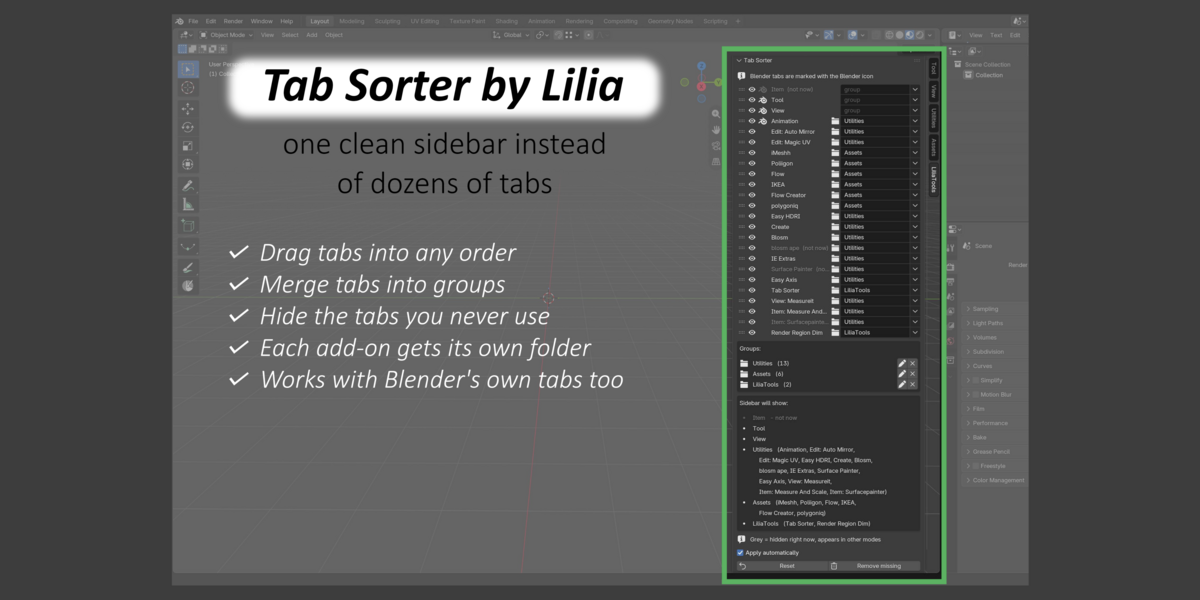
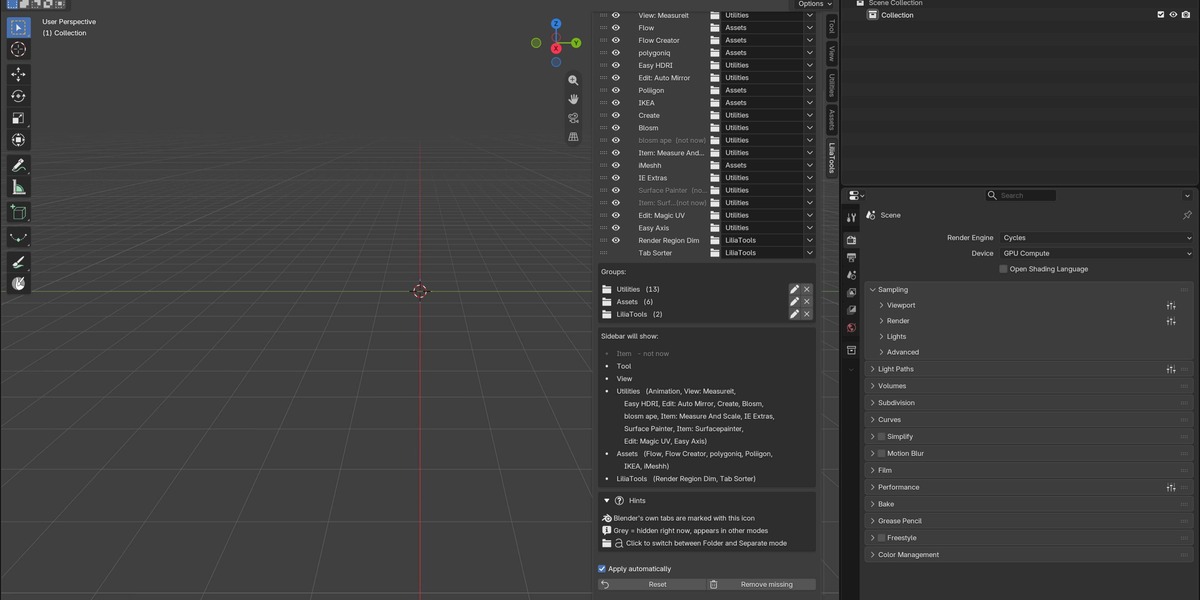
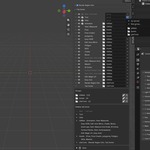
- Open the Tab Sorter panel. Every sidebar tab is listed there.
The tab list
Each row is one sidebar tab. From left to right:
- Grip (::::): press and hold, move up or down, release to drop. Esc or right-click cancels.
- Eye: hide or show the tab. The Tab Sorter row itself cannot be hidden, so you can always get back.
- Name: Blender's own tabs are marked with the Blender icon. Grey names are tabs that are empty right now and appear only in some modes (for example Edit Mode). "(not loaded)" means the add-on is disabled.
- Folder / "a" icon (only for tabs in a group): click to switch the mode. Folder mode: an add-on with several panels gets one folder named after it. Separate mode: each panel stays on its own, with the add-on name in its title.
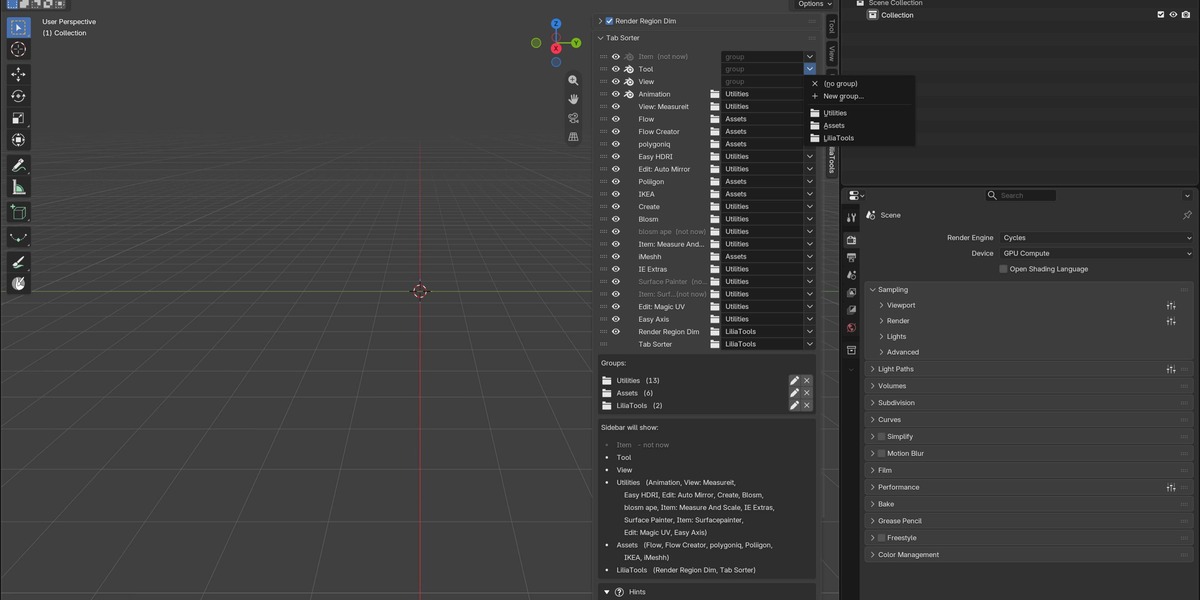
- Group field and arrow: type a group name, or pick one from the menu. Tabs with the same group name are merged into one tab. "(no group)" makes it a separate tab again, "New group..." creates a group.
Some add-ons share a tab name with other add-ons or with Blender (for example "Edit" or "View"). Tab Sorter shows them as separate rows, like "Edit: Magic UV", so you can move each one on its own.
Groups
The Groups box lists all your groups with the number of tabs in each. Use the pencil to rename a group (all its tabs follow) or the cross to delete it (its tabs become separate tabs again).
Preview
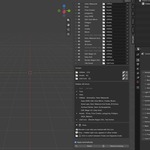
Sidebar will show lists the tabs exactly as they will appear in the sidebar, in order, with the members of each group.
Buttons
- Apply automatically: on by default, every change is applied at once. Turn it off to make several changes and press Apply order when ready.
- Reset: removes all groups and hidden flags and puts every tab back where it was.
- Remove missing: removes rows of add-ons that are no longer installed.
Preferences
In Edit > Preferences > Add-ons > Tab Sorter you can choose the Sidebar tab where the Tab Sorter panel lives (LiliaTools by default). The full tab list is available there too.
Updating
Install the new zip over the old version. Do not uninstall first: uninstalling removes your tab order and groups.
Good to know
- The Item tab always stays first: its Transform panel is built into Blender and cannot be moved.
- The order of panels inside a tab is changed with Blender's own grip (::::) in each panel header. Blender remembers it per file.
- An add-on gets a folder only if it shows two or more panels at the moment. A single panel is not put into a folder.
- Use one sidebar tab manager at a time. Running two of them together may cause conflicts.
- Disabling Tab Sorter restores all tabs to their original places.
 Included
Includes 12 months of
- Support from Lilia Ellis
- Product updates
Extend this product’s Support Period +12 months: 50% of product price
Have questions before purchasing?
Login to message
| Blender Extension Compatible | Yes |
| Published | 38 minutes ago |
| Blender Version | 4.2 - 5.3 |
| Extension Type | Add-on |
| License | GPL |
Discover more products like this
Declutter organizer Workflow ui tabs Addon Management Tab Manager Sidebar productivity interface n-panel